# SeoTools for Excel — full documentation
> Excel plugin for working with online marketing. Create SEO reports and dashboards. More than 100 functions for growth hacking your company to the top.
Generated from 293 published pages on 2026-09-12. Canonical home: https://seotoolsforexcel.com/
Every section below begins with a level-1 heading and the canonical URL of the
page it came from. Image paths are relative to https://seotoolsforexcel.com.
---
# Failed to register. Proxy Authentication Required / Protocol Violation
URL: https://seotoolsforexcel.com/407-proxy-authentication-required/
Type: page
Published: 2019-05-18
Updated: 2019-05-18
Summary: Follow these instructions to solve the issue and get to work with Seotools for Excel.
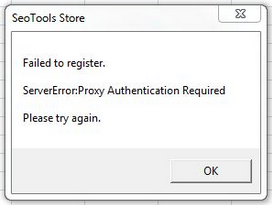
### Register with a Proxy
1. On the registration area, click on Proxy Settings
2. Enter the server address and login credentials to a proxy of your choice. 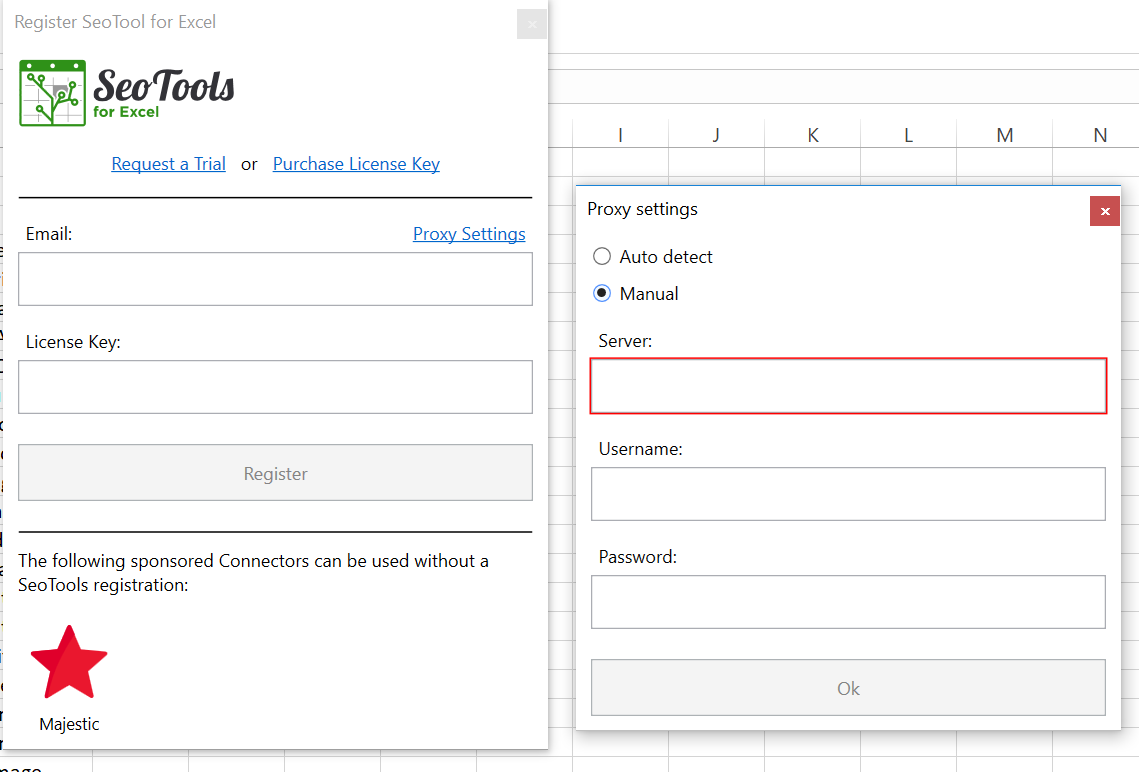
3. Register your SeoTools license.
---
# Access Abstract in Excel
URL: https://seotoolsforexcel.com/abstract/
Type: page
Published: 2023-06-28
Updated: 2023-06-28
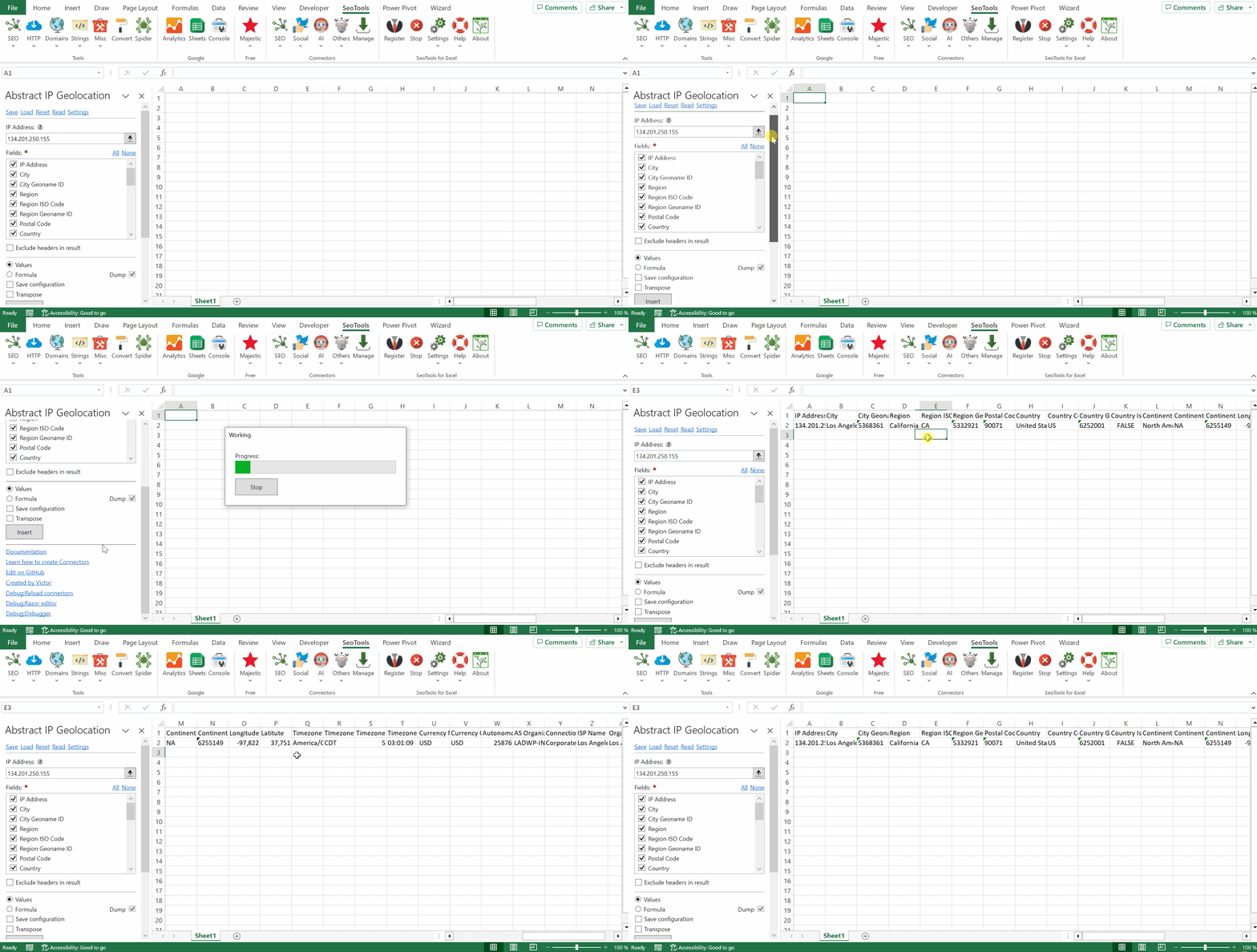
Summary: Lookup and analyze a list of ip addresses inside Excel as a formula.
___
## Fields
- IP Address
- City
- City Geoname Id
- Region
- Region ISO Code
- Region Geoname Id
- Postal Code
- Country
- Country Code
- Country is EU
- Continent
- Continent Code
- Continent Geoname Id
- Longitude
- Latitude
- Timezone Name
- Timezone Abbreviation
- Timezone GMT Offset
- Timezone Current time
- Currency Name
- Currency Code
- Autonomous System number
- AS Organization name
- Connection type
- ISP Name
- VPN
___
## Access
## Add from Manager
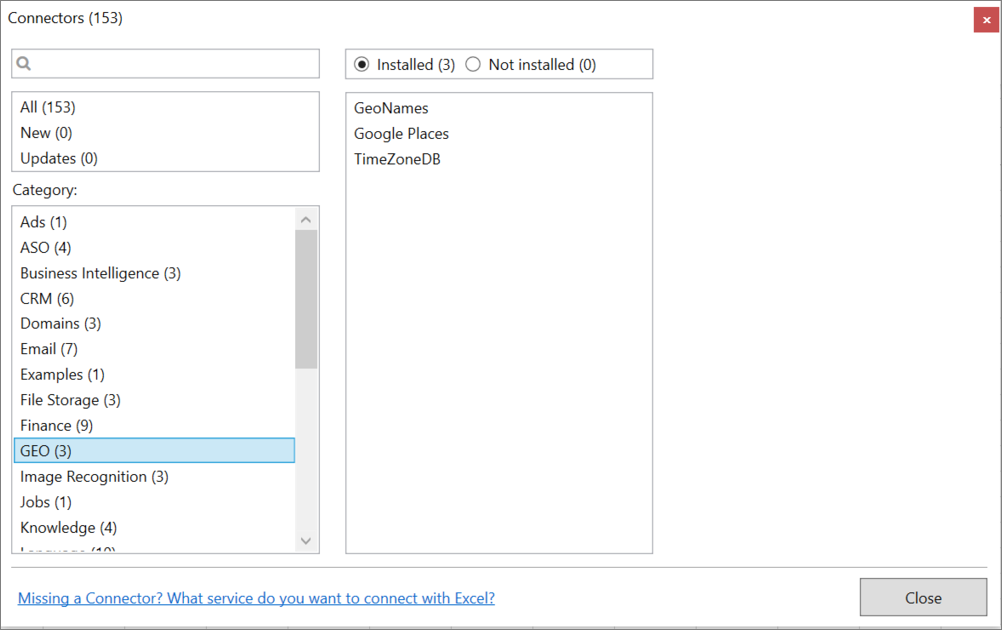
The Abstract Connector is available in the **[Connectors Manager](/manage-connectors/)** in the top ribbon:

Head over to the **Geography Category** and install Abstract:
## Get Access key
To use the Connector you need an account and [valid key](https://www.abstractapi.com/api-glossary/api-key). Paste the access key to the Settings menu in the Abstract Connector.
___
## Contribute
This connector suite is open-sourced on [GitHub](https://github.com/nielsbosma/SeoTools-for-Excel-Connectors/blob/master/Abstract.xml).
___
## See
#### Official Documentation
* [Abstract API](https://www.abstractapi.com/api-glossary/api-documentation)
#### Related Functions
* [Ipstack](/ipstack/)
#### Resources
* [Manager](/manage-connectors/)
---
# Access AccuAPI in Excel
URL: https://seotoolsforexcel.com/accuapi/
Type: page
Published: 2017-03-21
Updated: 2019-05-19
Summary: SeoTools for Excel AccuAPI is the ultimate tool for any serious SEO specialist looking to monitor keywords in the Google SERP within Excel.
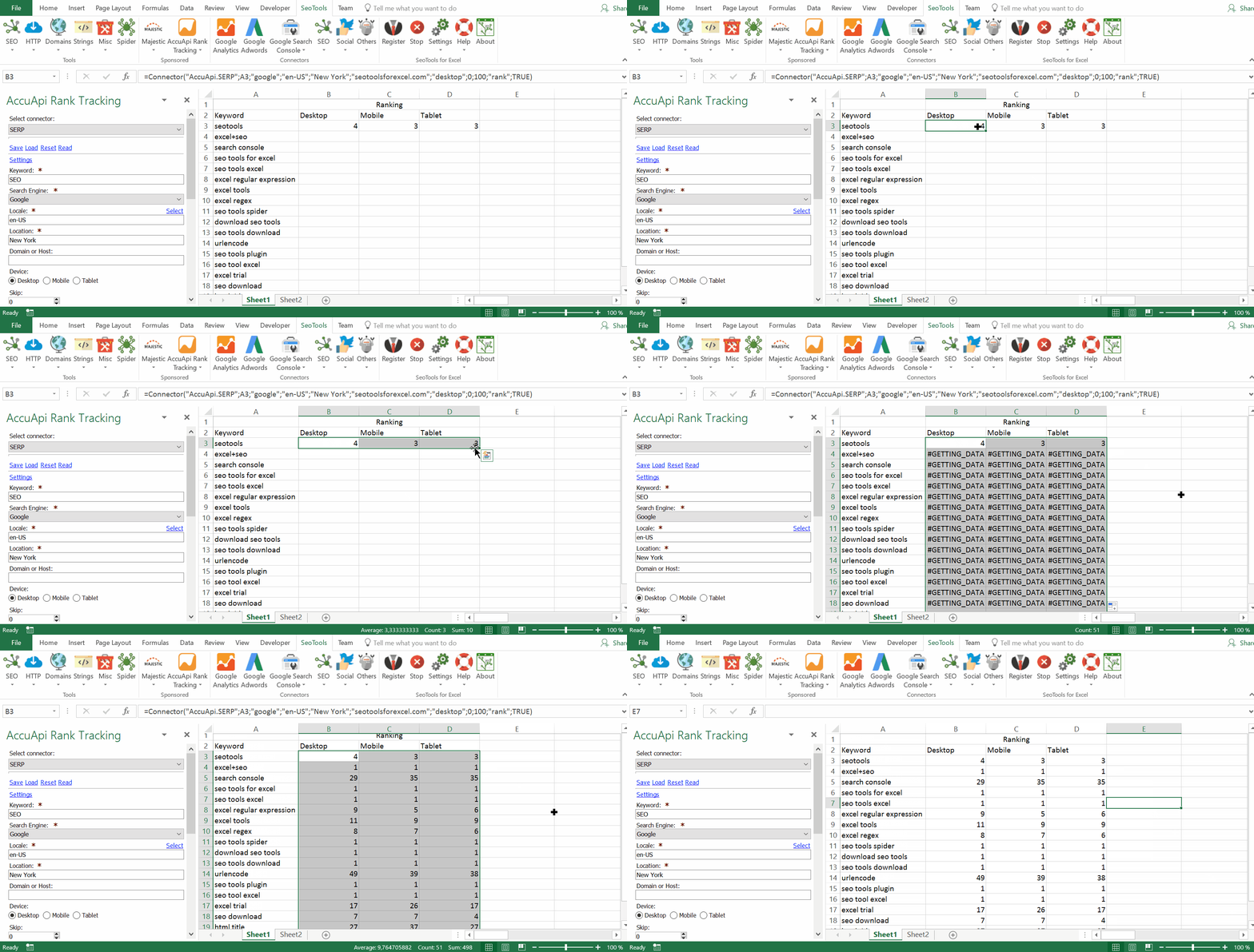
*AccuAPI*, created by *AccuRanker*, is the ultimate tool for any serious SEO specialist looking to monitor keywords in the Google SERP.
## SERP
Extract the current search results from Google with a wide variety of options to make sure you identify the strengths and weaknesses of your brand and its competitors.
* **Locale/Language** - Specify in what language and from which location you want the search to be simulated in. Use the selection box with searchable locales like this: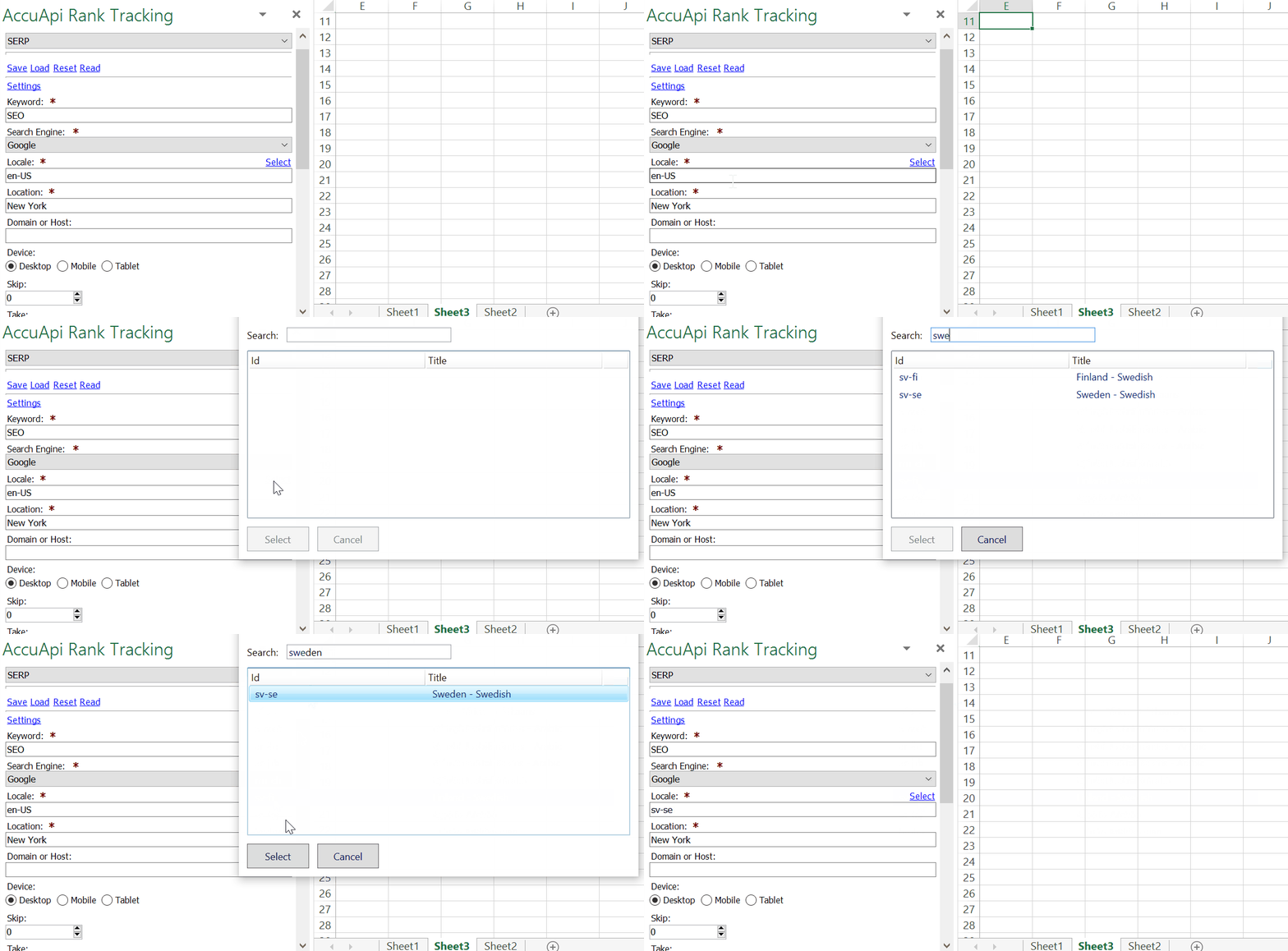
* **Device** - Chose how you want the search to be simulated. As you can see in the top gif animation, the positions can differ quite a lot.
* **Domain/Host** - Use this input to collect the rank for a particular domain when a search is simulated with a keyword of your choice. This becomes a very powerful tool when combined with formulas to evaluate how your domain is holding up against competitors and their products or services.
## Ads
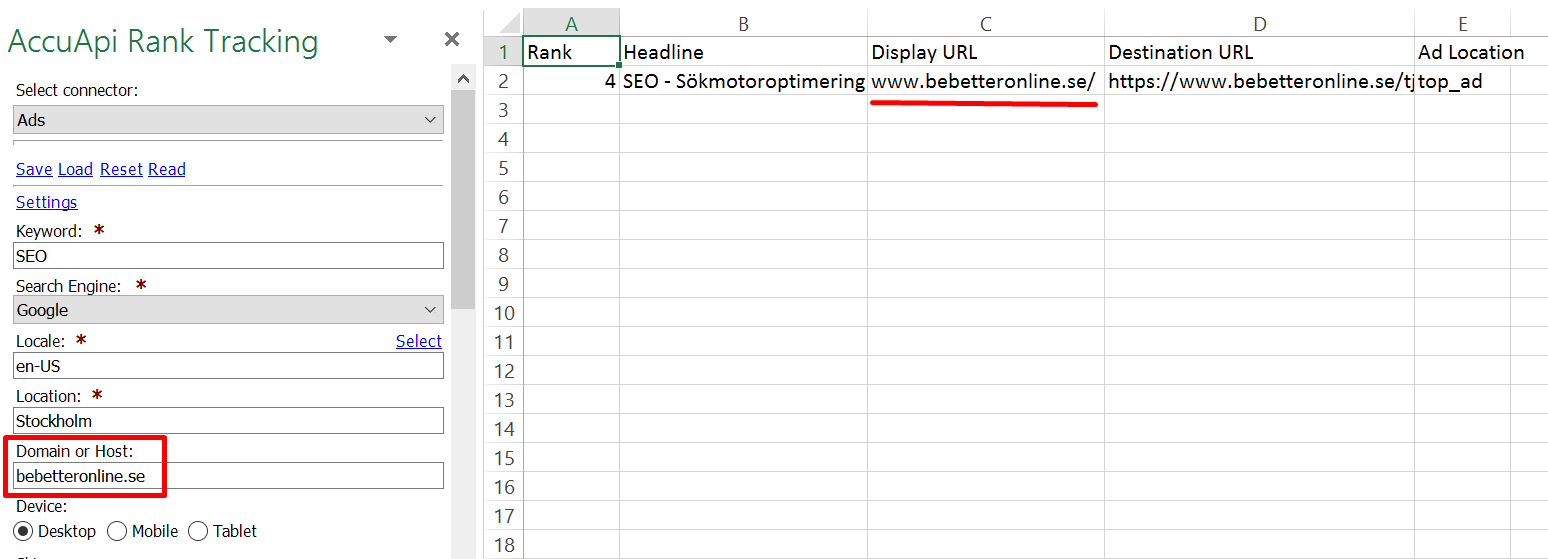
Keep track of the paid search results. Collect all ads based on a search query or determine the position of ads from a specific domain:
## Need Credits?
In order to use this Connector you need to create an AccuAPI account.
Register for free to get 1000 credits
## See
### Related
* [AccuRanker](/accuranker/)
---
# Access Ahrefs in Excel
URL: https://seotoolsforexcel.com/ahrefs/
Type: page
Published: 2015-03-29
Updated: 2021-07-12
Summary: Using your Ahrefs account, import backlinks, url metrics, ahrefs/domain ranks and more integrated into Excel.
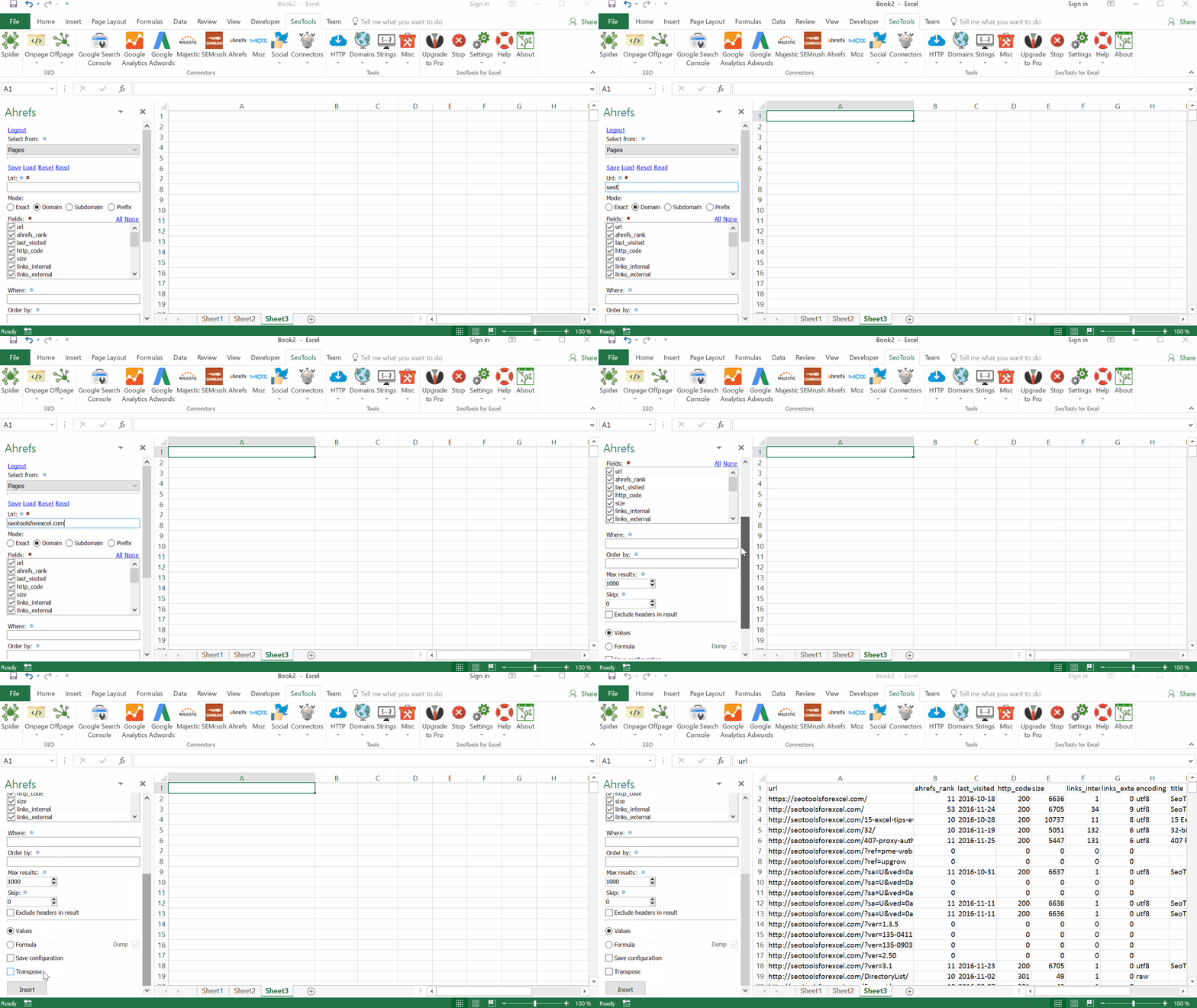
___
## Key Metrics
- **Ahrefs Rank** - Quickly retrieve the Ahrefs rank for a set of urls. This is a quick way to assess the quality of a set of urls.
- **Domain Rating**
- **Metrics** - Contains metrics about the target, such as total number of backlinks, referring pages, etc.
- **Traffic Positions** - Contains the estimation of number of keywords, traffic and cost of the target URL.
## Backlinks
- **Backlinks** - Contains the backlinks and details of the referring pages, such as anchor and page title.
- **New & Lost** - Contains the new or lost backlinks and details of the referring pages.
- **New & Lost Counters** - Contains new and lost backlink totals.
- **One per Domain** - Contains the backlinks and details of the referring pages, such as anchor and page title. Includes only one backlink with the highest Rank per referring domain
** Broken backlinks** - Contains the broken backlinks and details of the referring pages, such as anchor and page title.
## Pages
- **Broken Links** - Contains the broken links and details of the referring pages, such as anchor and page title.
- **Pages Crawled** - Contains the crawled pages. The result is similar to the crawled pages report found in the raw data export in Site Explorer.
## Anchors
- **Anchors** - Given an url, retrieve anchor texts and backlink counts.
- **Anchors Ref Domains** - Contains connection between anchors and domains.
- **Linked Anchors** - Contains the anchor text and the number of outgoing links that have it.
## Domains
- **Overview** - Contains general metrics for ref domains"
- **Linked Domains** - Contains the external domains that the target has links to.
- **Linked Domains by Type** - Contains the external domains that the target has links to.
- **Linked Domains by Type Sums** - Aggregated statistics of each Type.
- **Ref Domains** - Contains the referring domains that contain backlinks to the target.
- **Ref Domains Extended** - Contains the referring domains that contain backlinks to the target with additional fields and filters.
- **Ref Domains by TLD Type** - Top-level domain name and counts for which TLD statistics are provided.
- **Ref Domains New & Lost** - Contains the new or lost referring domains and their details.
- **Ref Domains New & Lost Counters** - Contains new and lost domains totals.
___
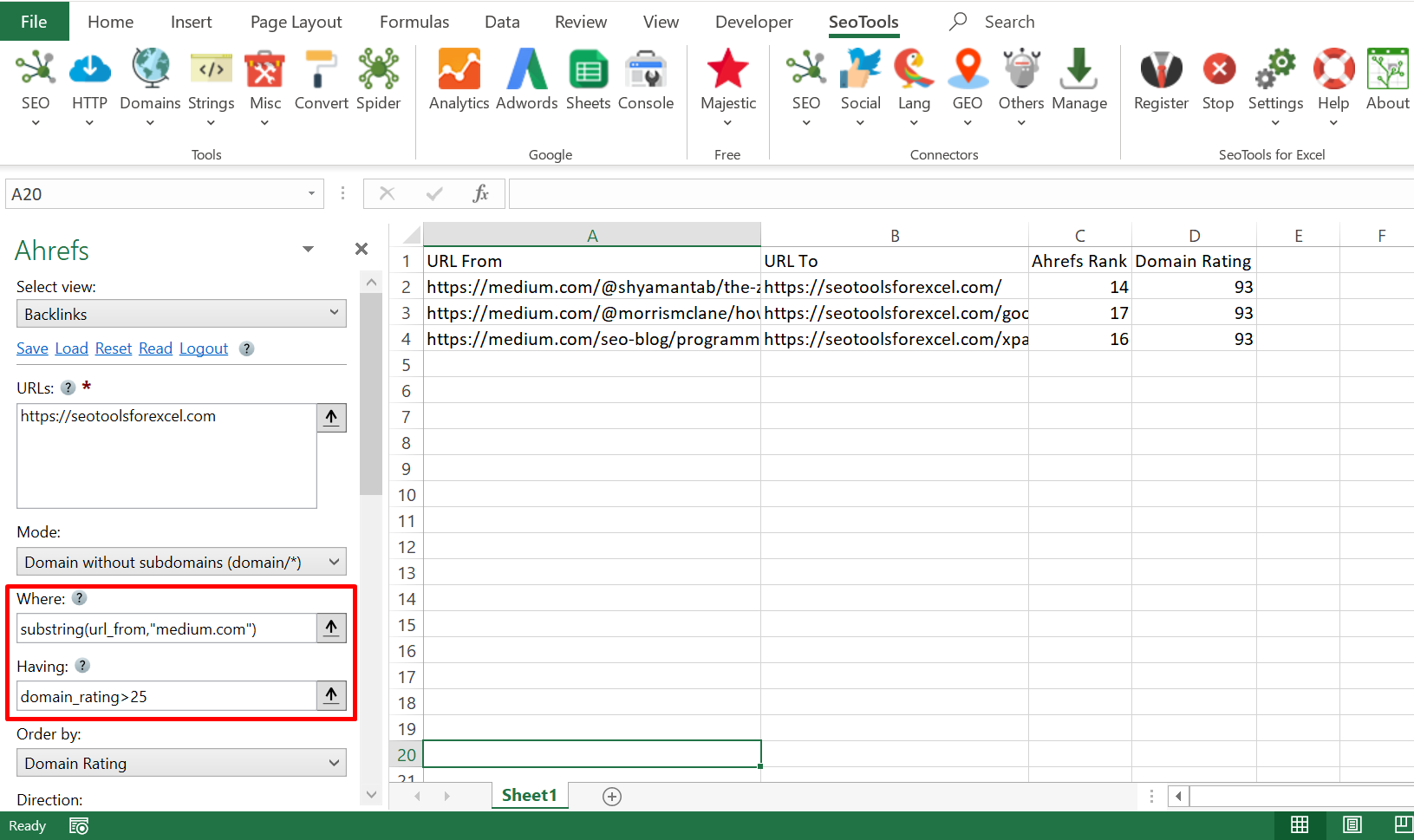
## Where|Havng
*Anchors*, *Backlinks* and *Pages* allows for specifying a filter for what records to retreive.
**Example (Where)**: Only include backlinks that have ahrefs_ranks higher than 10:
ahrefs_rank>10
**Example (Having)**: Include all backlinks except those that contains the string "seotools":
!substring(url_from,"seotools")
The Where and Having conditions can be combined. See the [complete guide](https://ahrefs.com/api/documentation).
___
## Contribute
This connector suite is open-sourced on [GitHub](https://github.com/nielsbosma/SeoTools-for-Excel-Connectors/blob/master/Ahrefs.xml).
___
## See
#### Official Documentation
* [Ahrefs API](https://ahrefs.com/api)
---
# Access Alpha Vantage in Excel
URL: https://seotoolsforexcel.com/alpha-vantage/
Type: page
Published: 2018-04-24
Updated: 2019-05-19
Summary: SeoTools for Excel offers a user-friendly and effective method to analyze stock time-series, symbols, functions and more in Excel.
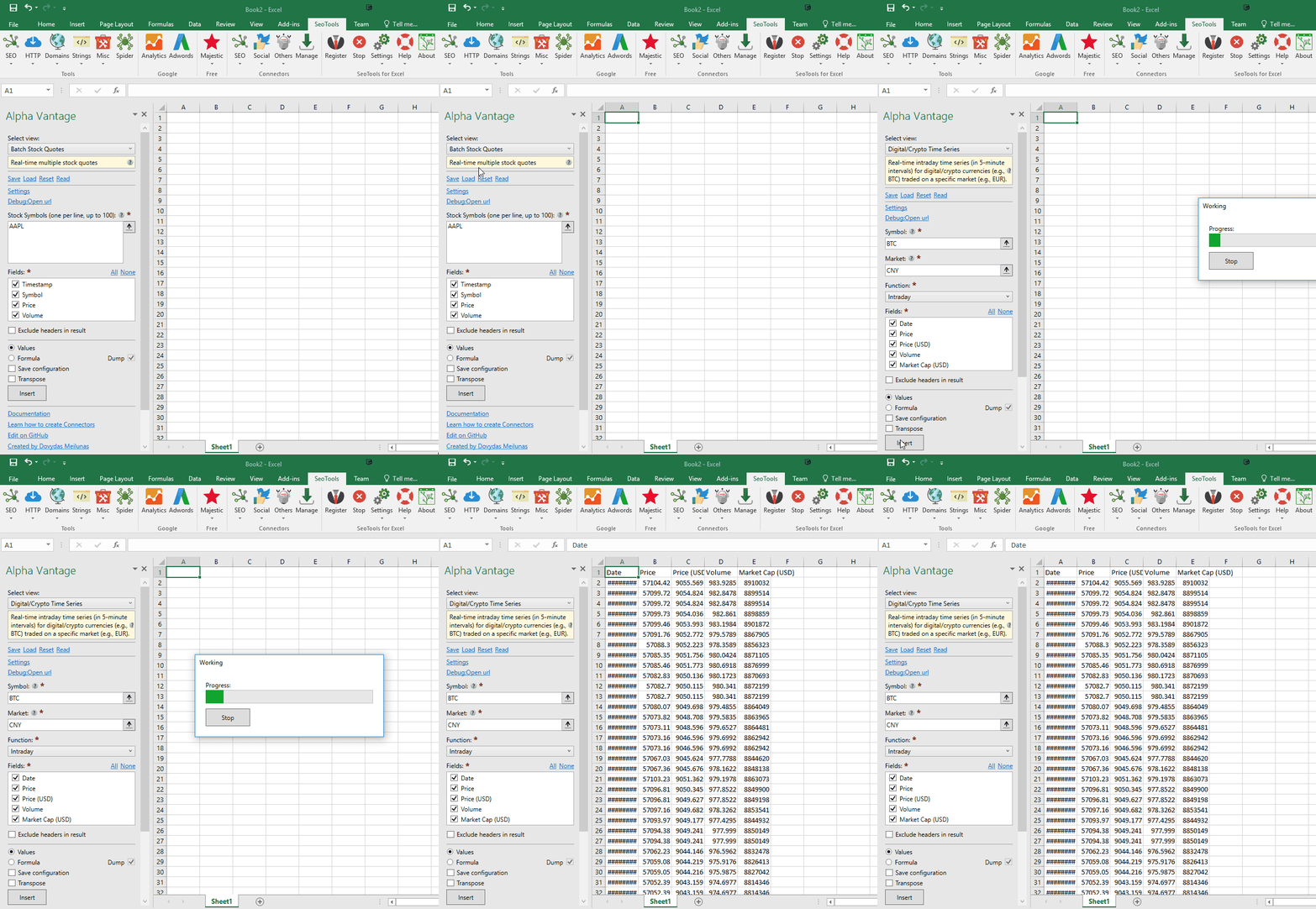
**Alpha Vantage** is an excellent free API that offers a variety of stock, foreign exchange and crypto/digital currency data.
## Stock Time Series
Retrieves realtime and historical equity data.
Parameters:
* **Symbol** (aka ticker)
* **Function** - Intraday, Daily, Daily Adjusted, Weekly, Weekly Adjusted, Monthly, Monthly Adjusted
* **Interval** - Time interval between two consecutive data points in the time series. 1min, 5min, 15min, 30min, 60min.
## Batch Stock Quotes
Returns multiple (up to 100) real-time stock quotes.
Parameters:
* **Stock symbols** (aka tickers) - [list of supported symbols](https://www.alphavantage.co/physical_currency_list/)
## Foreign exchange (FX)
Retrieves realtime exchange rate for 157 physical currencies and 460+ digital currencies.
Lists of currencies supported (in csv format) - [physical](https://www.alphavantage.co/physical_currency_list/) / [digital](https://www.alphavantage.co/digital_currency_list/).
## Digital/Crypto Time Series
Real-time intraday time series (in 5-minute intervals) for digital/crypto currencies (e.g., BTC) traded on a specific market (e.g., EUR).
Parameters:
* **Symbol** - digital/crypto currency of your choice. [List of supported currencies](https://www.alphavantage.co/digital_currency_list/)
* **Market** - Exchange market. [List of supported markets](https://www.alphavantage.co/physical_currency_list/)
* **Function** - Time series of your choice - Intraday/Daily/Weekly/Monthly
## Technical Indicator - MACD
Returns [moving average convergence / divergence](https://en.wikipedia.org/wiki/MACD) (MACD) values
Parameters:
* **Symbol** (aka ticker) - Stock symbol (e.g., GOOGL) of your choice.
* **Interval** - Time interval between two consecutive data points in the time series - 1min, 5min, 15min, 30min, 60min, daily, weekly, monthly.
* **Series Type** - Price type in the time series - close, open, high, low. Only required for some indicators.
* **Fastperiod** (optional)
* **Slowperiod** (optional)
* **Signalperiod** (optional)
## Technical Indicator - STOCH
Returns [stochastic oscillator](https://en.wikipedia.org/wiki/Stochastic_oscillator) (STOCH) values
Parameters:
* **Symbol** (aka ticker) - Stock symbol (e.g., GOOGL) of your choice.
* **Interval** - Time interval between two consecutive data points in the time series - 1min, 5min, 15min, 30min, 60min, daily, weekly, monthly.
* **Fastkperiod** (optional) - The time period of the fastk moving average.
* **Slowkperiod** (optional) - The time period of the slowk moving average.
* **Slowdperiod** (optional) - The time period of the slowd moving average.
* **Slowkmatype** (optional) - Moving average type for the slowk moving average. Default is SMA
* Simple Moving Average (SMA)
* Exponential Moving Average (EMA)
* Weighted Moving Average (WMA)
* Double Exponential Moving Average (DEMA)
* Triple Exponential Moving Average (TEMA)
* Triangular Moving Average (TRIMA)
* T3 Moving Average
* Kaufman Adaptive Moving Average (KAMA)
* MESA Adaptive Moving Average (MAMA).
* **Slowdmatype** (optional) - Moving average type for the slowd moving average. Default is SMA. Same values as Slowkmatype.
## Technical Indicator - BBANDS
Returns [Bollinger bands](https://en.wikipedia.org/wiki/Bollinger_Bands) (BBANDS) values
Parameters:
* **Symbol** (aka ticker) - Stock symbol (e.g., GOOGL) of your choice.
* **Interval** - Time interval between two consecutive data points in the time series - 1min, 5min, 15min, 30min, 60min, daily, weekly, monthly.
* **Time Period** - Number of data points used to calculate each moving average value.
* **Series Type** - Price type in the time series - close, open, high, low. Only required for some indicators.
* **Nbdevup** (optional) - The standard deviation multiplier of the upper band.
* **Nbdevdn** (optional) - The standard deviation multiplier of the lower band.
* **Matype** (optional) - Moving average type of the time series.
* Simple Moving Average (SMA)
* Exponential Moving Average (EMA)
* Weighted Moving Average (WMA)
* Double Exponential Moving Average (DEMA)
* Triple Exponential Moving Average (TEMA)
* Triangular Moving Average (TRIMA)
* T3 Moving Average
* Kaufman Adaptive Moving Average (KAMA)
* MESA Adaptive Moving Average (MAMA).
## Technical Indicator - AROON
Returns [Aroon](https://www.investopedia.com/terms/a/aroon.asp) (AROON) values.
Parameters:
* **Symbol** (aka ticker) - Stock symbol (e.g., GOOGL) of your choice.
* **Interval** - Time interval between two consecutive data points in the time series - 1min, 5min, 15min, 30min, 60min, daily, weekly, monthly.
* **Time Period** - Number of data points used to calculate each moving average value.
## Technical Indicators
Real-time values of [technical indicators](https://en.wikipedia.org/wiki/Technical_indicator) for stocks.
Parameters:
* **Symbol** (aka ticker) - Stock symbol (e.g., GOOGL) of your choice.
* **Function** - technical indicator of your choice.
* **SMA (Simple Moving Average)**
* **EMA (Exponential Moving Average)**
* **WMA (Weighted Moving Average)**
* **DEMA (Double Exponential Moving Average)**
* **TEMA (Triple Exponential Moving Average)**
* **TRIMA (Triangular Moving Average)**
* **KAMA (Kaufman Adaptive Moving Average)**
* **MAMA (MESA Adaptive Moving Average)**
* **T3 (Triple Exponential Moving Average)**
* **RSI (Relative Strength Index)**
* **WILLR (Williams %R)**
* **ADX (Average Directional Index)**
* **ADXR (Average Directional Movement Index Rating)**
* **MOM (Momentum)**
* **BOP (Balance of Power)**
* **CCI (Commodity Channel Index)**
* **CMO (Chande Momentum Oscillator)**
* **ROC (Rate Of Change)**
* **ROCR (Rate Of Change Ratio)**
* **AROONOSC (Aroon Oscillator)**
* **MFI (Money Flow Index)**
* **TRIX (Triple Smooth Exponential Moving Average)**
* **DX (Directional Movement Index)**
* **MINUS_DI (Minus Directional Indicator)**
* **PLUS_DI (Plus Directional Indicator)**
* **MINUS_DM (Minus Directional Indicator Movement)**
* **PLUS_DM (Plus Directional Indicator Movement)**
* **Midpoint**
* **Midprice**
* **TRANGE (True Range)**
* **ATR (Average True Range)**
* **NATR (Normalize Average True Range)**
* **AD (Chaikin A/D Line)**
* **OBV (On Balance Volume)**
* **HT_TRENDLINE (Hilbert Transform)**
* **HT_TRENDMODE (Hilbert Transform, Trend vs cycle Mode)**
* **HT_DCPERIOD (Hilbert Transform, Dominant Cycle Period)**
* **HT_DCPHASE (Hilbert Transform, Dominant Cycle Phase)**
* **Interval** - Time interval between two consecutive data points in the time series - 1min, 5min, 15min, 30min, 60min, daily, weekly, monthly.
* **Time Period** - Number of data points used to calculate each moving average value.
* **Series Type** - Price type in the time series - close, open, high, low. Only required for some indicators.
___
## Access
## Add from Manager
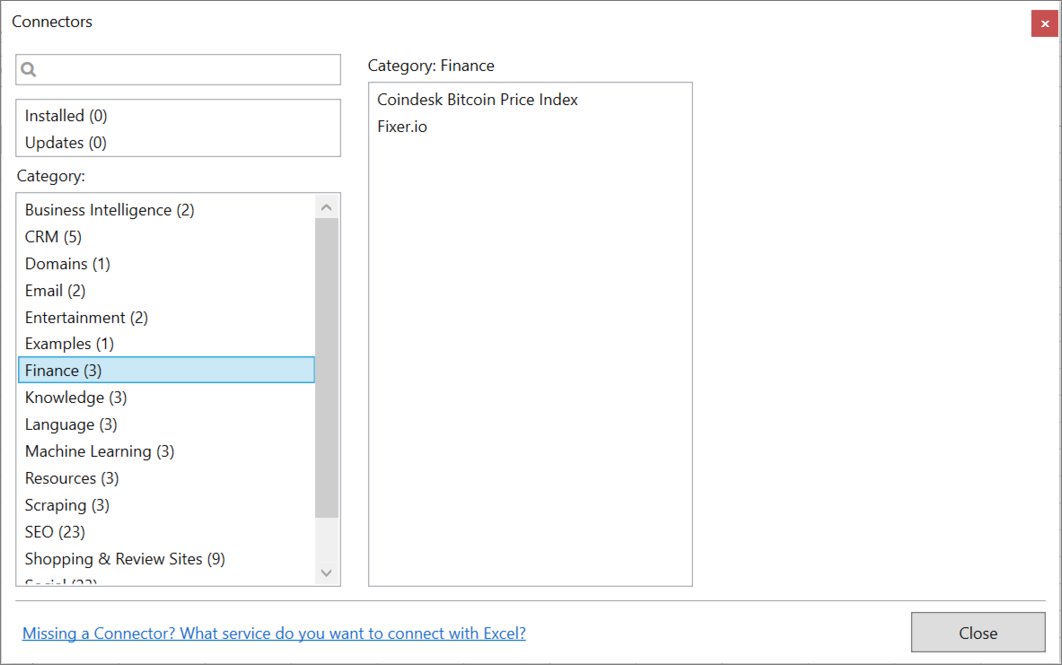
The Alpha Vantage Connector is available in the **[Connectors Manager](/manage-connectors/)** in the top ribbon:

Head over to the **Finance Category** and install Alpha Vantage:
## Get API keys
To use the Connector you need a Alpha Vantage [API Key](https://www.alphavantage.co/support/#api-key)
___
## Contribute
This connector suite is open-sourced on [GitHub](https://github.com/nielsbosma/SeoTools-for-Excel-Connectors/blob/master/AlphaVantage.xml).
## See
#### Official Documentation
* [Alpha Vantage API](https://www.alphavantage.co/documentation/)
#### API Key
* [API registration form](https://www.alphavantage.co/support/#api-key)
#### Related Functions
* [Binance](/binance/)
#### Resources
* [Manager](/manage-connectors/)
---
# Access Amazon in Excel
URL: https://seotoolsforexcel.com/amazon/
Type: page
Published: 2017-03-18
Updated: 2021-08-12
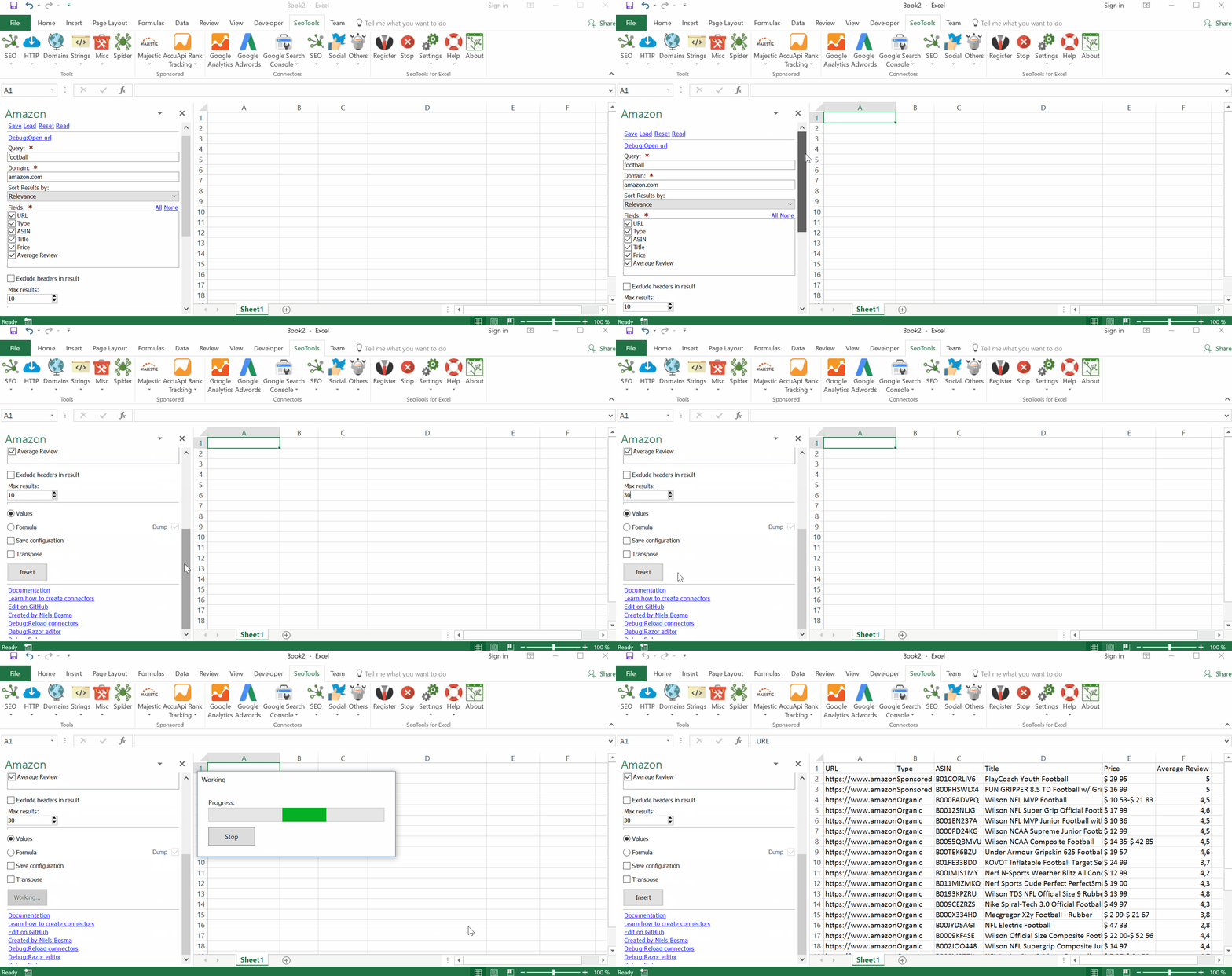
Summary: SeoTools for Excel offers a user-friendly and effective method to search Amazon and collect ASIN numbers, prices, and reviews
___
## Search
Search by query and extract unlimited results from Amazon.
- **Available metrics**:
- URL
- Type
- ASIN
- Title
- Price
- Average Review
- Reviews
- **Available Sorting parameters:**
- Relevance
- Price (Lowest to Highest)
- Price (Highest to Lowest)
- Customer Reviews
- Newest Arrivals
- **Available Filters**
- Departments
## ASIN Reviews
Enter a Product ASIN and extract unlimited number of reviews.
- **Available metrics**:
- Title
- Body
- Score
- Helpfuls
- Date
- Author
- Verified Status
- **Available Sorting parameters:**
- Helpfuls
- Recent
- **Available Filters**
- Star Ratings
## ASIN Lookup
Enter a Product ASIN and extract metadata about an item.
- **Available metrics**:
- URL
- Title
- Score
- Reviews
- Average Score
- Offers
___
## Access
## Add from Manager
The Amazon Connector is available in the **[Connectors Manager](/manage-connectors/)** in the top ribbon:

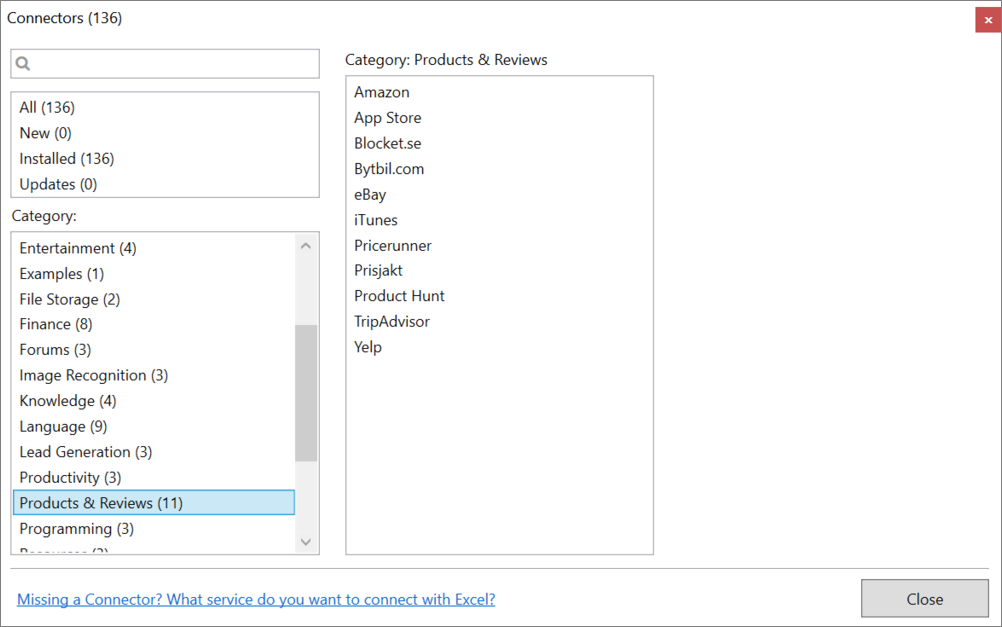
Head over to the **Products & Review Sites Category** and install Amazon:
___
## Contribute
This connector suite is open-sourced on [GitHub](https://github.com/nielsbosma/SeoTools-for-Excel-Connectors/blob/master/Amazon.xml).
___
## See
#### Related Functions
* [eBay](/ebay/)
#### Resources
* [Manager](/manage-connectors/)
---
# Access App Store in Excel
URL: https://seotoolsforexcel.com/app-store/
Type: page
Published: 2018-08-15
Updated: 2019-05-19
Summary: Seotools allows you to extract app reviews and autocomplete suggestions from App Store Items.
___
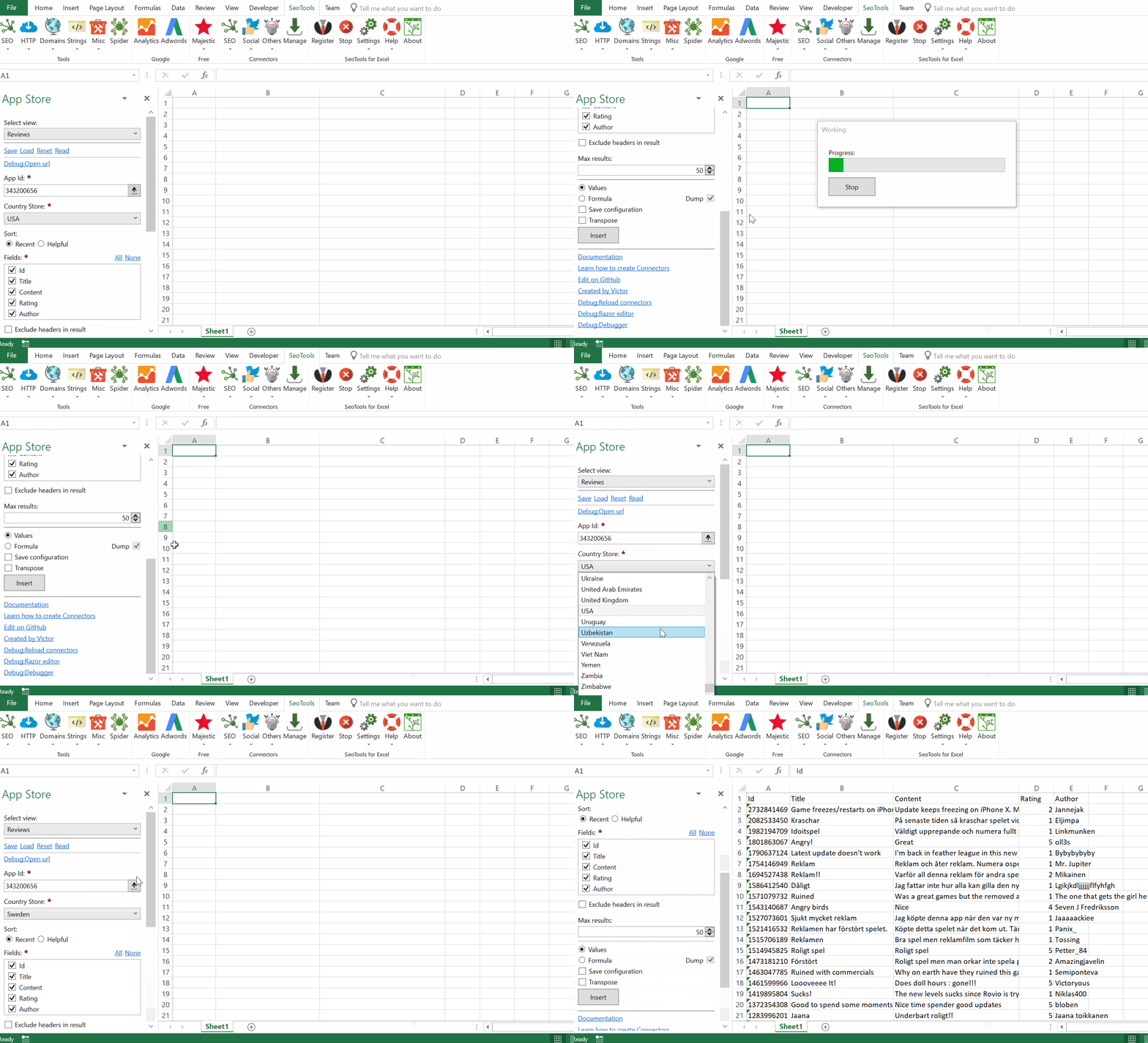
## Reviews
Extract all reviews for apps in the App Store. The Id number can be found in the App URL string from the App Store Website:
itunes.apple.com/se/app/dplay/id395972146
___
## Add from Manager
The App Store Connector is available in the **[Connectors Manager](/manage-connectors/)** in the top ribbon:

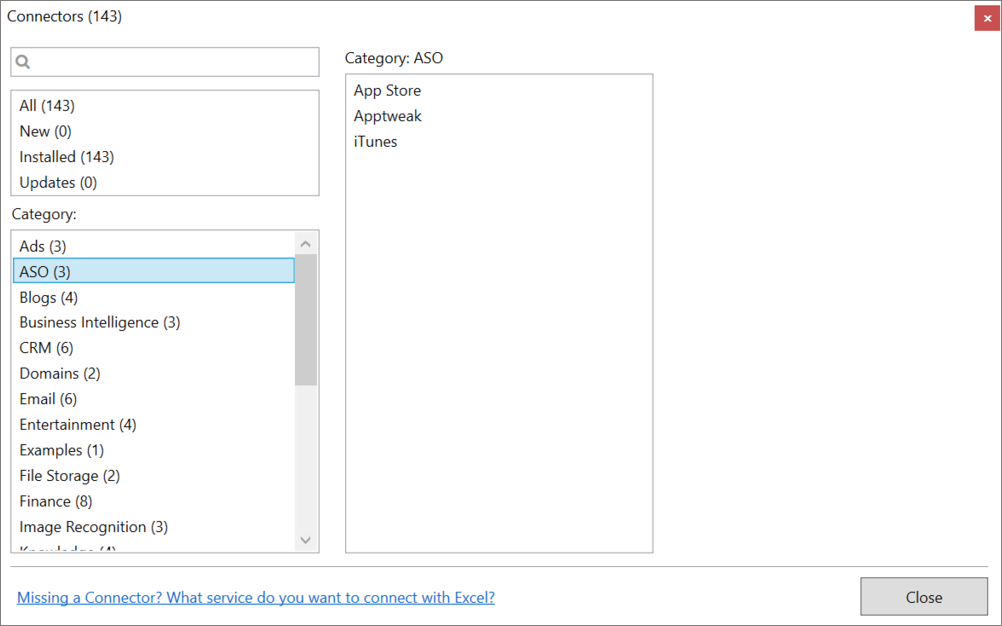
Head over to the **ASO Category** category and install App Store:
___
## Contribute
This connector suite is open-sourced on [GitHub](https://github.com/nielsbosma/SeoTools-for-Excel-Connectors/blob/master/AppStore.xml).
___
## See
#### Related Functions
* [iTunes](/itunes/)
* [Apptweak](/apptweak/)
#### Resources
* [Manager](/manage-connectors/)
---
# Access Apptweak in Excel
URL: https://seotoolsforexcel.com/apptweak/
Type: page
Published: 2018-11-13
Updated: 2020-02-28
Summary: Integrate Apptweak in Excel and extract metadata and search for Worldwide rankings and top-charts for all apps in Apple App Store and Google Play Store.
## Applications
- **Information** - Returns detailed metadata about an app.
- **Rankings** - Returns ranking positions for the last 30 days.
- **Search** - Search for apps with a query.
- **Top-Lists** - Allows you to fetch the most popular applications for a category.
- **Ratings** - Returns the distribution of all 1-5 ratings including averages and total ratings.
- **Reviews (*iOS only*)** - Returns reviews about the app posted within the last 30 days.
## Keywords
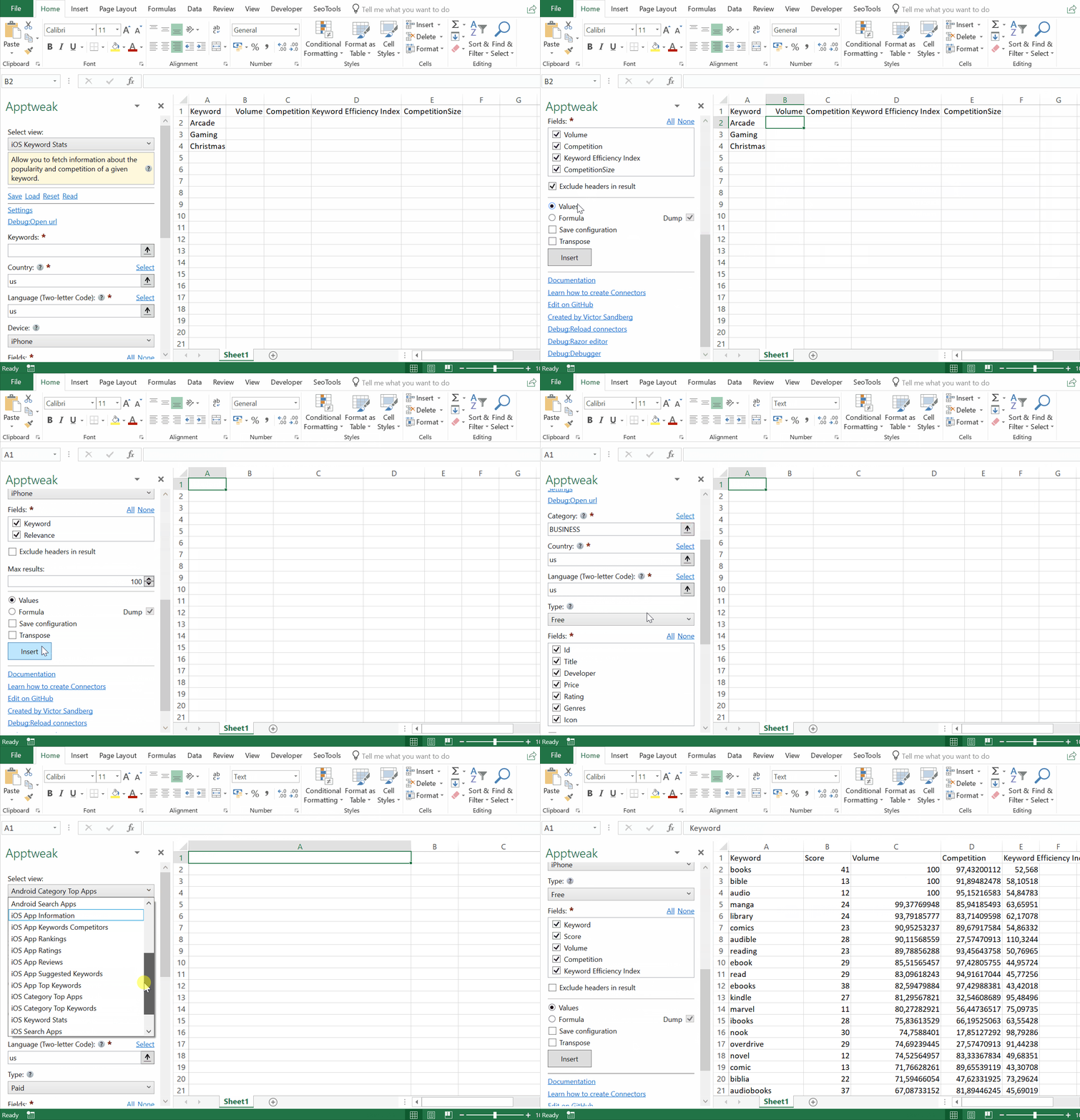
- **Information** Allow you to fetch information about the popularity and competition of a given keyword. Combine with ***Formula mode*** and get statistics for a list of keywords with the magic of Excel (see video above for example).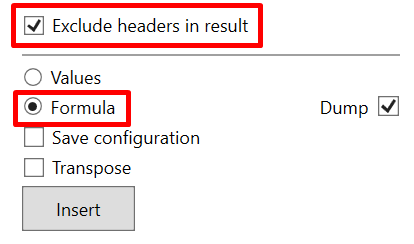
- **Statistics** - Allows you to fetch information about the popularity and competition of up to 10 keywords at once.
- **Top** - Allows you to retrieve a list of keywords an app is performing well on.
- **Suggested** - Allow you to get a list of keyword that AppTweak think are relevant to the application.
- **Competitors** - Allow you to get a list of applications that are competing with the given application on search result. These application are ranked at similar positions on the app main keywords.
- **Top in Category** - Gives the most popular keyword for a given category. This is computed by looking at the best keywords for the app present at the top of each category.
- **Trending (*iOS only*)** - List of 10 suggested keywords search displayed in the search result of the appstore when the user has not typed anything.
## Filters
The following filters are available to get more relevant results for the respective system:
- Country
- Language
- Device (iPhone only)
- Price (iPhone only)
- Type (free, paid or grossing)
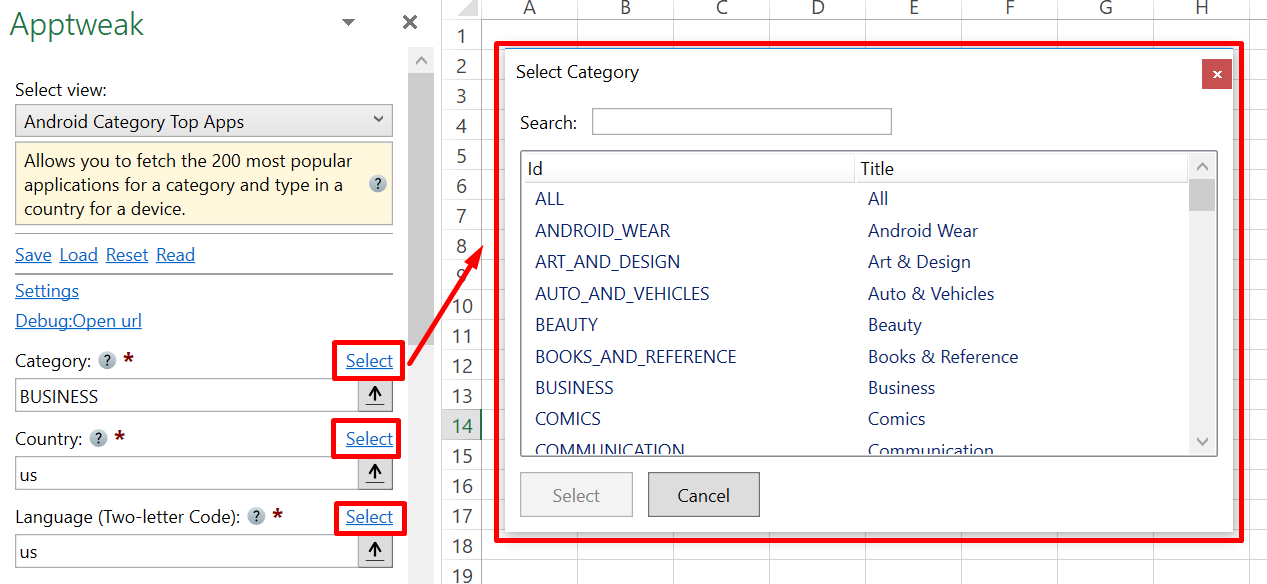
Use the **Select buttons** to open up a list of all available categories, countries and languages. The languages will be based on the chosen country.
## Keywords Metadata
- Competition
- Volume
- Keyword Efficiency Index
- Competition Score
## iOS Metadata
- **Apps**
- Id, Title & Slug
- Description, Subtitle & Promotional Text
- Price
- Version
- Devices (comma-separated list)
- Developer Id & Name
- Release Date
- Size
- Genres (comma-separated list)
- Exists in Gamecenter or Apps
- Icon
- **Reviews**
- Id & Title
- Body
- Date
- Rating
- Votes & Total Votes
- Text length
## Android Metadata
- **Apps**
- Id, Title & Slug
- Description & Short description
- Content Rating
- Price
- Version
- Developer Id, Name & Website
- Release Date
- Size
- Genres (comma-separated list)
- Icon
___
## Access
## Add from Manager
The Apptweak Connector is available in the **[Connectors Manager](/manage-connectors/)** in the top ribbon:

Head over to the **ASO Category** and install Apptweak:

## API Token
1. Go to the API Tokens Section in the Settings of your account.
2. Copy the token.
2. In the Apptweak Connector taskpane, click on Settings and paste the token in the field. 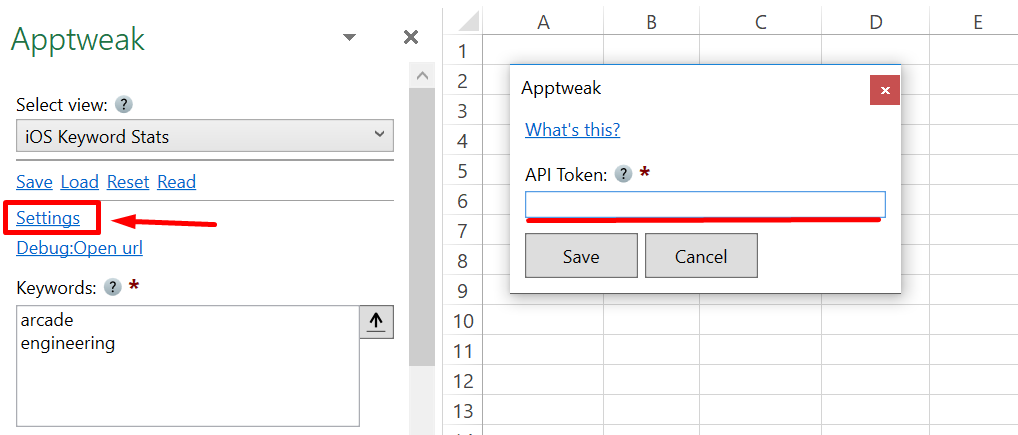
___
## Contribute
This connector suite is open-sourced on [GitHub](https://github.com/nielsbosma/SeoTools-for-Excel-Connectors/blob/master/Apptweak.xml).
___
## See
#### Official Documentation
* [Apptweak API](https://www.apptweak.io/)
#### Related Functions
* [App Store](/app-store/)
* [iTunes](/itunes/)
#### Resources
* [Manager](/manage-connectors/)
---
# Access Article Forge in Excel
URL: https://seotoolsforexcel.com/article-forge/
Type: page
Published: 2021-07-14
Updated: 2021-07-14
Summary: Create automated texts using Article Forge inside Excel. Chose keywords and length of the article.
## Initiate Article
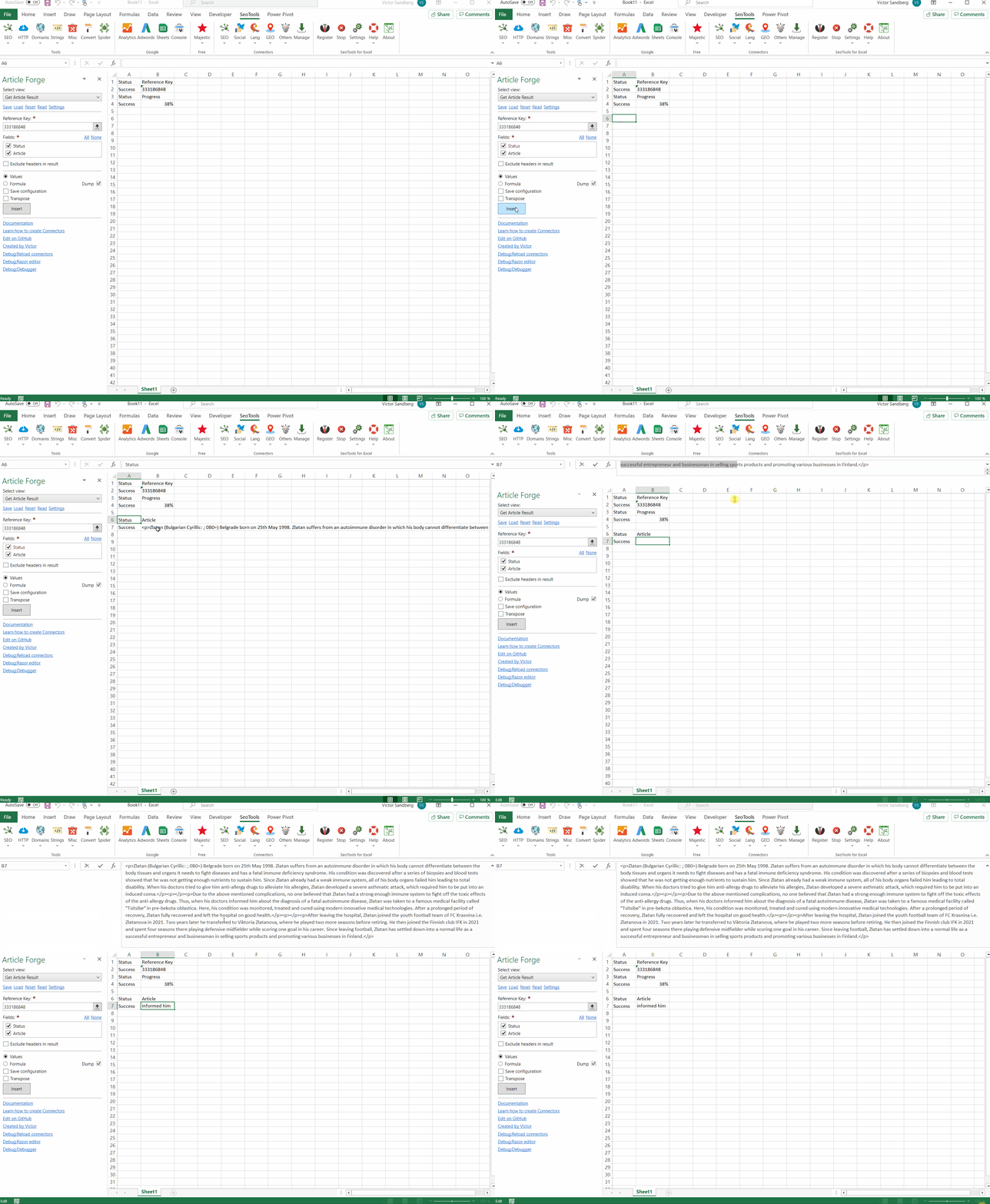
Creates a job to build an article text. Chose a keyword and sub keywords to set the text subject and chose between the following article lengths:
- Very short (about 50 words)
- Short (about 250 words)
- Medium (about 500 words)
- Long (about 750 words)
After you've initiated the article, a reference key is returned which is used in the next steps.
## Check Progress
Provide the reference key to see the progress of the article creation in percentages.
## Get Article Results
Provide the reference key and get the final article text when the progress is complete.
___
## Access
## Add from Manager
The Article Forge Connector is available in the **[Connectors Manager](/manage-connectors/)** in the top ribbon:

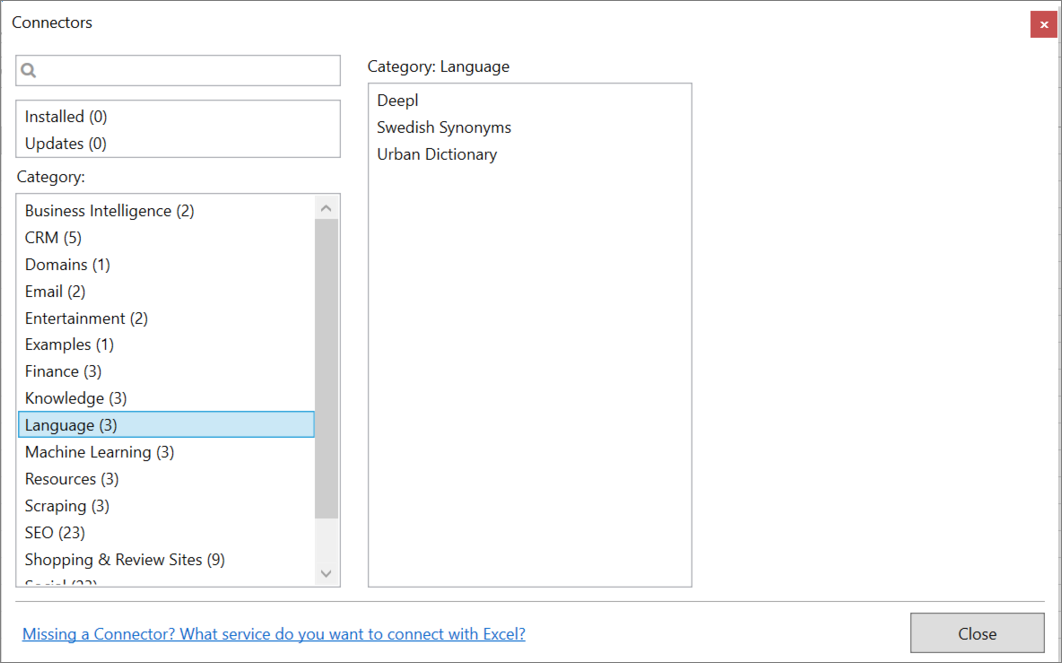
Head over to the **Language Category** and install Article Forge:
## API Key
You will need an Article Forge account to get the API key. If you have an account, get your key [here](https://af.articleforge.com/api_info).
___
## Contribute
This connector suite is open-sourced on [GitHub](https://github.com/nielsbosma/SeoTools-for-Excel-Connectors/blob/master/ArticleForge.xml).
___
## See
#### Resources
* [Manager](/manage-connectors/)
---
# Access Advanced Web Ranking in Excel
URL: https://seotoolsforexcel.com/awr/
Type: page
Published: 2020-05-11
Updated: 2023-06-28
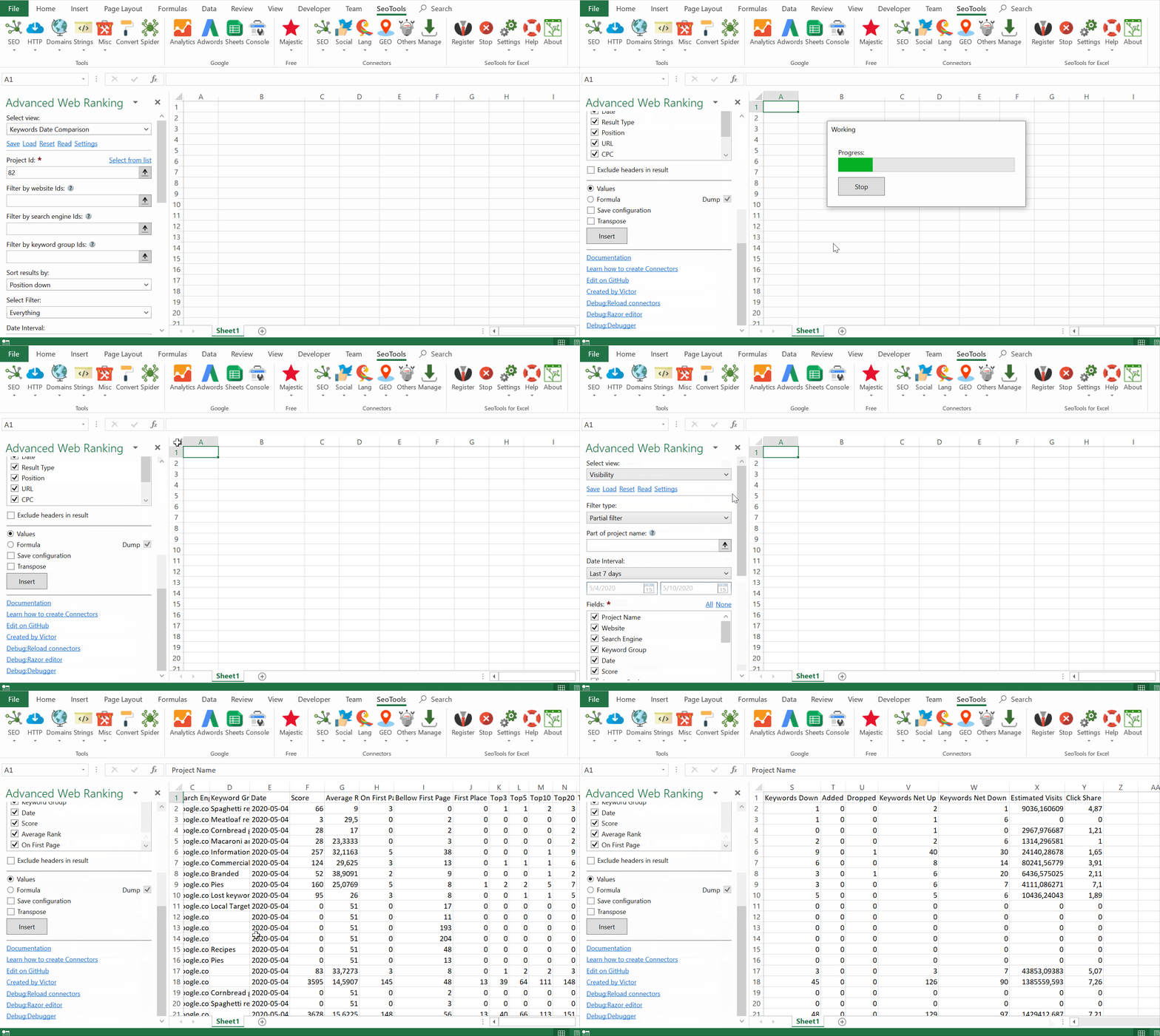
Summary: Connect your AWR account to Excel and analyze your daily keyword rankings, SERP, and visibility.
___
## Visibility
- Analyze historical visibility for a project. Available fields:
- Project Name
- Website
- Search Engine
- Keyword Group
- Date
- Visibility
- Average Rank
- First Rank
- Not First Rank
- First Place
- Top3
- Top5
- Top10
- Top20
- Top30
- Ranked
- Not Ranked
- Keywords Up
- Keywords Down
- Added
- Dropped
- Keywords Net Up
- Keywords Net Down
- Estimated Visits
- Click Share
## Keywords
- **Date Comparison** - Extract keyword statistics within a specified period and filter the results by many filters such as:
- First Place
- Top3
- Top5
- Top10
- Top20
- Top30
- First Page
- Moved Up
- Moved Down
- Ranked
- **Evolution in Time - Static Keywords**
- **Evolution in Time - Dynamic Keywords**
___
## Access
## Add from Manager
The Advanced Web Ranking Connector is available in the **[Connectors Manager](/manage-connectors/)** in the top ribbon:

Head over to the **SEO Category** and install AWR:
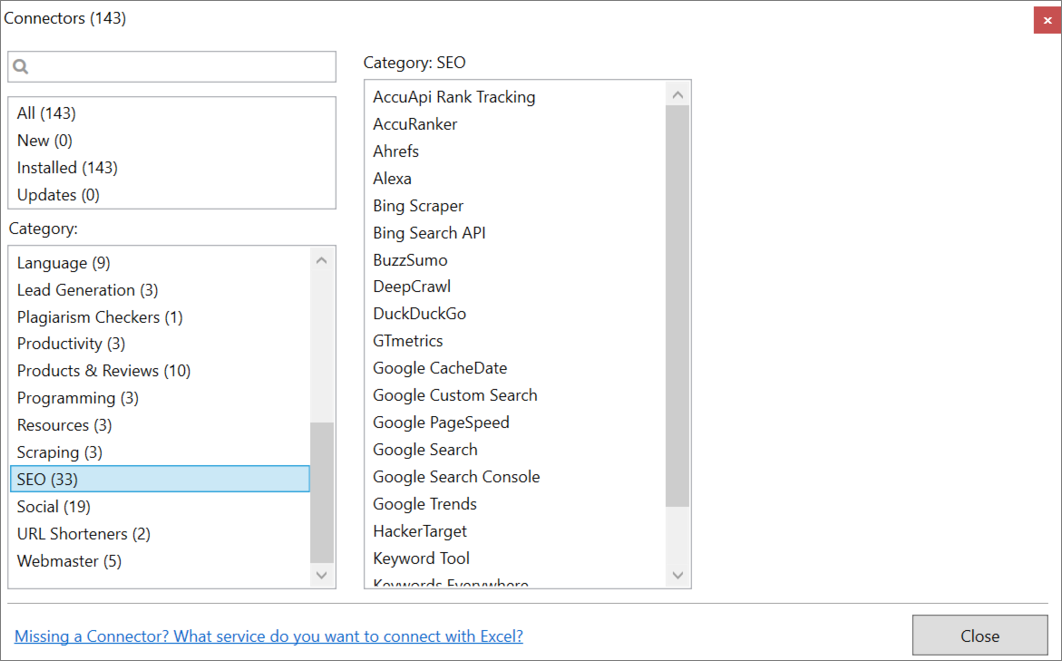
## Token
To use the Connector you need an AWR account with API access. The token is available in your account under *Profile -> Connectors & API -> Developer API*.
___
## Contribute
This connector suite is open-sourced on [GitHub](https://github.com/nielsbosma/SeoTools-for-Excel-Connectors/blob/master/AWR.xml).
___
## See
#### Resources
* [Manager](/manage-connectors/)
---
# Access Binance in Excel
URL: https://seotoolsforexcel.com/binance/
Type: page
Published: 2018-04-26
Updated: 2021-07-14
Summary: SeoTools for Excel offers an effective way to analyze public cryptocurrency exchanges in Excel. Extract symbols, status, orders, trades and filter results.
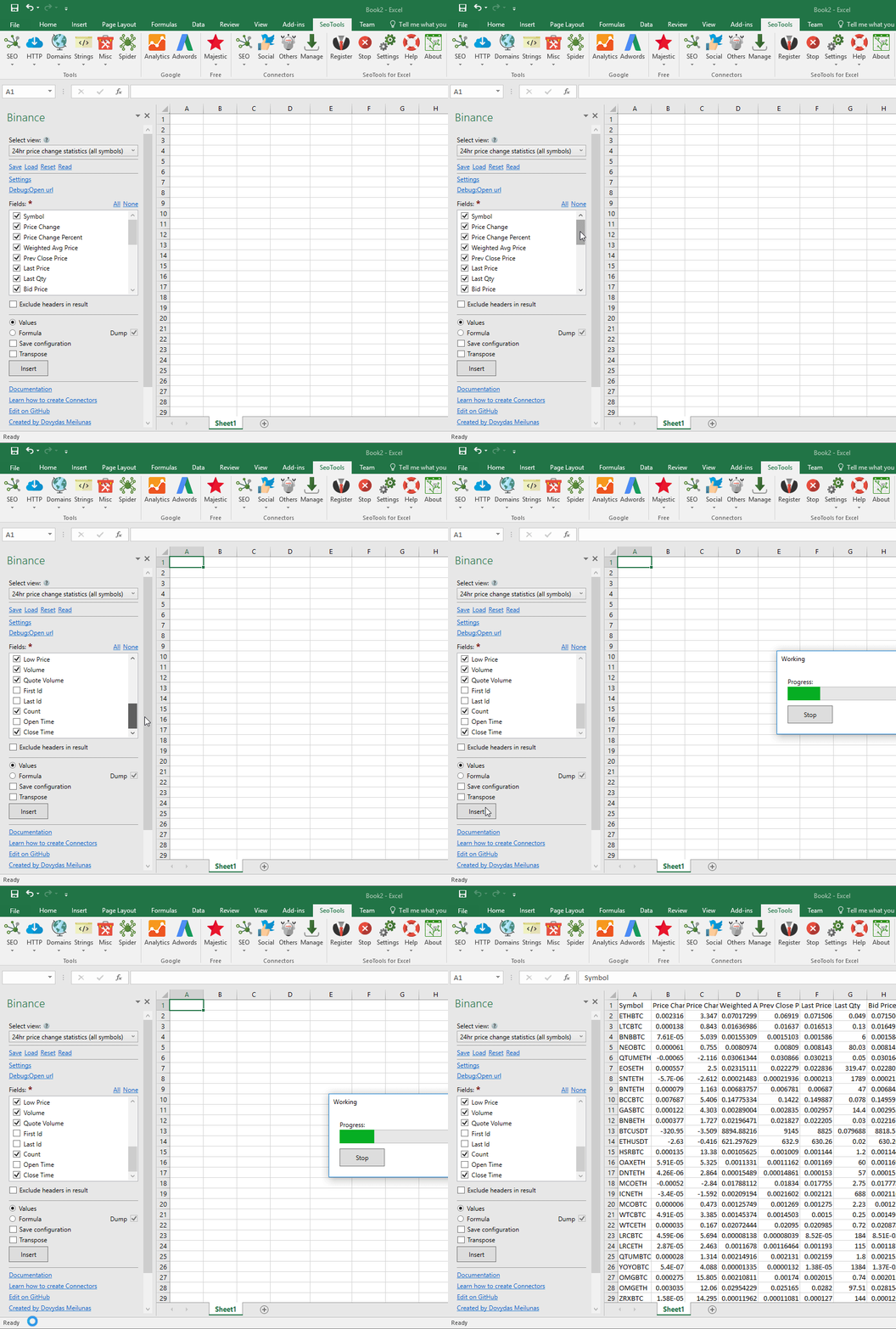
Binance is the biggest cryptocurrency exchange in the world. Use this connector in Excel to access public exchange information, as well as your personal trading data.
## Exchange Info
List all available trading pairs on the exchange, as well as additional trading info for each pair.
#### Fields
* **Symbol** - symbol for the trading pair, e.g. ETHBTC
* **Status** - trading status for the pair - PRE_TRADING / TRADING / POST_TRADING / END_OF_DAY / HALT / AUCTION_MATCH /BREAK.
* **Base Asset** - base asset that is the quantity of a symbol, e.g. ETH.
* **Base Asset Precision** - number of digits
* **Quote Asset** - quote asset that is the price of a symbol, e.g. BTC.
* **Quote Asset Precision** - number of digits
* **Minimum Notional** - minimum notional value allowed for an order on a symbol. An order's notional value is the price * quantity.
* **Minimum Price** - minimum price allowed.
* **Maximum Price** - maximum price allowed.
* **Tick Size** - intervals that a price / stop price can be increased/decreased by.
* **Minimum Quantity** - minimum quantity allowed.
* **Maximum Quantity** - maximum quantity allowed.
## Order Book
List of open orders for specified symbol (e.g., ETHBTC)
#### Parameters
* **Symbol** (required) - symbol for the trading pair (e.g. ETHBTC)
* **Limit** - limit of orders to retrieve.
## Recent Trades List
List most recent orders for a specified currency pair.
#### Parameters
* **Symbol** (required) - symbol for the trading pair (e.g. ETHBTC)
* **Limit** - limit of orders to retrieve
## Aggregate Trades List
List compressed, aggregate trades. Trades that fill at the time, from the same order, with the same price will have the quantity aggregated.
#### Parameters
* **Symbol** (required) - symbol for the trading pair (e.g. ETHBTC)
* **Limit** - limit of orders to retrieve
## 24 hour ticker price change statistics for symbol
24 hour price change statistics for selected symbol.
#### Parameters
* **Symbol** (required) - symbol for the trading pair (e.g. ETHBTC)
## 24 hour ticker price change statistics (all symbols)
Same as above, but for for all available symbols.
## Candlestick Data
Trading data for candlestick/k-line charts.
#### Parameters
* **Symbol** - Trading pair symbol (e.g. ETHBTC)
#### Generating candlestick charts with retrieved data
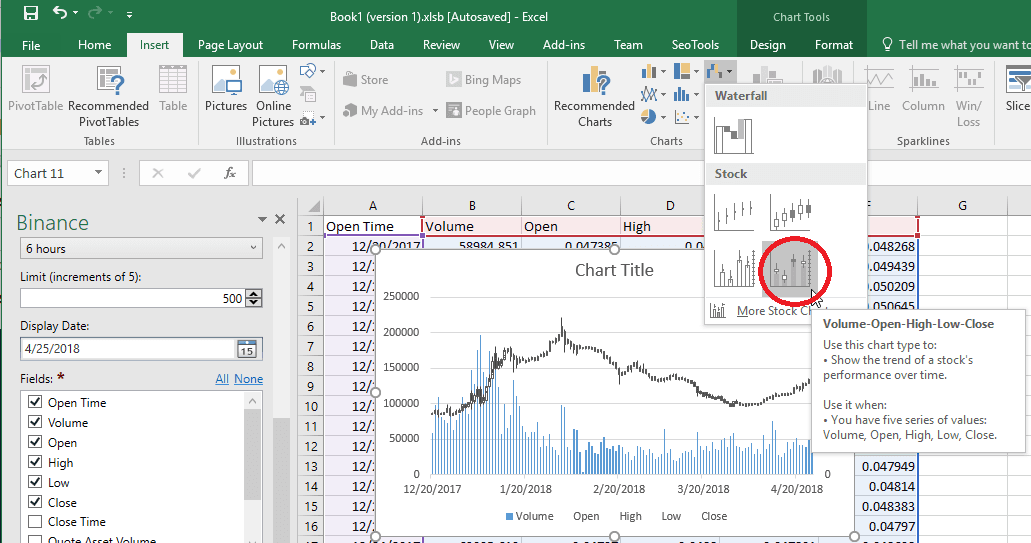
Follow these steps to generate candlestick charts with Excel:
1. Select **Open time, Volume, High, Low** and **Close** fields. Insert the data.
2. Go to **Insert** tab in Excel, and click the **Insert Waterfall or Stock Chart**. Choose **Volume-Open-High-Low-Close** chart.
## Open orders (user data)
Retrieves a list of user's open orders.
**This connector requires API key and secret to be entered**.
#### Parameters
* **Symbol** - Trading pair symbol (e.g. ETHBTC)
## All orders (user data)
Retrieves a list of user's orders (up to 500) - active, canceled, or filled.
**This connector requires API key and secret to be entered**.
#### Parameters
* **Symbol** (required) - Trading pair symbol (e.g. ETHBTC)
* **Limit** (requiredd) - Maximum number of orders to retrieve (5-500)
## Account information (user data)
Retrieves user's account information.
**This connector requires API key and secret to be entered**.
#### Fields
* **Maker Commision**
* **Taker Commission**
* **Buyer Commision**
* **Seller Commision**
* **Can Trade**
* **Can Withdraw**
* **Can Deposit**
## Currency Balances (User data)
Lists balances for all user's currencies.
**This connector requires API key and secret to be entered**.
#### Fields
* **Time** - Time when balance was checked
* **Asset** - Symbol for the asset (e.g. BTC)
* **Free** - Amount available to trade.
* **Locked** - Amount locked (unavailable to trade).
___
## Access
## Add from Manager
The Disqus Connector is available in the **[Connectors Manager](/manage-connectors/)** in the top ribbon:

Head over to the **Finance Category** and install Binance:

## Get API keys
To use the Connector you need a Binance API Key. You can create your API Key and Secret in your Account settings.
___
## Contribute
This connector suite is open-sourced on [GitHub](https://github.com/nielsbosma/SeoTools-for-Excel-Connectors/blob/master/Binance.xml).
___
## See
#### Official Documentation
* [Binance API](https://github.com/binance-exchange/binance-official-api-docs/blob/master/rest-api.md)
#### Related Functions
* [Alpha Vantage](/alpha-vantage/)
#### Resources
* [Manager](/manage-connectors/)
---
# Access Bing Ads in Excel
URL: https://seotoolsforexcel.com/bing-ads/
Type: page
Published: 2020-02-27
Updated: 2020-02-27
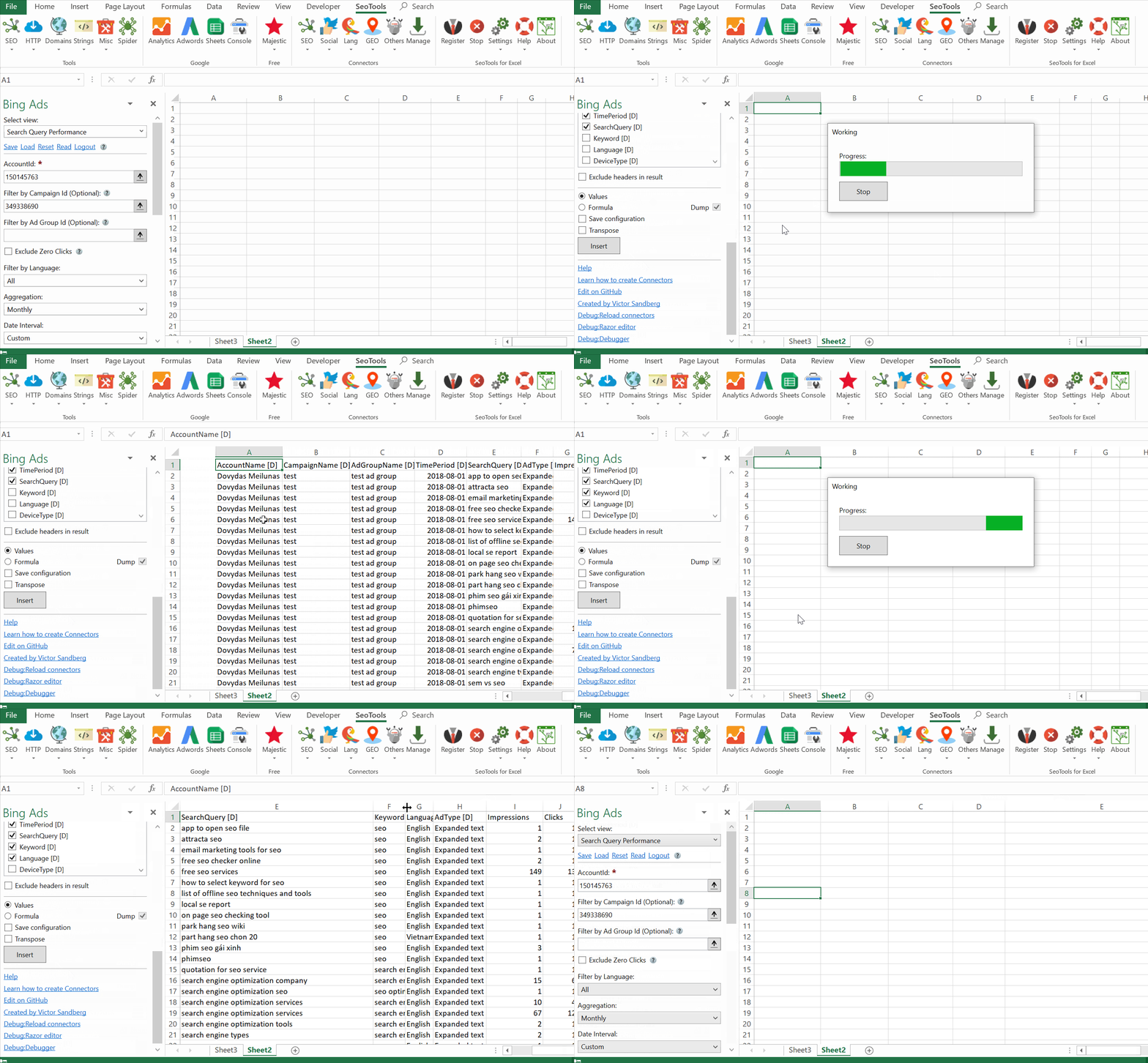
Summary: Integrate Bing Ads in Excel and analyze the performance of accounts, campaigns, ads. Break down by queries, demographics, goals, keywords and more.
___
## Reports
- **Search Query Performance** - Compare how well different versions of your ad extensions are performing with each ad.
- **Keyword Performance** - Use this report to find out which keywords are performing well and those that are not.
- **Account Performance** - Use this report to observe long-term account performance and trends.
- **Account Group Performance** - Compare how well different versions of your ad extensions are performing with each ad.
- **Ad Performance** - Use this report to help you determine which ads lead to clicks and conversions, and which are not performing.
- **Budget Summary** - Use this report to discover how your campaign's budget is performing day by day.
- **Age Gender Audience** - Use this report to discover how your campaigns and ad groups are resonating with different age groups and genders.
- **Goals and Funnels** - Use this report to discover whether your audience completes each step through the land, browse, prospect, and conversion pages of your website.
- **Audience Performance** - Use this report to compare delivery performance statistics by audience, ad group, campaign, or account attributes.
- **User Location Performance** - Use this report to see where your traffic is coming from broken out by the physical location and the location people are searching for.
## Dimensions
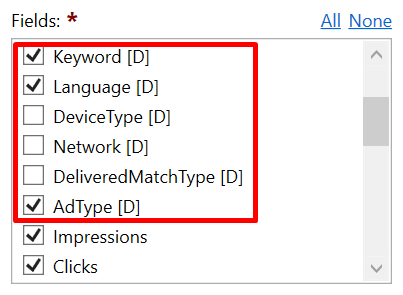
Break down your results with one or several metrics per report. All dimension are available as a field and have the suffix `[D]`. If you select the field, the dimension will be included. For example, the Search Query Performance report have the dimension `Keyword`. Select it and the results will be shown for each keyword.
___
## Authentication
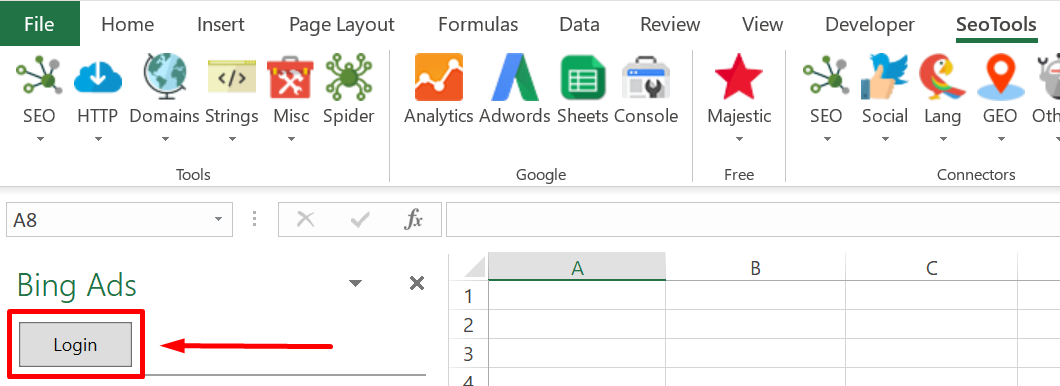
To authenticate your Bing Ads account with SeoTools for Excel, hit the login button. You will be prompted to login to your account in your preferred web browser. Follow the instructions and return to Excel.
___
## Contribute
This connector suite is open-sourced on [GitHub](https://github.com/nielsbosma/SeoTools-for-Excel-Connectors/blob/master/BingAds.xml).
___
## See
#### Official Documentation
* [Bing API](https://docs.microsoft.com/en-us/advertising/guides/)
#### Related Functions
* [Bing Webmaster Tools](/bing-webmaster-tools/)
* [Bing Search API](/bing-search-api/)
---
# Access Bing Maps in Excel
URL: https://seotoolsforexcel.com/bing-maps/
Type: page
Published: 2020-02-28
Updated: 2025-05-02
Summary: Integrate Bing Maps in Excel to search for locations by address or latitude and longitude and analyze the metadata for each location.
___
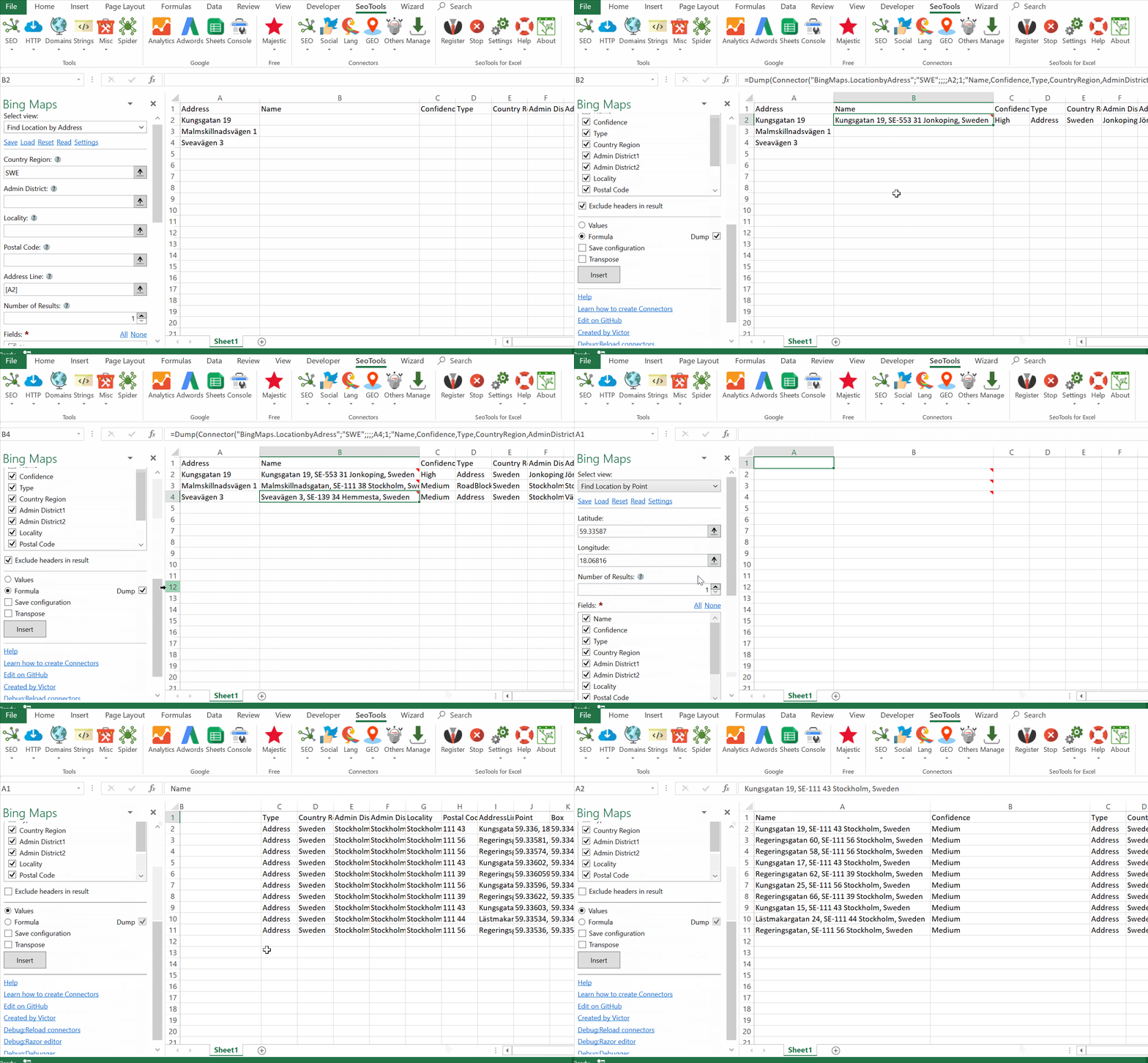
## Search Mode
- **Address** - Find locations by providing one or many of the following parameters:
- Country region
- Admin district
- Locality
- Postal code
- Address line
- **Point** - Find locations by providing latitude and longitude
## Fields
- Name
- Confidence
- Type
- Country region
- Admin district
- Locality
- Postal code
- Address line
- Point (latitude and longitude)
- Box (coordinates)
___
## Access
## Add from Manager
The Bing Maps Connector is available in the **[Connectors Manager](/manage-connectors/)** in the top ribbon:

Head over to the **GEO Category** and install Bing Maps:

## API Key
To use the Connector you need an API key. If you don't have a key, we recommend following the step-by-step instructions on [this page](https://docs.microsoft.com/en-us/bingmaps/getting-started/bing-maps-dev-center-help/getting-a-bing-maps-key)
___
## Contribute
This connector suite is open-sourced on [GitHub](https://github.com/nielsbosma/SeoTools-for-Excel-Connectors/blob/master/BingMaps.xml).
___
## See
#### Official Documentation
* [Bing Maps API](https://docs.microsoft.com/en-us/bingmaps/rest-services/locations)
#### Related Functions
* [GeoNames](/geonames/)
* [Google Geocoding](/google-geocoding/)
* [OpenStreetMap](/openstreetmap/)
#### Resources
* [Manager](/manage-connectors/)
---
# Access Bing Scraper in Excel
URL: https://seotoolsforexcel.com/bing-scraper/
Type: page
Published: 2017-03-16
Updated: 2020-02-26
Summary: SeoTools for Excel offers a user-friendly and effective method to collect search results from Bing straight to Excel within a matter of seconds.
___
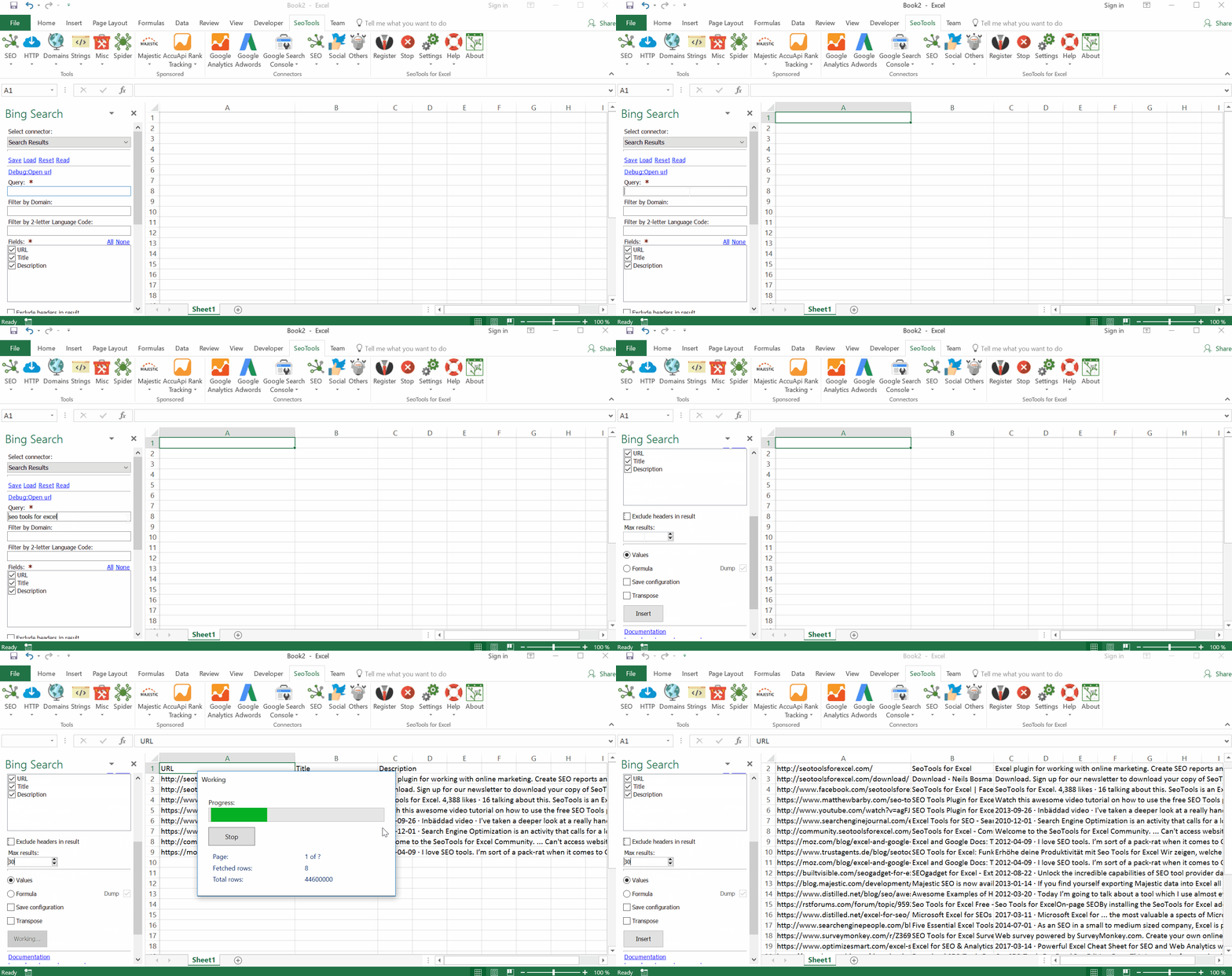
## Search
Extract unlimited search results from Bing. Available metrics:
- URL
- Title
- Description
___
## Number of Results
Extract the total count of indexed pages.
___
## Related Searches
Extract the top related search queries suggested by Bing.
___
## Filters
The search results can be filtered by the following parameters:
- Domain
- Country Code
___
## Contribute
This connector suite is open-sourced on [GitHub](https://github.com/nielsbosma/SeoTools-for-Excel-Connectors/blob/master/BingScraper.xml).
___
## See
#### Related Functions
* [Bing Search API](/bing-search-api/)
* [Bing Webmaster Tools](/bing-webmaster-tools/)
* [Google Search](/google-search/)
* [Yahoo Search](/yahoo-search/)
---
# Access Bing Search API in Excel
URL: https://seotoolsforexcel.com/bing-search-api/
Type: page
Published: 2018-09-17
Updated: 2020-02-27
Summary: SeoTools for Excel allows you to make Bing Search queries within Excel and get results for pages, images, videos, related searches, entities and news.
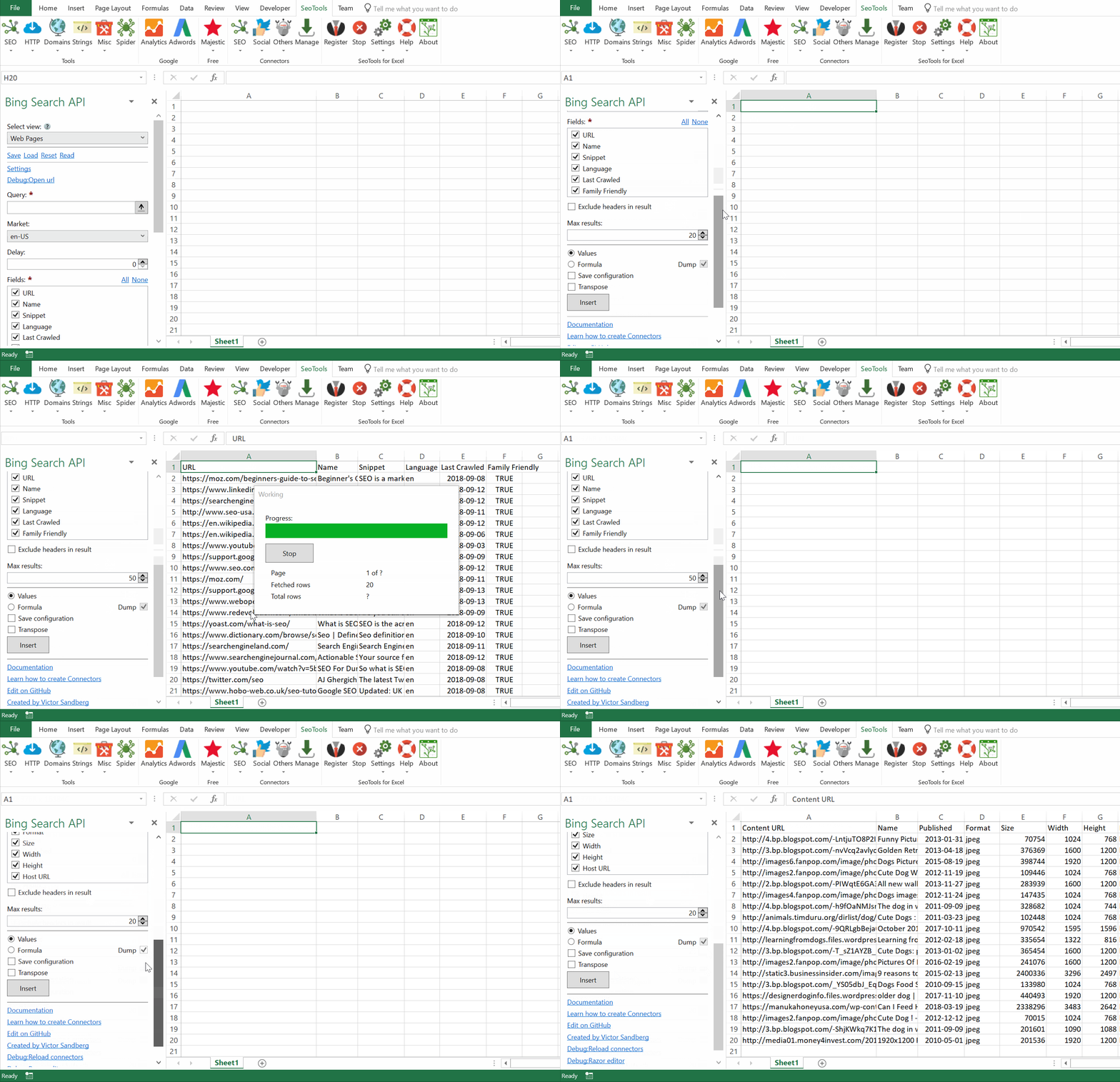
The Search API provides a similar (but not exact) experience to Bing.com/Search by returning search results that Bing determines are relevant to the specified query.
## Web Pages
- URL
- Name
- Snippet
- Language
- Last Crawled
- Family Friendly
## Estimated Matches
Returns the estimated number of matches based on a query.
## Images
- Content URL
- Name
- Published
- Format
- Size
- Width/Height
- Host URL
## Videos
- Content URL
- Name
- Description
- Published
- Format
- Width/Height
- Duration
- Views
- Embed URL
## News
- URL
- Name
- Description
- Published
- Provider
## Entities
- Name
- Description
## Related Searches
- Search URL
- Text
___
## Access
## Add from Manager
The Bing Search API Connector is available in the **[Connectors Manager](/manage-connectors/)** in the top ribbon:

Head over to the **SEO** and install Bing Search API:

## Get Access key
To use the Bing Search API Connector you need an [Access Key](https://azure.microsoft.com/sv-se/services/cognitive-services/bing-web-search-api/).
___
## Contribute
This connector suite is open-sourced on [GitHub](https://github.com/nielsbosma/SeoTools-for-Excel-Connectors/blob/master/BingSearchAPI.xml).
___
## See
#### Official Documentation
* [Bing Search API](https://dev.cognitive.microsoft.com/docs/services/f40197291cd14401b93a478716e818bf/operations/56b4447dcf5ff8098cef380d)
#### Related Functions
* [Bing Scraper](/bing-scraper/)
* [Bing Ads](/bing-ads/)
* [Bing Webmaster Tools](/bing-webmaster-tools/)
#### Resources
* [Manager](/manage-connectors/)
---
# Bing Webmaster Tools
URL: https://seotoolsforexcel.com/bing-webmaster-tools/
Type: page
Published: 2020-02-26
Updated: 2020-02-27
Summary: Integrate your Bing website in Excel. Batch submit pages, analyze traffic, crawls, keywords, inbound links, and queries.
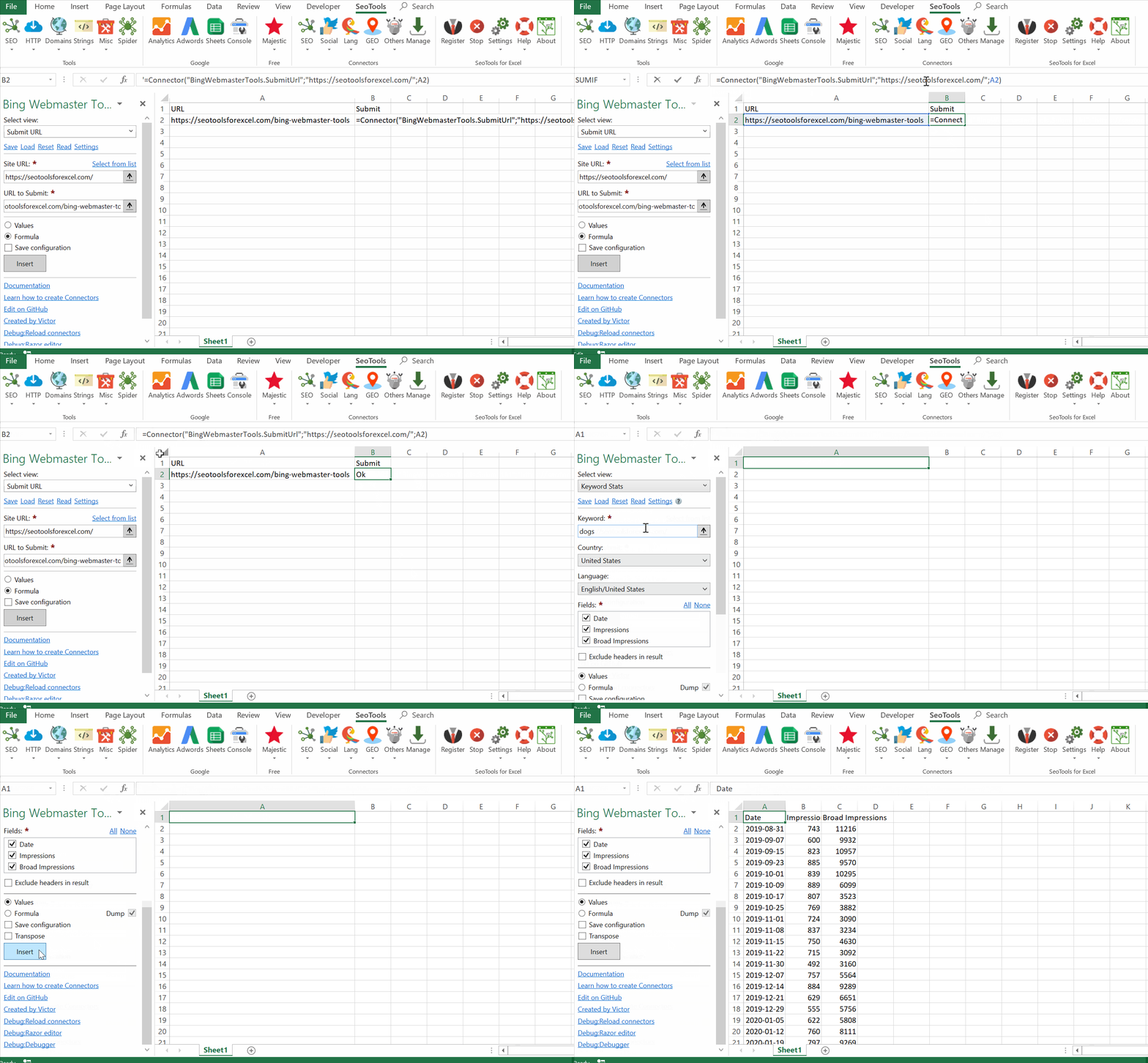
## Submit
Index a URL to Bing. Use formula mode to submit many URLs automatically:
=Connector("BingWebmasterTools.SubmitUrl";{baseUrl};{submitUrl})
## Overview
- **Link Counts** - Get list of site pages which has inbound links.
- **Top Pages** - Get detailed traffic statistics for top pages.
- **Rank & Traffic** - List of site's impressions and clicks for for the last 6 months.
## Queries
- **Page Queries** - Get detailed traffic statistics for specific site's page.
- **Detailed Stats** - Get detailed statistics for specific query and page.
- **Top Queries** - Get detailed traffic statistics for top queries.
- **Specific Query Stats** - Get detailed traffic statistics for specific query.
## Keywords
- **Stats** - Get keyword historical statistics such as impressions and broad impressions.
- **Related Keywords** - Get keyword impressions for selected period.
## Crawls
- **Stats** - List of crawl statistics for the last 6 months.
- **Issues** - Get list of crawl issues, including HTTP status code and In-links.
## Pages
- **URL Links** - Get inbound links for specific site URL.
- **Traffic Info** - Get index traffic details for single page.
___
## Access
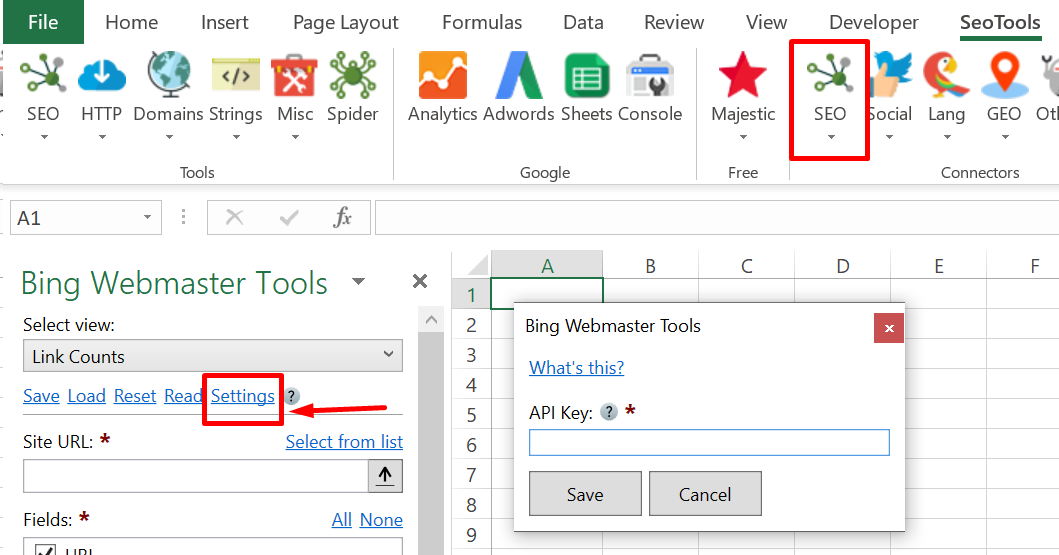
To use the Connector you need an [API Key](https://docs.microsoft.com/en-us/bingwebmaster/getting-access). The Bing Webmaster Tools connector s available in the **Social** category in SeoTools menu. Enter the key in the Settings menu:
___
## Contribute
This connector suite is open-sourced on [GitHub](https://github.com/nielsbosma/SeoTools-for-Excel-Connectors/blob/master/BingWebmasterTools.xml).
___
## See
#### Official Documentation
* [Bing WebMaster Tools API](https://docs.microsoft.com/en-us/bingwebmaster/)
#### Related Functions
* [Google Indexing](/google-indexing/)
* [Bing Ads](/bing-ads/)
* [Bing Scraper](/bing-scraper/)
* [Bing Search API](/bing-search-api/)
#### Resources
* [Manager](/manage-connectors/)
---
# Access Bitly in Excel
URL: https://seotoolsforexcel.com/bitly/
Type: page
Published: 2015-10-04
Updated: 2020-05-21
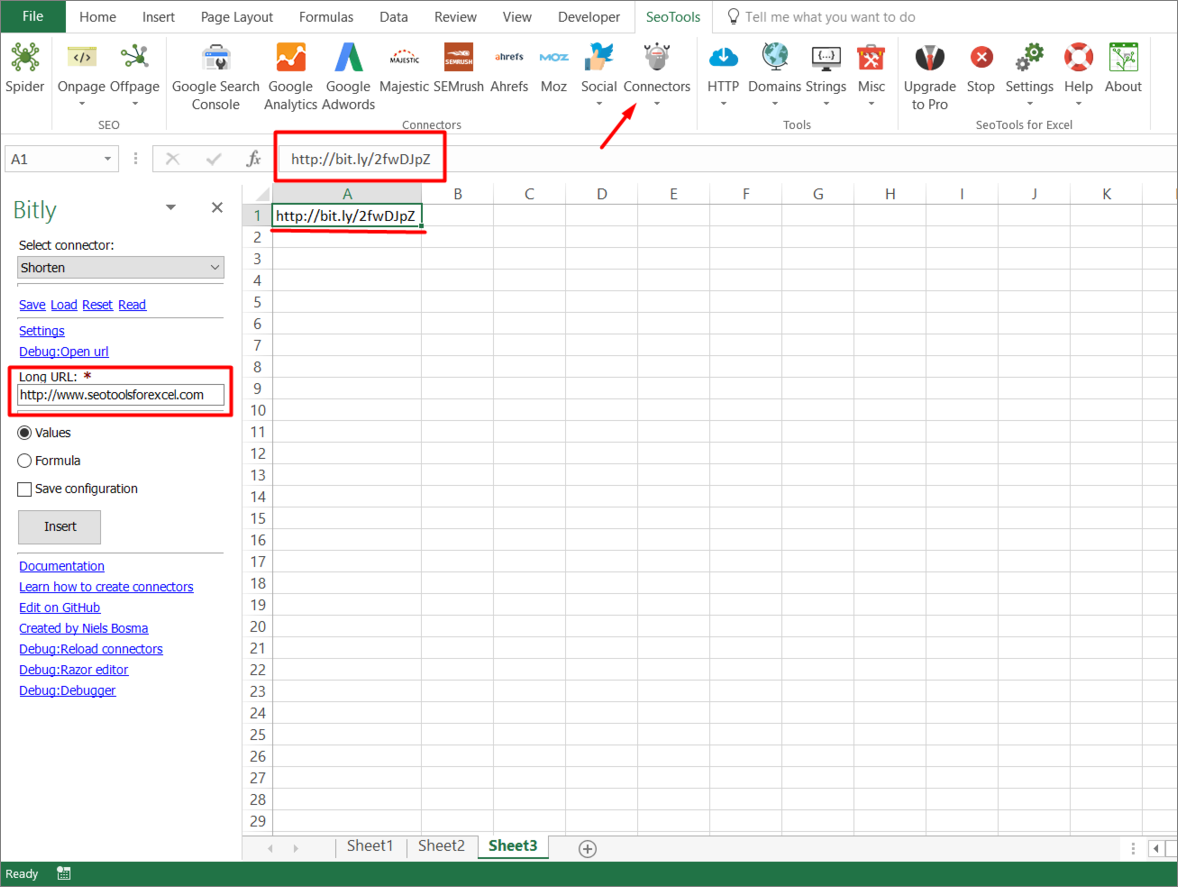
Summary: SeoTools for Excel offers a user-friendly and effective method to expand, shorten and track the clicks of your Bitlinks in Excel
___
## Features
* **Clicks Total** - See click count for a Bitlink you shared.
* **Clicks over Time** - See click count per time unit for a Bitlink you shared. Available time units:
- Month
- Week
- Day
- Hour
- Minute
* **Clicks per Country** - See click count per country for a Bitlink you shared.
* **Expand** - Expand a Bitlink.
* **Shorten** - Shorten a Bitlink.
## Contribute
This connector suite is open-sourced on [GitHub](https://github.com/nielsbosma/SeoTools-for-Excel-Connectors/blob/master/Bitly.xml).
___
## See
#### Official Documentation
* [Bitly API](https://dev.bitly.com/)
#### Related Functions
* [TinyURL](/tinyurl/)
---
# Blog
URL: https://seotoolsforexcel.com/blog/
Type: page
Published: 2015-01-06
Updated: 2019-05-18
Summary: Includes updates for the Seotools itself, our connectors library, guides, Excel related hacks and much more.
---
# Access Blogger in Excel
URL: https://seotoolsforexcel.com/blogger/
Type: page
Published: 2018-08-31
Updated: 2019-05-19
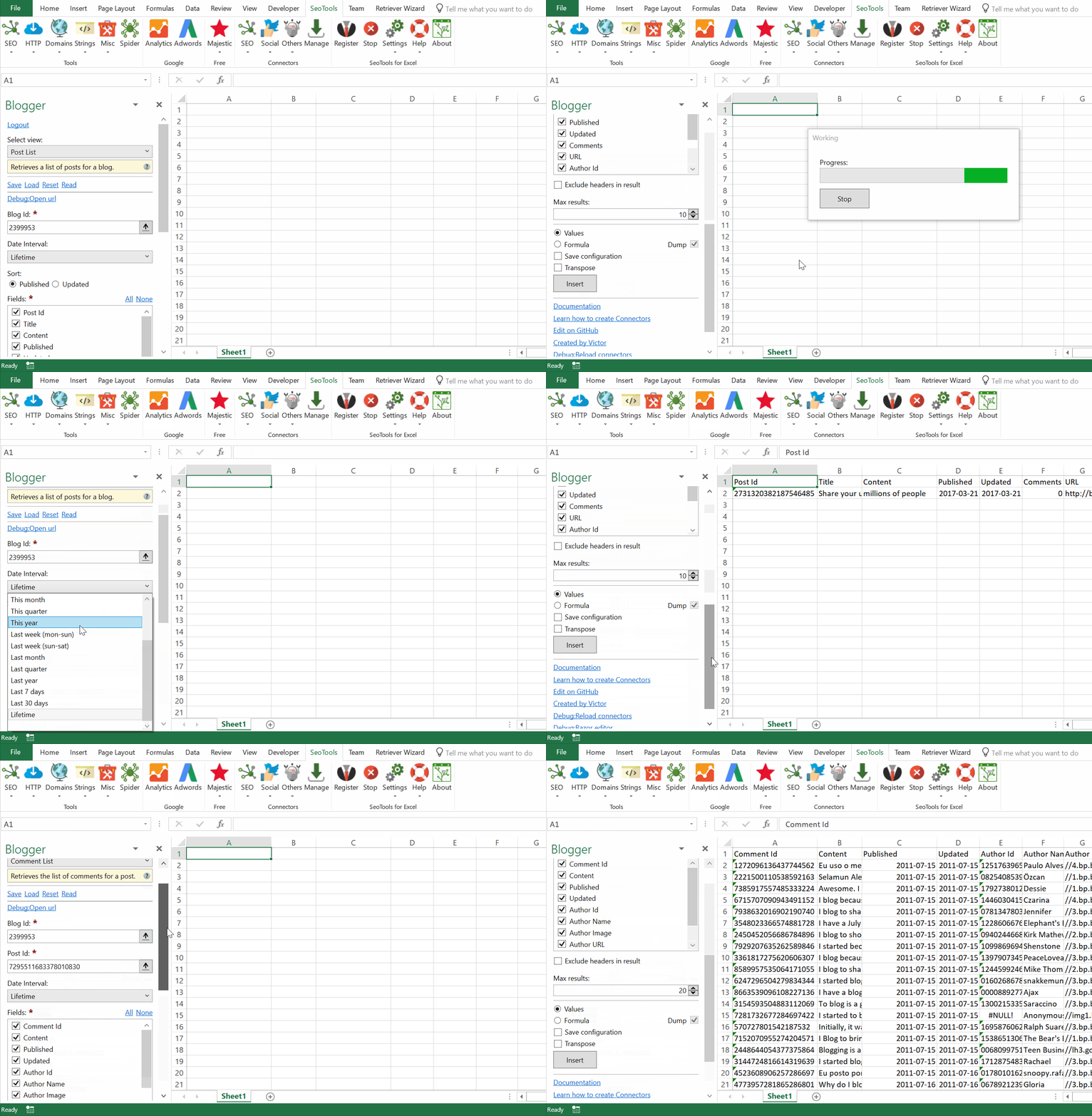
Summary: Extract Blogger data to Excel. List all pages, posts and comments for a specific blog. Search and lookup specific blog posts.
___
## Blog
- **Lookup by ID** - Retrieves a blog by its ID.
- **Lookup by URL** - Retrieves a blog by its URL.
## Post
- **List** - Retrieves a list of posts for a blog. Filter results by:
- Period (Start and End date)
- **Lookup** - Retrieves one post by post ID.
- **Search** - Searches for a post that matches the given query terms.
## Comments
- **List** - Retrieves the list of comments for a post.
## Page
- **List** - Retrieves the list of pages for a blog.
___
## Add from Manager
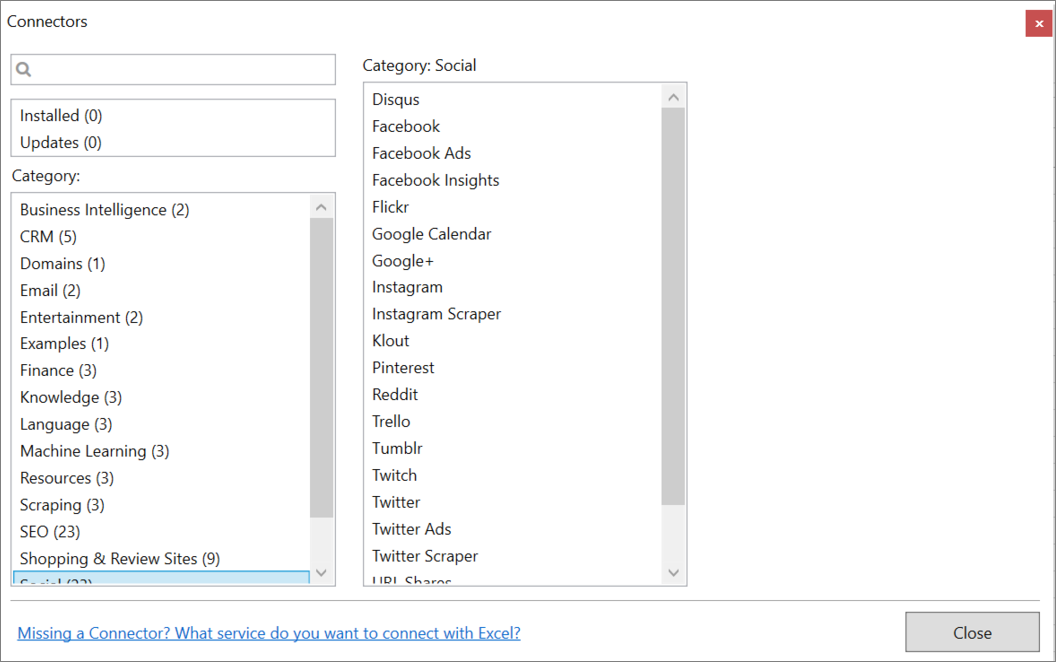
The Blogger Connector is available in the **[Connectors Manager](/manage-connectors/)** in the top ribbon:

Head over to the **Social Category** and install Blogger:
___
## Contribute
This connector suite is open-sourced on [GitHub](https://github.com/nielsbosma/SeoTools-for-Excel-Connectors/blob/master/Blogger.xml).
___
## See
#### Official Documentation
* [Blogger API](https://developers.google.com/blogger/docs/3.0/reference/)
#### Related Functions
* [Tumblr](/tumblr/)
#### Resources
* [Manager](/manage-connectors/)
---
# Access BuiltWith in Excel
URL: https://seotoolsforexcel.com/builtwith/
Type: page
Published: 2020-02-27
Updated: 2020-03-26
Summary: Integrate BuiltWith in Excel and analyze relationships between pages, domain stats, keywords, trends, and identify sites based on company names.
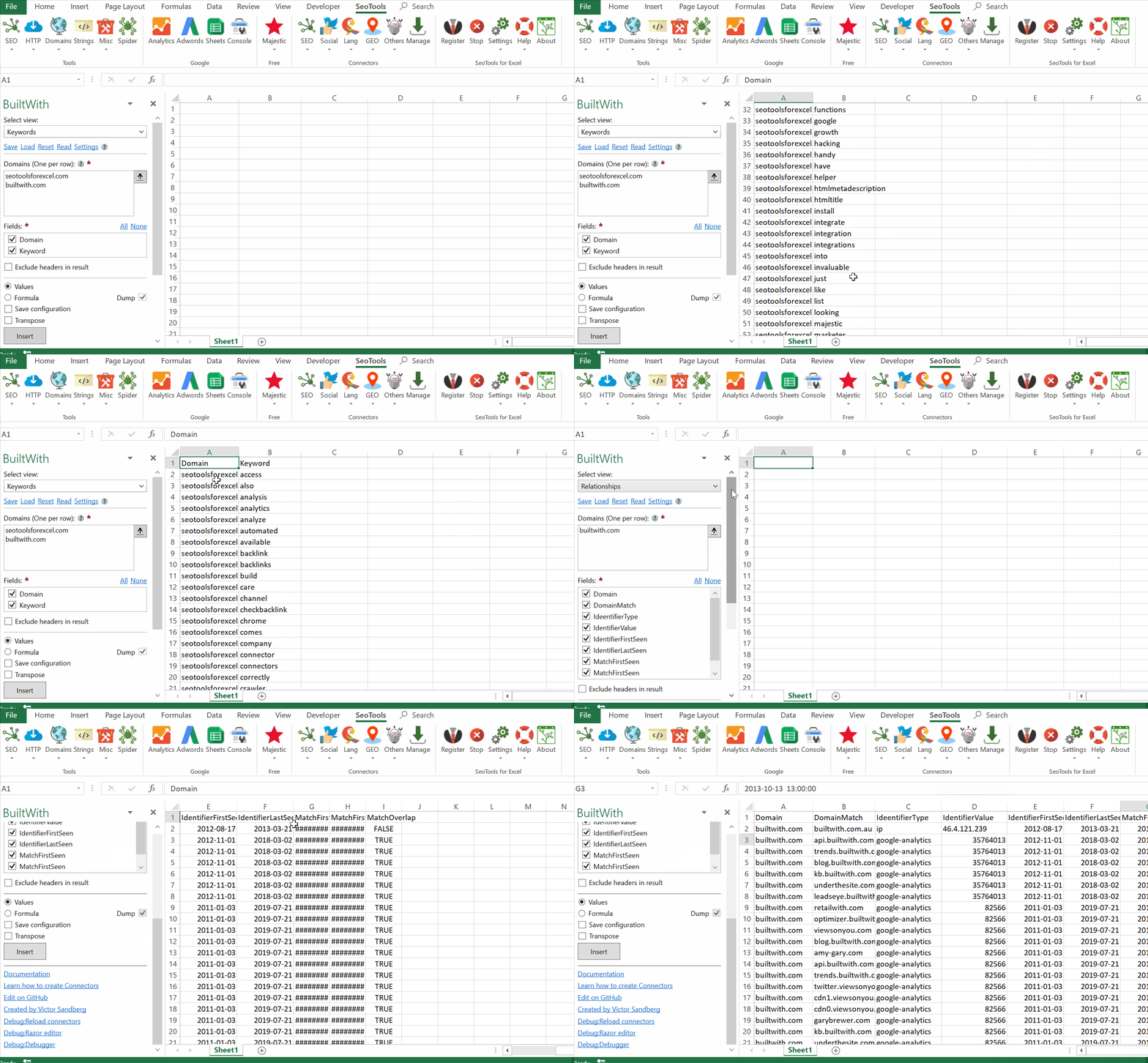
___
## Domains
Provides technical information and additional meta data about one or more domains.
## Relationships
Get results of relationships between websites that show what sites are linked together, by what and for how long.
## Keywords
Allows you to get access to keywords connected to websites.
## Trends
Provides access to the technology trends data found on BuiltWith Trends.
## Company to URL
Get domain name from the company name you supply.
___
## Access
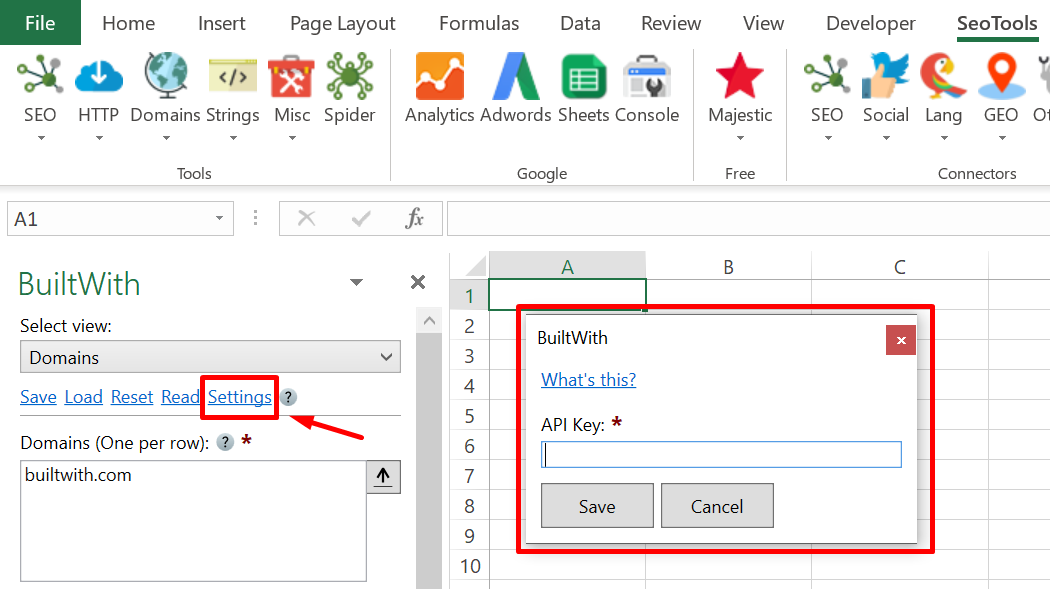
To use the BuiltWith connector you need an [API key](https://api.builtwith.com/free-api).
Paste the key in the BuiltWIth Settings window inside Seotools.
___
## Contribute
This connector suite is open-sourced on [GitHub](https://github.com/nielsbosma/SeoTools-for-Excel-Connectors/blob/master/BuiltWith.xml).
___
## See
#### Official Documentation
* [BuiltWith API](https://api.builtwith.com/)
#### Resources
* [Manager](/manage-connectors/)
---
# Caching
URL: https://seotoolsforexcel.com/caching/
Type: page
Published: 2015-01-05
Updated: 2020-05-25
Summary: SeoTools allows caching of web pages which greatly increases speed when collecting information from the same source.
A lot of functions in SeoTools retrieves information from a webpage (or other sources from the internet) that are marked as *cached*. This mean that, during a session, SeoTools will only try to fetch a page once and all functions that are *cached* can reuse the fetched page.
For example lets say you want to get both H1 and H2 from a page. You use `=HtmlH1("https://mypage.se")` and then `=HtmlH2("https://mypage.se")`. When SeoTools fetches the page to get the H1 the cache is empty so https://mypage.se is fetched. But when we get the H2 we have https://mypage.se in cache and SeoTools uses what stored in memory instead.
___
## Clear Cache
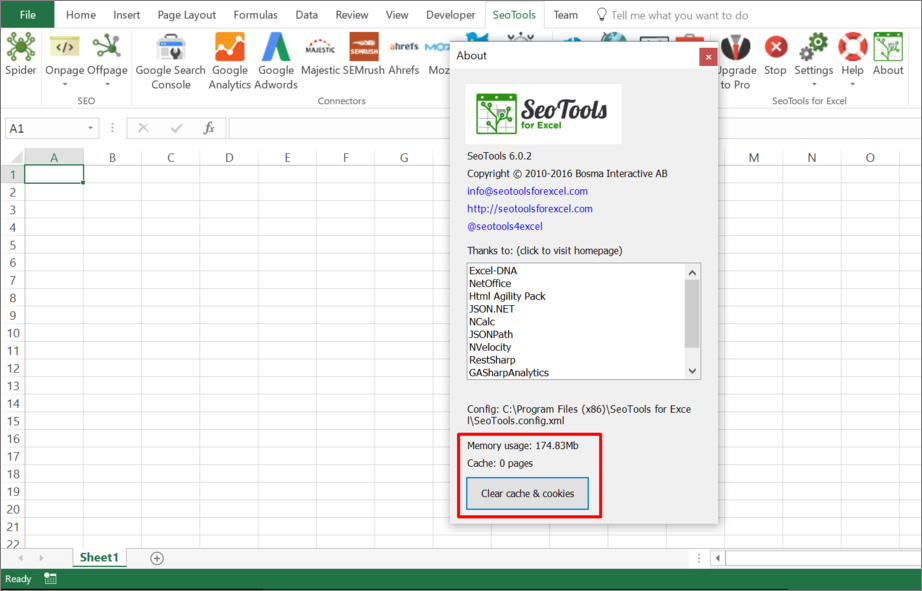
You can empty the cache by selecting *About* in the SeoTools tab and click on *Clear Cache*.
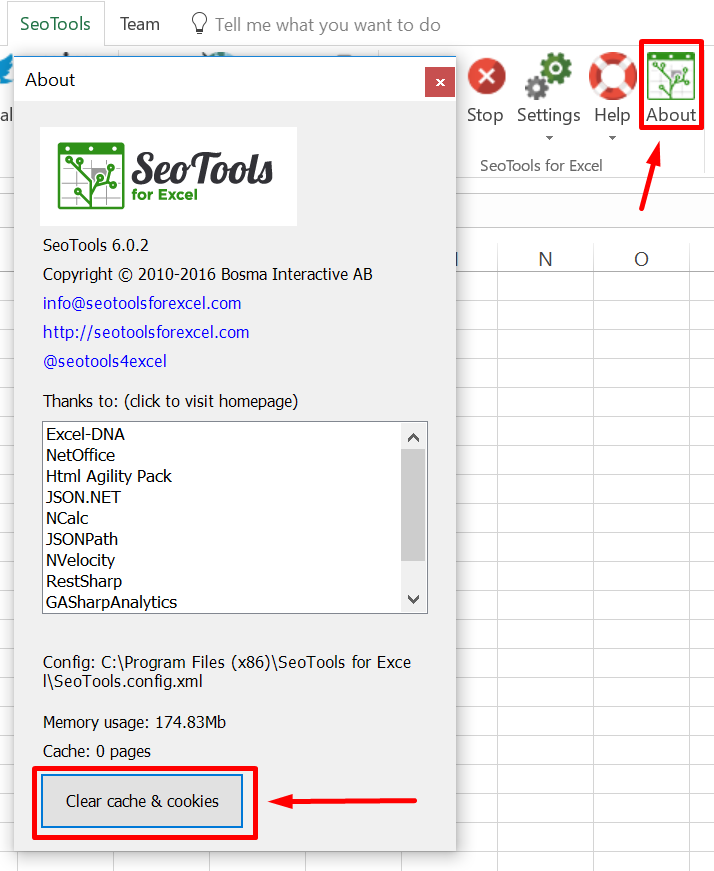
You can also use the function [=SeoToolsClearCache()](/seotoolsclearcache/) to quickly clear the cache.
Clear all pages from https://seotoolsforexcel.com/ (use '*' as wildcard):
=SeoToolsClearCache("https://seotoolsforexcel.com/*")
From VBA:
Application.Run("SeoToolsClearCache","https://seotoolsforexcel.com/*")
___
## List Cache
The function [=SeoToolsListCache()](/seotoolslistcache/) returns a list of all cached URLs. Wrap it in the [=Dump()](/dump/) function to return the entire list. Works the same with optional wildcard argument for URL:
=Dump(SeoToolsListCache("https://seotoolsforexcel.com/*"))
___
## See
#### Related Functions
* [SeoToolsClearCache](/seotoolsclearcache/)
* [SeoToolsListCache](/seotoolslistcache/)
---
# CheckBacklink
URL: https://seotoolsforexcel.com/checkbacklink/
Type: page
Published: 2015-01-05
Updated: 2019-05-27
Summary: Excel formula to check that a backlink is present on a web page with the correct link text and that there’s no rel=nofollow.
```
=CheckBacklink(string pageUrl, string expectedLinkHref,
string expectedLinkText (optional),
bool checkNofollow (optional)) : string
```
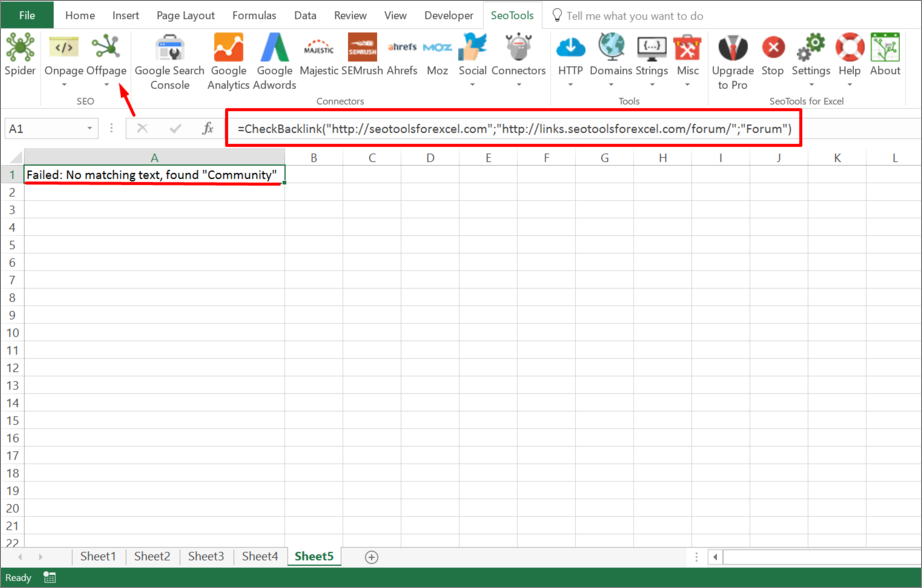
___
## Purpose
Verifies that a backlink is present on a page with the correct link text and that there’s no `rel=nofollow`.
This is a very useful function when validating that links you have "acquired" are still present.
If the link text is not found, the BackLink Checker will suggest other texts found on the page (see example above).
____
## Example
=CheckBacklink("http://www.linkdirectory.com/subpage",
"https://mypage.com/","An awesome page",TRUE)
In the example we verify that there’s a link to `https://mypage.com` on `http://www.linkdirectory.com/subpage` with the anchorText “An awesome page” and that this link is not rel=nofollow.
`expectedLinkHref` and `expectedLinkText` supports wildcards:
=CheckBacklink("https://seotoolsforexcel.com",
"https://*.uservoice.com","Suggestion*")
In this example we check if there's any link to \*.uservoice.com (where \* can be anything) that's has a link text that starts with "Suggestion" on https://seotoolsforexcel.com.
---
# Access cognitiveSEO in Excel
URL: https://seotoolsforexcel.com/cognitiveseo/
Type: page
Published: 2020-02-27
Updated: 2020-02-27
Summary: Integrate cognitiveSEO in Excel and analyze your keywords, campaigns, links based on SERP from Google, Bing, and Yahoo.
___
## Keywords
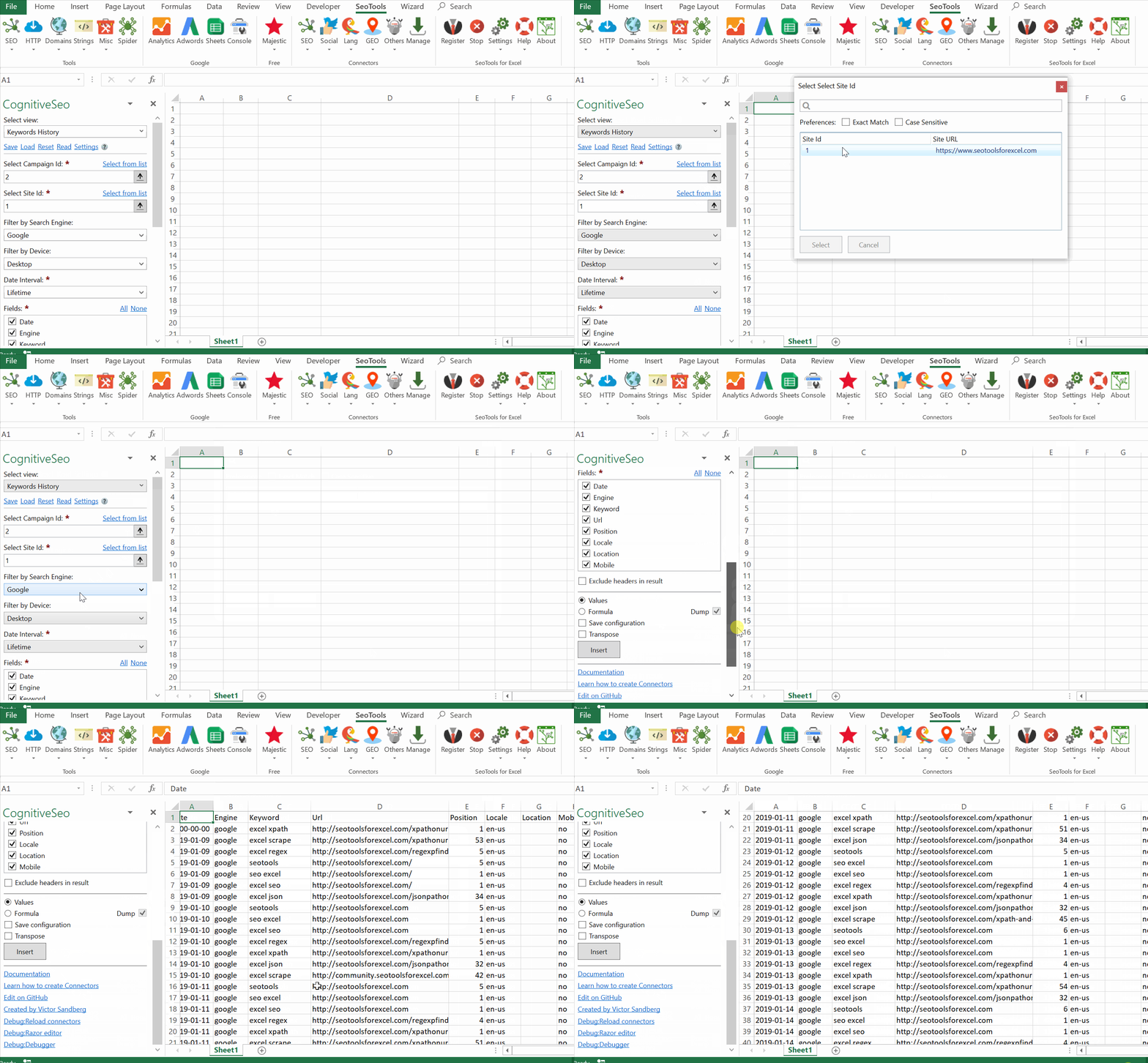
- **History** - Displays the history of the tracked keywords for a
Campaign and Site. Filter by:
- **Search Engine** (Google|Bing|Yahoo)
- **Device** (Destop|Mobile)
- **Period**
## Campaigns
- **Links** - Extracts backlinks from a selected campaign.
- **New & Lost** - Extracts any new or any lost links from a selected campaign.
## Social
- **Visibiliy** - Return the social data regarding the links in the campaign.
- **History** - Returns the social data history for the campaign
___
## Access
## Add from Manager
The cognitiveSEO Connector is available in the **[Connectors Manager](/manage-connectors/)** in the top ribbon:

Head over to the **SEO Category** and install cognitiveSEO:

## API key
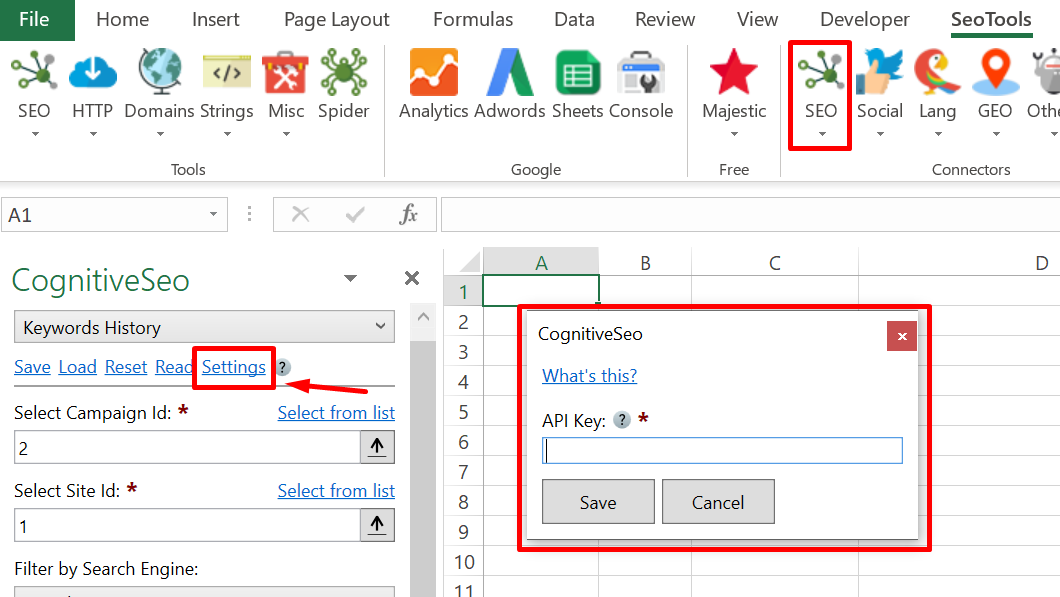
To use the cognitiveSEO connector you need an API key which is located in the Settings page -> API.
Copy the API key and paste in the Settings window inside Seotools.
___
## Contribute
This connector suite is open-sourced on [GitHub](https://github.com/nielsbosma/SeoTools-for-Excel-Connectors/blob/master/CognitiveSEO.xml).
___
## See
#### Official Documentation
* [CognitiveSEO API](https://cognitiveseo.com/api/)
#### Resources
* [Manager](/manage-connectors/)
---
# Access Coindesk Bitcoin Price Index in Excel
URL: https://seotoolsforexcel.com/coindesk-bpi/
Type: page
Published: 2018-02-25
Updated: 2019-05-19
Summary: SeoTools for Excel offers a user-friendly and effective method to fetch and analyze current and historical bitcoin rates in Excel.
___
## Purpose
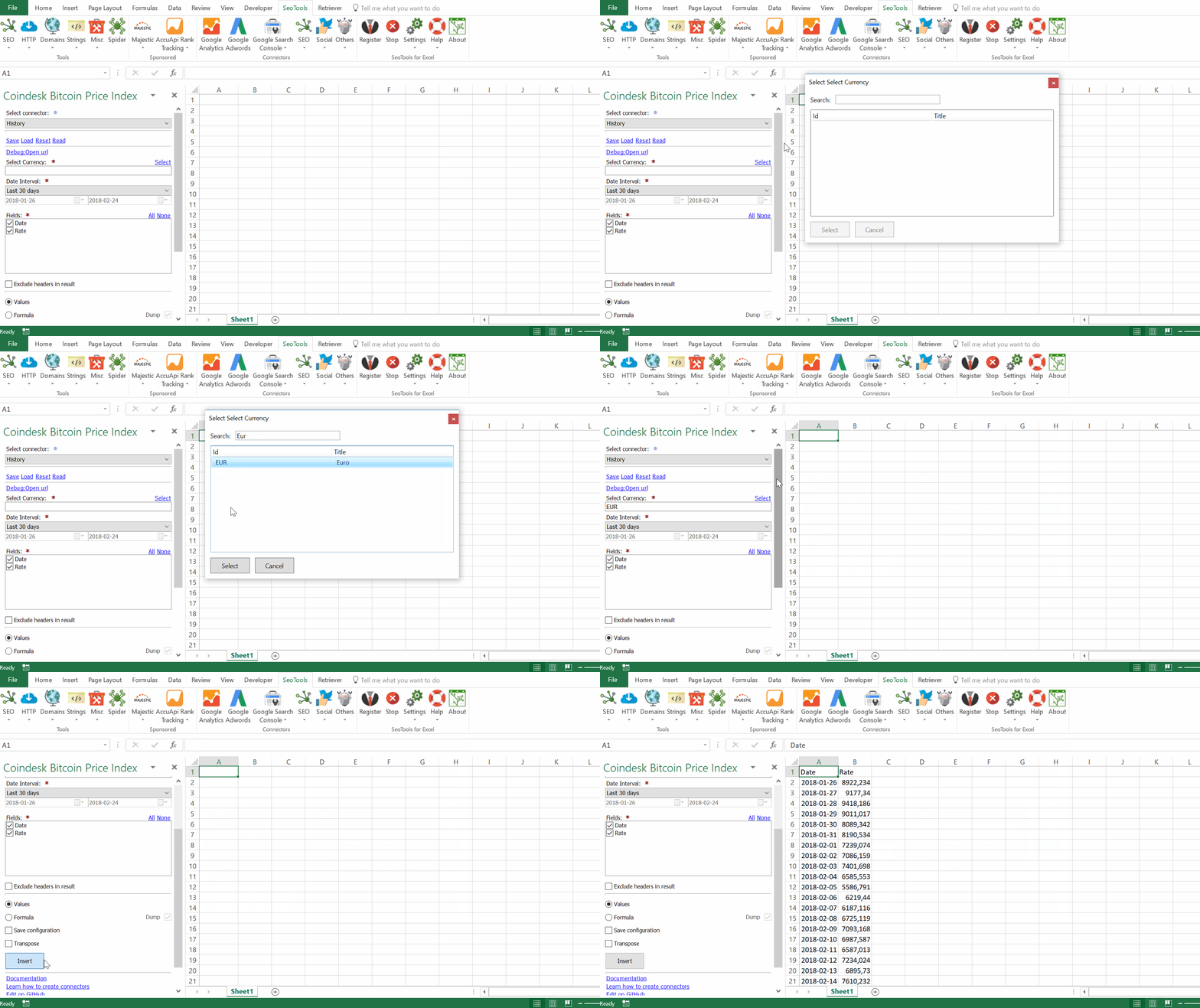
The Coindesk Bitcoin Price Index API supports real-time rates and historical rates. Available parameters:
- Currency output
- Timespan (for historical rates)
___
## Access
## Add from Manager
The Coindesk Connector is available in the **[Connectors Manager](/manage-connectors/)** in the top ribbon:

Head over to the **Finance Category** and install Coindesk:

___
## Contribute
This connector suite is open-sourced on [GitHub](https://github.com/nielsbosma/SeoTools-for-Excel-Connectors/blob/master/CoindeskBPI.xml).
___
## See
#### Official Website
* Powered by [Coindesk](https://www.coindesk.com/)
#### Official Documentation
* [Coindesk Bitcoin Price Index API](https://www.coindesk.com/api)
##### Related Functions
* [Binance](/binance/)
* [CoinMarketCap](/coinmarketcap/)
#### Resources
* [Manager](/manage-connectors/)
---
# Access CoinMarketCap in Excel
URL: https://seotoolsforexcel.com/coinmarketcap/
Type: page
Published: 2019-01-10
Updated: 2019-05-19
Summary: Integrate CoinMarketCap in Excel and analyze cryptocurrency data. Extract live and historical metadata, quotes, market pairs,chart data and much more.
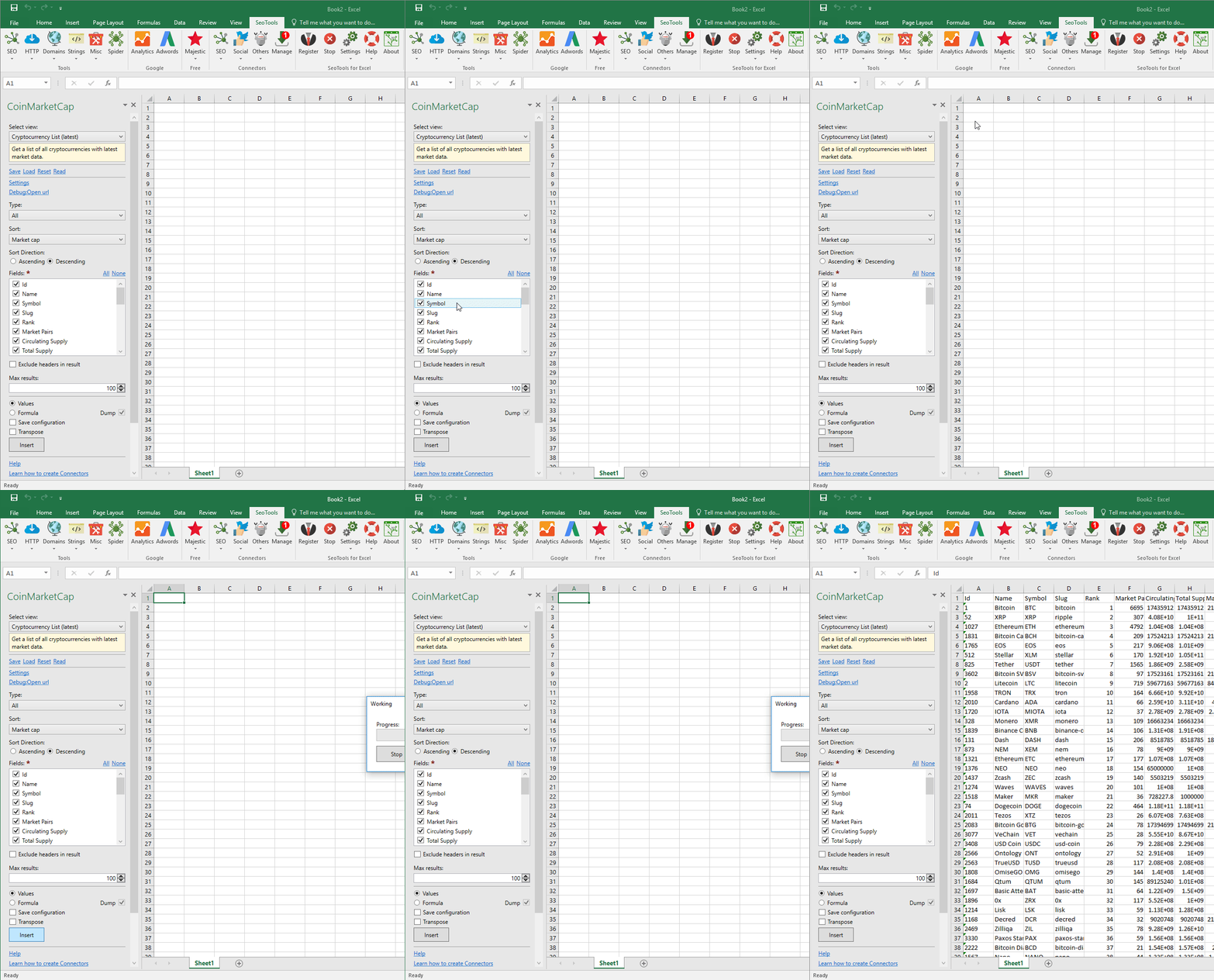
## CryptoCurrency metadata
Returns all static metadata for one or more cryptocurrencies including name, symbol, logo, and its various registered URLs.
#### Parameters
- **Symbols** - One or more currency symbols, separated by comma
#### Fields
- **Id**
- **Name**
- **Symbol**
- **Category**
- **Slug**
- **Logo**
- **Tags**
- **Platform**
- **Website**
- **Explorer**
- **Source Code**
- **Message Board**
- **Chat**
- **Announcements URL**
- **Reddit**
- **Twitter**
## Cryptocurrency List (latest)
Get a list of all cryptocurrencies with latest market data.
#### Parameters
- **Type**
- **Sort**
- **Sort Direction**
#### Fields
- **Id**
- **Name**
- **Symbol**
- **Slug**
- **Rank**
- **Market Pairs**
- **Circulating Supply**
- **Total Supply**
- **Max Supply**
- **Last Updated**
- **Date Added**
- **Tags**
- **Platform**
- **Token Address**
- **Price**
- **Volume 24h**
- **Percent Change 1h**
- **Percent Change 24h**
- **Percent Change 7d**
- **Market Cap** - Market cap (latest trade price x circulating supply).
- **Last Updated**
- **Quote BTC Price**
- **Quote BTC Volume 24h**
- **Quote BTC Percent Change 1h**
- **Quote BTC Percent Change 24h**
- **Quote BTC Percent Change 7d**
- **Quote BTC Market Cap** - Market cap (latest trade price x circulating supply).
- **Quote BTC Last Updated**
## Market pairs (latest) (Standard+)
Lists all market pairs for the specified cryptocurrency with associated stats.
#### Parameters
- **Symbols** - One or more currency symbols, separated by comma
#### Fields
- **Exchange Id**
- **Exchange Name**
- **Exchange Slug**
- **Market Pair**
- **Base Id**
- **Base Symbol**
- **Base Type**
- **Quote Id**
- **Quote Symbol**
- **Quote Type**
- **Quote Exchange Price**
- **Base Vol. 24h**
- **Quote Vol. 24h**
- **Last Updated**
- **USD Price**
- **USD Volume 24h**
- **USD Last Updated**
## Market Chart Data (latest) (Startup+)
Return the latest OHLCV (Open, High, Low, Close, Volume) market values for one or more cryptocurrencies in the currently UTC day.
#### Parameters
- **Symbol** - Cryptocurrency symbol, e.g. BTC
#### Fields
- **Id**
- **Name**
- **Symbol**
- **Last Updated**
- **Time Open**
- **Time Close**
- **Open**
- **High**
- **Low**
- **Close**
- **Volume**
- **Last Updated**
## Market Chart Data (historical) (Standard+)
Return an interval of historic OHLCV (Open, High, Low, Close, Volume) market quotes for a cryptocurrency.
#### Parameters
- **Symbol** - Cryptocurrency symbol, e.g. BTC
- **Date Interval**
- **Time Period**
- **Interval**
#### Fields
- **Open**
- **High**
- **Low**
- **Close**
- **Volume**
- **Timestamp**
- **Time Open**
- **Time Close**
## Market Quotes (historical) (Standard+)
Returns an interval of historic market quotes for any cryptocurrency based on time and interval parameters.
#### Parameters
- **Symbol** - Cryptocurrency symbol, e.g. BTC
- **Date Interval**
- **Interval**
#### Fields
- **Price**
- **24h Volume**
- **Market Cap**
- **Timestamp**
## Market Quotes (latest)
Get the latest market quote for 1 or more cryptocurrencies.
#### Parameters
- **Symbols** - Cryptocurrency symbols, comma separated
#### Fields
- **Id**
- **Name**
- **Symbol**
- **Circulating Supply**
- **Total Supply**
- **Max Supply**
- **Date Added**
- **Num Market Pairs**
- **Cmc Rank**
- **Last Updated**
- **Price**
- **24h Volume**
- **Market Cap**
- **Last Updated**
- **Change % 1h**
- **Change % 24h**
- **Change % 7d**
## Exchange Metadata (Startup+)
Returns all static metadata for one or more exchanges including logo and homepage URL.
#### Parameters
- **Symbols** - One or more currency symbols, separated by comma
#### Fields
- **Id**
- **Name**
- **Symbol**
- **Category**
- **Slug**
- **Logo**
- **Tags**
- **Platform**
- **Website**
- **Explorer**
- **Source Code**
- **Message Board**
- **Chat**
- **Announcements URL**
- **Reddit**
- **Twitter**
## Exchange List (latest) (Startup+)
Get a list of all cryptocurrency exchanges including the latest aggregate market data for each exchange.
#### Parameters
- **Sort**
- **Sort Direction**
#### Fields
- **Id**
- **Name**
- **Slug**
- **Market Pairs**
- **Updated**
- **Volume 24h**
- **Volume 24h Adjusted**
- **Volume 7d**
- **Volume 30d**
- **Percent Change 1h**
- **Percent Change 24h**
- **Percent Change 7d**
- **Percent Change 30d**
- **Market Cap** - Market cap (latest trade price x circulating supply).
___
## Access
[Follow these steps to create an API key](https://coinmarketcap.com/api/documentation/v1/#section/Introduction)
## Add from Manager
The CoinMarketCap Connector is available in the **[Connectors Manager](/manage-connectors/)** in the top ribbon:

Select the **Finance** category and install CoinMarketCap:

___
## Contribute
This connector suite is open-sourced on [GitHub](https://github.com/nielsbosma/SeoTools-for-Excel-Connectors/blob/master/CoinMarketCap.xml).
___
## See
#### Official Documentation
[CoinMarketCap API](https://coinmarketcap.com/api/)
#### Related Functions
* [Alpha Vantage](/alpha-vantage/)
* [Binance](/binance/)
---
# COM Add-in helper could not be registered
URL: https://seotoolsforexcel.com/com-add-in-helper-could-not-be-registered/
Type: page
Published: 2019-05-18
Updated: 2019-05-19
Summary: Follow these instructions to solve the issue and get to work with Seotools for Excel.
This sometimes happens when SeoTools is put in some kind of Error state by Excel.
Under Add-Ins and "Manage: Disabled Items", see if SeoTools is listed here and if so "Enable".
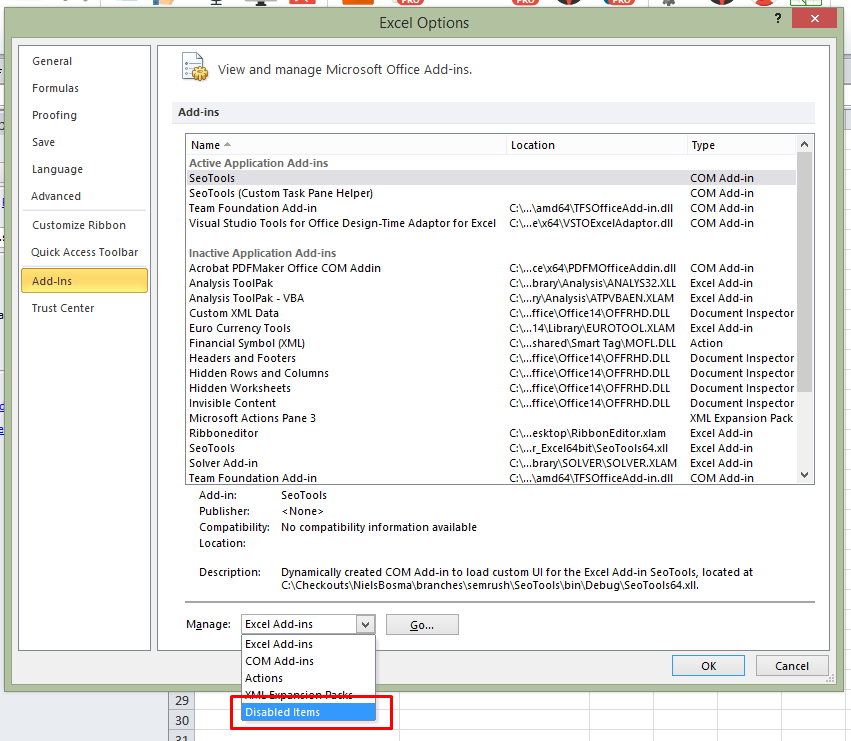
If this doesn't work try this trick to reset Excel:
(only do this yourself if you know what you're doing)
Open the registry and delete these folders:
HKEY_CURRENT_USER\Software\Microsoft\Office\14.0\Excel
HKEY_LOCAL_MACHINE\Software\Microsoft\Office\14.0\Excel
Where you replace 14.0 with your Excel version.
Then restart your computer and try to install SeoTools again.
---
# Connectors
URL: https://seotoolsforexcel.com/connectors/
Type: page
Published: 2015-10-04
Updated: 2025-05-06
Summary: Connectors extends the functionality of SeoTools and allows integration of APIs into Excel.
With Connectors you can extend the functionality of SeoTools and easily integrate APIs into Excel. SeoTools is shipped with several connectors that contain a wealth of useful features.
## Sponsored
## Learn how to build your own connectors
Creating your own connector is quite simple. The ones that are shipped with SeoTool are all open-sourced on [GitHub](https://github.com/nielsbosma/SeoTools-for-Excel-Connectors).
## Related
* [SqlConnectors](/sqlconnectors/)
---
# Access On-Page Scrapers in Excel
URL: https://seotoolsforexcel.com/connectors-onpage/
Type: page
Published: 2015-10-04
Updated: 2019-05-18
Summary: SeoTools for Excel offers a user-friendly and effective way to collect items on web pages, for example Twitter users, LinkedIn accounts, email addresses.
## Purpose
Find all items of a specific type on a page.
## Connectors
* [Email](/email/)
* [Social Meta Tags](/socialmetatags/)
* [Google AdSense Id](/googleadsenseid/)
* [Google Analytics Id](/googleanalyticsid/)
* [Twitter Accounts](/twitter-accounts/)
* [Instagram Accounts](/instagram-accounts/)
* [LinkedIn Accounts](/linkedin-accounts/)
___
## Contribute
This connector suite is open-sourced on [GitHub](https://github.com/nielsbosma/SeoTools-for-Excel-Connectors).
---
# Convert Formulas to Values
URL: https://seotoolsforexcel.com/converter/
Type: page
Published: 2020-05-24
Updated: 2020-05-24
Summary: This tool allows you to quickly convert formulas to values. Chose between selected range or entire worksheet.
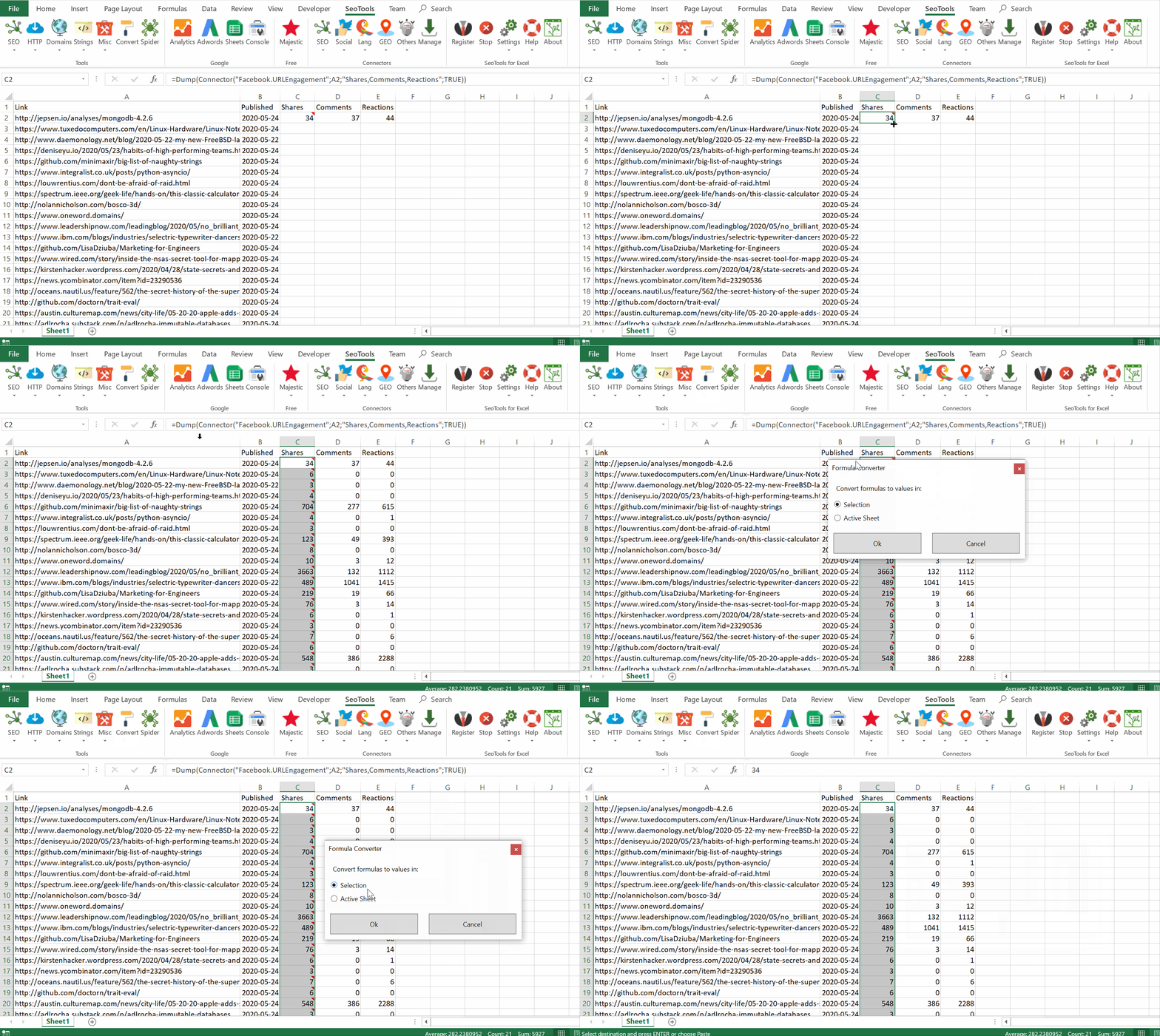
## Purpose
The Convert tool allows you to quickly convert formulas to values. This is especially effective for converting Seotools Dump() formulas because they sometimes recalculate when performing a "regular" paste as values. The red Dump() formula comments are also removed (see example GIF above).
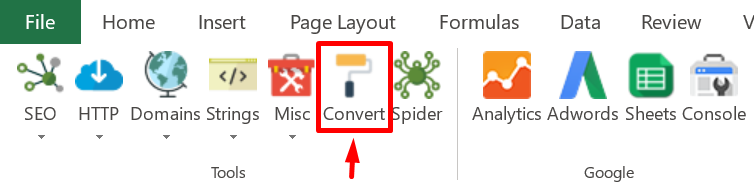
## Modes
- **Selection** - Converts all formulas within the selected range. The range must be entirely outside pivot tables and tables or inside a table.
- **Active Sheet** - Converts all formulas in the active sheet. No tables or pivot tables can exist on the sheet. 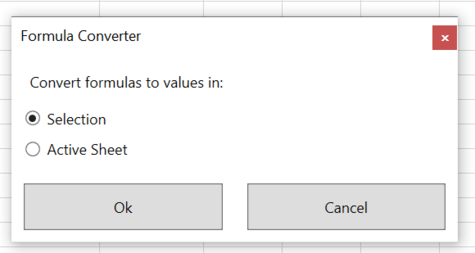
____
### Related Functions
* [Working with arrays in Excel](/working-with-arrays-in-excel/)
* [Dump](/dump/)
---
# Access Copyscape in Excel
URL: https://seotoolsforexcel.com/copyscape/
Type: page
Published: 2018-11-11
Updated: 2020-02-26
Summary: Integrate Copyscape with Excel and detect duplicate content and check if text from cells or links are original. Returns duplicates with min words matched.
## Input
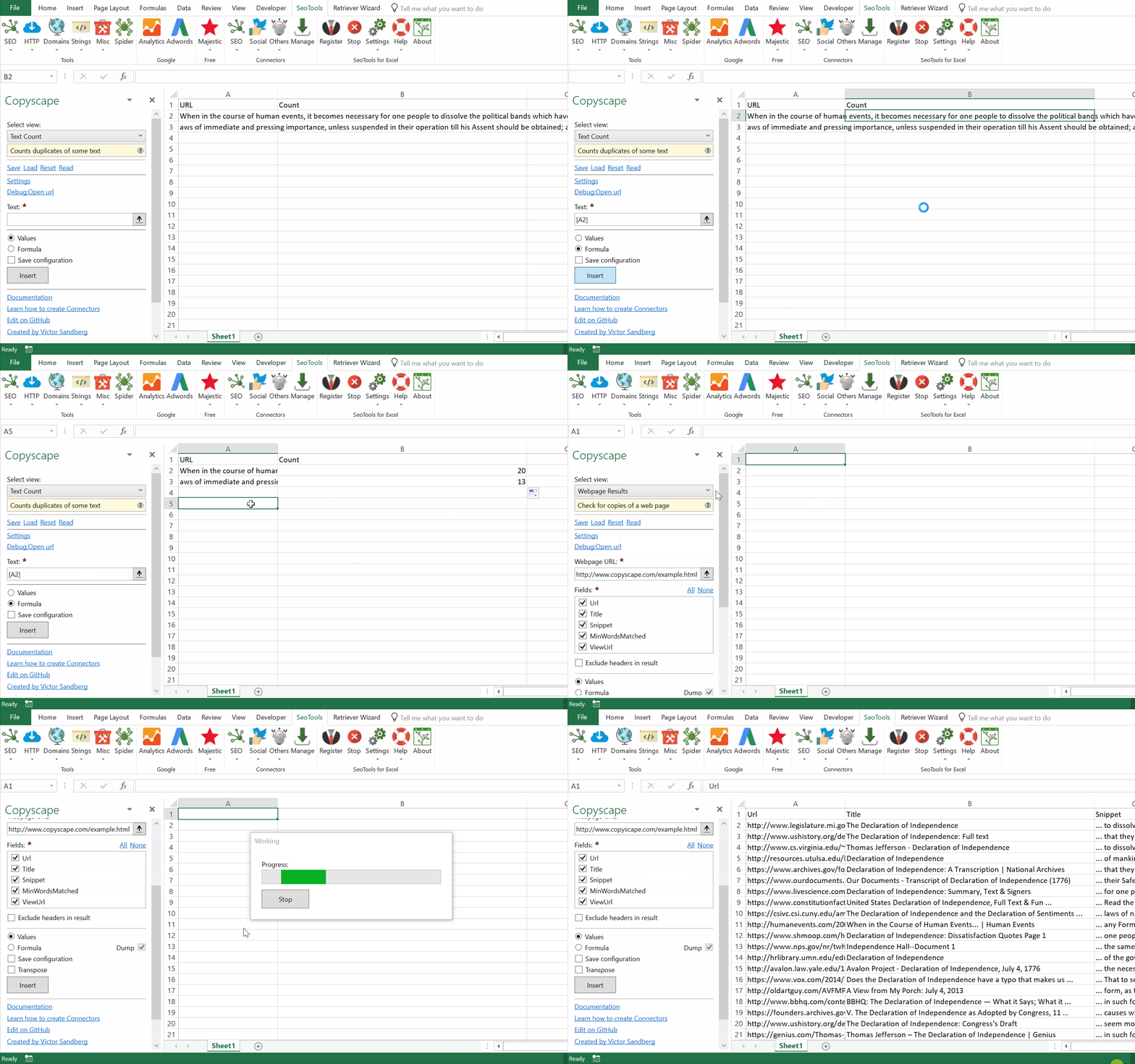
The Copyscape Connector allows you to check for copies of a text based on either **Webpages** or **Texts**.
## Output
After Copyscape has checked an input, you can have the findings presented in two ways:
- **Results** (table)
- **Counts** (integer)
Results gives you a complete list of all possible duplicates along with various metadata (see below). Counts gives you the number of possible duplicates. This is perfect when you use formula mode and you can parse a list of texts or webpages (see example GIF).
### Results metrics:
- **URL** - URL of found page
- **Title** - Title of the found web page
- **Snippet** - Text snippet showing some of the matching text
- **MinWordsMatched** - Minimum number of words matching
- **ViewUrl** - Minimum number of words matching
## Balance
Check how much credit you have remaining.
___
## Access
## Add from Manager
The Copyscape Connector is available in the **[Connectors Manager](/manage-connectors/)** in the top ribbon:

Head over to the **Legal Category** and install Copyscape:
## API Key
To use the Connector you need an API Key which is available in the [Premium API Section](https://www.copyscape.com/apiconfigure.php#key).
In the Copyscape Connector taskpane, click on Settings and paste your username and API key in the respective field: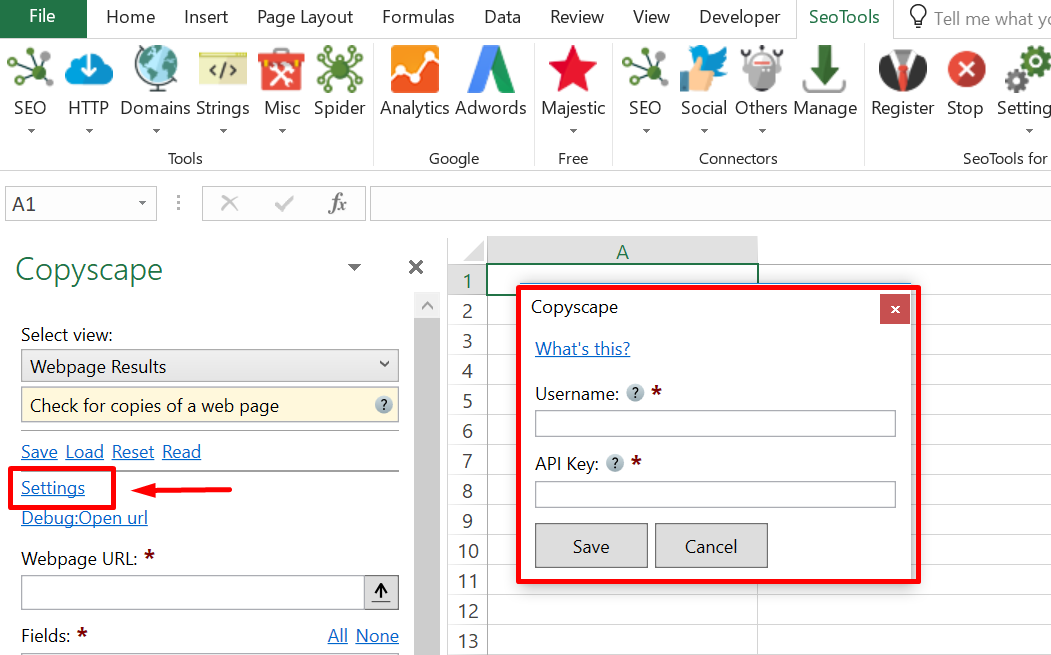
___
## Contribute
This connector suite is open-sourced on [GitHub](https://github.com/nielsbosma/SeoTools-for-Excel-Connectors/blob/master/Copyscape.xml).
___
## See
#### Official Documentation
* [Copyscape API](https://www.copyscape.com/api-guide.php)
#### Related Functions
* [FindDuplicateContent](/findduplicatecontent/)
* [LCS](/lcs/)
#### Resources
* [Manager](/manage-connectors/)
---
# CountWords
URL: https://seotoolsforexcel.com/countwords/
Type: page
Published: 2015-03-29
Updated: 2019-05-19
Summary: Counts the number of words in a string as a formula in SeoTools for Excel
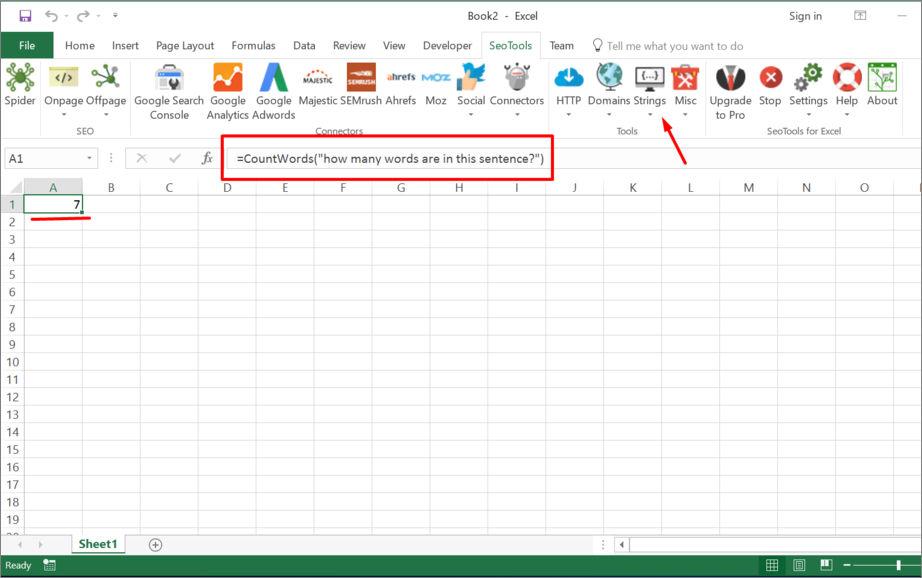
```
=CountWords(string input) : integer
```
___
## Purpose
Count the number of word in a string. Useful when compensating copywriters.
---
# CsQueryOnUrl
URL: https://seotoolsforexcel.com/csquery/
Type: page
Published: 2016-11-07
Updated: 2019-05-19
Summary: Use The CsQueryOnUrl parser to extract elements from HTML pages as a function in SeoTools for Excel.
```
=CsQueryonUrl(url, query, [htmlAttribute,
httpSettings, mode]) : string
```
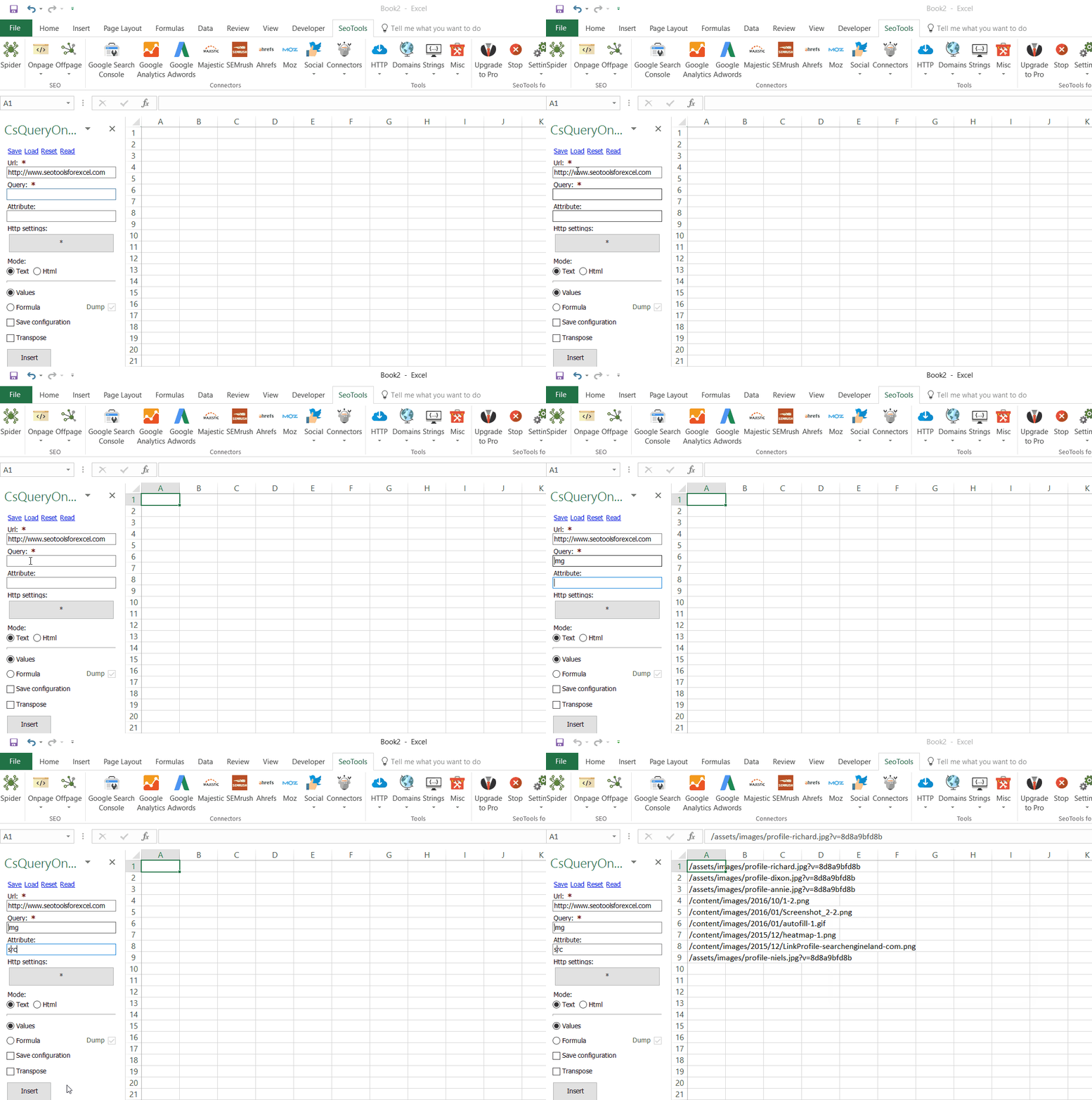
___
## Purpose
Allows scraping of webpages using CSS jQuery path selectors. Mode can be "text" or "html".
___
## Examples
Extract all Html:
=Dump(CsQueryOnUrl("https://www.seotoolsforexcel.com","html"))
Extract all links:
=Dump(CsQueryOnUrl("https://www.seotoolsforexcel.com","a","href"))
___
## See
#### Related Functions
* [GetTextOnUrl](/gettextonurl/)
* [JsonPathOnUrl](/jsonpathonurl/)
* [XPathOnUrl](/xpathonurl/)
* [RegexpFindOnUrl](/regexpfindonurl/)
---
# Access DataForSEO in Excel
URL: https://seotoolsforexcel.com/dataforseo/
Type: page
Published: 2020-02-25
Updated: 2021-07-12
Summary: Integrate DataForSEO in Excel and analyze organic and paid SERPs, volume, keywords, ads, traffic, and pages.
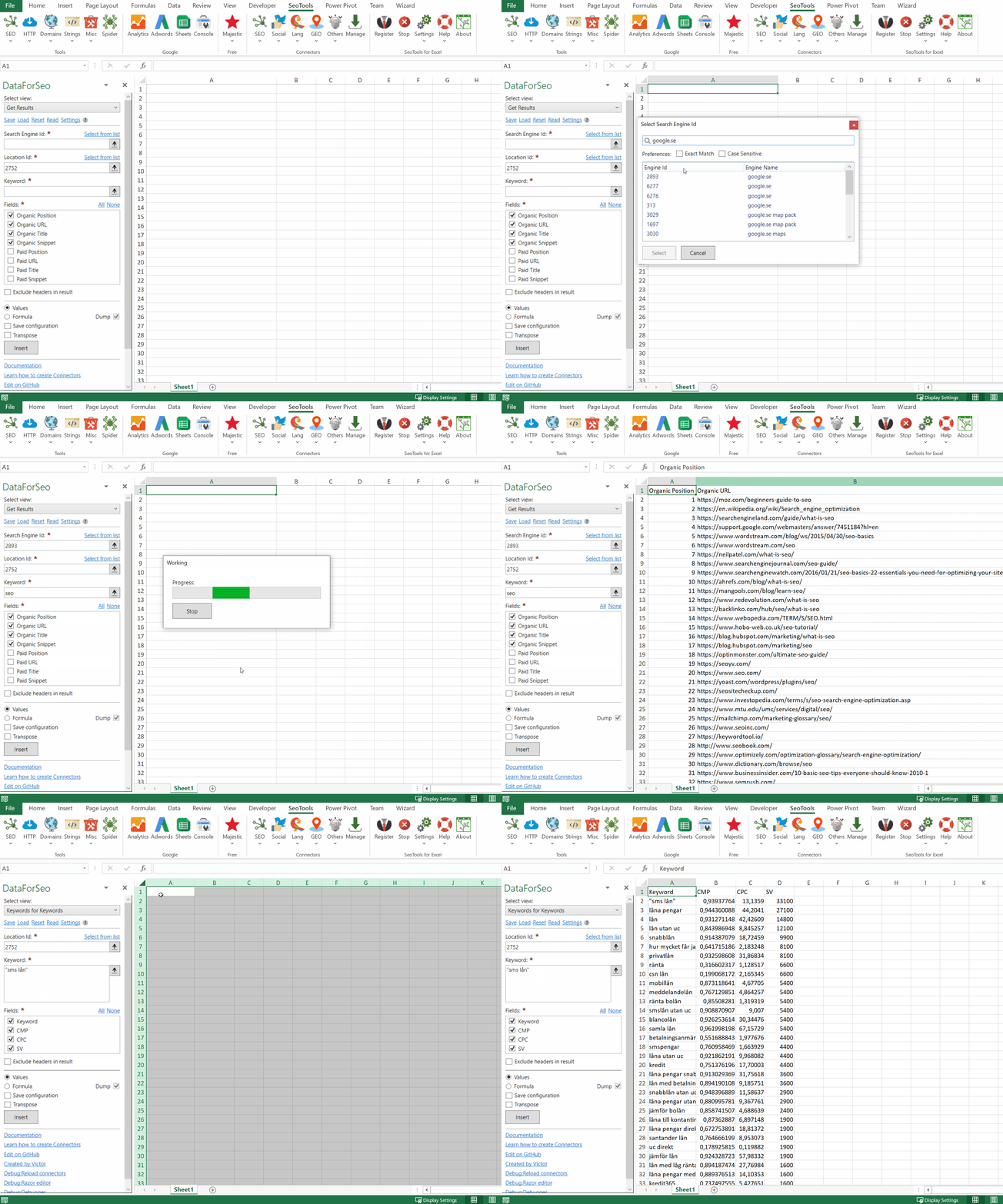
___
## SERP
- **Google** - Receive SERP (Top 100) results from Google according to a certain keyword.
- **Bing** - Receive SERP (Top 100) results from Bing according to a certain keyword.
- **Yahoo** - Receive SERP (Top 100) results from Yahoo according to a certain keyword.
## Live Keywords
- **Search Volume** - Receive search statistics for one or more keywords.
- **Keywords for Domain** - Receive keyword statistics for one domain.
- **Keywords for Keywords** - Receive keyword suggestions for one or more keywords.
- **Keywords for Categories** - Receive keyword for one product category.
- **Ads Traffic for Keywords** - Receive Ads stats for daily impressions, CPC and clicks estimation.
- **Ads Traffic by Platforms** - Receive Ads stats based on one platform. You will get overall information for a group of keywords you send.
## Historic Keywords
- **Search Volume Monthly** - Receive search volume trends for the last year.
- **Keywords for Domain Monthly** - Receive keyword statistics for one domain for the last year.
- **Keywords for Keywords Monthly** - Receive keyword suggestions for one or more keywords for the last year.
- **Keywords for Categories Monthly** - Receive keyword for one product category for the last year.
## Labs Research
- **Related Keywords** - Get keywords that are related to a keyword you are going to provide.
- **Keyword Suggestions** - Based on the full-text search for the specified keyword. Returns only those search terms that contain the keyword you requested with additional words before, after, or within the specified key phrase.
- **Ranked Keywords** - Get keywords for which a website is ranked.
- **Relevant Pages** - Get SERP metrics for relevant pages of a website based on a specific location.
- **Subdomains** - Provides you with a list of subdomains of the specified domain, along with the ranking distribution across organic and paid search.
- **Keyword Ideas** - Provides search terms that are relevant to the product or service categories of the specified keywords.
## On-Page
- **Summary** - Get the overall information on a website as well as drill down into exact on-page issues of a website that has been scanned.
___
## Access
## Add from Manager
The DataForSEO Connector is available in the **[Connectors Manager](/manage-connectors/)** in the top ribbon:

Head over to the **SEO Category** and install DataForSEO:

## API Access
To use the Connector you need a [DataForSEO account](https://app.dataforseo.com/register). Enter your email and password in the Settings window in the connector taskpane:
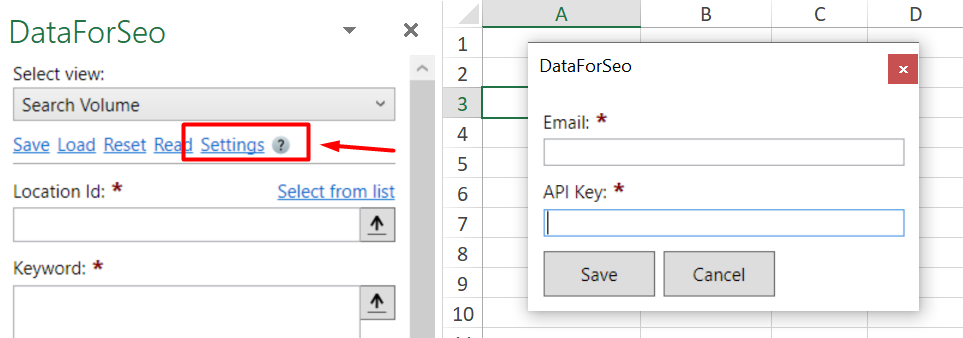
___
## Contribute
This connector suite is open-sourced on [GitHub](https://github.com/nielsbosma/SeoTools-for-Excel-Connectors/blob/master/DataForSEO.xml).
___
## See
#### Official Documentation
* [DataForSEO API](https://dataforseo.com/)
#### Resources
* [Manager](/manage-connectors/)
---
# Access DeepCrawl in Excel
URL: https://seotoolsforexcel.com/deepcrawl/
Type: page
Published: 2017-03-20
Updated: 2019-05-19
Summary: SeoTools for Excel offers a user-friendly and effective method to collect the latest crawl statistics and insights straight to Excel
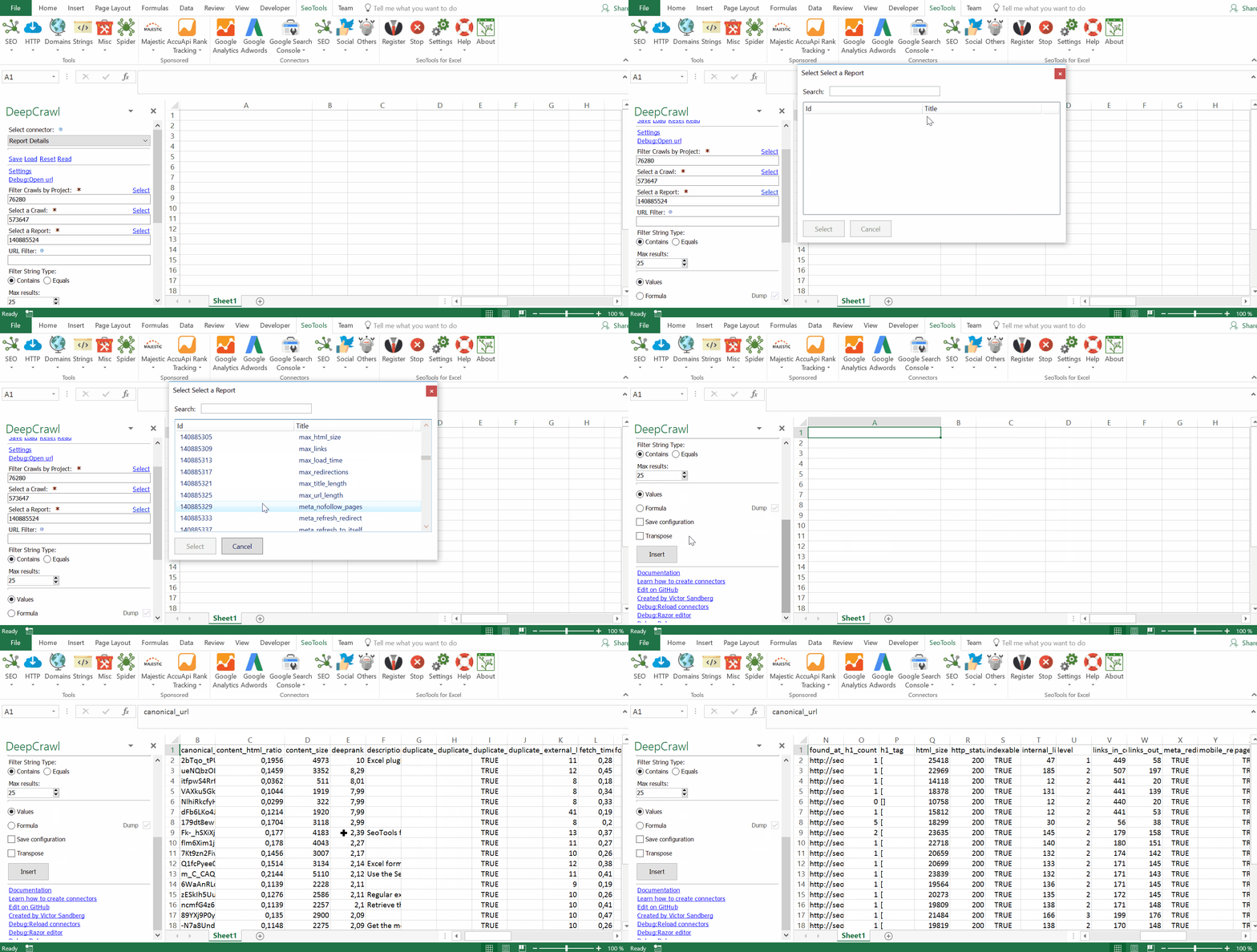
## Purpose
In the SEO world, things change fast. So it’s good practice to perform a technical audit of your site on a regular basis. What sets DeepCrawl apart is the ease with which you can review historical data to identify trends and issues, as well as report on progress. DeepCrawl provides in-depth, up to date data about your architecture.
This helps you to identify areas that need immediate attention, such as server response errors or page indexation issues, as well as validate that changes you’ve made are delivering positive results.
## Projects
Return a summary report of all projects in your accounts. This report includes status, history of your crawls, and statistics about the URLs and sources found.
## Crawls
Return a summary report of all crawls in performed for a specific project. This report includes URL crawl status, depth, and statistics about the page types.
## Crawl Summary
Return a list of reports for a specific crawl, with summary metrics. This report includes historical changes identified in the latest report.
## Report Trend
Return a list of summary metrics from every crawl for a single report.
## Report Details
Return a list of URLs in a Report, with report metrics. Available filters:
- URL String Contains or Equals
___
## Access
To use the Connector you need a DeepCrawl account.
1. Login to your DeepCrawl account and click on **API Access** in the top right settings menu: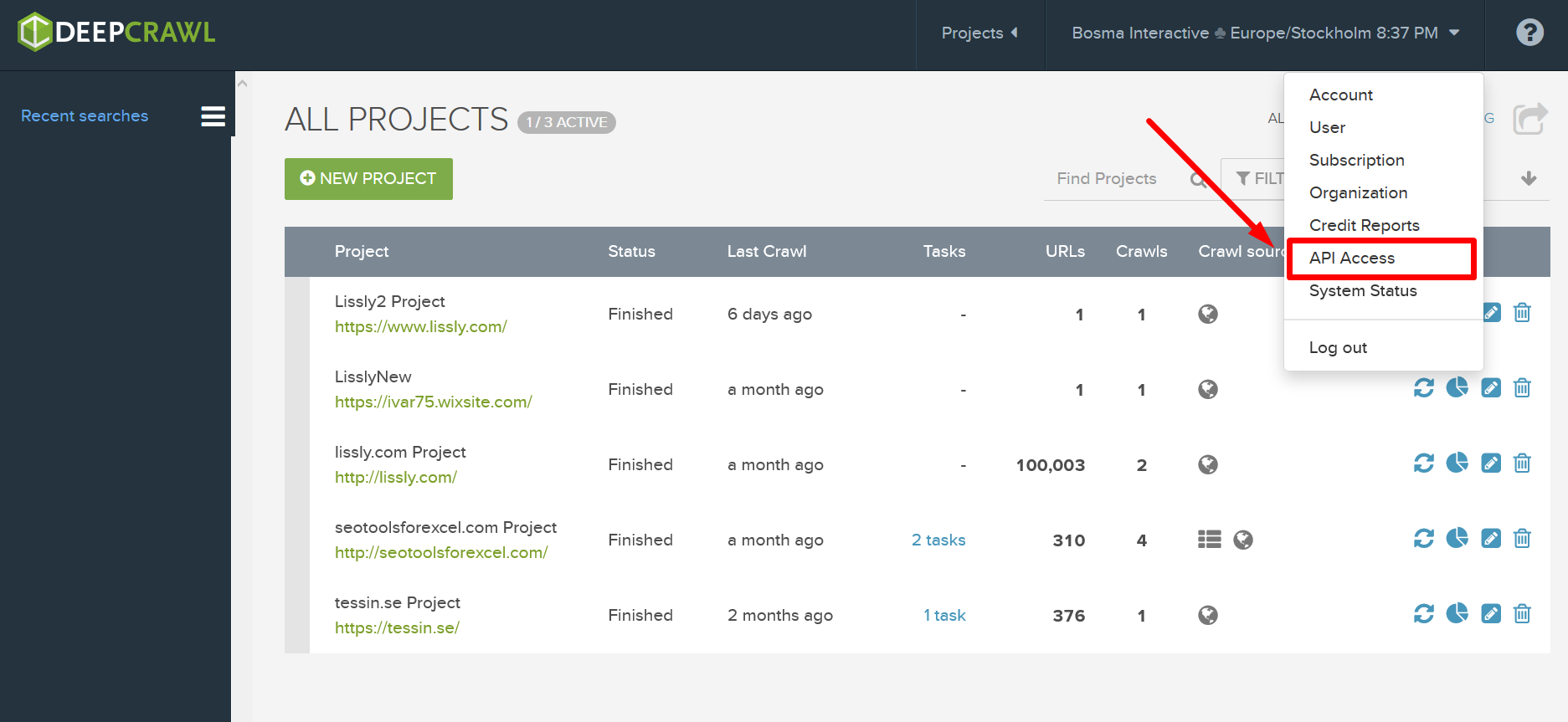
2. Next, click on *GENERATE NEW API KEY*: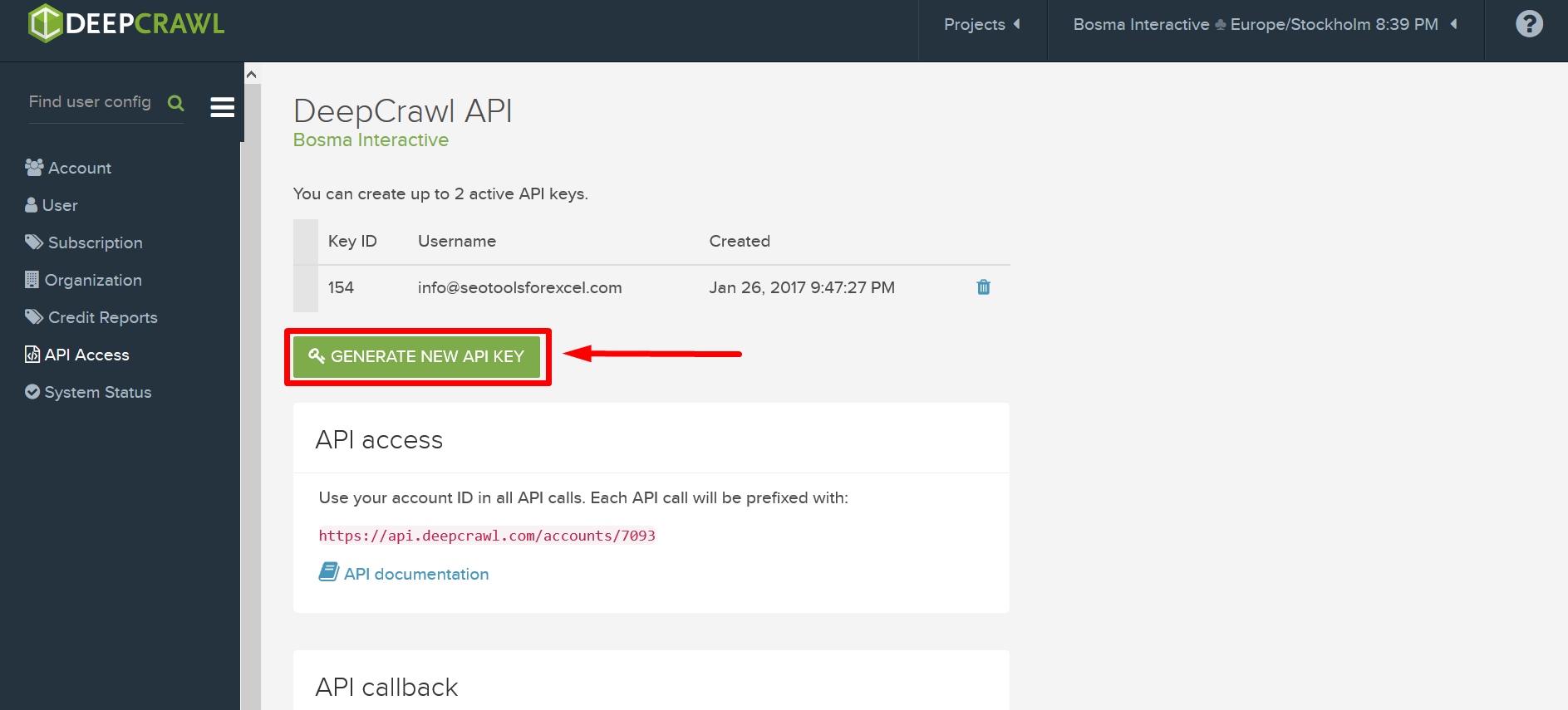
3. Copy the API token and Key Id and insert in the Settings menu in the DeepCrawl Connector: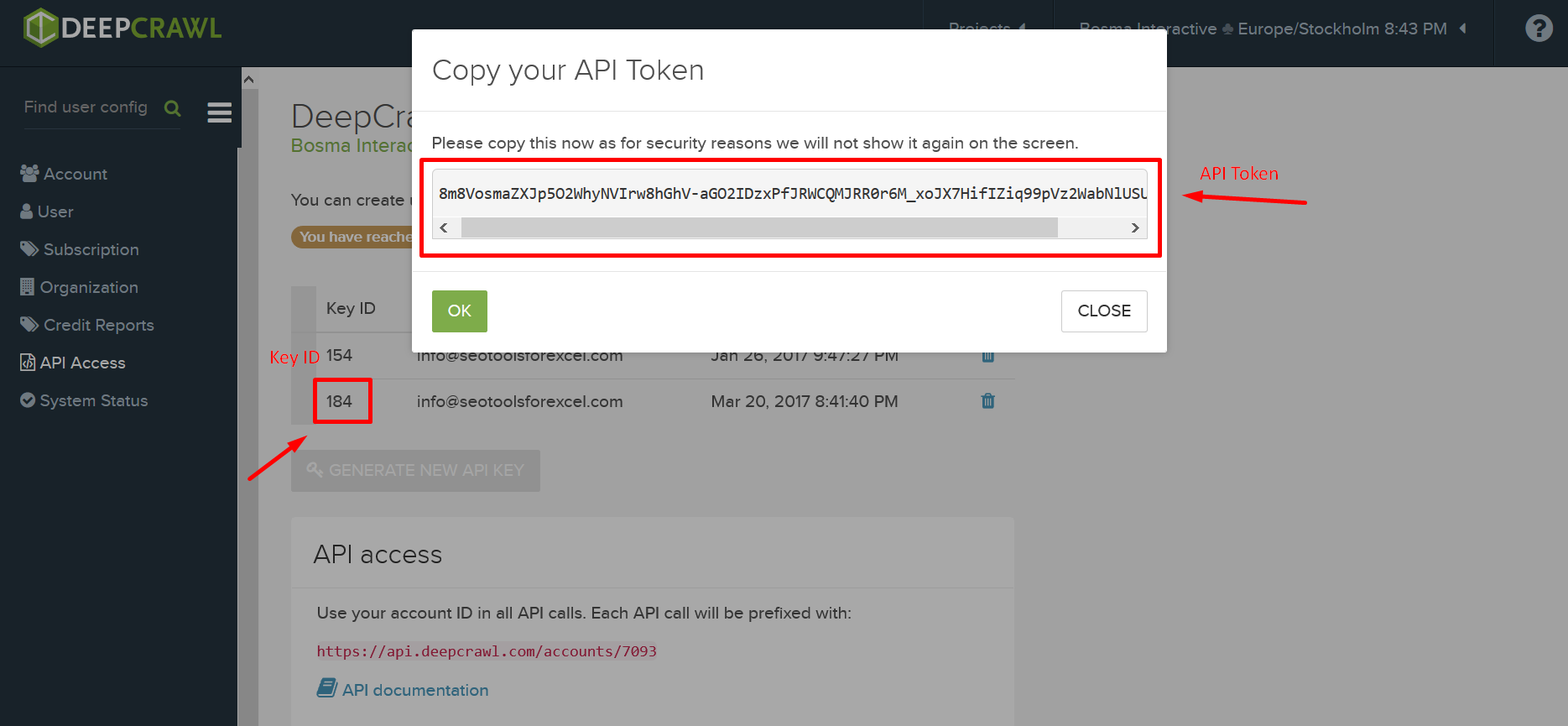
___
## Contribute
This connector suite is open-sourced on [GitHub](https://github.com/nielsbosma/SeoTools-for-Excel-Connectors/blob/master/DeepCrawl.xml).
___
## See
#### Official Documentation
* [Deepcrawl API](http://api-docs.deepcrawl.com/)
---
# Access DeepL in Excel
URL: https://seotoolsforexcel.com/deepl/
Type: page
Published: 2018-02-26
Updated: 2023-06-27
Summary: SeoTools for Excel offers a user-friendly and effective method to translate and identify languages within Excel based on the DeepL API.
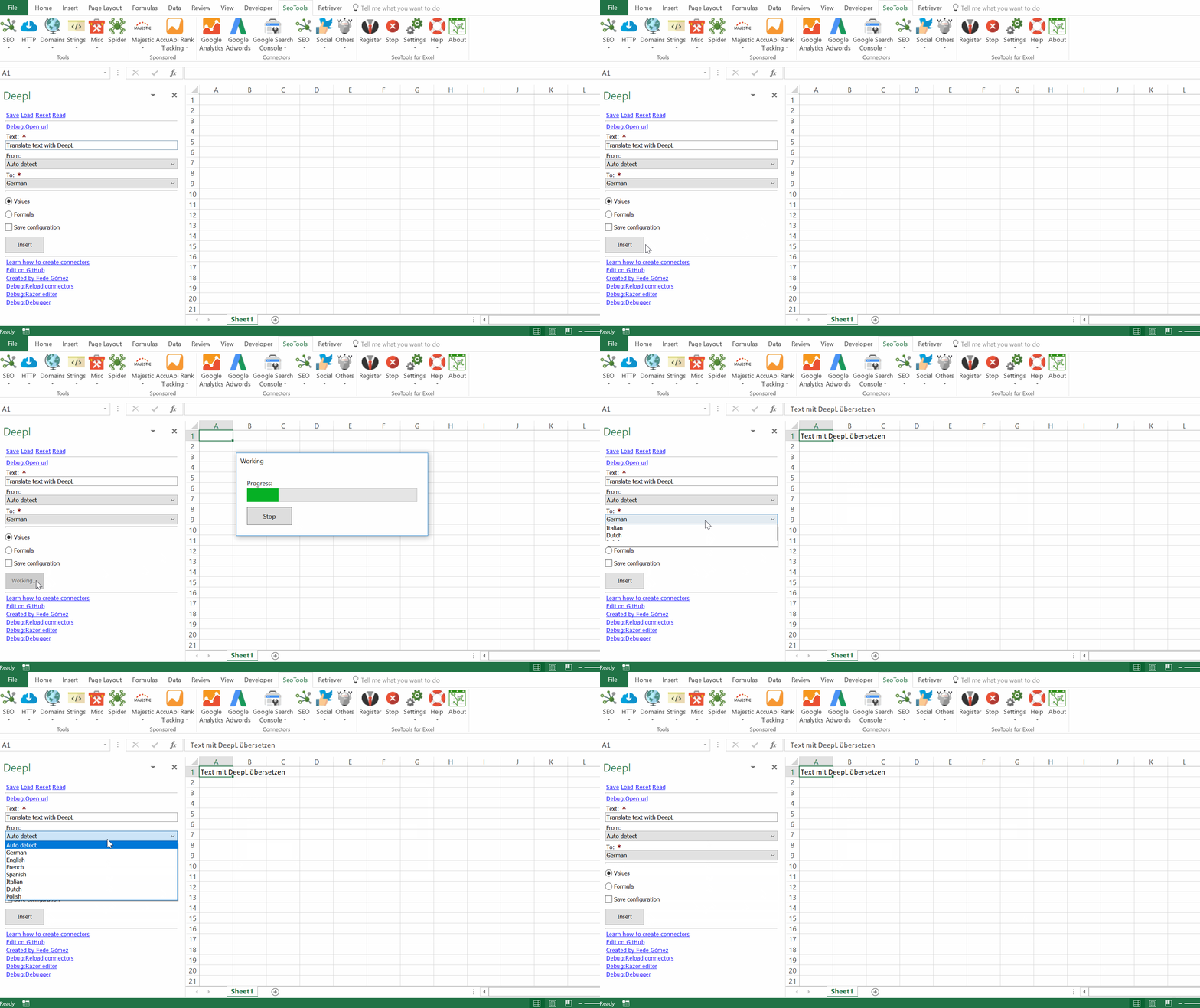
## Purpose
Use the DeepL Connector to translate text within Excel. You can insert text manually like in the example above or use formula mode to automate translation of cell content.
## Supported Languages
- English
- German
- French
- Spanish
- Italian
- Dutch
- Polish
___
## Access
## Add from Manager
The DeepL Connector is available in the **[Connectors Manager](/manage-connectors/)** in the top ribbon:

Head over to the **AI Category** and install DeepL:
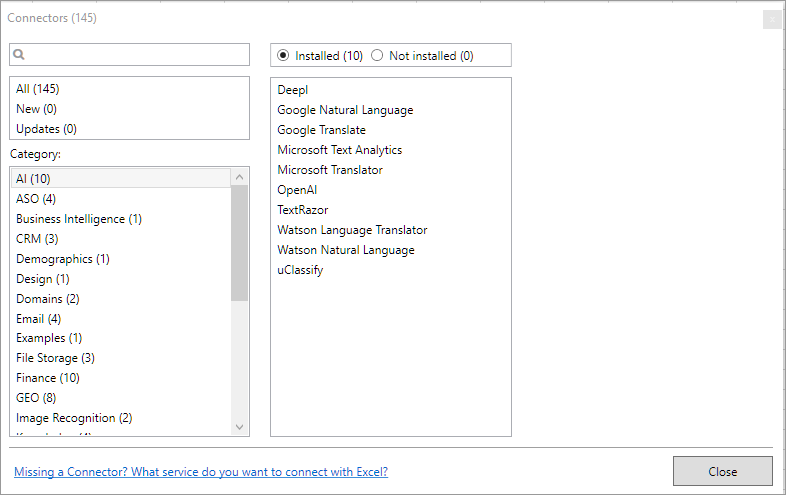
## Authentication Key
The Key is a code that enables DeepL Pro subscribers access to the API. You can find your unique Authentication Key in your DeepL Pro [Contract page](https://www.deepl.com/pro-account.html).
___
## Contribute
This connector suite is open-sourced on [GitHub](https://github.com/nielsbosma/SeoTools-for-Excel-Connectors/blob/master/Deepl.xml).
___
## See
#### Official Documentation
* [DeepL API](https://www.deepl.com/docs-api.html)
#### Resources
* [Manager](/manage-connectors/)
---
# DirectoryList
URL: https://seotoolsforexcel.com/directorylist/
Type: page
Published: 2015-03-29
Updated: 2019-05-19
Summary: Returns array with files, directory names or absolute paths as a function in SeoTools for Excel.
```
=DirectoryList(
string path,
string filter (optional),
bool listDirectories (optional; default=FALSE),
bool absolutePaths (optional; default=FALSE),
bool recursive (optional; default=FALSE)
) : vector
```
___
## Purpose
Returns array with files, directory names or absolute paths.
___
### Filter
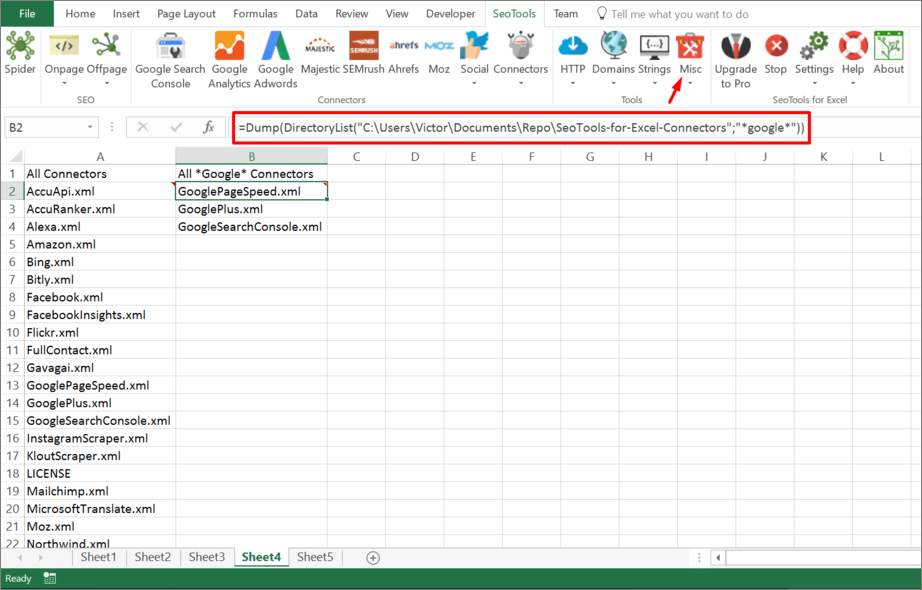
Apply this criteria to filter the results. In the following example (see picture above) I've filtered for files containing *google*
=Dump(DirectoryList("C:\ExamplePath\","*google*"))
___
### ListDirectories
Apply this criteria (`True|False`) to return directories.
=Dump(DirectoryList("C:\ExamplePath\",,TRUE))
___
### AbsolutePaths
Apply this criteria (`True|False`) to return the path of the matching results instead of the names.
=Dump(DirectoryList("C:\ExamplePath",,,TRUE))
___
## Recursive
Apply this criteria (`True|False`) to return results from sub directories.
=Dump(DirectoryList("C:\ExamplePath",,,,TRUE))
___
## Dump
[Dump](/dump/) is a very useful function for working with functions that returns arrays.
---
# Access Discourse in Excel
URL: https://seotoolsforexcel.com/discourse/
Type: page
Published: 2018-10-14
Updated: 2019-05-19
Summary: Seotools connects Excel with your Discourse server and allows you to extract lists and detailed metadata for topics, posts, users, categories and badges.
___
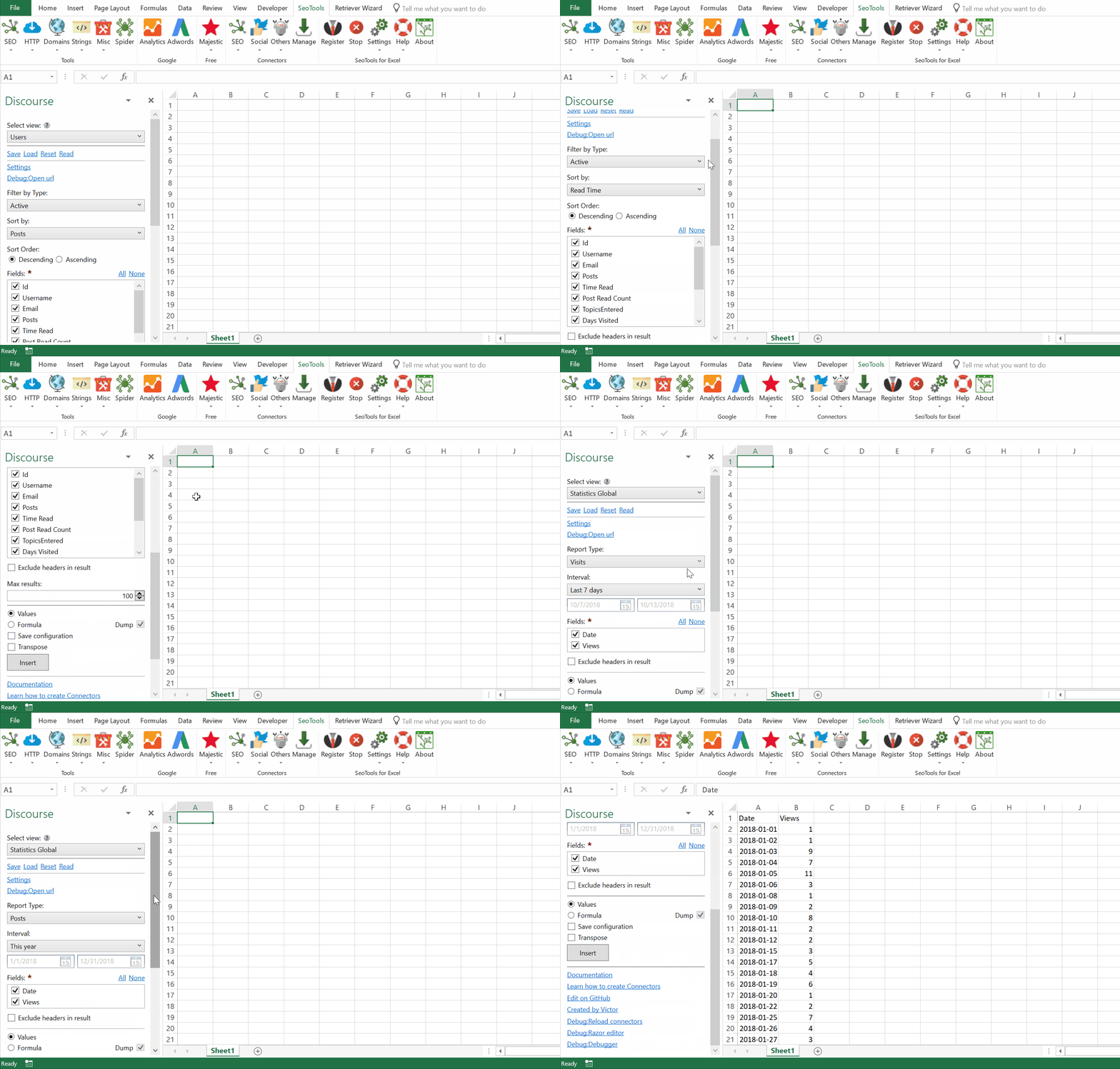
## Statistics
Returns a specific metric for each day during a period of your choice.
- **Global** (*visits, signups, profile views, topics, posts, likes, flags, bookmarks, emails*)
- **Views** (*total, crawls, logged in, anonymous*)
- **HTTP** (chose between various *HTTP types*)
- **Mobile** (*visits, logged in, anonymous*)
## Users
- **List** - Returns a list of users. Filter results by type:
- Active
- New
- Staff
- Suspended
- Blocked
- Suspect
- **Lookup** - Get a single user.
- **Search** - Search users by query.
## Topics
- **Top** - Get the top topics. Filter results by Period:
- All, Quarterly, Monthly, Weekly, Daily
- **Latest** - Get the latest topics.
- **Lookup** - Get a single topic.
- **From Category** - Get a list of topics in the specified category.
- **Search** - Search topics by query.
## Posts
- **List** - Get the latest posts.
- **Lookup** - Get a single post.
- **Search** - Search posts by query.
## Categories
- **Latest** - Returns a list of categories.
- **Search** - Search categories by query.
## Badges
- **List** - Returns a list of badges.
- **For User** - Get a list of badges assigned to a user.
___
## Access
## Add from Manager
The Discourse Connector is available in the **[Connectors Manager](/manage-connectors/)** in the top ribbon:

Head over to the **Social Category** and install Discourse:

## Get API key
To use the Connector you will need to create an API Key.
1. Head over to the admin panel and generate an API key.
2. Next, copy and paste the key in the Connector Settings menu inside Excel. Also enter your Discourse server URL and Username: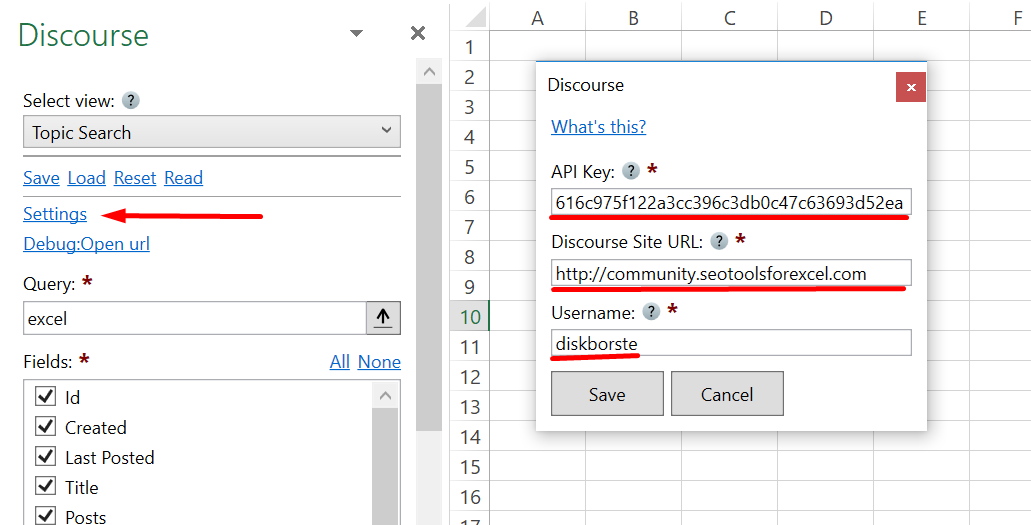
___
## Contribute
This connector suite is open-sourced on [GitHub](https://github.com/nielsbosma/SeoTools-for-Excel-Connectors/blob/master/Discourse.xml).
___
## See
#### Official Documentation
* [Discourse API](https://docs.discourse.org/)
#### Resources
* [Manager](/manage-connectors/)
---
# Access Disqus in Excel
URL: https://seotoolsforexcel.com/disqus/
Type: page
Published: 2018-02-24
Updated: 2020-02-28
Summary: SeoTools for Excel offers a user-friendly and effective method to search and collect data from Disqus straight to Excel within a matter of seconds.
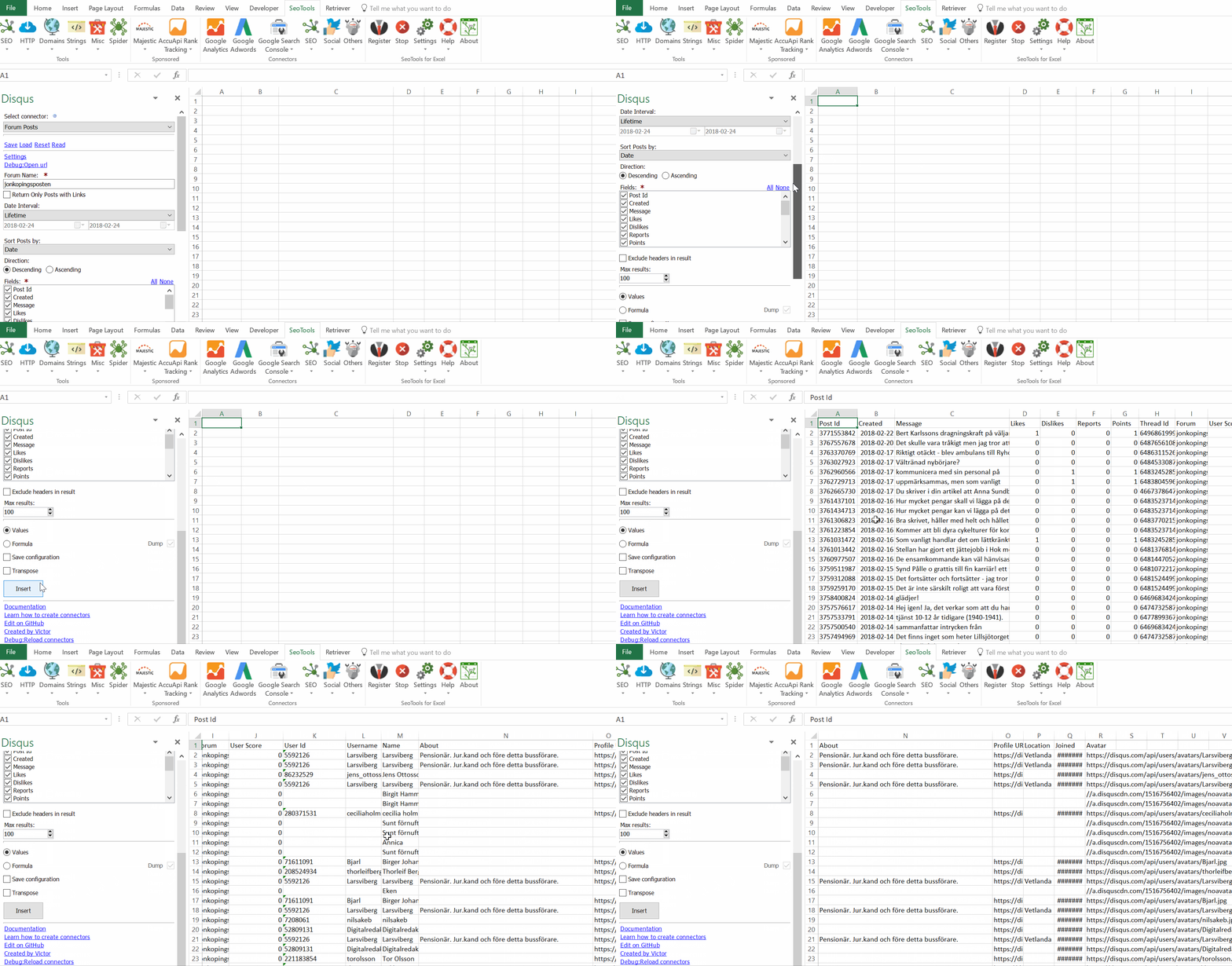
___
## Features
* **Forum Posts by Name or URL** - Extract all posts from a particular Forum/Page. Filter by:
- Date period
- Only posts with links
* **Forum Threads** - Extract all threads from a particular Forum/Page by Name.
* **Thread posts** - Extract all posts from a particular thread. Filter by:
- Date period
- Only posts with links
* **Post Lookup** - Extract statistics about a particular post.
* **Thread Lookup by Id or URL** - Extract statistics about a particular thread.
* **User Lookup** - Extract statistics about a particular user.
* **My posts** - Extract all posts created by you.
___
## Access
## Add from Manager
The Disqus Connector is available in the **[Connectors Manager](/manage-connectors/)** in the top ribbon:

Head over to the **Social Category** and install Disqus:

## Get API keys
To use the Connector you need a Disqus account and valid API credentials.
1. Create a [Disqus account](https://disqus.com/profile/signup/)
2. Login to the [Developers Page](https://disqus.com/api/docs/)
3. Go to the Applications section and click "Register new application" to the right.
4. Fill out the details and click "Register my application".
6. Go back to the Applications page and click on your newly created App. Scroll down and Copy the API Token, Key and Secret to the Settings menu in the Disqus Connector.
___
## Contribute
This connector suite is open-sourced on [GitHub](https://github.com/nielsbosma/SeoTools-for-Excel-Connectors/blob/master/Disqus.xml).
___
## See
#### Official Documentation
* [Disqus API](https://disqus.com/api/docs/)
#### Resources
* [Manager](/manage-connectors/)
---
# Distinct
URL: https://seotoolsforexcel.com/distinct/
Type: page
Published: 2017-03-12
Updated: 2019-05-19
Summary: Create a new list of unique values from an array as a formula in SeoTools for Excel.
```
Distinct(vector input) : vector
```
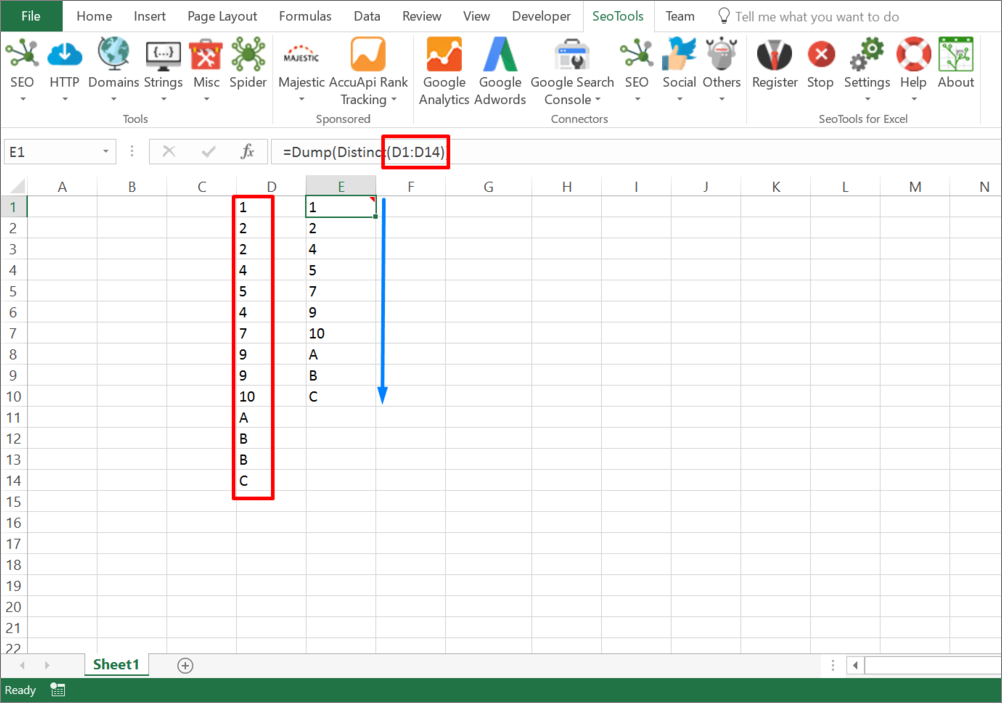
___
## Purpose
Returns all unique entries in an array.
___
## See
#### Related Functions
* [FindDuplicateContent](/findduplicatecontent/)
* [LCS](/lcs/)
---
# Documentation
URL: https://seotoolsforexcel.com/documentation/
Type: page
Published: 2015-01-05
Updated: 2019-05-18
Summary: Each formula is designed to enhance your Excel experience and provides you with the means to analyze websites, use regular expressions, and many more.
---
# DomainAge
URL: https://seotoolsforexcel.com/domainage/
Type: page
Published: 2015-03-29
Updated: 2019-05-19
Summary: Retrieve number of days since domain was registered as a formula in Excel with SeoTools for Excel.
```
=DomainAge(string domain) : integer
```
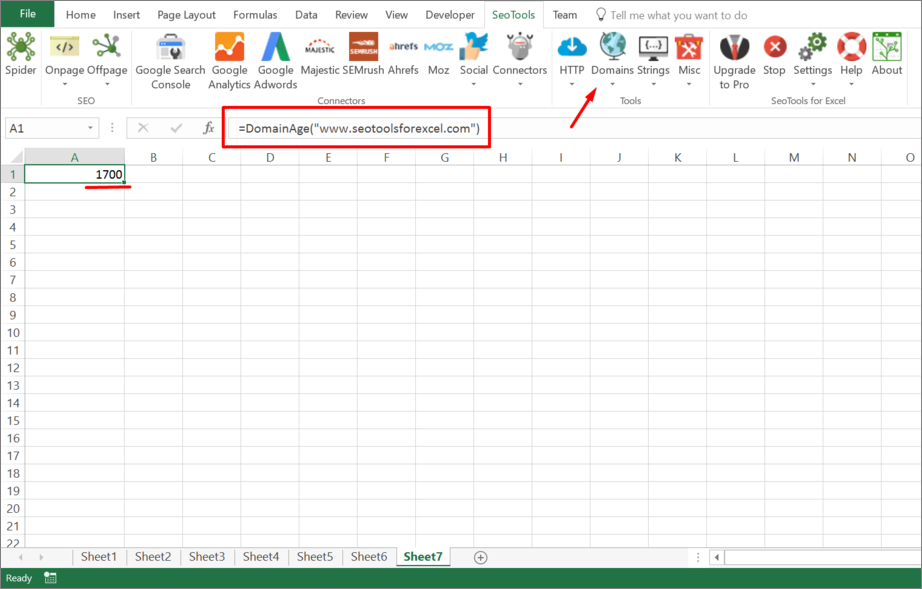
___
## Purpose
Returns number of days since the domain was registered. Tries [WhoIsDomainCreated](/whoisdomaincreated/).
___
## See
#### Related Functions
* [WhoIsDomainCreated](/whoisdomaincreated/
---
# Access Domains Database in Excel
URL: https://seotoolsforexcel.com/domains-database/
Type: page
Published: 2020-02-27
Updated: 2020-02-27
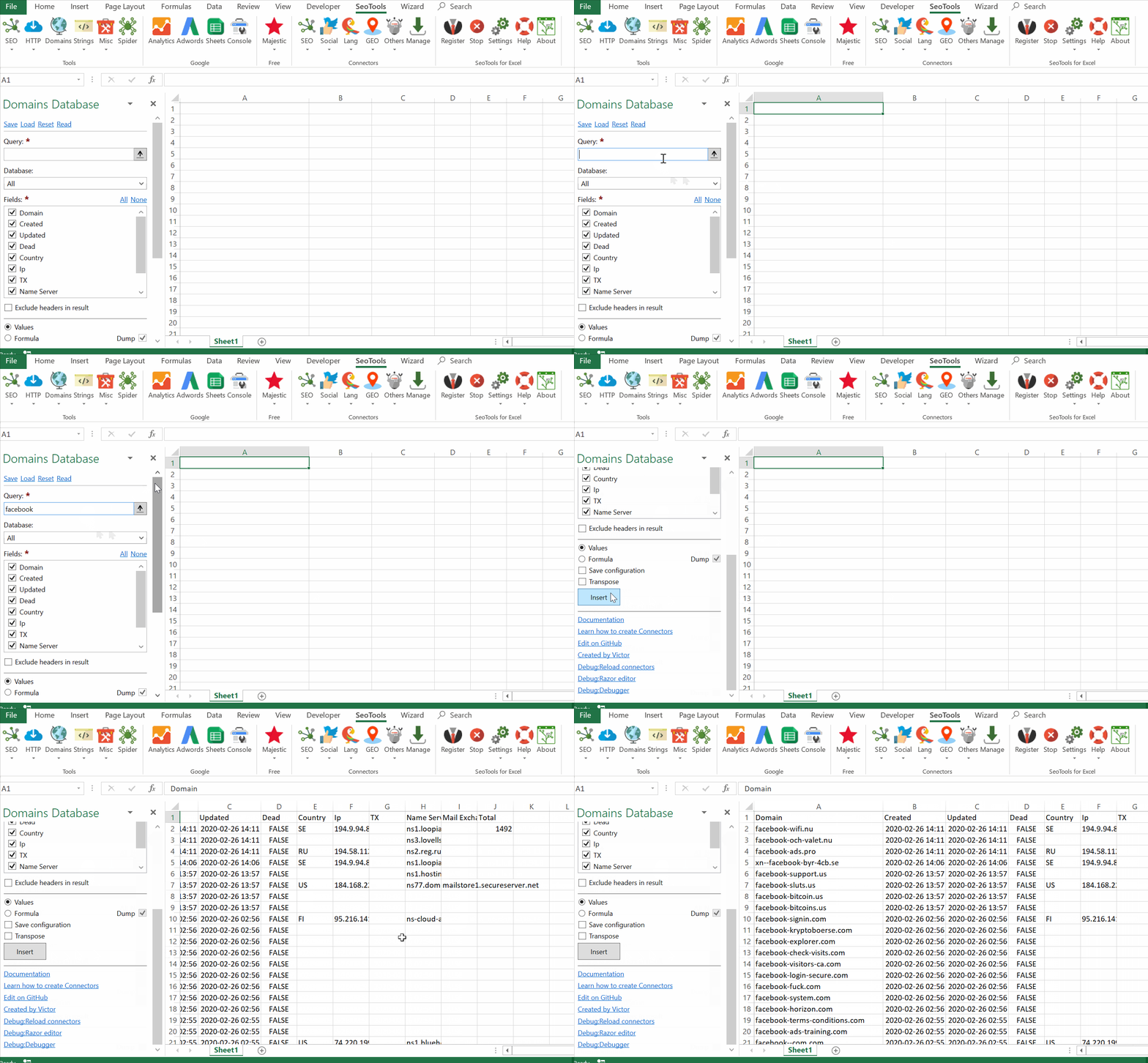
___
Registered domains search checks the lists of registered domains for names containing particular words/phrases/numbers or symbols. Contains more than 260M of registered domains and 1000+ TLDS including newGTLDs.
## Available Metrics
- Domain
- Created
- Updated
- Status
- Country
- IP Address
- TX
- NX
- Mail Exchange Record
___
## Access
## Add from Manager
The Domains Database Connector is available in the **[Connectors Manager](/manage-connectors/)** in the top ribbon:

Head over to the **Domains Category** and install the Connector:
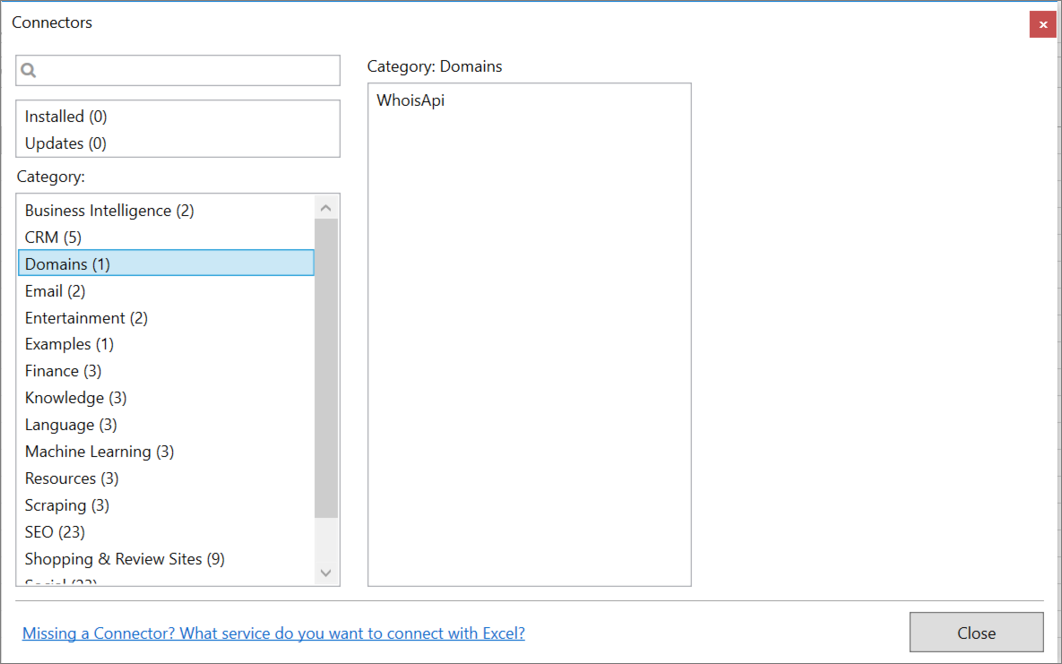
___
## Contribute
This connector suite is open-sourced on [GitHub](https://github.com/nielsbosma/SeoTools-for-Excel-Connectors/blob/master/DomainsDatabase.xml).
___
## See
#### Official Documentation
* [Domains Database](https://domainsdb.info/)
#### Resources
* [Manager](/manage-connectors/)
---
# Download
URL: https://seotoolsforexcel.com/download/
Type: page
Published: 2015-01-05
Updated: 2019-02-12
Summary: Explore the exciting world of being an SEO ninja and Excel Hacker at the same time!
**SeoTools doesn’t work on Mac or Linux, Google Docs or OpenOffice. Just plain old Excel&Windows.**
You might also like our file conversion tool [FileStar](https://filestar.com/?utm_source=seotools).
---
# Download SeoTools
URL: https://seotoolsforexcel.com/download-seotools/
Type: page
Published: 2015-04-11
Updated: 2024-11-18
Summary: Transform Excel into the ultimate SEO dashboard. Create SEO reports and dashboards. More than 100 functions for growth hacking your company to the top.
Download installer
**Note that SeoTools doesn’t work on Mac or Linux, Google Docs or OpenOffice. Just plain old Excel & Windows.**
## Where to go next
* [Installation](/installation/)
* [Documentation](/documentation/)
* [Community](https://community.seotoolsforexcel.com/)
---
# Download SeoTools for Excel
URL: https://seotoolsforexcel.com/download-sfe/
Type: page
Published: 2019-08-12
Updated: 2021-03-02
Download SeoTools for Excel **32 bit**Download SeoTools for Excel **64 bit**
**Note that SeoTools doesn’t work on Mac or Linux, Google Docs or OpenOffice. Just plain old Excel & Windows.**
## Where to go next
* [Installation](/installation/)
* [Documentation](/documentation/)
* [Community](https://community.seotoolsforexcel.com/)
---
# DownloadFile
URL: https://seotoolsforexcel.com/downloadfile/
Type: page
Published: 2017-03-12
Updated: 2019-05-19
Summary: Download files from web page and specify location as a formula in Excel with SeoTools for Excel.
```
DownloadFile(string url, string directory,
string filename (optional) : vector
```
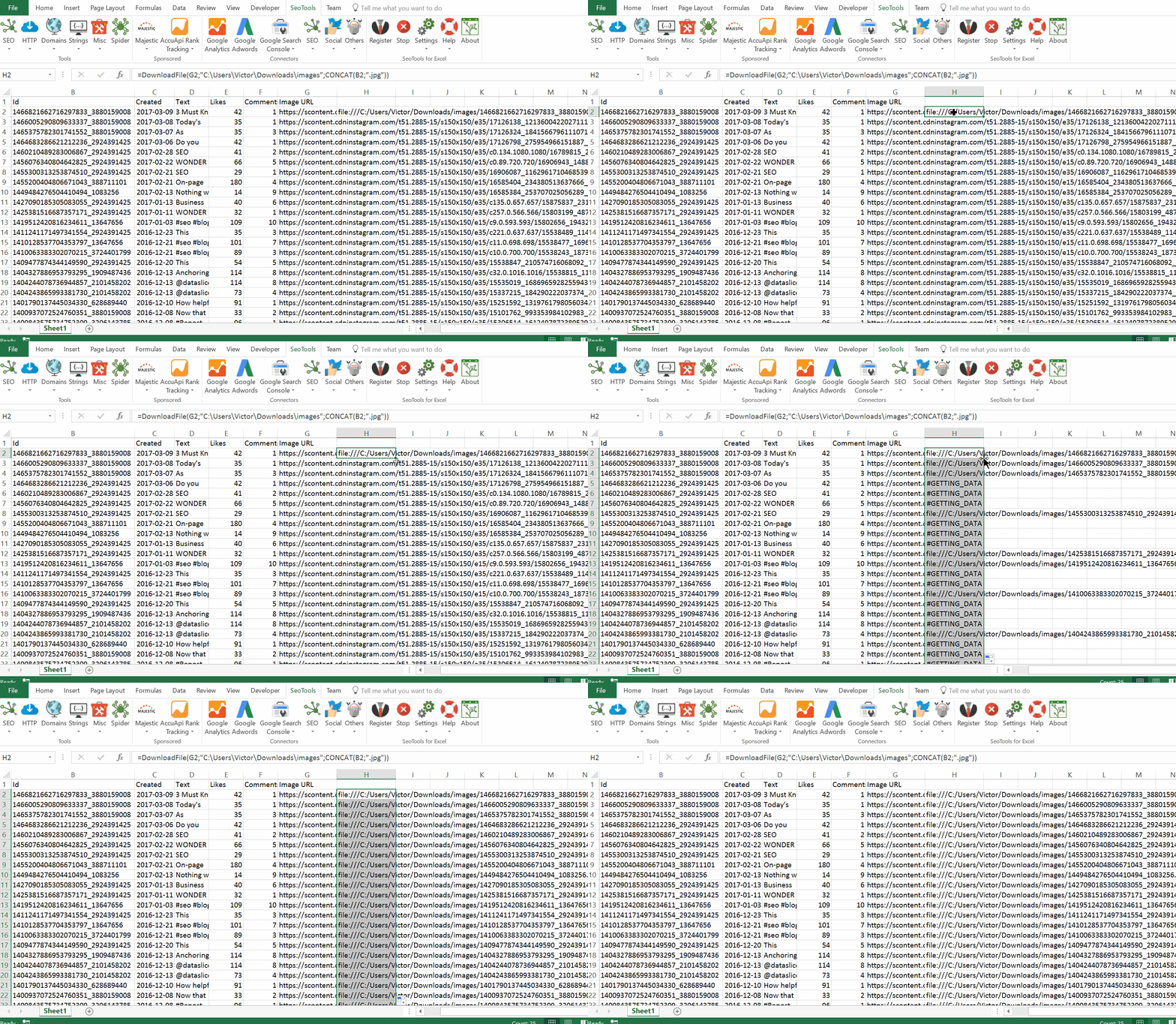
___
## Purpose
Downloads a file from its URL. Invaluable when you need to download large numbers of files.
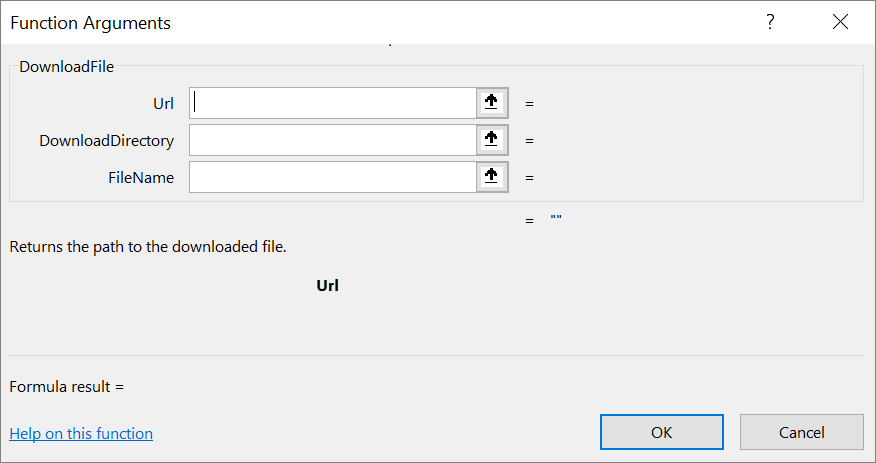
### DownloadDirectory
The directory where the file is saved. The easiest way is to copy and paste the directory of your choice and SeoTools will convert it to the proper format.
### FileName
This **optional** parameter allows you to specify a custom name of the file. If left blank, SeoTools will use the same name as the file.
In the example above, custom file names were created to make the names shorter and easier to sort. The unique ids of the Instagram post were concatenated with ".jpg". This resulted in a batch of images with corresponding identifiers for each post.
___
## See
#### Related Functions
* [Instagram](/instagram/)
---
# Access Dropbox in Excel
URL: https://seotoolsforexcel.com/dropbox/
Type: page
Published: 2018-08-22
Updated: 2020-05-19
Summary: Keep track of all Dropbox activity within Excel. List filter and search folders, files, shared folders and received files.
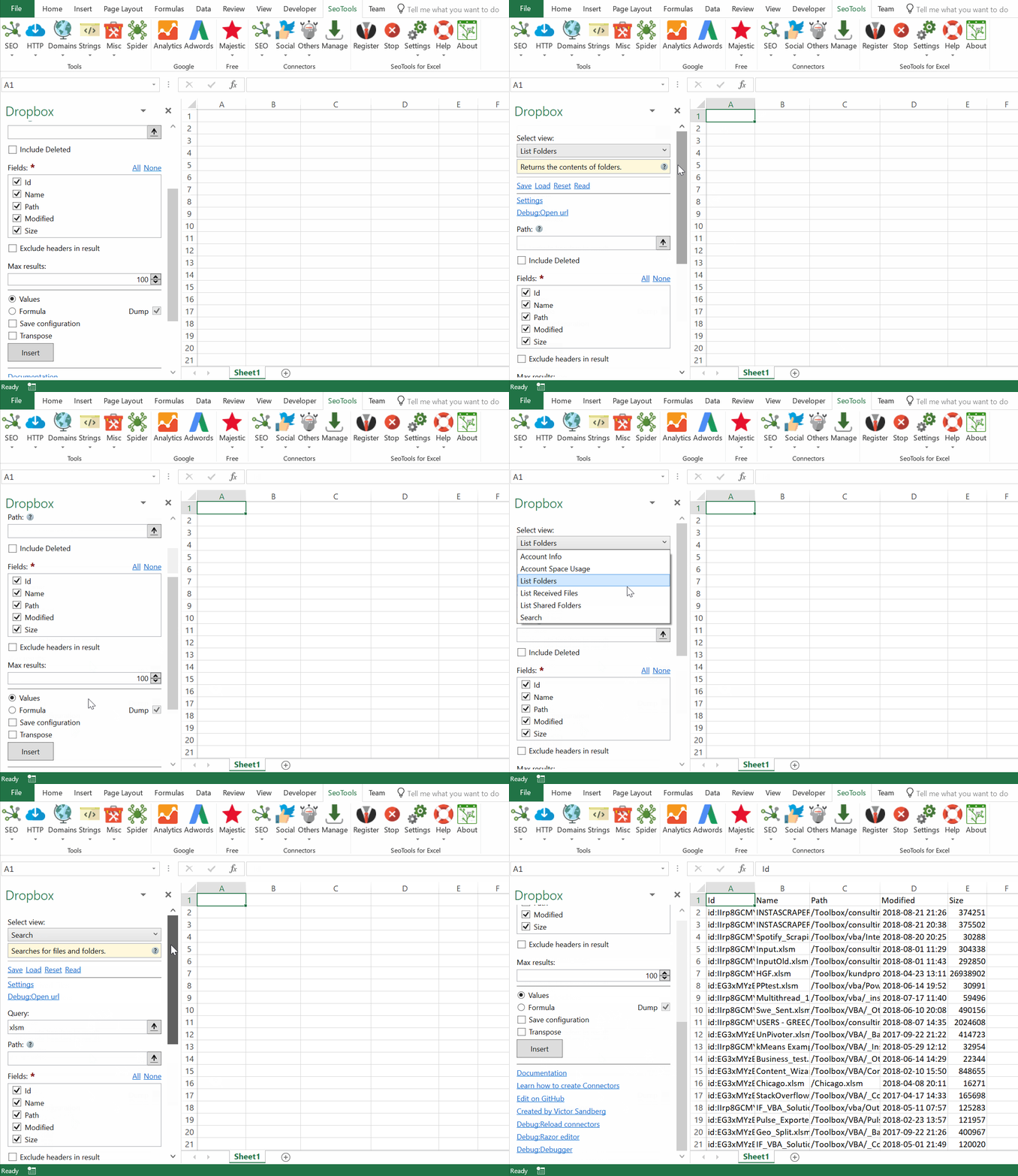
___
## List
- **Folders & Files** - Returns the contents of your dropbox account or a specific folder. Set *Recursive* to true to fetch sub-folders and it's sub-folders.
- **Shared Folders** - Returns the list of all shared folders the current user has access to.
- **Received Files** - Returns a list of all files shared with current user.
- **Search** - Searches for files and folders.
## Filtering
Listing folders and searching supports filtering the results according to the following regular expression:
`(/(.|[\r\n])*)?|id:.*|(ns:[0-9]+(/.*)?)`
## Account
- **Info** - Gets information about the user.
___
## Add from Manager
The Dropbox Connector is available in the **[Connectors Manager](/manage-connectors/)** in the top ribbon:

Head over to the **File Storage** and install Dropbox:
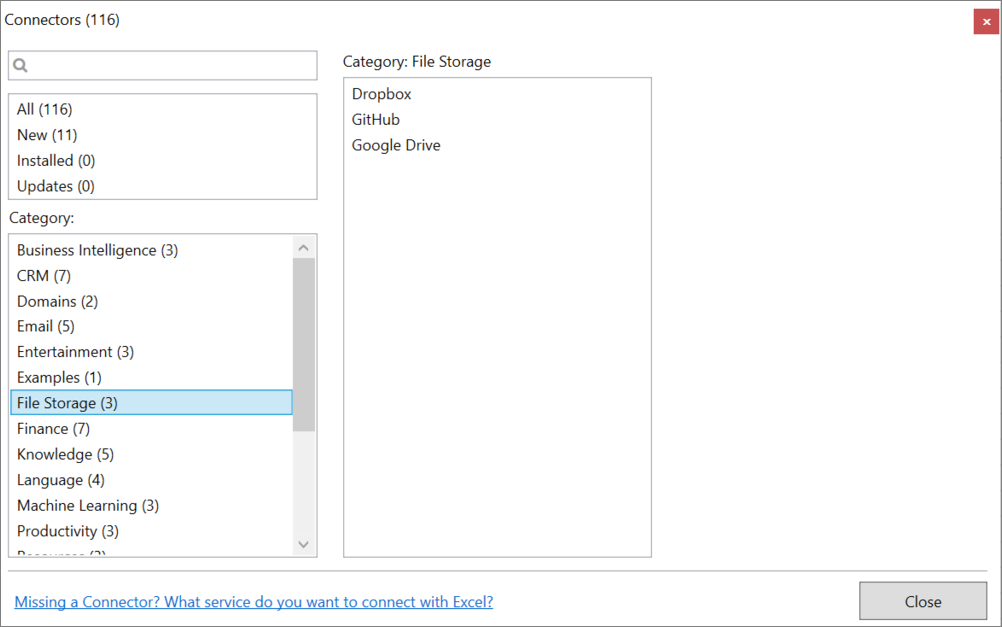
___
## Contribute
This connector suite is open-sourced on [GitHub](https://github.com/nielsbosma/SeoTools-for-Excel-Connectors/blob/master/Dropbox.xml).
___
## See
#### Official Documentation
* [Dropbox API](https://www.dropbox.com/developers/reference)
#### Related Functions
* [Google Drive](/googledrive/)
* [OneDrive](/onedrive/)
#### Resources
* [Manager](/manage-connectors/)
---
# Access DuckDuckGo in Excel
URL: https://seotoolsforexcel.com/duckduckgo/
Type: page
Published: 2018-07-18
Updated: 2023-07-10
Summary: SeoTools for Excel offers an effective method to make queries to the DuckDuckGo engine and get the results in Excel.
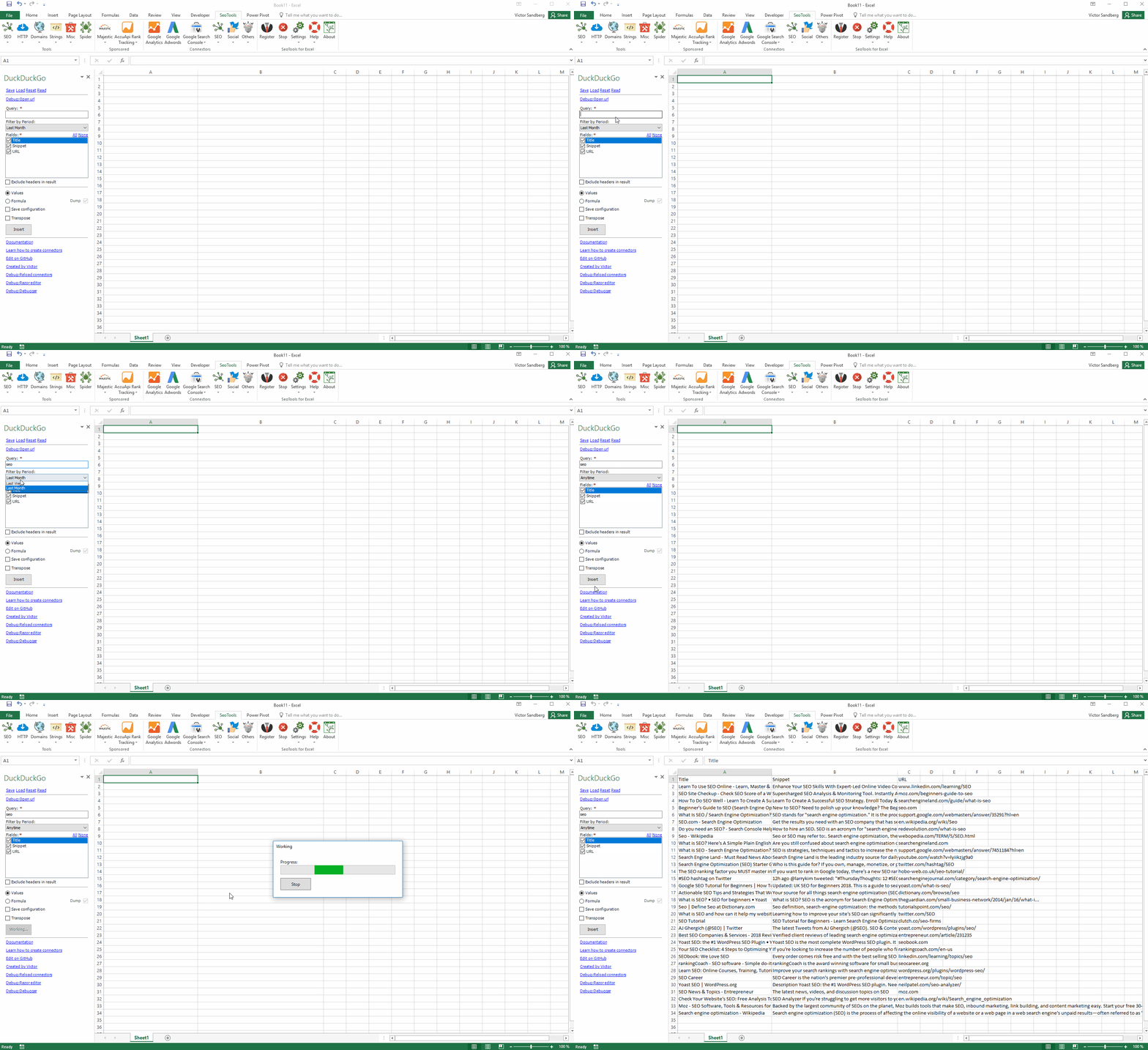
## Metrics
- Title
- Snippet
- URL
## Filter by Period
- Anytime
- Last Day
- Last Week
- Last Month
#### First Result Only
Use this setting to get the top result. Useful in Formula mode and parsing a list of URLs.
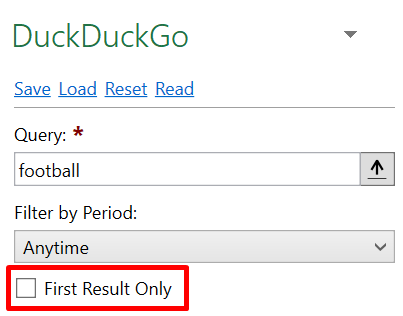
___
## Access
## Add from Manager
The DuckDuckGo Connector is available in the **[Connectors Manager](/manage-connectors/)** in the top ribbon:

Head over to the **SEO Category** and install DuckDuckGo:

___
## Contribute
This connector suite is open-sourced on [GitHub](https://github.com/nielsbosma/SeoTools-for-Excel-Connectors/blob/master/DuckDuckGo.xml).
___
## See
#### Related Functions
* [Bing Search](/bing-scraper/)
#### Resources
* [Manager](/manage-connectors/)
---
# Dump
URL: https://seotoolsforexcel.com/dump/
Type: page
Published: 2015-01-05
Updated: 2020-05-24
Summary: Excel that takes an array output and dumps it on the spreadsheet.
```
=Dump({object vector}, [transpose=FALSE]) : object
```
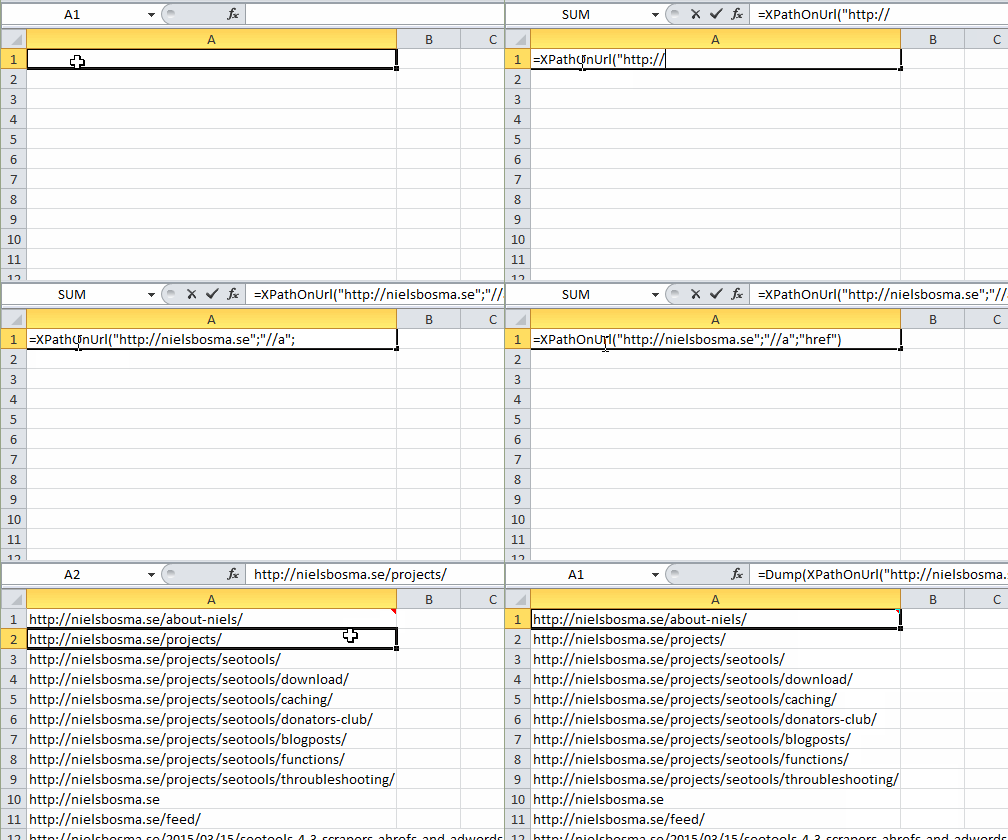
___
## Purpose
Macro function that takes an array output of another function and *Dumps* it on the spreadsheet.
Using this function together with an array function such as [XPathOnUrl](/xpathonurl/) is pretty powerful (and will make it work like Google Docs’s ImportXML).
Note: Dump() adds a comment in the formula cell to be able to remember what cells to clean-up when input changes in size.
## Converting to values
We recommend using the [Converter tool](/converter/) to convert dump formulas to values. The Converter also removes the comments automatically.
___
## See
#### Guides
* [Working with arrays in Excel](/working-with-arrays-in-excel/)
* [Convert formulas to values](/converter/)
#### Related Functions
* [DumpTo](/dumpto/)
---
# DumpTo
URL: https://seotoolsforexcel.com/dumpto/
Type: page
Published: 2017-03-19
Updated: 2019-05-19
Summary: Dump is a macro function in SeoTools for Excel that takes an array output of another function and dumps it on the spreadsheet
```
=DumpTo({object vector},Destination, [transpose=FALSE]) : object
```
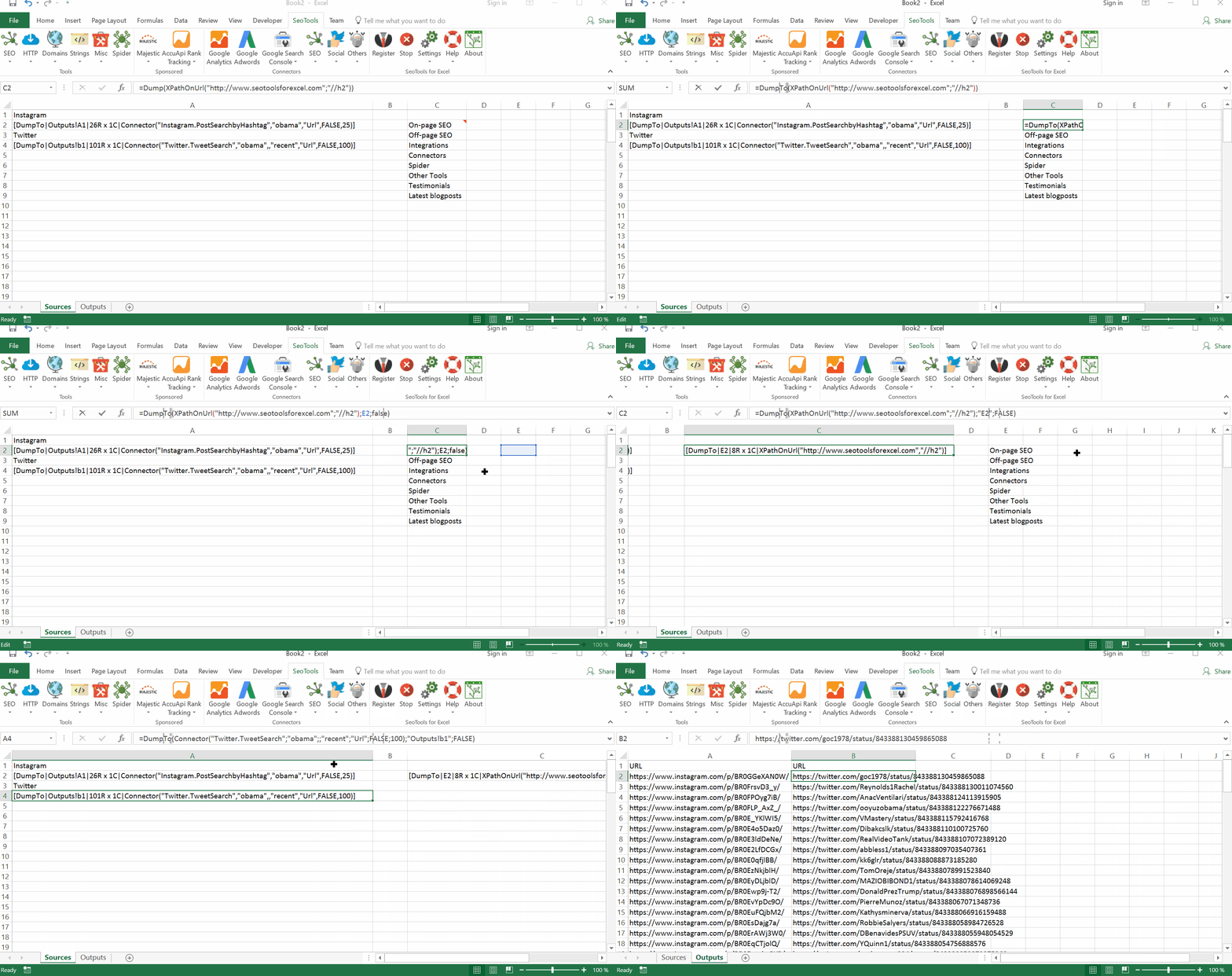
___
## Purpose
Macro function that takes an array output of another function and *Dumps* it on to another part of the spreadsheet. This makes it very convenient because you can have one *"source"* sheet with =DumpTo formulas and another sheets which feeds the data outputs from the source sheet.
## New Range
The array that is being *dumped* to another range is **"free"** from the original formula dependency.
## Editing
Because the original formula is located elsewhere, you are allowed to modify the contents safely without having the original formula recreating the output. This also means you can work with arrays while applying filters, a combination which traditionally leads to Excel crashing.
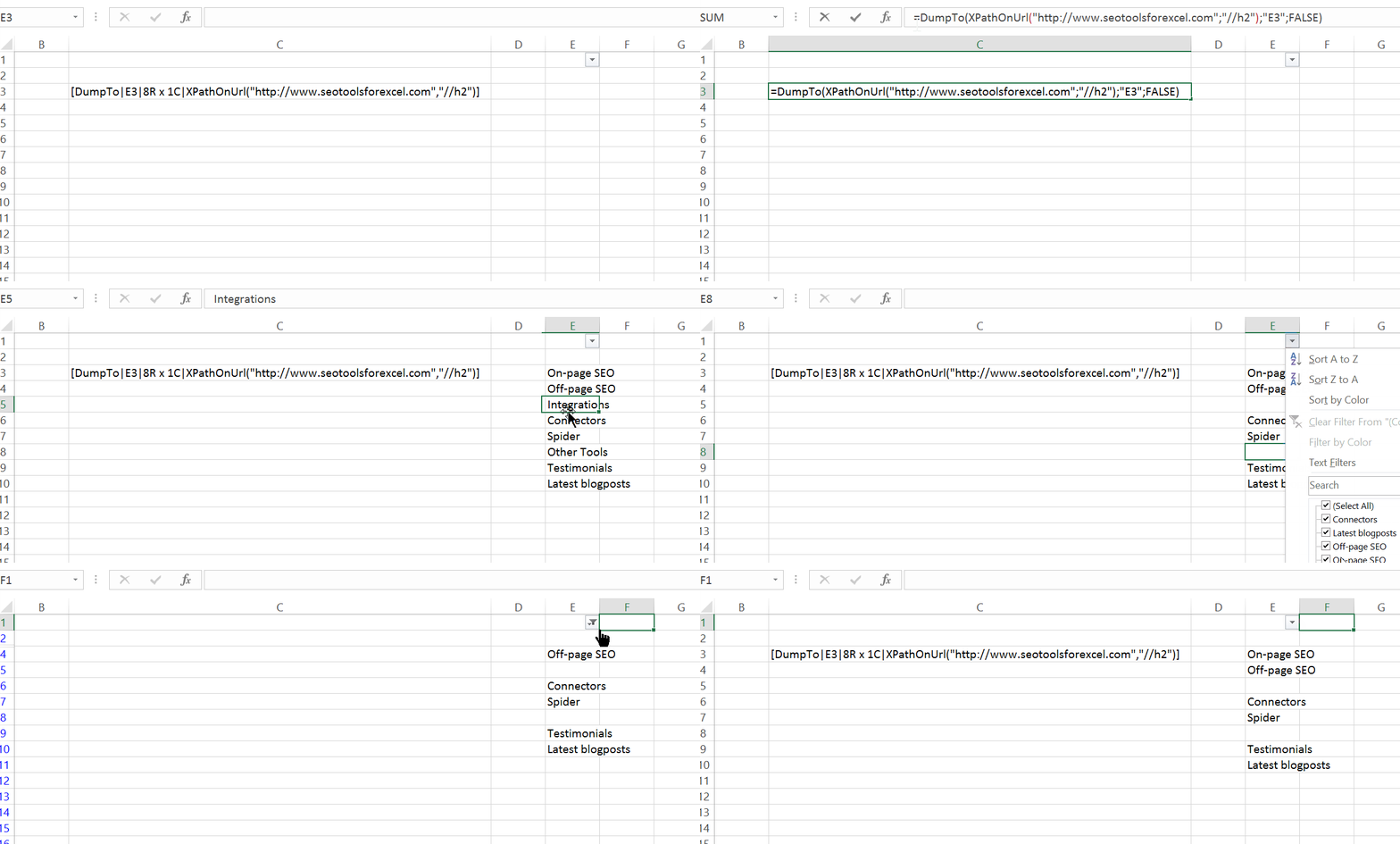
## Original cell
DumpTo() adds information in the original formula cell to make it easier to maintain an effective structure and remember the references and data sources.

In the example above, we've used the Instagram and Twitter Connector to extract recent posts. The output is dumped to another sheet.
___
## See
#### Guides
* [Working with arrays in Excel](/working-with-arrays-in-excel/)
#### Related Functions
* [Dump](/dump/)
---
# Access Ebay Browse API in Excel
URL: https://seotoolsforexcel.com/ebay-browse/
Type: page
Published: 2020-05-11
Updated: 2025-05-02
Summary: Connect your eBay account to Excel and start analyzing items being sold. Search the database using many filters such as price, query, and seller.
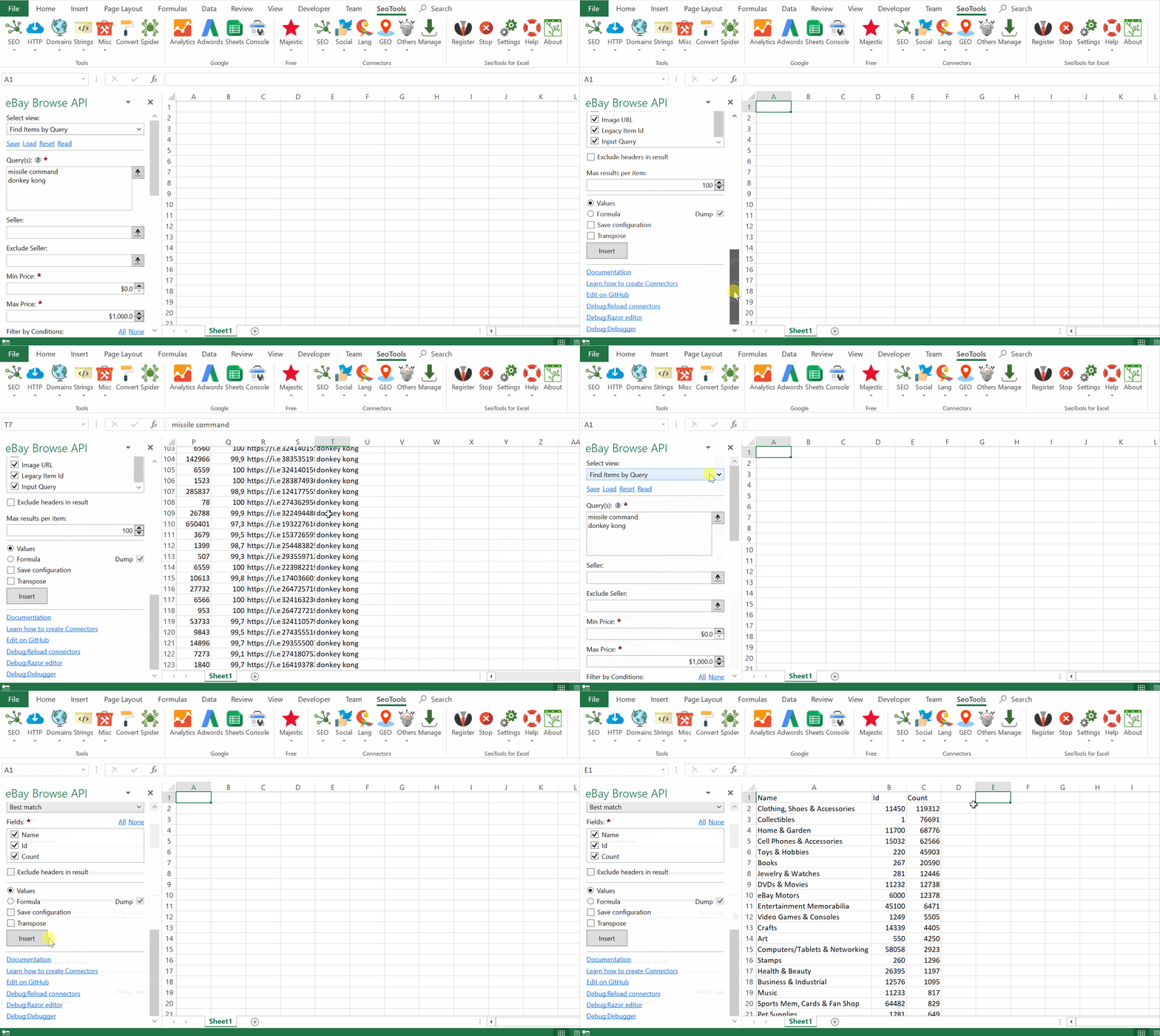
eBay Browse is the new API for finding products and searching within the eBay database. It supports easy access and all you need to do is to login with your eBay account. The old [eBay Connector](/ebay/) is still available and provides access to different data.
___
## Find Items by Query
- **Available Fields:**
- Item URL
- Item ID
- Title
- Description
- Condition
- Category IDs
- Postal Code
- Country
- Price
- Price Currency
- Shipping Cost
- Shipping Cost Currency
- Shipping Cost Type
- Buying Options
- Seller Name
- Seller Feedback Score
- Seller Positive Feedback Rate
- Image URL
- Legacy Item ID
- Input Query (*useful when searching for multiple queries at once*)
- **Available Filters:**
- Seller
- Exclude Seller
- Condition
- Min Price
- Max Price
- eBay Site
## Distributions
- **Buying Options by Query** - Returns number of items per buying option based on a query.
- **Category by Query** - Returns number of items per category based on a query.
___
## Access
## Add from Manager
The eBay Browse Connector is available in the **[Connectors Manager](/manage-connectors/)** in the top ribbon:

Head over to the **Products & Review Sites Category**
and install eBay Browse API:

___
## Contribute
This connector suite is open-sourced on [GitHub](https://github.com/nielsbosma/SeoTools-for-Excel-Connectors/blob/master/EBayBrowse.xml).
___
## See
#### Official Documentation
* [eBay Browse API](https://developer.ebay.com/api-docs/buy/browse/resources/methods)
#### Resources
* [Manager](/manage-connectors/)
---
# Email
URL: https://seotoolsforexcel.com/email/
Type: page
Published: 2019-05-18
Updated: 2019-05-18
Summary: Email is a function of SeoTools for Excel that scrapes a given URL for one or more email addresses
```
=Connector("OnPageScrapers.Email","https://seotoolsforexcel.com")
```
___
## Purpose
Scrapes the given URL for email addresses.
___
## Dump
Combine the function with Dump() to extract all items.
___
## See
#### Related Functions
* [On-Page Connectors](/connectors-onpage/)
* [Google AdSense Id](/googleadsenseid/)
* [Google Analytics Id](/googleanalyticsid/)
* [Twitter Accounts](/twitter-accounts/)
* [Instagram Accounts](/instagram-accounts/)
* [LinkedIn Accounts](/linkedin-accounts/)
---
# Enable debug mode
URL: https://seotoolsforexcel.com/enable-debug-mode/
Type: page
Published: 2016-01-31
Updated: 2021-04-11
Summary: Debug Mode is useful when creating Connectors and getting better error messages
Debug mode can be useful when building [Connectors](/connectors/) and getting better error messages.
Enable by opening `SeoTools.config.xml` and add `DebugMode="true"` to the first node. Then restart Excel.
The file is located in `%LOCALAPPDATA%\SeoToolsForExcel\` and can be opened by clicking `Settings` -> `Open SeoTools.config.xml in Notepad` in the SeoTools ribbon.
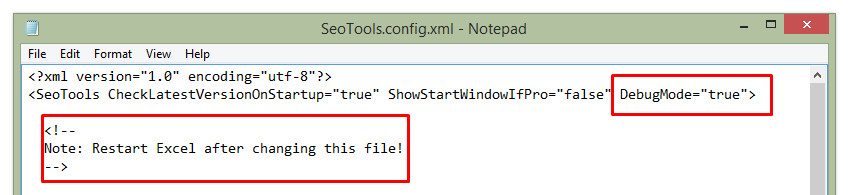
---
# Enable diagnostics logging
URL: https://seotoolsforexcel.com/enable-diagnostics-logging/
Type: page
Published: 2016-01-06
Updated: 2019-05-19
Summary: Diagnostics Logging allows you to identify and handle problems in SeoTools for Excel in a more effective way.
In your SeoTools installation directory there's a file named `SeoTools.xll.config`. Edit this file and remove these lines:
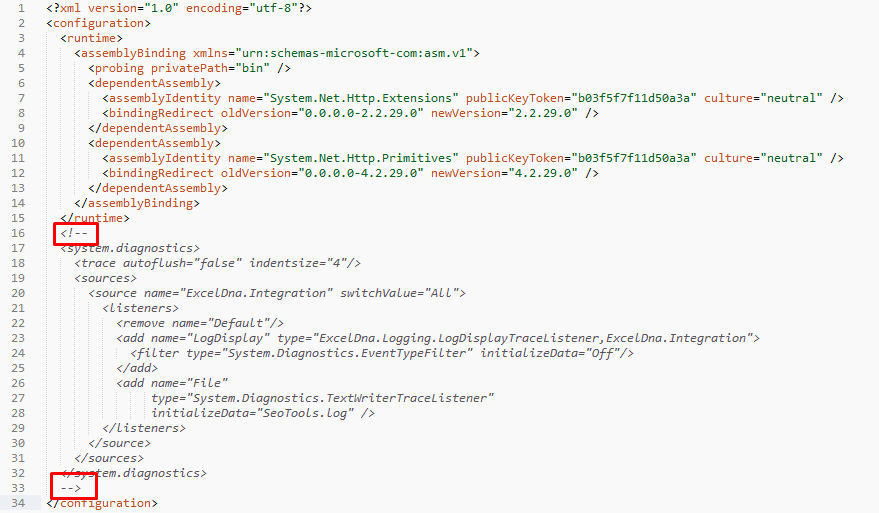
Open Excel with SeoTools and replicate the problem you want to debug. Now there should be a `SeoTools.log` in your installation directory file that you can sent with your bug-report.
---
# SeoTools not enabled in Excel
URL: https://seotoolsforexcel.com/enable-seotools/
Type: page
Published: 2026-09-10
Updated: 2026-09-10
Summary: SeoTools installed but no SeoTools tab in Excel? Turn the add-in back on from Excel Options in a few clicks.
SeoTools installs correctly but no **SeoTools** tab appears on the ribbon. Excel
has the add-in — it just is not switched on.
This happens after Excel closes unexpectedly, after an Office update, or when
another add-in has caused Excel to disable things on startup. Nothing is broken
and nothing needs reinstalling. There are two entries to enable, and you need
both: **SeoToolsMaster** is the Excel add-in, and **SeoTools** is the COM add-in
that draws the ribbon.
## 1. Open the add-in settings
In Excel, go to **File → Options → Add-ins**.
At the bottom of the window, set **Manage** to **Excel Add-ins** and click
**Go...**
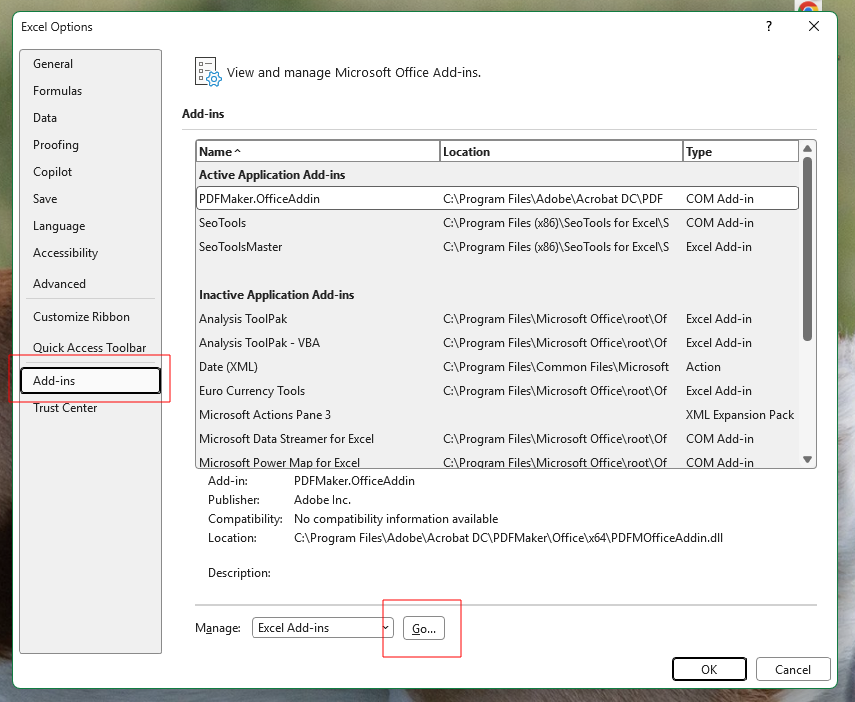
The list in the middle tells you where things stand. If SeoTools appears under
**Inactive Application Add-ins** rather than **Active Application Add-ins**,
that is exactly the problem this page fixes.
## 2. Enable SeoToolsMaster
Tick **SeoToolsMaster** and click **OK**.
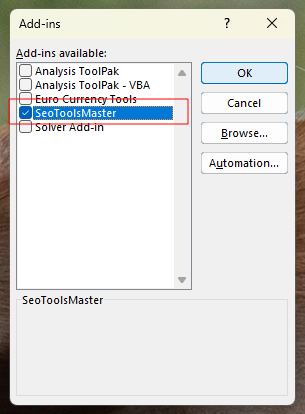
## 3. Enable SeoTools
Back in **File → Options → Add-ins**, set **Manage** to **COM Add-ins** this
time and click **Go...**
Tick **SeoTools** and click **OK**.
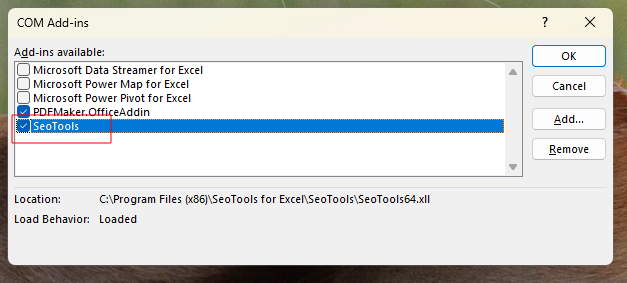
**Load Behavior** should now read *Loaded*. The SeoTools tab appears on the
ribbon straight away — you do not need to restart Excel.
## If SeoTools is not in either list
Then it is not installed for this copy of Excel, rather than disabled. Two
things to check:
* **Excel bitness.** A 64-bit Excel needs the 64-bit add-in. The **Location**
column in the COM Add-ins dialog shows which one is registered — look for
`SeoTools64.xll` or `SeoTools32.xll`. If it is the wrong one, reinstall from
the [download page](/download-sfe/).
* **A second copy of Excel.** If you have more than one Office version
installed, the add-in registers against one of them.
If it still does not appear, work through the
[Troubleshooting guide](/troubleshooting/).
---
# SeoTools for Excel ended prematurely
URL: https://seotoolsforexcel.com/ended-prematurely/
Type: page
Published: 2020-02-23
Updated: 2020-02-23
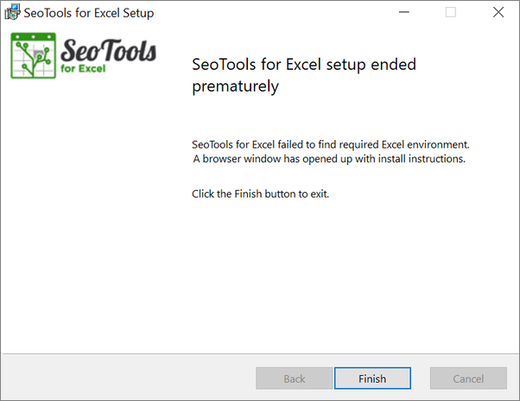
This is an install issue which typically occurs when Excel has been installed from Microsoft Store. To solve this, we recommend using a non-installer version of SeoTools which is added manually via the Excel add-ins menu.
- [32-bit version](https://links.seotoolsforexcel.com/latestmanual32)
- [64-bit version](https://links.seotoolsforexcel.com/latestmanual64)
**Manual install instructions:**
1. Download the suitable version from the links above. It should typically be 32-bit version since the Microsoft Store version only supports it.
2. Unpack the contents of the zip-file.
3. In Excel, goto File-> Options-> Add-ins
4. Click "Go..." next to Manage: Excel Add-ins at the bottom
5. Click "Browse" and add the SeoTools32.xll/SeoTools64.xll file from step 1.
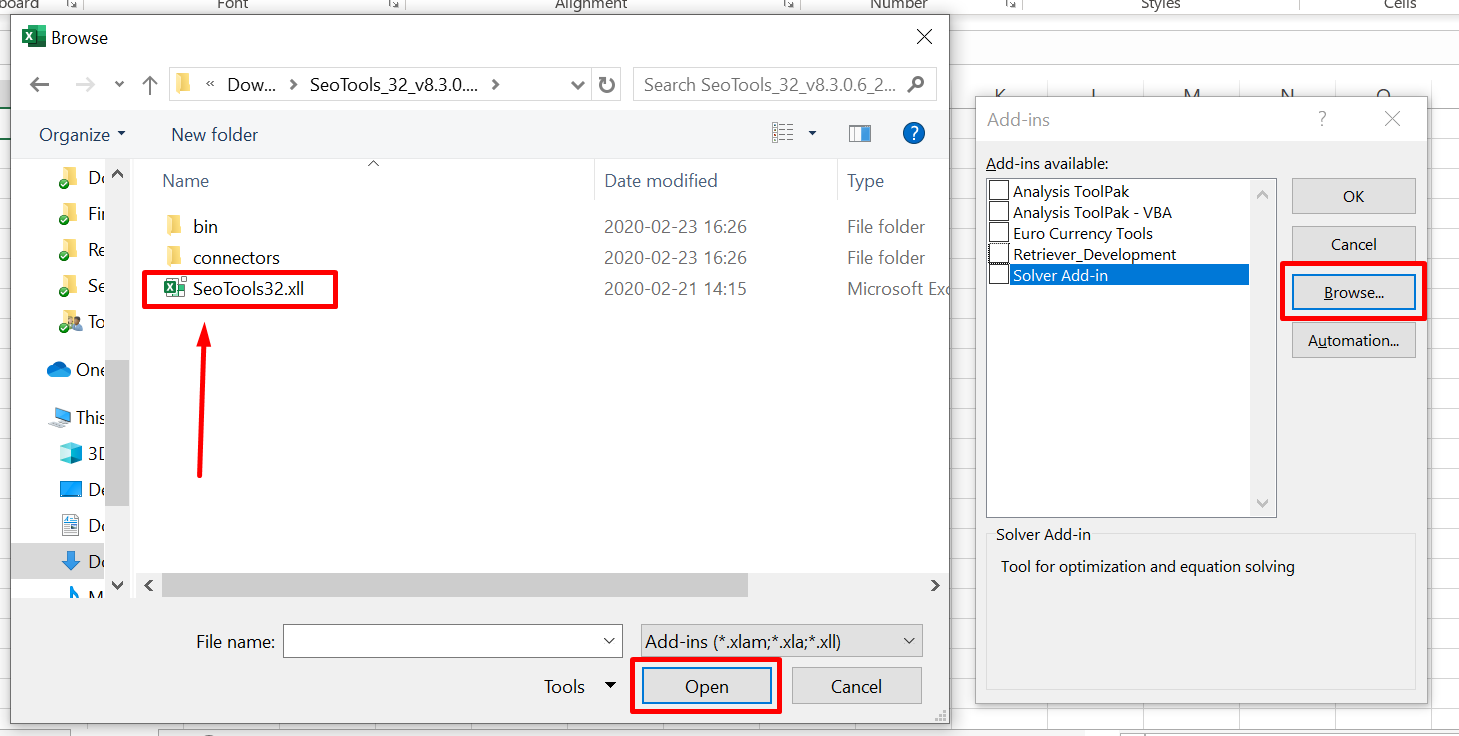
---
# Error management
URL: https://seotoolsforexcel.com/error-management/
Type: page
Published: 2015-03-29
Updated: 2019-05-19
Summary: Using this menu you can control if an error message should be shown and/or what return value to be returned in case of a specific error.
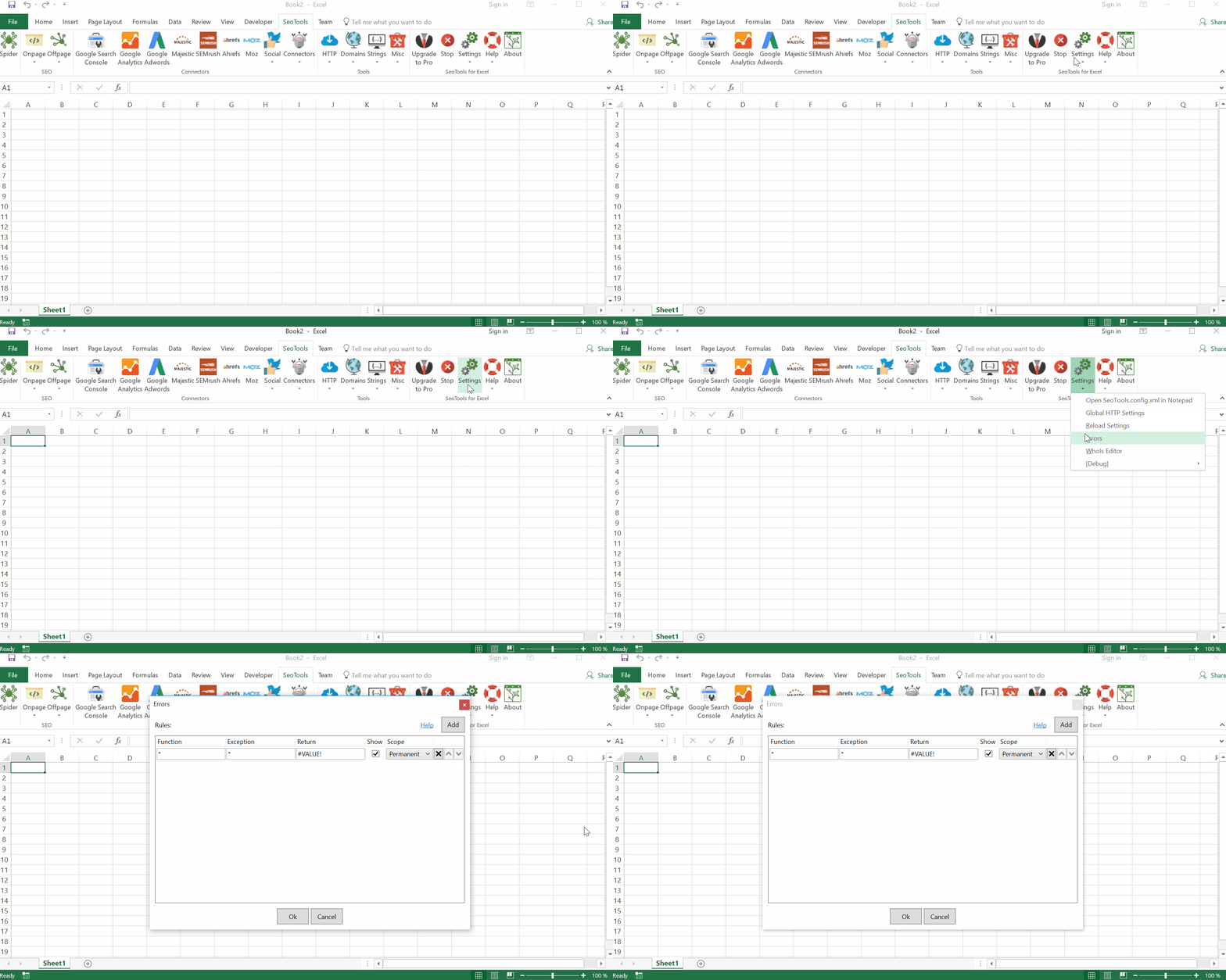
___
## Purpose
To manage how errors (or *exceptions* as they are called) are handled by SeoTools, find the *Errors* dialog under the *Settings* menu:
Using this dialog you can control if an error message should be shown and/or what return value to be returned in case of a specific error.
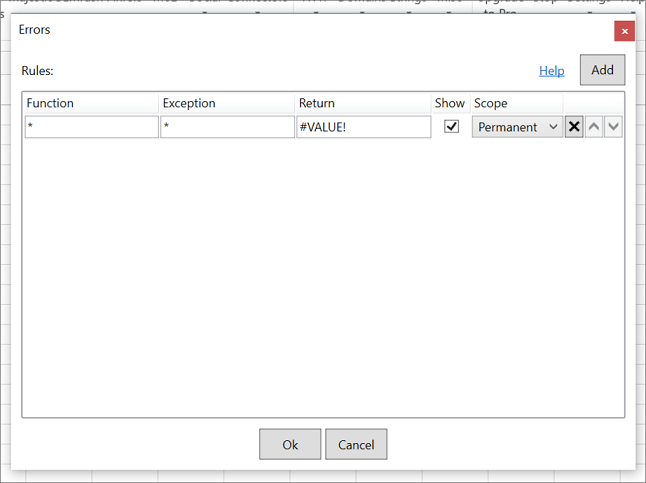
___
## Settings
#### Wildcards
"*" can be used as a wildcard to match *Function* and *Exception*.
#### Score
Determines if the rule is only for this Excel session or permanent (saved in `SeoTools.config.xml`).
#### Rules Processing
Rules are processed in the order they are listed.
___
## Manual Error Handling
Error handling can also be controlled in [SeoTools.config.xml](/seotools-config-xml/).
These are the default settings in `SeoTools.config.xml`:
This says for any function with any exception show the popup with an error message and then return `#VALUE!`.
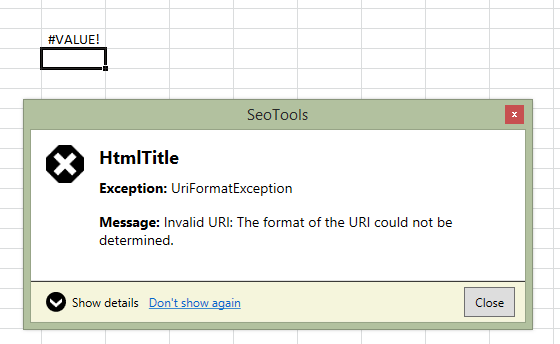
Pressing "*Don't show again*" will not show that error again during that session. If you want to permanently control how this error is shown you need to add to ``:
Rules are read and matched in order as they are written so put the default rule in the bottom.
If you want to have the error message returned in the result of the function:
ReturnValue="{Exception.Name}:{Exception.Message}"
___
## See
#### Related Functions
* [Debug Mode](/enable-debug-mode/)
---
# Access Exceptionless in Excel
URL: https://seotoolsforexcel.com/exceptionless/
Type: page
Published: 2018-08-27
Updated: 2020-08-11
Summary: Keep track of your Exceptionless data inside Excel. Extract statistics about stacks, projects, events and many more ready for analysis!
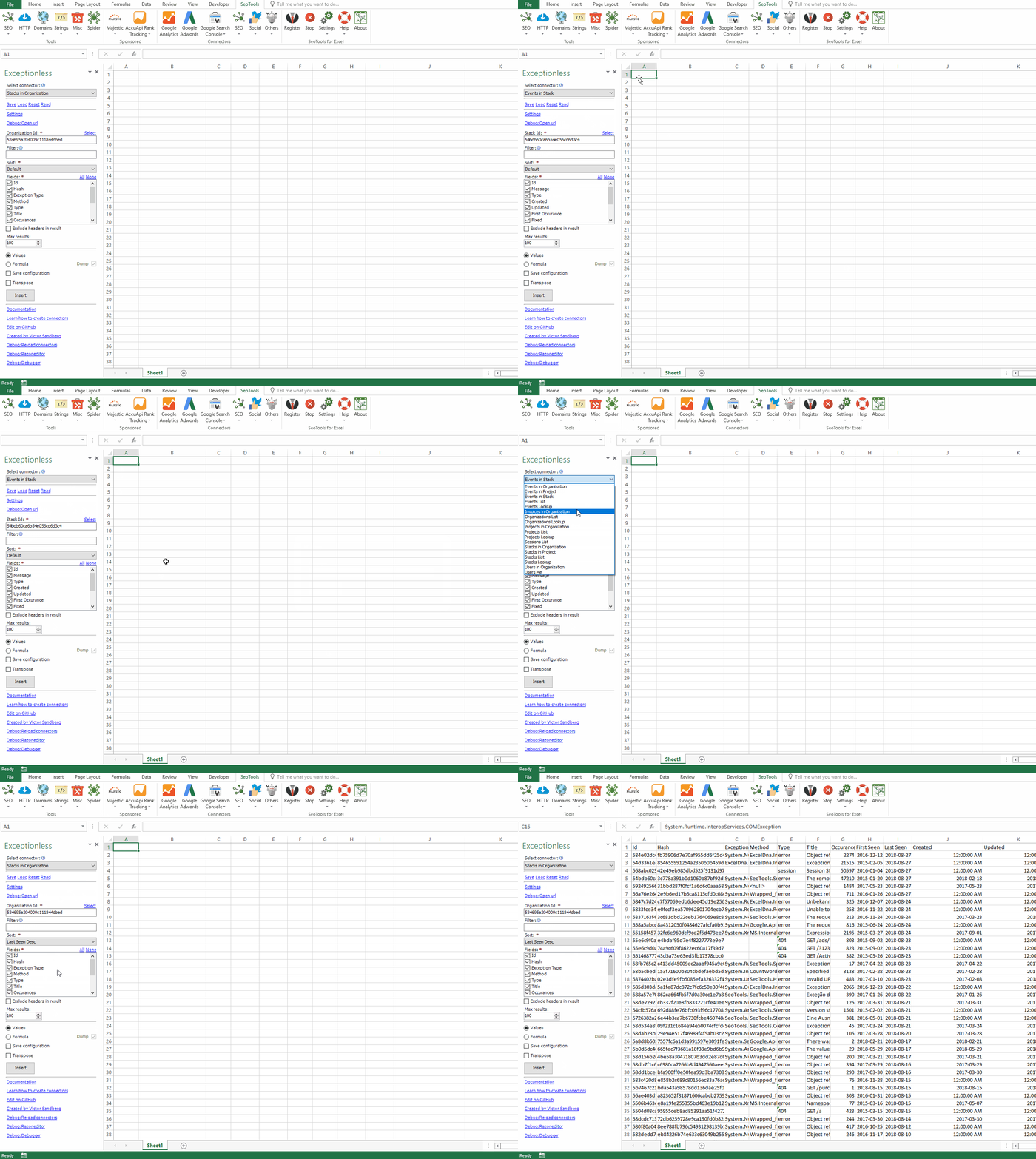
___
## Events
- **List** - Lists all Events.
- **In Organization** - Lists all Events belonging to a specific Organization.
- **In Project** - Lists all Events belonging to a specific Project.
- **In Stack** - Lists all Events belonging to a specific Stack.
- **Lookup** - Returns info about a specific Event.
#### Event Parameters
- **Sorting** - Sort in descending or ascending according to the following options:
- Created
- Updated
- Type
- **Filter** - A filter that controls what data is returned from the server.
For example: `'type:session'`
## Stacks
- **List** - Lists all Stacks.
- **In Organization** - Lists all Stacks belonging to a specific Organization.
- **In Project** - Lists all Stacks belonging to a specific Project.
- **Lookup** - Returns info about a specific Event.
#### Stacks Parameters
- **Sorting** - Sort in descending or ascending according to the following options:
- Occurances
- Last Seen
- Type
- **Filter** - A filter that controls what data is returned from the server.
For example: `'type:session'`
## Organizations
- **List** - Lists all Organizations.
- **Lookup** - Returns info about a specific Organization.
## Projects
- **List** - Lists all Projects.
- **Lookup** - Returns info about a specific Project.
- **In Organization** - Lists all Projects belonging to a specific Organization.
## Sessions
- **List** - Lists all Sessions.
## Invoices
- **List** - Lists all Invoices.
## Users
- **In Organization** - Lists all Users belonging to a specific Organization.
- **Me** - Returns information about the current User.
___
## Add from Manager
The Exceptionless Connector is available in the **[Connectors Manager](/manage-connectors/)** in the top ribbon:

Head over to the **Programming** and install Exceptionless:
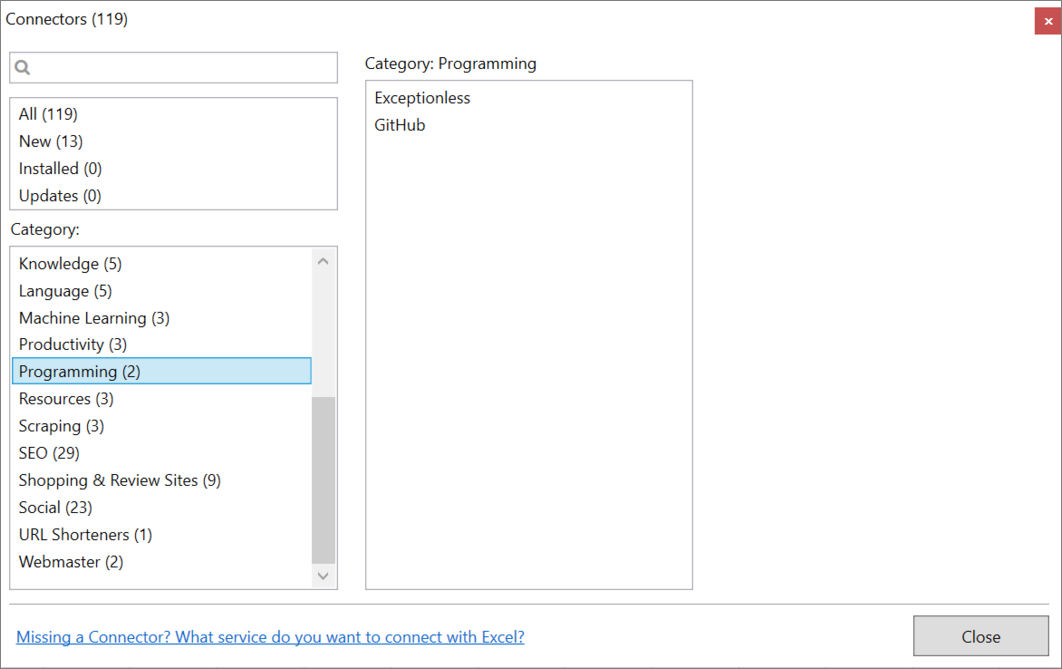
## Authenticate
Inside the connector, click on **Settings** and enter your Exceptionless email and password.
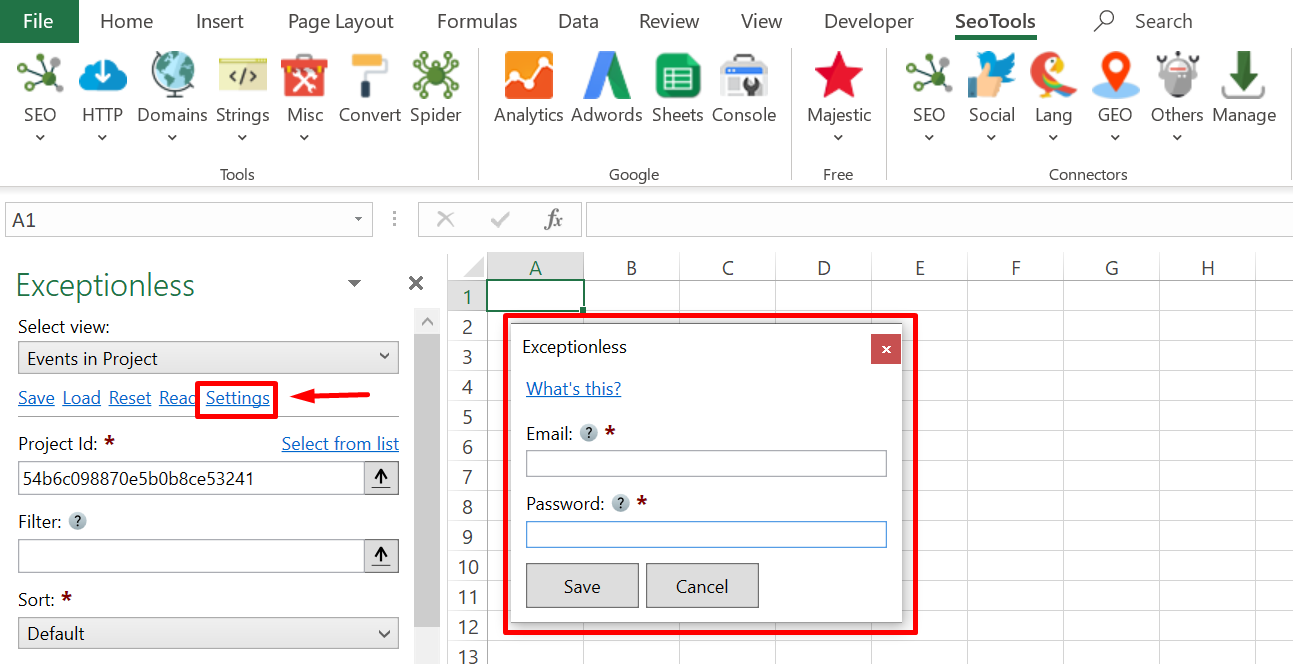
___
## Contribute
This connector suite is open-sourced on [GitHub](https://github.com/nielsbosma/SeoTools-for-Excel-Connectors/blob/master/Exceptionless.xml).
___
## See
#### Official Documentation
* [Exceptionless API](https://api.exceptionless.io/docs/index.html)
#### Resources
* [Manager](/manage-connectors/)
---
# Access Facebook in Excel
URL: https://seotoolsforexcel.com/facebook/
Type: page
Published: 2016-10-30
Updated: 2024-09-02
Summary: SeoTools for Excel offers a user-friendly and effective method to collect Page and Post metrics from Facebook Open Graph.
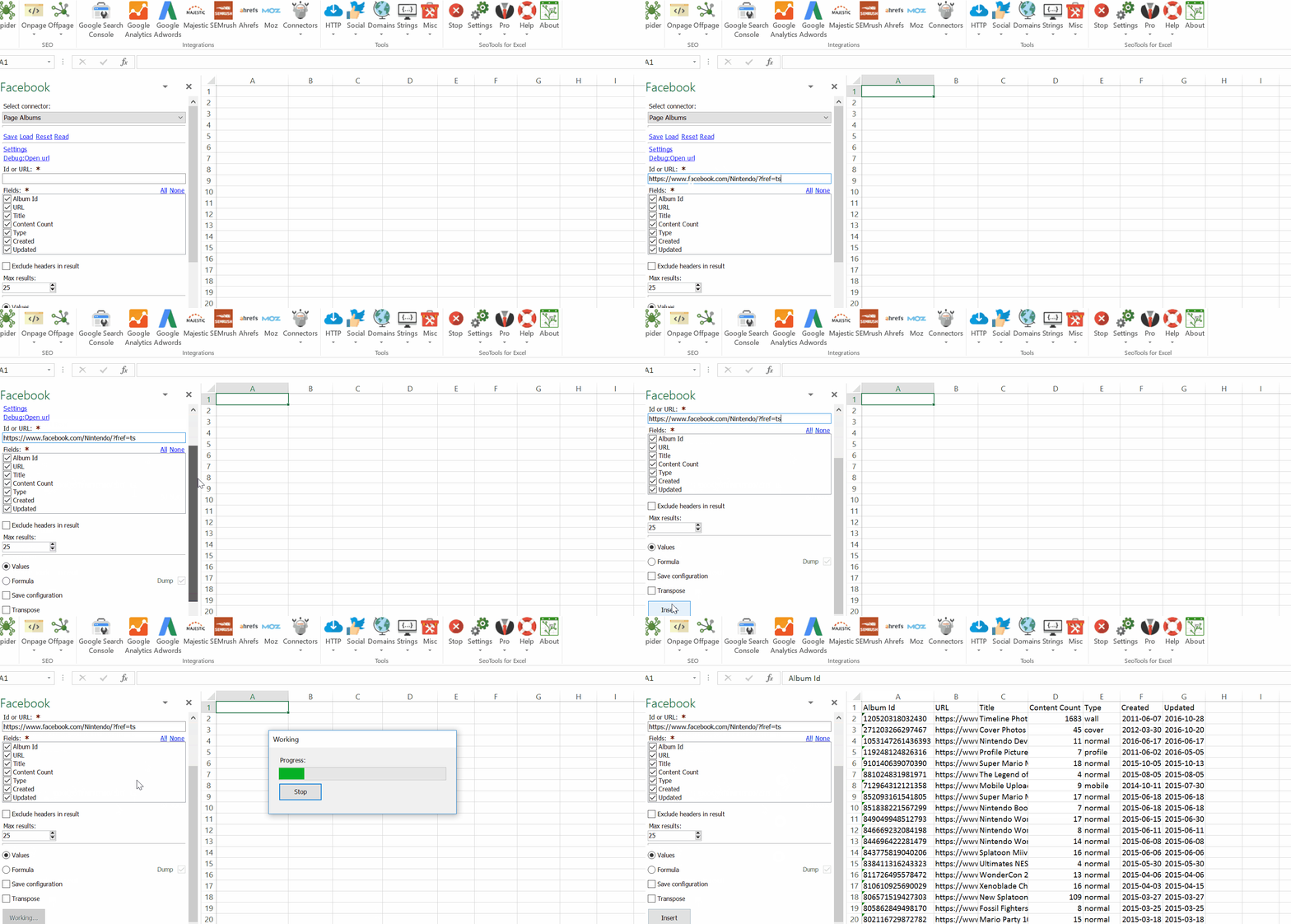
___
## Page
* **Feed** - Extract all content posted on the Page. Available filters:
- Date Interval
- *Feed* only
- *Posts by Page* only
* **Lookup** - Get Statistics of a particular *Page*.
* **Batch Lookup** - Get Statistics of 50 *Pages* at once.
* **Search** - Search for public pages.
* **Albums** - Extract a list of all *Albums* created by a Page.
* **Events** - Extract a list of all *Events* created by a Page.
* **Places** - Extract a list of all *Places* created by a Page.
* **Photos** - Extract a list of all *Photos* posted by a Page. Available filters:
- Date Interval
* **Videos** - Extract a list of all *Videos* posted by a Page. Available filters:
- Date Interval
___
## Posts
* **Lookup** - Get Statistics of a particular *Post*.
* **Batch Lookup** - Get Statistics of 50 *Posts* at once.
* **Likes** - Extract a list of all *Likes* about a Post.
___
## Page
* **Feed** - Extract all content posted on the page. Available filters:
- Date Interval
* **Lookup** - Get Statistics of a particular *Pages*
* **Search** - Search for pages.
* **Members** - Extract a list of all *Members* of a Page.
___
## Comments
* **Lookup** - Get Statistics of a particular *Comment*.
* **Batch Lookup** - Get Statistics of 50 *Comments* at once.
* **List** - Extract a list of all *comments* about a Post.
___
## Events
* **Lookup** - Get Statistics of a particular *Event*.
* **Attending** - Extract a list of all people *attending* an Event.
* **Search** - Search for public events.
* **Feed** - Extract all events created on a page. Available filters:
- Date Interval
___
## Places
* **Lookup** - Get Statistics of a particular *Place*.
* **Search** - Search for Places.
___
## Users
* **Lookup** - Get Statistics of a particular *User*.
* **Search** - Search for Users.
___
## Persons
* **Search** - Search for persons.
___
## URL Engagement
* **Lookup** - Extract the number of times an external URL has been shared, commented or reacted to.
* **Batch Lookup** - Extract the statistics for 50 URLs at once.
___
## Reactions
Many of the categories listed above, for example **Post Lookup** and **Page Feed** supports reaction count statistics.

___
## Contribute
This connector suite is open-sourced on [GitHub](https://github.com/nielsbosma/SeoTools-for-Excel-Connectors/blob/master/Facebook.xml).
___
## See
#### Official Documentation
* [Facebook API](https://developers.facebook.com/docs/graph-api)
#### Related Functions
* [Facebook Insights](/facebook-insights/)
* [Facebook Ads](/facebook-ads/)
---
# Access Facebook Ads in Excel
URL: https://seotoolsforexcel.com/facebook-ads/
Type: page
Published: 2017-03-15
Updated: 2024-09-02
Summary: SeoTools for Excel offers a user-friendly and effective method to collect statistics about the performance of your Facebook campaigns and ads.
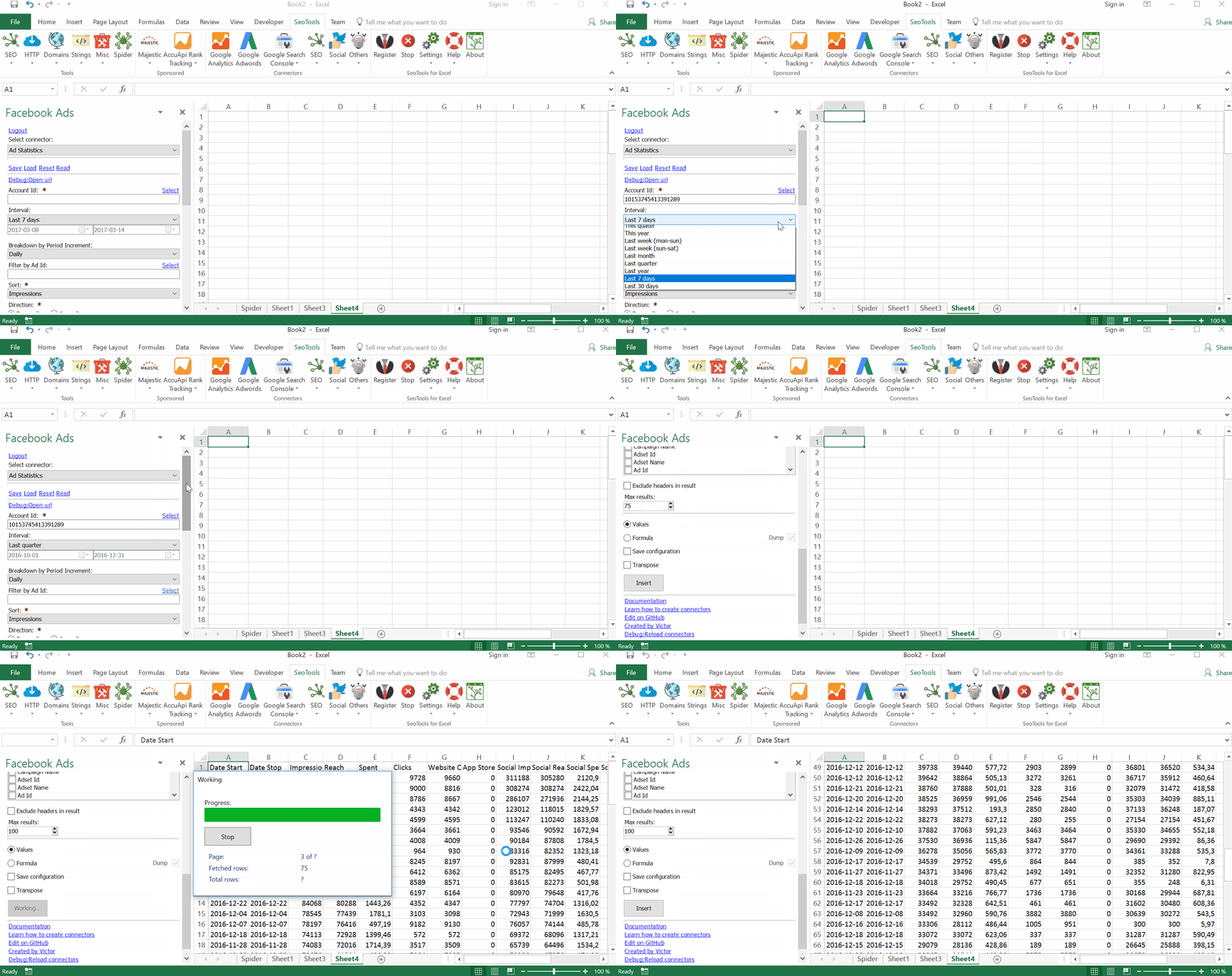
___
## Statistics
Facebook Ads are made up of four levels:
- Account
- Campaign
- Ad set
- Ads
The Facebook Ads Connector allows users to extract statistics about each of the four levels in a specified date interval.
## Level Breakdowns
**Level**
- Break down an object based on the sub items in the lower levels. For example, extracting statistics for a campaign broken down by each ad belonging to the campaign.
**Period Increment**
- Break down an object based on smaller time increments. For example, extracting statistics for a campaign broken down by each month or day.
___
## Statistics Breakdown
Extract statistics broken down by one of many methods or demographics for a particular object from each of the four levels. Available breakdowns:
- Device
- Age
- Gender
- Age & Gender
- Country
- Region
- Placement
- Publisher Platform
It is also possible to combine one of the methods or demographics with **Period Increment**.
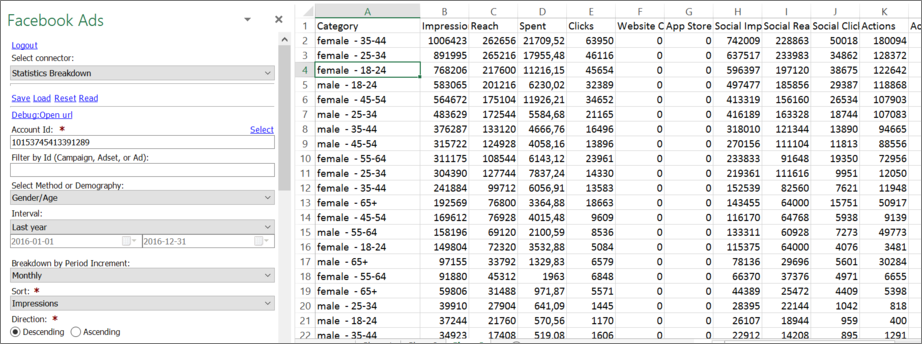
___
## Main Fields
* Impressions
* Reach
* Frequency
* Spent
* Social Spent
* Total Actions Value
* Clicks
* Unique Clicks
* Cost per Unique Click
* CPC
* CPM
* CPP
* CRT
* Unique CRT
## Action Fields
All ads action stats are included and you can find a full list [here](https://developers.facebook.com/docs/marketing-api/reference/ads-action-stats/).
___
## Contribute
This connector suite is open-sourced on [GitHub](https://github.com/nielsbosma/SeoTools-for-Excel-Connectors/blob/master/FacebookAds.xml).
___
## See
#### Official Documentation
* [Facebook Ads API](https://developers.facebook.com/docs/marketing-api/reference/v2.8)
#### Related Functions
* [Facebook](/facebook/)
* [Facebook Insights](/facebook-insights/)
---
# Access Facebook Insights in Excel
URL: https://seotoolsforexcel.com/facebook-insights/
Type: page
Published: 2016-11-07
Updated: 2024-09-02
Summary: SeoTools for Excel offers a user-friendly and effective method to collect data insights data from the Facebook Pages you manage.
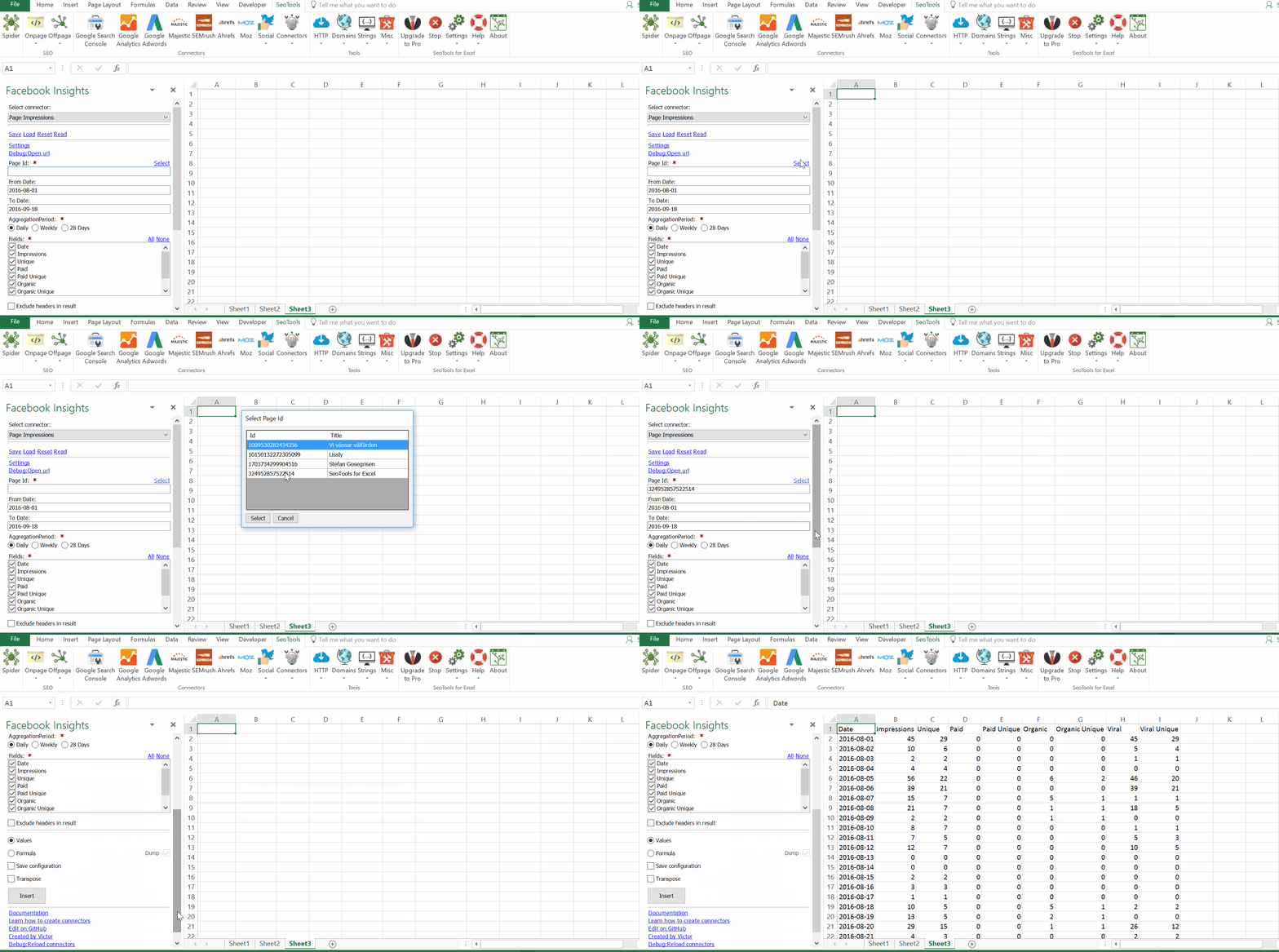
___
## Page Data
* **Page Metrics** - Detailed daily statistics about a page.
* **Post Impressions** - Impressions-related statistics generated by the Posts from your Page.
* **Impressions by Age/Gender** - Impressions broken down demographics.
* **Stats by Location/Language** - Available dimensions:
- Fans by Country
- Fans by City
- Fans by Locale
- Unique impressions by Country
- Unique impressions by City
- Unique impressions by Locale
## Post Data
* **Posts from Page Feed** - Posts (either Feed or Posts by the page) posted on a specific page during a period.
* **Posts by visitors** - Returns posts from visitors.
* **Posts Lookup** - Detailed metadata about a specific post.
* **Comments to Posts** - Get comments to one or more posts.
* **Likes to Posts** - Get the likes for a specific post.
## Video Data
* **Daily Views** - Video-related statistics about one of your *Videos* broken down by day.
* **Lookup** - Statistics about one of your *Videos*.
* **Retention Rate** - The retention rate broken down by intervals.
___
## Contribute
This connector suite is open-sourced on [GitHub](https://github.com/nielsbosma/SeoTools-for-Excel-Connectors/blob/master/FacebookInsights.xml).
___
## See
#### Official Documentation
* [Facebook Insights API](https://developers.facebook.com/docs/marketing-api/insights/)
#### Related Functions
* [Facebook](/facebook/)
* [Facebook Ads](/facebook-ads/)
* [Instagram Insights](/instagram-insights/)
---
# FindDuplicateContent
URL: https://seotoolsforexcel.com/findduplicatecontent/
Type: page
Published: 2015-03-29
Updated: 2019-05-27
Summary: Find the longest common substring (LCS) of strings compared to a reference string as a function in SeoTools for Excel
```
=FindDuplicateContent(string findDuplicateContent,
{string inCells}) : string
```
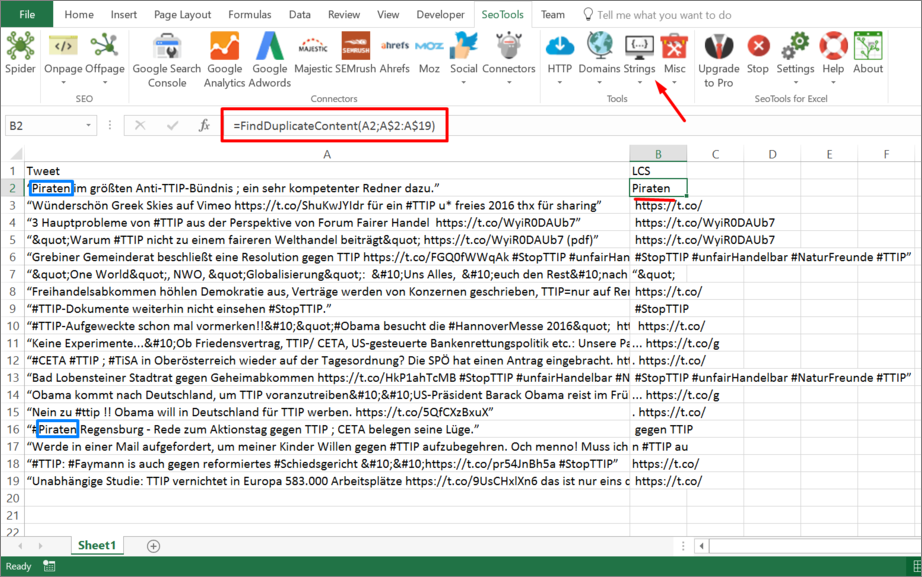
___
## Purpose
Finds the longest [Longest Common Substring](https://en.wikipedia.org/wiki/Longest_common_substring_problem) of strings in a vector compared to a reference string.
This function is very useful when writing content in Excel and you want to make sure you have written unique texts.
See blog post [Excel plugin for finding duplicate content in cells](/excel-plugin-for-finding-duplicate-content-in-cells/) for more help with this function.
___
## See
#### Cookbook
* [FindDuplicateContent.xlsx](https://raw.githubusercontent.com/nielsbosma/SeoTools-for-Excel-Cookbooks/master/Functions/FindDuplicateContent.xlsx)
#### Related Guides
* [Finding Duplicate Content](/excel-plugin-for-finding-duplicate-content-in-cells/)
#### Related Functions
* [LCS](/lcs/)
* [Copyscape](/copyscape/)
---
# FindOnPage
URL: https://seotoolsforexcel.com/findonpage/
Type: page
Published: 2020-02-29
Updated: 2020-02-29
Summary: Formula to extract entities such as email addresses, usernames from Twitter, Instagram and LinkedIn, Id from Google Analytics Ids and Google Adsens.
```
=FindOnPage(
string url,
string item,
string separator(optional),
: array
```
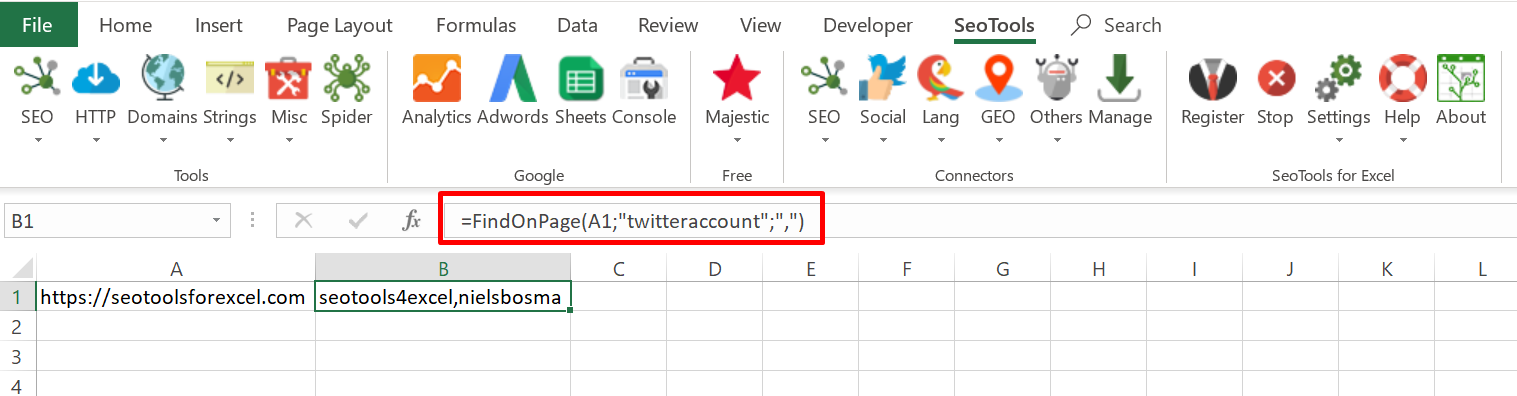
___
## Purpose
Extract entities from a website. Supported entities:
- `Email`
- `TwitterAccount`
- `InstagramAccount`
- `LinkedinAccount`
- `GoogleAnalyticsId`
- `GoogleAdSenseId`
#### Separator
Use the optional `separator` argument to return the entities in a delimited list. If not used, the results will be returned as an array and you need to use the [Dump function](/dump/) to get all results.
Separator: ","
=FindOnPage("https://seotoolsforexcel.com";"twitteraccount";",")
=> seotools4excel,nielsbosma
No separator
=FindOnPage("https://seotoolsforexcel.com";"twitteraccount")
=> seotools4excel
___
## Examples
=FindOnPage("https://seotoolsforexcel.com";"twitteraccount")
=> info@seotoolsforexcel.com
=FindOnPage("https://seotoolsforexcel.com";"GoogleAnalyticsId")
=> ua-35565608-1
____
## See
#### Related Functions
* [IsFoundOnPage](/isfoundonpage/)
---
# Access Fixer.io in Excel
URL: https://seotoolsforexcel.com/fixer-io/
Type: page
Published: 2017-03-19
Updated: 2019-05-27
Summary: SeoTools for Excel offers a user-friendly and effective method convert and access current and historical exchange rates in Excel
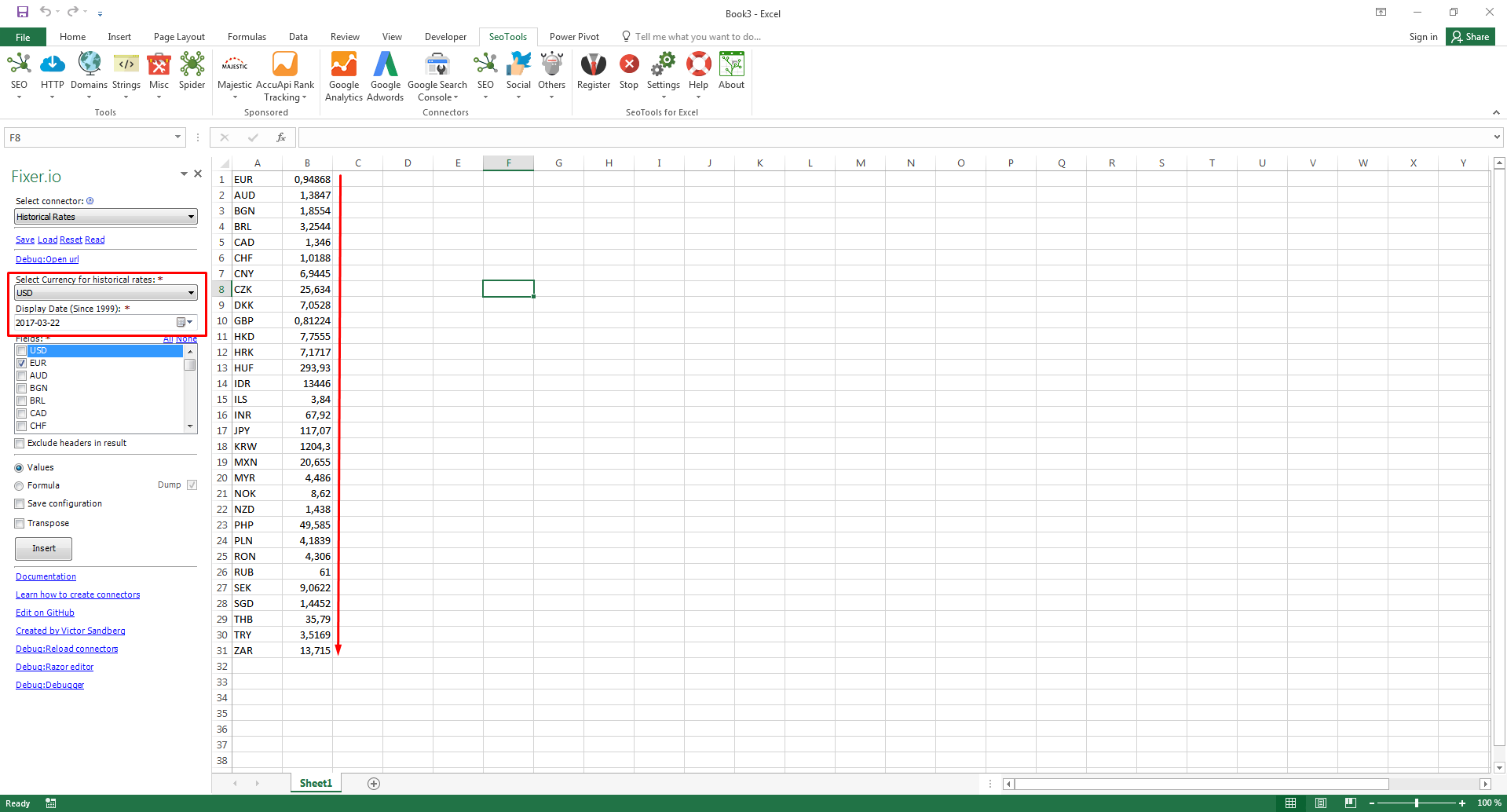
___
## Exchange Rates
Converts a currency to one or more exchange rates.
## Historical Rates
Converts a currency to one or more exchange rates which was registered for a specific date. The Fixer.io historical database supports historical rates as far back as 1999-01-01.
___
## Access
## Add from Manager
The Fixer.io Connector is available in the **[Connectors Manager](/manage-connectors/)** in the top ribbon:

Head over to the **Finance Category** and install Fixer.io:

___
## Contribute
This connector suite is open-sourced on [GitHub](https://github.com/nielsbosma/SeoTools-for-Excel-Connectors/blob/master/FixerIO.xml).
___
## See
#### Official Documentation
* [Fixer.IO API](https://fixer.io/)
#### Resources
* [Manager](/manage-connectors/)
---
# Access Flurry Analytics in Excel
URL: https://seotoolsforexcel.com/flurry-analytics/
Type: page
Published: 2018-12-19
Updated: 2019-05-20
Summary: Integrate Yahoo Flurry Analytics in Excel and analyze data about your users’ behavior in your apps. Apply filters, sort and chose metrics and dimensions.
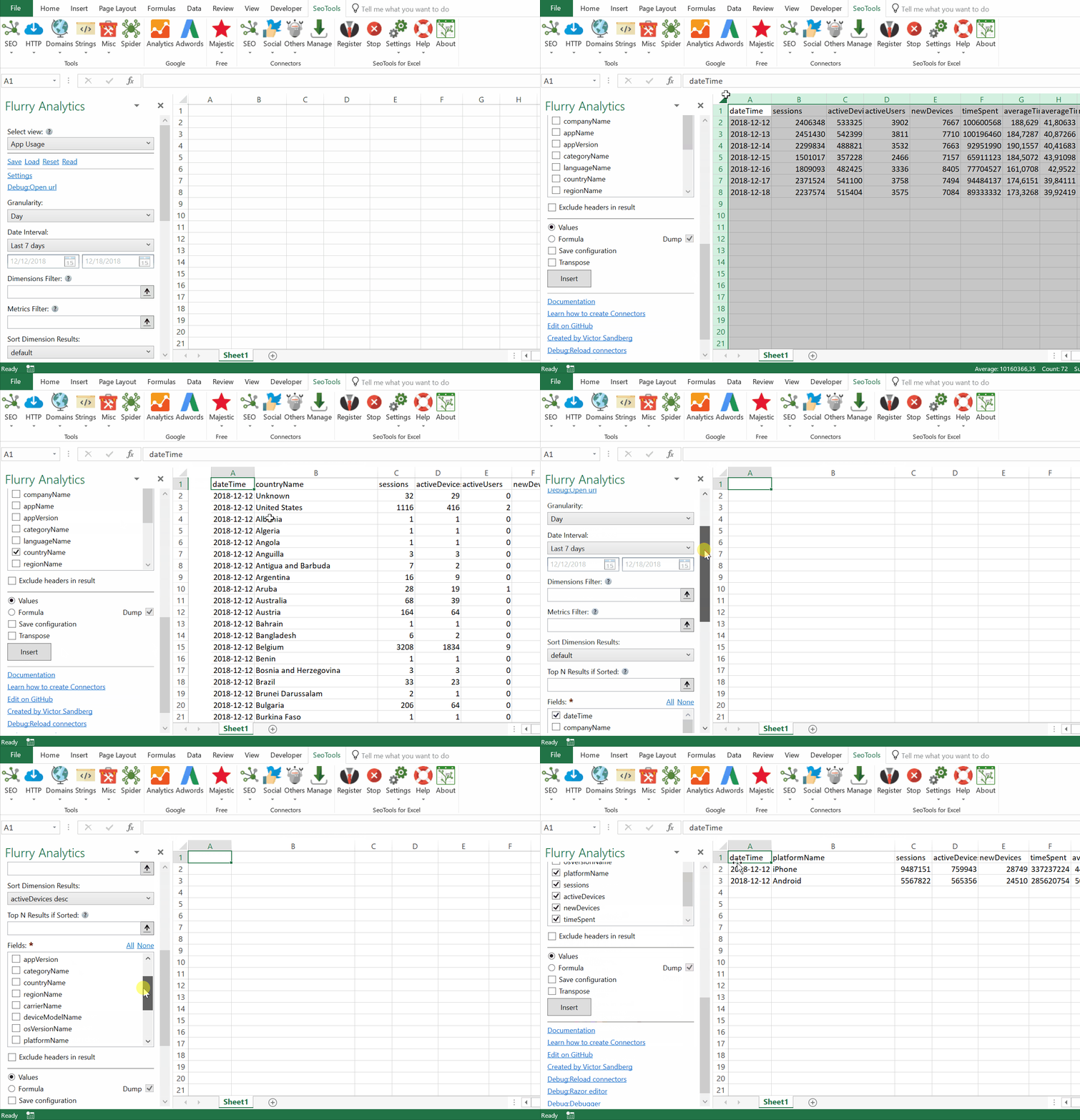
The Flurry Analytics provides you with the tools and resources you need to gain a deep level of understanding about your users’ behavior in your apps.
## Table Metrics
Chose one of the following data-sets:
- **App Usage**
- Sessions
- Active Devices & Users
- New Devices
- Time Spent
- Average Time per Device & Session
- Median Time per Session
- **App Events**
- Occurrences
- Active & New Devices
- Event Duration
- Average Event Duration
- Average Event Duration per Device
- **Real-time**
- Sessions
- Active Devices
- **Audience**
- Sessions
- Active & New Devices
- Time Spent
- Average Time per Device & Session
- **Technical**
- Sessions
- Active & New Devices
- Time Spent
- Average Time per Device & Session
- **User Acquisition**
- Campaign Clicks
- Campaign Conversions & Rate
- **Revenue**
- Purchases
- Purchase Quantity
- Purchase Devices
- Purchase Users
- Revenue Original Currency
- Revenue USD & EUR
## Table Dimensions
Break down your results with one or more of the following dimensions:
- **General**
- Date
- Company Name
- App Name & Version
- Category
- Language, Country & Region
- **Audience**
- City
- Geo Area
- Age Estimate
- Gender Estimate
- **Technical**
- Carrier
- Device Model
- OS Version
- Platform
- **User Acquisition**
- Campaign Name
- Channel Name
- **Revenue**
- Product Type
- Transaction Type & Outcome
## Filters
**Dimension** attribute filters that are combined (as AND) to reduce output to match your criteria. id and name are available for all dimensions. Operators: in, notin, contains, startsWith
`|`
**Metrics** filters reduces result to match the metrics criteria specified. you can combine multiple metrics criteria. Operators available: equal(eq), greaterThan(gt), lessThan(lt) and their not versions
``
## Filter examples
Country must be either Canada or Mexico and app version must be equal to 2.3
country|name-in[‘Canada’,’Mexico’] ,appVersion|name-in[‘2.3’]
Sessions must be greater than 1000 and active devices must be greater than 200:
sessions-gt[1000],activeDevices-gt[200]
## Sorting
Specify one or more metrics to sort results by. If order is not specified, then it defaults to descending.
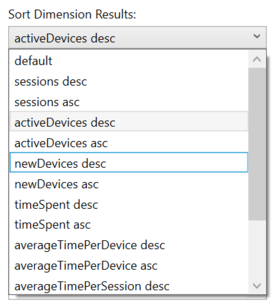
## Top N Results
Reduces result to match the number specified for this parameter. If this parameter is used, then you must also use sort to indicate metric and order by which top n must be calculated.
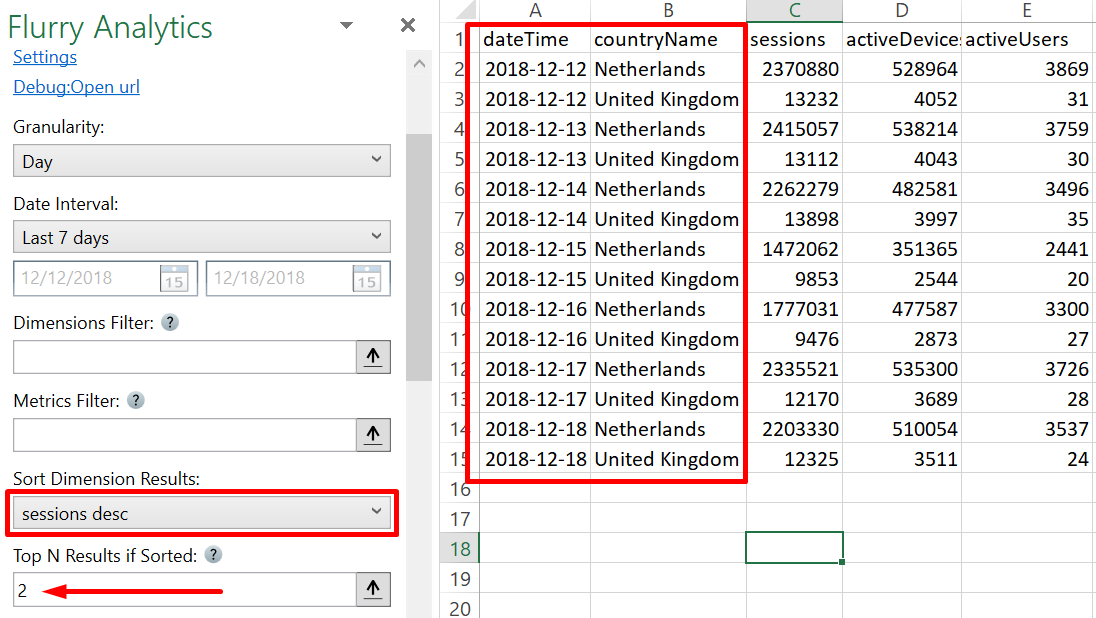
___
## Access
## Add from Manager
The Flurry Analytics Connector is available in the **[Connectors Manager](/manage-connectors/)** in the top ribbon:

Head over to the **ASO Category** and install Flurry Analytics:

## Get Token
To use the Flurry Analytics Connector you need a token. We recommend following [this official guide](https://developer.yahoo.com/flurry/docs/api/code/apptoken/?guccounter=1).
Copy the Token and paste the key in the Flurry Analytics task-pane inside Seotools:
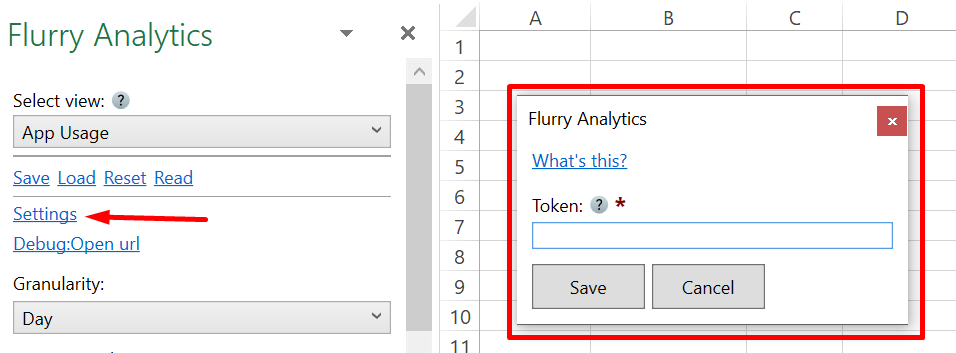
___
## Contribute
This connector suite is open-sourced on [GitHub](https://github.com/nielsbosma/SeoTools-for-Excel-Connectors/blob/master/FlurryAnalytics.xml).
___
## See
#### Official Documentation
* [Flurry Analytics API](https://developer.yahoo.com/flurry/docs/analytics/)
#### Resources
* [Manager](/manage-connectors/)
---
# Format
URL: https://seotoolsforexcel.com/format/
Type: page
Published: 2015-03-29
Updated: 2019-05-19
Summary: Concatenating strings in Excel is a hazzle. Enter .Net formatting as a function in SeoTOols for Excel
```
=Format(string format, {object arguments}) : string
```
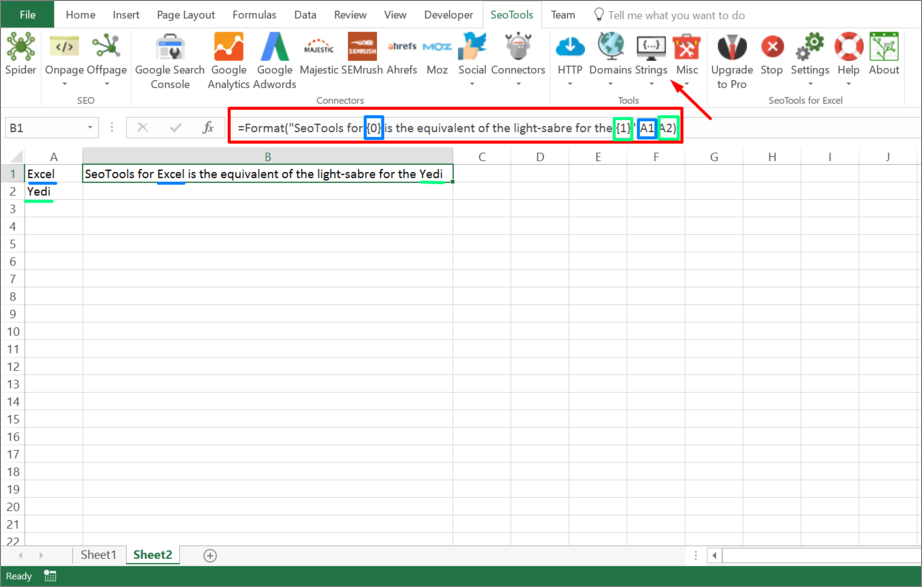
___
## Purpose
Concatenates a string by inserting the value of one or more cells at specific locations in the string.
This function is based on the .Net `String.Format` Method.
You can supply Format with multiple vectors:

Note that *Date formatting* doesn’t work because Excel treats dates as numbers.
___
## Examples
Format is really useful for building SQL statements:
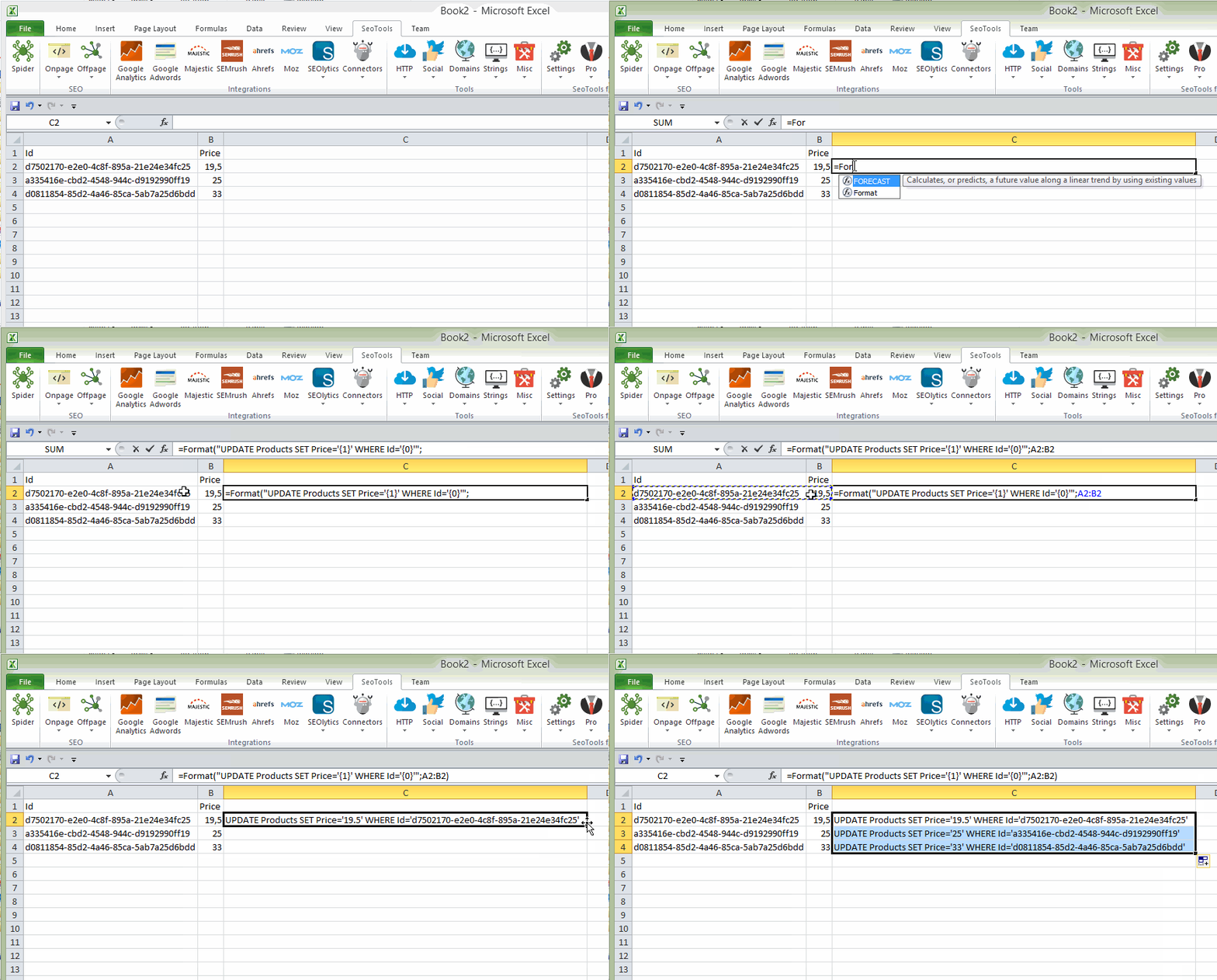
Fully supports .Net composite formatting (string.Format).
=Format("{0:0.00}",123.4567) => "123.46"
=Format("{0:0000}",3) => "0003"
___
## See
### Official Documentation
* [Syntax reference](https://docs.microsoft.com/en-us/dotnet/standard/base-types/composite-formatting)
---
# FriendlyUrl
URL: https://seotoolsforexcel.com/friendlyurl/
Type: page
Published: 2015-03-29
Updated: 2019-05-19
Summary: Converts a string to a friendly URL format as a function in SeoTools for Excel
```
=FriendlyUrl(string text) : string
```
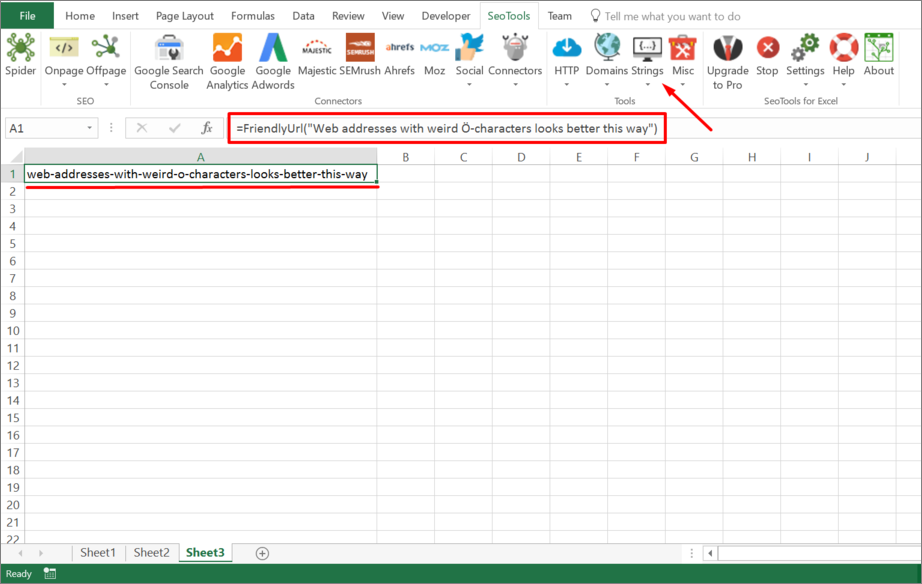
___
## Purpose
Converts a string to Friendly Url Format.
___
## See
#### Related Functions
* [HtmlEncode](/htmlencode/)
* [UrlEncode](/urlencode/)
* [NormalizeWhiteSpace](/normalizewhitespace/)
* [StripWhiteSpace](/stripwhitespace/)
---
# Access FullContact in Excel
URL: https://seotoolsforexcel.com/fullcontact/
Type: page
Published: 2016-10-26
Updated: 2020-05-28
Summary: SeoTools for Excel offers a user-friendly and effective method to collect CRM data from FullContact straight to Excel within a matter of seconds.
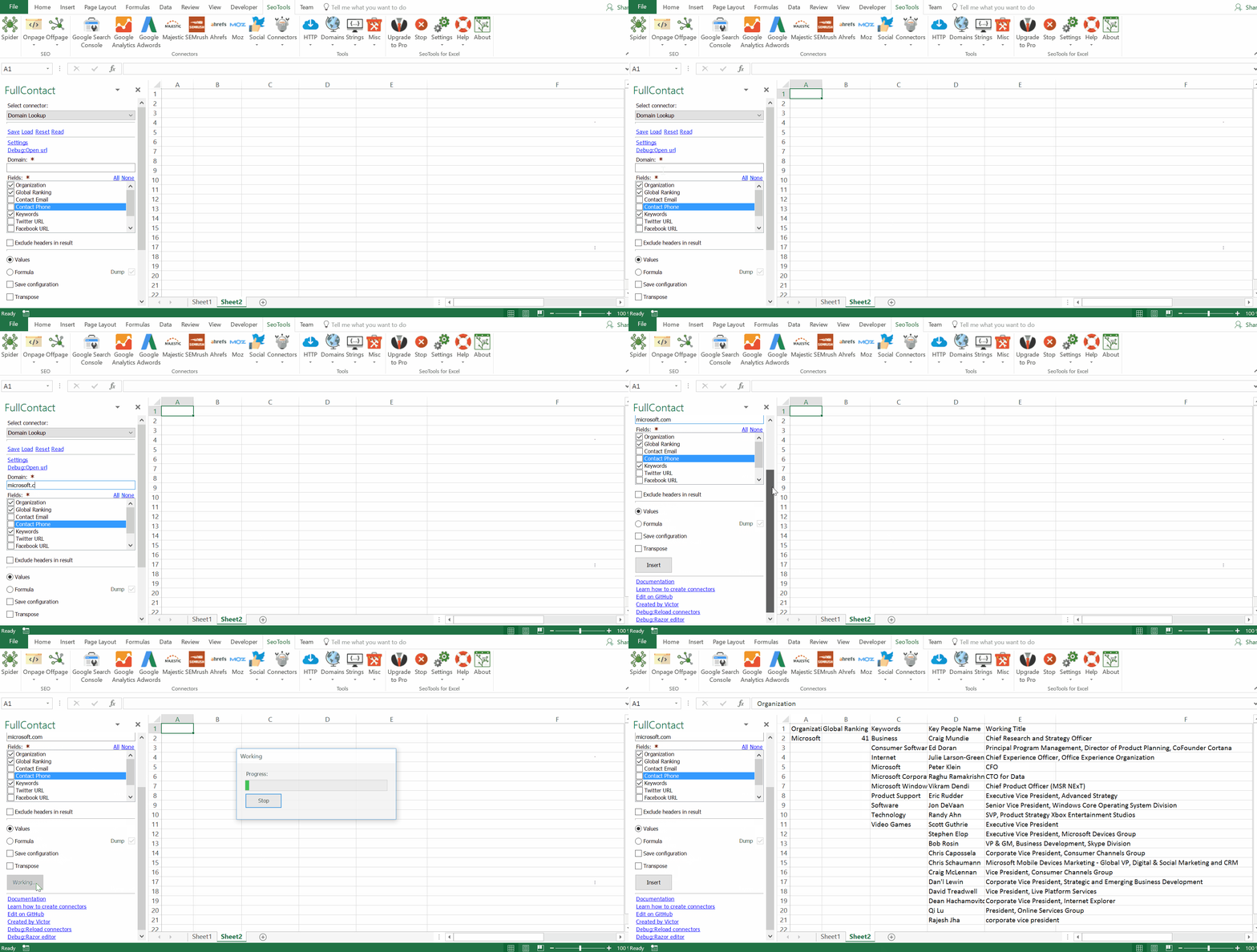
___
## Features
* **Domain Lookup/Search** - Find information about a specific company by domain or query. Available variables:
- *Organization Name*
- *Location*
- *Twitter*
- *Facebook*
- *LinkedIn*
- *Bio*
- *Website*
- *Founded*
- *Employees*
- *Locale*
- *Category*
* **Person Lookup** - Find information about a specific person. Available variables:
- *Full Name*
- *Age*
- *Gender*
- *Title at Organization*
- *Organization Name*
- *Twitter*
- *Facebook*
- *LinkedIn*
- *Bio*
- *Website*
___
## Access
## Add from Manager
The FullContact Connector is available in the **[Connectors Manager](/manage-connectors/)** in the top ribbon:

Head over to the **Lead Generation** and install FullContact:
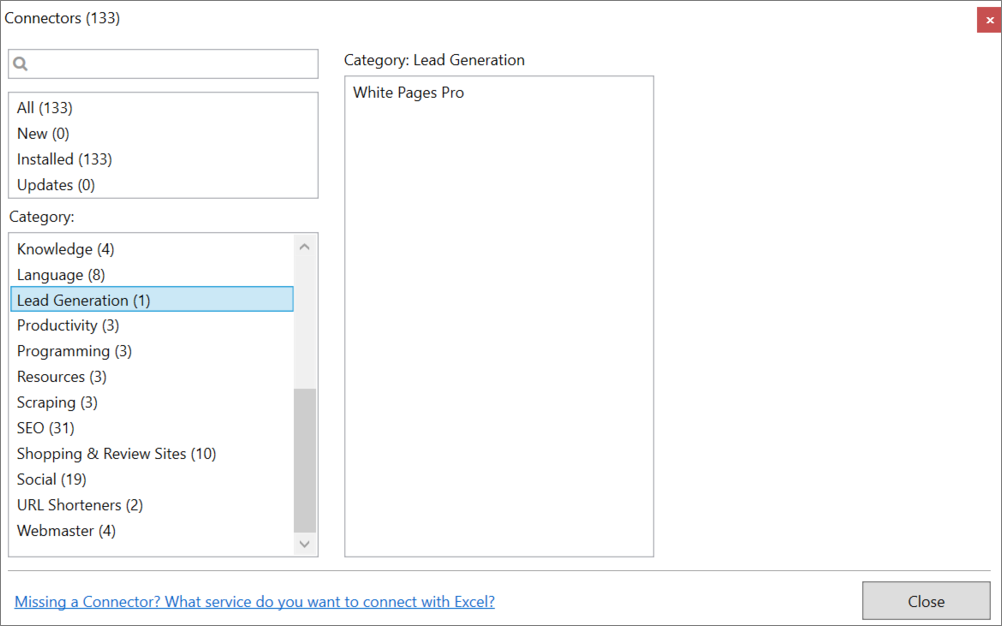
## Get API keys
To use the FullContact connector you need an API key.
1. [Sign up](https://dashboard.fullcontact.com/signup) for a free trial account.
2. Wait for a confirmation email and copy the API key from the email.
___
## Contribute
This connector suite is open-sourced on [GitHub](https://github.com/nielsbosma/SeoTools-for-Excel-Connectors/blob/master/FullContact.xml).
___
## See
#### Official Documentation
* [FullContact API](https://docs.fullcontact.com/)
#### Related Functions
* [WhitePages Pro](/whitepagespro/)
* [Leadfeeder](/leadfeeder/)
#### Resources
* [Manager](/manage-connectors/)
---
# Access Genderize in Excel
URL: https://seotoolsforexcel.com/genderize/
Type: page
Published: 2020-02-28
Updated: 2020-02-28
Summary: Use the Genderize connector to determine the gender of a name in Excel. Returns the gender, probability and count.
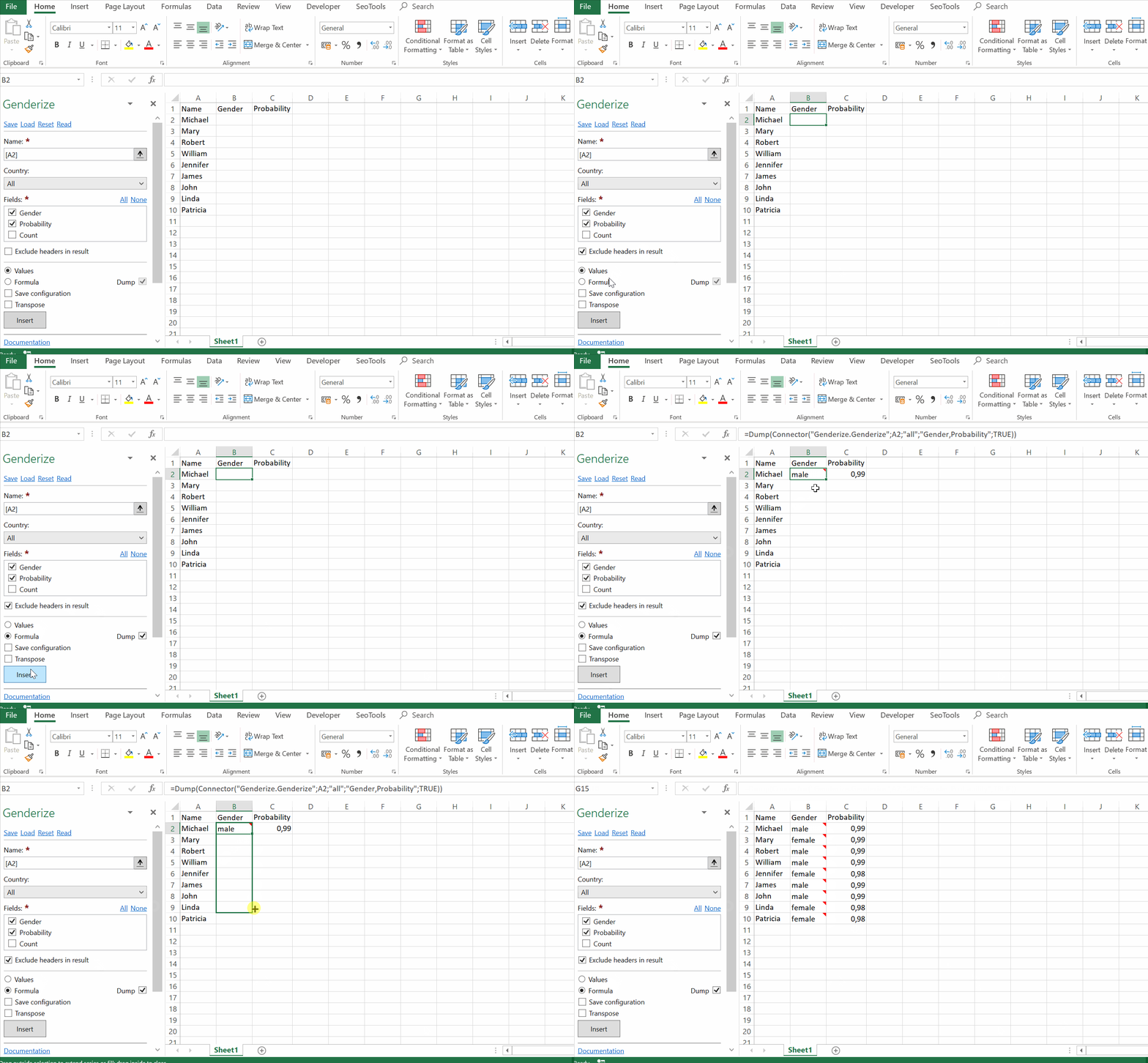
A simple connector to predict the gender of a person given their name. Optional country filter to return local results.
=Connector("Genderize.Genderize";{name};
{country code};"Gender";TRUE)
___
## Access
## Add from Manager
The Genderize Connector is available in the **[Connectors Manager](/manage-connectors/)** in the top ribbon:

Head over to the **Demographics Category** and install Genderize.
___
## Contribute
This connector suite is open-sourced on [GitHub](https://github.com/nielsbosma/SeoTools-for-Excel-Connectors/blob/master/Genderize.xml).
___
## See
#### Official Documentation
* [Genderize API](https://genderize.io/)
#### Resources
* [Manager](/manage-connectors/)
---
# Access GeoNames in Excel
URL: https://seotoolsforexcel.com/geonames/
Type: page
Published: 2017-03-19
Updated: 2025-05-02
Summary: SeoTools for Excel offers a user-friendly and effective method to search the GeoNames geographical database in Excel
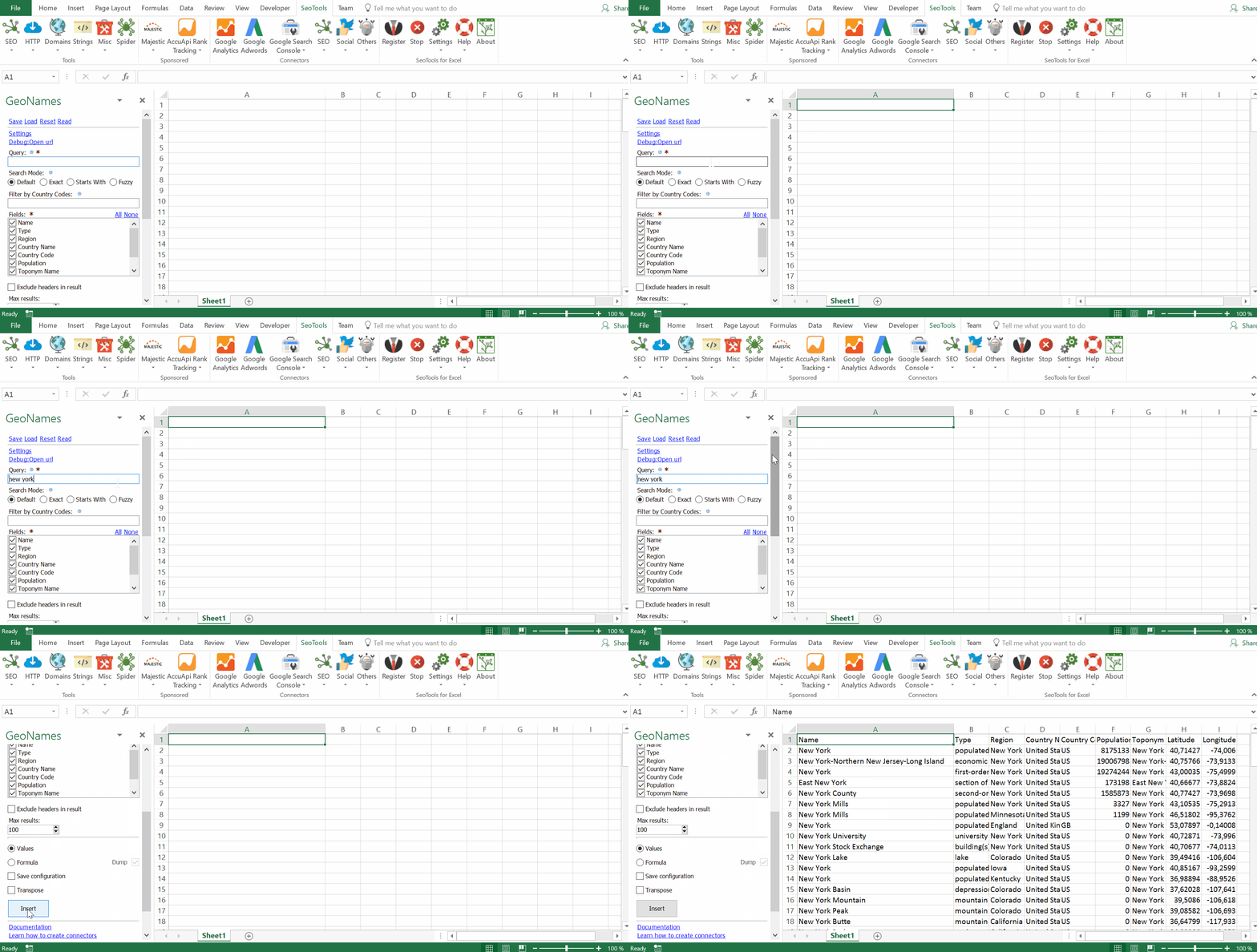
___
## Purpose
The GeoNames geographical database covers all countries and contains over eleven million searchable placenames.
`Search Mode`
- Determines how you want to match locations against your query. Available modes:
- Default
- Exact
- Starts With
- Fuzzy
`Country Code`
- Allows you to filter the results to a specific country.
`Order by` - Sort results by one of the following options:
- Relevance
- Population
- Elevation
___
## Access
## Add from Manager
The GeoNames Connector is available in the **[Connectors Manager](/manage-connectors/)** in the top ribbon:

Head over to the **GEO Category** and install GeoNames:

To use the Connector you need a GeoNames account.
1. [Register](http://www.geonames.org/login) a new account.
2. Your registered username is used as the username input in SeoTools: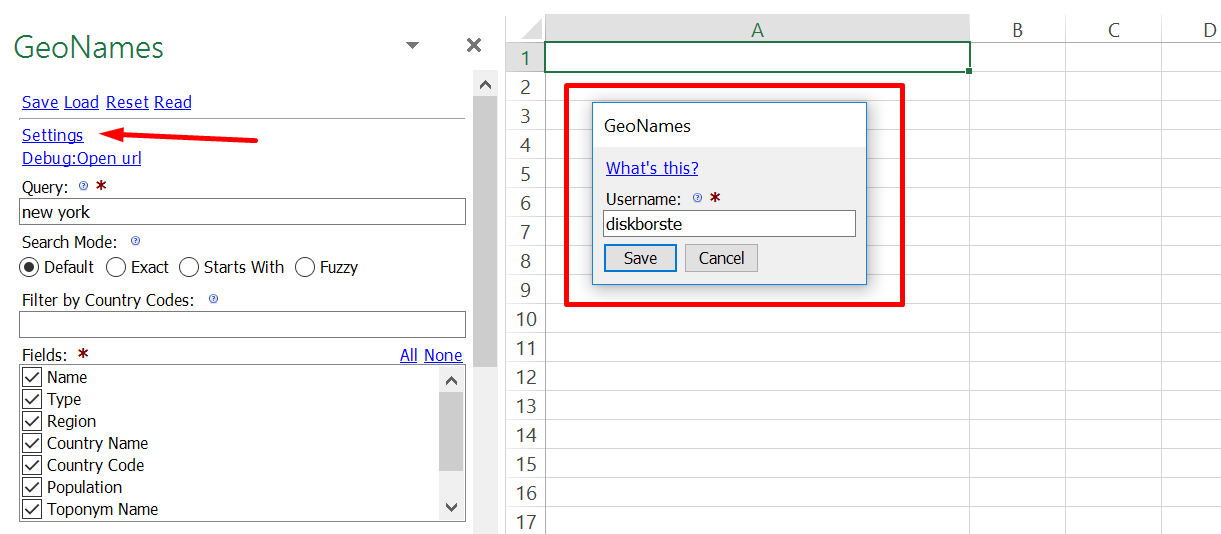
___
## Contribute
This connector suite is open-sourced on [GitHub](https://github.com/nielsbosma/SeoTools-for-Excel-Connectors/blob/master/GeoNames.xml).
___
## See
#### Official Documentation
* [GeoNames API](http://www.geonames.org/export/web-services.html)
#### Related Functions
* [Bing Maps](/bing-maps)
* [Google Geocoding](/google-geocoding/)
* [OpenStreetMap](/openstreetmap/)
#### Resources
* [Manager](/manage-connectors/)
---
# GetTextOnUrl
URL: https://seotoolsforexcel.com/gettextonurl/
Type: page
Published: 2015-03-29
Updated: 2020-05-23
Summary: Extract text from any web page as a formula in Excel with SeoTools for Excel.
```
=GetTextOnUrl(string url, optional bool InnerText,
optonal string xmlHttpSettings]) : string
```
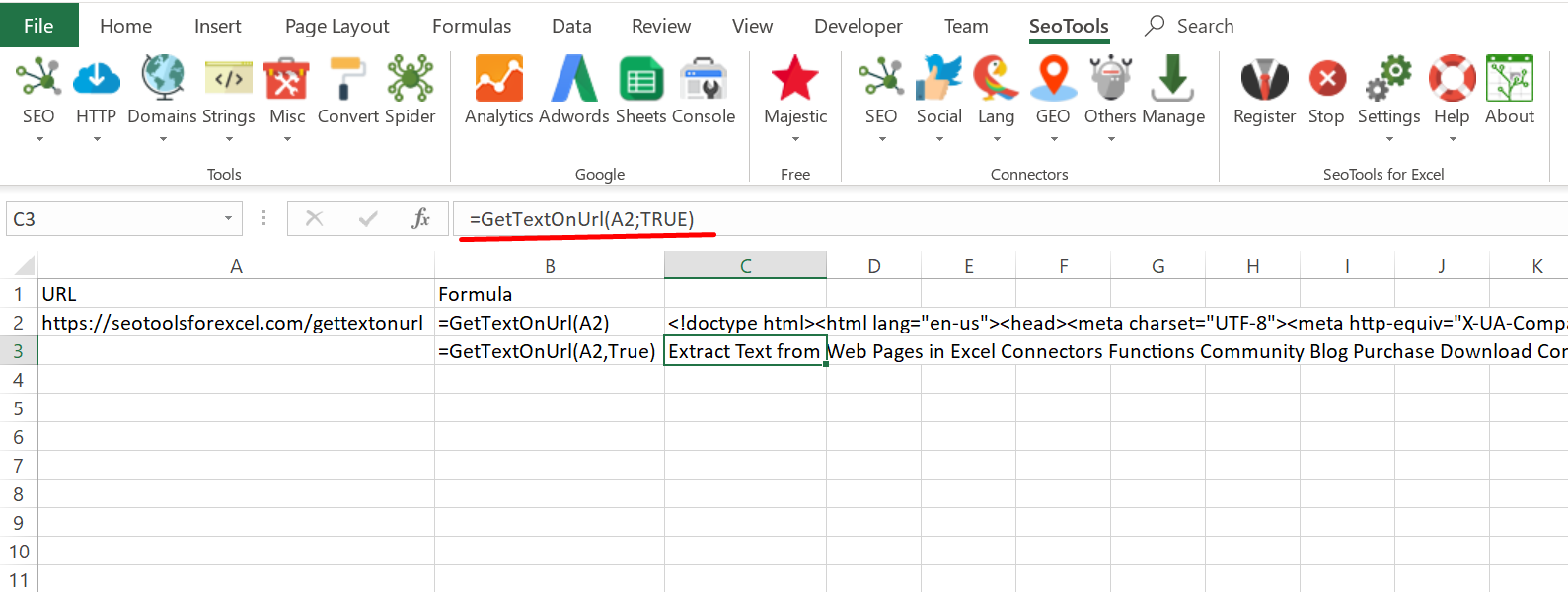
___
## Purpose
Retrieves HTML from a URL. Set the **InnerText** argument to true to strip all HTML tags and scripts.
See [HttpSettings](/httpsettings/) for details about xmlHttpSettings.
___
## See
#### Related Functions
* [CsQueryOnUrl](/csquery/)
* [JsonPathOnUrl](/jsonpathonurl/)
* [XPathOnUrl](/xpathonurl/)
* [RegexpFindOnUrl](/regexpfindonurl/)
---
# Access GitHub in Excel
URL: https://seotoolsforexcel.com/github/
Type: page
Published: 2018-06-13
Updated: 2020-05-20
Summary: SeoTools for Excel offers a user-friendly and effective method to analyze and verify e-mail addresses in Excel.
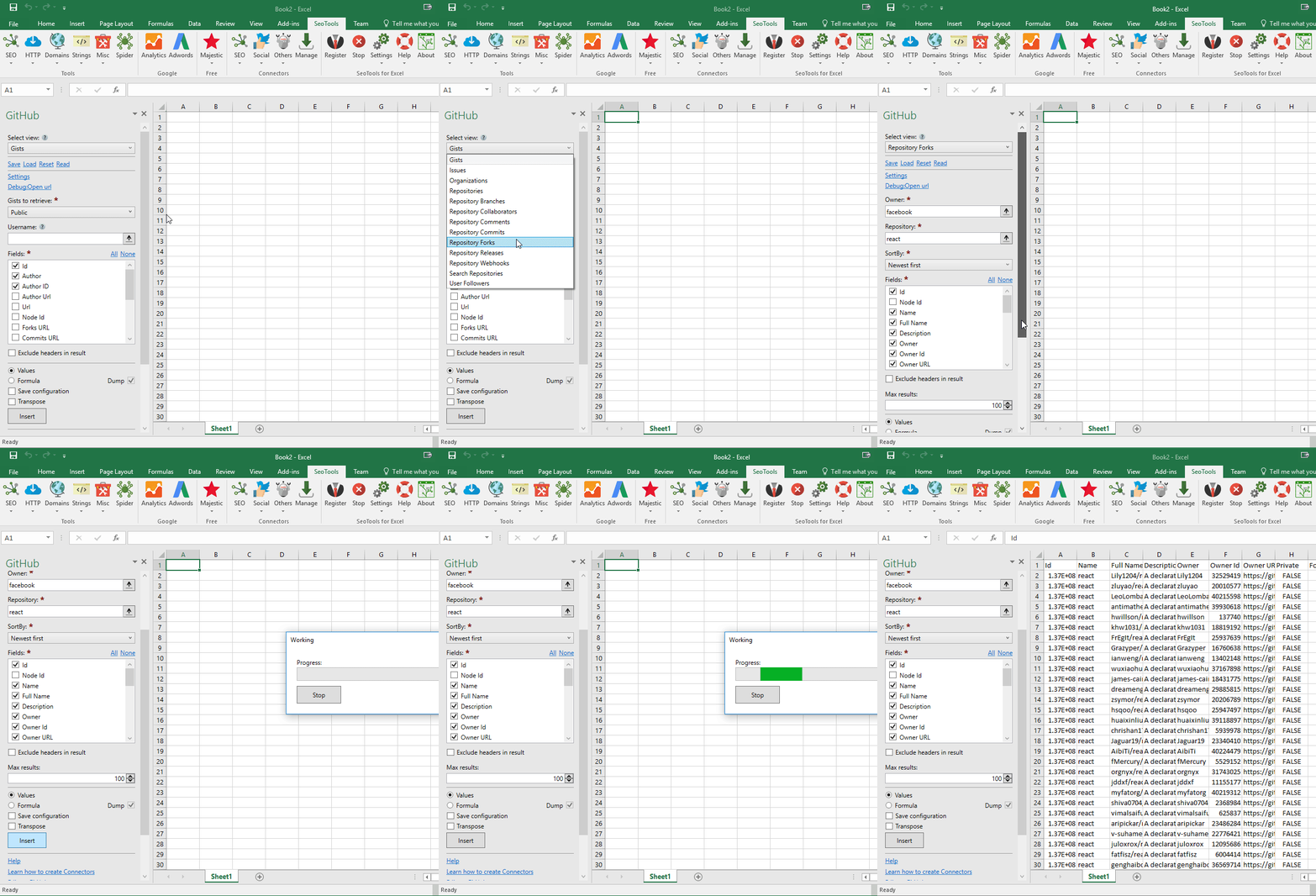
## Gists
#### Parameters
- **Gists to retrieve**
- **Username** - Only required if "User's gists" is selected
#### Fields
- **Id**
- **Author**
- **Author ID**
- **Author Url**
- **Url**
- **Node Id**
- **Forks URL**
- **Commits URL**
- **Pull URL**
- **Push URL**
- **Html Url**
- **Comments_url**
- **Public**
- **Created**
- **Updated**
- **Description**
- **Comments**
## Organizations
#### Parameters
- **Organizations to retrieve**
- **Username** - Only required if "User's organizations" is selected
#### Fields
- **Id**
- **Name**
- **Description**
- **Node ID**
- **Repos URL**
- **Events URL**
- **Hooks URL**
- **Issues URL**
- **Members URL**
- **Public members URL**
- **Avatar URL**
## User Followers
#### Parameters
- **Organizations to retrieve**
- **Username**
#### Fields
- **Username**
- **Id**
- **URL**
- **Type**
- **Avatar URL**
- **Node Id**
- **Gravatar ID**
- **API URL**
- **Followers URL**
- **Following URL**
- **Gists URL**
- **Starred URL**
- **Subscriptions URL**
- **Organizations URL**
- **Repos URL**
- **Events URL**
- **Received Events URL**
## Search Repositories
#### Parameters
- **Query**
#### Fields
- **Id**
- **Node ID**
- **Name**
- **Full Name**
- **Owner**
- **Owner ID**
- **Owner Avatar URL**
- **Owner Type**
- **Private**
- **URL**
- **Description**
- **Fork**
- **API Url**
- **Created**
- **Updated**
- **Pushed**
- **Homepage**
- **Size**
- **Starred**
- **Watched**
- **Language**
- **Forks**
- **Open Issues**
- **Master Branch**
- **Default Branch**
- **Score**
## Repositories
#### Parameters
- **Gists to retrieve**
- **Username/Organization name** - Only required if "User's/organization's repositories " is selected
#### Fields
- **Id**
- **Node ID**
- **Name**
- **Full Name**
- **Owner**
- **Owner ID**
- **Owner Avatar URL**
- **Owner Type**
- **Private**
- **URL**
- **Description**
- **Fork**
- **API Url**
- **Created**
- **Updated**
- **Pushed**
- **Homepage**
- **Size**
- **Starred**
- **Watched**
- **Language**
- **Forks**
- **Open Issues**
- **Master Branch**
- **Default Branch**
- **Score**
## Repository Commits
#### Parameters
- **Owner**
- **Repository**
- **Filter by author**
#### Fields
- **API Url**
- **Sha**
- **Node Id**
- **URL**
- **Comments Url**
- **Commit Url**
- **Date**
- **Message**
- **Comment Count**
- **Verified**
- **Verification Reason**
- **Author**
- **Author Id**
- **Author Avatar URL**
- **Author URL**
- **Author Type**
- **Committer**
- **Committer Id**
- **Committer Avatar Url**
- **Committer URL**
- **Committer Type**
## Repository Collaborators
#### Parameters
- **Owner**
- **Repository**
- **Filter collaborators**
#### Fields
- **Username**
- **Id**
- **URL**
- **Type**
- **Avatar URL**
- **Node Id**
- **Gravatar ID**
- **API URL**
- **Followers URL**
- **Following URL**
- **Gists URL**
- **Starred URL**
- **Subscriptions URL**
- **Organizations URL**
- **Repos URL**
- **Events URL**
- **Received Events URL**
- **Pull permissions**
- **Push permissions**
- **Admin permissions**
## Repository Releases
- **Owner**
- **Repository**
#### Fields
- **Url**
- **Html Url**
- **Assets Url**
- **Upload Url**
- **Tarball Url**
- **Zipball Url**
- **Id**
- **Node Id**
- **Tag Name**
- **Target Commitish**
- **Name**
- **Body**
- **Draft**
- **Prerelease**
- **Created**
- **Published**
- **Author**
- **Author Id**
- **Author URL**
- **Author Avatar URL**
## Repository Webhooks
#### Parameters
- **Owner**
- **Repository**
#### Fields
- **Id**
- **Name**
- **Url**
- **Test Url**
- **Ping Url**
- **Events**
- **Created**
- **Updated**
- **Active**
- **Hook URL**
- **Content Type**
## Repository Branches
#### Parameters
- **Owner**
- **Repository**
#### Fields
- **Name**
- **URL**
- **SHA**
- **Protected**
- **Protection URL**
## Repository Forks
#### Parameters
- **Owner**
- **Repository**
#### Fields
- **Id**
- **Node Id**
- **Name**
- **Full Name**
- **Description**
- **Owner**
- **Owner Id**
- **Owner URL**
- **Private**
- **Fork**
- **URL**
- **Forks**
- **Stargazers**
- **Watchers**
- **Size**
- **Default Branch**
- **Open Issues**
- **Has Issues**
- **Has Wiki**
- **Has Pages**
- **Has Downloads**
- **Archived**
- **Pushed At**
- **Created**
- **Updated**
- **Subscribers**
- **Network Size**
- **License Key**
- **License Name**
- **License Url**
## Repository Comments
#### Parameters
- **Owner**
- **Repository**
#### Fields
- **ID**
- **API Url**
- **Node ID**
- **URL**
- **Body**
- **Path**
- **Position**
- **Line**
- **Commit ID**
- **User**
- **User ID**
- **User URL**
- **User Node II**
- **User Type**
- **Avatar URL**
- **Created**
- **Updated**
## Issues
#### Parameters
- **Gists to retrieve**
- **Filter by state**
#### Fields
- **Id**
- **Html Url**
- **Node Id**
- **Comments_url**
- **Public**
- **Created**
- **Updated**
- **Description**
- **Comments**
___
## Access
## Add from Manager
The GitHub Connector is available in the **[Connectors Manager](/manage-connectors/)** in the top ribbon:

Select the **Programming** category and install GitHub:

___
## Contribute
This connector suite is open-sourced on [GitHub](https://github.com/nielsbosma/SeoTools-for-Excel-Connectors/blob/master/GitHub.xml).
___
## See
#### Official Documentation
[GitHub API](https://developer.github.com/v3/)
#### Resources
* [Manager](/manage-connectors/)
---
# Access Gmail in Excel
URL: https://seotoolsforexcel.com/gmail/
Type: page
Published: 2017-03-19
Updated: 2019-05-19
Summary: SeoTools for Excel offers a user-friendly and effective method to keep track of your Gmail history within Excel
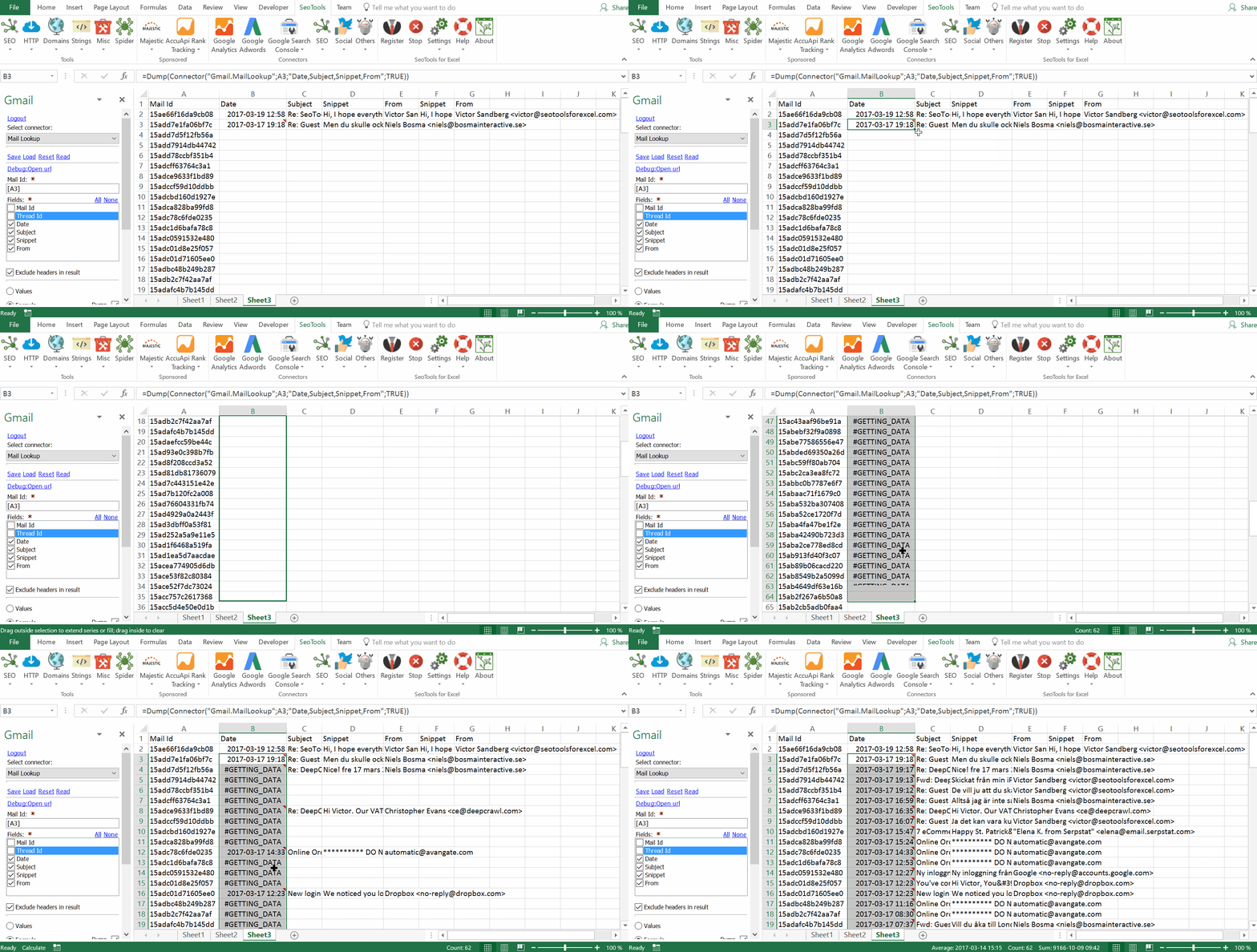
___
## All Items
Use the following functions to extract the ids for each item group:
- Mails
- Threads
- Labels
___
## Lookup
When you have the ids, use this function to extract detailed statistics about items. In the example above, a formula is used to extract the latest mail sent to and from an inbox.
___
## Have I sent/recieved?
SeoTools provides two functions to check if your account has either sent an email to, or recieved an email from a particular address. The Query parameter supports both complete email addresses or search inputs. Available filters:
- Time period
___
## Access
## Add from Manager
The Gmail Connector is available in the **[Connectors Manager](/manage-connectors/)** in the top ribbon:

Head over to the **Email Category** and install Gmail :
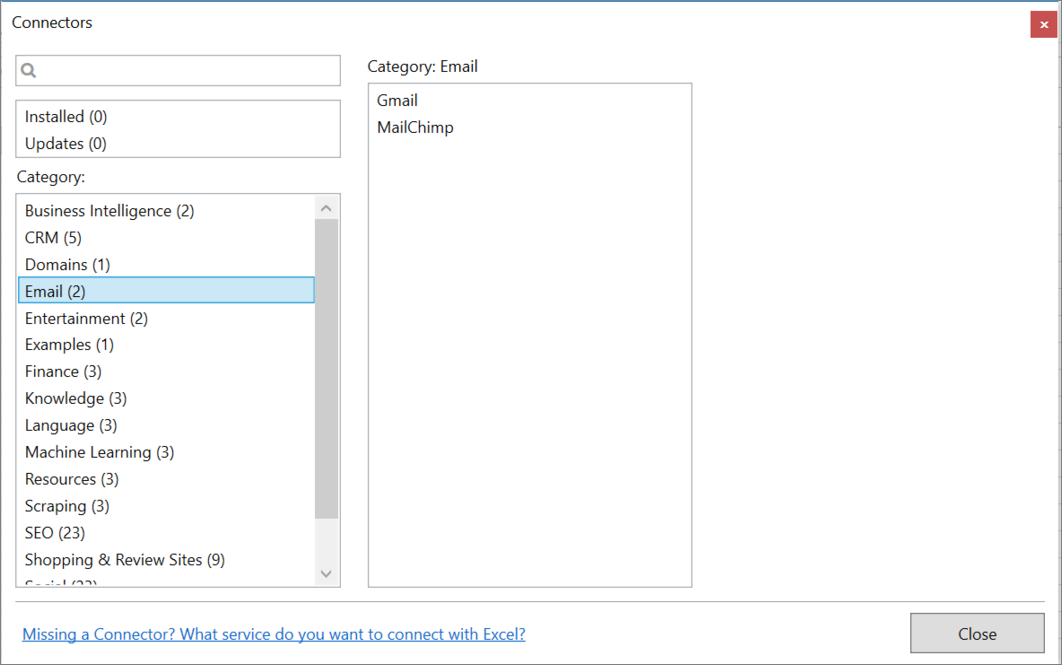
To use the Connector you need an account connected to Gmail.
1. The Connector is located under the *Others -> Mail* Category in SeoTools main ribbon. Click on Login.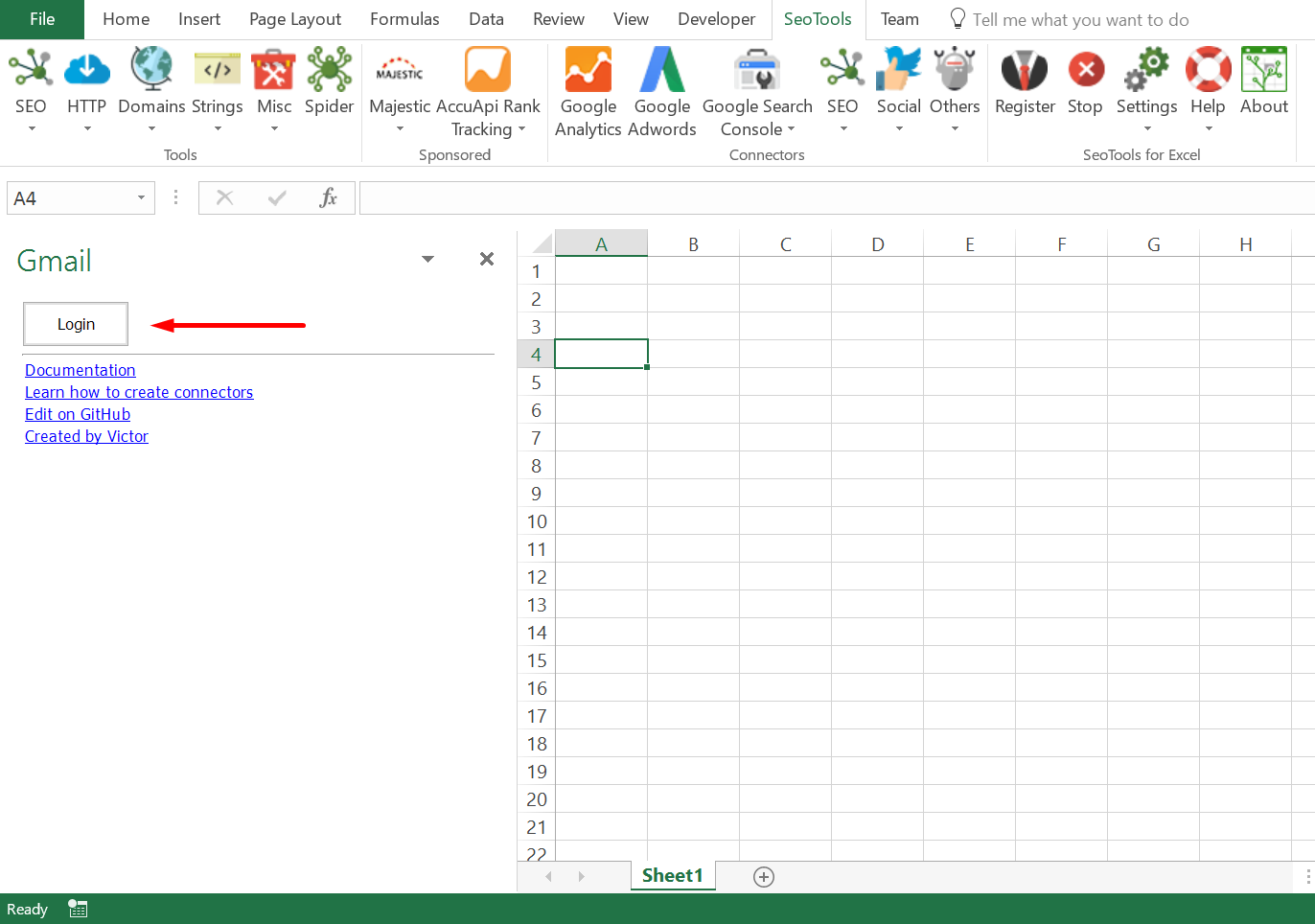
2. Select your preferred account and click on *Allow*.
___
## Contribute
This connector suite is open-sourced on [GitHub](https://github.com/nielsbosma/SeoTools-for-Excel-Connectors/blob/master/Gmail.xml).
___
## See
#### Official Documentation
* [Gmail API](https://developers.google.com/gmail/api/?hl=sv)
#### Resources
* [Manager](/manage-connectors/)
---
# Access Gnip in Excel
URL: https://seotoolsforexcel.com/gnip/
Type: page
Published: 2018-04-28
Updated: 2024-05-07
Summary: SeoTools for Excel offers a user-friendly and effective method to search and collect data from Gnip and Twitter straight to Excel within matter of seconds.
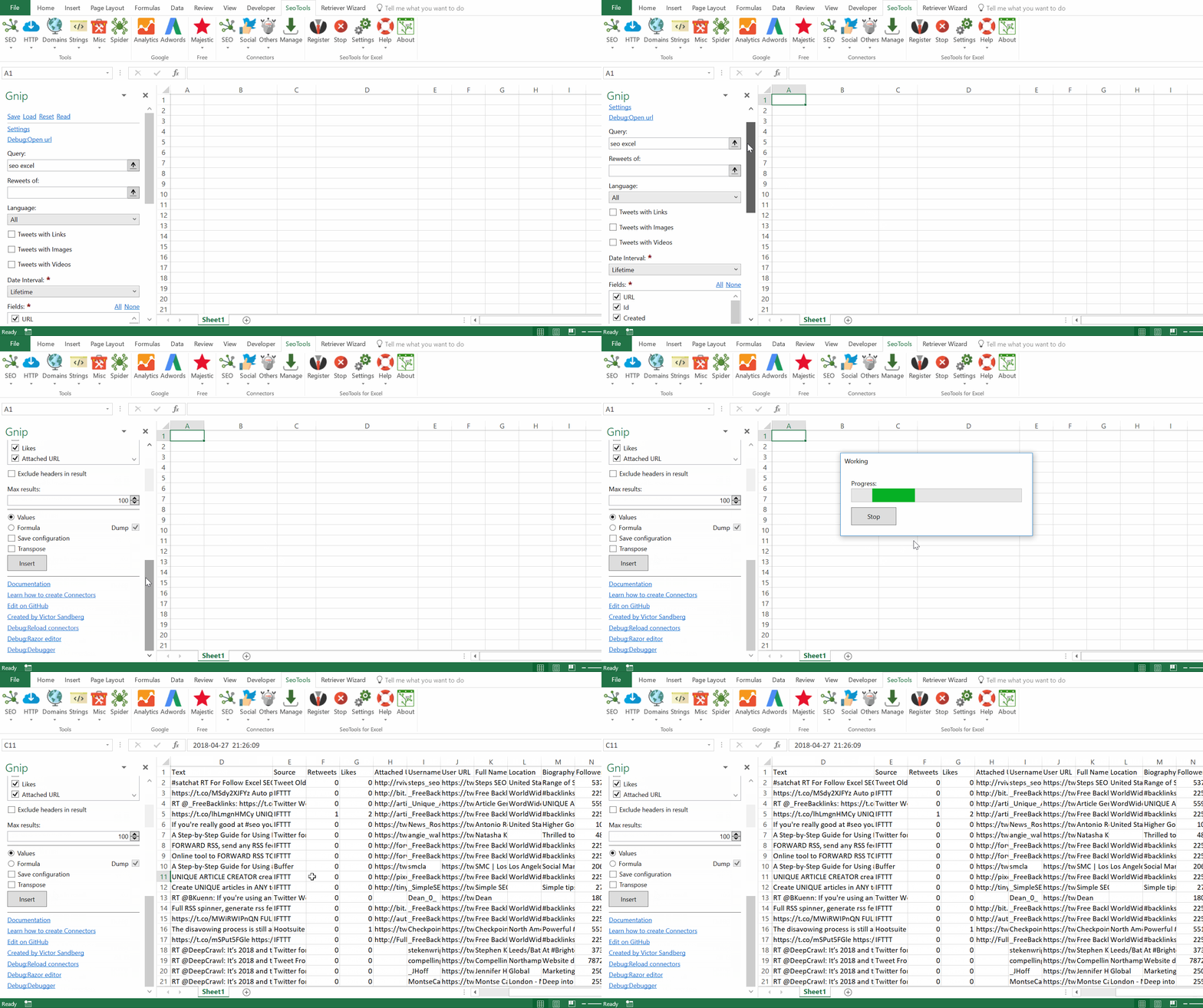
## 30-Day Search
Gnip Search API for Twitter gives you complete and instant access to the last 30 days of Twitter data.
## 30-Day Count
The counts API provides Tweet volumes associated with a query on either a daily, hourly, or per-minute basis. It is also possible to get the total tweet count.
#### **Available filters:**
- Links Included
- Images Included
- Videos Included
- Language of User
___
## Access
## Add from Manager
The Gnip Connector is available in the **[Connectors Manager](/manage-connectors/)** in the top ribbon:

Head over to the **Social Category** and install Gnip:

## Get API keys
To use the Connector you need a Gnip [API Keys](https://developer.twitter.com/en/docs/tweets/search/overview/enterprise)
___
## Contribute
This connector suite is open-sourced on [GitHub](https://github.com/nielsbosma/SeoTools-for-Excel-Connectors/blob/master/Gnip.xml).
___
## See
#### Official Documentation
* [Gnip API](https://developer.twitter.com/en/docs/tweets/search/overview/enterprise)
#### Related Functions
* [Twitter Ads](/twitter-ads/)
* [Twitter Scraper](/twitter-scraper/)
* [Twitter Accounts](/twitter-accounts/)
#### Resources
* [Manager](/manage-connectors/)
---
# Access Google Adwords in Excel
URL: https://seotoolsforexcel.com/google-adwords/
Type: page
Published: 2015-03-29
Updated: 2019-05-18
Summary: SeoTools for Excel offers a user-friendly and effective method to collect data from Google Adwords straight to Excel within a matter of seconds.
___
## Integrated features:
* Adwords Query Language (AWQL)
* Campaigns
* Keywords
* Keyword search volumes
* Keyword ideas
___
### AWQL
AWQL is really cool. Using AWQL, you can pretty much query any data from your Adwords account. **If you’re a serious Adwords pro, you need to learn AWQL!**
___
### Examples
SELECT
CampaignId,
CampaignName,
Clicks,
Impressions
FROM CAMPAIGN_PERFORMANCE_REPORT
WHERE Impressions < 100
DURING 20131001,20131031
Get costs for each campaign from the last week:
SELECT
Date,
Cost,
CampaignName
FROM CAMPAIGN_PERFORMANCE_REPORT
DURING LAST_WEEK_SUN_SAT
___
## Developer Token
To use Google Adwords in SeoTools you need a developer token.
[How to get a developer token.](https://developers.google.com/adwords/api/docs/guides/signup)
___
## See
#### Official Documentation
* [Google AWQL Guide](https://developers.google.com/adwords/api/docs/guides/awql)
#### Guides
* [AWQL Help](https://www.awql.me/adwords-awql-help/)
---
# Access Google Analytics in Excel
URL: https://seotoolsforexcel.com/google-analytics/
Type: page
Published: 2015-01-05
Updated: 2023-06-28
Summary: SeoTools for Excel offers a user-friendly method of extracting custom metrics from Google Analytics straight into Excel.
#### This connector has been updated to support Google Analytics 4.
**Google Analytics** is one of our most popular Connectors. It offers user-friendly methods of extracting custom metrics straight into Excel. The days of messing around with exported text files and manual filtering are over!
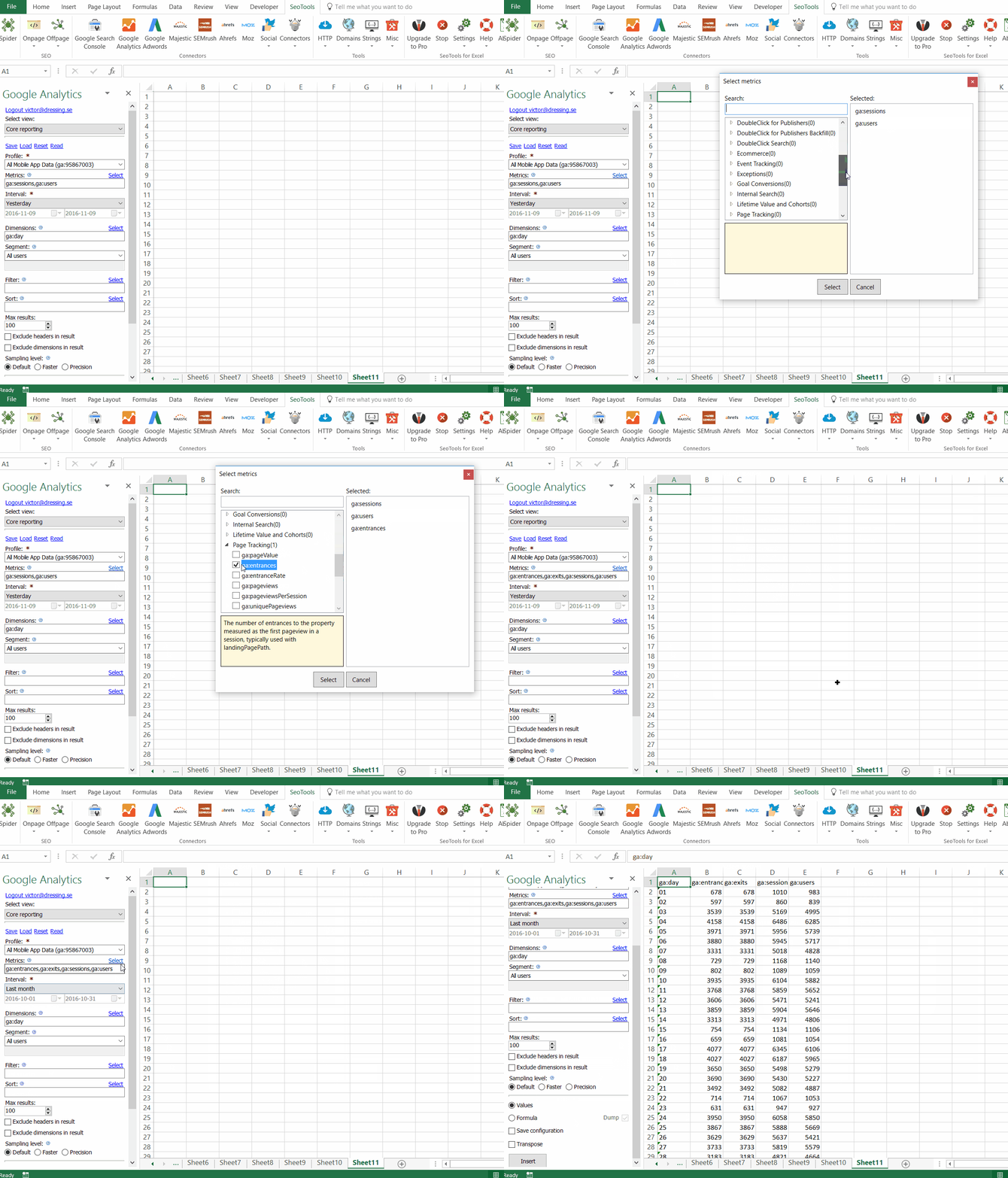
___
## Contents
* Connect
* Select Account
* Select View
* Select Profile
* Metrics
* Dimensions
* Interval
* Filter
* Sorting
* See
___
Connect
Click on the Google Analytics icon in the SeoTools menu bar, followed by the Login button:
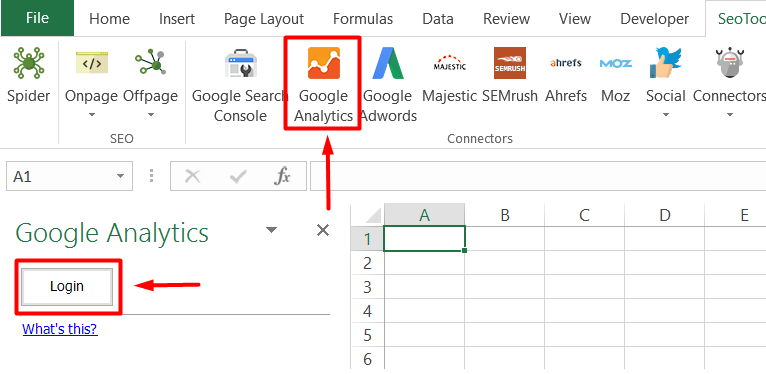
___
Select Account
SeoTools uses an Oauth 2 solution which means users are able to chose from a list of all accounts connected to Google, or add new accounts.
___
Select Property
Use this property selection window to select a property from one of your accounts.
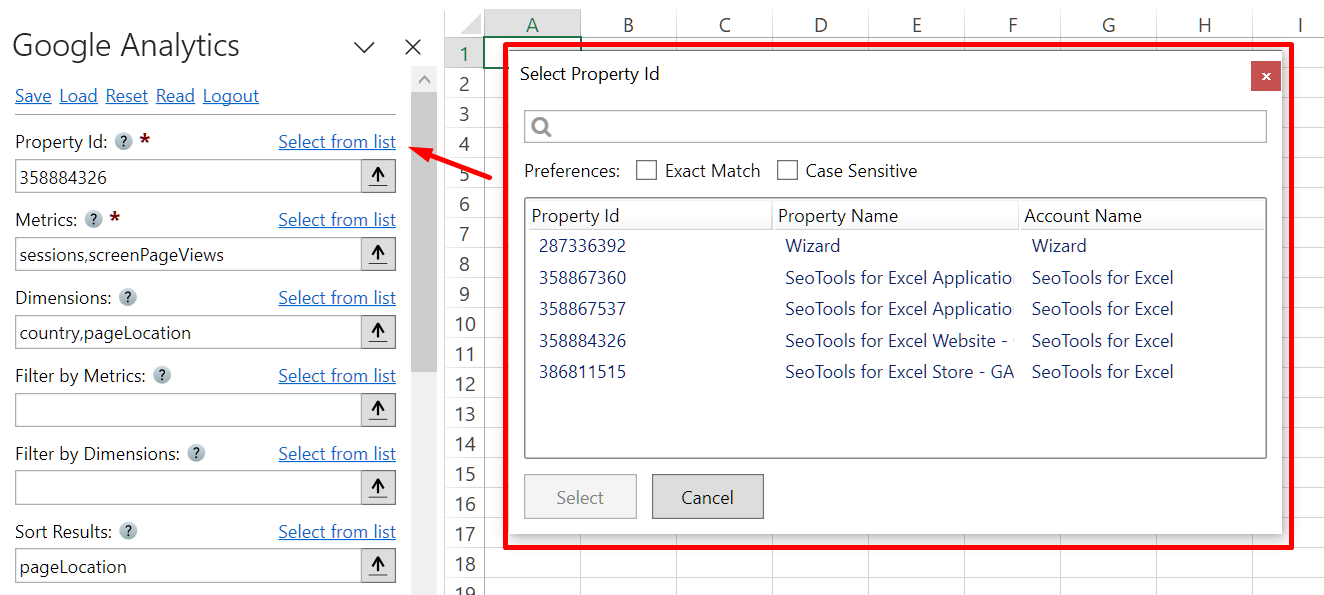
___
Metrics
Allows you to easily search and select the right metrics. The explorer also provides a description for every metric that is clicked.
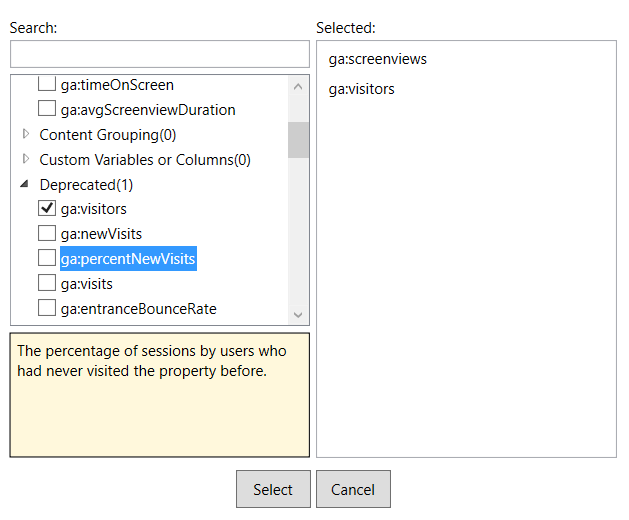
___
Dimensions
This explorer works the same way as metrics. Select the dimensions that are suitable for the metrics and SeoTools takes care of the rest.
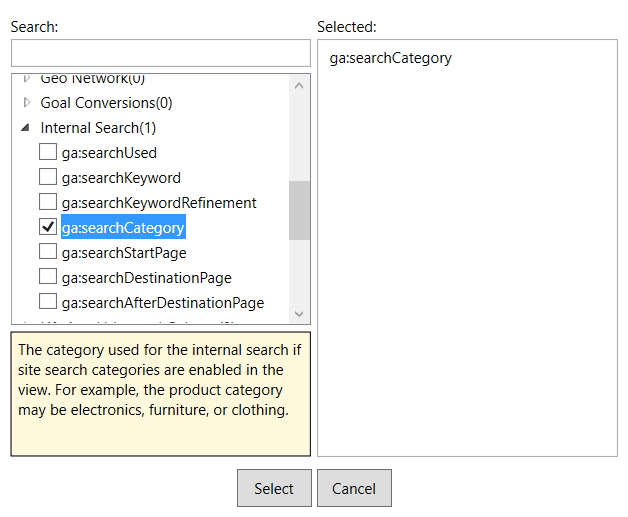
___
Interval
Adjust the time period of the report.
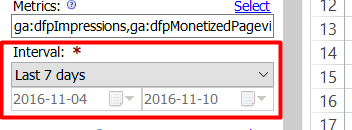
___
Filter
Specifies a subset of all data matched in Google Analytics.
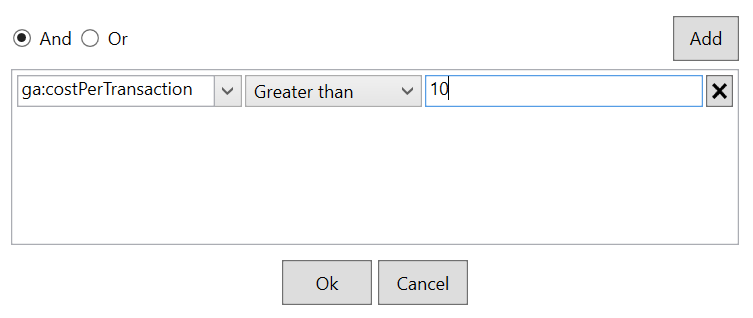
___
Sorting
The *Query Explorer* also makes it easy to sort the results according to your preferences. Select a metric and the sorting direction.
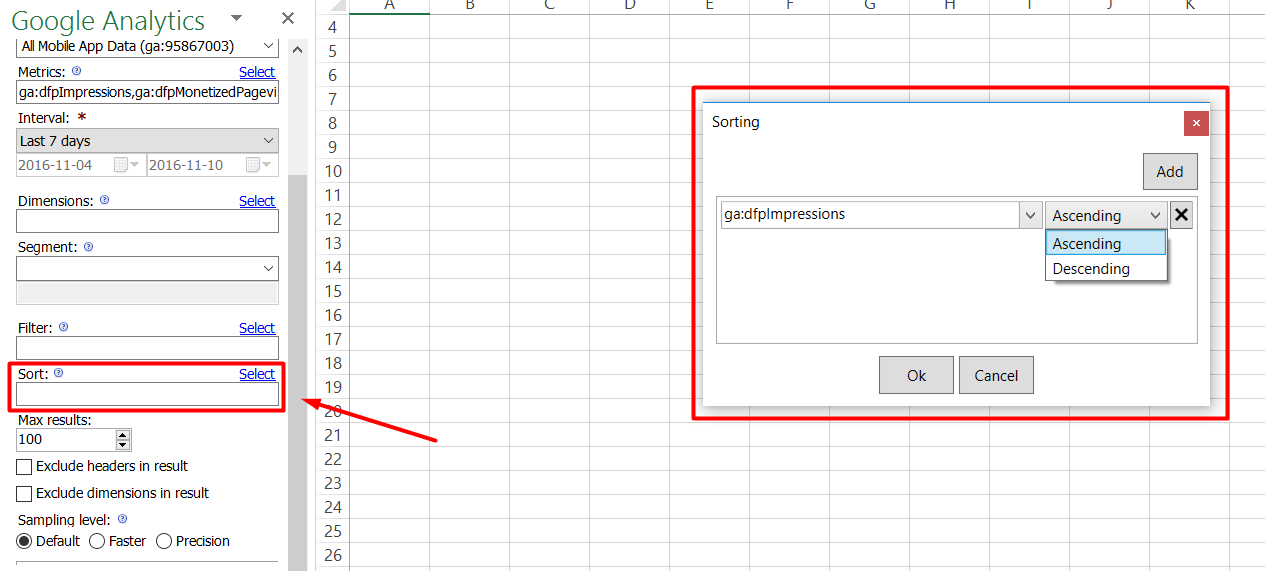
___
See
#### Official Documentation
* [Google Analytics API](https://developers.google.com/analytics/)
Back to top
---
# Access Google CacheDate in Excel
URL: https://seotoolsforexcel.com/google-cachedate/
Type: page
Published: 2023-06-28
Updated: 2023-06-28
Summary: Extract the last cached date from a list of URL:s inside Excel using a formula.
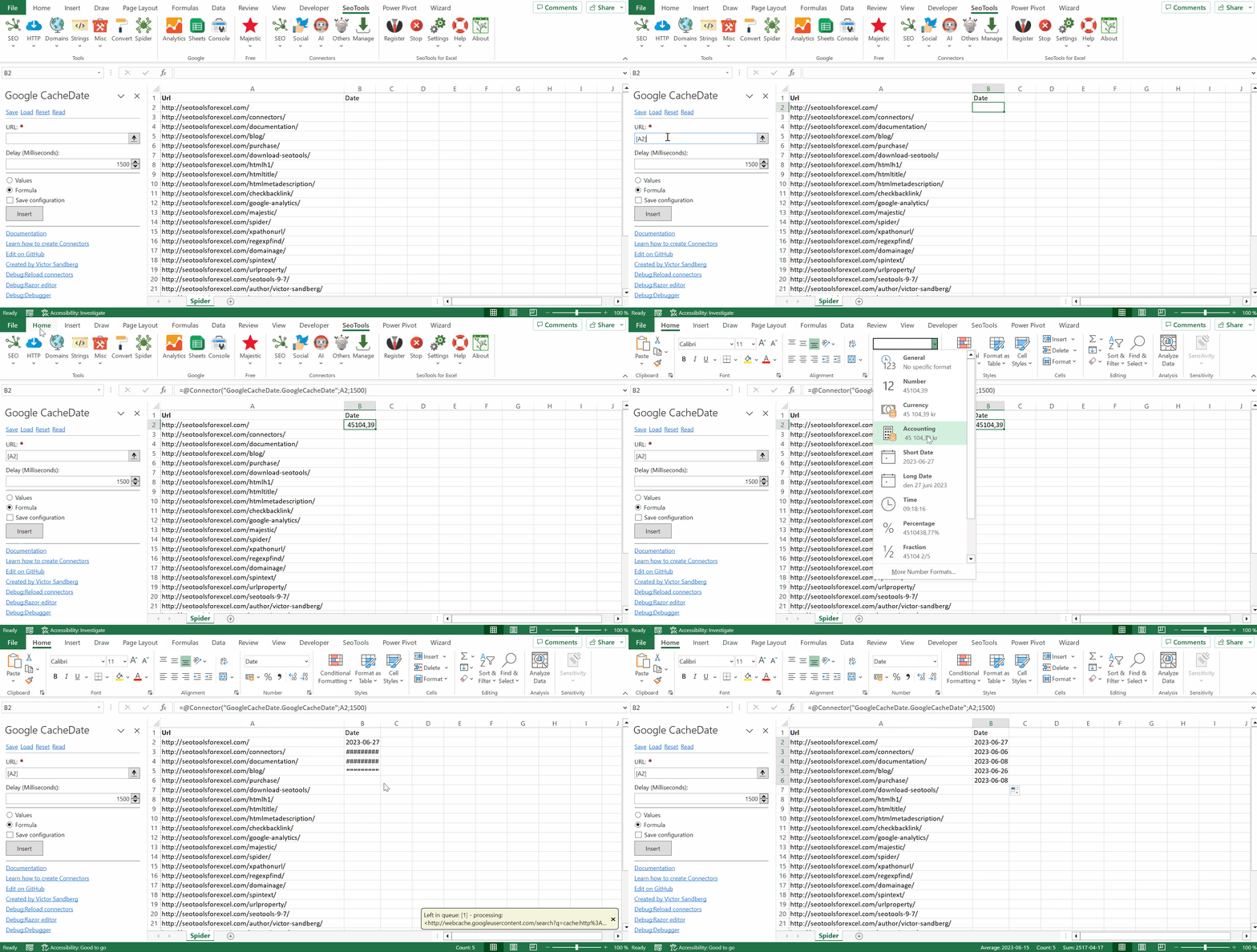
## Purpose
Extract the last cached date of a URL.
___
## Access
## Add from Manager
The Google CacheDate Connector is available in the **[Connectors Manager](/manage-connectors/)** in the top ribbon:

Head over to the **SEO Category** and install Google CacheDate:

___
## Contribute
This connector suite is open-sourced on [GitHub](https://github.com/nielsbosma/SeoTools-for-Excel-Connectors/blob/master/GoogleCacheDate.xml).
___
## See
#### Resources
* [Manager](/manage-connectors/)
---
# Access Google Calendar in Excel
URL: https://seotoolsforexcel.com/google-calendar/
Type: page
Published: 2018-03-28
Updated: 2020-02-28
Summary: SeoTools for Excel offers an effective method to manage your Google Calendar and extract all important tasks and attendees straight to Excel.
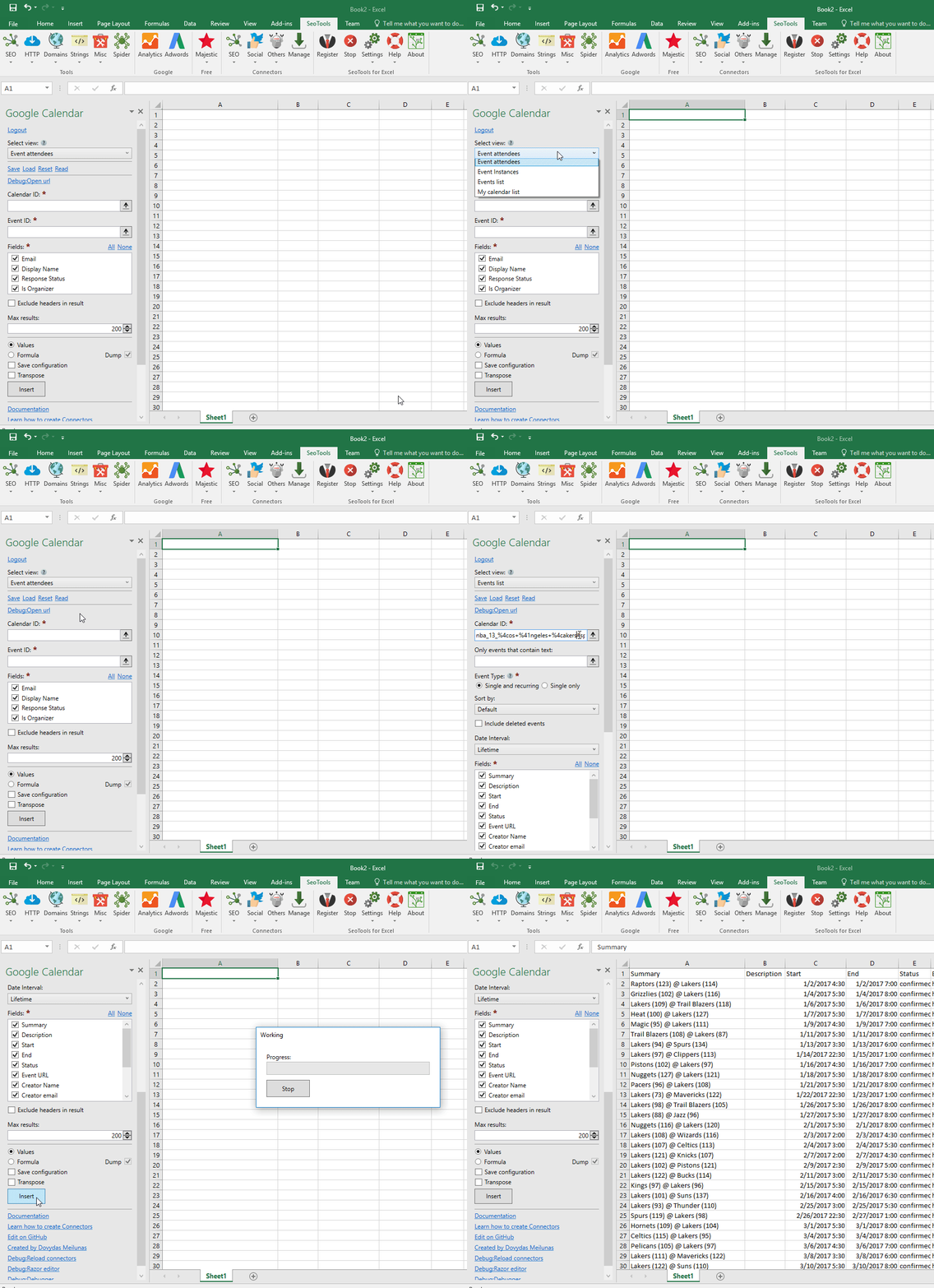
___
## Event attendees
Retrieves a list of users signed up for a specified event.
## Event instances
Retrieves instances of repeating events (holidays, birthdays etc.)
## Events list
Retrieves events from a specified calendar.
## My calendar list
Retrieves all calendars from user's account.
___
## Access
## Add from Manager
The Google Calender Connector is available in the **[Connectors Manager](/manage-connectors/)** in the top ribbon:

Head over to the **Productivity Category** and install Google Calendar:
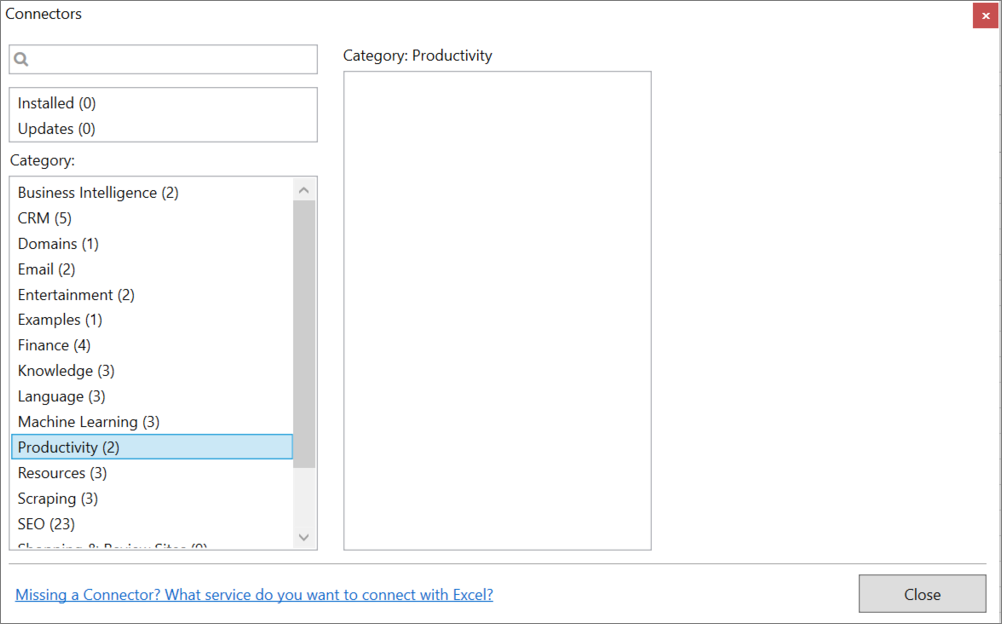
To use the Connector you need an account connected to Google:
1. The Connector is located under the *Productivity* Category in SeoTools main ribbon. Click on Login.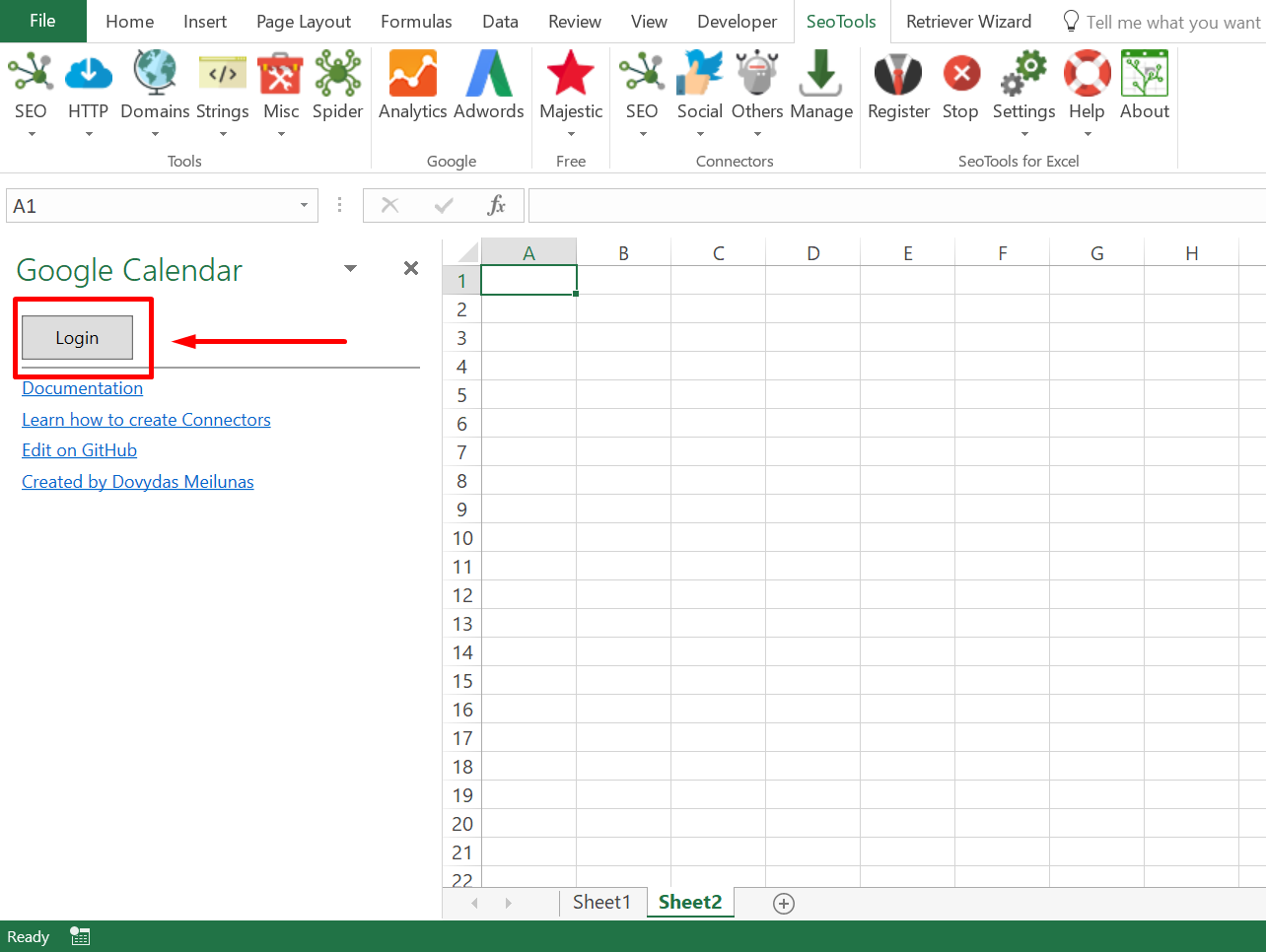
2. Select your preferred account and click on *Allow*
___
## Contribute
This connector suite is open-sourced on [GitHub](https://github.com/nielsbosma/SeoTools-for-Excel-Connectors/blob/master/GoogleCalendar.xml).
___
## See
#### Official Documentation
* [Google Calendar API](https://developers.google.com/calendar/)
#### Related Functions
* [Google Contacts](/google-contacts/)
#### Resources
* [Manager](/manage-connectors/)
---
# Google Contacts
URL: https://seotoolsforexcel.com/google-contacts/
Type: page
Published: 2020-02-28
Updated: 2020-02-28
Summary: Import your Google contacts to Excel and specify which fields to include, how many rows, and sort order.
Import your Google contacts to Excel and specify which fields to include, how many rows, and sort order.
## Fields
- Email address
- Display name
- Given name
- Family name
- Nickname
- Phone number
- Organization
- Position
- Biography
- Birthday
- Street address
- City
- Postal code
- Country
- Website
## Sort Options
- Last modified
- First name
- Last name
___
## Access
## Add from Manager
The Google Contacts Connector is available in the **[Connectors Manager](/manage-connectors/)** in the top ribbon:

Head over to the **Social Category** and install Google Contacts.
___
## Contribute
This connector suite is open-sourced on [GitHub](https://github.com/nielsbosma/SeoTools-for-Excel-Connectors/blob/master/GoogleContacts.xml).
___
## See
#### Official Documentation
* [Google Contacts API](https://developers.google.com/contacts/v3/reference)
#### Related functions
* [Google Calendar](/google-calendar)
#### Resources
* [Manager](/manage-connectors/)
---
# Access Google Geocoding in Excel
URL: https://seotoolsforexcel.com/google-geocoding/
Type: page
Published: 2020-02-28
Updated: 2025-05-02
Summary: Integrate Google Geocoding in Excel to search for locations by address and analyze the metadata for each location. You can also do reverse geocoding.
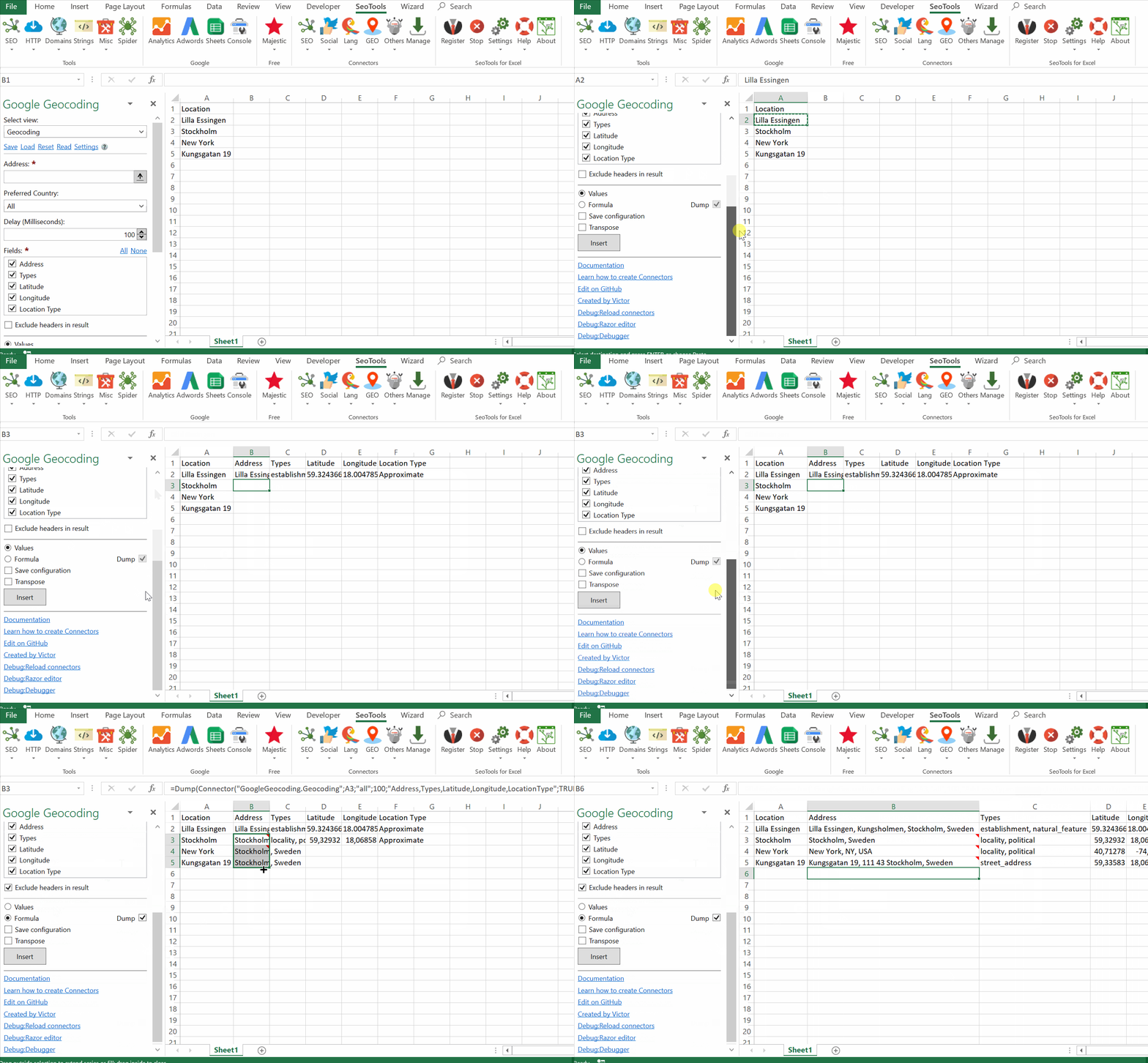
___
## Search Mode
- **Geocoding** - Converts a string address (*e.g. '5th Avenue, New York'* into geocode information.
- **Reverse GeoCoding** - Converts latitude and longitude into geocode information.
## Fields
- Address
- Types (for example '*establishment*' or '*street address*')
- Latitude
- Longitude
- Location Type (for example '*approximate*' or '*rooftop*')
___
## Access
## Add from Manager
The Google Geocoding Connector is available in the **[Connectors Manager](/manage-connectors/)** in the top ribbon:

Head over to the **GEO Category** and install Google Geocoding:

## API Key
To use the Connector you need an API key. If you don't have a key, we recommend following the step-by-step instructions on [this page](https://developers.google.com/maps/documentation/geocoding/get-api-key)
Paste the key in the settings window inside the Google Geocoding connector taskpane:
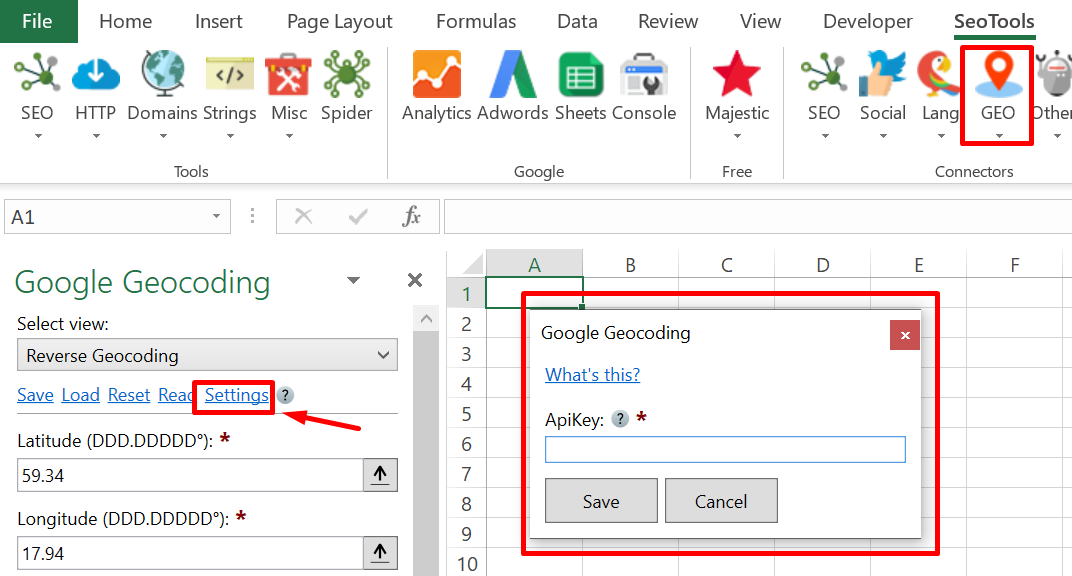
___
## Contribute
This connector suite is open-sourced on [GitHub](https://github.com/nielsbosma/SeoTools-for-Excel-Connectors/blob/master/BingMaps.xml).
___
## See
#### Official Documentation
* [Bing Maps API](https://docs.microsoft.com/en-us/bingmaps/rest-services/locations)
#### Related Functions
* [GeoNames](/geonames/)
* [Bing Maps](/bing-maps/)
* [OpenStreetMap](/openstreetmap/)
#### Resources
* [Manager](/manage-connectors/)
---
# Access Google Indexing in Excel
URL: https://seotoolsforexcel.com/google-indexing/
Type: page
Published: 2020-02-27
Updated: 2020-09-06
Summary: Use Excel to to directly notify Google to add or remove pages. Bulk index using formulas and combine with other functions.
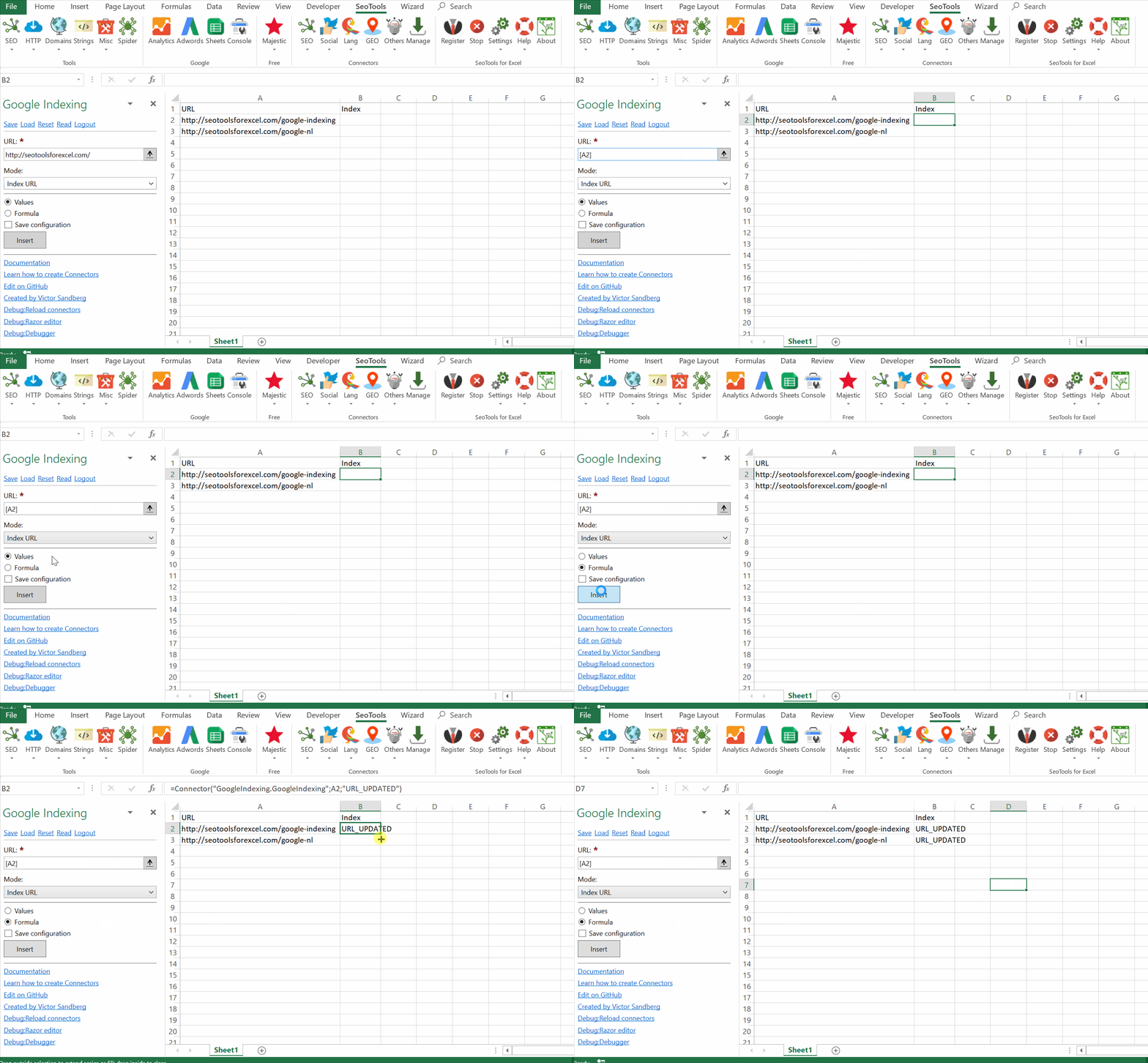
The Indexing API allows any site owner to directly notify Google when pages are added or removed. This allows Google to schedule pages for a fresh crawl, which can lead to higher quality user traffic.
## Mode
**Update** - Notify Google of a new URL to crawl or that content at a previously-submitted URL has been updated.
=Connector("GoogleIndexing.GoogleIndexing";{url};"URL_UPDATED")
**Remove** - After you delete a page from your servers, notify Google so that we can remove the page from our index and so that we don't attempt to crawl the URL again.
=Connector("GoogleIndexing.GoogleIndexing";{url};"URL_DELETED")
___
## Access
To use the Connector you need an account connected to Google.
1. The Connector is located under the SeoTools main under the SEO category. Click on 'Sign in with Google':
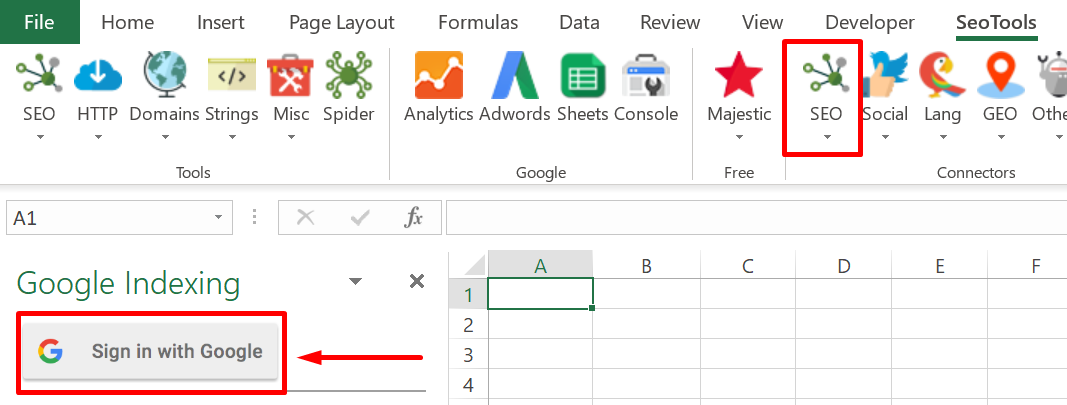
## Creating your own app
These steps are recommended because you will have your own rate limit which means more daily requests.
1. In the [Google API Console](https://console.developers.google.com/), click *"Create Credentials"*
2. Chose *"Oauth Client ID"*
3. Chose *"Desktop App"*
4. Chose a name and create the app
5. Copy the Client ID and Client Secret
6. Open **GoogleIndexing.xml**, located in the folder *"Connectors"* in the SeoTools install directory
7. Paste the Client ID and Client Secret to the empty attributes in the tag **GoogleOAuth2Authenticator** at the top
8. In SeoTools, chose *"Reload Settings"* under Settings
9. Open up the Google Indexing connector, sign out then sign in again and authenticate your own app.
___
## Contribute
This connector suite is open-sourced on [GitHub](https://github.com/nielsbosma/SeoTools-for-Excel-Connectors/blob/master/GoogleIndexing.xml).
___
## See
#### Official Documentation
* [Google Indexing API](https://developers.google.com/search/apis/indexing-api/v3/quickstart)
#### Related Functions
* [Bing Webmaster Tools](/bing-webmaster-tools/)
---
# Access Google Mobile Friendly in Excel
URL: https://seotoolsforexcel.com/google-mobile-friendly/
Type: page
Published: 2021-07-13
Updated: 2021-07-13
Summary: Verify if web pages are mobile friendly inside Excel as a formula.
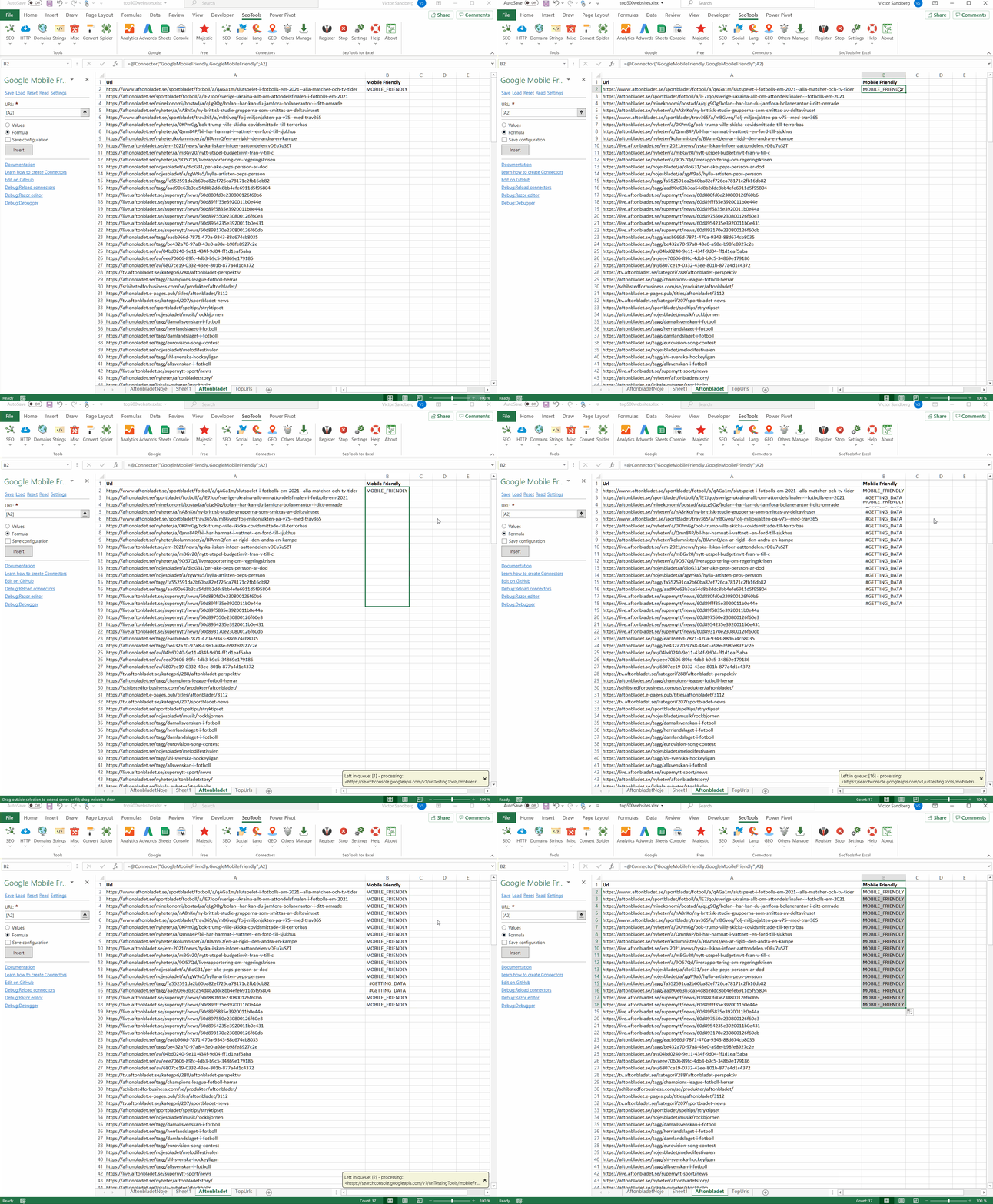
### Test whether a page works well on a mobile device.
___
## Access
## Add from Manager
The Google Mobile Friendly is available in the **[Connectors Manager](/manage-connectors/)** in the top ribbon:

Head over to the **SEO Category** and install Google Mobile Friendly:

## API Key
To use the Connector you need a API key. [Read more here](https://developers.google.com/webmaster-tools/search-console-api/v1/configure) about creating your API key.
___
## Contribute
This connector suite is open-sourced on [GitHub](https://github.com/nielsbosma/SeoTools-for-Excel-Connectors/blob/master/GoogleMobileFriendly.xml).
___
## See
#### Resources
* [Manager](/manage-connectors/)
#### Related Functions
* [Google Search Console](/google-search-console/)
---
# Access Google Natural Language in Excel
URL: https://seotoolsforexcel.com/google-nl/
Type: page
Published: 2020-02-27
Updated: 2020-11-19
Summary: Integrate Google Natural Language API in Excel and perform sentiment analysis, entity recognition, entity sentiment analysis, classification and more.
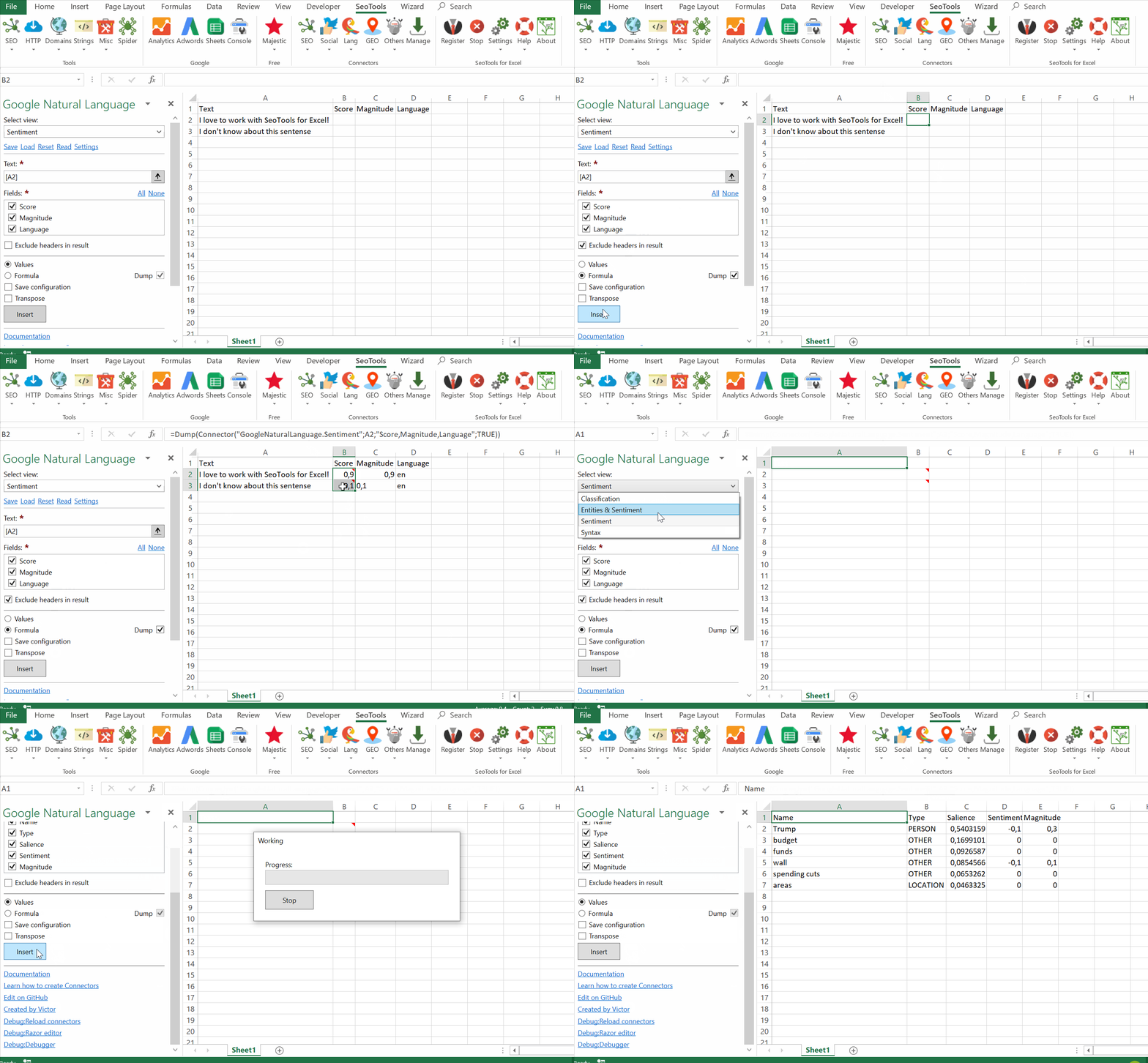
Natural Language uses machine learning to reveal the structure and meaning of text. You can extract information about people, places, events, and much more.
## Sentiment
Analyzes the sentiment of the provided text. Available metrics:
- Sentiment
- Score
- Language
## Entities & Sentiment
Finds entities in the text and analyzes sentiment associated with each entity and its mentions. Available metrics
- Name
- Type
- Salience
- Sentiment
- Magnitude
## Syntax
Analyzes the syntax of the text and provides sentence boundaries. Available Metrics:
- Content
- Lemma
- Tag
- Aspect
- Case
- Form
- Gender
- Mood
- Number
- Person
- Proper
- Reciprocity
- Tense
- Voice
- Dependency label
## Classification
Classifies a document into categories. Available Metrics:
- Class name
- Confidence
___
## Access
## Get API key
To use the Google Natural Language Connector you need an API Key.
1. Follow [this link](https://cloud.google.com/natural-language/docs/quickstart) and create a project.
2. Enable the Cloud Natural Language API for that project.
3. Create a service account.
4. Goto Credentials and create a new API key.
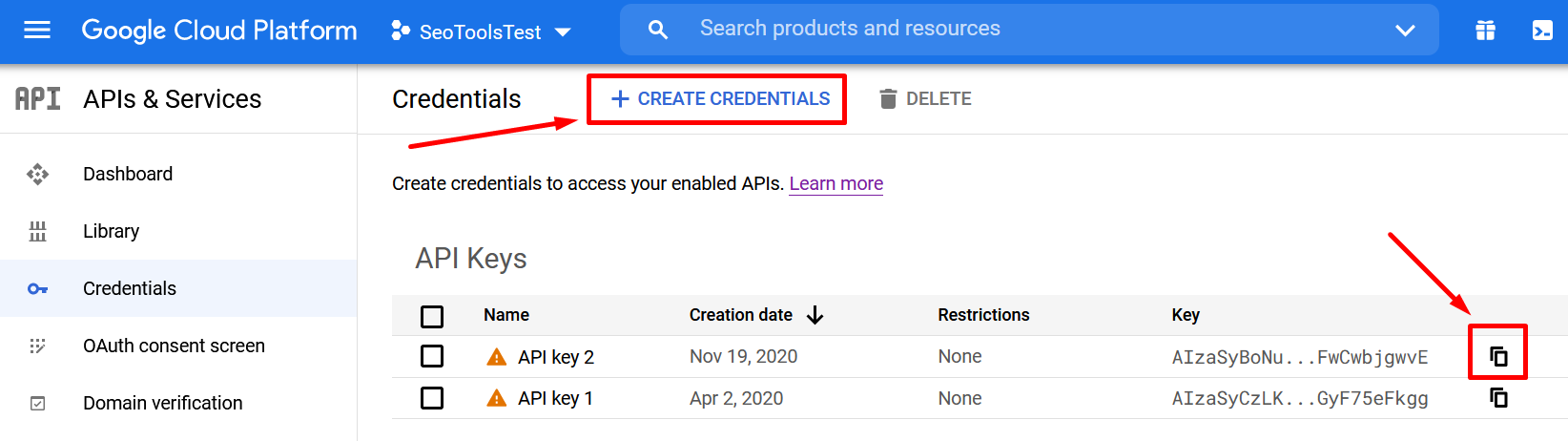
5. Copy the key and enter in the Settings menu inside the connector
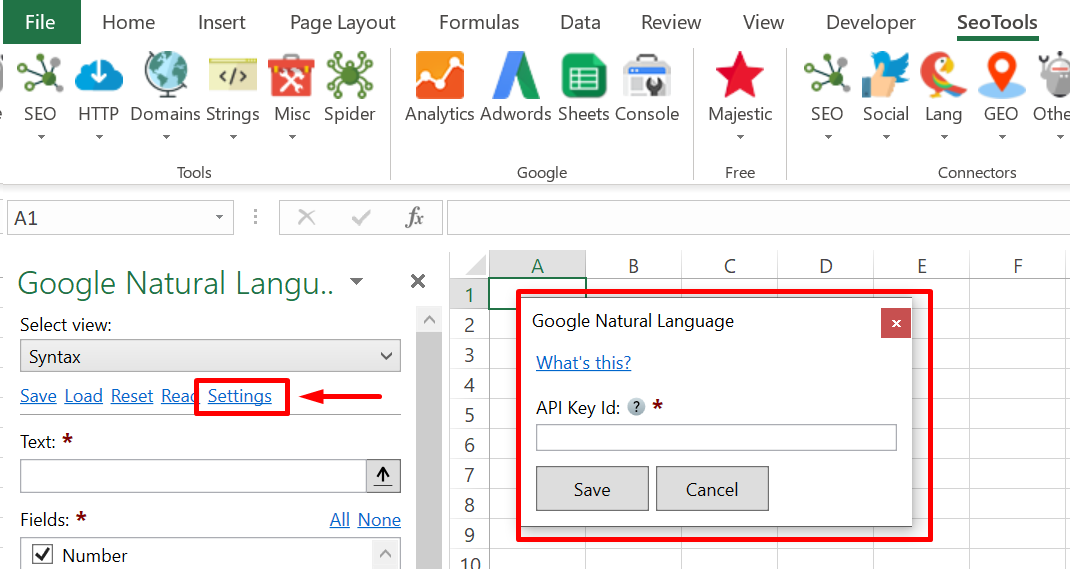
___
## Contribute
This connector suite is open-sourced on [GitHub](https://github.com/nielsbosma/SeoTools-for-Excel-Connectors/blob/master/GoogleNaturalLanguage.xml).
___
## See
#### Official Documentation
* [Google Natural Language API](https://cloud.google.com/natural-language/docs/reference/rest)
#### Related Functions
* [Watson Natural Language](/watson-nl/)
* [Microsoft Translator](/microsoft-translator/)
* [Watson Language Translator](/watson-lt/)
---
# Access Google PageSpeed in Excel
URL: https://seotoolsforexcel.com/google-pagespeed/
Type: page
Published: 2015-01-05
Updated: 2024-10-29
Summary: SeoTools for Excel offers a user-friendly and effective method to collect PageSpeed metrics of thousands of websites straight to Excel
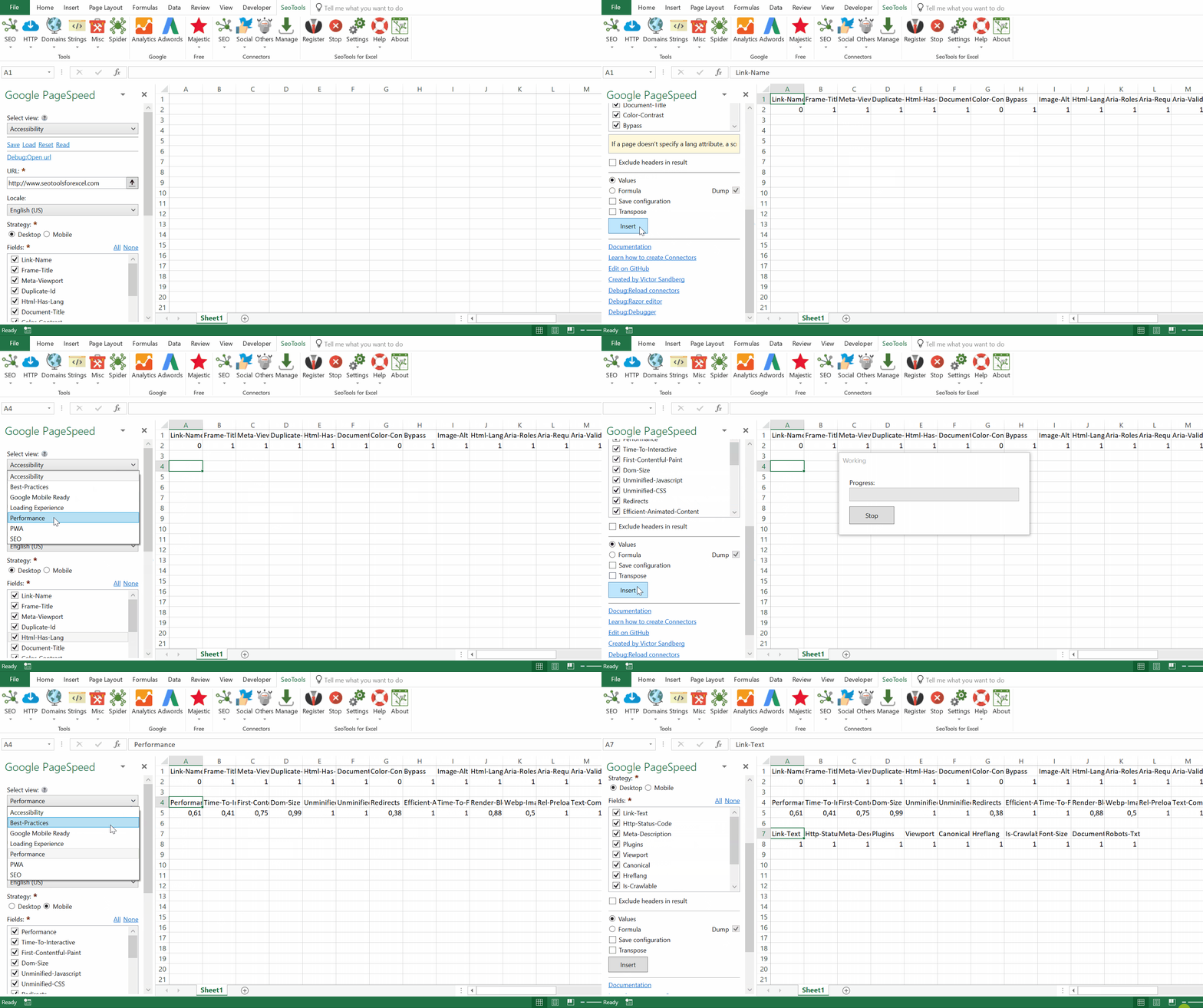
___
## Purpose
Using the [Google PageSpeed](https://developers.google.com/speed/pagespeed/insights/) Connector in SeoTools your can test your pages easily for performance issues directly in Excel.
___
## Loading Experience
The Loading Experience section includes an overall speed category (*FAST*, *AVERAGE* or *SLOW*) and category distributions. The metrics are broken down by ***loading experience*** and ***origin loading experience***.
* First Contentful Paint (FCP)
* Largest-Contentful-Paint (LCP)
* First-Input-Delay (FID)
* Cumulative-Layout-Shift (CLS)
## Performance
Each Performance audit that contributes to your score has its own scoring methodology. Lighthouse maps each raw score to a number between 0 and 100.
* Performance (overall)
* Time-To-Interactive
* Time-To-Interactive Value
* First-Contentful-Paint (FCP)
* FCP Value
* First-Meaningful-Paint (FMP)
* FMP Value
* Dom-Size
* Dom-Size Value
* Unminified-Javascript
* Unminified-CSS-Savings
* Redirects
* Efficient-Animated-Content
* Time-To-First-Byte
* Time-To-First-Byte Value
* Total-Byte-Weight
* Total-Byte-Weight Value
* Render-Blocking-Resources
* Render-Blocking-Resources Value
* Webp-Images
* Webp-Images Value
* Rel-Preload
* Text-Compression
* Optimized-Images
* Long-Cache-TTL
* Long-Cache-TTL Value
* Long-Cache-TTL Wasted Bytes
* Responsive-Images
* Responsive-Images Value
* Rel-Preconnect
* Bootup-Time
* Bootup-Time Value
* Unused-CSS-Rules
* Unused-CSS-Rules Value
* Speed-Index
* Speed-Index Value
* First-CPU-Idle
* First-CPU-Idle Value
* Font-Display
* Mainthread-Work
* Mainthread-Work Value
* Critical-Request-Chains
* Maximum-Potential-FID
## Best-Practices
Lighthouse returns a Best Practices score between 0 and 100. 0 is the worst possible score, and 100 is the best.
* Image-Aspect-Ratio
* Passive-Event-Listeners
* Appcache-Manifest
* Password-Inputs-Can-Be-Pasted-Into
* No-Vulnerable-Libraries
* Doctype
* Errors-In-Console
* No-Document-Write
* Js-Libraries
* Geolocation-On-Start
* Notification-On-Start
* Is-On-Https
## Accessibility
Each accessibility audit is pass or fail. Unlike the Performance audits, a page doesn't get points for partially passing an accessibility audit.
* Link-Name
* Frame-Title
* Meta-Viewport
* Duplicate-Id
* Html-Has-Lang
* Document-Title
* Color-Contrast
* Bypass
* Image-Alt
* Html-Lang-Valid
* Aria-Roles
* Aria-Required-Attr
* Aria-Valid-Attr
* Aria-Valid-Attr-Value
* Aria-Required-Parent
* Aria-Required-Children
## SEO
Returns True or False for popular SEO entities and properties.
* Link-Text
* Http-Status-Code
* Meta-Description
* Plugins
* Viewport
* Canonical
* Hreflang
* Is-Crawlable
* Font-Size
* Document-Title
* Robots-Txt
## PWA
Lighthouse returns a Progressive Web App (PWA) score between 0 and 100. 0 is the worst possible score, and 100 is the best. he PWA audits are based on the [Baseline PWA Checklist](https://developers.google.com/web/progressive-web-apps/checklist#baseline), which lists 14 requirements.
* Service-Worker
* Redirects-Http
* Offline-Start-Url
* Load-Fast-Enough-For-Pwa
* Is-On-Https
* Viewport
* Works-Offline
* Without-Javascript
* Splash-Screen
* Themed-Omnibox
## Filter Options
* Desktop/Mobile
* Exclude Third Party Resources
* Select Language (Locale)
___
## Google Mobile Ready
We have also included a function to test the speed and usability for mobile devices:
* Mobile Ready Pass
* Mobile Ready Usability Score
* Roboted Resources
* Transcient Failure Resources
* No Mobile Viewport
* Small Text
* Incompatible Plugins
* Wide Content
* Links too close
___
## API Key
To use the Connector you need a API key.
1. Visit the [Google Cloud Console](https://console.cloud.google.com/apis/dashboard) and use the default project or use an existing project.
2. Search for 'PageSpeed Insights API' and enable the API.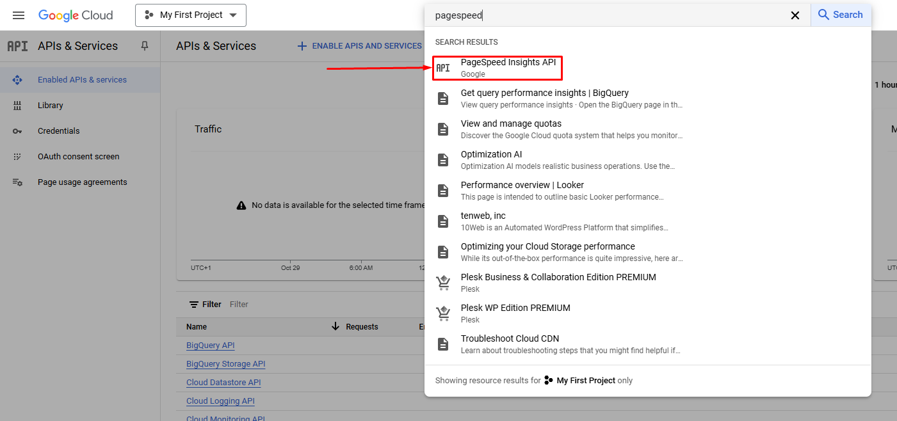
3. In left pane menu, click Credentials -> CREATE Credentials -> API key. Copy the key and use it in the connector. 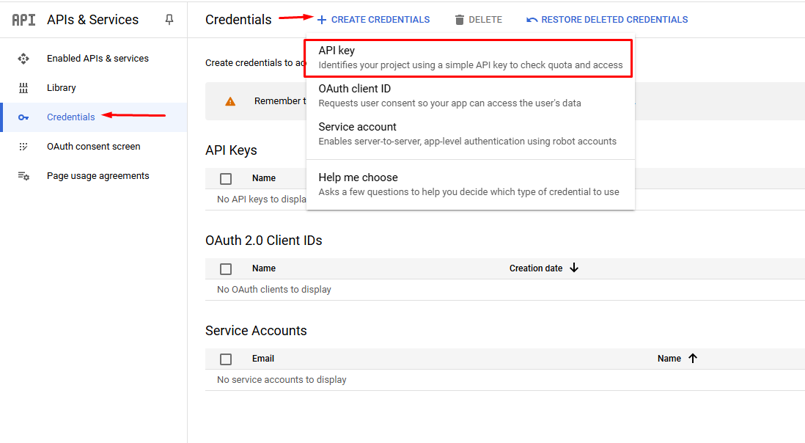
Remember to store the key safely and avoid sharing it accidentally. A good idea is enter the settings of the API key and restrict it to only PageSpeed Insights.
## Contribute
This connector suite is open-sourced on [GitHub](https://github.com/nielsbosma/SeoTools-for-Excel-Connectors/blob/master/GooglePageSpeed.xml).
___
## See
#### Official Documentation
* [Google PageSpeed API](https://developers.google.com/speed/docs/insights/v5/reference/)
---
# Access Google Safe Browsing in Excel
URL: https://seotoolsforexcel.com/google-safe-browsing/
Type: page
Published: 2018-10-02
Updated: 2020-06-02
Summary: Seotools allows you to analyze a list of URLs inside Excel based on the Google Safe Browsing API and determines all potentially harmful URLs.
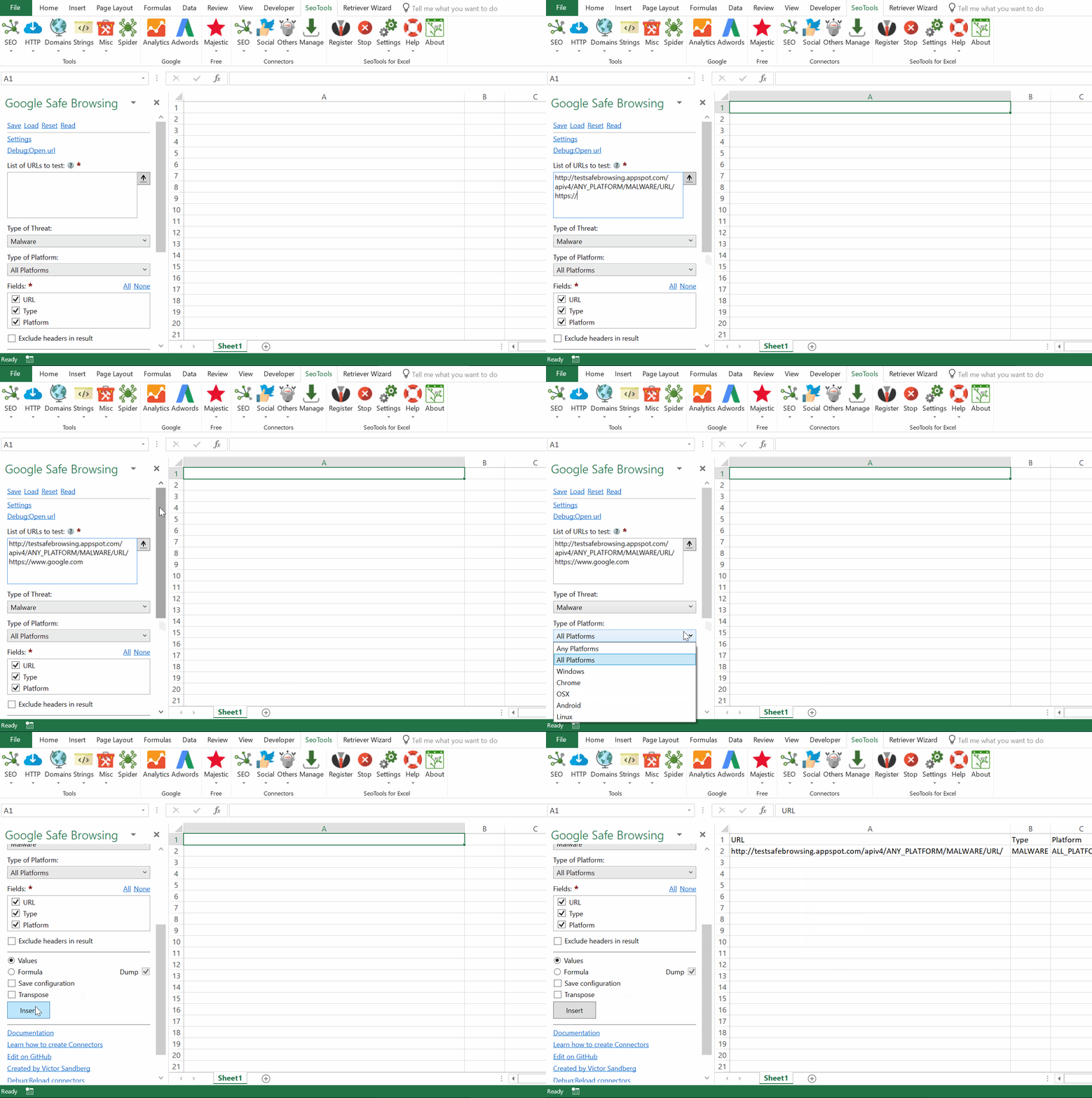
**Safe Browsing** is a Google service that lets client applications check URLs against Google's constantly updated lists of unsafe web resources.
## List of URLs
Enter up to 500 URLs to test for a single request. One URL per newline.
## Filters
- **Type of Threat** - Select one or more of the following types:
- Malware
- Potentially Harmful Application
- Social Engineering
- Unwanted Software
- **Platforms** - Select one of the following platforms:
- Any Platforms
- All Platforms
- Windows
- Chrome
- OSX
- Android
- Linux
___
## Access
## Add from Manager
The Google Safe Browsing Connector is available in the **[Connectors Manager](/manage-connectors/)** in the top ribbon:

Head over to the **Security Category** and install Google Safe Browsing:
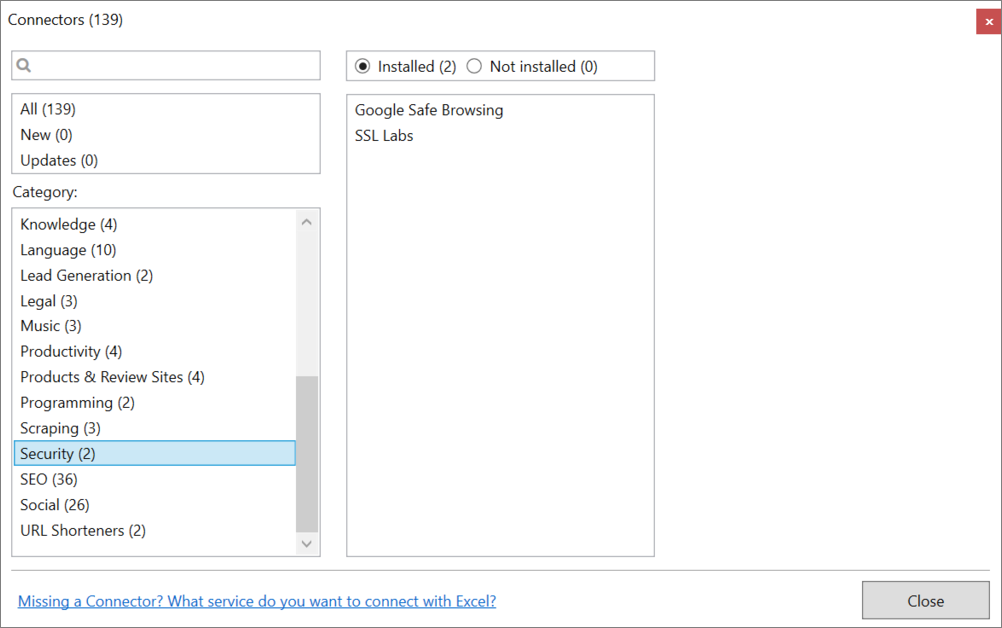
To use the Connector you need a Google Account and an API Key.
If you don't have a key, we recommend following the step-by-step instructions on [this page](https://developers.google.com/safe-browsing/v4/get-started).
___
## Contribute
This connector suite is open-sourced on [GitHub](https://github.com/nielsbosma/SeoTools-for-Excel-Connectors/blob/master/GoogleSafeBrowsing.xml).
___
## See
#### Official Documentation
* [Google Safe Browsing API](https://developers.google.com/safe-browsing/v4/lookup-api)
---
# Access Google Search Console in Excel
URL: https://seotoolsforexcel.com/google-search-console/
Type: page
Published: 2016-01-06
Updated: 2023-06-28
Summary: SeoTools for Excel offers a user-friendly and effective method to collect data from Google Search Console straight to Excel within a matter of seconds.
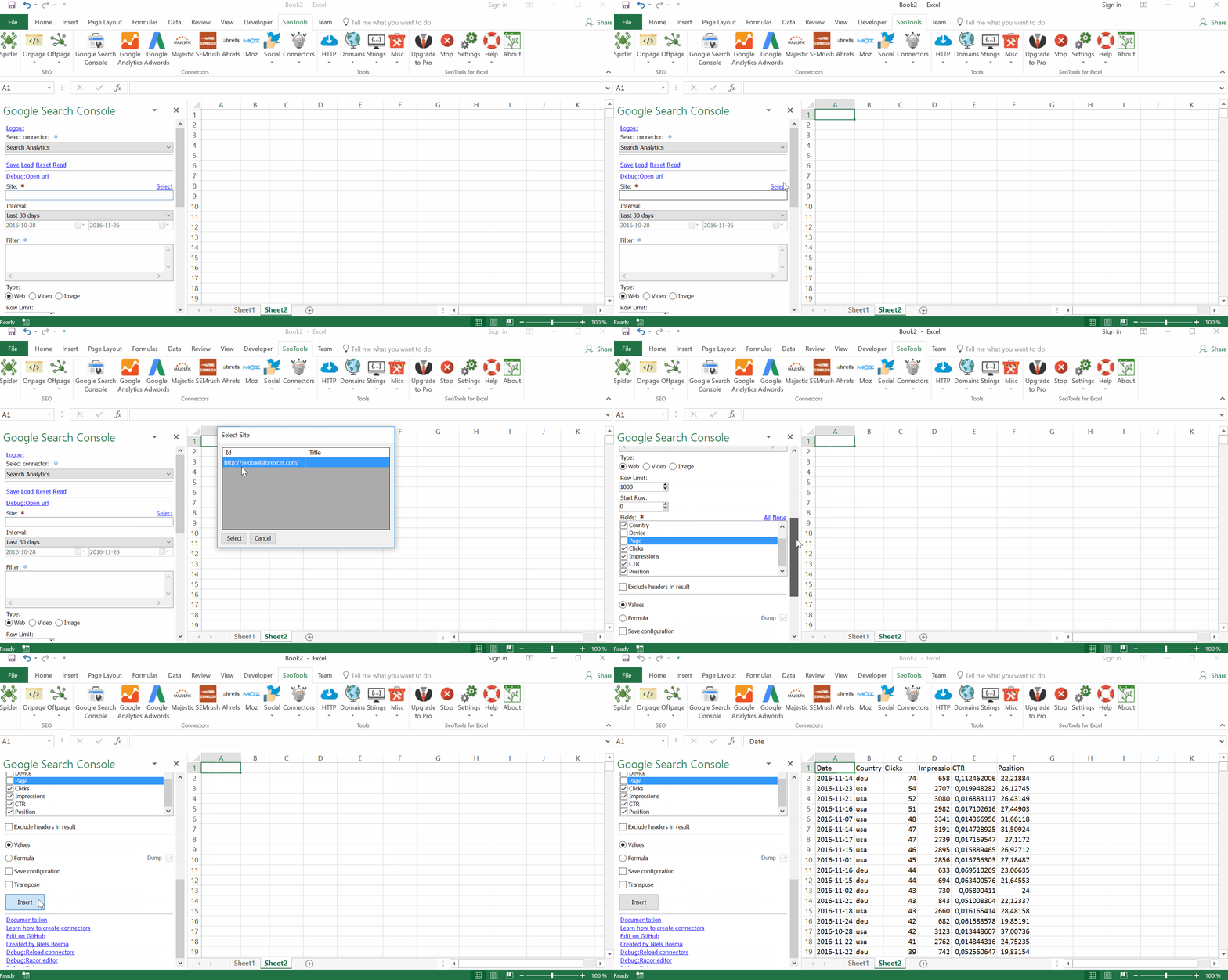
___
## Features
* **Search Analytics** - See how often your property appears in Google Search results, with what queries. Filter by:
- Date Interval
- Type
- Web
- Video
- Image
- News
- Google News (not compatible with query dimension)
- Google Discover (not compatible with query dimension)
- Total Results
- Include Fresh Data
* **Sitemaps** - Shows a list of sitemaps that you have submitted to Search Console.
* **Sitemaps Status** - Shows the status of a particular Sitemap.
* **Inspect** - View the indexed, or indexable, status of the provided URL.
___
## Authentication
To authenticate your Google Search Console account with SeoTools for Excel, hit the login button. You will be prompted to login to your account in your preferred web browser.
___
## Filters
You can filter you query using the following syntax:
``
Where dimension can be any of
* `country`: Filter against the specified country, as specified by 3-letter country code ([ISO 3166-1 alpha-3](https://en.wikipedia.org/wiki/ISO_3166-1_alpha-3)).
* `device`: Supports values: `DESKTOP`, `MOBILE`, `TABLET`.
* `page`: Filter against the specified URI string.
Where operator can be any of:
* `==` for equals: Your expression must exactly equal the row value (case-sensitive for page and query dimensions).
* `!=` for not equals: Your expression must not exactly equal the row value (case-sensitive for page and query dimensions).
* `=~` for contains: The row value must either contain or equal your expression (non-case-sensitive).
* `!~` for not contains: The row value must not contain your expression either as a substring or a (non-case-sensitive) complete match.
* `regex` for includingRegex: regular expression that must be matched.
* `!regex` for excludingRegex: regular expression that must not be matched.
You can combine several filters separating each with a newline.
### Filter examples
Query all rows with traffic from France where the query contains "mobile" and the device is not a tablet.
country == FRA
query =~ mobile
device != tablet
___
## Contribute
This connector suite is open-sourced on [GitHub](https://github.com/nielsbosma/SeoTools-for-Excel-Connectors).
___
## See
#### Official Documentation
* [Google Search Console API](https://developers.google.com/apis-explorer/#p/webmasters/v3/)
#### Related Functions
* [W3C Validate](/w3cvalidate/)
---
# Access Google Sheets in Excel
URL: https://seotoolsforexcel.com/google-sheets/
Type: page
Published: 2020-02-26
Updated: 2021-07-12
Summary: Integrate Google Sheets in Excel and use formulas to send ranges to and from Google Sheets.
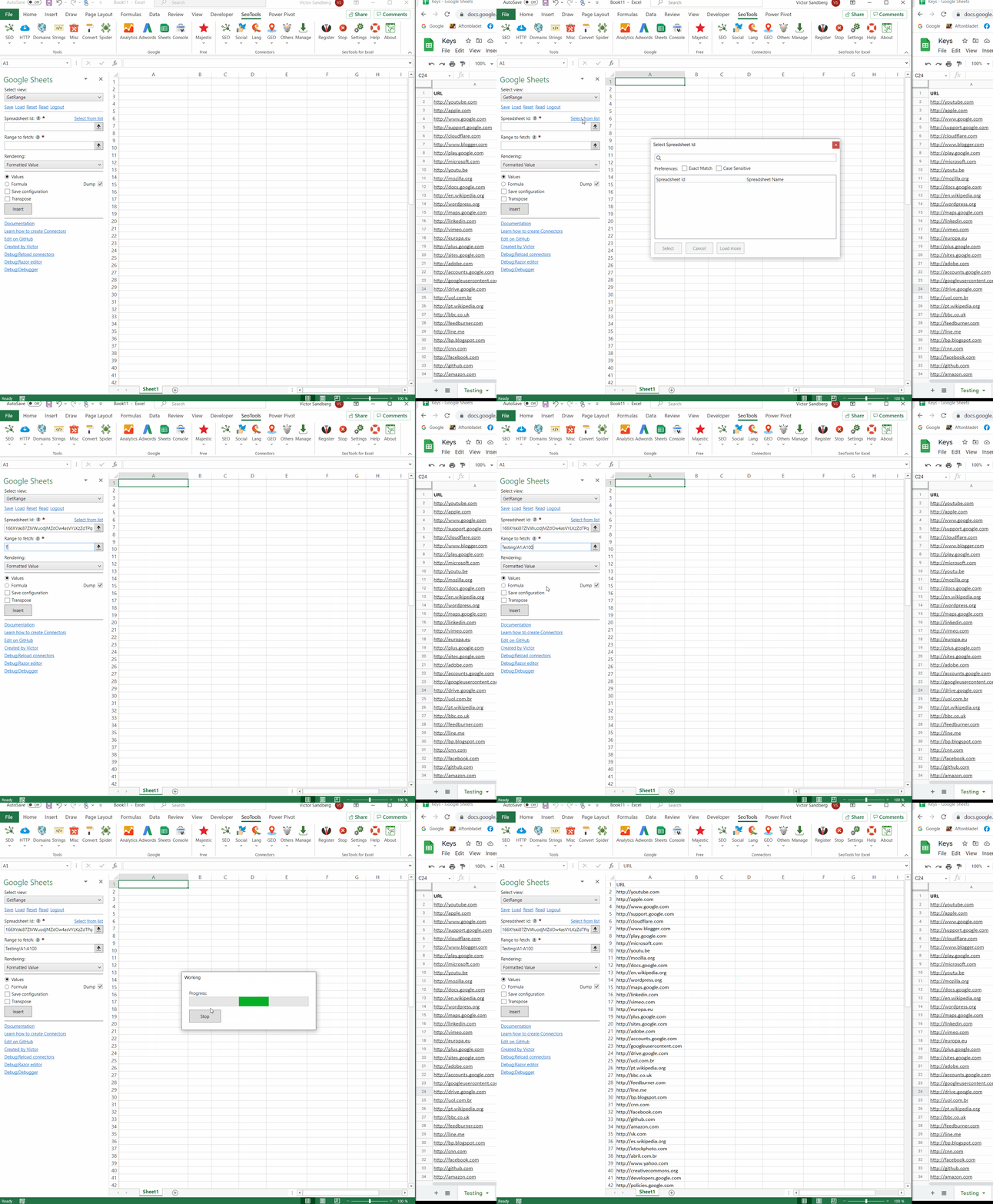
___
## Get Range
Allows you fetch a range from Google Sheets and add it to the active sheet in Excel.
When requesting a range in Google Sheets, include the sheet name followed by the range, separated with an exclamation mark: `SheetName!A1:B10`
## Spreadsheets
Lists all Google spreadsheets with detailed metadata of which the authenticated user has access to.
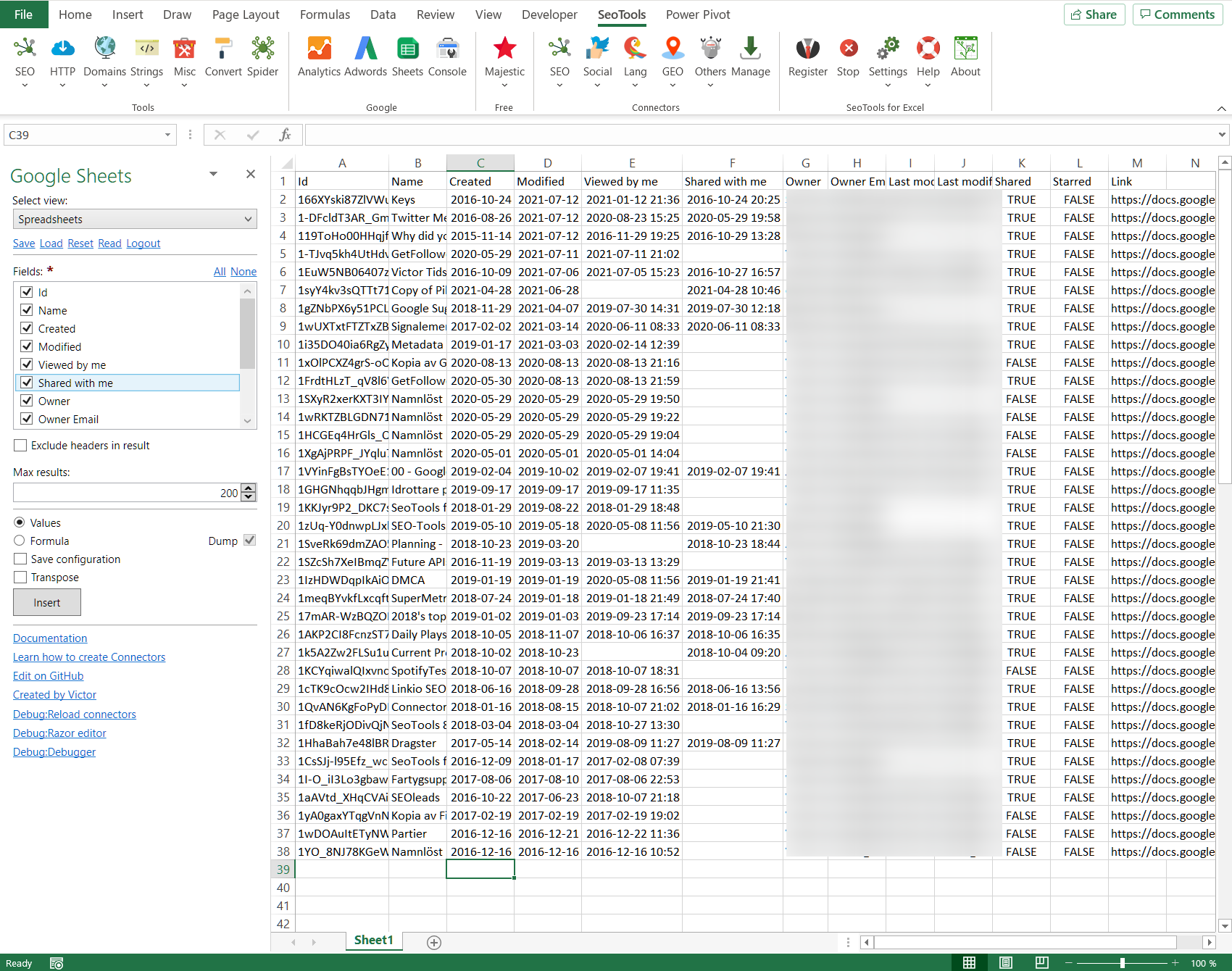
___
## Access
To use the Connector you need an account connected to Google.
___
## Contribute
This connector suite is open-sourced on [GitHub](https://github.com/nielsbosma/SeoTools-for-Excel-Connectors/blob/master/GoogleSheets.xml).
___
## See
#### Official Documentation
* [Google Sheets](https://developers.google.com/sheets/api/reference/rest)
#### Resources
* [Manager](/manage-connectors/)
---
# Access Google Suggest in Excel
URL: https://seotoolsforexcel.com/google-suggest/
Type: page
Published: 2020-02-28
Updated: 2020-05-24
Summary: Use Excel to analyze Google keywords and extract top 10 suggestions for multiple keywords.
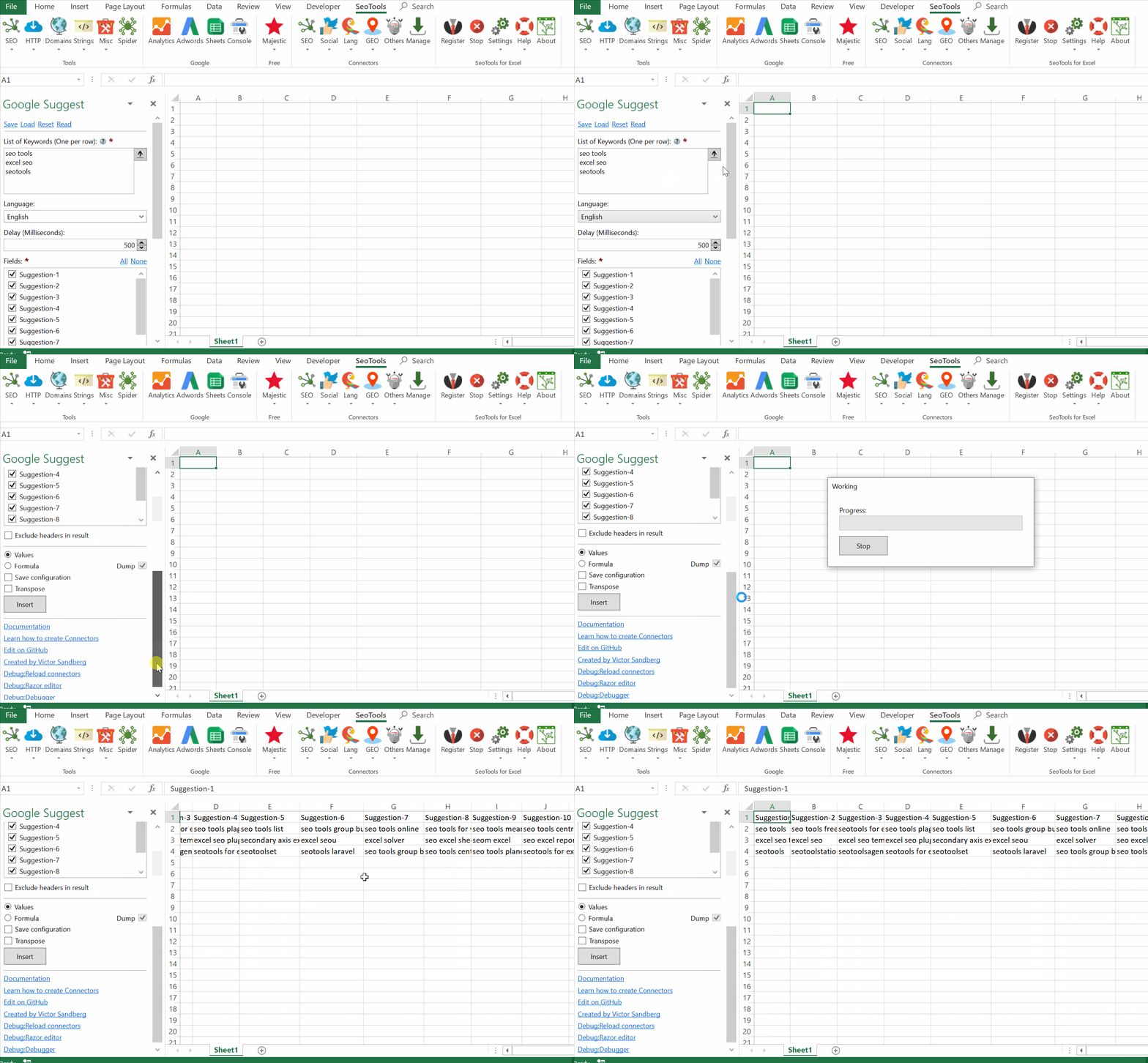
___
## Search Engine
Chose between Google and YouTube to return suggestions based on this engine.
## Keywords
To lookup several keywords at once, add one per line:
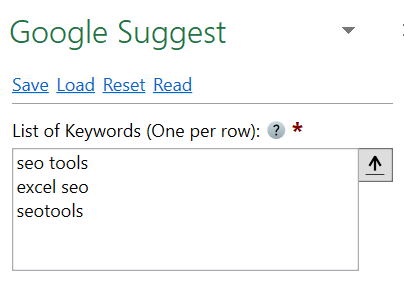
___
## Contribute
This connector suite is open-sourced on [GitHub](https://github.com/nielsbosma/SeoTools-for-Excel-Connectors/blob/master/GoogleSuggest.xml).
___
## See
#### Related Functions
* [Google Search](/google-search/)
---
# Google AdSense Ids
URL: https://seotoolsforexcel.com/googleadsenseid/
Type: page
Published: 2019-05-18
Updated: 2019-05-18
Summary: GoogleAdsenseId is a function of SeoTools for Excel that scrapes a given URL for Google AdSense Ids.
```
=Connector("OnPageScrapers.GoogleAdSenseId","https://seotoolsforexcel.com")
```
___
## Purpose
Scrapes the given URL for Google AdSense Ids.
___
## Dump
Combine the function with Dump() to extract all items.
___
## See
#### Related Functions
* [On-Page Connectors](/connectors-onpage/)
* [LinkedIn Accounts](/linkedin-accounts/)
* [Google Analytics Id](/googleanalyticsid/)
* [Twitter Accounts](/twitter-accounts/)
* [Instagram Accounts](/instagram-accounts/)
* [Email](/email/)
---
# Google Analytics Ids
URL: https://seotoolsforexcel.com/googleanalyticsid/
Type: page
Published: 2019-05-18
Updated: 2019-05-18
Summary: GoogleAnalyticsId is a function of SeoTools for Excel that scrapes a given URL for Google Analytics Ids.
```
=Connector("OnPageScrapers.GoogleAnalyticsId","https://seotoolsforexcel.com")
```
___
## Purpose
Scrapes the given URL for Google Analytics Ids.
___
## Dump
Combine the function with Dump() to extract all items.
___
## See
#### Related Functions
* [On-Page Connectors](/connectors-onpage/)
* [Google AdSense Id](/googleadsenseid/)
* [LinkedIn Accounts](/linkedin-accounts/)
* [Twitter Accounts](/twitter-accounts/)
* [Instagram Accounts](/instagram-accounts/)
* [Email](/email/)
---
# Access Google Drive in Excel
URL: https://seotoolsforexcel.com/googledrive/
Type: page
Published: 2018-08-07
Updated: 2019-05-19
Summary: Keep track of all Google Drive activity within Excel. List, filter and sort folders, files, permissions, comments and revisions.
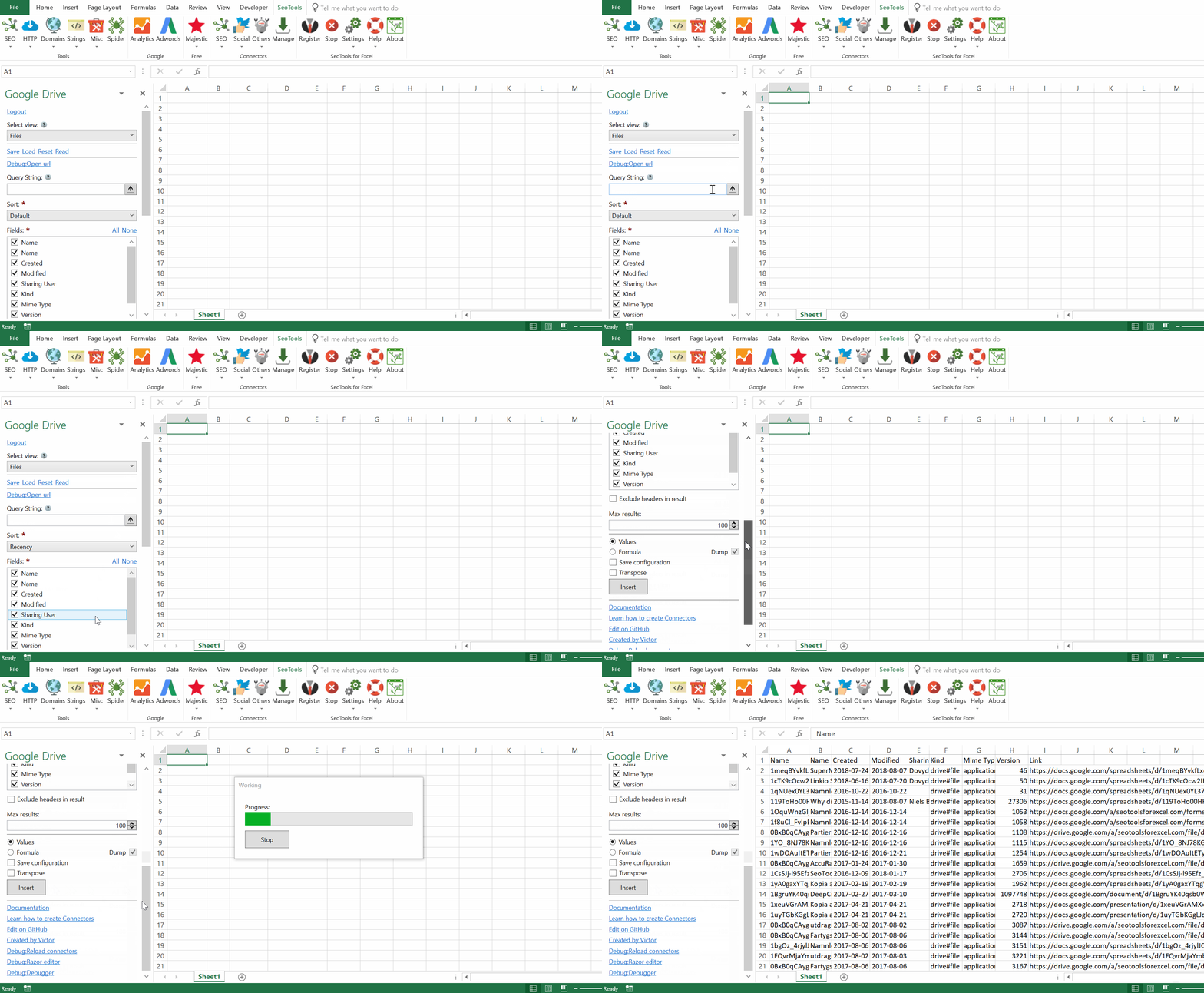
___
## Files
- **List** - Lists or searches files. To search for files, create a query based on [these rules](https://developers.google.com/drive/api/v3/search-shareddrives). For example:
- `name contains 'xlsm'`
- `sharedWithMe = 'true'`
- **Lookup** - Gets a file's metadata or content by ID.
## Permissions
- **List** - Lists a file's or Team Drive's permissions.
## Comments
- **List** - Lists a file's comments.
## Revisions
- **List** - Lists a file's revisions.
## About
- **Info** - Gets information about the user, the user's Drive, and system capabilities.
___
## Add from Manager
The Google Drive Connector is available in the **[Connectors Manager](/manage-connectors/)** in the top ribbon:

Head over to the **File Storage** and install Google Drive:

___
## Contribute
This connector suite is open-sourced on [GitHub](https://github.com/nielsbosma/SeoTools-for-Excel-Connectors/blob/master/GoogleDrive.xml).
___
## See
#### Official Documentation
* [Google Drive API](https://developers.google.com/drive/api/v3/reference/)
#### Related Functions
* [Dropbox](/dropbox/)
* [OneDrive](/onedrive/)
#### Resources
* [Manager](/manage-connectors/)
---
# Access GTmetrix in Excel
URL: https://seotoolsforexcel.com/gtmetrix/
Type: page
Published: 2018-05-29
Updated: 2020-05-21
Summary: SeoTools for Excel offers a user-friendly and effective method to analyze your page's speed performance with the GTmetrix Connector inside Excel.
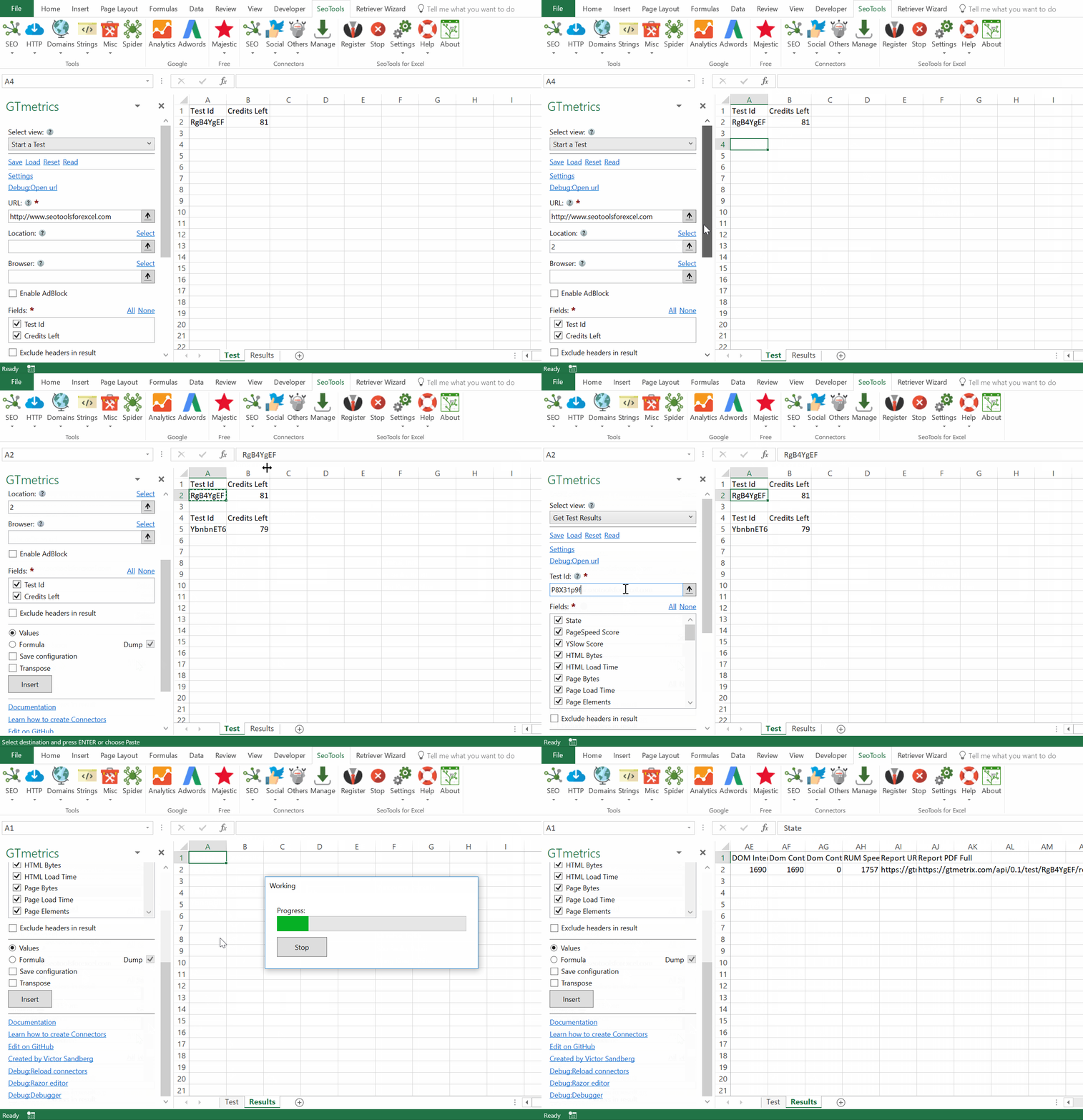
___
## Start a Test
Instructs GTmetrix to analyze the URL you provide. The test should be completed within a minute or two.
* **Location** - Specify the location to run the test from. Click *Select* to open the selection window:
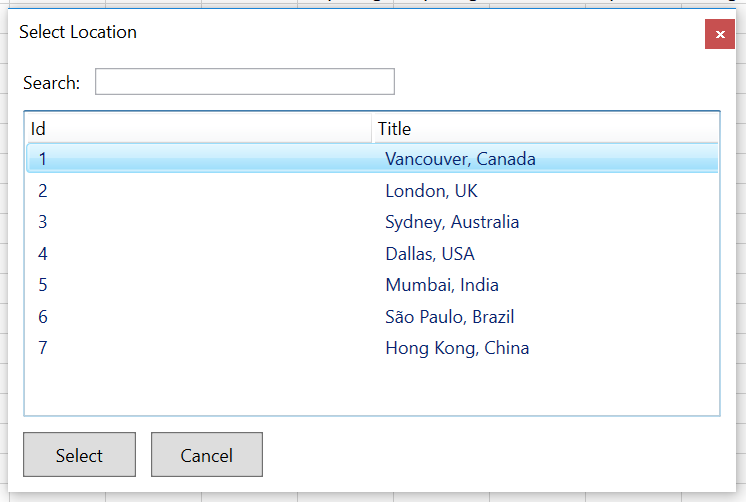
* **Browser** - Specify the browser to run the test from. Click *Select* to open the selection window.
## Get Test Results
Returns the results from a previous test. Enter the Id from a previous test.
* **PageSpeed Score** - PageSpeed score
* **YSlow Score** - YSlow score
* **HTML Bytes** - The HTML size (may be the compressed size)
* **HTML Load Time** - The HTML load time or TTFB (in milliseconds)
* **Page Bytes** - The total page size
* **Page Load Time** - The page load time (in milliseconds)
* **Page Elements** - The number of page elements (# of resources)
* **Redirect Duration** - Time spent redirecting (in milliseconds)
* **Connect Duration** - Connection time for the html page request (in milliseconds)
* **Backend Duration** - Backend or wait time for the html page request (in milliseconds)
* **First Paint Time** - First paint time (in milliseconds)
* **First Contentful Paint Time** - First contentful paint time (in milliseconds)
* **DOM Interactive Time** - DOM interactive time (in milliseconds)
* **Dom Content Loaded Time** - DOM content loaded time (in milliseconds)
* **Dom Content Loaded Duration** - DOM content loaded duration (in milliseconds)
* **RUM Speed Index** - RUM Speed Index
* **Report URL** - The URL to view the report in browser.
___
## Access
## Add from Manager
The GTmetrix Connector is available in the **[Connectors Manager](/manage-connectors/)** in the top ribbon:

Head over to the **SEO Category** and install GTmetrix:

## Get API keys
To use the GTmetrix connector you need an API key.
1. [Sign up](https://gtmetrix.com/api/) for a free trial account.
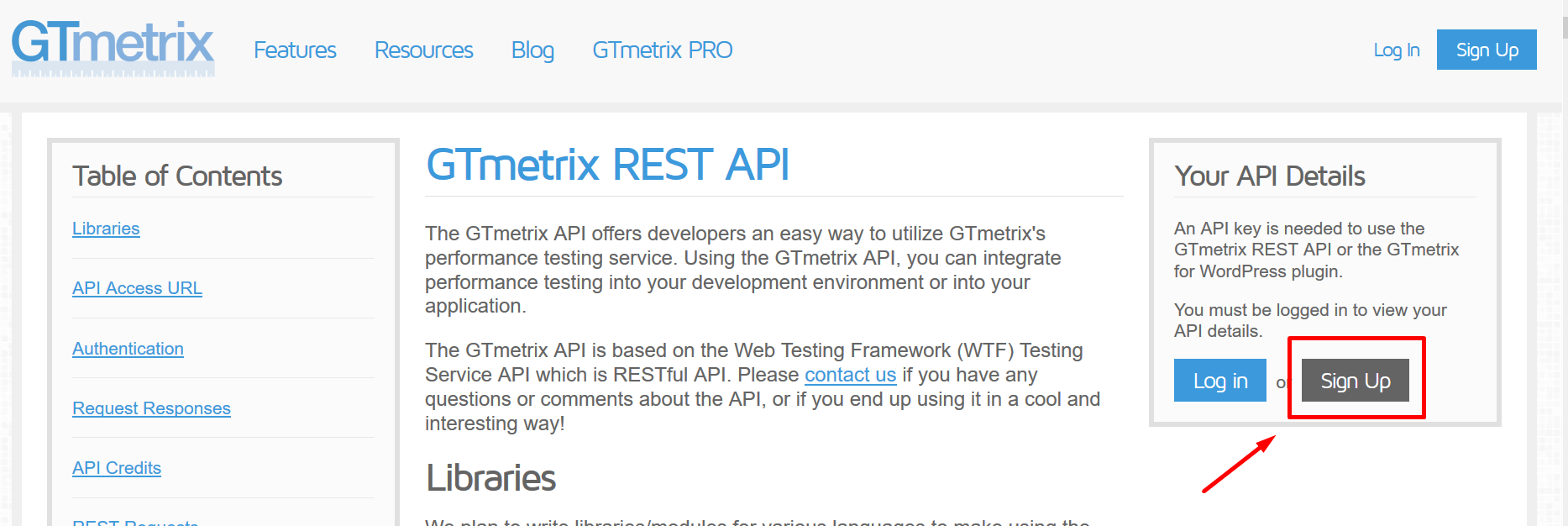
2. Copy the API key and email and enter in the GTmetrix Settings window inside Seotools.
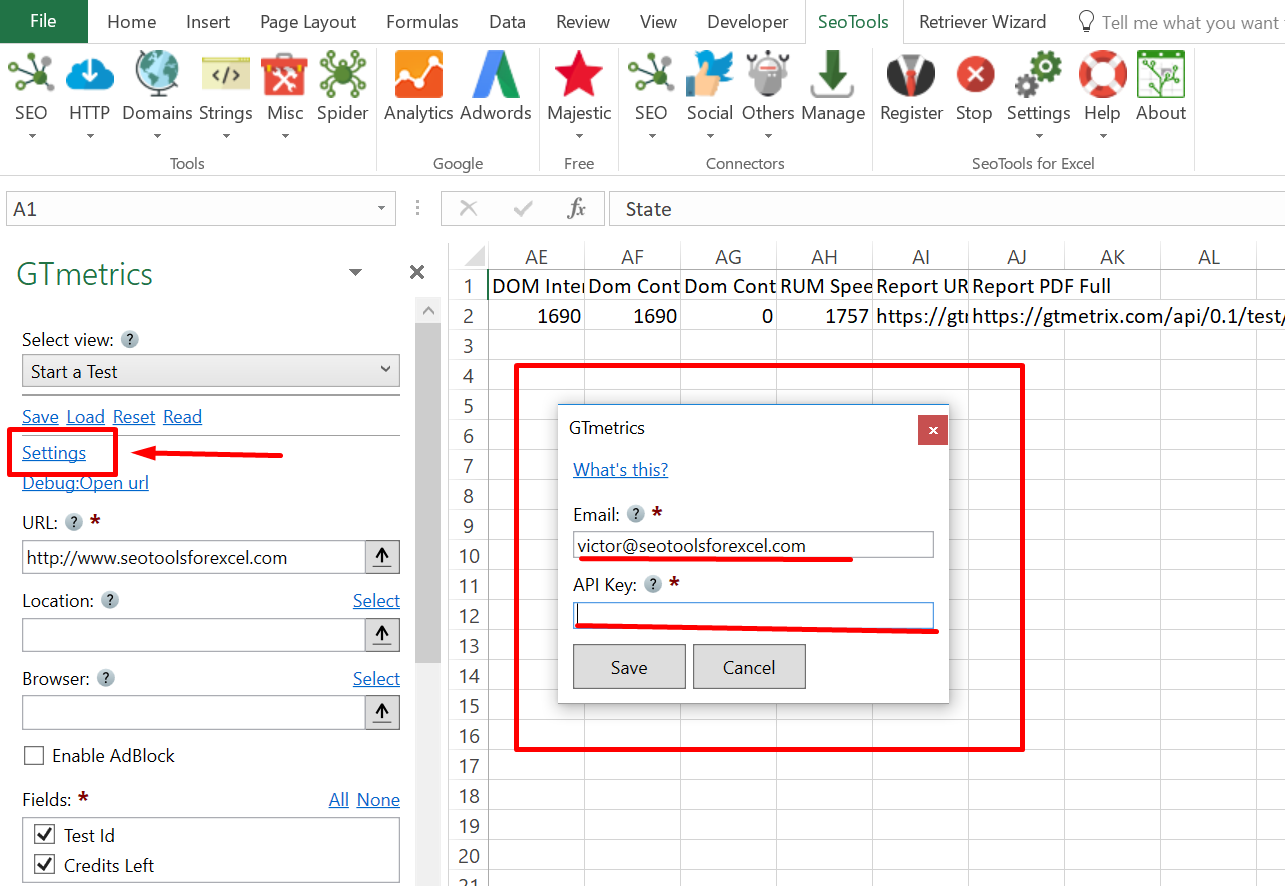
___
## Contribute
This connector suite is open-sourced on [GitHub](https://github.com/nielsbosma/SeoTools-for-Excel-Connectors/blob/master/GTmetrics.xml).
___
## See
#### Official Documentation
* [GTmetrix API](https://gtmetrix.com/api/)
#### Resources
* [Manager](/manage-connectors/)
---
# HtmlCanonical
URL: https://seotoolsforexcel.com/htmlcanonical/
Type: page
Published: 2015-03-29
Updated: 2019-05-27
Summary: Formula that returns the HTML canonical meta tag of a webpage using SeoTools for Excel add-in.
```
=HtmlCanonical(sting url) : string
```
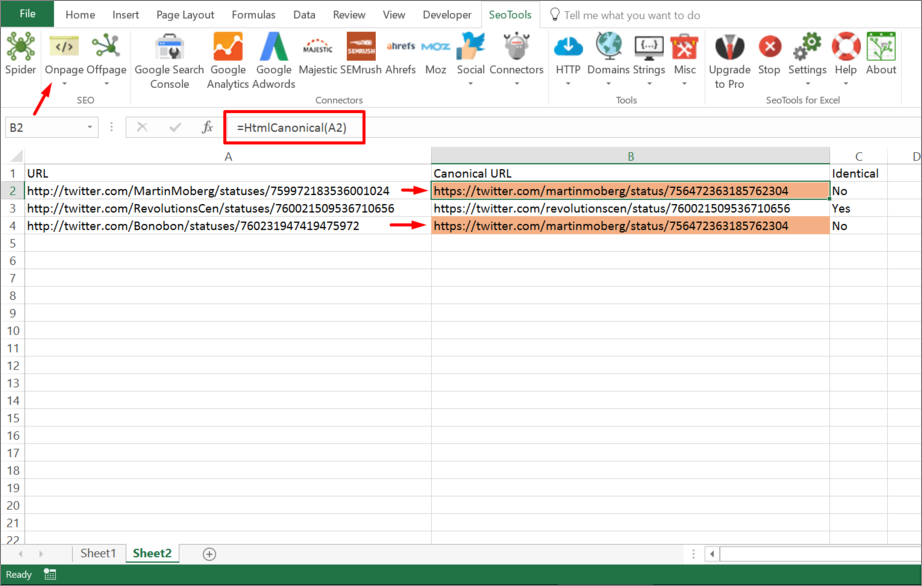
___
## Purpose
Returns the HTML [canonical](https://en.wikipedia.org/wiki/Canonical_link_tag) on a page.
[This function is cached.](/caching/)
___
## See
#### Related Functions
* [HtmlTitle](/htmltitle/)
* [HtmlMetaDescription](/htmlmetadescription/)
* [HtmlMetaKeywords](/htmlmetakeywords/)
* [HtmlMetaRobots](/htmlmetarobots/)
* [HtmlMeta](/htmlmeta/)
---
# HTML/CSS to Image
URL: https://seotoolsforexcel.com/htmlcssimage/
Type: page
Published: 2020-02-27
Updated: 2020-02-27
Summary: Use Excel and generate images based on HTML and CSS supplied in cells.
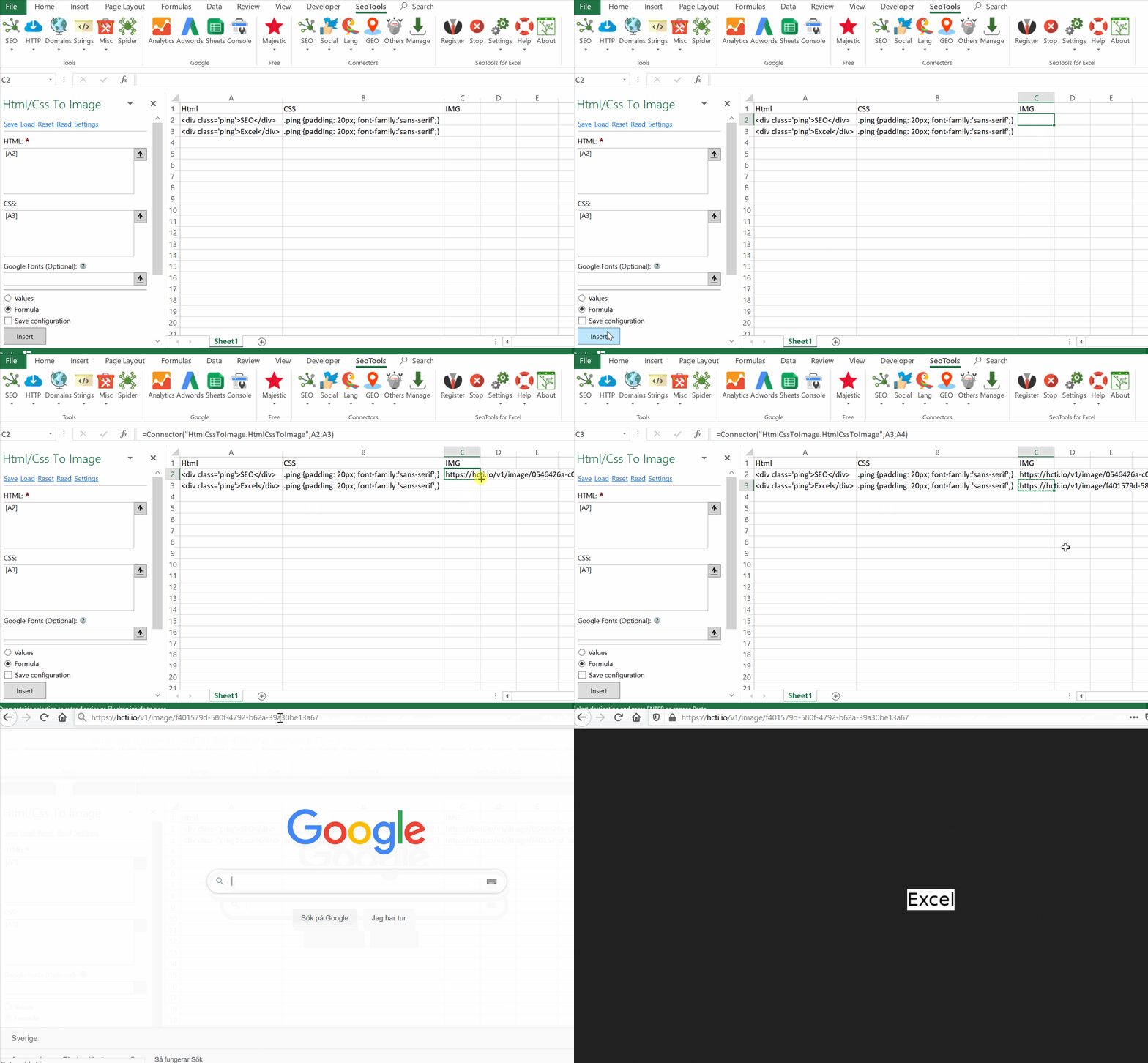
Supply HTML and CSS and generate links to images based on the code. Very powerful when using formulas to alter the HTML and CSS code.
The images can be fetched using the [DownloadFile](/downloadfile/) function.
___
## Access
## Add from Manager
The Connector is available in the **[Connectors Manager](/manage-connectors/)** in the top ribbon:

Head over to the **Design Category** and install the HTML/CSS to Imag Connector.
## Access
[Register](https://htmlcsstoimage.com/join) for a user id and key to paste in the settings inside SeoTools:
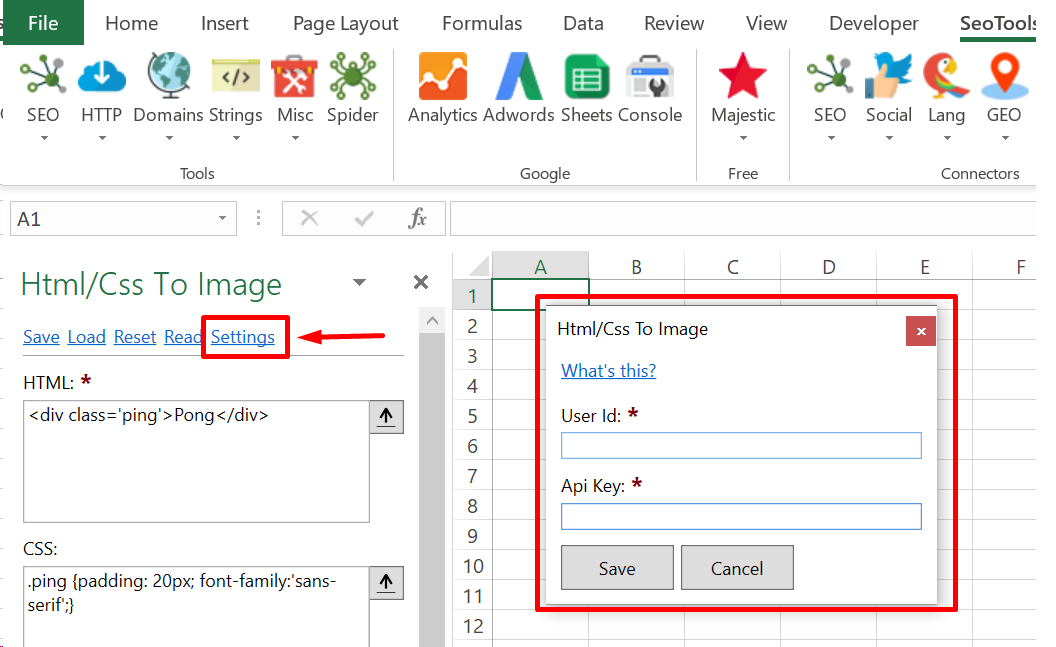
___
## Contribute
This connector suite is open-sourced on [GitHub](https://github.com/nielsbosma/SeoTools-for-Excel-Connectors/blob/master/HtmlCssToImage.xml).
___
## See
#### Official Documentation
* [HTML/CSS to Image API](https://docs.htmlcsstoimage.com/)
#### Related Functions
* [DownloadFile](/downloadfile/)
#### Resources
* [Manager](/manage-connectors/)
---
# HtmlDecode
URL: https://seotoolsforexcel.com/htmldecode/
Type: page
Published: 2015-03-29
Updated: 2019-05-19
Summary: Formula for HTML decoding a text string using the SeoTools for Excel add-in.
```
=HtmlDecode(string input) : string
```
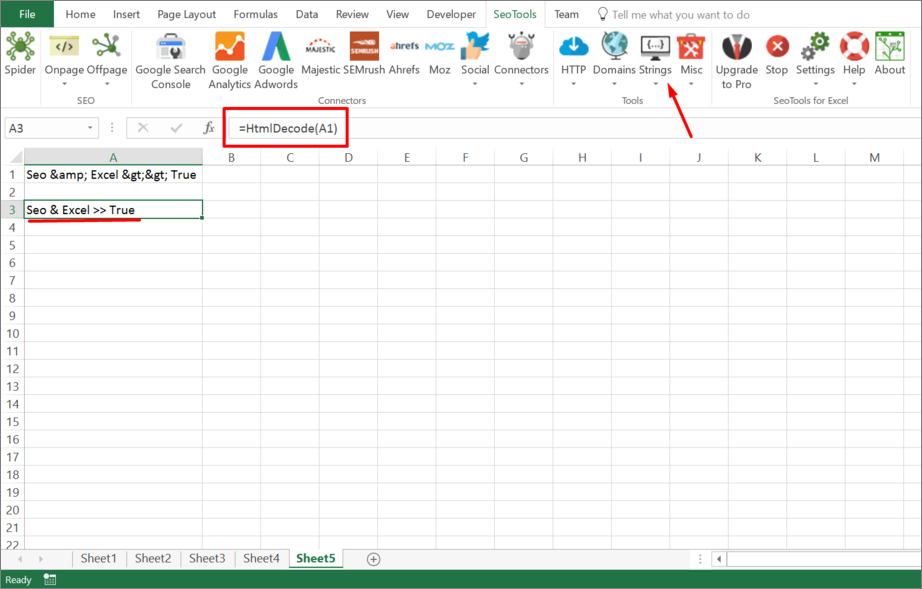
___
## Purpose
Html-decodes a string.
____
## See
#### Related Functions
[HtmlEncode](/htmlencode/)
---
# HtmlEncode
URL: https://seotoolsforexcel.com/htmlencode/
Type: page
Published: 2015-03-29
Updated: 2019-05-19
Summary: Formula for HTML encoding a text string using the SeoTools for Excel add-in.
```
=HtmlEncode(string input) : string
```
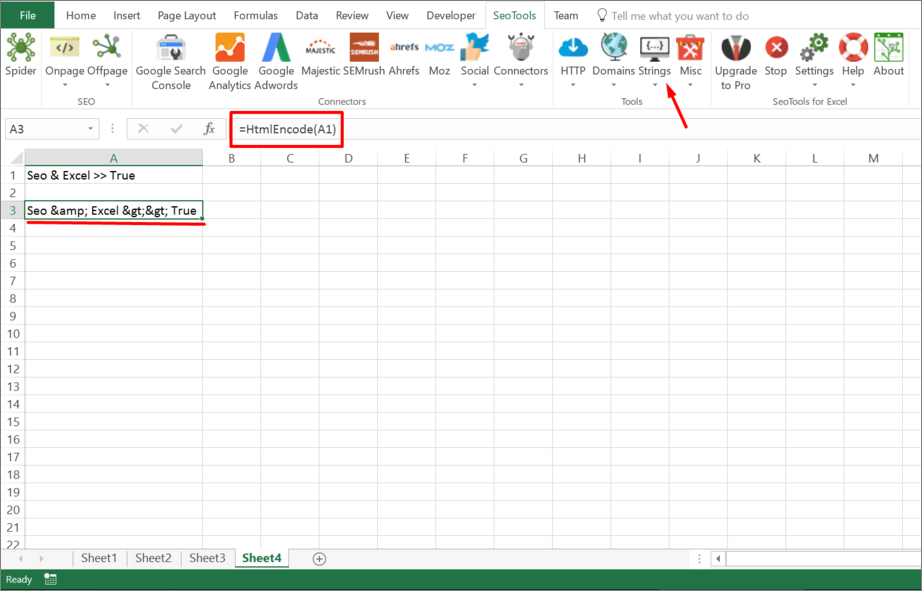
___
## Purpose
Converts all applicable characters to their corresponding HTML entities.
___
## See
#### Related Functions
* [HtmlDecode](/htmldecode/)
---
# HtmlFirst
URL: https://seotoolsforexcel.com/htmlfirst/
Type: page
Published: 2015-03-29
Updated: 2019-05-19
Summary: Formula that returns the inner text of the first HTML element with specified tagName using the SeoTools for Excel add-in.
```
=HtmlFirst(URL, tagName, [int index=1]) : string
```
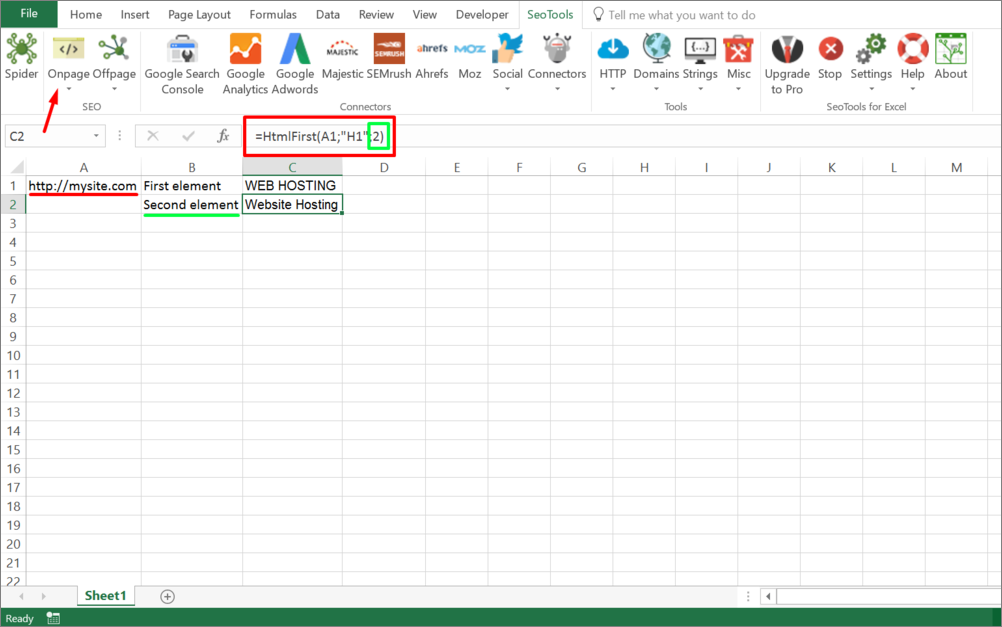
___
## Purpose
Returns the inner text of the first HTML element with specified `tagName`.
Specifying `index` retreives the n’th element found on the page.
[This function is cached.](/caching/)
This function is used internally for functions like [HtmlH1](/htmlh1/), [htmlh2](/htmlh2/), [HtmlH3](/htmlh3/).
___
## See
#### Related Functions
* [HtmlH1](/htmlh1/)
* [HtmlH2](/htmlh2/)
* [HtmlH3](/htmlh3/)
* [HtmlMetaDescription](/htmlmetadescription/)
---
# HtmlH1
URL: https://seotoolsforexcel.com/htmlh1/
Type: page
Published: 2015-03-29
Updated: 2019-05-19
Summary: Formula that returns the inner text of the first HTML H1 element on a page using the SeoTools for Excel add-in.
```
HtmlH1(string url) : string
```
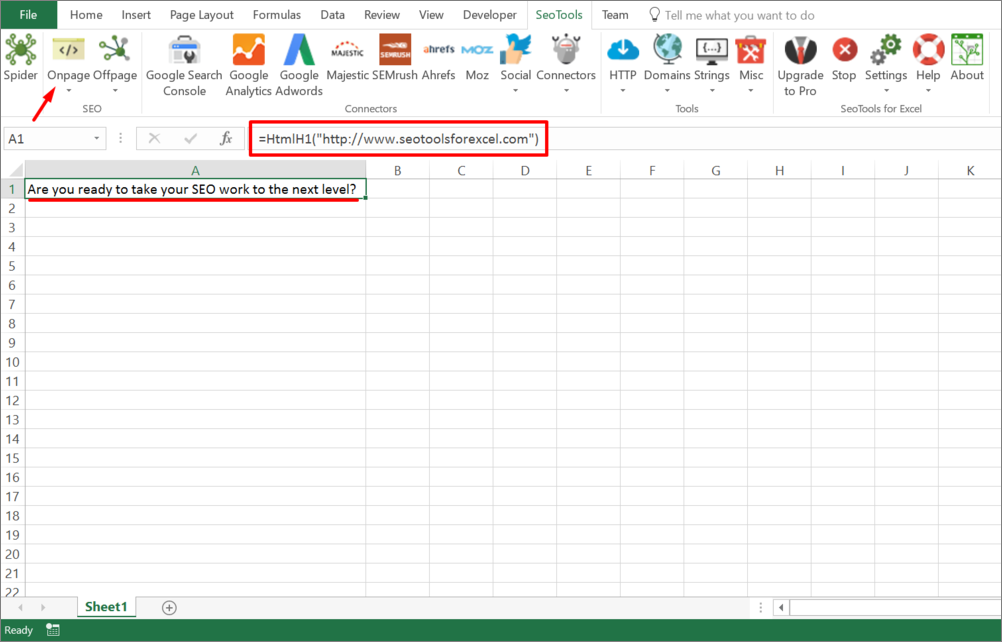
___
## Purpose
Returns the inner text of the first HTML H1 element on a page.
[This function is cached.](/caching/)
___
## See
#### Related Functions
* [HtmlH2](/htmlh2/)
* [HtmlH3](/htmlh3/)
* [HtmlFirst](/htmlfirst/)
* [HtmlMetaDescription](/htmlmetadescription/)
---
# HtmlH2
URL: https://seotoolsforexcel.com/htmlh2/
Type: page
Published: 2015-03-29
Updated: 2019-05-19
Summary: Formula that returns the inner text of the first HTML H2 element on a page using the SeoTools for Excel add-in.
```
HtmlH2(string url) : string
```
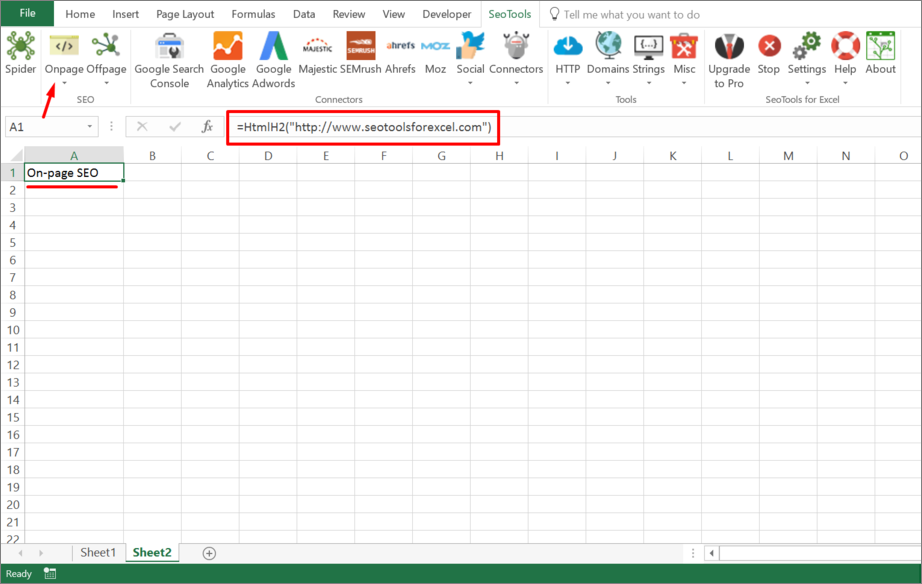
___
## Purpose
Returns the inner text of the first HTML H2 element on a page.
[This function is cached.](/caching/)
___
## See
#### Related Functions
* [HtmlH1](/htmlh1/)
* [HtmlH3](/htmlh3/)
* [HtmlFirst](/htmlfirst/)
* [HtmlMetaDescription](/htmlmetadescription/)
---
# HtmlH3
URL: https://seotoolsforexcel.com/htmlh3/
Type: page
Published: 2015-03-29
Updated: 2019-05-19
Summary: Formula that returns the inner text of the first HTML H3 element on a webpage using the SeoTools for Excel add-in.
```
HtmlH3(string url) : string
```
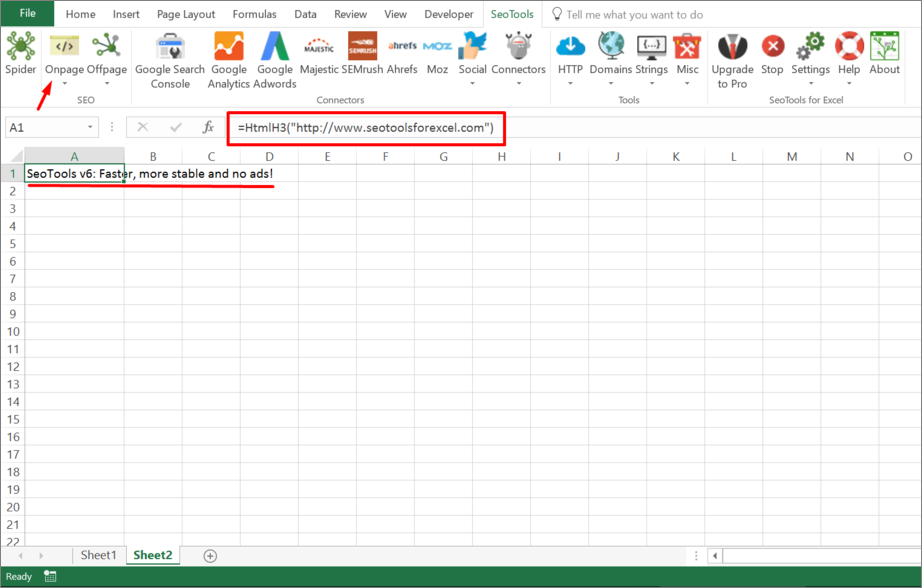
___
## Purpose
Returns the inner text of the first HTML H3 element on a page.
[This function is cached.](/caching/)
___
## See
#### Related Functions
* [HtmlH1](/htmlh1/)
* [HtmlH2](/htmlh2/)
* [HtmlFirst](/htmlfirst/)
* [HtmlMetaDescription](/htmlmetadescription/)
---
# HtmlMeta
URL: https://seotoolsforexcel.com/htmlmeta/
Type: page
Published: 2015-03-29
Updated: 2019-05-19
Summary: Use SeoTools function HtmlMeta to get html meta content of a webpage, such as: last-modified, cache-control and expires in Excel.
```
=HtmlMeta(sting url, string metaName) : string
```
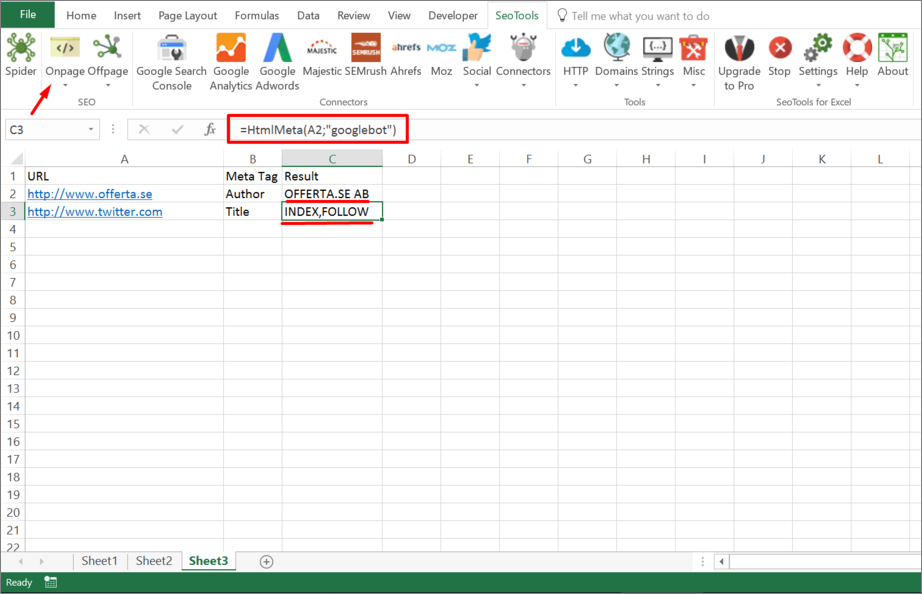
___
## Purpose
Returns arbitrary [HTML meta](https://www.lifewire.com/useful-meta-tags-3469049) content of a page.
[This function is cached.](/caching/)
___
## Common meta tags:
* author
* googlebot
* robots
* keywords
* description
* refresh
* copyright
* contact
* last-modified
* cache-control
* content-language
* content-type
* expires
* pragma
* generator
___
## See
#### Related Functions
* [HtmlTitle](/htmltitle/)
* [HtmlMetaDescription](/htmlmetadescription/)
* [HtmlMetaKeywords](/htmlmetakeywords/)
* [HtmlMetaRobots](/htmlmetarobots/)
* [HtmlCanonical](/htmlcanonical/)
---
# HtmlMetaDescription
URL: https://seotoolsforexcel.com/htmlmetadescription/
Type: page
Published: 2015-03-01
Updated: 2019-05-27
Summary: Get the meta description of any webpage as a formula with SeoTools for Excel
```
=HtmlMetaDescription(string url) : string
```
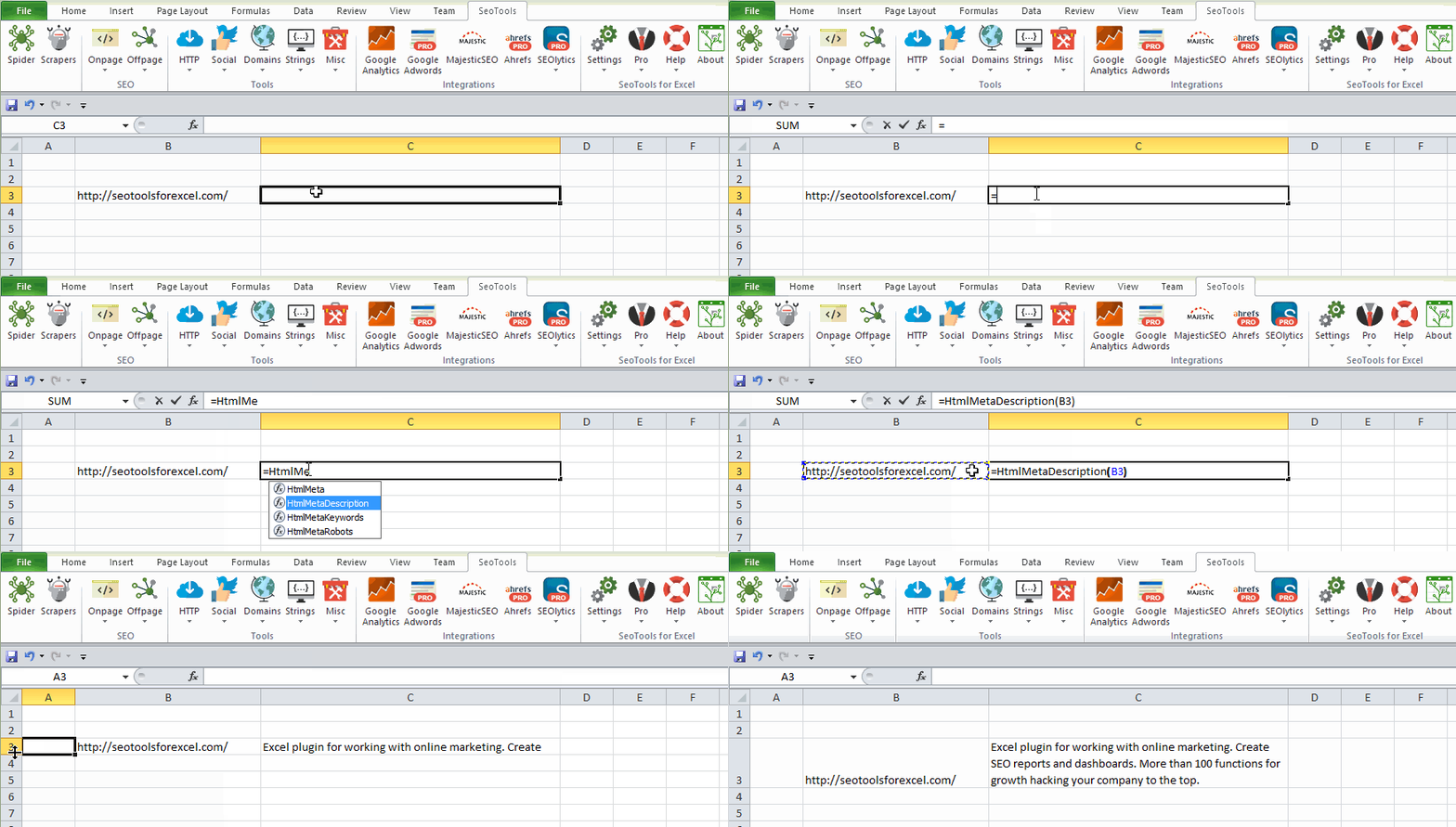
___
## Purpose
Returns the HTML [meta description](https://en.wikipedia.org/wiki/Meta_element) on a page.
[This function is cached.](/caching/)
___
## See
#### Related Functions
* [HtmlTitle](/htmltitle/)
* [HtmlMeta](/htmlmeta/)
* [HtmlMetaKeywords](/htmlmetakeywords/)
* [HtmlMetaRobots](/htmlmetarobots/)
* [HtmlCanonical](/htmlcanonical/)
---
# HtmlMetaKeywords
URL: https://seotoolsforexcel.com/htmlmetakeywords/
Type: page
Published: 2015-03-01
Updated: 2019-05-19
Summary: Formula to fetch the HTML meta keywords of a webpage using SeoTools for Excel add-in.
```
=HtmlMetaKeywords(string url) : string
```
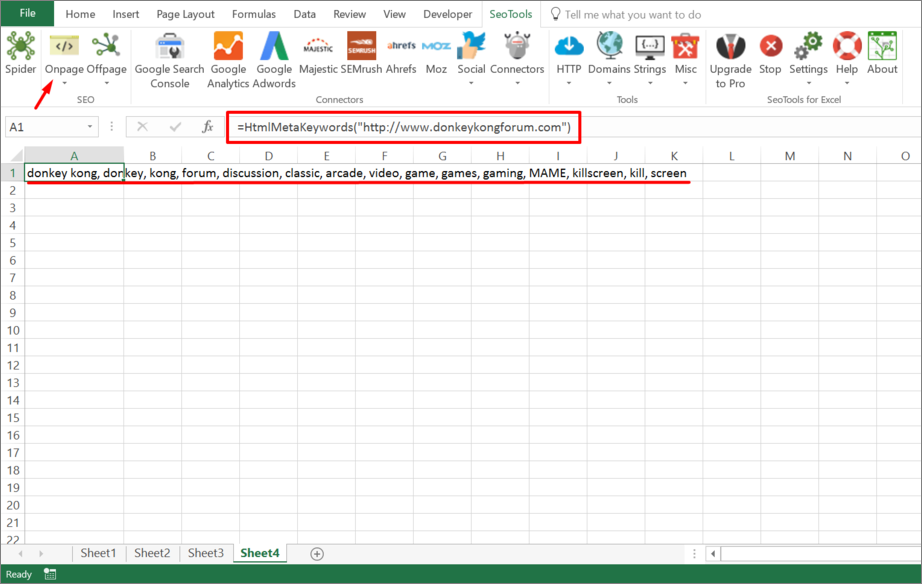
___
## Purpose
Returns the [HTML meta keywords](http://en.wikipedia.org/wiki/Meta_element) on a page.
[This function is cached.](/caching/)
___
## See
#### Related Functions
* [HtmlTitle](/htmltitle/)
* [HtmlMeta](/htmlmeta/)
* [HtmlMetaDescription](/htmlmetadescription/)
* [HtmlMetaRobots](/htmlmetarobots/)
* [HtmlCanonical](/htmlcanonical/)
---
# HtmlMetaRobots
URL: https://seotoolsforexcel.com/htmlmetarobots/
Type: page
Published: 2015-03-29
Updated: 2019-05-19
Summary: Formula that returns the HTML meta robots tag using the SeoTools for Excel add-in.
```
=HtmlMetaRobots(string url) : string
```
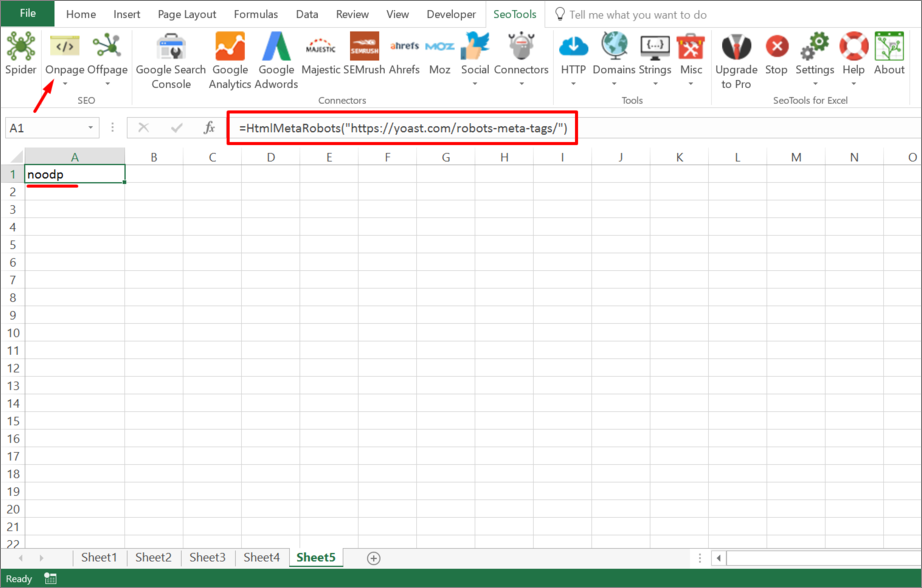
___
## Purpose
Returns HTML meta robots of a page.
[This function is cached.](/caching/)
___
## See
#### Related Functions
* [HtmlTitle](/htmltitle/)
* [HtmlMetaDescription](/htmlmetadescription/)
* [HtmlMetaKeywords](/htmlmetakeywords/)
* [HtmlMeta](/htmlmetarobots/)
* [HtmlCanonical](/htmlcanonical/)
---
# HtmlTitle
URL: https://seotoolsforexcel.com/htmltitle/
Type: page
Published: 2015-03-01
Updated: 2019-05-19
Summary: Retrieve the value of the HTML title tag as a formula in Excel with SeoTools for Excel.
```
=HtmlTitle(string url) : string
```
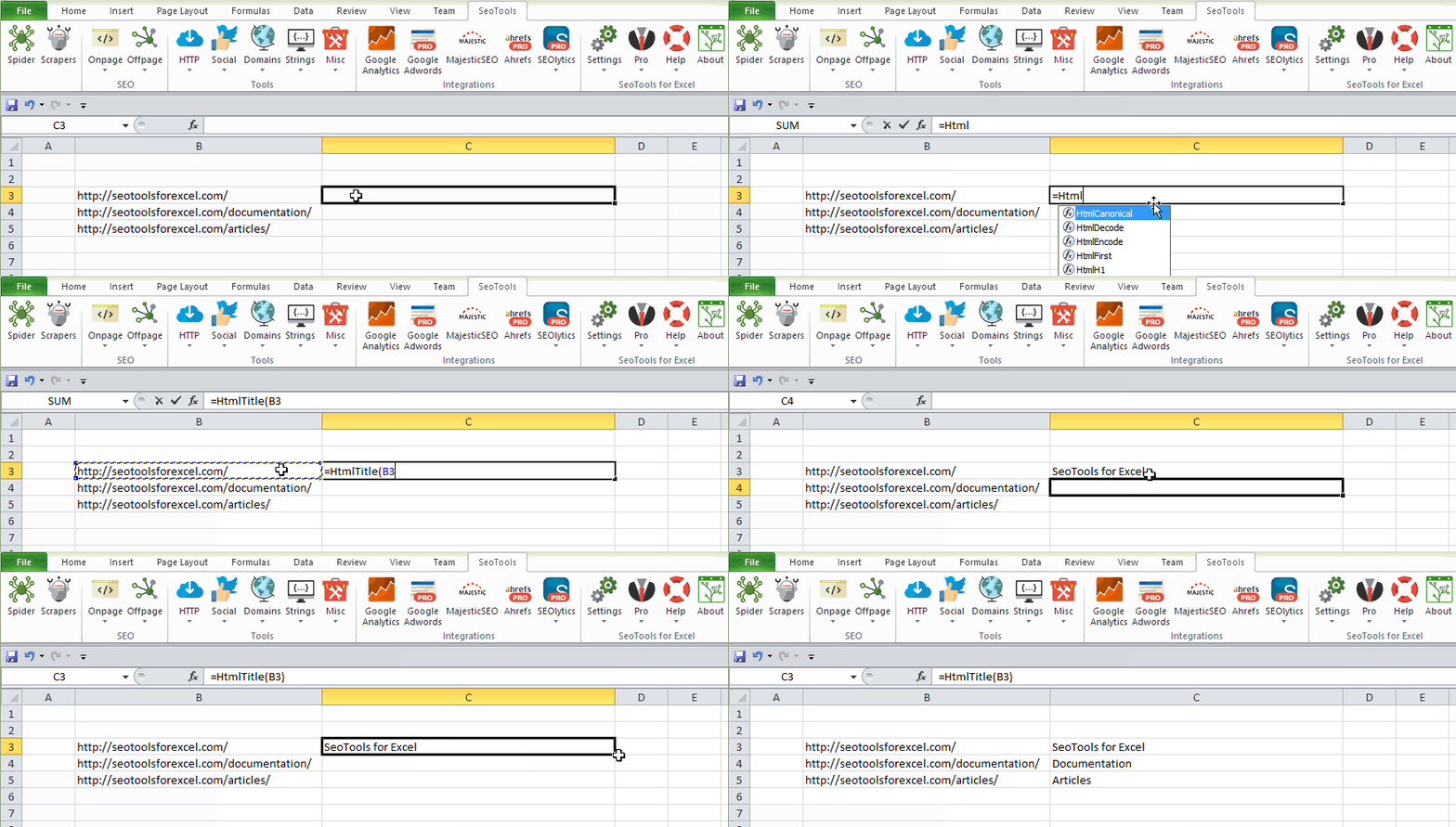
___
## Purpose
Returns the [HTML title](http://www.w3.org/Provider/Style/TITLE.html) of a page.
[This function is cached.](/caching/)
___
## See
#### Related Functions
* [HtmlMeta](/htmlmeta/)
* [HtmlMetaDescription](/htmlmetadescription/)
* [HtmlMetaKeywords](/htmlmetakeywords/)
* [HtmlMetaRobots](/htmlmetarobots/)
* [HtmlCanonical](/htmlcanonical/)
---
# HttpHeader
URL: https://seotoolsforexcel.com/httpheader/
Type: page
Published: 2015-03-29
Updated: 2020-03-24
Summary: Retrieve the HTTP Header of web pages as a formula in Excel with SeoTools for Excel.
```
=HttpHeader(string pageUrl, string headerName (optional)) : string
```
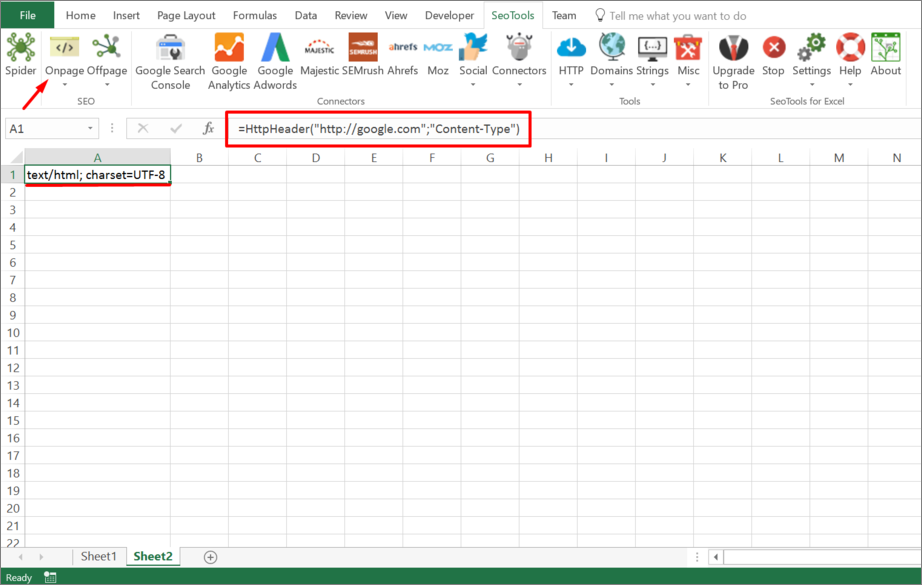
___
## Purpose
Returns response [HTTP header](https://en.wikipedia.org/wiki/List_of_HTTP_header_fields). If no header argument is provided, all headers will be returned. Use the [Dump](/dump/) function to output the entire array of Header names and values.
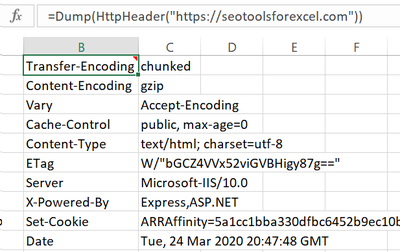
[This function is cached.](/caching/)
___
## Example
=HttpHeader("https://google.com","Content-Type")
=> "text/html; charset=ISO-8859-1"
___
## See
#### Related Functions
* [HtmlTitle](/htmltitle/)
* [HtmlMetaDescription](/htmlmetadescription/)
* [HtmlMetaKeywords](/htmlmetakeywords/)
* [HtmlMetaRobots](/htmlmetarobots/)
* [HtmlCanonical](/htmlcanonical/)
---
# HttpSettings
URL: https://seotoolsforexcel.com/httpsettings/
Type: page
Published: 2015-01-05
Updated: 2019-05-19
Summary: HttpSettings is an XML configuration that you use to control how SeoTools behaves when fetching content.
*HttpSettings* is an XML configuration that you use to control how SeoTools behaves when fetching content.
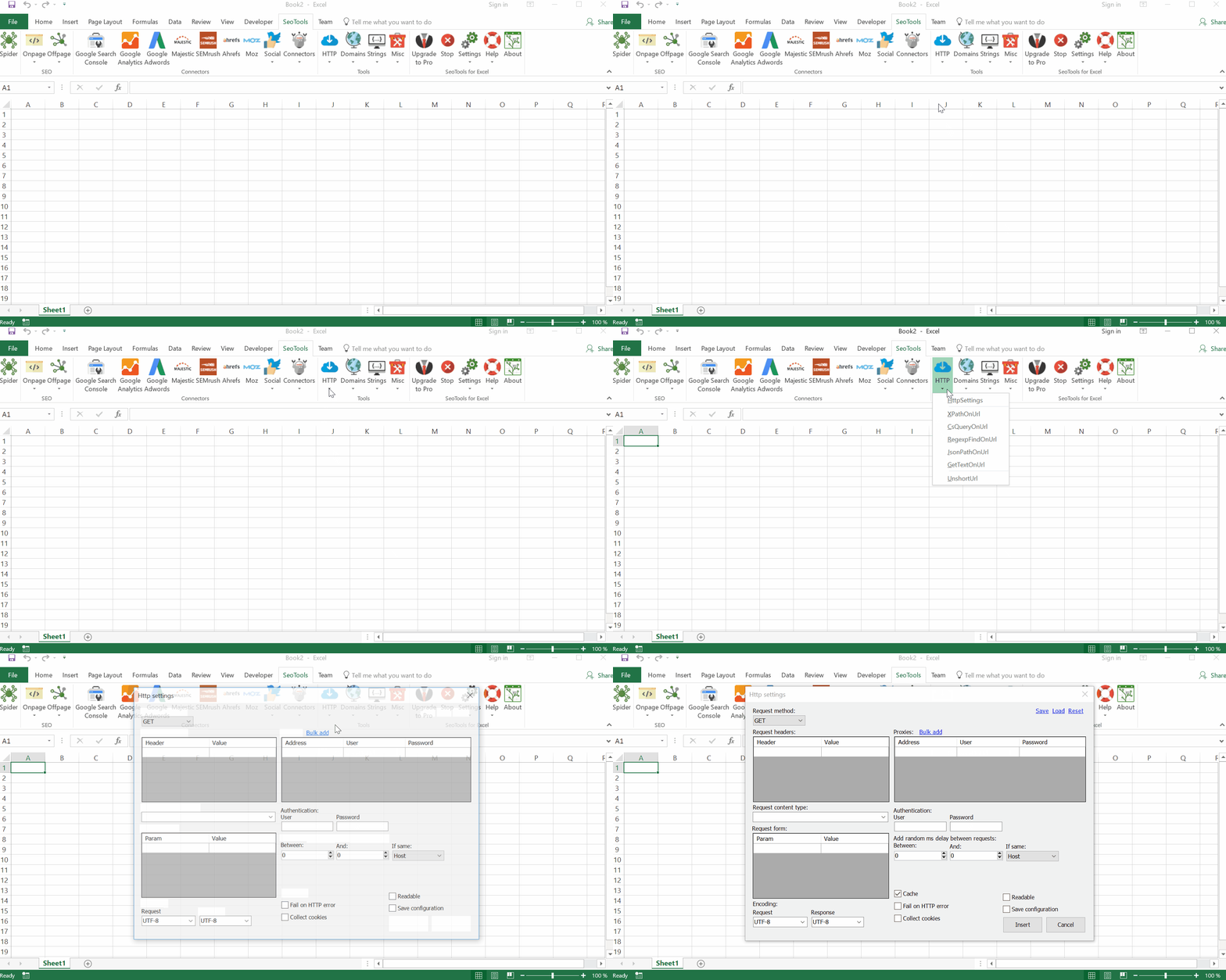
___
## Purpose
You can use HttpSetting in the following ways:
#### Parameter
For functions like:
* [XPathOnUrl](/xpathonurl/)
* [JsonPathOnUrl](/jsonpathonurl/)
* [RegexpFindOnUrl](/regexpfindonurl/)
#### Global Settings
Change the HttpSettings in to affect all functions in SeoTools from the menu:
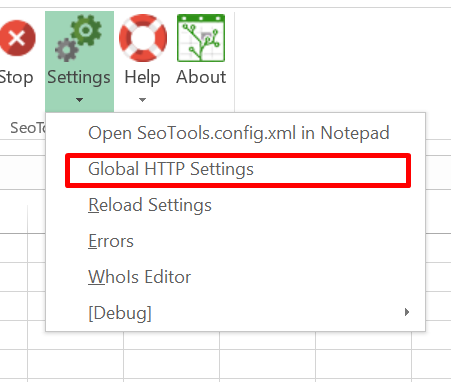
#### Spider
Control the crawling in the [Spider](/spider/).
___
## Example
Get all links from a mobile page.
This can easily be done for desktop pages using [XPathOnUrl](/xpathonurl/):
=XPathOnUrl("https://webpage.com","//a","href")
But to get the mobile page we need to change the UserAgent SeoTools uses when fetching the page.
Open the HttpSettings editor: *HTTP* > *HttpSettings* and add *Request header* `User-Agent` to: (iPhone)
Mozilla/5.0(iPhone;U;CPUiPhoneOS4_0likeMacOSX;en-us)AppleWebKit/532.9(KHTML,likeGecko)Version/4.0.5Mobile/8A293Safari/6531.22.7
*Insert* renders the following formula:
=HttpSettings(TRUE;;;;;;;{"User Agent"\"Mozilla/5.0(iPhone;U;
CPUiPhoneOS4_0likeMacOSX;en-us)AppleWebKit/532.9(KHTML,
likeGecko)Version/4.0.5Mobile/8A293Safari/6531.22.7"})
The final result:
Mozilla/5.0(iPhone;
U;CPUiPhoneOS4_0likeMacOSX;en-us)AppleWebKit/532.9(KHTML,
likeGecko)Version/4.0.5Mobile/8A293Safari/6531.22.7
Combine this with [XPathOnUrl](/xpathonurl/) and we get the completed formula:
=Dump(XPathOnUrl("http://webpage.com","//a",
"href",HttpSettings(TRUE;;;;;;;{"User-Agent"\"Mozilla/5.0(iPhone
;U;CPUiPhoneOS4_0likeMacOSX;en-us)AppleWebKit/532.9
(KHTML,likeGecko)Version/4.0.5Mobile/8A293Safari/6531.22.7"})))
___
## Interval between request
This will ensure that requests to the same host will be executed with a delay. The user can change the minimum and maximum delay in ms (milliseconds):
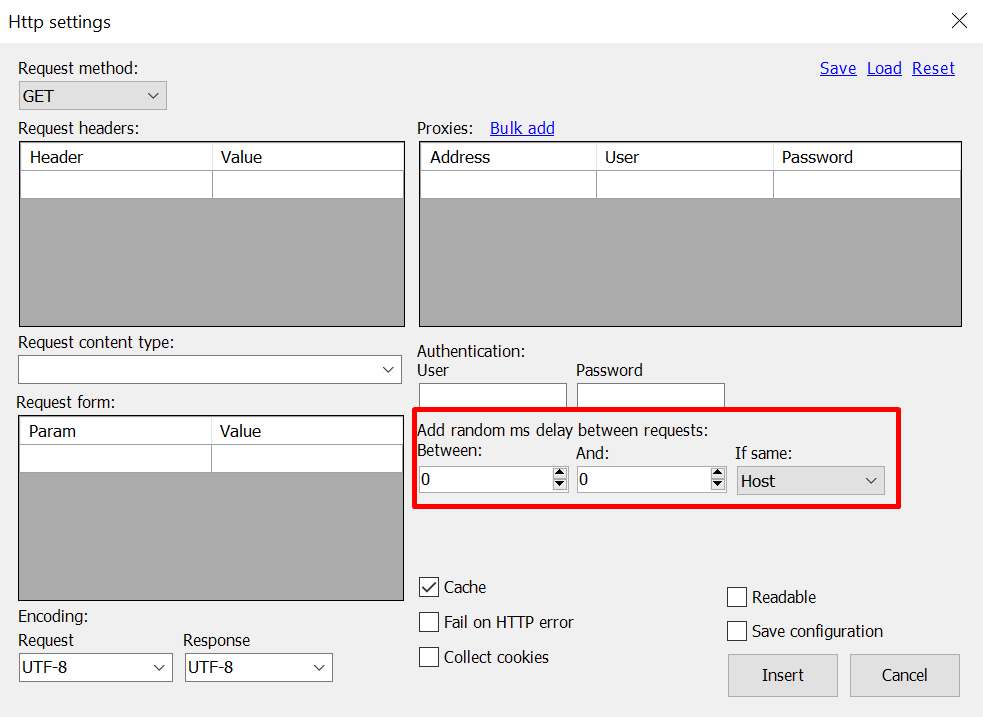
*If same* can be "Host" (default), "Domain" or "Url".
___
## HTTP Timeout
You can configure the timeout period by changing the following value, located in the SeoTools.config.xml file in the installation directory. Standard time is set to 120 seconds (time below is in micro seconds):
120000
___
## Proxies
You can supply SeoTools with one or more proxy to run requests through. If you enter several proxies, SeoTools with distribute requests between them.
___
## Fail on HTTP error
By default, SeoTools doesn't fail on HTTP response codes like 404 and 500. You can set "Fail on HTTP error" in HttpSettings. See [Error management](/error-management/).
___
## Collect cookies
Enables cookies collection between HTTP requests. Button *Clear cache & cookies* in *About* resets the global cookie container.
___
## See
#### Guides
* [Caching](/caching/)
---
# HttpStatus
URL: https://seotoolsforexcel.com/httpstatus/
Type: page
Published: 2015-03-29
Updated: 2020-02-29
Summary: retrieve the HTTP Status Code and its description to find broken links with SeoTools for Excel
```
=HttpStatus(URL,
[string requestMethod=GET],
[string part]) : string
```
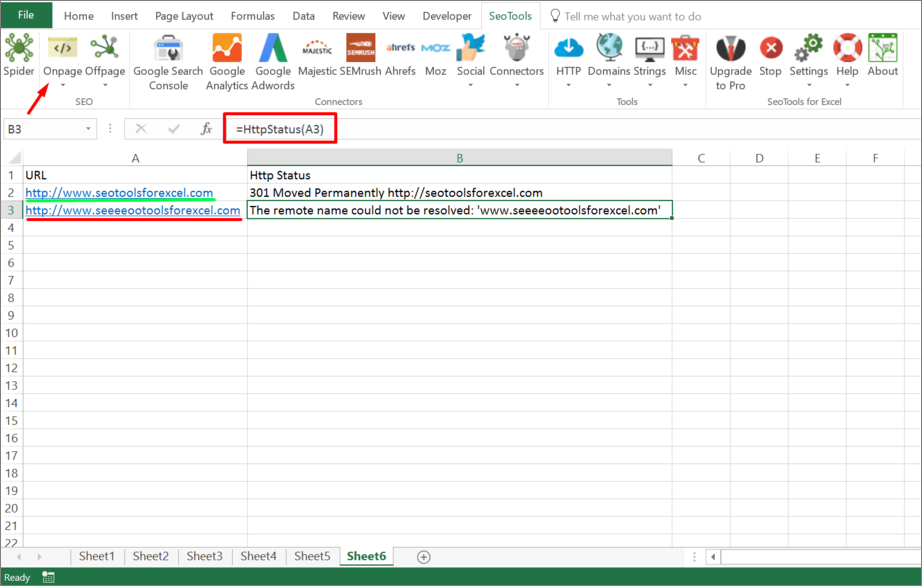
___
## Purpose
Returns the [HTTP status code](https://en.wikipedia.org/wiki/List_of_HTTP_status_codes) and its description. Use this function to find broken links.
HttpStatus also retrieves the Location header (useful for debugging redirects).
Use [UnshortUrl](/unshorturl/) to get the url of the last redirect.
## Part
Returns a specific part of the result. Available parts:
`code`, `description`, `location`
=HttpStatus("https://seotoolsforexcel.com";"code")
=> 200
___
## See
#### Related Functions
* [HtmlMeta](/htmlmeta/)
* [HtmlMetaDescription](/htmlmetadescription/)
* [HtmlMetaKeywords](/htmlmetakeywords/)
* [HtmlMetaRobots](/htmlmetarobots/)
* [HtmlCanonical](/htmlcanonical/)
---
# Access Hubspot in Excel
URL: https://seotoolsforexcel.com/hubspot/
Type: page
Published: 2017-03-19
Updated: 2020-05-21
Summary: SeoTools for Excel offers a user-friendly and effective method to collect CRM data from HubSpot straight to Excel within a matter of seconds.
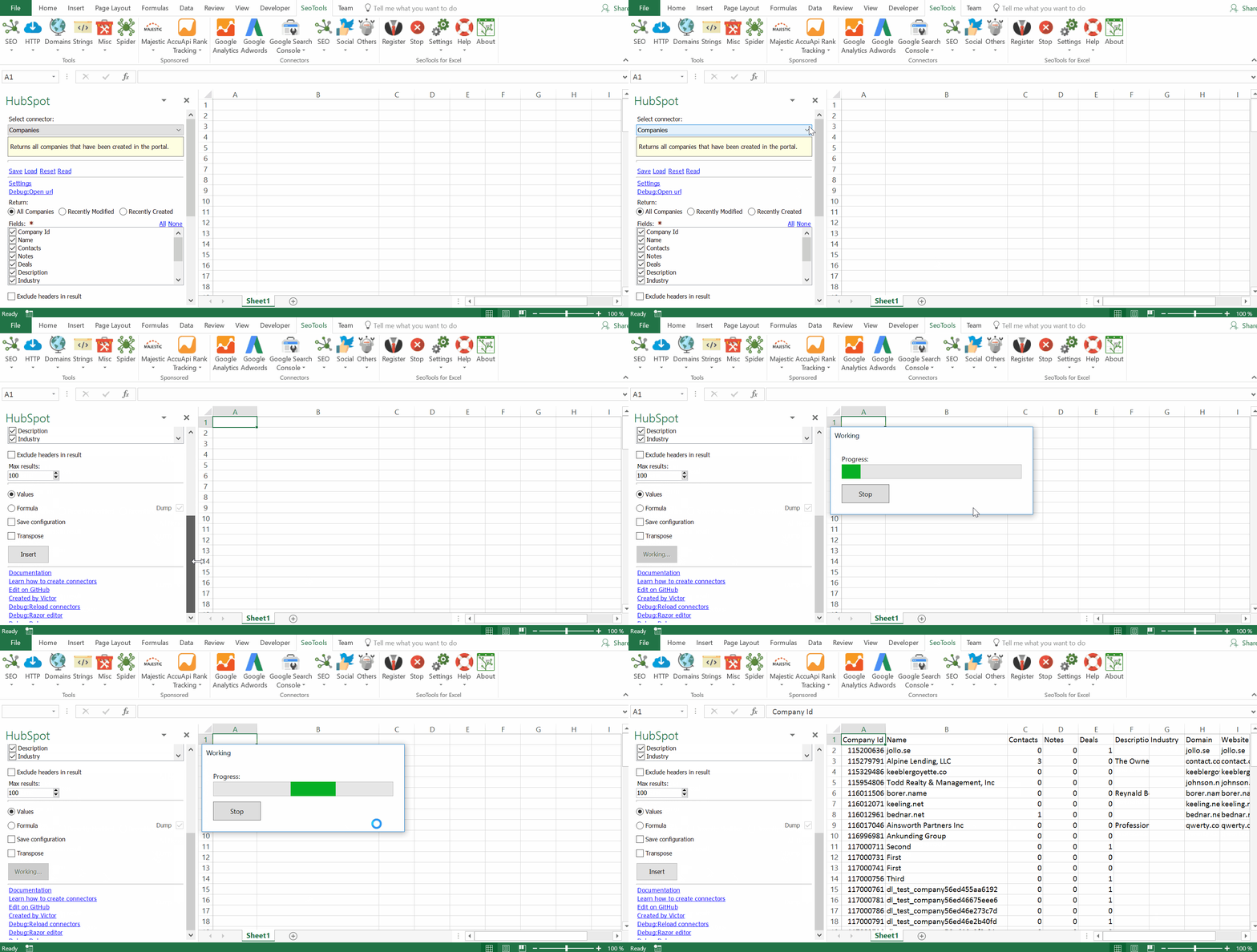
___
## Companies
* **List** - Extract all companies associated with your account. Filter results by:
- Recently modified
- Recently created
* **By Domain** - Extract all companies with web pages belonging to a specific domain.
___
## Contacts
* **List** - Extract all contacts associated with your account. Filter results by:
- Recently modified
* **By Email** - Lookup one or more contacts by their email addresses.
* **By Id** - Lookup one or more contacts by their ids.
* **In Company** - Extract a list of all contacts belonging to a specific company.
* **In List** - Extract a list of all contacts belonging to a specific list.
* **Search** - Extract a list of all contacts matching a specific query.
___
## Contact Lists
* **List** - Extract all contact lists associated with your account. Filter results by:
- Static
- Dynamic
* **By Id** - Lookup one or more contact lists by their ids.
___
## Deals
* **List** - Extract all deals associated with your account. Filter results by:
- Recently modified
- Recently created
* **Associated** - Extract a list of all deals associated to a specific company or contact.
___
## Deal Pipelines
* **List** - Extract all deal pipelines associated with your account.
___
## Keywords
* **List** - Extract a list of all keywords created in your account.
___
## Owners
* **List** - Extract a list of all owners associated with your account. Filter results by:
- Email address
___
## Workflows
* **List** - Extract a list of all workflows associated with your account.
___
## Access
## Add from Manager
The Hubspot Connector is available in the **[Connectors Manager](/manage-connectors/)** in the top ribbon:

Head over to the **CRM Category** and install Hubspot:
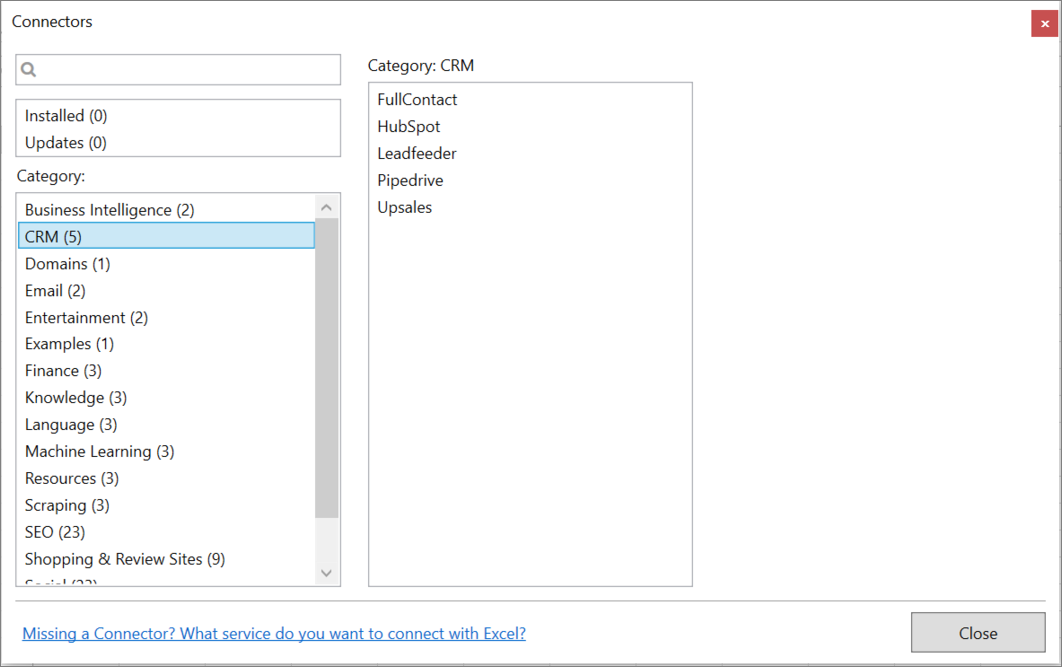
___
## Contribute
This connector suite is open-sourced on [GitHub](https://github.com/nielsbosma/SeoTools-for-Excel-Connectors/blob/master/HubSpot.xml).
___
## See
#### Official Documentation
* [Hubspot API](https://developers.hubspot.com/docs/overview)
#### Related Functions
* [Pipedrive](/pipedrive/)
#### Resources
* [Manager](/manage-connectors/)
---
# Access Hunter in Excel
URL: https://seotoolsforexcel.com/hunter/
Type: page
Published: 2018-06-06
Updated: 2021-07-13
Summary: SeoTools for Excel offers a user-friendly and effective method to verify emails and search domains for emails inside Excel.
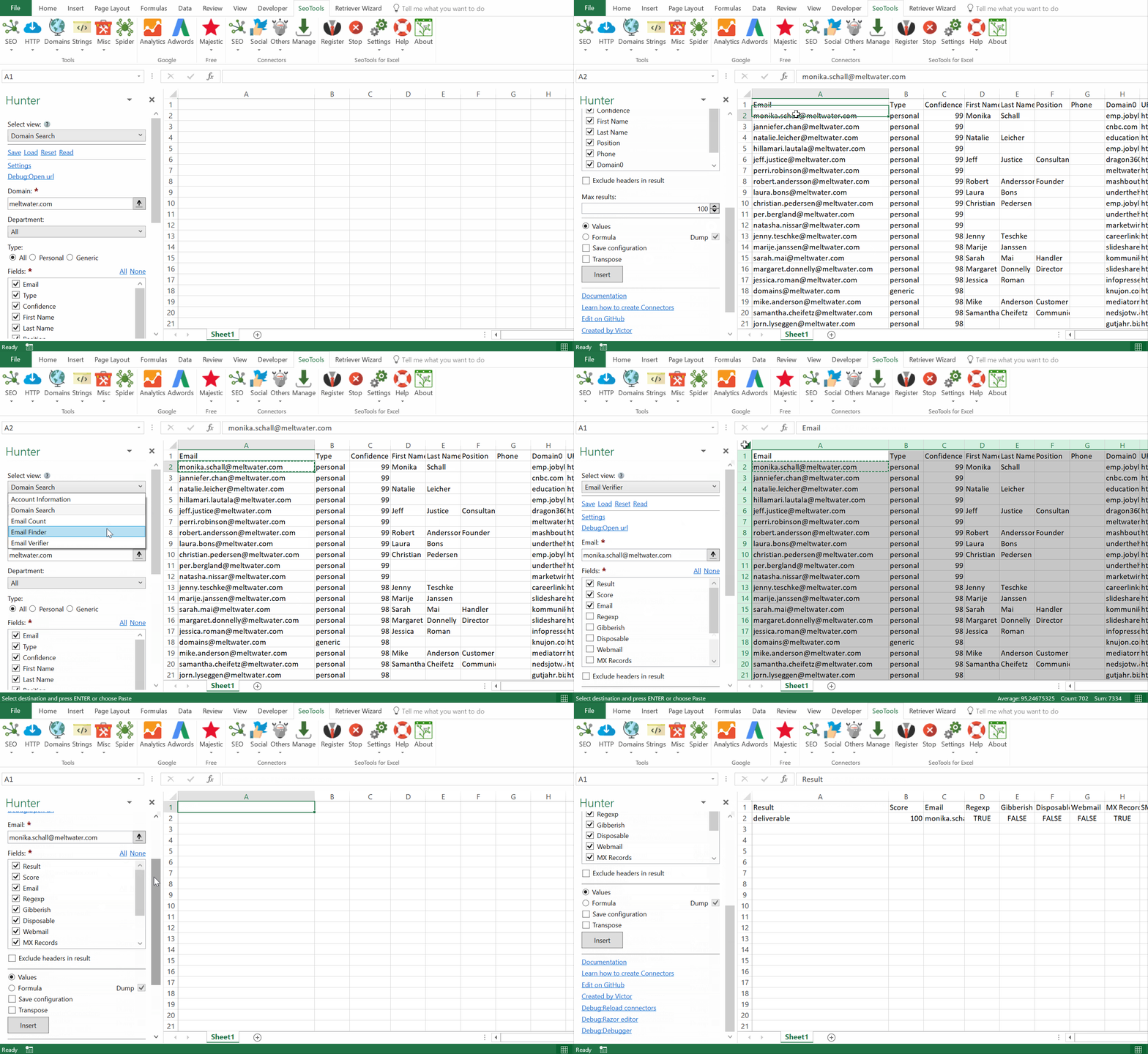
___
## Features
* **Domain Search** - Extract every email address found on the internet using a given domain name, with sources. Filter results by:
- Department
- Owner type [Personal or Generic]
* **Email Finder** - Extract the email address of someone from his first name, last name and domain name.
* **Email Verifier** - Check if a given email address is deliverable and has been found on the internet.
* **Email Count** - Allows you to know how many email addresses we have for one domain or for one company.
* **Account Information** - Enables you to get information regarding your Hunter account at any time.
___
## Access
## Add from Manager
The Hunter Connector is available in the **[Connectors Manager](/manage-connectors/)** in the top ribbon:

Head over to the **Email Category** and install Hunter:

## Get API keys
1. If you don't have a Hunter account, [sign up here](https://hunter.io/users/sign_up?utm_source=api).
2. Click on "API" in the top menu.
3. Click on the eye-icon to show the API key. Copy it and paste it in Settings in the Hunter Connector:
___
## Contribute
This connector suite is open-sourced on [GitHub](https://github.com/nielsbosma/SeoTools-for-Excel-Connectors/blob/master/Hunter.xml).
___
## See
#### Official Documentation
* [Hunter API](https://hunter.io/api/v2/docs#introduction)
#### Related Functions
* [Gmail](/gmail/)
* [ZeroBounce](/zerobounce/)
#### Resources
* [Manager](/manage-connectors/)
---
# Access iFunny in Excel
URL: https://seotoolsforexcel.com/ifunny/
Type: page
Published: 2020-02-28
Updated: 2020-02-28
Summary: Collect data from the iFunny database and analyze feeds from channels and users, get follower, following and subscriptions lists, lookup memes.
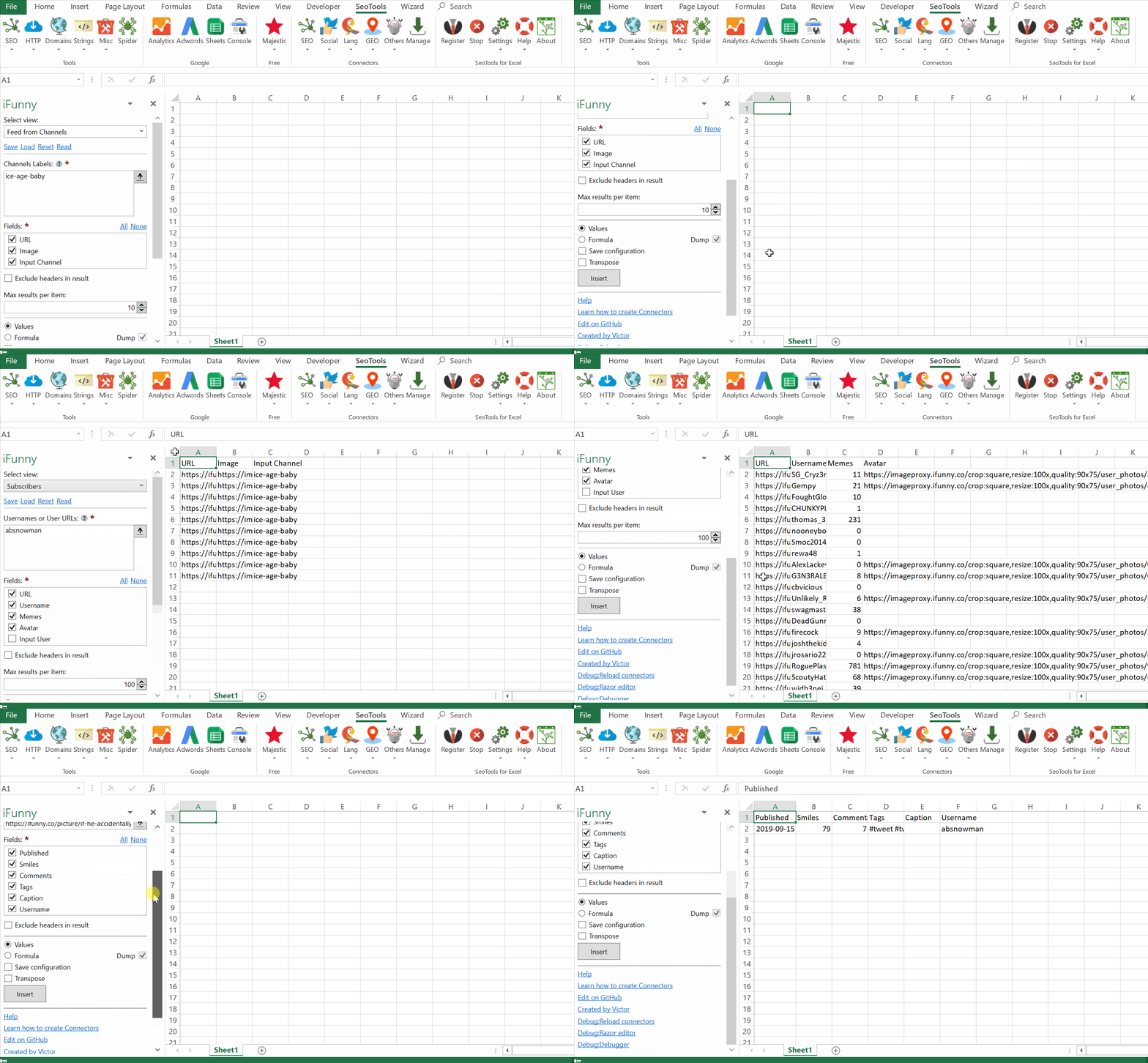
___
## Memes
* **Lookup** - Collect metadata about a specific meme.
* **Feed from Channels** - Gets all memes from one or more channels.
* **Feed from Users** - Gets all memes from one or more users.
## Users
* **Lookup** - Collect metadata about a specific user.
* **Followers** - Gets all users who follows a specific user.
* **Following** - Gets all users a specific user follows.
___
## Access
## Add from Manager
The iFunny Connector is available in the **[Connectors Manager](/manage-connectors/)** in the top ribbon:

Head over to the **Social Category** and install iFunny :

___
## Contribute
This connector suite is open-sourced on [GitHub](https://github.com/nielsbosma/SeoTools-for-Excel-Connectors/blob/master/Ifunny.xml).
___
## See
#### Related Functions
* [iFunny](/ifunny/)
#### Resources
* [Manager](/manage-connectors/)
---
# ImageProperties
URL: https://seotoolsforexcel.com/imageproperties/
Type: page
Published: 2017-03-14
Updated: 2019-05-19
Summary: Use Image Properties to extract detailed information about any image on the web as a formula in Excel with SeoTools for Excel.
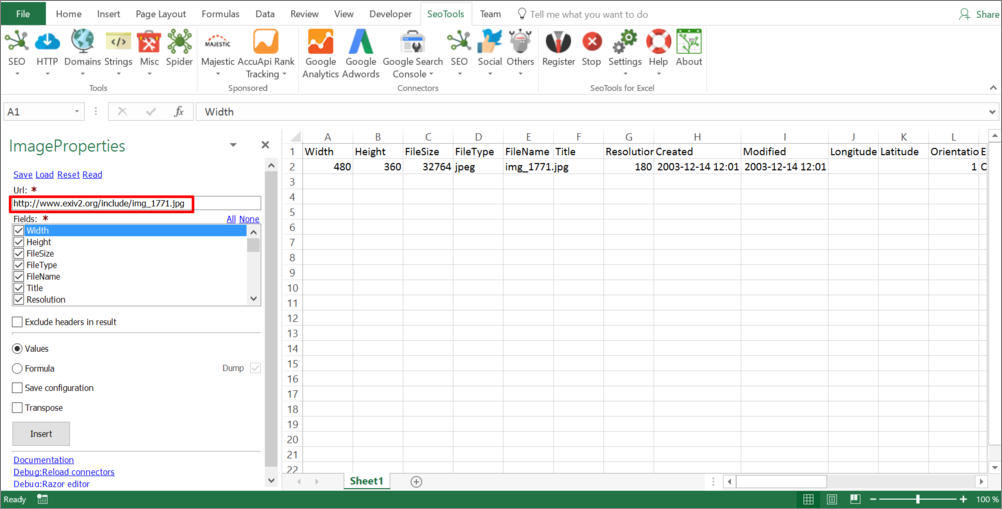
## Purpose
Returns detailed information about images. Specify the URL to an image online and SeoTools returns available properties associated with the image.
## Properties
* Width
* Height
* FileSize
* FileType
* FileName
* Title
* Resolution
* Created
* Modified
* Longitude
* Latitude
* Orientation
* EquipmentManufacturer
* EquipmentModel
* ExifExposureTime
* LuminanceTable
* ChrominanceTable
* Compression
* ISO
* ColorSpace
* ExposureMode
* DigitalZoomRatio
* WhiteBalance
* Contrast
* Saturation
* Sharpness
* ExifFlashFired
* ExifFlashStrobeDetectionFunction
* ExifFlashStrobeReturnLightDetected
* ExifFlashCompulsoryFlash
* ExifFlashFlashSuppression
* ExifFlashAutoMode
* ExifFlashNoFlashFunction
* ExifFlashRedEyeReduction
___
## See
#### Related Functions
* [Face++](/faceplusplus/)
---
# Access IMDB in Excel
URL: https://seotoolsforexcel.com/imdb/
Type: page
Published: 2018-03-03
Updated: 2019-11-02
Summary: SeoTools for Excel offers a user-friendly and effective method to collect data from IMDB straight to Excel within a matter of seconds.
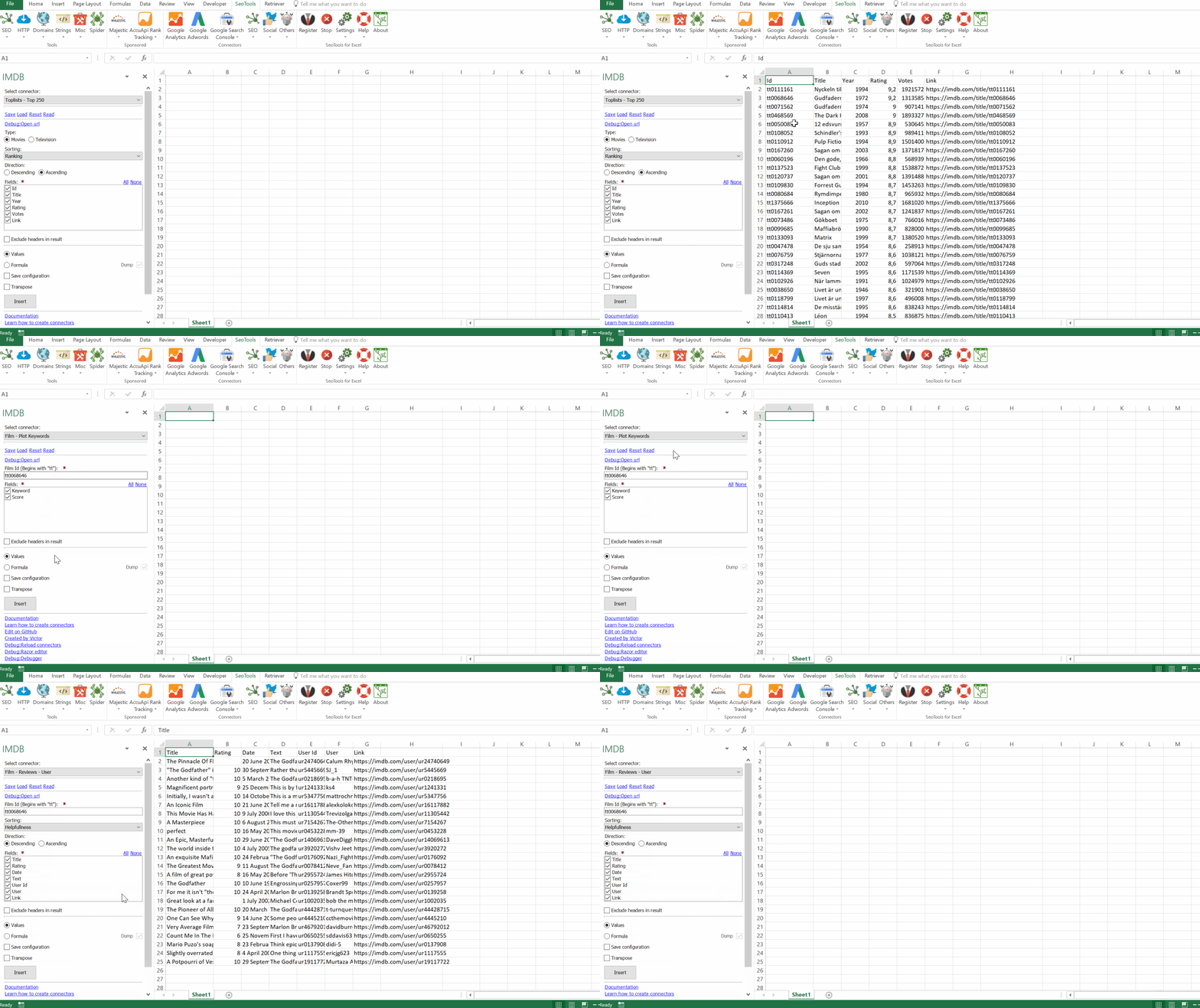
___
## Film
* **Full Cast** - Lists all casting members of a film.
* **Also Known As** - Lists all alternative titles to a film.
* **Others Like** - Lists films which users also like based the ratings of a film.
* **Photos** - Lists all photos associated with a film.
* **Plot Keywords** - Lists all plot keywords and the relevance score of each keyword.
* **Release Dates** - Lists all registered release dates in countries.
## Film Reviews
* **Users** - Lists reviews from IMDB users.
* **External** - Lists all reviews from external publishers.
* **Metacritic** - Lists all Metacritic reviews.
## Films
* **Oscar Winners** - Lists all Oscar Winners.
* **In Theaters** - Lists all films running in theaters. Filter results by:
- In Theaters
- Coming Soon
## Series
* **Episodes** - Lists all episodes of a specific season of a series.
## Toplists
* **Top 250** - Lists the 250 highest rated films or TV-series of all time.
* **Most Popular** - Lists the most popular films or TV-series.
* **Box Office** - Lists the currently highest grossing films.
* **Bottom 100** - Lists the 100 lowest rated films or TV-series of all time.
## Person
* **Filmography** - Lists all production a person has been involved with.
* **Photos** - Lists all photos associated with a person.
* **Plot Keywords** - Lists all plot keywords and the relevance score of each keyword.
* **Release Dates** - Lists all registered release dates in countries.
## Persons
* **Most Popular** - Lists the most popular persons.
* **Born Today** - Lists all persons which were born on the current date.
___
## Access
## Add from Manager
The IMDB Connector is available in the **[Connectors Manager](/manage-connectors/)** in the top ribbon:

Head over to the **Knowledge Category** and install IMDB:
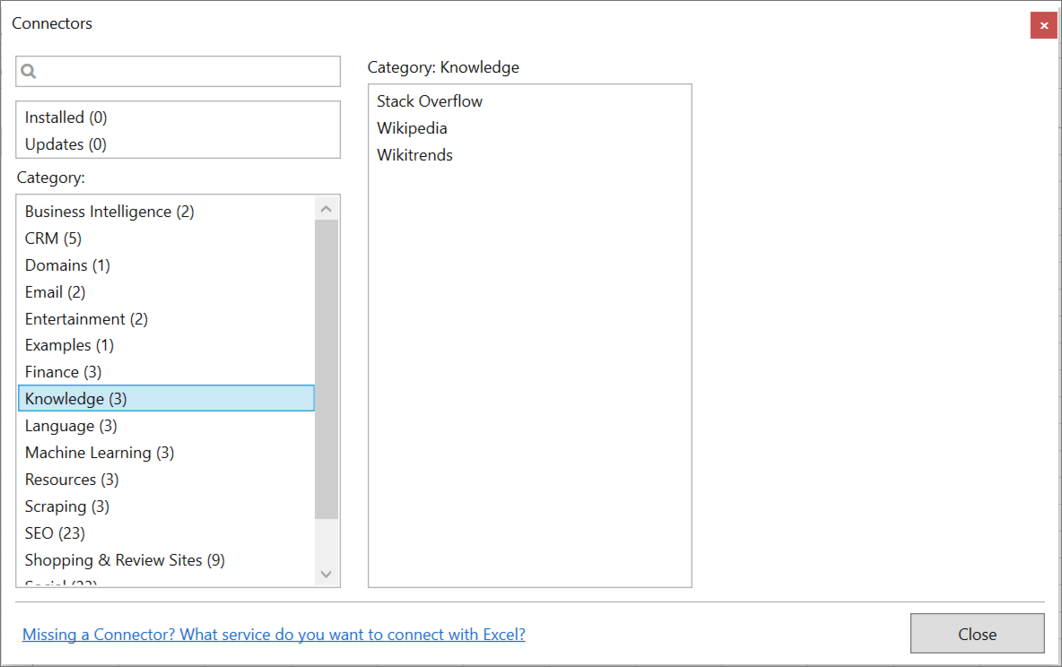
___
## Contribute
This connector suite is open-sourced on [GitHub](https://github.com/nielsbosma/SeoTools-for-Excel-Connectors/blob/master/IMDB.xml).
___
## See
#### Related Functions
* [Trakt](/trakt/)
#### Resources
* [Manager](/manage-connectors/)
---
# Access Imgur in Excel
URL: https://seotoolsforexcel.com/imgur/
Type: page
Published: 2018-06-20
Updated: 2020-02-28
Summary: SeoTools for Excel offers an effective method to collect images and metadata from Imgur straight to Excel within a matter of seconds.
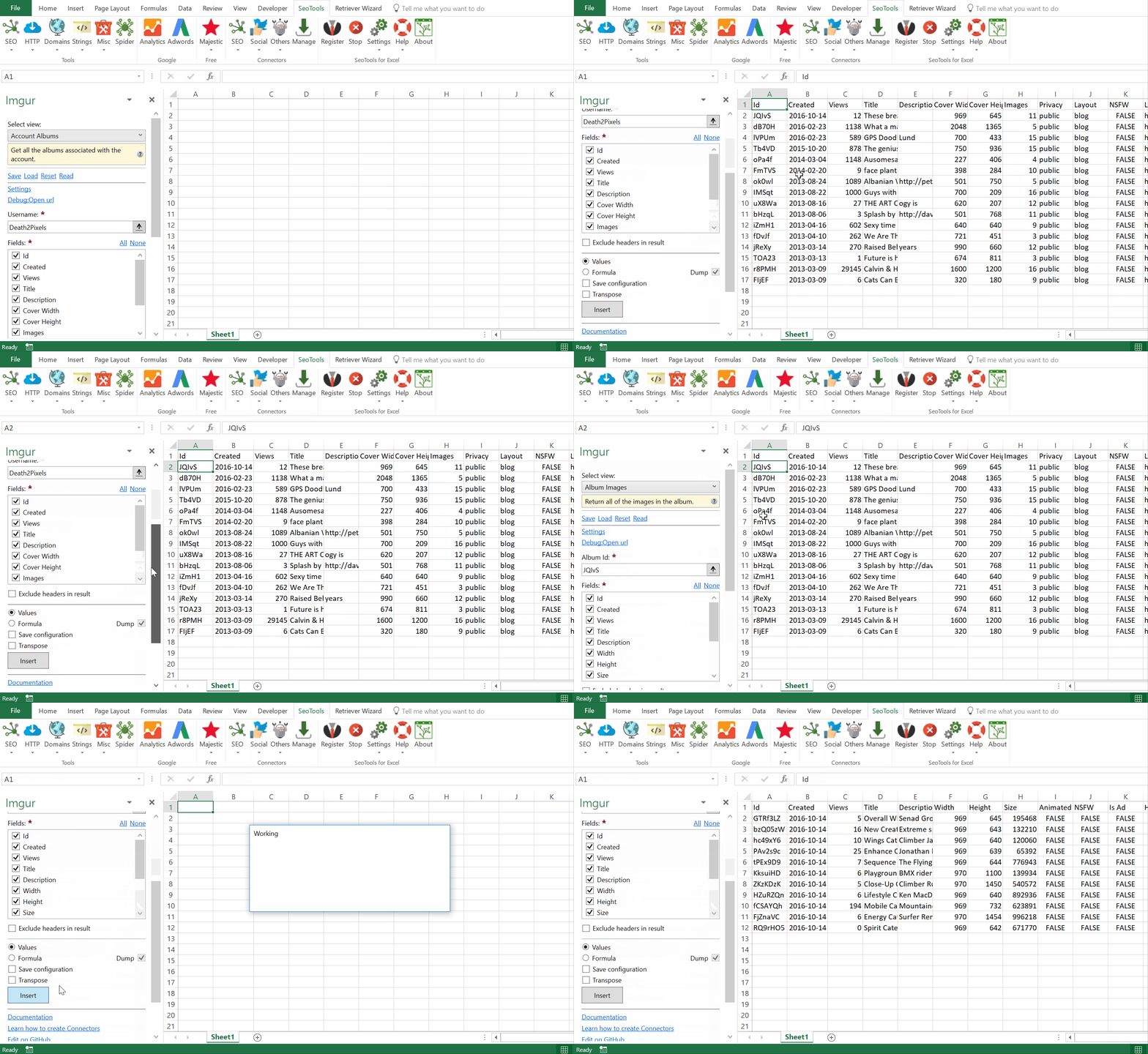
___
## Accounts
- **Lookup** - Get standard user information.
## Albums
- **From Account** - Get all the albums associated with an account.
- **Lookup** - Get additional information about an album.
## Comments
- **From Account** - Get the comments a user has created.
- **From Account Total** - Get a count of all comments a user has created.
- **Lookup** - Get information about a specific comment.
## Gallery
- **Search** - Search the gallery with a given query string.
## Images
- **From Album** - Get all the images in an album.
- **Lookup** - Get information about a specific image.
___
## Add from Manager
The Imgur Connector is available in the **[Connectors Manager](/manage-connectors/)** in the top ribbon:

Head over to the **Social Category** and install IMDB:

___
## Contribute
This connector suite is open-sourced on [GitHub](https://github.com/nielsbosma/SeoTools-for-Excel-Connectors/blob/master/Imgur.xml).
___
## See
#### Official Documentation
* [Imgur API](https://api.imgur.com/)
#### Related Functions
* [iFunny](/ifunny/)
#### Resources
* [Manager](/manage-connectors/)
---
# Access Instagram in Excel
URL: https://seotoolsforexcel.com/instagram/
Type: page
Published: 2017-03-18
Updated: 2019-05-19
Summary: SeoTools for Excel offers a user-friendly and effective method to search and collect Instagram statistics straight to Excel within a matter of seconds.
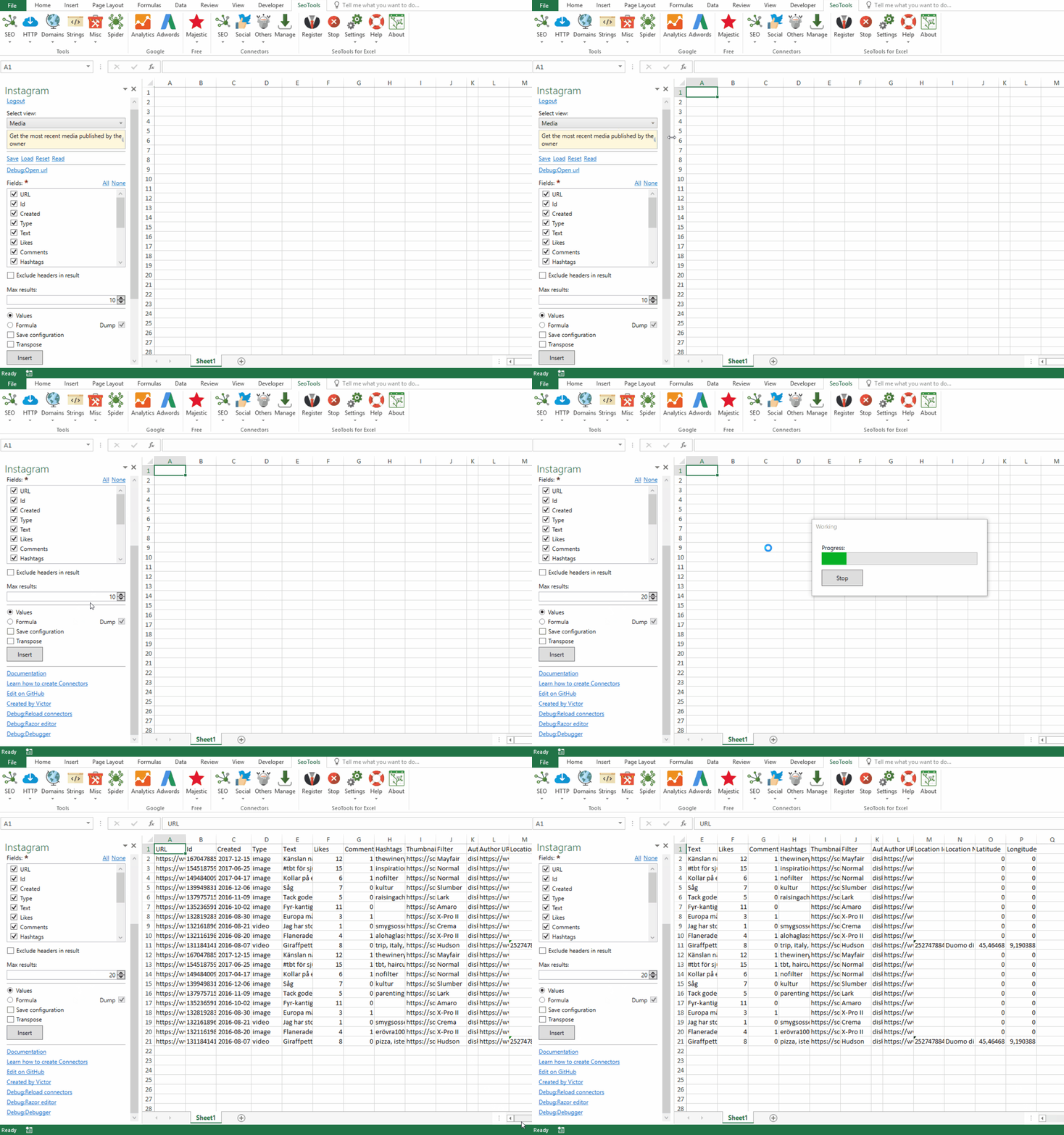
___
## Media
* **Recent** - Get the most recent media published by the owner. Available metrics:
- URL
- Id
- Created
- Text
- Type *(image, video or carousel)*
- Likes
- Comments
- Hashtags *(comma-separated list)*
- Thumbnail
- Filter
- Author URL
- Location Id, name, latitude & longitude
## Account
* **Info** - Get information about the owner. Available metrics:
- User Id
- Username
- Followers
- Follows
- Media Count
- Bio
- Full name
- Website link
- Avatar link
## Comments
* **Recent** - Get a list of recent comments on your media object. Available metrics:
- Comment Id
- Text
- Created
- Author
___
## Contribute
This connector suite is open-sourced on [GitHub](https://github.com/nielsbosma/SeoTools-for-Excel-Connectors/blob/master/Instagram.xml).
___
## See
#### Official Documentation
* [Instagram API](https://www.instagram.com/developer/)
#### Related Functions
* [Instagram Graph](/instagram-graph/)
---
# Instagram Accounts
URL: https://seotoolsforexcel.com/instagram-accounts/
Type: page
Published: 2017-03-18
Updated: 2019-05-18
Summary: InstagramAccounts is a function of SeoTools for Excel that scrapes a given URL for Instagram accounts.
```
=Connector("OnPageScrapers.InstagramAccount","http://www.cnn.com")
```
___
## Purpose
Scrapes the given URL for Instagram accounts.
___
## Dump
Combine the function with Dump() to extract all items.
___
## See
#### Related Functions
* [On-Page Connectors](/connectors-onpage/)
* [Google AdSense Id](/googleadsenseid/)
* [Google Analytics Id](/googleanalyticsid/)
* [Twitter Accounts](/twitter-accounts/)
* [LinkedIn Accounts](/linkedin-accounts/)
* [Email](/email/)
---
# Access Instagram Insights in Excel
URL: https://seotoolsforexcel.com/instagram-insights/
Type: page
Published: 2018-06-05
Updated: 2023-06-28
Summary: SeoTools for Excel offers an effective way to extract insights-data for Instagram business accounts straight to Excel within a matter of seconds.
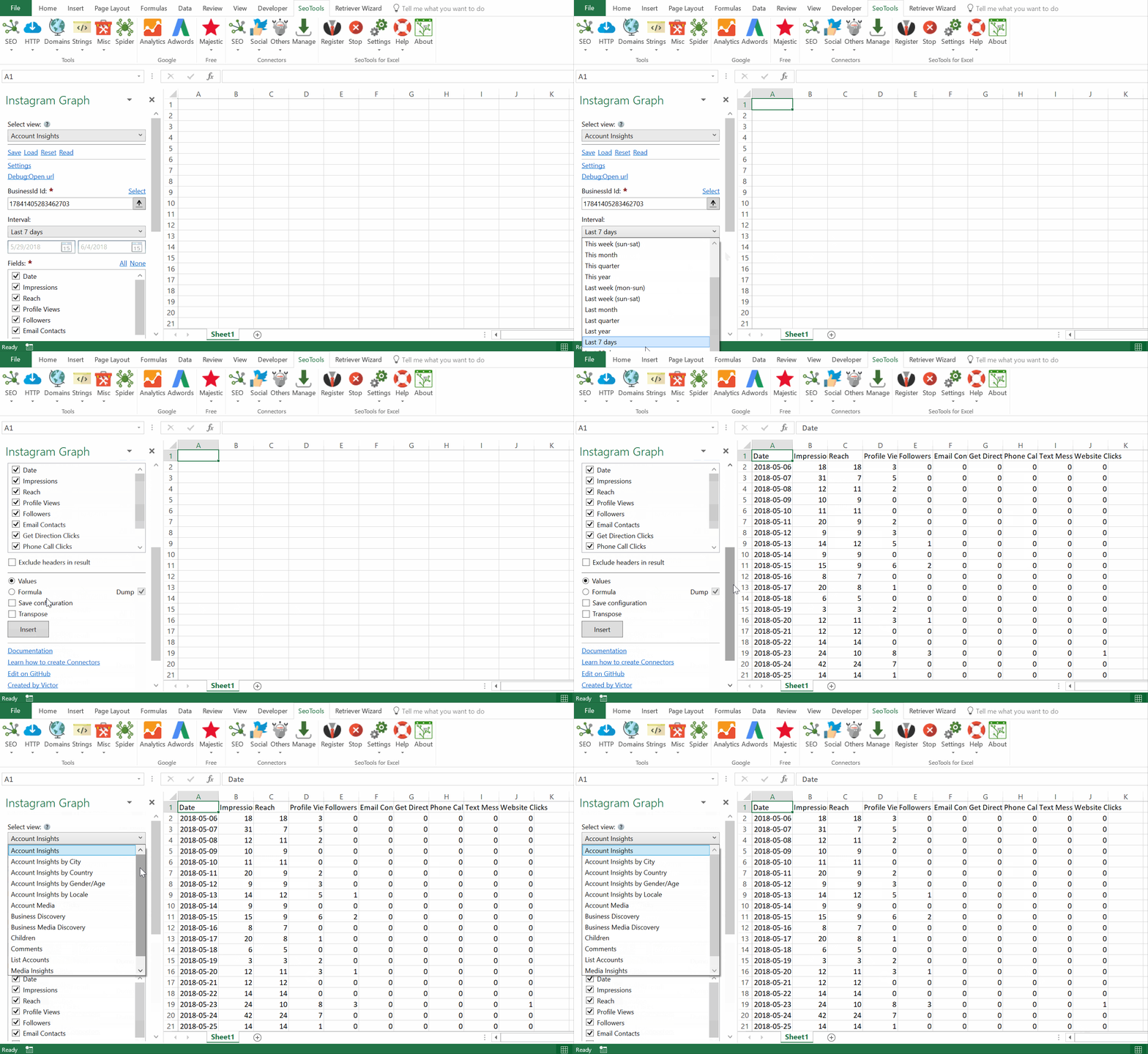
The Instagram Graph API allows you to access Instagram Business Accounts so you can more easily analyze media objects, view comments and metadata, and get insights and metrics.
___
## Account Insights
* **Daily Stats** - Insights data for a specific date range.
- *Date*
- *Impressions*
- *Reach*
- *Profile Views*
- *Followers*
- *Email Contacts*
- *Get Direction Clicks*
- *Phone Call Clicks*
- *Text Message Clicks*
- *Website Clicks*
* **Stats by Product Type** - Insights data broken down by product type. Filter by metric type (Reach, total impressions, Likes, Comments, Shares)
- *Post*
- *Story*
- *IGTV*
- *Reel*
- *Ad*
- *Carousel*
* **Total Stats** - Aggregated insights data aggregated by specific period.
- *Impressions*
- *Reach*
- *Total interactions*
- *Accounts engaged*
- *Likes*
- *Comments*
- *Saves*
- *Shares*
- *Replies*
- *Profile Link Taps*
- *Website Clicks*
- *Profile Views*
## Media Insights
* **Feed** Get all media objects on an Instagram Business User.
- *Permalink*
- *Media Id*
- *Created*
- *Caption*
- *Type*
- *Likes*
- *Comment*
- *Image*
- *Username*
- *Impressions*
- *Reach*
- *Video Views*
- *Saved*
- *Engagement*
* **Lookup** Get a specific media object.
- *Impressions*
- *Reach*
- *Saved*
- *Engagement*
- *Video Views*
## Business Discovery
* **Account** - Allow you to get basic metadata about other Instagram Business Accounts.
* **Media** - Allow you to get basic metadata about other Media created by other Instagram Business Accounts.
## Followers
* **Demography** The Business Account's followers broken down by demography. Dimensions:
- *Age*
- *Country*
- *Gender & Age*
- *Locale*
* **Online Hours** Total number of the Business User's followers who were online during the specified range.
___
## Contribute
This connector suite is open-sourced on [GitHub](https://github.com/nielsbosma/SeoTools-for-Excel-Connectors/blob/master/InstagramInsights.xml).
___
## See
#### Official Documentation
* [Instagram Graph API](https://developers.facebook.com/docs/instagram-api/reference)
#### Related Functions
* [Facebook Insights](/facebook-insights/)
---
# Installation
URL: https://seotoolsforexcel.com/installation/
Type: page
Published: 2015-03-29
Updated: 2024-10-29
Summary: Users are recommended to install SeoTools for Excel with the Installer to have the plugin available every time Excel is launched.
Installer
### Manual Method
1. Download the suitable version, it should typically be 64-bit.
2. Unpack the contents of the zip-file.
3. In Excel, goto File-> Options-> Add-ins
4. Click "Go..." next to Manage: Excel Add-ins at the bottom
5. Click "Browse" and add the SeoTools32.xll/SeoTools64.xll file from step 1.

### Installer Method
The Installer method allows users to access SeoTools every time Excel is launched.
The Installer automatically identifies the correct version to install *(32 or 64 bit)*. Just follow the instructions and you are on you way:
___
Upgrade
The Installer also handles upgrades from earlier versions. Use the ***Keep previous version settings*** option to begin where you left off:
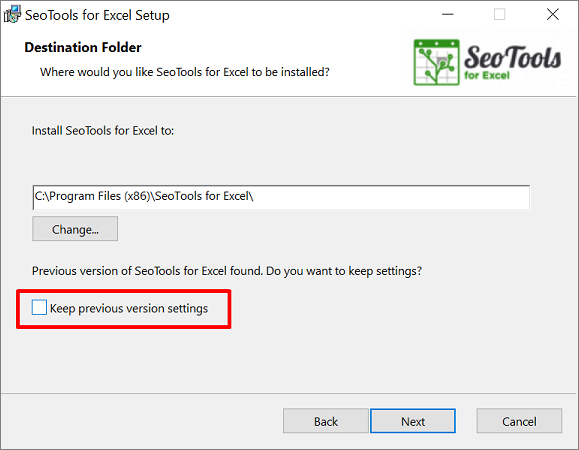
___
Known Issues
If you experience one of the following, click on the links for solutions.
Fails during installation:
["SeoTools for Excel ended prematurely"](https://seotoolsforexcel.com/ended-prematurely/)
Fails during Excel startup after installation:
["The file format and extension of 'SeoTools32.xll' don't match"](https://seotoolsforexcel.com/xll-dont-match/)
Installs, but no SeoTools tab appears on the ribbon:
[SeoTools is not enabled in Excel](/enable-seotools/)
___
## See
* [Troubleshooting](/troubleshooting/)
* [Where to go next?](/thanks-for-installing-seotools-for-excel/)
* [Purchase](/purchase/)
---
# Access Internet Archive in Excel
URL: https://seotoolsforexcel.com/internet-archive/
Type: page
Published: 2017-03-18
Updated: 2018-08-25
Summary: SeoTools for Excel offers a user-friendly and effective method to collect metrics for thousands of web pages from the Internet Archive database.
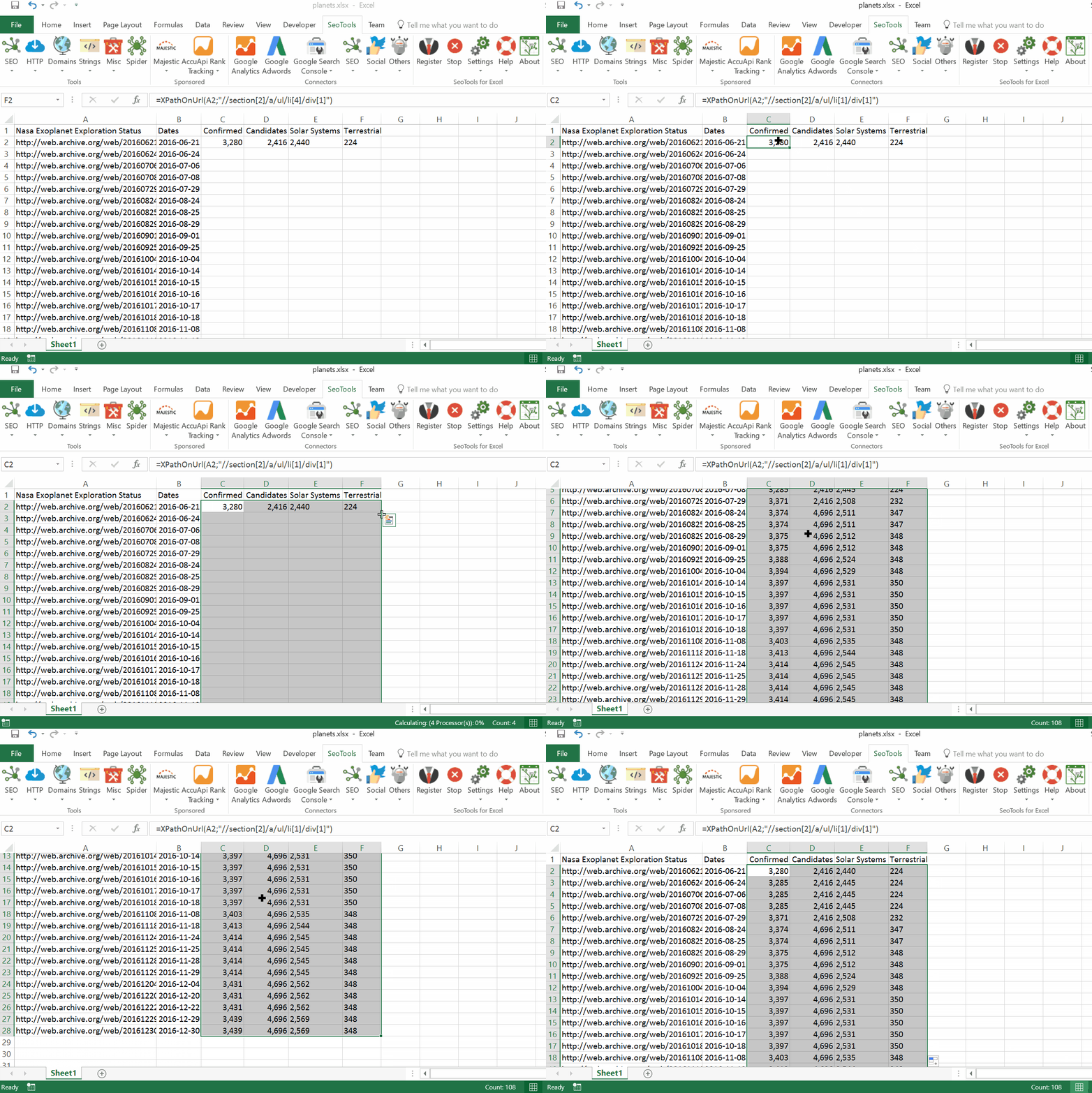
___
## Purpose
The Internet Archive Connector offers a clever and simple solution to collect historical web page content and compare over time. It is applicable on all websites registered in the Internet Archive database, which means all kinds of **practical** marketing opportunities as well. For example,
- *How has your competitor product portfolio developed over time?*
- *What titles have been used over time?*
- *What images have been used over time?*
- *How many interactions, such as shares or comments, have been registered over time?*
## How To
1. Make sure you have an API key to [Phantom JS Cloud](/phantomjs-cloud/) (see below).
2. Enter your desired website and the year to collect historical "snapshot" images from.
3. Next, click on **Insert** and SeoTools will list all URLs available for the desired time span.
4. Inspect one of the collected URLs for a proper scraping syntax which extracts the content you are interested in. SeoTools supports many different options, for example [XPath](http://seotoolsforexcel.com/xpathonurl/), [Json](http://seotoolsforexcel.com/jsonpathonurl/), [Regex](http://seotoolsforexcel.com/regexpfindonurl/), and [CsQuery](http://seotoolsforexcel.com/csquery/). The good old HTML functions works as well, for example [HTMLTitle](http://seotoolsforexcel.com/htmltitle/) and [LinkCount](http://seotoolsforexcel.com/linkcount/).
## Metrics
The Connector also includes the following metrics:
- First Seen
- Last Seen
- Archived Count
___
## Getting an API key
1. Register for a PhantomJS Cloud [account](https://dashboard.phantomjscloud.com/dash.html#/signup?_k=wwstmw).
2. Activate your account.
3. Retrieve your API key from the dashboard.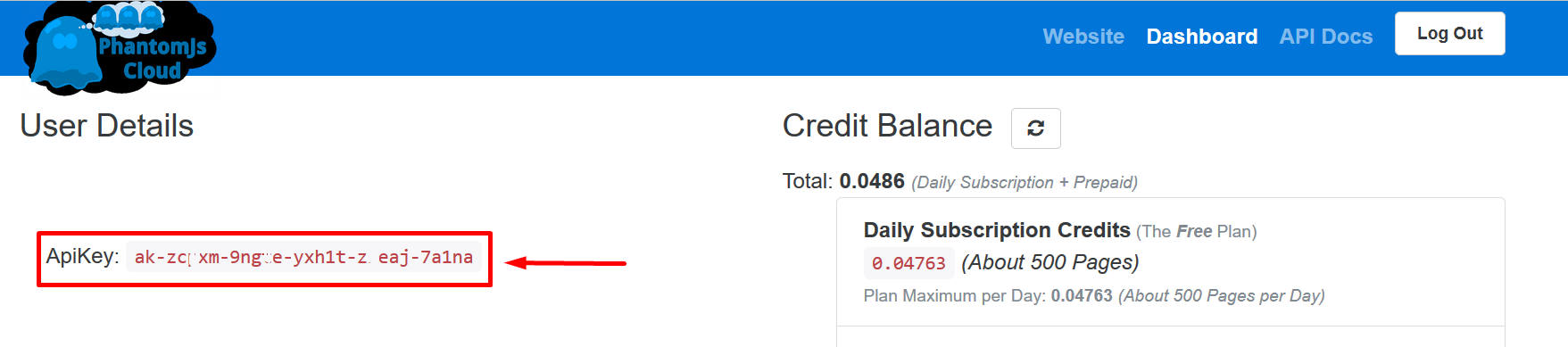
___
## Contribute
This connector suite is open-sourced on [GitHub](https://github.com/nielsbosma/SeoTools-for-Excel-Connectors/blob/master/InternetArchive.xml).
___
## See
#### Guides
* [An Innovative Way to Track Page Development](/an-innovative-way-to-track-page-development/)
#### Related Functions
* [Phantom JS Cloud](/phantomjs-cloud/)
---
# IpClassC
URL: https://seotoolsforexcel.com/ipclassc/
Type: page
Published: 2016-11-07
Updated: 2019-05-19
Summary: Use the IP Class-C function to find duplicate class c blocks for a range of URLs as a function in SeoTools for Excel
```
=IpClassC(string domain) : string
```
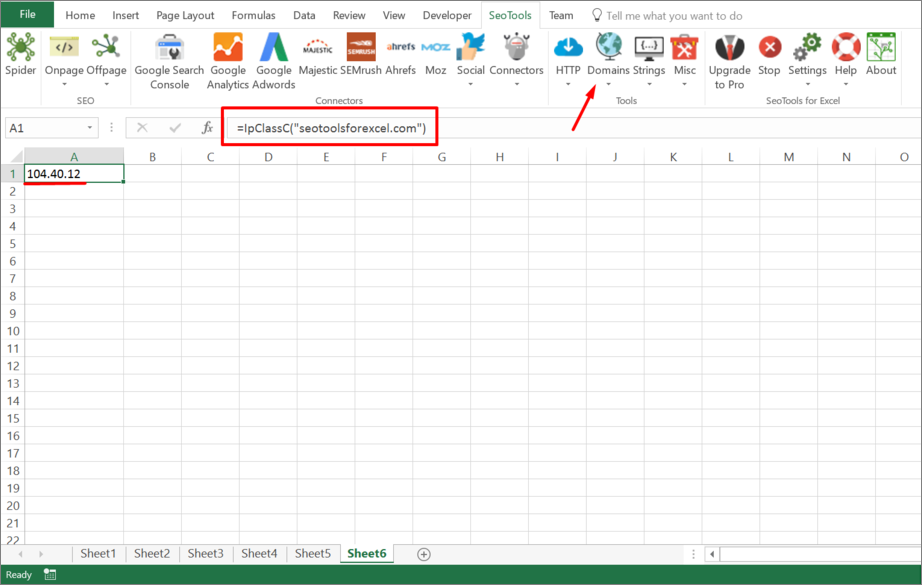
___
### Purpose
Use the IP Class-C function to find duplicate class c blocks for a range of URLs.
---
# Access ipstack in Excel
URL: https://seotoolsforexcel.com/ipstack/
Type: page
Published: 2020-02-28
Updated: 2023-06-28
Summary: Lookup IP addresses and return domain and geo information. Combine with Excel formulas to do bulk lookup.
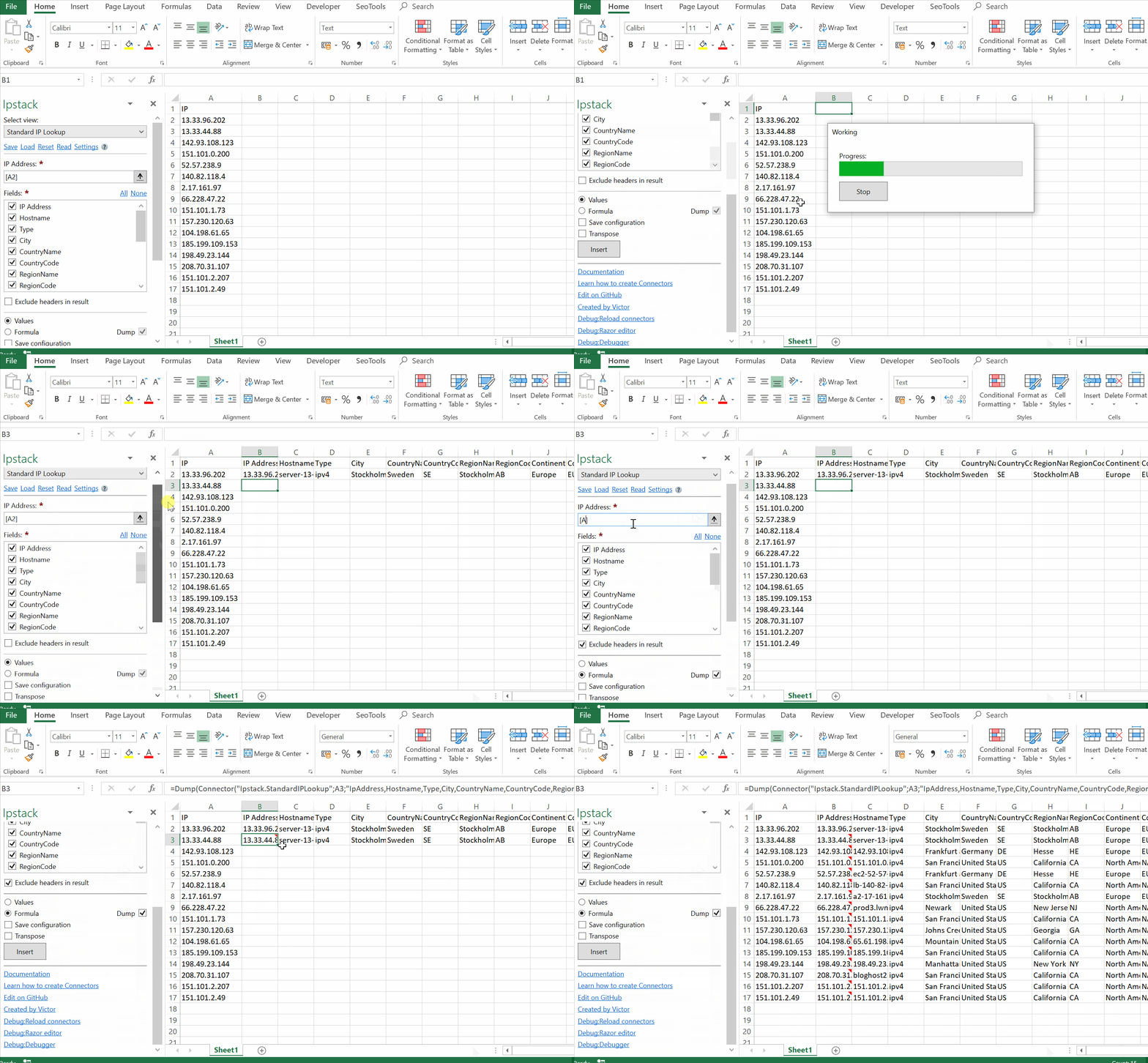
___
## Lookup types
- **Standard** - look up single IPv4 or IPv6 addresses. Use formula mode to parse multiple rows.
- **Requester** - Look up the data behind the IP address your API request is coming from.
## Fields
- IP Address
- Hostname
- Type
- City
- Country name
- Country code
- Region name
- Region code
- Continent name
- Continent code
- ZIP
- Latitude
- Longitude
- Capital
- Calling code
- Language
- Language code
- Is in EU
___
## Access
## Add from Manager
The ipstack Connector is available in the **[Connectors Manager](/manage-connectors/)** in the top ribbon:

Head over to the **GEO Category** and install ipstack:

## Get Access key
To use the Connector you need an account and [valid key](https://ipstack.com/product). Paste the access key to the Settings menu in the ipstack Connector.
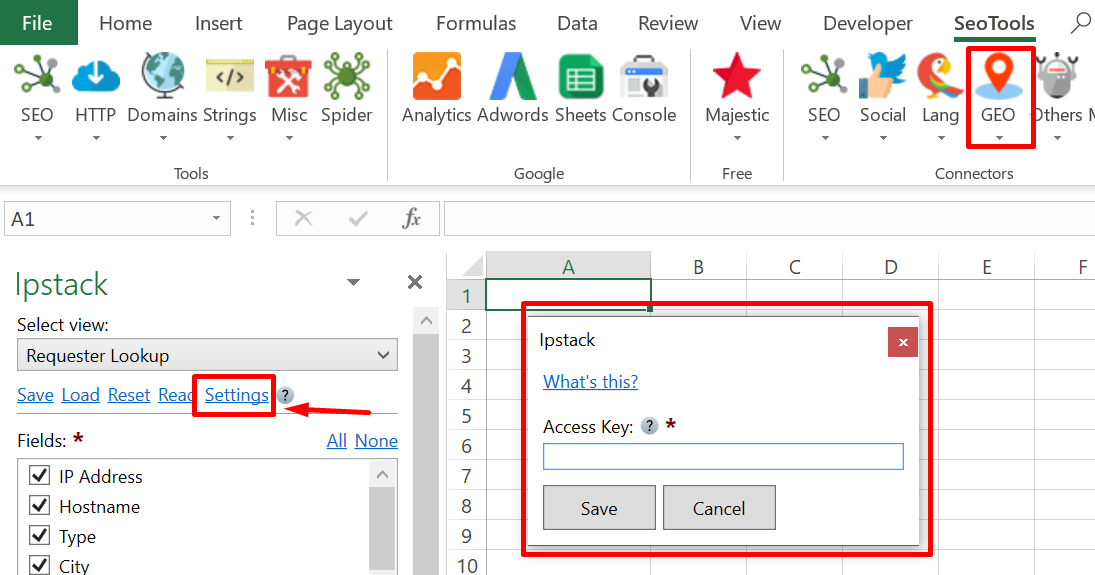
___
## Contribute
This connector suite is open-sourced on [GitHub](https://github.com/nielsbosma/SeoTools-for-Excel-Connectors/blob/master/IpStack.xml).
___
## See
#### Official Documentation
* [ipstack API](https://ipstack.com/documentation)
#### Related Functions
* [Abstract](/abstract/)
#### Resources
* [Manager](/manage-connectors/)
---
# IsDomainRegistered
URL: https://seotoolsforexcel.com/isdomainregistered/
Type: page
Published: 2015-03-29
Updated: 2019-05-19
Summary: Retrieve the date when a domain was registered to WhoIs a formula in Excel with SeoTools for Excel.
```
=IsDomainRegistered(string domain) : bool
```
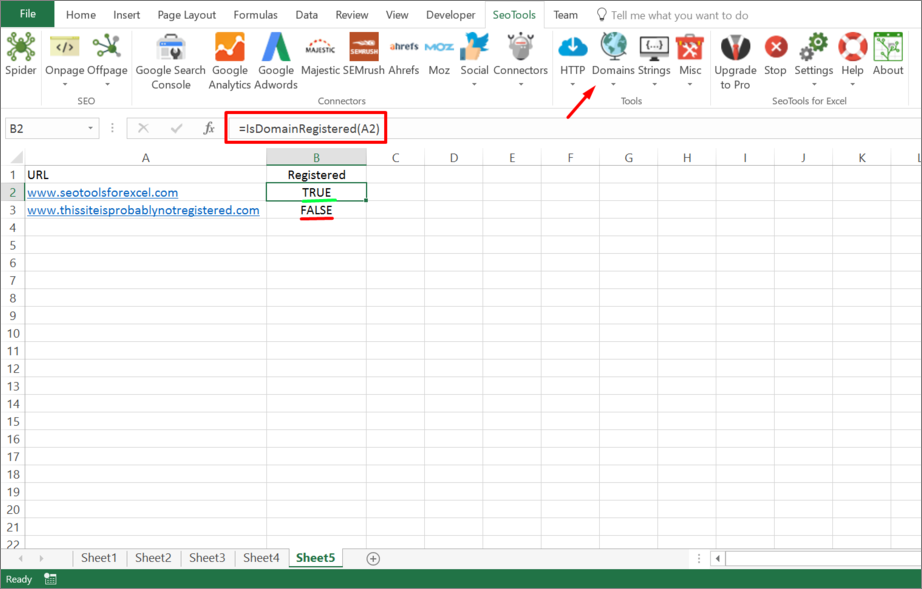
___
## Purpose
Returns true if a domain is registered.
WhoIs servers are configured in SeoTools.config.xml.
___
## See
#### Guides
* [Learn how to setup Tlds in SeoTools.config.xml](/how-to-setup-tlds-in-seotools-config-xml/)
* [Using Excel for finding available domain names](/using-excel-for-finding-available-domain-names/)
---
# IsFoundOnPage
URL: https://seotoolsforexcel.com/isfoundonpage/
Type: page
Published: 2015-03-29
Updated: 2020-02-29
Summary: Retrieve the number of times a string is found on a web page as a formula in Excel with SeoTools for Excel.
```
=IsFoundOnPage(
string pageUrl,
string countOccurrencesOfString,
[bool ignoreCase=FALSE],
[bool textMode=FALSE]) : integer
```
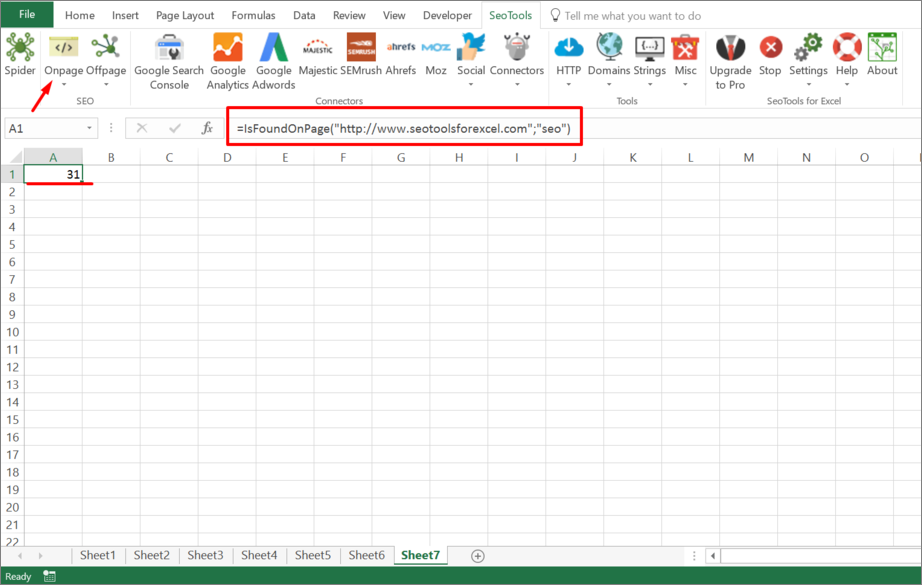
___
## Purpose
Returns the number of occurrences a string can be found on a page.
`TextMode`
If set to TRUE only text nodes are considered.
___
## Example
Check if Google analytics tracking is present on you page:
=IsFoundOnPage("http://nielsbosma.se","google-analytics.com/ga.js")
___
## See
#### Related Functions
* [HtmlFirst](/htmlfirst/)
* [FindOnPage](/findonpage/)
---
# IsValidJson
URL: https://seotoolsforexcel.com/isvalidjson/
Type: page
Published: 2023-06-28
Updated: 2023-06-28
Summary: Tests if a string is in valid json format. Formula allows you to test a list of texts inside Excel.
```
=IsValidJson(string input) : bool
```
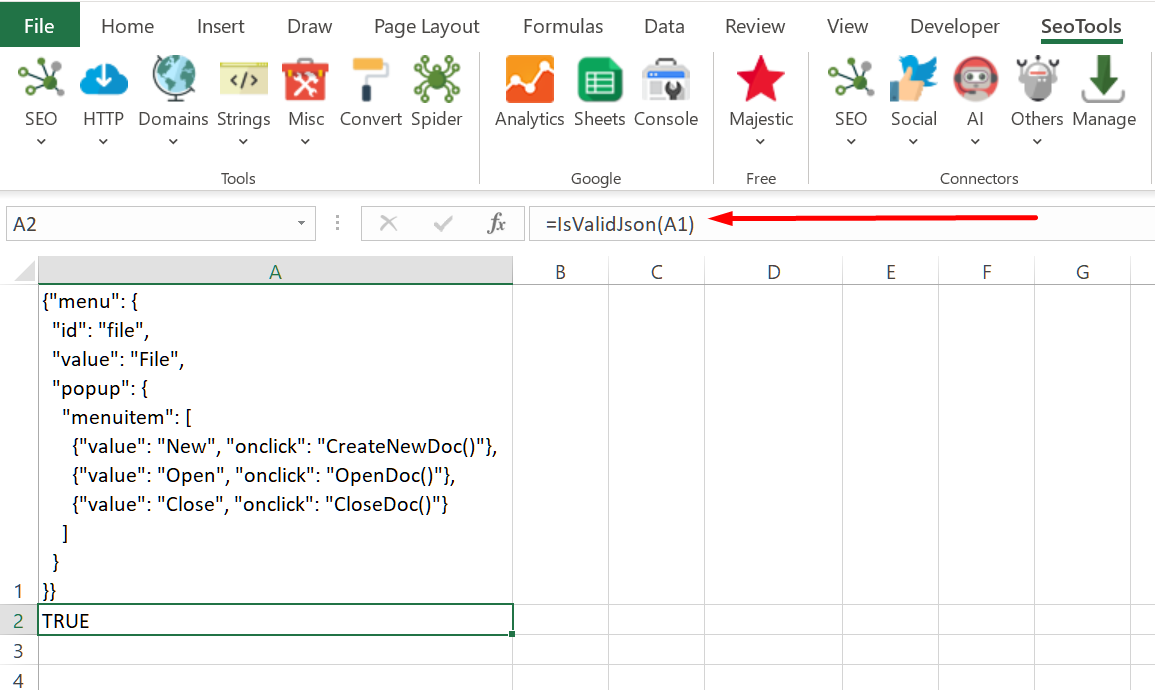
___
## Purpose
Tests if a string is in valid Json format.
___
## See
#### Related Functions
* [IsValidXml](/isvalidxml/)
---
# IsValidXml
URL: https://seotoolsforexcel.com/isvalidxml/
Type: page
Published: 2023-06-28
Updated: 2023-06-28
Summary: Tests if a string is in valid XML format. Formula allows you to test a list of texts inside Excel.
```
=IsValidXml(string input) : bool
```
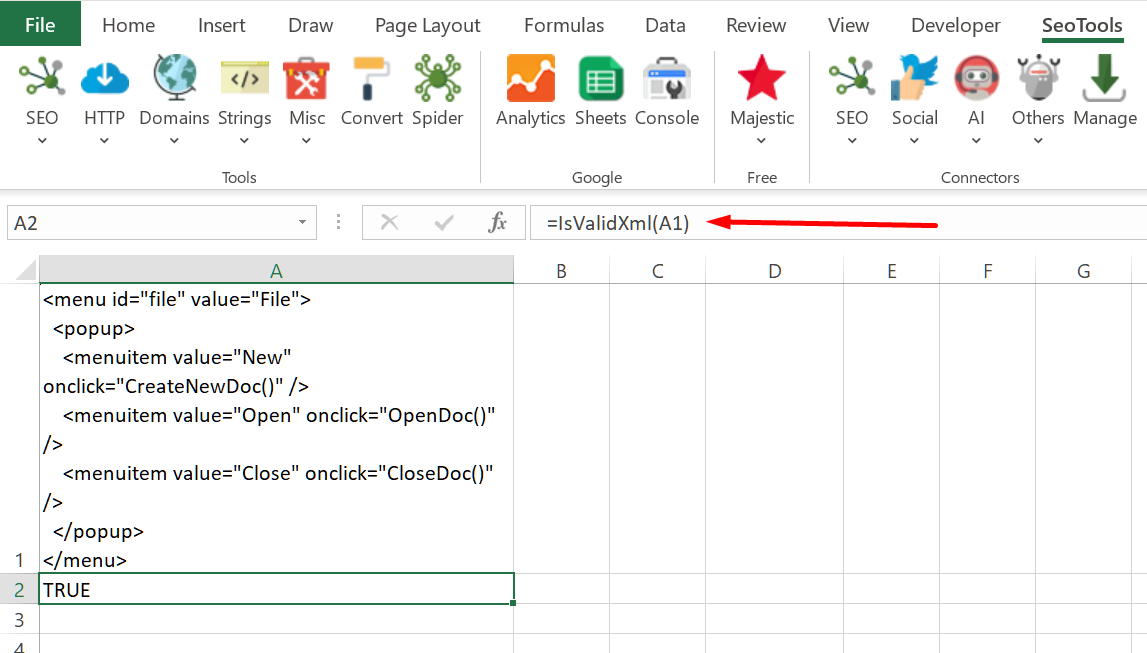
___
## Purpose
Tests if a string is in valid XML format.
___
## See
#### Related Functions
* [IsValidJson](/isvalidjson/)
---
# Access iTunes in Excel
URL: https://seotoolsforexcel.com/itunes/
Type: page
Published: 2017-03-19
Updated: 2019-05-19
Summary: SeoTools for Excel offers a user-friendly and effective method to search and collect data from iTunes straight to Excel within a matter of seconds.
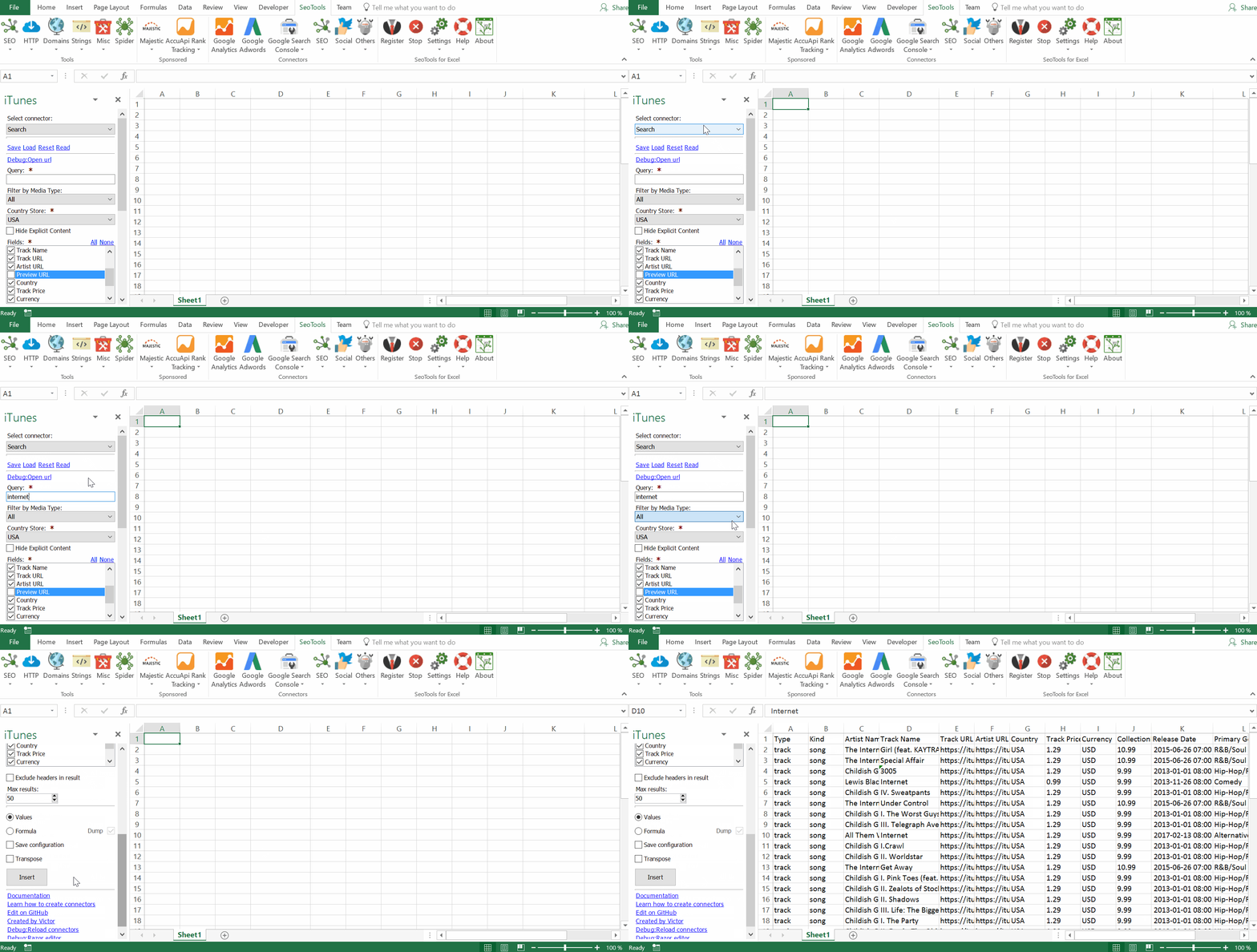
___
## Searching
Extracts all items in the iTunes library matching a specific query. Filter results *Country Store* and media type:
- Movie
- Podcast
- Music
- Music Video
- Audio Book
- Short Film
- TV Show
- Software
- eBook
___
## Albums
* **Lookup** - Get detailed statistics about an album.
* **By Artist** - Extract all albums produced by a specific artist.
___
## Songs
* **By Artist** - Extract all songs produced by a specific artist.
* **By Album** - Extract all songs belonging to a specific album.
___
## Artist
* **Lookup** - Get detailed statistics about an artist.
___
## Videos
* **Lookup** - Get detailed statistics about a video.
___
## ISBN
* **Lookup** - Get detailed statistics about an object based on its ISBN-number.
___
## APP
* **Lookup** - Get detailed statistics about an App.
___
## Access
## Add from Manager
The iTunes Connector is available in the **[Connectors Manager](/manage-connectors/)** in the top ribbon:

Head over to the **ASO Category**
and install iTunes:

___
## Contribute
This connector suite is open-sourced on [GitHub](https://github.com/nielsbosma/SeoTools-for-Excel-Connectors/blob/master/Itunes.xml).
___
## See
#### Official Documentation
* [Itunes API](https://affiliate.itunes.apple.com/resources/documentation/itunes-store-web-service-search-api/)
#### Related Functions
* [App Store](/app-store/)
* [AppTweak](/apptweak/)
#### Resources
* [Manager](/manage-connectors/)
---
# JsonPathOnUrl
URL: https://seotoolsforexcel.com/jsonpathonurl/
Type: page
Published: 2015-03-29
Updated: 2020-02-29
Summary: Use JsonPathOnUrl to extract strings or arrays from Json Objects as a formula in Excel with SeoTools for Excel.
```
=JsonPathOnUrl(Url, JsonPath, XmlHttpSettings) : array
```
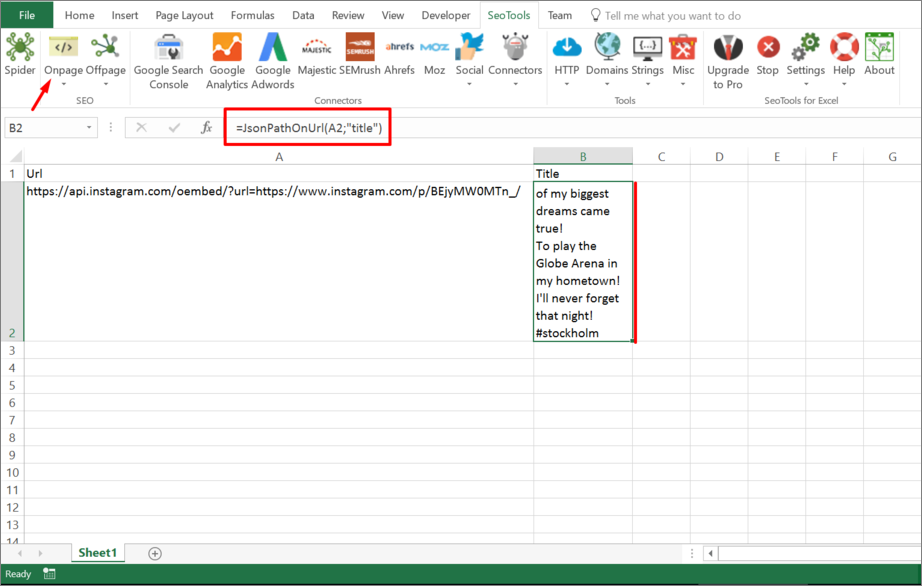
____
## Purpose
Fetches url and returns the (array) result from JSONPath expression.
[Syntax for JSONPath.](https://goessner.net/articles/JsonPath/)
You can control the HTTP request (such as header and form variables) using the xmlHttpSettings (**optional**). See [HttpSettings](/httpsettings/).
[This function is cached.](/caching/)
___
### Local files
You can also parse local files using JsonPathOnUrl using either absolute or relative (to spreadsheet) filepaths:
file:///C:\path\to\file.xml
file:///path\relative\workbook.xml
file:///..\..\path\relative\workbook.xml
See: [DirectoryList](/directorylist/)
___
## See
#### Cookbook
* [JsonPathOnUrl.xlsx](https://raw.githubusercontent.com/nielsbosma/SeoTools-for-Excel-Cookbooks/master/Functions/JsonPathOnUrl.xlsx)
#### Guides
* [Working with arrays in Excel](/working-with-arrays-in-excel/)
* [Find the country where a site is hosted](/resolve-country-where-a/)
#### Related Functions
* [GetTextOnUrl](/gettextonurl/)
* [CsQueryOnUrl](/csquery/)
* [XPathOnUrl](/xpathonurl/)
* [RegexpFindOnUrl](/regexpfindonurl/)
---
# Keyword Density
URL: https://seotoolsforexcel.com/keyword-density/
Type: page
Published: 2016-11-06
Updated: 2019-05-19
Summary: Retrieve the density for all keywords of web pages as a formula in Excel with SeoTools for Excel.
```
=KeywordDensity(Url, MinConsecutiveWords,
MinWordLenght, minOccurrences) : array
```
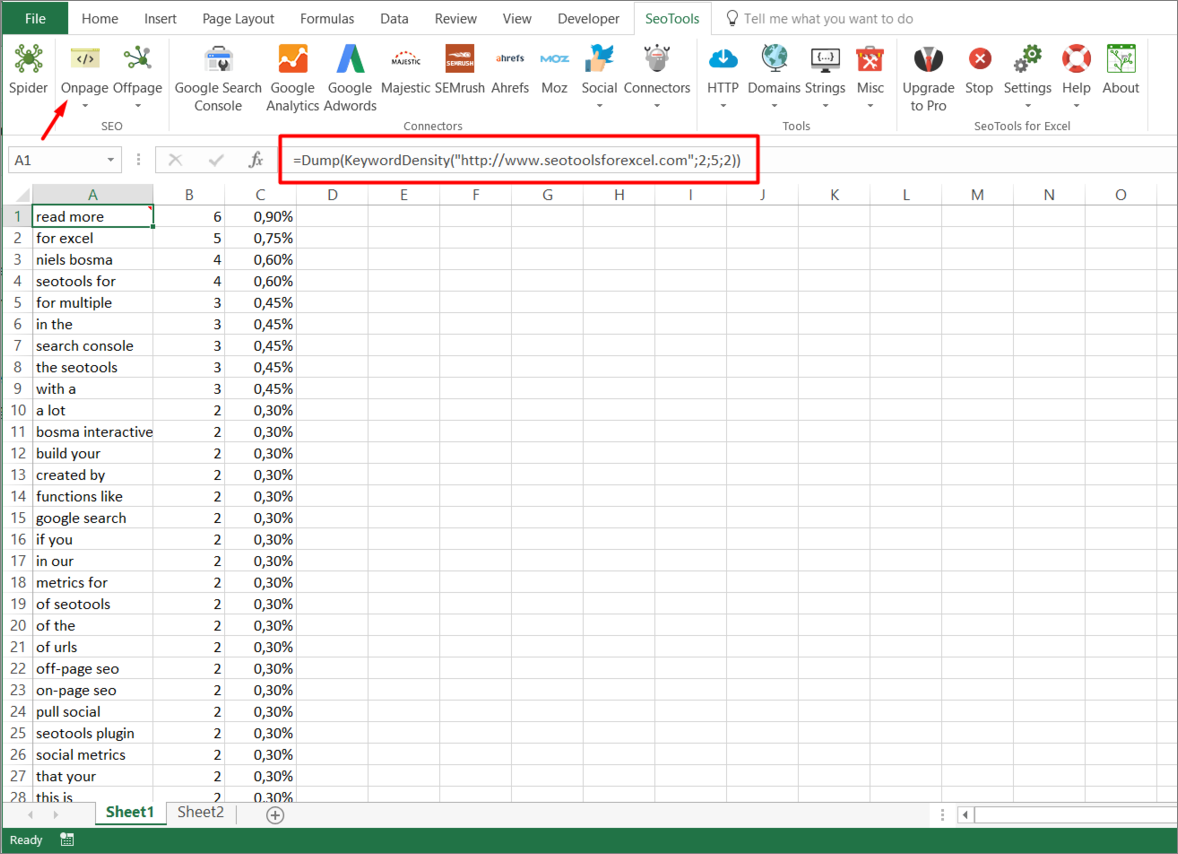
___
## Purpose
Returns an array with information about the density of keywords on a specific Url.
### Dump
Use the [Dump Function](/dump/) to list an array of all keywords matching the criteria of the Keyword Density function. The picture above illustrates this method using the following formula:
=Dump(KeywordDensity("https://www.seotoolsforexcel.com",2,5,2))
___
### MinConsecutiveWords
Determines the minimum number of consecutive words a keyword should consist of.
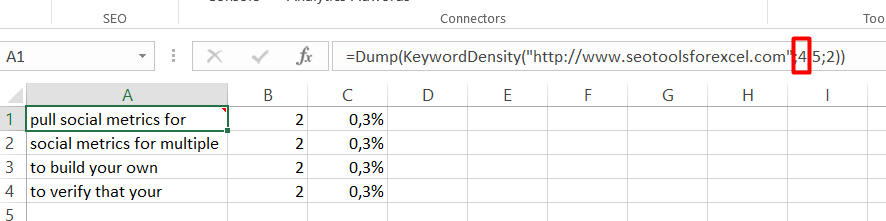
___
### MinwordLength
Determines the minimum number of characters a keyword should consist of.
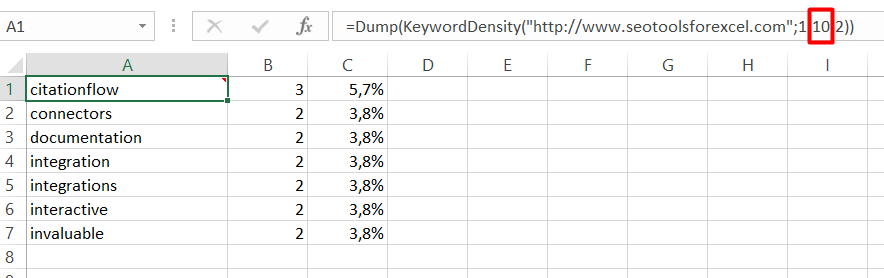
___
### MinOccurances
Determines the minimum number of times a keyword should appear on a website.

___
## See
#### Related Functions
* [IsFoundOnPage](/isfoundonpage/)
---
# Access Keyword Tool in Excel
URL: https://seotoolsforexcel.com/keywordtool/
Type: page
Published: 2018-02-27
Updated: 2023-06-28
Summary: SeoTools for Excel offers a user-friendly and effective method to collect data from Keyword Tools straight to Excel within a matter of seconds.
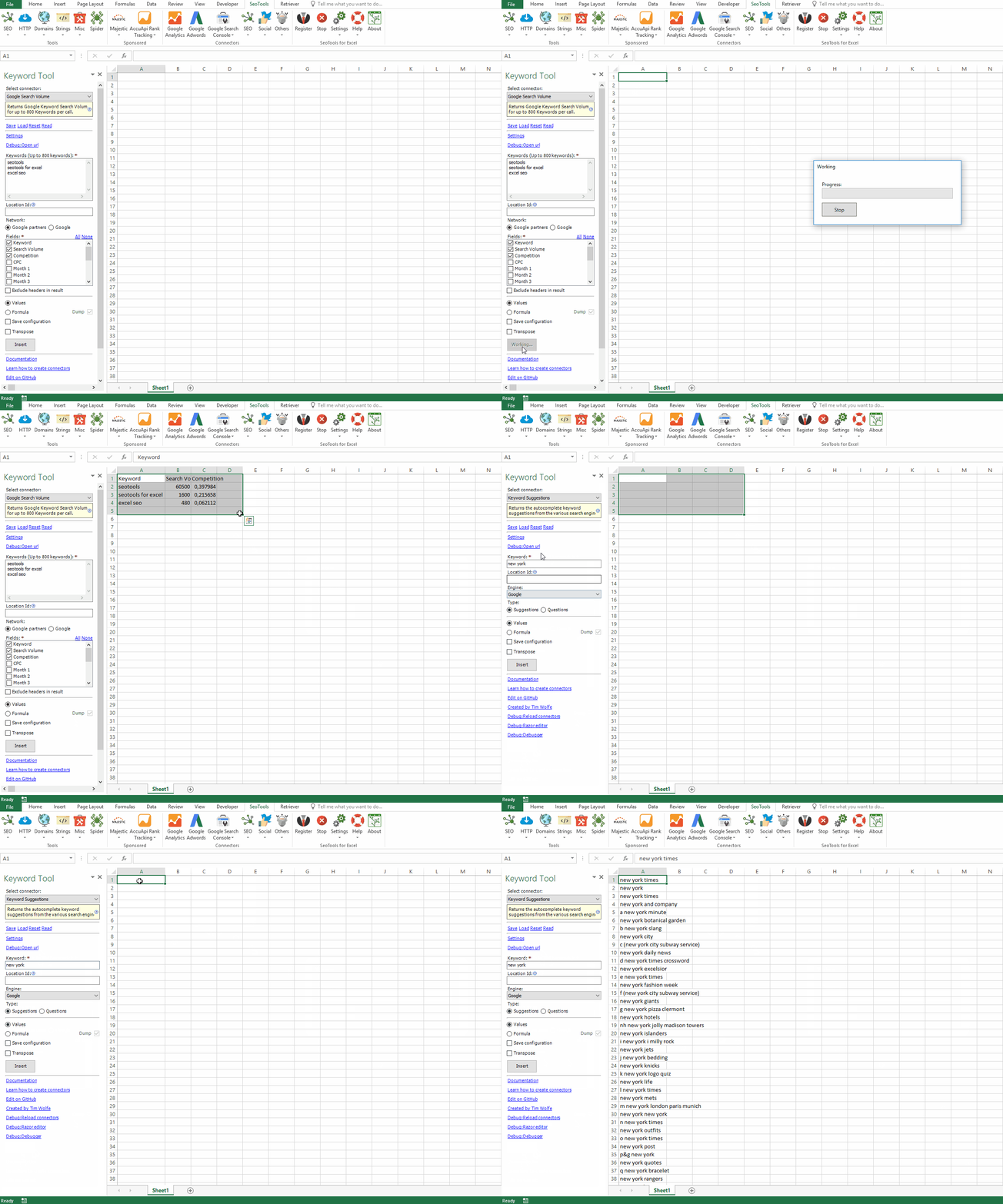
___
## Search Volume
Returns Keyword Search Volume for up to 800 Keywords per call. Select between the following engines:
- **Google**
- **Bing**
**Available metrics**:
- Volume (Average monthly search volume for the last 12 months.)
- Month1...Month12 (Search volume on a given month.)
- CPC (Cost-Per-Click for the keyword on Google AdWords.)
- CMP (Competition metric for the keyword on Google AdWords.)
**Available filters:**
- Location Id (each Location has a unique ID. Keyword Tool offers the following [**Converter**](https://keywordtool.io/api/documentation#supported-parameters-metrics-location)
- Network Type
## Keyword Suggestions
Returns the autocomplete keyword suggestions. Select between the following engines:
- **Google**
- **YouTube**
- **Bing**
- **Amazon**
- **App Store**
**Available filters:**
- Location Id (each Location has a unique ID, see below)
- Type (Suggestions or Questions)
___
## API key
In order to use the Keyword Tool Connector you need an API Key.
___
## Contribute
This connector suite is open-sourced on [GitHub](https://github.com/nielsbosma/SeoTools-for-Excel-Connectors/blob/master/KeywordTool.xml).
___
## See
#### Official Documentation
* [Keyword Tools API](https://docs.keywordtool.io/)
---
# Access Google Knowledge Graph in Excel
URL: https://seotoolsforexcel.com/knowledge-graph/
Type: page
Published: 2018-08-31
Updated: 2020-05-24
Summary: Search the Google Knowledge Graph and return all results in Excel. Filter by language and type.
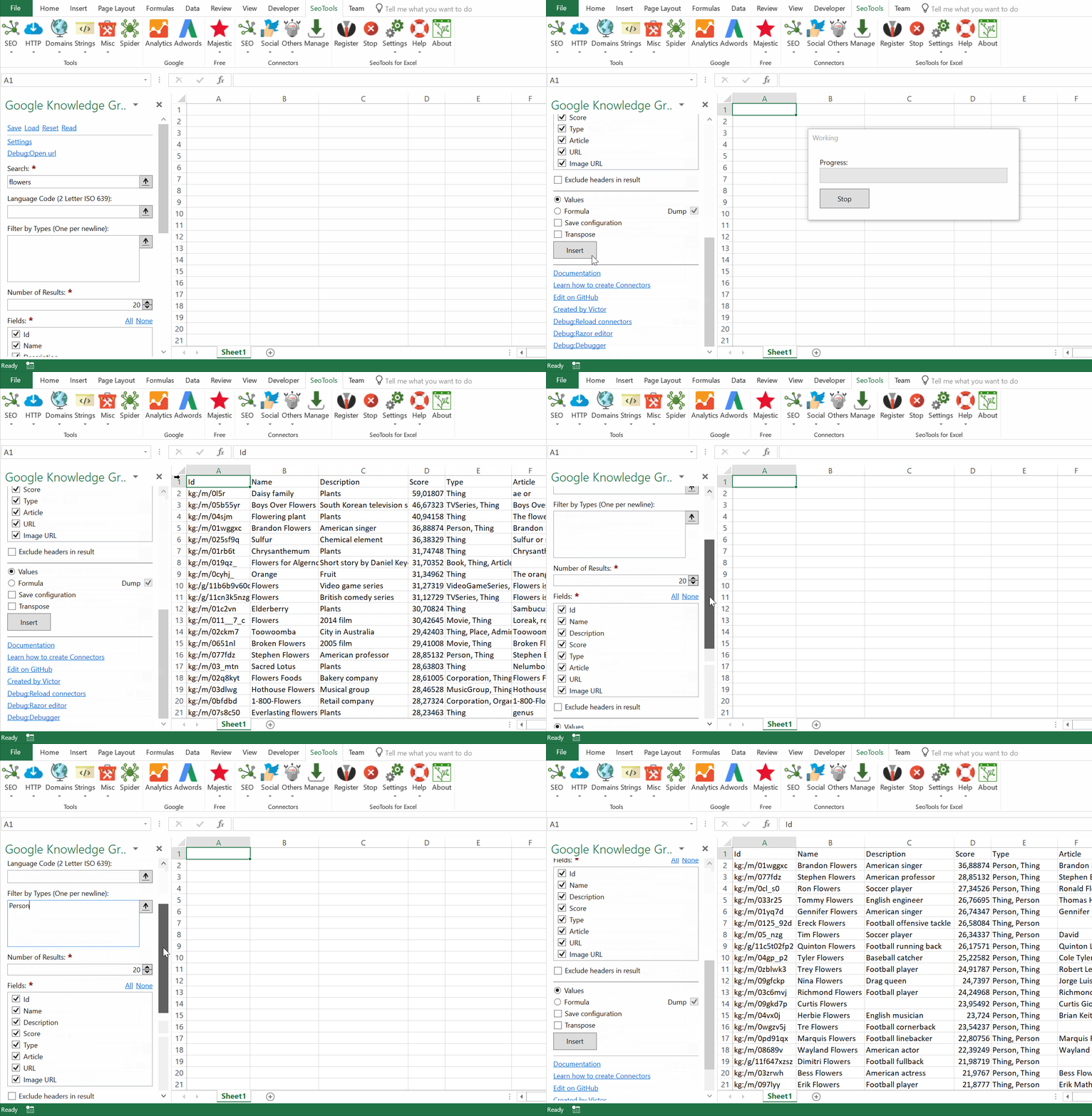
The **Knowledge Graph** is a knowledge base used by Google and its services to enhance its search engine's results with information gathered from a variety of sources.
## Metadata
- Id
- Name
- Description
- Score
- Types
- Article
- URL
- Image URL
## Filters
- **Search Query**
- **Language** (Two letter ISO 639 code)
- **Types** (Restricts returned entities to those of the specified types. If multiple types are specified, returned entities will contain one or more of these types)
___
## Access
## Add from Manager
The Google Knowledge Graph Connector is available in the **[Connectors Manager](/manage-connectors/)** in the top ribbon:

Head over to the **Knowledge Category** and install Google Knowledge Graph:

___
## Contribute
This connector suite is open-sourced on [GitHub](https://github.com/nielsbosma/SeoTools-for-Excel-Connectors/blob/master/GoogleKnowledgeGraph.xml).
___
## See
#### Official Documentation
* [Google Knowledge Graph API](https://developers.google.com/knowledge-graph/reference/rest/v1/)
#### Related Functions
* [Wikipedia](/wikipedia/)
#### Resources
* [Manager](/manage-connectors/)
---
# Access Last FM in Excel
URL: https://seotoolsforexcel.com/lastfm/
Type: page
Published: 2018-11-21
Updated: 2019-05-19
Summary: Integrate the Last FM database in Excel and search, find similar and lookup artists, tracks, albums, tags and top-lists with a wide range of metadata.
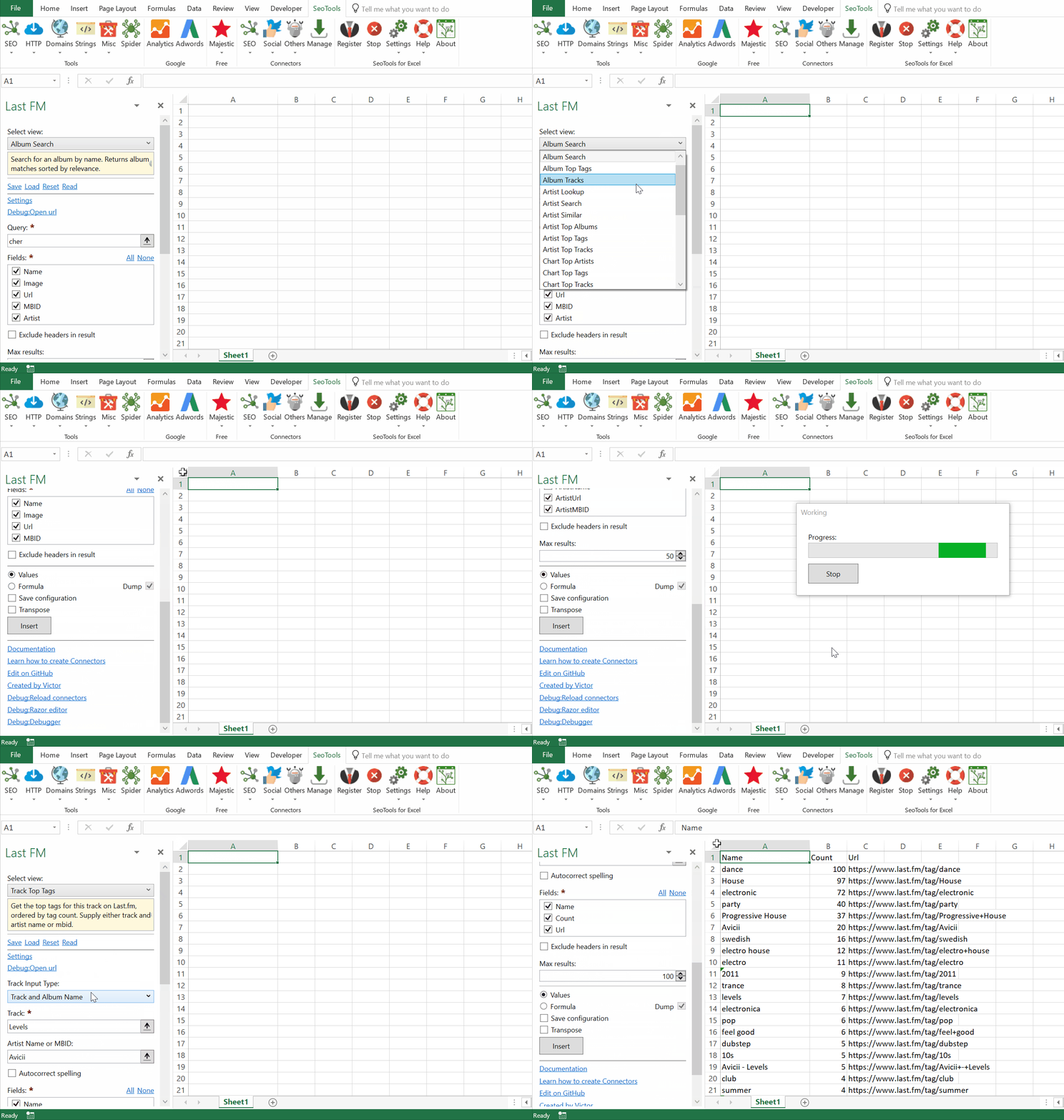
## Albums
- **Search** - Search for an album by name. Returns album matches sorted by relevance.
- **Lookup** - Get the metadata for an album on Last.fm using the album name or a musicbrainz id.
- **Tracks** - Get the tracklist for an album on Last.fm using the album name or a musicbrainz id.
- **Top Tags** - Get the top tags for an album on Last.fm, ordered by popularity.
## Artists
- **Search** - Search for an artist by name. Returns artist matches sorted by relevance.
- **Lookup** - Get the metadata for an artist. Includes biography, truncated at 300 characters.
- **Similar** - Get all the artists similar to this artist.
- **Top Albums** - Get the top albums for an artist on Last.fm, ordered by popularity.
- **Top Tracks** - Get the top tracks by an artist on Last.fm, ordered by popularity.
- **Top Tags** - Get the top tags for an artist on Last.fm, ordered by popularity.
## Charts
- **Top Artists** - Get the top artists chart.
- **Top Artists** - "Get the top tracks chart.
- **Top Artists** - Get the top tags chart.
## Geography
- **Top Artists** - Get the most popular artists on Last.fm by country.
- **Top Tracks** - Get the most popular tracks on Last.fm by country.
## Tags
- **Top Tags** - Fetches the top global tags on Last.fm, sorted by popularity (number of times used).
- **Top Tracks** - Get the top tracks tagged by this tag, ordered by tag count.
- **Top Albums** - Get the top albums tagged by this tag, ordered by tag count.
- **Top Artist** - Get the top artists tagged by this tag, ordered by tag count.
## Tracks
- **Search** - Search for a track by track name. Returns track matches sorted by relevance.
- **Lookup** - Get the metadata for a track on Last.fm using the artist/track name or a musicbrainz id.
- **Similar** - Get the similar tracks for this track on Last.fm, based on listening data.
- **Top Tracks** - Get the top tracks by an artist on Last.fm, ordered by popularity.
- **Top Tags** - Get the top tags for this track on Last.fm, ordered by tag count. Supply either track and artist name or mbid.
## Users
- **Top Tracks** - Get the top tracks listened to by a user. You can stipulate a time period.
- **Friends** - Get a list of the user's friends on Last.fm.
- **Lookup** - Get information about a user profile.
___
## Access
## Add from Manager
The Last FM Connector is available in the **[Connectors Manager](/manage-connectors/)** in the top ribbon:

Head over to the **Music Category** and install Last FM:
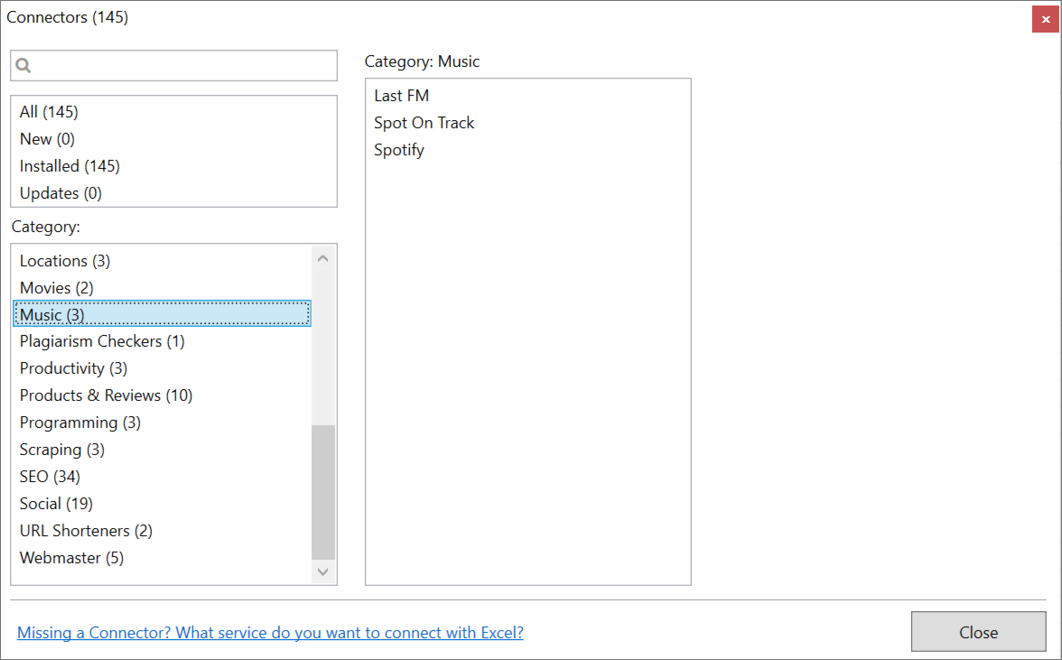
## API Key
1. Head over to your api accounts page and create a new appication. You need to supply an application name, and a description.
1. Go to the API Tokens Section in the Settings of your account.
2. On the next page, copy the API key.
3. Paste the key in the Last FM task-pane inside Seotools:
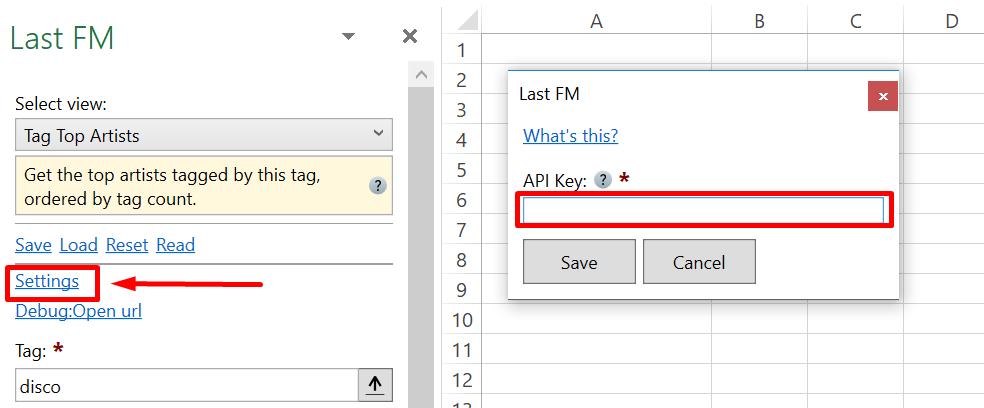
___
## Contribute
This connector suite is open-sourced on [GitHub](https://github.com/nielsbosma/SeoTools-for-Excel-Connectors/blob/master/LastFM.xml).
___
## See
#### Official Documentation
* [Last FM API](https://www.last.fm/api)
#### Resources
* [Manager](/manage-connectors/)
---
# LCS
URL: https://seotoolsforexcel.com/lcs/
Type: page
Published: 2015-03-29
Updated: 2019-05-19
Summary: Retrieve the longest common substring (LCS) between two strings as a formula in Excel with SeoTools for Excel.
```
=LCS(string input1;string input2) : string
```
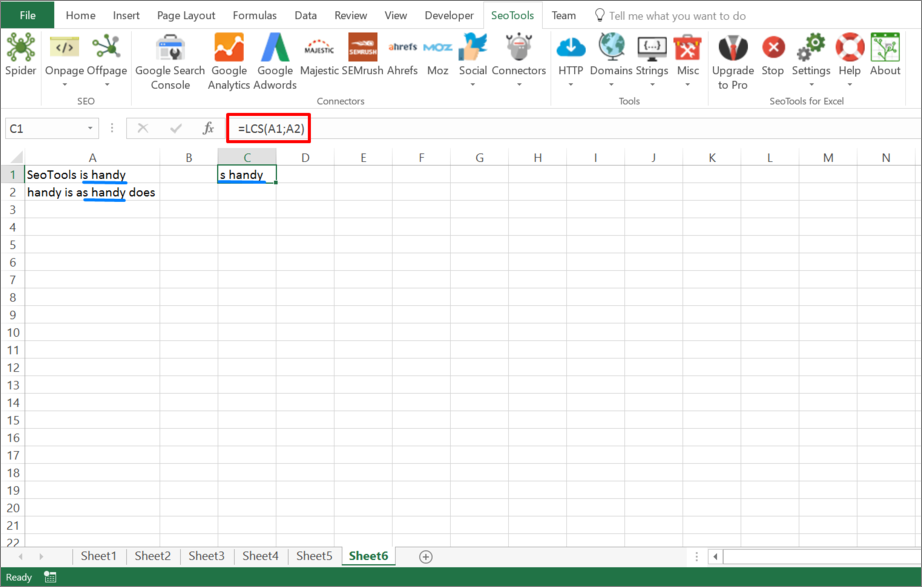
___
## Purpose
Returns the "Longest common substring" between the two input strings. This function can be used to find duplicate content in two cells.
___
## See
#### Related Guides
* [Finding Duplicate Content](/excel-plugin-for-finding-duplicate-content-in-cells/)
#### Related Functions
* [FindDuplicateContent](/findduplicatecontent/)
* [Copyscape](/copyscape/)
---
# LinkCount
URL: https://seotoolsforexcel.com/linkcount/
Type: page
Published: 2015-03-01
Updated: 2019-05-19
Summary: Retrieve the link count of web pages as a formula in Excel with SeoTools for Excel.
```
=LinkCount(string url, [string type=all, bool
distinct=FALSE]) : integer
```
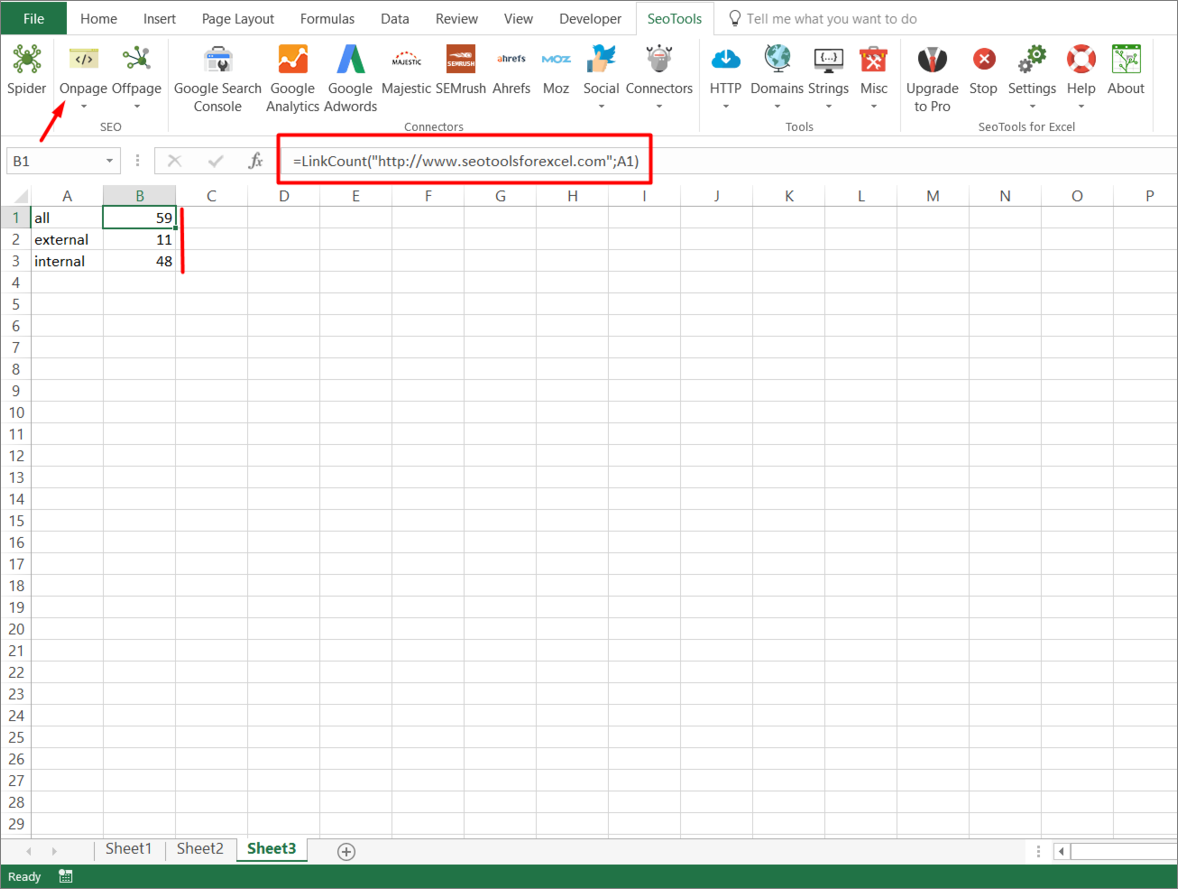
___
## Purpose
Returns the number of links on a page.
**Type** can have the following values:
* all (default)
* external
* internal
If you set distinct to TRUE only unique links are counted.
[This function is cached.](/caching/)
___
## See
#### Related Functions
* [KeywordDensity](/keyword-density/)
---
# Access LinkedIn in Excel
URL: https://seotoolsforexcel.com/linkedin/
Type: page
Published: 2020-02-26
Updated: 2020-02-26
Summary: Integrate your LinkedIn page data in Excel and analyze your followers, and shares, statuses by relevant metrics.
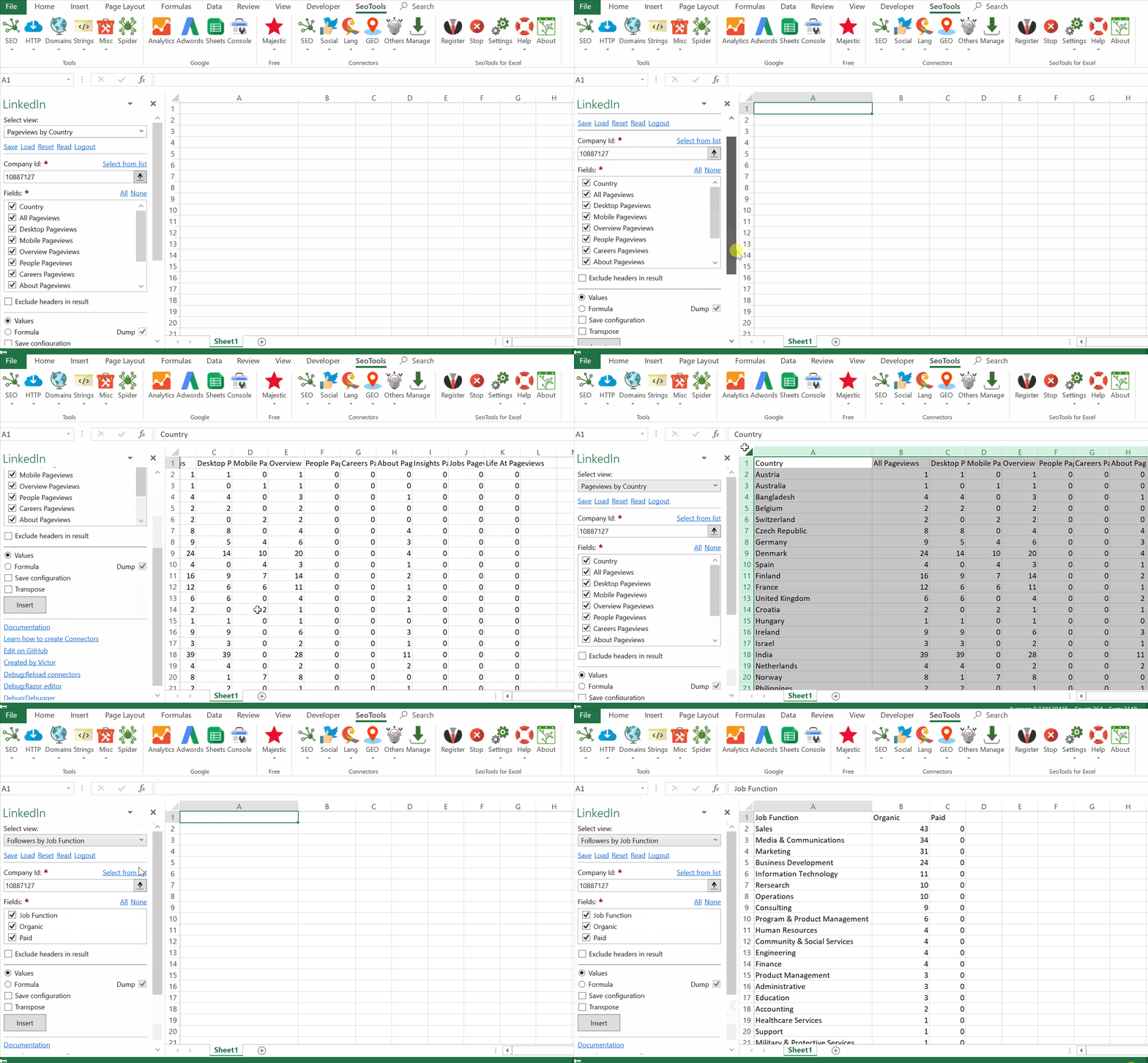
___
## Companies
- **Lookup** - Returns metrics for a company by either vanity name or URL.
- **Follower Count**
## Followers
- **History** - Returns a follower count for both paid and organic followers within all of the days or months in the selected date range.
- **Breakdown by**
- Seniority
- Job function
- Industry
- Country
- Company size
## Page views
- **History** - Returns page views for both views and unique views within all of the days or months in the selected date range.
- **Breakdown by**
- Seniority
- Job function
- Industry
- Country
- Company size
## Shares
- **History** - Returns statistics for shares within all of the days or months in the selected date range.
- **Lifetime** - Returns aggregated share statistics for the company page lifetime.
- **Specific** - Returns statistics for a specific company share.
## Status updates
- **History** - Returns statistics for updates within all of the days or months in the selected date range.
- **Lifetime** - Returns aggregated update statistics for the company page lifetime.
- **Specific** - Returns statistics for a specific company status update.
___
## Access
To use the Connector you need a LinkedIn account with access to a company page.
1. The Connector is located under the **Social** category under he SeoTools ribbon. Click on 'Connect with LinkedIn':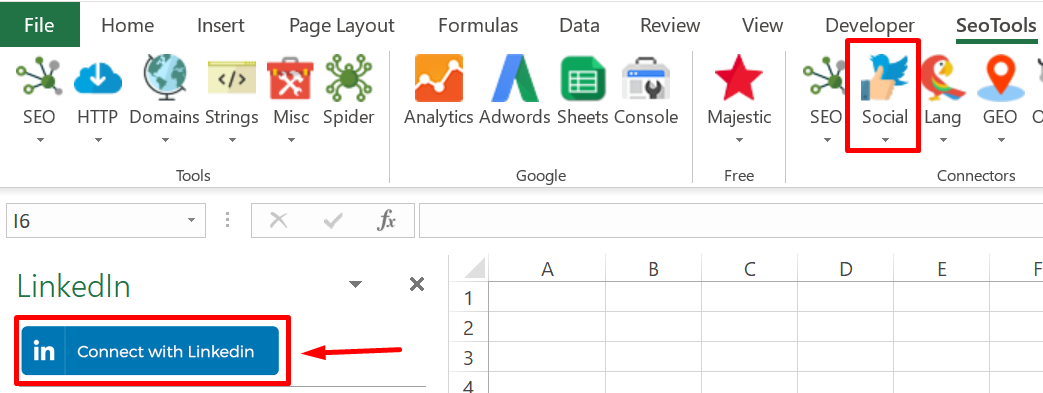
2. Select your preferred account and click on *Allow* 
___
## Contribute
This connector suite is open-sourced on [GitHub](https://github.com/nielsbosma/SeoTools-for-Excel-Connectors/blob/master/LinkedIn.xml).
___
## See
#### Official Documentation
* [LinkedIn API](https://developer.linkedin.com/docs/rest-api#)
#### Resources
* [Manager](/manage-connectors/)
---
# LinkedIn Accounts
URL: https://seotoolsforexcel.com/linkedin-accounts/
Type: page
Published: 2017-03-18
Updated: 2019-05-18
Summary: LinkedInAccount is a function of SeoTools for Excel that scrapes a given URL for LinkedIn accounts.
```
=Connector("OnPageScrapers.LinkedInAccount","https://seotoolsforexcel.com")
```
___
## Purpose
Scrapes the given URL for LinkedIn accounts.
___
## Dump
Combine the function with Dump() to extract all items.
___
## See
#### Related Functions
* [On-Page Connectors](/connectors-onpage/)
* [Google AdSense Id](/googleadsenseid/)
* [Google Analytics Id](/googleanalyticsid/)
* [Twitter Accounts](/twitter-accounts/)
* [Instagram Accounts](/instagram-accounts/)
* [Email](/email/)
---
# Access LinkResearchTools in Excel
URL: https://seotoolsforexcel.com/linkresearchtools/
Type: page
Published: 2017-03-19
Updated: 2019-05-27
Summary: SeoTools for Excel offers a user-friendly and effective method to collect Power*Trust and Link Velocity scores for thousands of web pages
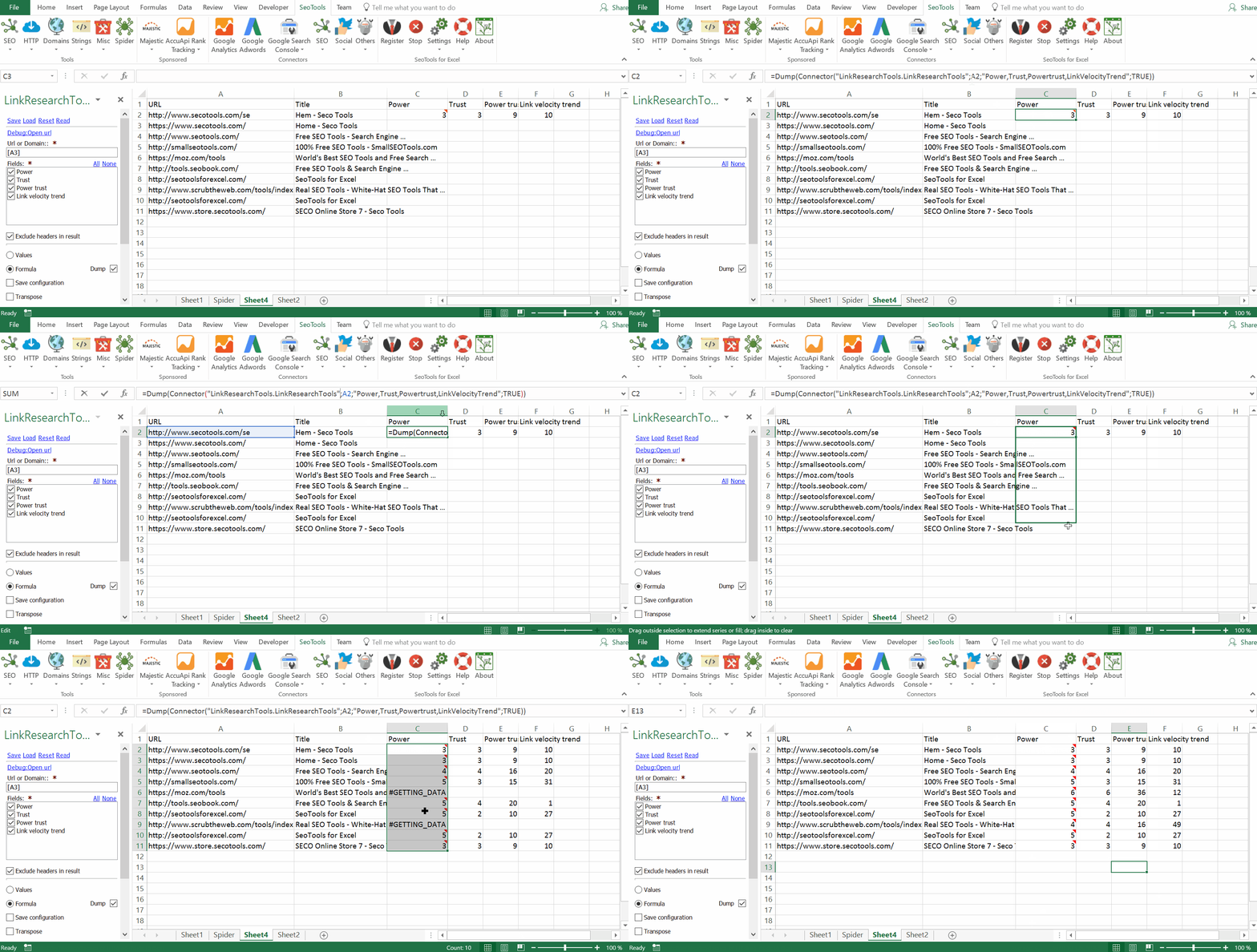
LinkResearchTools collects links from 25 different link data sources, cleans and verifies the data for you and presents fresh and accurate results.
___
## Power*Trust
The Power*Trust metric will help you assess the quality of a page, domain or top domain.
SeoTools provides the separate values for the *Power* and *Trust* which helps you understand why a page is awarded with a high or low PowerTrust score.
## Link Velocity
The Link Velocity Trend describe the trends of link growth, i.e. how fast or slow the link growth to a page or domain is in a given time span. The trend of link growth for a page or domain is an indicator for the interest expressed on the web for that page or domain.
___
## Contribute
This connector suite is open-sourced on [GitHub](https://github.com/nielsbosma/SeoTools-for-Excel-Connectors/blob/master/LinkResearchTools.xml).
___
## See
#### Official Documentation
* [LinkResearchTools API](https://www.linkresearchtools.com/api/)
---
# Access Lusha in Excel
URL: https://seotoolsforexcel.com/lusha/
Type: page
Published: 2020-02-26
Updated: 2020-02-26
Summary: Integrate Lusha in Excel and extract statistics from a large dataset of business profiles and companies.
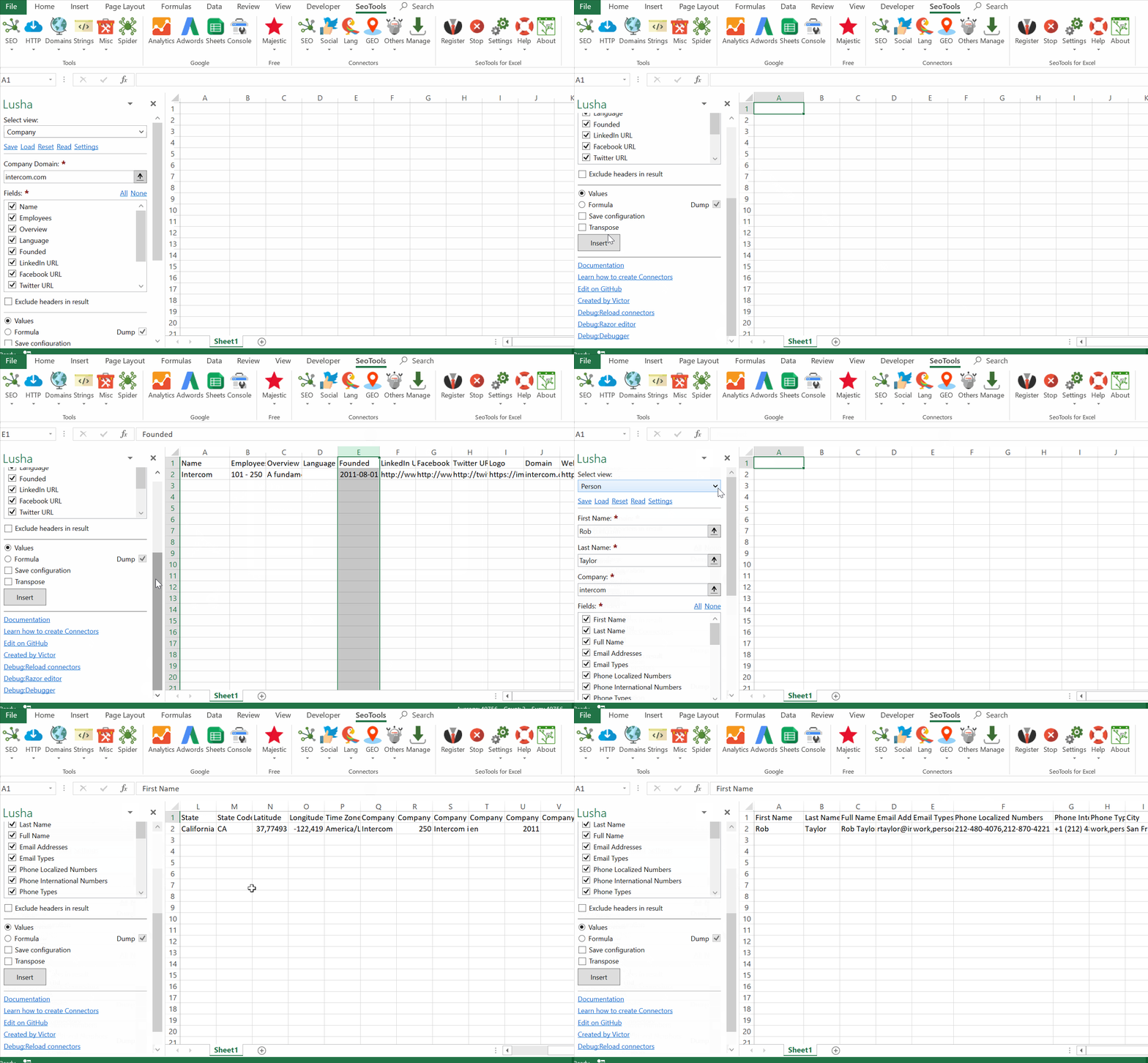
___
Lusha offers a detailed set of fields related to person, location, email, phone, company and social media presence.
## Person
Search using first name, last name, or company name.
## Company
Lookup a company by domain name.
___
## Access
## Add from Manager
The Lusha Connector is available in the **[Connectors Manager](/manage-connectors/)** in the top ribbon:

Head over to the **Lead Generation Category** and install Lusha:

## API Access
To use the Connector you need an [API key](https://www.lusha.co/). Enter the key in the Settings window in the Scrive connector located in the Legal category.
___
## Contribute
This connector suite is open-sourced on [GitHub](https://github.com/nielsbosma/SeoTools-for-Excel-Connectors/blob/master/Lusha.xml).
___
## See
#### Official Documentation
* [Lusha API](https://www.lusha.co/docs/)
#### Resources
* [Manager](/manage-connectors/)
---
# Access MailChimp in Excel
URL: https://seotoolsforexcel.com/mailchimp/
Type: page
Published: 2015-10-04
Updated: 2023-06-28
Summary: SeoTools for Excel offers a user-friendly and effective method to extract statistics and analyze your MailChimp campaigns in Excel
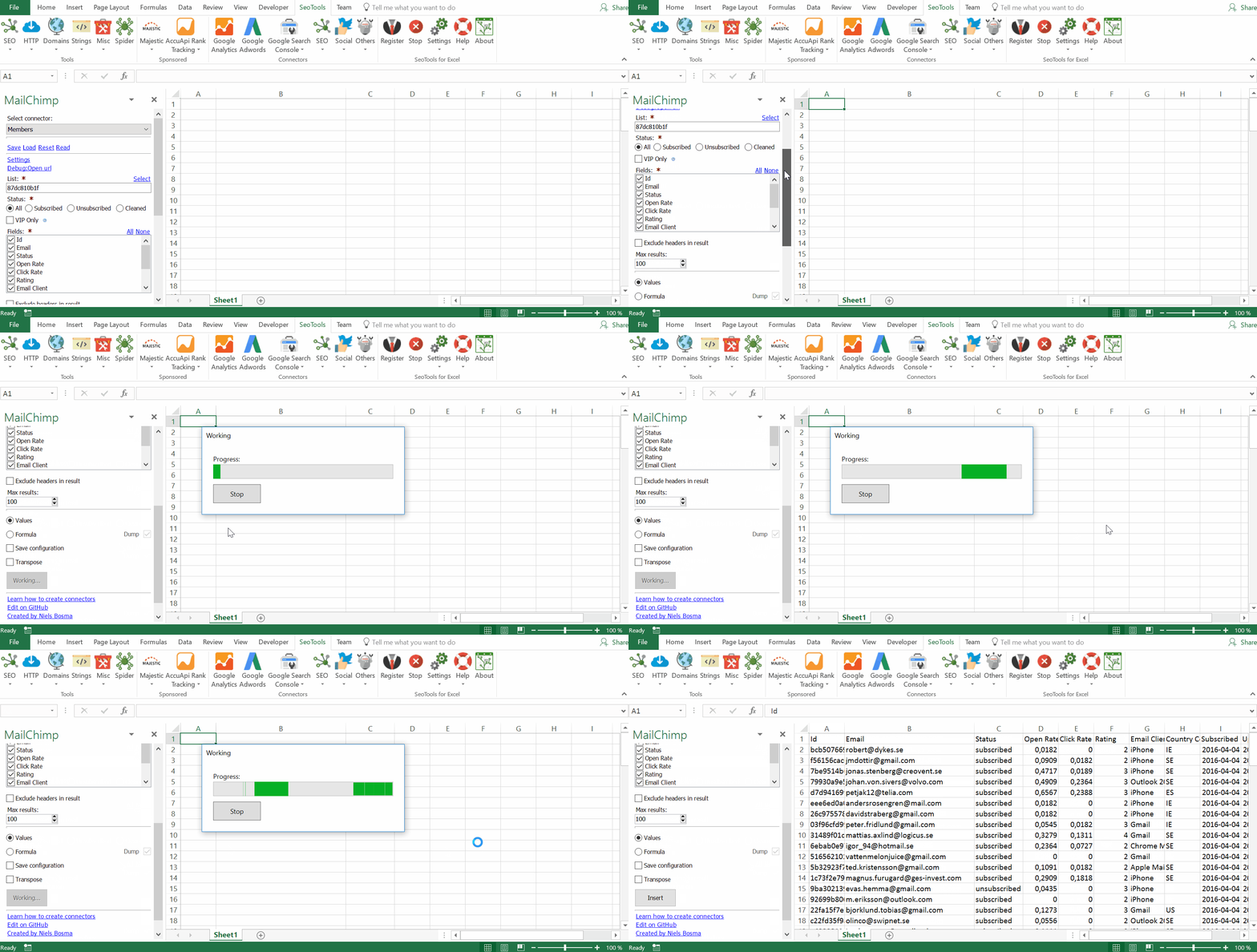
___
## Campaigns
* **List** - Get all campaigns in an account. Available Filters:
- Type (Regular, Plaintext, RSS etc)
- Status (Saved, Paused, Scheduled etc)
- Date Interval
* **Statistics** - Get detailed campaign reports.
- Filter by Type and Date intervals.
* **Domain Performance** - Get statistics for the top-performing domains from a campaign.
* **Clicked Links** - Get detailed information about links clicked in campaigns.
* **Clicked Link Members** - Get information about list members who clicked on a specific link in a campaign.
* **Abuse Complaints** - Get a list of abuse complaints for a specific campaign.
* **Opens** - Get detailed information about any campaign emails that were opened by a list member.
* **Top Locations** - Get top open locations for a specific campaign.
* **Unsubscribes** - Get information about list members who unsubscribed from a specific campaign.
* **Search** - Search all campaigns for the specified query terms.
* **Member Activity** - Get a list of member's subscriber activity in a specific campaign.
## Automations
* **List** - Get a summary of an account's Automations.
* **Email Summary** - Get a summary of the emails in an Automation workflow.
## Lists
* **List** - Get information about all lists in the account.
- Filter by Date Interval
* **Members** - Get information about members in a specific Mailchimp list.
- Filter by Status, Opted-in interval and VIP status.
* **Recent Activity** - Get up to the previous 180 days of daily detailed aggregated activity stats for a list
* **Clients** - Get a list of the top email clients based on user-agent strings.
* **Locations** - Get the locations (countries) that the list’s subscribers have been tagged to based on geocoding their IP address.
* **Abuse Complaints** - Get all abuse reports for a specific list.
* **Growth History** - Get a month-by-month summary of a specific list’s growth activity.
* **Segments** - Get information about all available segments for a specific list.
## Members
* **Search** - Search for list members. This search can be restricted to a specific list, or can be used to search across all lists in an account. Available options:
- Match Type (partial or exact)
___
## Contribute
This connector suite is open-sourced on [GitHub](https://github.com/nielsbosma/SeoTools-for-Excel-Connectors/blob/master/Mailchimp.xml).
___
## See
#### Official Documentation
* [Mailchimp API](https://developer.mailchimp.com/documentation/mailchimp/reference/overview/)
#### Related Functions
* [ActiveCampaign](/activecampaign/)
#### Resources
* [Manager](/manage-connectors/)
---
# Access Majestic in Excel
URL: https://seotoolsforexcel.com/majestic/
Type: page
Published: 2015-01-05
Updated: 2020-02-28
Summary: SeoTools for Excel offers a user-friendly and effective method to collect data from Majestic straight to Excel within a matter of seconds.
## Registration
SeoTools has an extensive integration with Majestic. To use these features your need to register for an MajesticSEO account.
Signup for an free Majestic account
**This is a sponsored Connector. You can use this Connector for free without having a SeoTools licence.**
## Features:
* **Index Data** - Returns various statistics about one or more URLs.
* **Backlinks** - Returns information of the backlinks at domain, subdomain or URL level. Filter by:
- Maximum best URLs from any ref domain
- Maximum same source URLs
- Topic
* **Anchor Texts** - Returns Anchor text for a given domain, subdomain or URL. Filter by:
- Anchor Text
* **Hosted domains** - Returns domains co-hosted on known IP address or domain.
* **Keywords** - Returns phrase/broad counts for a list of supplier keywords.
* **New & Lost backlinks** - Returns new and lost backlinks in a date range. Filter by:
- Date Interval
- New Backlinks
- Lost Backlinks
* **Top Pages** - return one or more URLs from root domain or subdomain.
* **Topics** - Returns Topical Trust Flow data.
* **Search by Keyword** - Returns Search data for a given keyword.
* **Referring Domains** - Returns information about the relationships between domains. Filter by:
- Minimum matches required per domain
* **Link Profile Graph** - Returns the data used to generate link profile graphs.
* **Subscription Info** - Returns information about your personal usage and available credits.
___
## Contribute
This connector suite is open-sourced on [GitHub](https://github.com/nielsbosma/SeoTools-for-Excel-Connectors/blob/master/Majestic.xml).
___
## See
#### Official Documentation
* [Majestic API](https://developer-support.majestic.com/api/)
---
# Manage Connectors
URL: https://seotoolsforexcel.com/manage-connectors/
Type: page
Published: 2018-04-09
Updated: 2020-02-29
Summary: Add additional services or update existing connectors that you can access directly in SeoTools
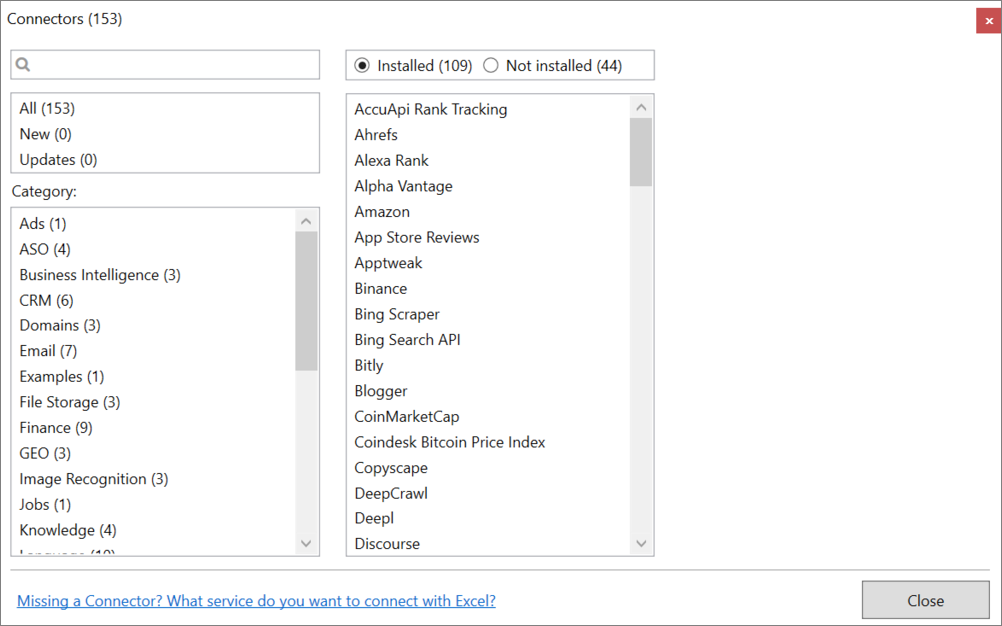
## Purpose
The Connectors Manager, first introduced in SeoTools 8.0, lets you take control and tailor SeoTools according to your favorite services and areas of expertise. The connectors are organized in [categories](/connectors/) as well as searchable.
The Manager is available in the SeoTools main ribbon:

## Add new Connectors
No need to wait for the next release. When a new service is integrated in SeoTools, it is automatically included in the manager.
## Update Connectors
We continuously make improvements and update the connectors when the API:s change or when we get awesome suggestions via the [SeoTools Community](https://community.seotoolsforexcel.com/). When an update exists, you will get notified in the connector taskpane:
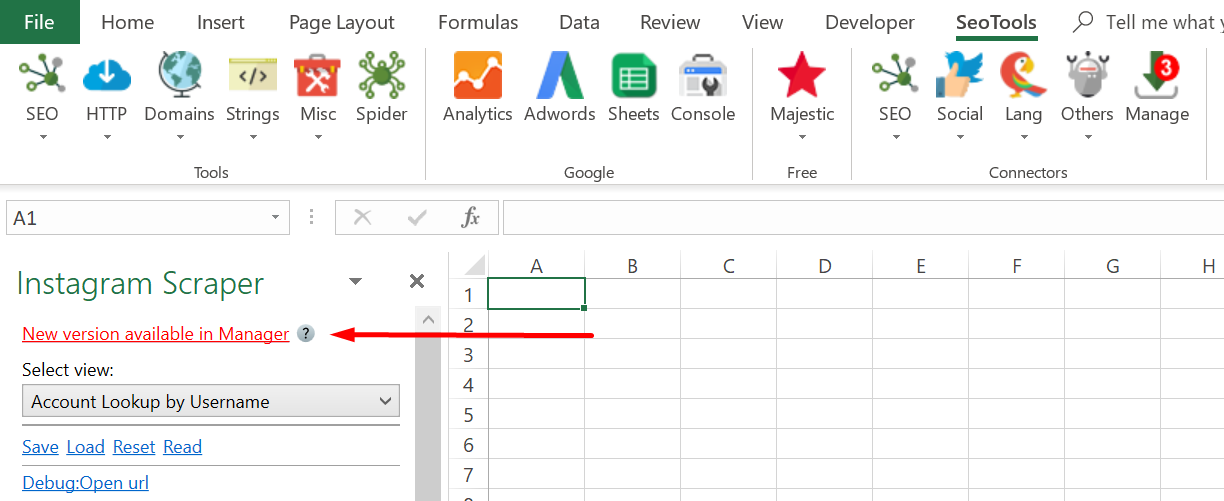
Click on **New version available in Manager** and the Manager will open up and browse to the specific connector. Click on Update.
## Remove Connectors
Remove unused Connectors to streamline SeoTools. Perfect when your colleagues are using SeoTools for specific business purposes. If you need them in the future, they are available in the Connectors Manager.
## Filtering
You can filter the connectors in the Manager by choosing either `Installed` or `Not Installed` to see which connectors you haven't added or came per-installed.
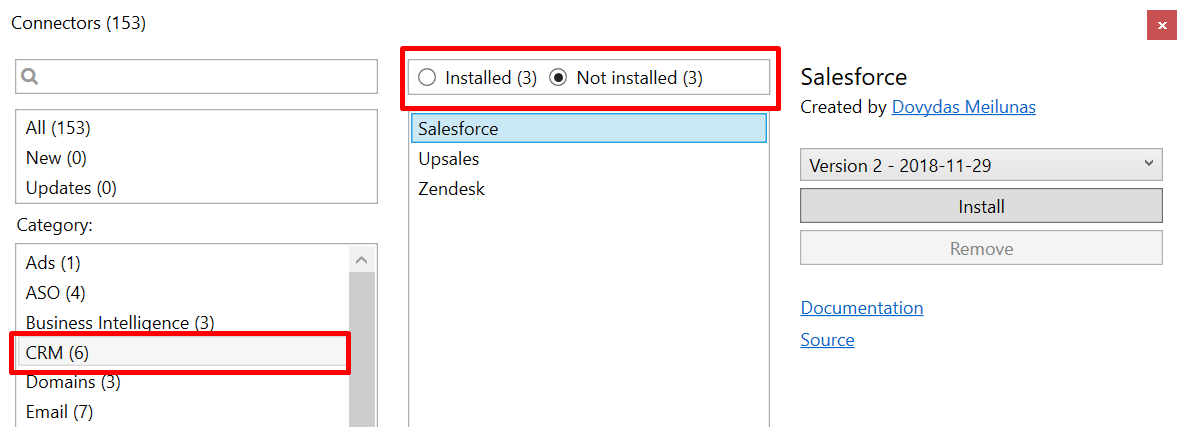
___
## See
* [Connectors](/connectors/)
* [Missing a Connector?](/missing-a-connector/)
---
# ManagementException:Not found
URL: https://seotoolsforexcel.com/managementexception-not-found/
Type: page
Published: 2022-12-29
Updated: 2022-12-29
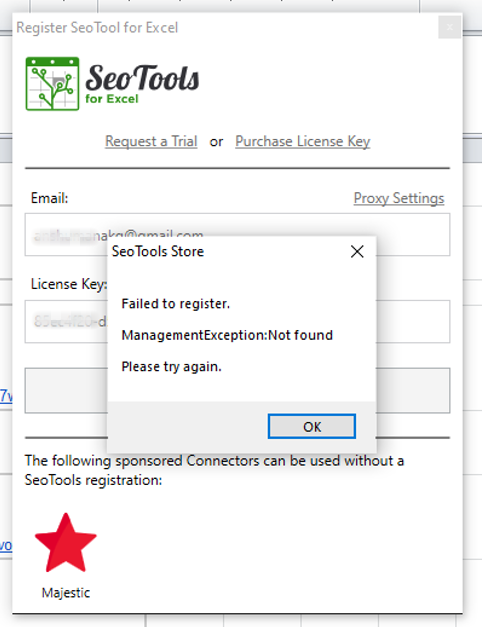
### Rebuild the WMI Repository
1. Disable and stop the winmgmt service
2. Remove or rename C:\Windows\System32\wbem\repository
3. Enable and start the winmgmt service
4. Open a CMD prompt as Administrator
5. In the CMD prompt Navigate to C:\Windows\System32\wbem\
6. Run the following command:
**‘for /f %s in ('dir /b \*.mof') do mofcomp %s’**
7. Now run the command:
**‘for /f %s in ('dir /b en-us\*.mfl') do mofcomp en-us\\%s’**
8. Restart the Data Collector service
Lastly, open PERFMON to verify that all counters can be loaded. If PERFMON generates a popup error, please follow [this Microsoft KB](http://support.microsoft.com/kb/2554336/en-us) to fix it.
---
# Access Marker in Excel
URL: https://seotoolsforexcel.com/marker/
Type: page
Published: 2020-02-26
Updated: 2020-02-26
Summary: Search the US trademarks database in Excel using the Marker connector. Use formulas to lookup serial numbers, request lists based on expiration dates.
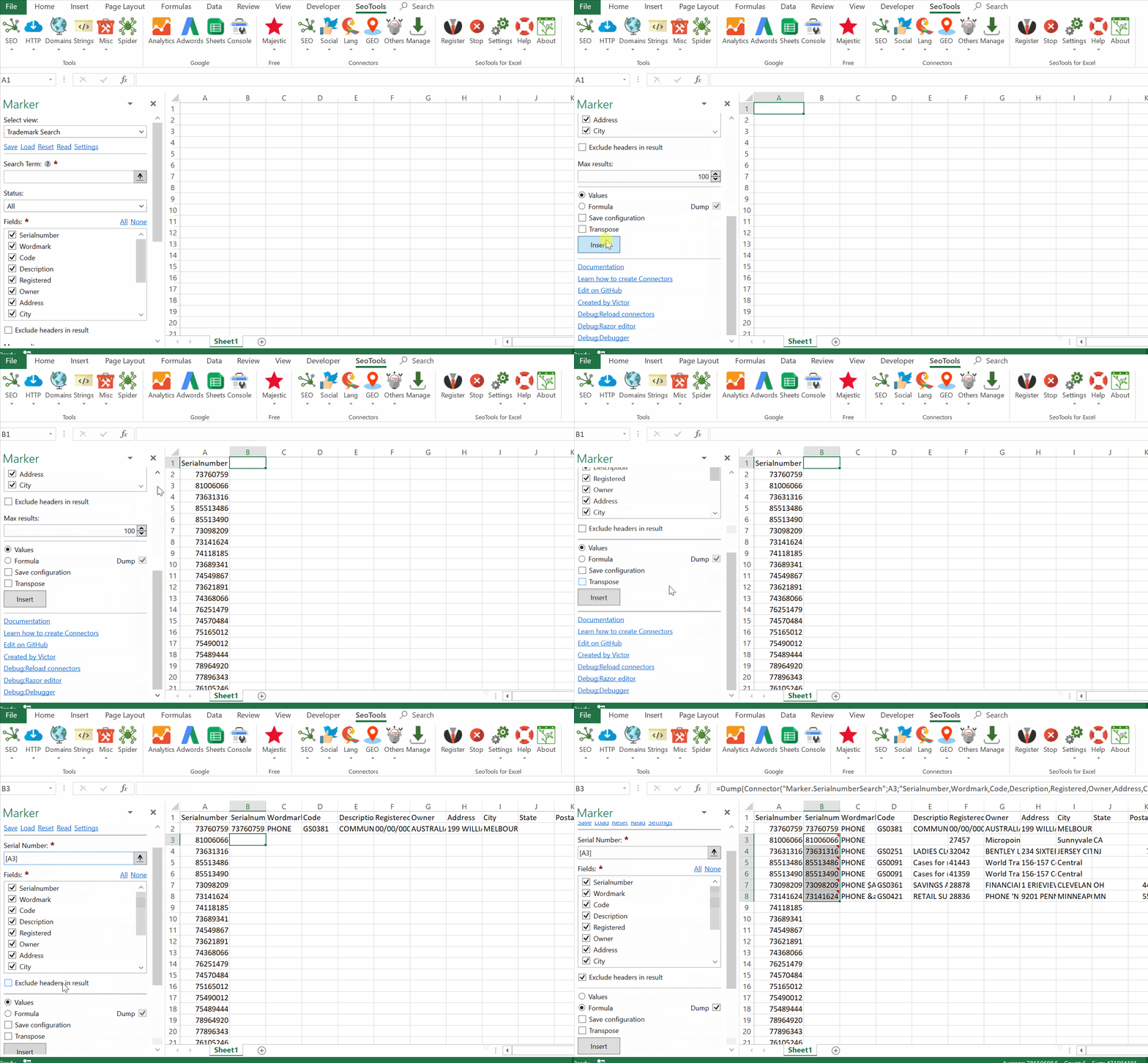
Use The Marker connector to search the US trademarks database (USPTO)
## Search
- *Trademarks*
- *Descriptions*
- *Expiration*
- *Owner*
## Lookup
- *Serial Number* - Request info about a specific trademark by serial number
___
## Access
## Add from Manager
The Marker Connector is available in the **[Connectors Manager](/manage-connectors/)** in the top ribbon:

Head over to the **Trademark Category** and install the Marker Connector.
## API Password
[Register](https://markerapi.com/) for a username and password to paste in the Marker settings inside SeoTools:
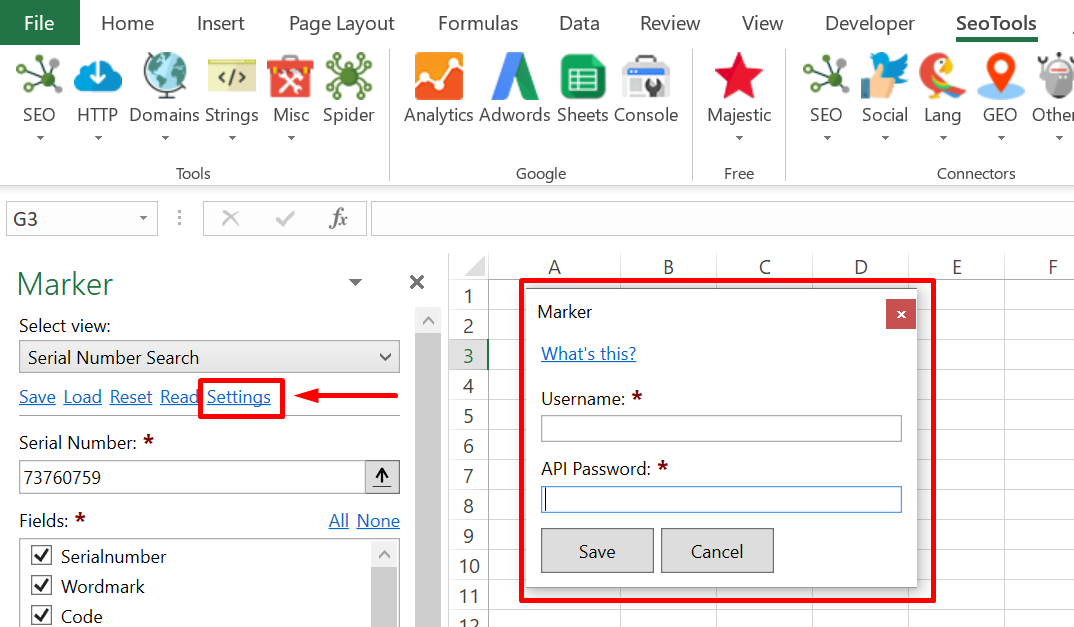
___
___
## Contribute
This connector suite is open-sourced on [GitHub](https://github.com/nielsbosma/SeoTools-for-Excel-Connectors/blob/master/Marker.xml).
___
## See
#### Official Documentation
* [Marker API](https://markerapi.com/documentation/)
#### Resources
* [Manager](/manage-connectors/)
---
# MdFive
URL: https://seotoolsforexcel.com/mdfive/
Type: page
Published: 2015-10-17
Updated: 2019-08-11
Summary: Md5 one-way encryption in Excel. Use formulas to automate encryption.
```
MdFive(string encryptThis) : string
```
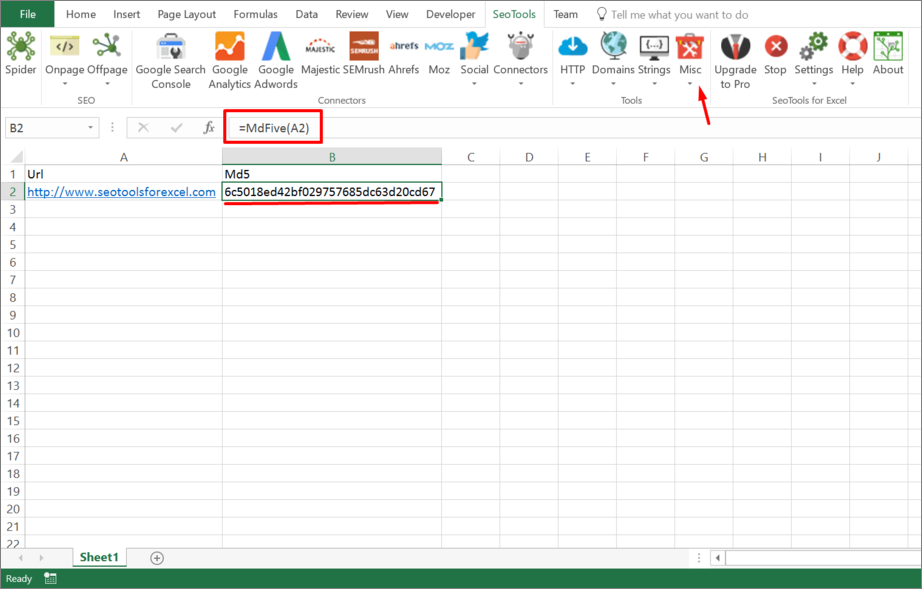
___
## Purpose
Enables [Md5](https://en.wikipedia.org/wiki/MD5) one-way encryption in Excel.
___
## See
#### Related Functions
* [NewGuid](/newguid/)
---
# Access Meetup in Excel
URL: https://seotoolsforexcel.com/meetup/
Type: page
Published: 2018-11-28
Updated: 2019-05-19
Summary: Integrate Meetup in Excel and delve into statistics about Events, Groups, Attendance, Members and filter by location, venues, similarity and much more.
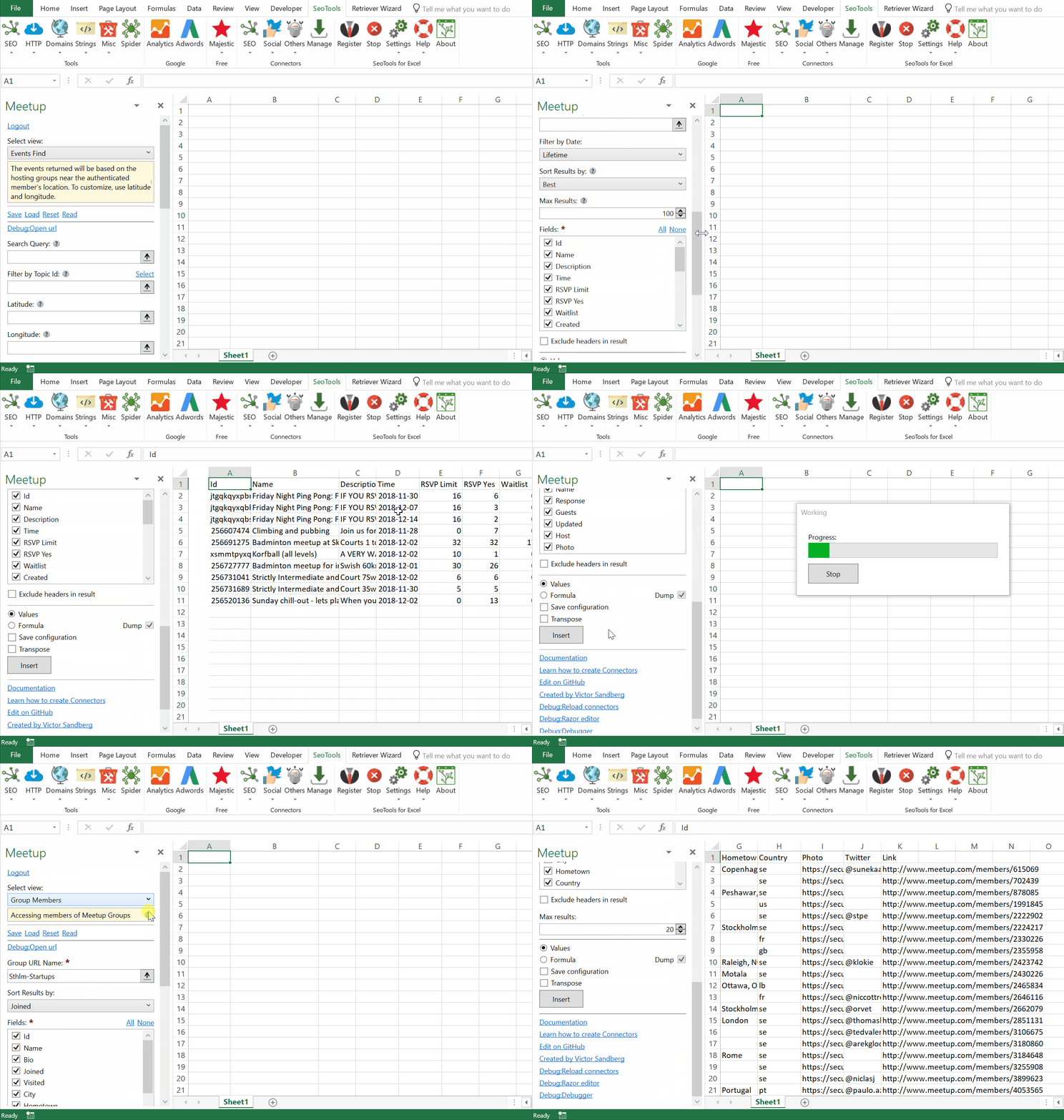
## Events
- **Find** - The events returned will be based on the hosting groups near the authenticated member's location. To customize, use latitude and longitude. Available Filters and Settings:
- Query
- Topic Id
- Latitude & Longitude
- Radius
- Date
- Sort Results by Best or Time
- **By Group** - Gets a listing of all Meetup Events hosted by a target group.
- **Lookup** - Fetches a Meetup Event by group url name and event Id.
- **Attendance** - Lists attendance records for Meetup events.
- **Comments** - Lists the comments and replies posted in a given Meetup Event.
- **Personal** - Gets a listing of all scheduled Meetup Events the authenticated member has RSVP'd to.
## Cities
- **Find** - Returns Meetup cities. Available Filters and Settings
- Search Query
- Country (Valid 2-letter country code)
- Latitude/Longitude
- Radius
- Sort Results by Smart, Size or Distance
## Groups
- **Find** - Text, location, category and friend-based group searches. Available Filters and Settings:
- Search Query
- Search Location
- Latitude & Longitude
- Radius
- Date
- Sort Results by Distance, Members, Most active or Newest
- **Lookup** - Fetches a Meetup group by url name.
- **Similar** - Renders a list of similar groups.
- **Members** - Accessing members of Meetup Groups.
- Sort results by Joined, Name or Visited
- **Photos** - Lists of all photos uploaded for the group.
- **Personal** - Lists the authenticated member's groups in the order of leadership, next upcoming event, then alphabetical order by name.
## Venues
- **Find** - Returns list of venues based on location. Available Filters and Settings:
- Search Query
- Country (Valid 2-letter country code)
- Latitude & Longitude
- Radius
- Date
- Sort Results by Rating, Rating Count, or Distance in ascending or descending order.
___
## Access
## Add from Manager
The Meetup Connector is available in the **[Connectors Manager](/manage-connectors/)** in the top ribbon:

Head over to the **Social Category** and install Meetup:

___
## Contribute
This connector suite is open-sourced on [GitHub](https://github.com/nielsbosma/SeoTools-for-Excel-Connectors/blob/master/Meetup.xml).
___
## See
#### Official Documentation
* [Meetup API](https://www.meetup.com/meetup_api/docs/)
#### Resources
* [Manager](/manage-connectors/)
---
# Access Microsoft Face in Excel
URL: https://seotoolsforexcel.com/microsoft-face/
Type: page
Published: 2018-09-11
Updated: 2023-07-10
Summary: SeoTools for Excel allows you to analyze images from links inside Excel. Identify facial attributes, emotions, group images, find similar, verify and more.
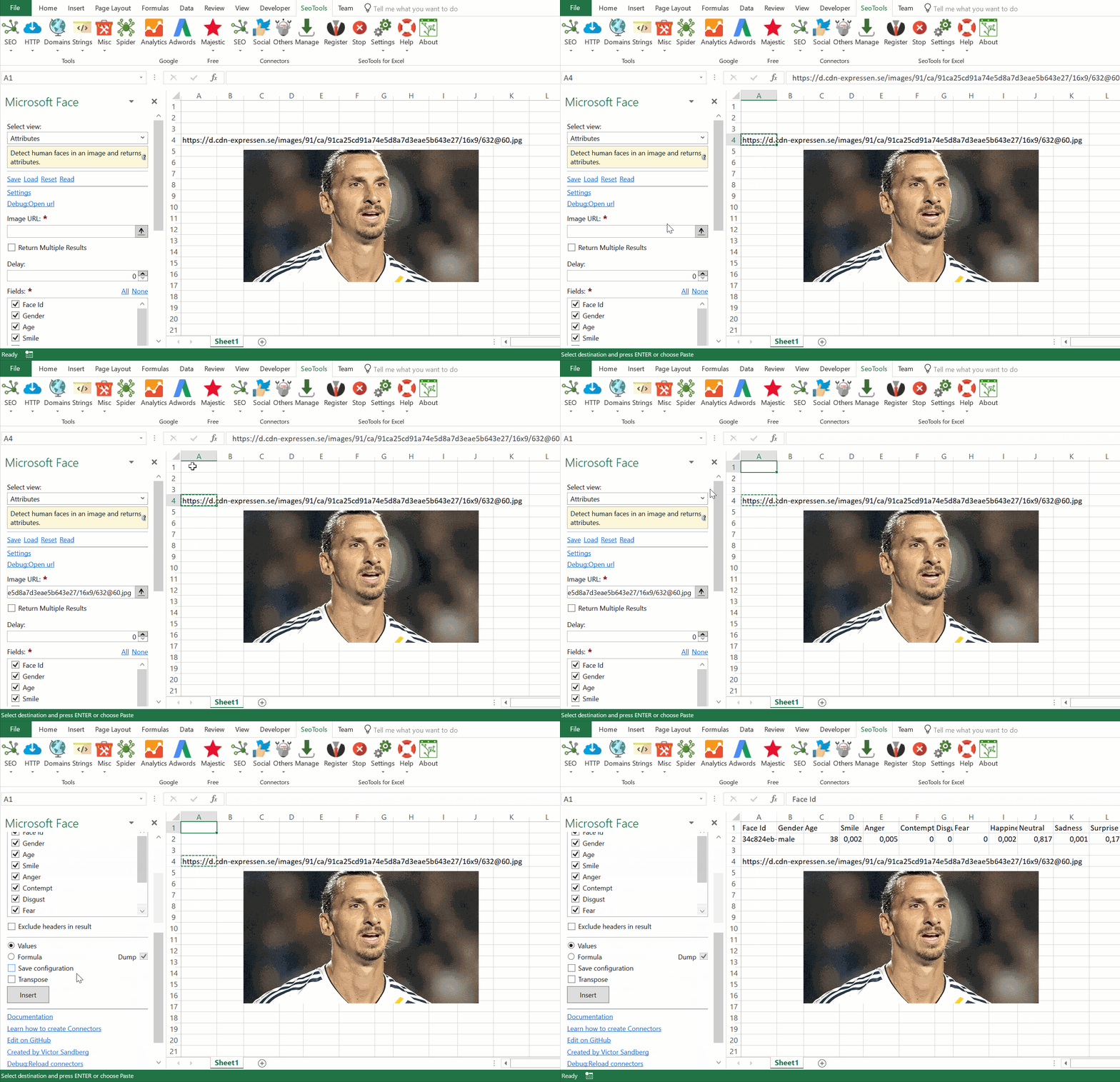
## Attributes
Detect human faces in an image and returns attributes. Supported metrics:
- Gender
- Age
- Smile
- Anger
- Contempt
- Disgust
- Fear
- Happiness
- Neutral
- Sad
- Surprise
## Find Similar
Compare one Face Id against a group of Face Ids and find similar.
## Grouping
Divide candidate faces into groups based on face similarity.
## Verify
Verify whether two faces belong to the same person.
___
## Access
## Add from Manager
The Microsoft Face Connector is available in the **[Connectors Manager](/manage-connectors/)** in the top ribbon:

Head over to the **Image Recognition Category** and install Microsoft Face:
## Get Access key
To use the Microsoft Face Connector you need an [Access Key](https://docs.microsoft.com/en-us/azure/cognitive-services/face/). Remember to select the same Location as the one you chose during the registration process:
___
## Contribute
This connector suite is open-sourced on [GitHub](https://github.com/nielsbosma/SeoTools-for-Excel-Connectors/blob/master/MicrosoftFace.xml).
___
## See
#### Official Documentation
* [Microsoft Face API](https://westus.dev.cognitive.microsoft.com/docs/services/563879b61984550e40cbbe8d/operations/563879b61984550f30395238)
#### Related Functions
* [Microsoft Computer Vision](/ms-computer-vision/)
#### Resources
* [Manager](/manage-connectors/)
---
# Access Microsoft Text Analytics in Excel
URL: https://seotoolsforexcel.com/microsoft-text-analytics/
Type: page
Published: 2018-09-11
Updated: 2023-06-27
Summary: SeoTools for Excel offers an effective method to extract entities, key phrases, sentiment and identify languages of text inside Excel.
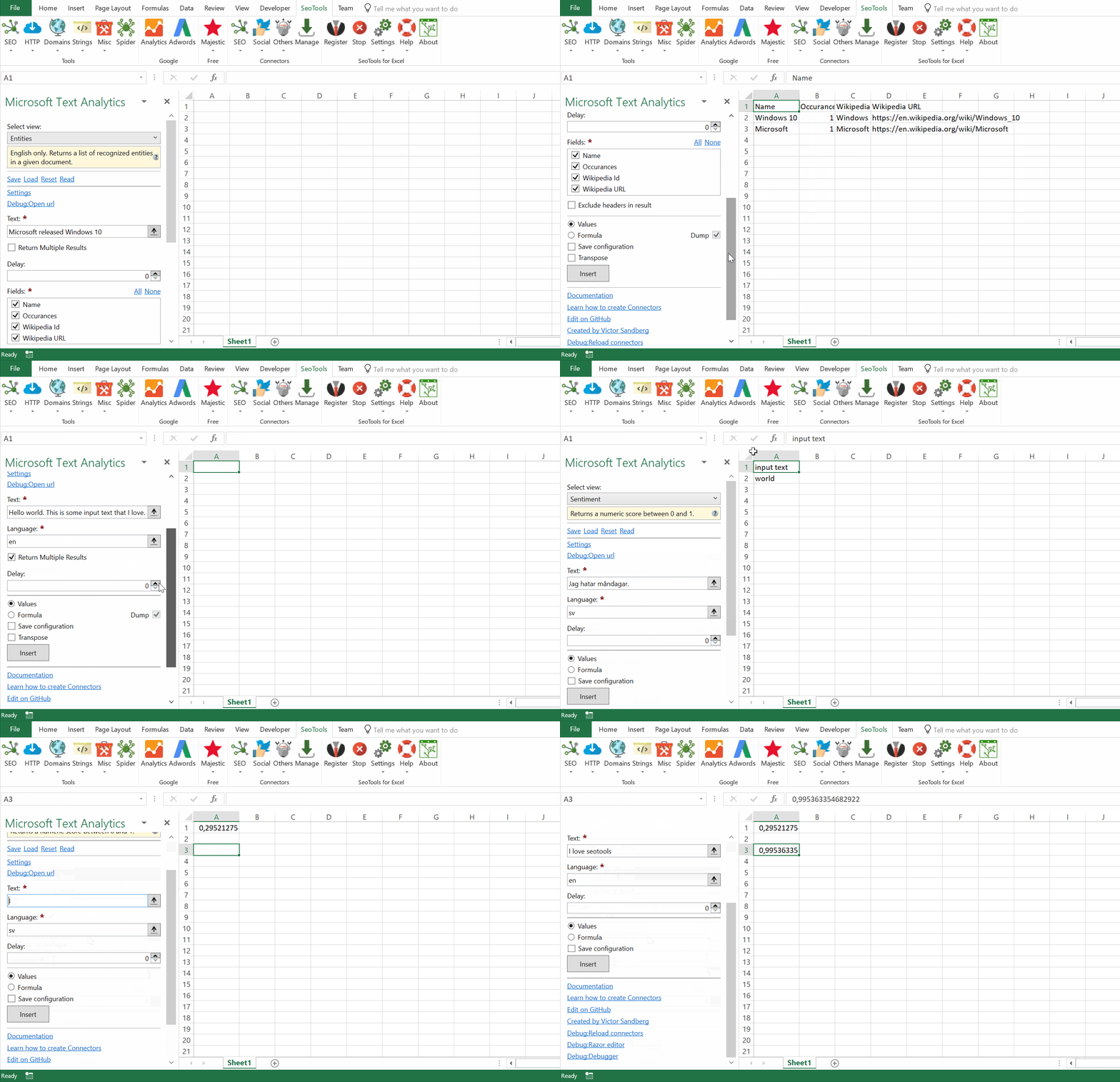
## Sentiment
Returns a numeric score between 0 and 1.
## Entities
Returns a list of recognized entities in a given document. *English only.*
## Key Phrases
Returns a list of strings denoting the key talking points in the input text.
## Detect Language
Returns the detected language and a numeric score between 0 and 1.
___
## Access
## Add from Manager
The Microsoft Text Analytics Connector is available in the **[Connectors Manager](/manage-connectors/)** in the top ribbon:

Head over to the **AI Category** and install Microsoft Text Analytics:

## Get Access key
To use the Microsoft Text Analytics Connector you need an [Access Key](https://docs.microsoft.com/en-us/azure/cognitive-services/cognitive-services-apis-create-account?tabs=multiservice%2Cwindows). Remember to select the same Location as the one you chose during the registration process: 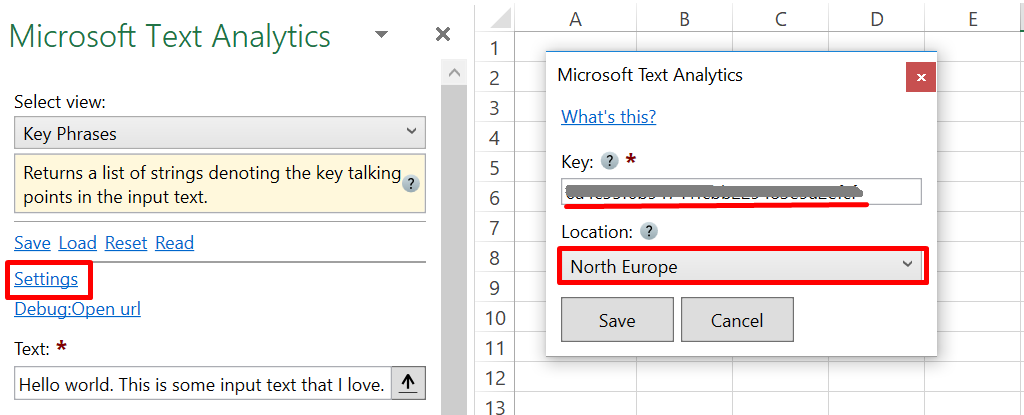
___
## Contribute
This connector suite is open-sourced on [GitHub](https://github.com/nielsbosma/SeoTools-for-Excel-Connectors/blob/master/MicrosoftTextAnalytics.xml).
___
## See
#### Official Documentation
* [Microsoft Text Analytics API](https://westus.dev.cognitive.microsoft.com/docs/services/TextAnalytics.V2.0/operations/56f30ceeeda5650db055a3c7)
#### Related Functions
* [Microsoft Translator](/microsoft-translator/)
* [IBM Watson](/watson-nl/)
* [uClassify](/uclassify/)
#### Resources
* [Manager](/manage-connectors/)
---
# Access Microsoft Translator in Excel
URL: https://seotoolsforexcel.com/microsoft-translator/
Type: page
Published: 2018-08-15
Updated: 2025-05-02
Summary: SeoTools for Excel offers an effective method to detect languages, translate text and analyze sentences inside Excel.
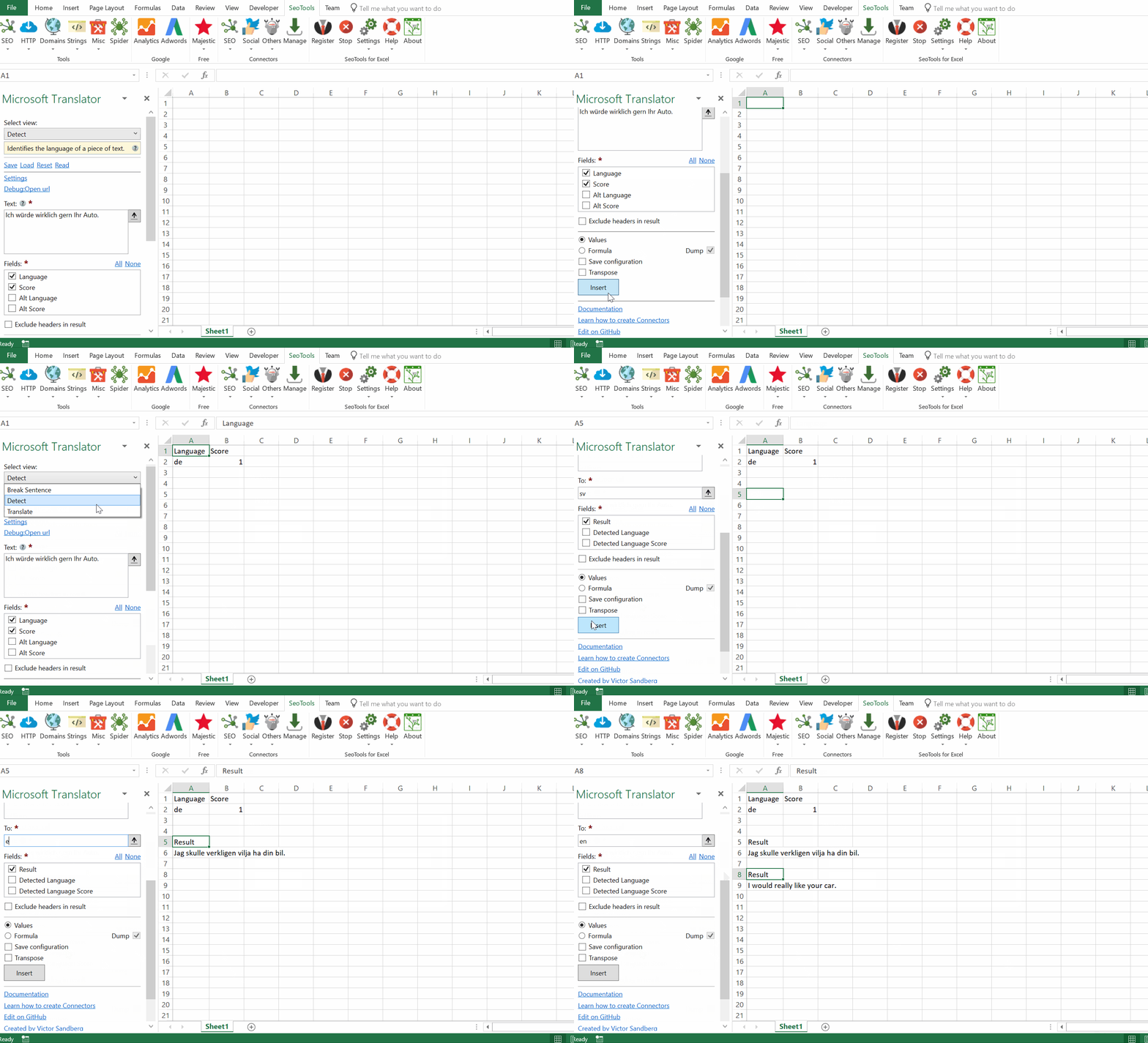
## Detect
Detects the language of one or more texts.
## Translate
Translates one ore more texts to a language of your choice.
## Break Sentence
Returns the number of sentences and the length of each sentence from one or more texts.
___
## Access
## Add from Manager
The Microsoft Translator Connector is available in the **[Connectors Manager](/manage-connectors/)** in the top ribbon:

Head over to the **AI Category** and install Microsoft Translator:

## Get API key
To use the Microsoft Translator Connector you need an [API Key](https://docs.microsoft.com/en-us/azure/cognitive-services/translator/translator-text-how-to-signup).
___
## Contribute
This connector suite is open-sourced on [GitHub](https://github.com/nielsbosma/SeoTools-for-Excel-Connectors/blob/master/MicrosoftTranslator.xml).
___
## See
#### Official Documentation
* [Microsoft Translator API](https://docs.microsoft.com/en-us/azure/cognitive-services/translator/reference/v3-0-reference)
#### Related Functions
* [Watson Language Translator](/watson-lt/)
* [Microsoft Text Analytics](/microsoft-text-analytics/)
#### Resources
* [Manager](/manage-connectors/)
---
# Missing a Connector?
URL: https://seotoolsforexcel.com/missing-a-connector/
Type: page
Published: 2018-02-22
Updated: 2019-05-19
Summary: SeoTools offers several ways to add Connectors to your favorite services. Contant us or learn how to build your own Connectors.
We are constantly adding new services and data streams to the SeoTools Connectors library. If a Connector is missing, we recommend trying one of the following three methods:
#### a) Create it yourself
Creating your own Connector is quite simple. The ones that are shipped with SeoTools are all open-sourced on [GitHub](https://github.com/nielsbosma/SeoTools-for-Excel-Connectors). The Connectors are created with an easy-to-use XML language (we're working on a guide that we'll release shortly). If you need any help we'll be happy to support you in the [SeoTools Community](https://community.seotoolsforexcel.com/).
#### b) Community
We welcome all suggestions and feedback in the [SeoTools Community](https://community.seotoolsforexcel.com/) in order improve and add Connectors.
#### c) Contact us for consultancy services
Need a custom-made Connector to fit your business needs? Do you wish to automate your existing workflows with VBA scripts? Send an email to [victor@seotoolsforexcel.com](mailto:victor@seotoolsforexcel.com) and tell us about your current situation and requests.
---
# Access Mixpanel in Excel
URL: https://seotoolsforexcel.com/mixpanel/
Type: page
Published: 2018-02-25
Updated: 2019-05-19
Summary: SeoTools for Excel offers a user-friendly and effective method to search and collect data from Mixpanel straight to Excel within a matter of seconds.
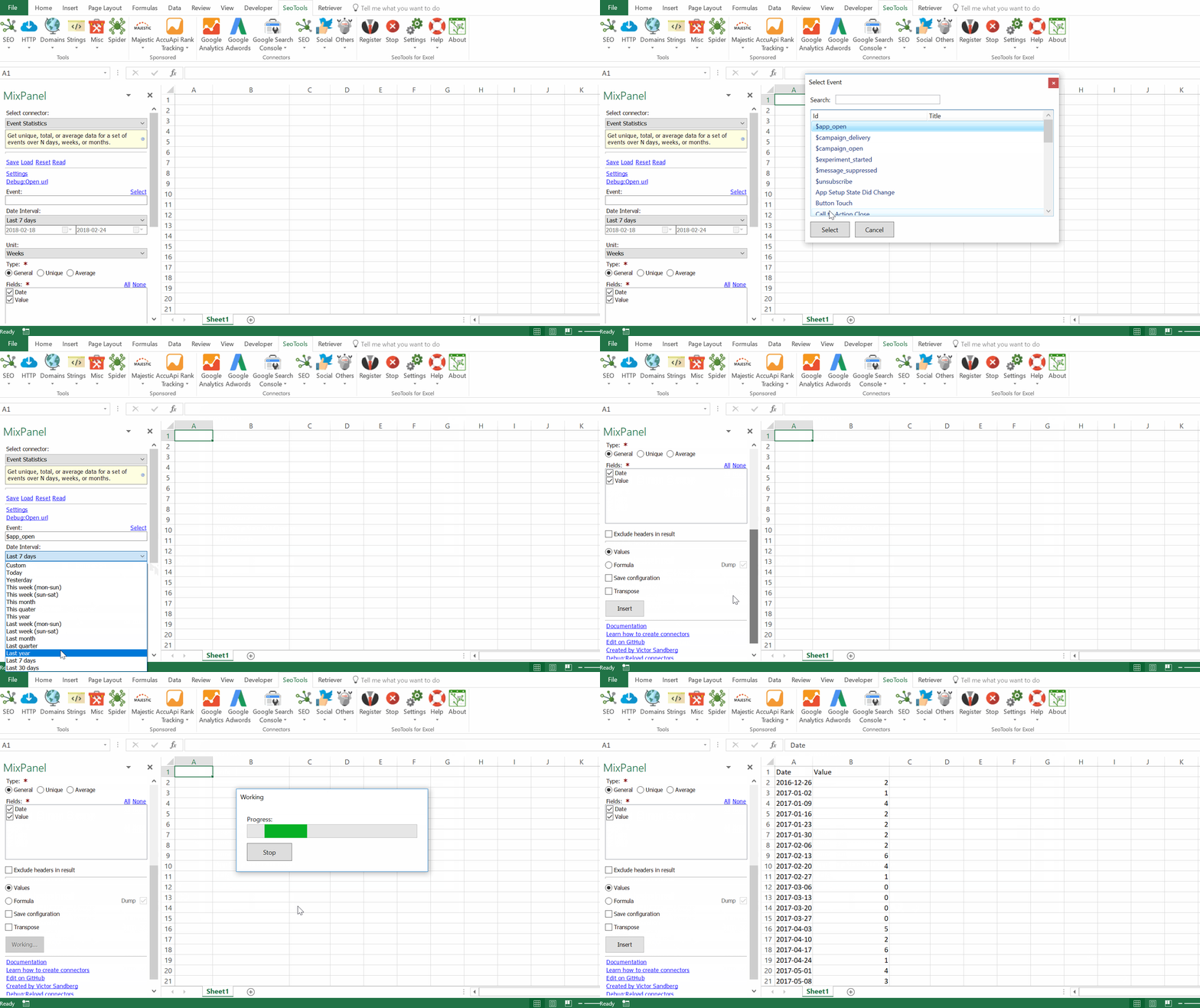
___
* **Event Statistics** - Get unique, total, or average data for a set of events. Filter by:
- Date intervals
- Granularity
* **Event Property Statistics** - Get unique, total, or average data for of a single event and property. Filter by:
- Date intervals
- Granularity
- Values
* **Event Top Properties** - Get the top property names for an event.
* **Common Events** - Get a list of the most common events over the last 31 days.
* **Top Events Today** - Get the top events for today, with their counts and the normalized percent change from yesterday.
* **Properties Top Values** - Get the top values for a property.
## Contribute
This connector suite is open-sourced on [GitHub](https://github.com/nielsbosma/SeoTools-for-Excel-Connectors/blob/master/Twitch.xml).
___
## Access
## Add from Manager
The Mixpanel Connector is available in the **[Connectors Manager](/manage-connectors/)** in the top ribbon:

Head over to the **Business Intelligence Category** and install Mixpanel:
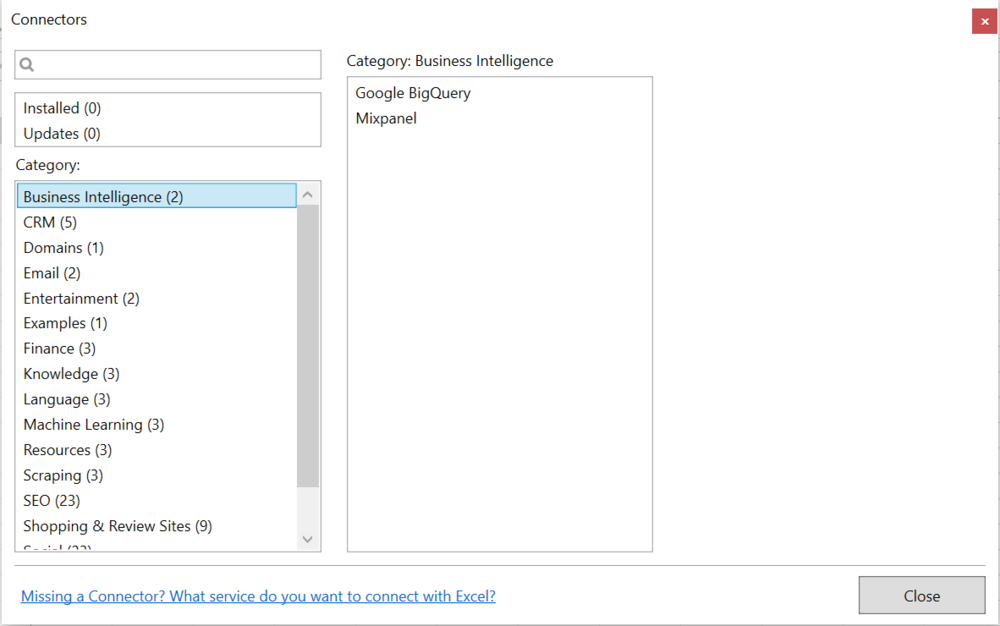
## Get API keys
To use the Connector you need a MixPanel [API Secret Key](https://mixpanel.com/register/#1)
___
## See
#### Official Documentation
* [Mixpanel API](https://developer.mixpanel.com/docs/data-export-api)
#### Resources
* [Manager](/manage-connectors/)
---
# Access Moz in Excel
URL: https://seotoolsforexcel.com/moz/
Type: page
Published: 2015-10-04
Updated: 2019-05-19
Summary: SeoTools for Excel offers a user-friendly and effective method to collect Backlinks, Anchor texts, and many other metrics from Moz straight to Excel
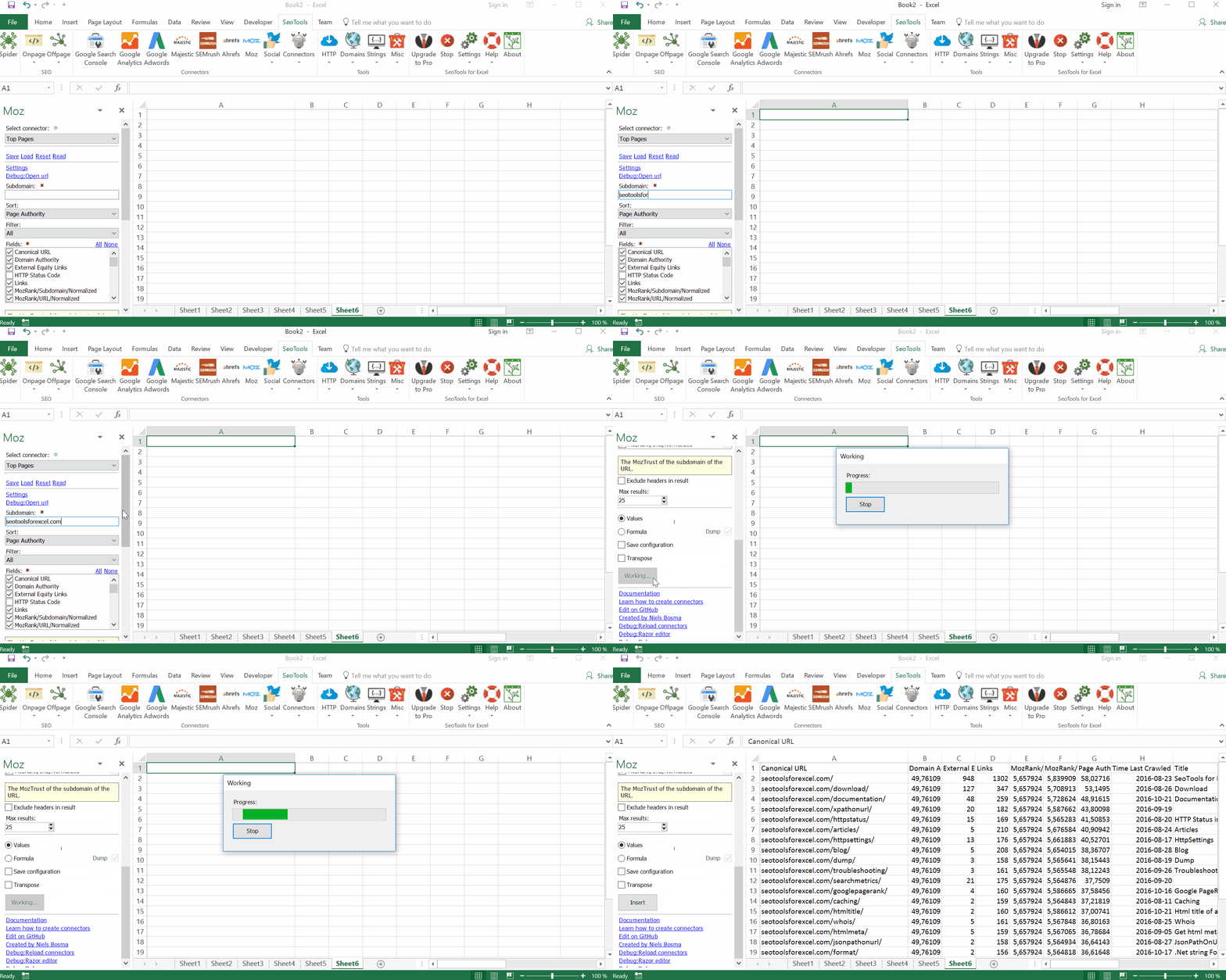
___
## Features
* **Metrics** - Returns metrics for a URL or set of URLs you specify.
* **Anchor texts** - Returns anchor text for inbound links. Available Scopes:
- Term to Page
- Term to Sub domain
- Term to Domain
* **Backlinks** - Returns information about links between a target URL and other pages and domains. Filter by:
- Source Domain
- Scope
- Page Authority
* **Top Pages** - Returns metrics for URLs on a sub domain. Sort by:
- Page Authority
- Domains Linking Page
___
## API keys
To use the Moz Connector you need an `Access id` and a `Secret key.`
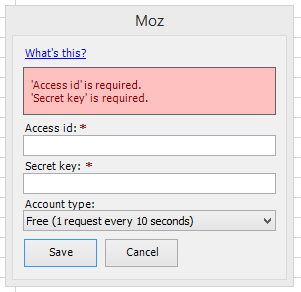
1. Create a [Moz account](https://moz.com/community/join?redirect=/products/api/keys&utm_source=seotoolsforexcel&utm_medium=partner&utm_campaign=seotoolsforexcel) if you don't already have one.
2. Then [Manage Mozscape API Key](https://moz.com/products/api/keys?utm_source=seotoolsforexcel&utm_medium=partner&utm_campaign=seotoolsforexcel).
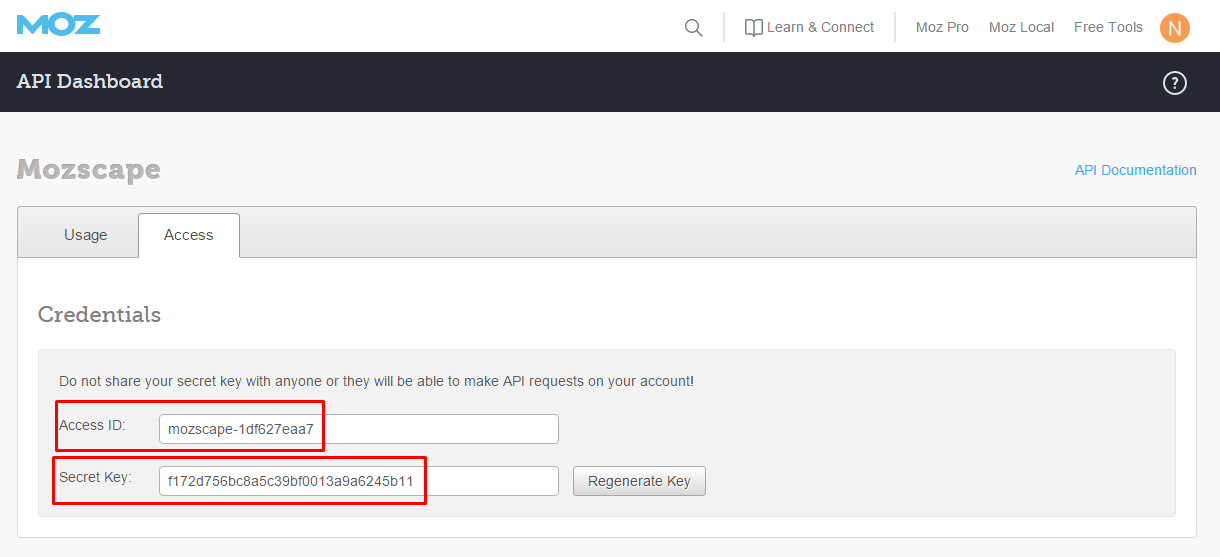
**You'll need a paid account to use the more advanced features and to retrieve data without throttling.**
Note that when you have created a key it can take a few minutes before the key is activated.
___
## Contribute
This connector suite is open-sourced on [GitHub](https://github.com/nielsbosma/SeoTools-for-Excel-Connectors/blob/master/Moz.xml).
___
## See
#### Official Documentation
* [Moz API](https://moz.com/help/links-api)
---
# Access Microsoft Computer Vision in Excel
URL: https://seotoolsforexcel.com/ms-computer-vision/
Type: page
Published: 2018-09-16
Updated: 2021-07-12
Summary: SeoTools for Excel allows you to analyze images from links inside Excel. Identify categories, tags, colors, faces. Generate descriptions and more.
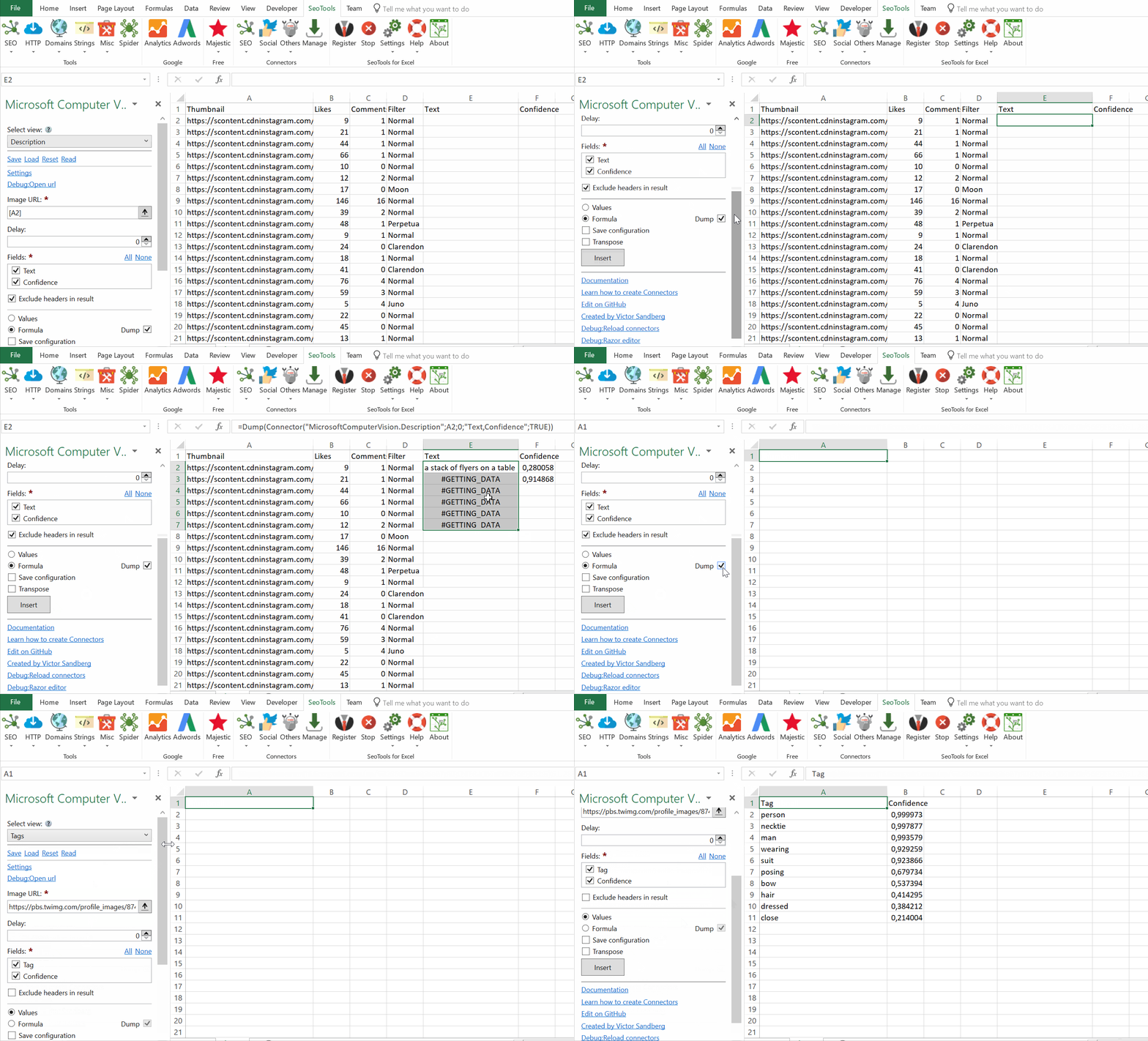
## Description
Describes the image content with a complete sentence.
## Brands
Detects various brands within an image.
## Tags
Detailed list of words related to the image content.
## Categories
Categorizes image content according to a taxonomy.
## Colors
Determines the accent color, dominant color, and whether an image is black&white.
## Faces
Detects if faces are present. If present, generate gender and age.
## Celebrities
Identifies celebrities if detected in the image.
## Adult
Detects if the image is pornographic in nature. Sexually suggestive content is also detected.
___
## Access
## Add from Manager
The Microsoft Computer Vision is available in the **[Connectors Manager](/manage-connectors/)** in the top ribbon:

Head over to the **Image Recognition Category** and install Microsoft Computer Vision:

## Get Access key
To use the Microsoft Computer Vision Connector you need an [Access Key](https://docs.microsoft.com/en-us/azure/cognitive-services/cognitive-services-apis-create-account). Remember to select the same Location as the one you chose during the registration process: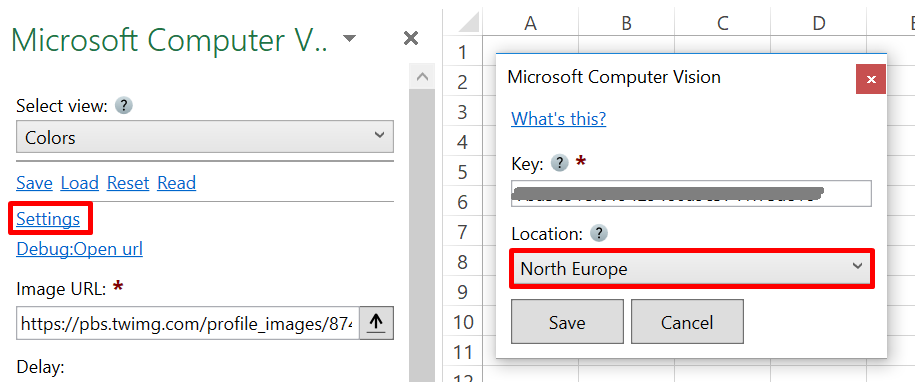
___
## Contribute
This connector suite is open-sourced on [GitHub](https://github.com/nielsbosma/SeoTools-for-Excel-Connectors/blob/master/MicrosoftComputerVision.xml).
___
## See
#### Official Documentation
* [Microsoft Computer Vision API](https://docs.microsoft.com/en-us/azure/cognitive-services/computer-vision/home)
#### Related Functions
* [Microsoft Face](/microsoft-face/)
* [Watson Visual Recognition](/watson-vr/)
#### Resources
* [Manager](/manage-connectors/)
---
# Access NASA in Excel
URL: https://seotoolsforexcel.com/nasa/
Type: page
Published: 2018-12-02
Updated: 2019-05-19
Summary: Integrate NASA with Excel and delve into statistics about asteroids, exoplanets, genes, image libraries, including the Mars Rovers and satellites.
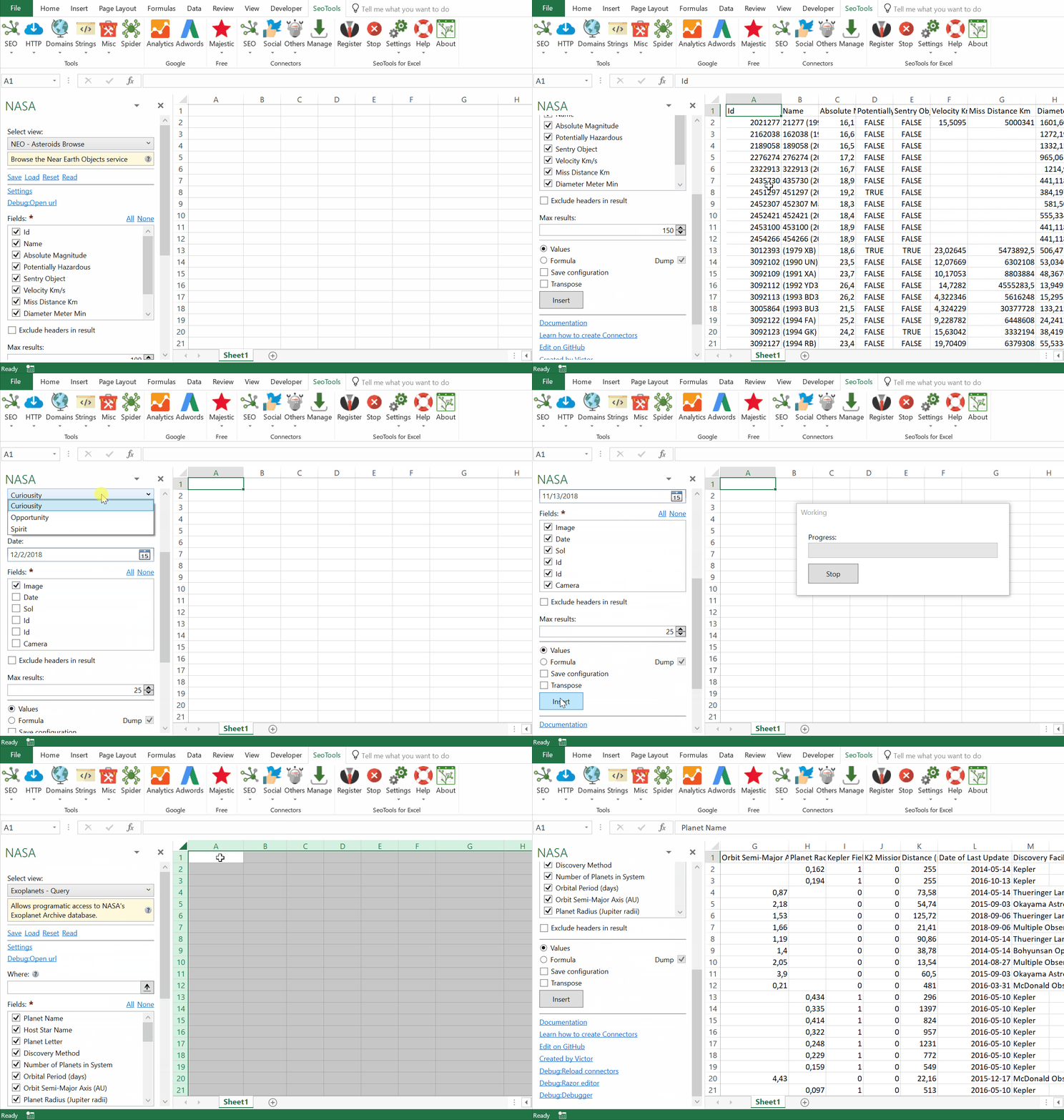
## Near Earth Objects
- **Asteroids Feed** - Retrieve a list of Asteroids based on their closest approach date to Earth. Available options:
- Date to search for asteroids
- **Asteroids Browse** - Browse the Near Earth Objects service.
- **Asteroids Lookup** - Lookup a specific Asteroid based on its NASA JPL small body (SPK-ID) ID.
- **Sentry List** - Retrieves Near Earth Objects listed in the NASA sentry data set. Available options:
- Active Only (true or false)
- **Sentry Lookup** - Retrieves Sentry Near Earth Object by ID.
- **Statistics** - Get the Near Earth Object data set totals. The metrics includes *total objects count* and *close approach count*.
## Earth
- **Imagery** - Retrieves the Landsat 8 image for the supplied location and date. Available options:
- Latitude
- Longitude
- Dim (Width and Height of image in degrees)
- Date - if not supplied, then the most recent image (i.e., closest to today) is returned.
## Exoplanets
- **List** - Allows programmatic access to NASA's Exoplanet Archive database. Available options:
- Where: Filter based query with syntax: `parameter operator value`, ex: `dec>0`. Specifies which rows to return. Use this to search for a range of values, such as rows with a declination greater than 0. Parameters must use a valid column name. See [this page](https://exoplanetarchive.ipac.caltech.edu/docs/API_exomultpars_columns.html) for a complete list of columns.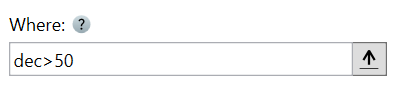
## Genelab
- **Search** - Full-text search capability for the GeneLab public data repository. Available options:
- Query: Keyword(s) to search on along with optional case-insensitive boolean operators, such as: `AND, OR, NOT`.
- Database: (*GeneLab*, *NIH GEO*, *EBI PRIDE* or *MG-RAST*)
## NASA Images
- **Search** - Search the NASA Image and Video Library. Available options:
- Query: Free text search terms to compare to all indexed metadata.
- Nasa Id: The media asset’s NASA ID.
- Photographer: The primary photographer’s name.
- Center: NASA center which published the media.
- Year Start: The start year for results. Format: YYYY.
- Year End: The end year for results. Format: YYYY.
## Mars Rover
- **Photos Browse** - Image data gathered by NASA's Curiosity, Opportunity, and Spirit rovers on Mars. Available options:
- Rover (*Curiousity*, *Opportunity *or *Spirit*)
- Camera
- Date when photos were taken
___
## Access
## Add from Manager
The NASA Connector is available in the **[Connectors Manager](/manage-connectors/)** in the top ribbon:

Head over to the **Science Category** and install Meetup:
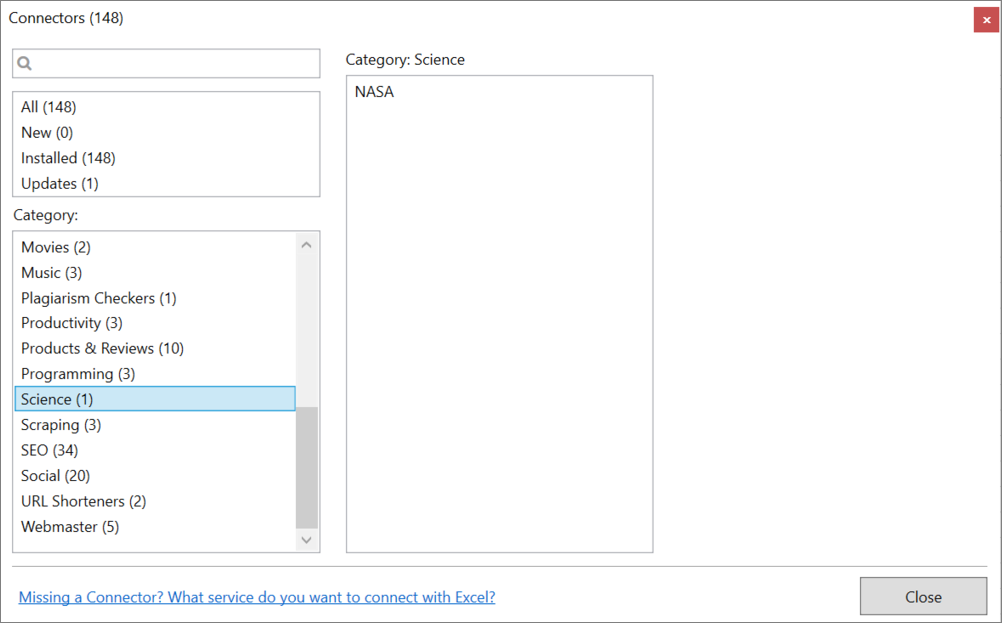
## API Key
You can either use the demo key (*"demo"*) or create your own developer key. We recommend creating your own key because the demo key is limited to 50 requests per IP address per day.
1. Sign up for a [Developer key](https://api.nasa.gov/index.html#apply-for-an-api-key) and fill out the form.
2. On the next page, copy the API key and paste the key in the NASA task-pane inside Seotools: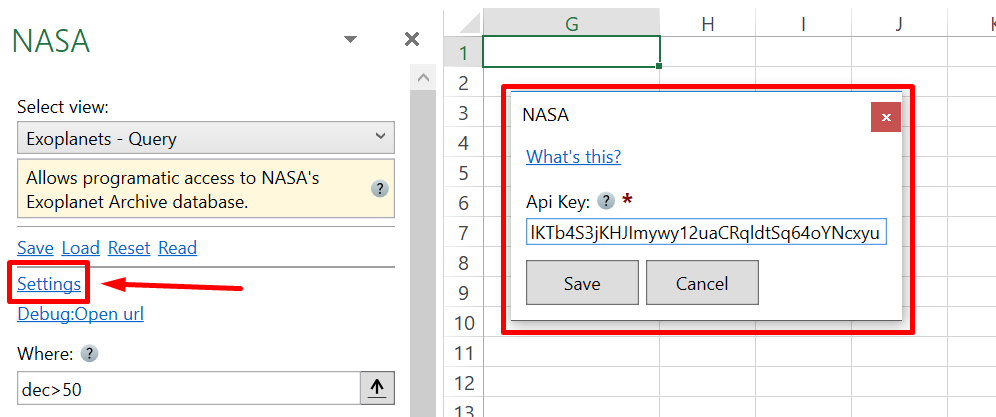
___
## Contribute
This connector suite is open-sourced on [GitHub](https://github.com/nielsbosma/SeoTools-for-Excel-Connectors/blob/master/NASA.xml).
___
## See
#### Official Documentation
* [NASA API](https://api.nasa.gov/)
#### Resources
* [Manager](/manage-connectors/)
---
# NewGuid
URL: https://seotoolsforexcel.com/newguid/
Type: page
Published: 2015-03-29
Updated: 2019-05-27
Summary: Create a new Guid as a formula in Excel with SeoTools for Excel.
```
=NewGuid() : string
```
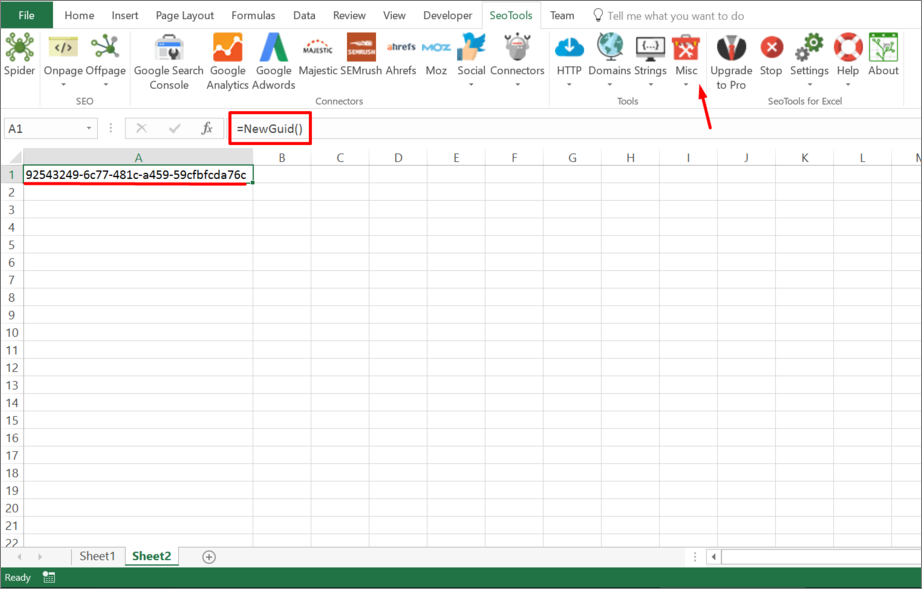
___
## Purpose
Generates a [Guid](https://en.wikipedia.org/wiki/Globally_unique_identifier).
___
## Example
=NewGuid()
=>"e7e7b2f5-e6e3-4a32-8405-a08f43f823dc"
___
## See
#### Related Functions
* [MdFive](/mdfive/)
---
# NiceColors
URL: https://seotoolsforexcel.com/nicecolors/
Type: page
Published: 2015-03-29
Updated: 2019-05-19
Summary: Create a list of nice colors that look pretty together as a formula in Excel with SeoTools for Excel.
```
=NiceColors(string baseColor, int howMany,
bool skipHash) : array
```
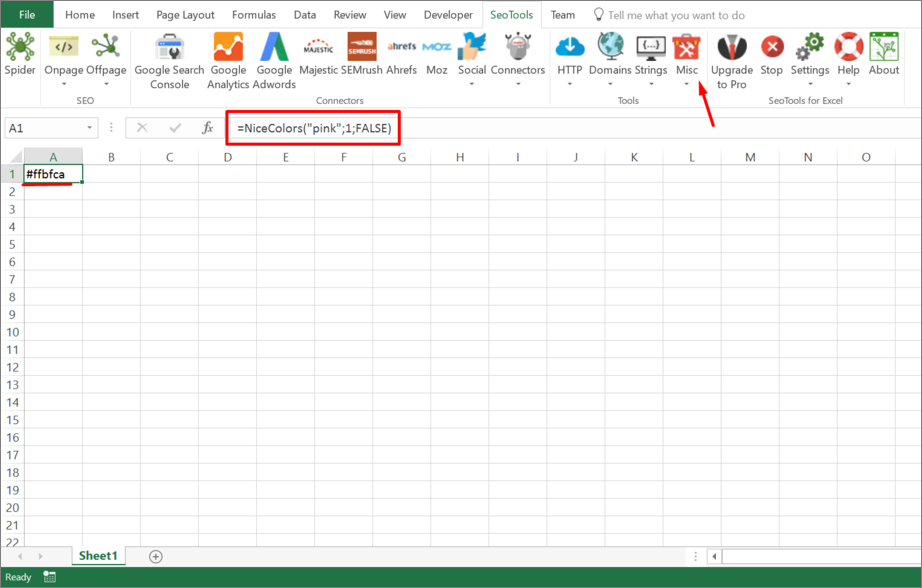
___
## Purpose
Returns a list of nice colors that looks pretty together. For example a pie chart.
This function is useful when working with Google Chart API.
___
## Example
=StringJoin(",",NiceColors("#aabbcc",5,FALSE))
=>#aabbcc,#c1aacc,#ccaaad,#c8ccaa,#aaccb4
---
# NormalizeWhitespace
URL: https://seotoolsforexcel.com/normalizewhitespace/
Type: page
Published: 2015-03-29
Updated: 2020-02-29
Summary: Replace all white spaces to single spaces in Excel with SeoTools for Excel.
```
=NormalizeWhitespace(string text) : string
```
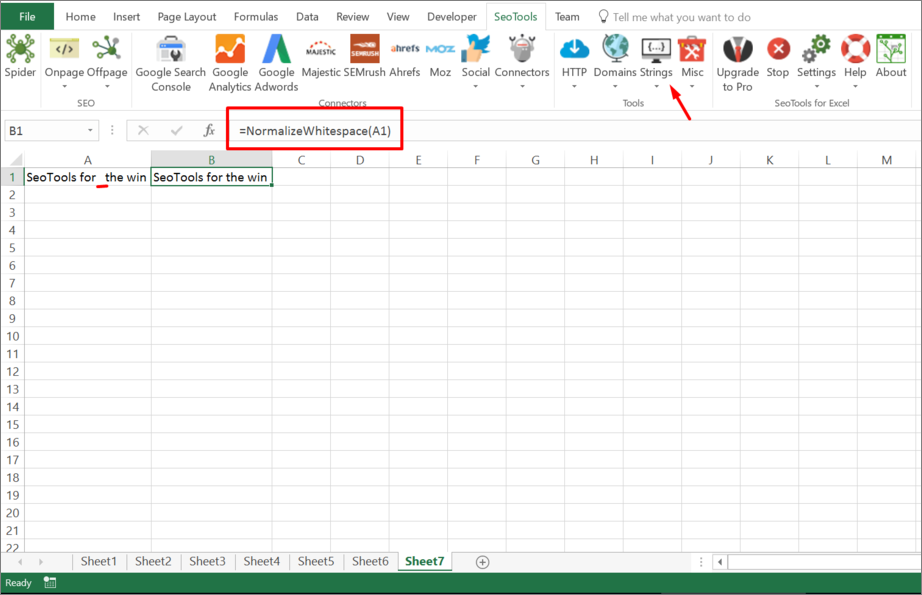
___
## Purpose
Replace all whitespaces in a text to single spaces.
____
## See
#### Related Functions
* [StripWhiteSpace](/stripwhitespace/)
* [StripLineBreaks](/striplinebreaks/)
* [StripTags](/striptags/)
---
# Access OneDrive in Excel
URL: https://seotoolsforexcel.com/onedrive/
Type: page
Published: 2018-11-27
Updated: 2019-05-19
Summary: Keep track your OneDrive data within Excel. List, search and lookup files, folders and children with detailed metadata about relationships and ownership.
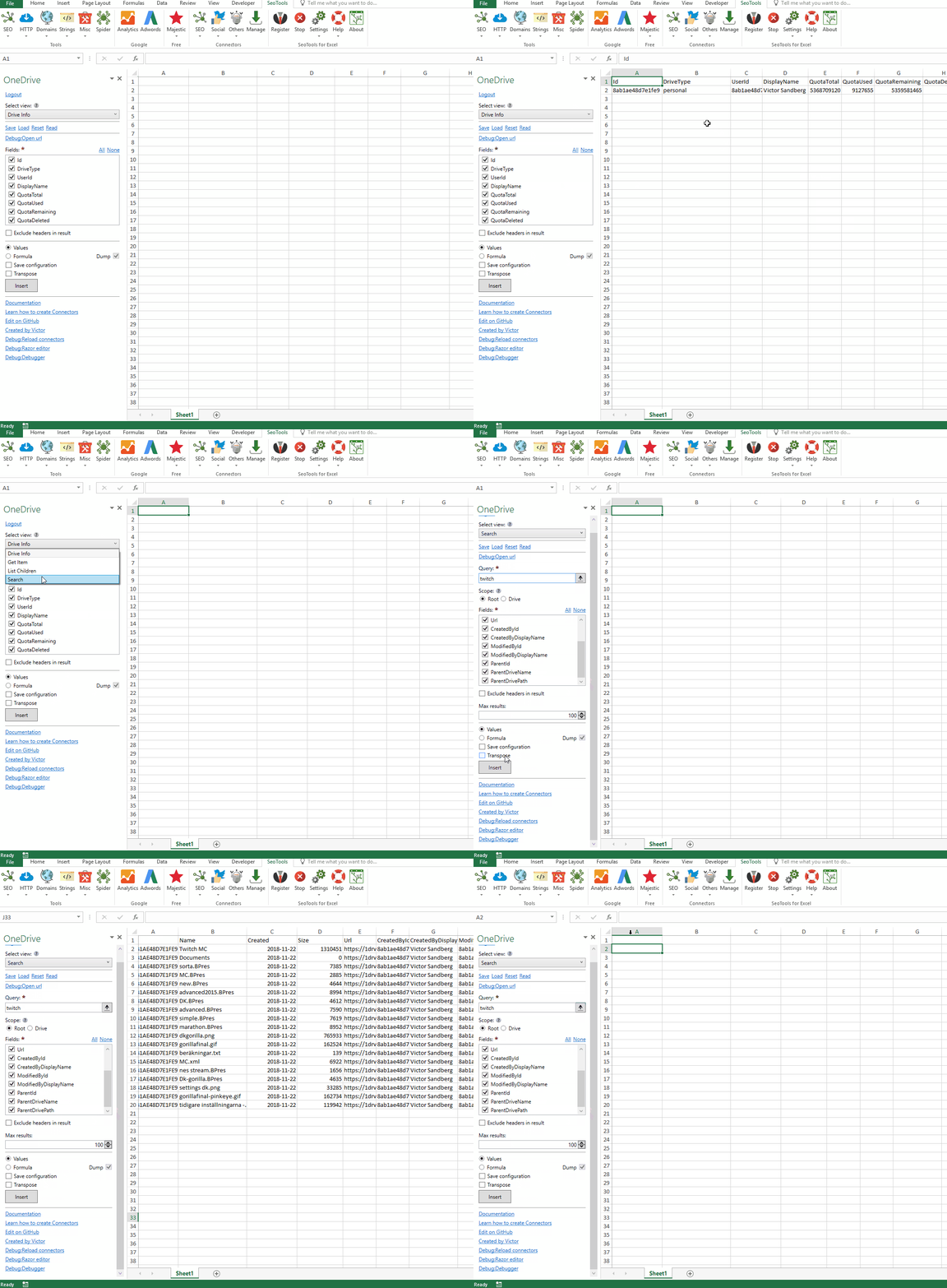
___
## Search
Search the hierarchy of items for items matching a query. You can search within a folder hierarchy, a whole drive, or files shared with the current user. Optional settings:
- **Scope** *(Root or Drive)* - In addition to searching for items within a drive, your app can search more broadly to include shared items. To broaden the search scope, use 'Drive'
## List Children
Return a collection of Items in the children relationship of a folder or drive.
## Get Item
Retrieve the metadata for an item by ID.
## Drive Info
Retrieves info about the top level drive object of the authenticated user.
___
## Add from Manager
The Dropbox Connector is available in the **[Connectors Manager](/manage-connectors/)** in the top ribbon:

Head over to the **File Storage** and install OneDrive:

___
## Contribute
This connector suite is open-sourced on [GitHub](https://github.com/nielsbosma/SeoTools-for-Excel-Connectors/blob/master/OneDrive.xml).
___
## See
#### Official Documentation
* [OneDrive API](https://docs.microsoft.com/en-us/onedrive/developer/rest-api/resources/driveitem?view=odsp-graph-online)
#### Related Functions
* [Google Drive](/googledrive/)
* [Dropbox](/dropbox/)
#### Resources
* [Manager](/manage-connectors/)
---
# Access OpenAI in Excel
URL: https://seotoolsforexcel.com/openai/
Type: page
Published: 2023-06-28
Updated: 2023-06-28
Summary: SeoTools for Excel offers a user-friendly and effective method to use ChatGPT, GPT4 and other AI models inside Excel, both as text extract and as a formula.
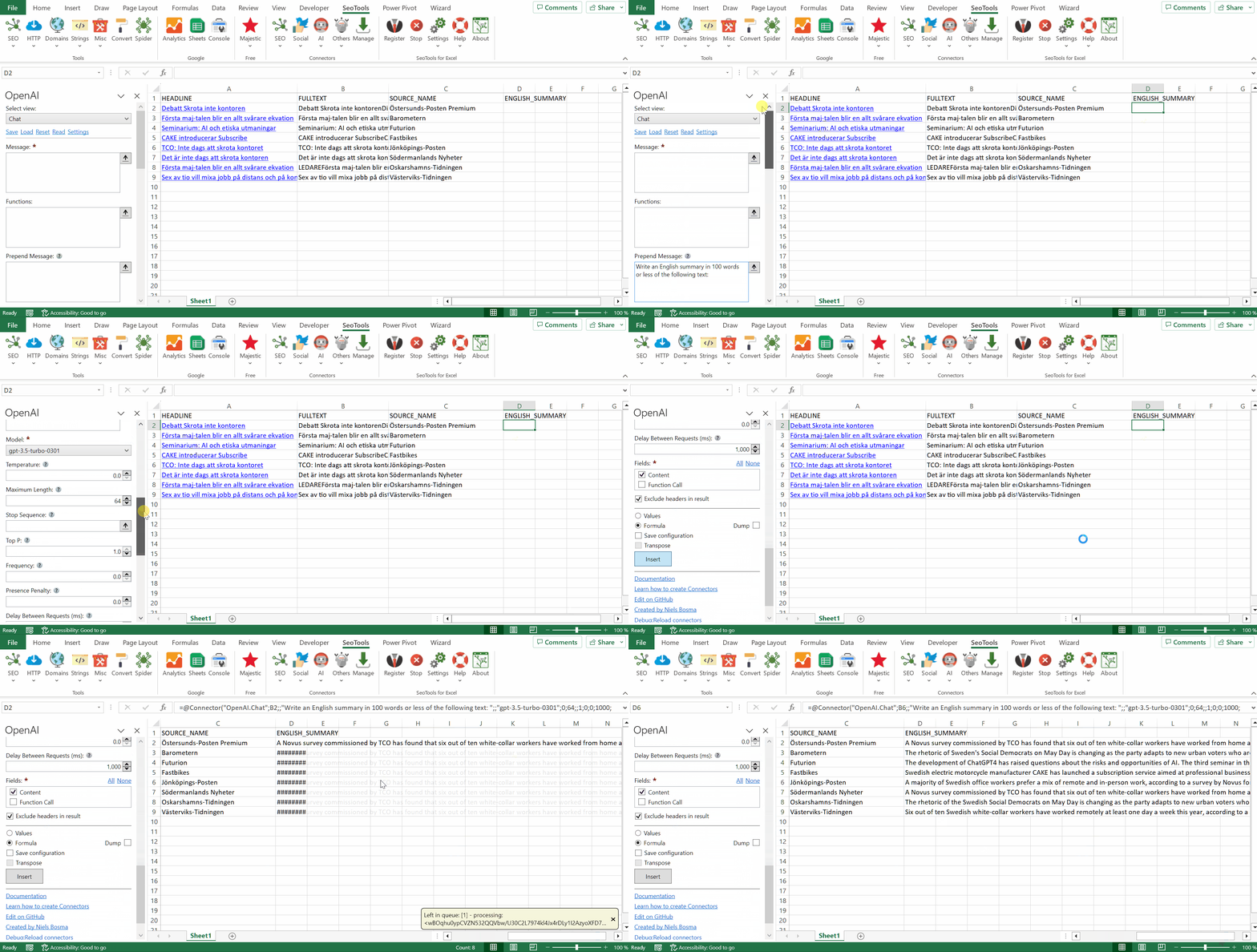
## Purpose
Allows you to turn ChatGPT or other GPT models into powerful Excel formulas to generate thousands of answers and automate your work!
___
## ChatGPT / Chat
* **Model** - The language model to use. Various versions of ChatGPT, GPT4 and son on.
* **Message** - The main message to get a response from.
* **Prepend/Append Message** - Added before and after the message. Useful when building formulas and having a static string in combination with cell references.
* **Temperature** - Controls randomness: Lowering results in fewer random completions. As the temperature approaches zero, the model will become deterministic and repetitive.
* **Message** - The maximum number of tokens to generate. The exact limit varies by model. (One token is roughly 4 characters for normal English text.)
* **Stop** - Sequence where the API will stop generating further tokens. The returned text will not contain the stop sequence.
* **TopP** - Controls diversity via nucleus sampling: 0.5 means half of all likelihood-weighted options are considered.
* **Frequency** - How much to penalize new tokens based on their existing frequency in the text so far. Decreases the model's likelihood to repeat the same line verbatim.
* **Presence Penalty** - How much to penalize new tokens based on whether they appear in the text so far. Increases the model's likelihood to talk about new topics.
___
## Access
## Add from Manager
The OpenAI Connector is available in the **[Connectors Manager](/manage-connectors/)** in the top ribbon:

Head over to the **AI Category** and install Twitch:

## API Key
The key enables subscribers access to the API. You can find your unique API Key in your [OpenAI Account](https://platform.openai.com/login). Goto 'View API Keys' in the top menu and generate a new secret key.
___
## Contribute
This connector suite is open-sourced on [GitHub](https://github.com/nielsbosma/SeoTools-for-Excel-Connectors/blob/master/OpenAI.xml).
___
## See
#### Official Documentation
* [OpenAI API](https://platform.openai.com/docs/api-reference/chat)
#### Resources
* [Manager](/manage-connectors/)
---
# Access OpenStreetMap in Excel
URL: https://seotoolsforexcel.com/openstreetmap/
Type: page
Published: 2020-02-28
Updated: 2025-05-02
Summary: Integrate OpenStreetMap in Excel to search for locations by address and analyze the metadata for each location. You can also do reverse geocoding.
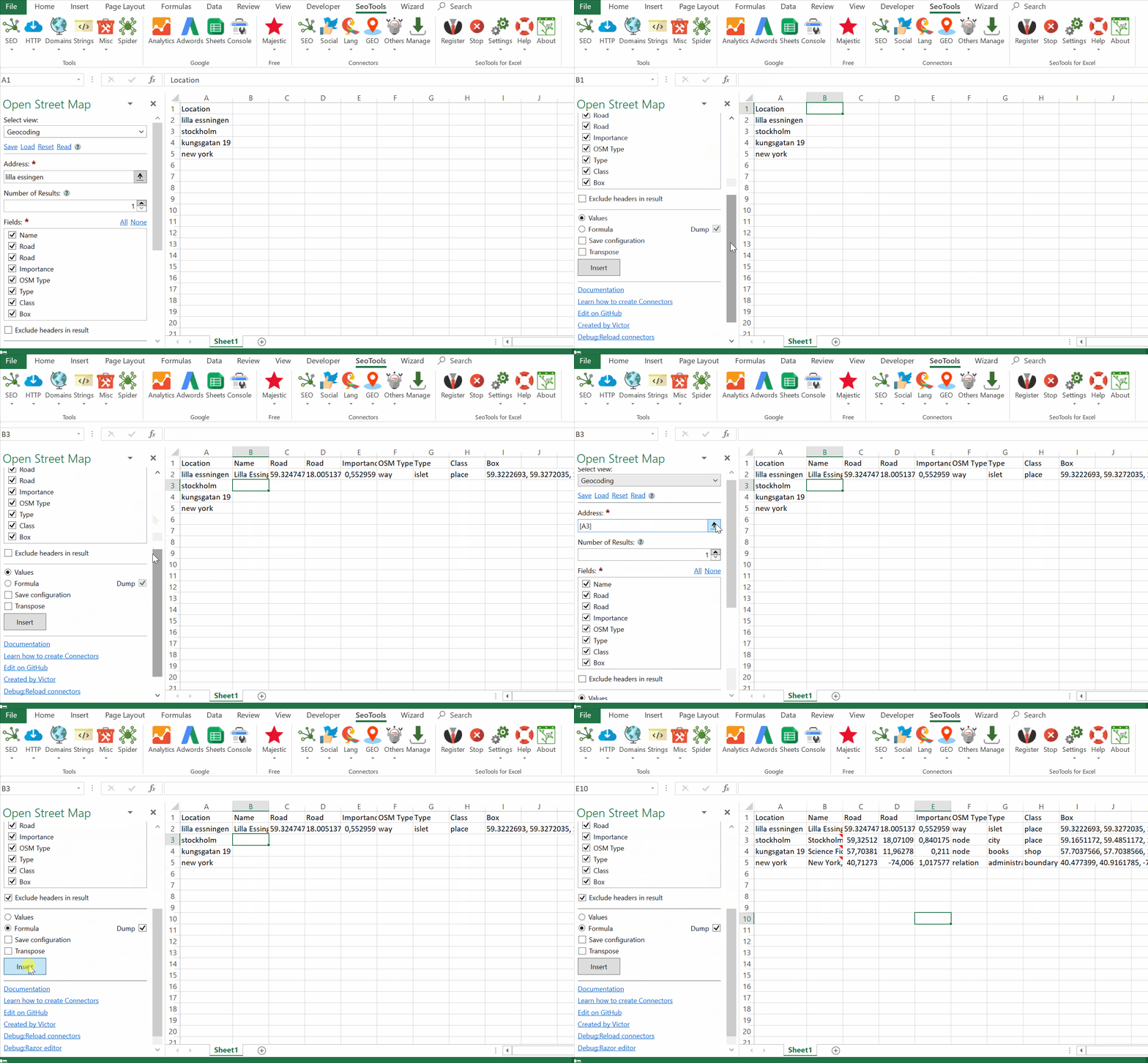
___
## Search Mode
- **Geocoding** - Converts a string address (*e.g. '5th Avenue, New York'* into geocode information.
- **Reverse GeoCoding** - Converts latitude and longitude into geocode information.
## Fields
- Display name
- Latitude
- Longitude
- Importance
- OSM Type
- Type
- Class (for example '*place*' or '*shop*')
- Box (coordinates)
___
## Access
## Add from Manager
The OpenStreetMap Connector is available in the **[Connectors Manager](/manage-connectors/)** in the top ribbon:

Head over to the **GEO Category** and install OpenStreetMap:

___
## Contribute
This connector suite is open-sourced on [GitHub](https://github.com/nielsbosma/SeoTools-for-Excel-Connectors/blob/master/OpenStreetMap.xml).
___
## See
#### Official Documentation
* [OpenStreetMap API](https://wiki.openstreetmap.org/wiki/)
#### Related Functions
* [GeoNames](/geonames/)
* [Google Geocoding](/google-geocoding/)
* [Bing Maps](/bing-maps/)
#### Resources
* [Manager](/manage-connectors/)
---
# PageCodeSize
URL: https://seotoolsforexcel.com/pagecodesize/
Type: page
Published: 2015-03-29
Updated: 2019-05-19
Summary: Retrieve the code size of web pages as a formula in Excel with SeoTools for Excel.
```
=PageCodeSize(string pageUrl) : integer
```
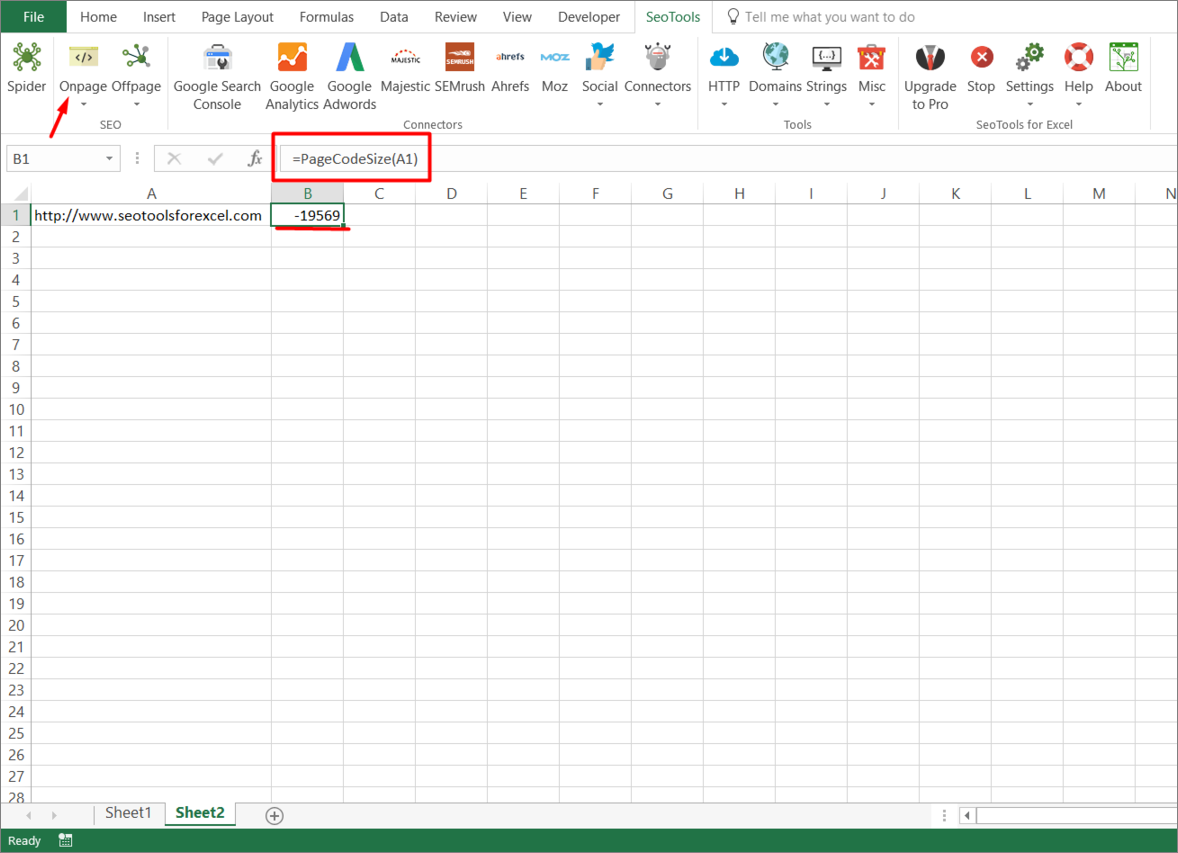
___
## Purpose
Returns Page Code Size in bytes.
[This function is cached.](/caching/)
___
## See
#### Related Functions
* [PageTextSize](/pagetextsize/)
* [PageSize](/pagesize/)
* [PageCodeToTextRatio](/pagecodetotextratio/)
---
# PageCodeToTextRatio
URL: https://seotoolsforexcel.com/pagecodetotextratio/
Type: page
Published: 2015-03-29
Updated: 2019-05-19
Summary: Retrieve the ratio between code and text size as formula in Excel with SeoTools for Excel.
```
=PageCodeToTextRatio(string pageUrl) : integer
```
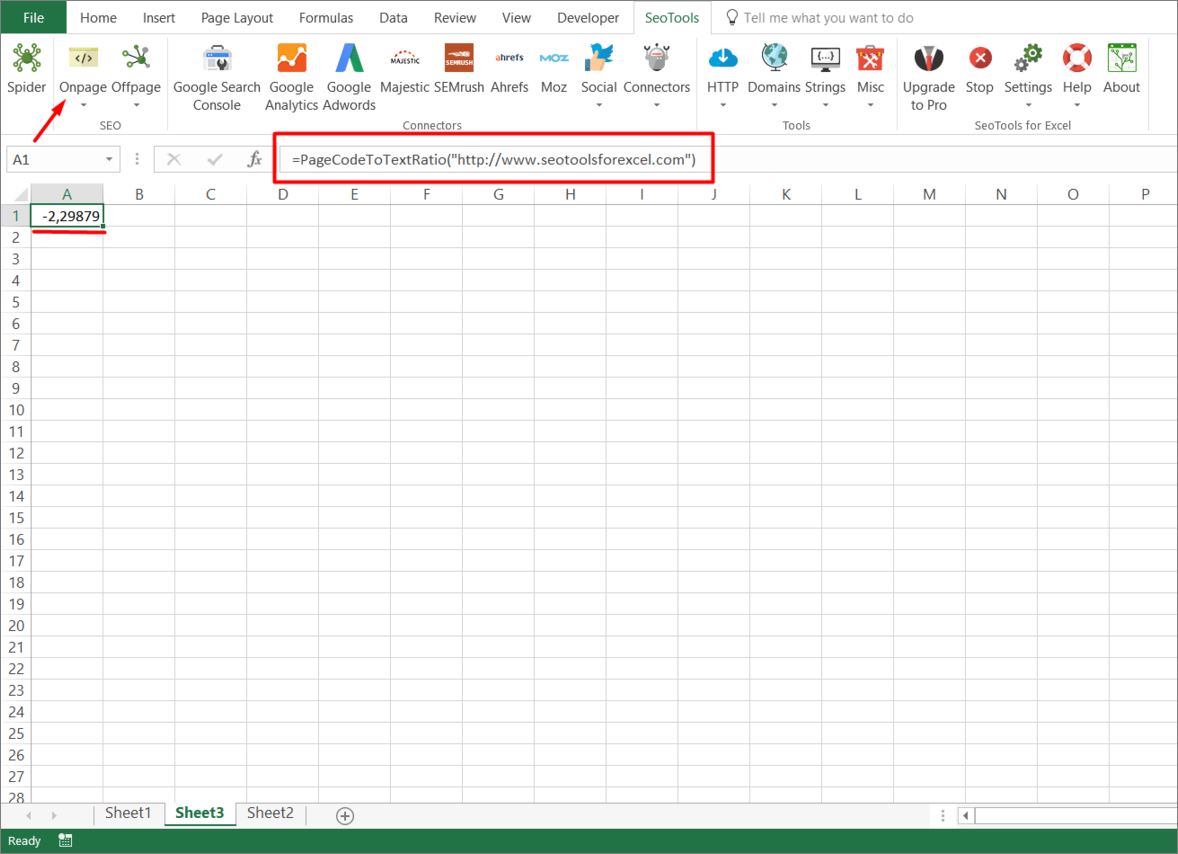
___
## Purpose
Returns page code to text ratio. Same as `PageTextSize(pageUrl)/PageCodeSize(pageUrl)`
[This function is cached.](/caching/)
___
## See
#### Related Functions
* [PageTextSize](/pagetextsize/)
* [PageCodeSize](/pagecodesize/)
---
# PageEncoding
URL: https://seotoolsforexcel.com/pageencoding/
Type: page
Published: 2015-03-29
Updated: 2019-05-19
Summary: Retrieve the page encoding details as a formula in Excel with SeoTools for Excel.
```
=PageEncoding(string pageUrl) : string
```
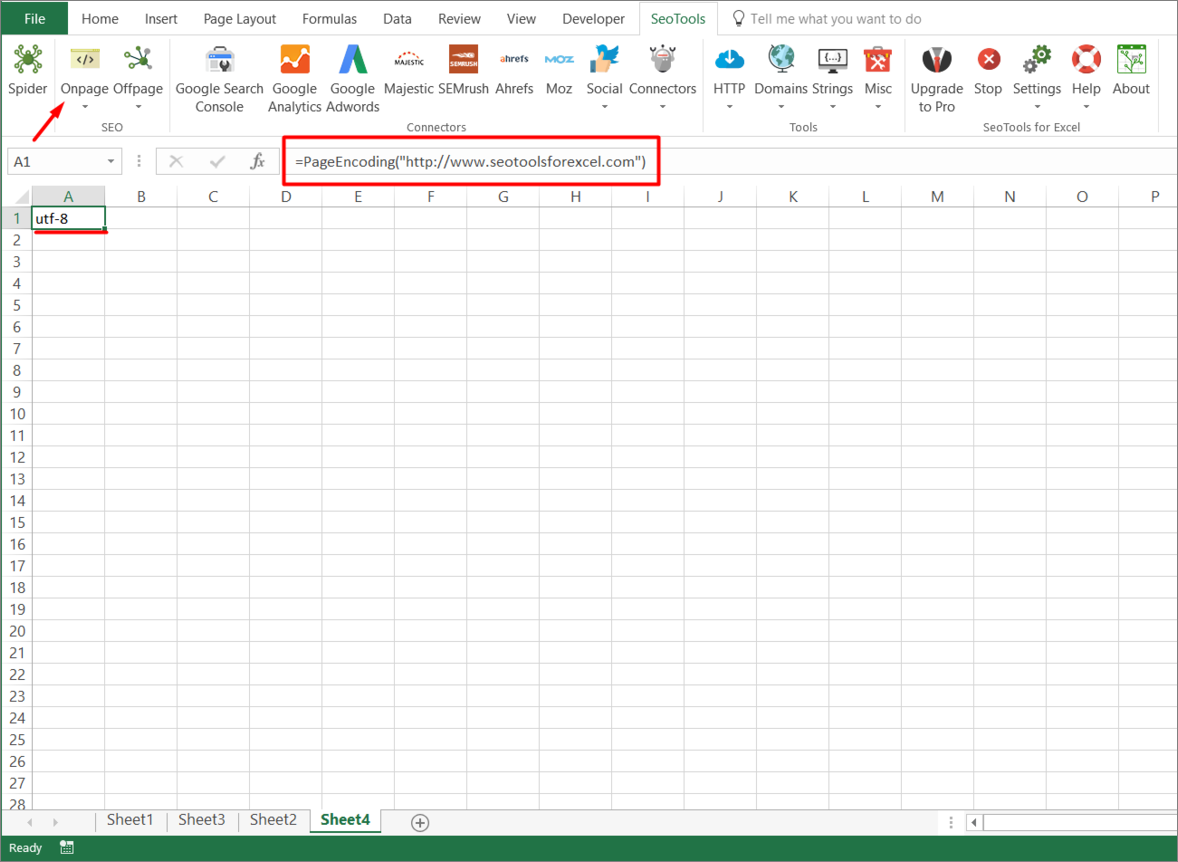
___
## Purpose
Returns the page encoding detected by SeoTools.
[This function is cached.](/caching/)
___
## See
#### Related Functions
* [PageTextSize](/pagetextsize/)
* [PageSize](/pagesize/)
* [PageCodeToTextRatio](/pagecodetotextratio/)
---
# PageSize
URL: https://seotoolsforexcel.com/pagesize/
Type: page
Published: 2015-03-29
Updated: 2019-05-19
Summary: Retrieve the page size of any web page as a formula in Excel with SeoTools for Excel.
```
=PageSize(string pageUrl) : integer
```
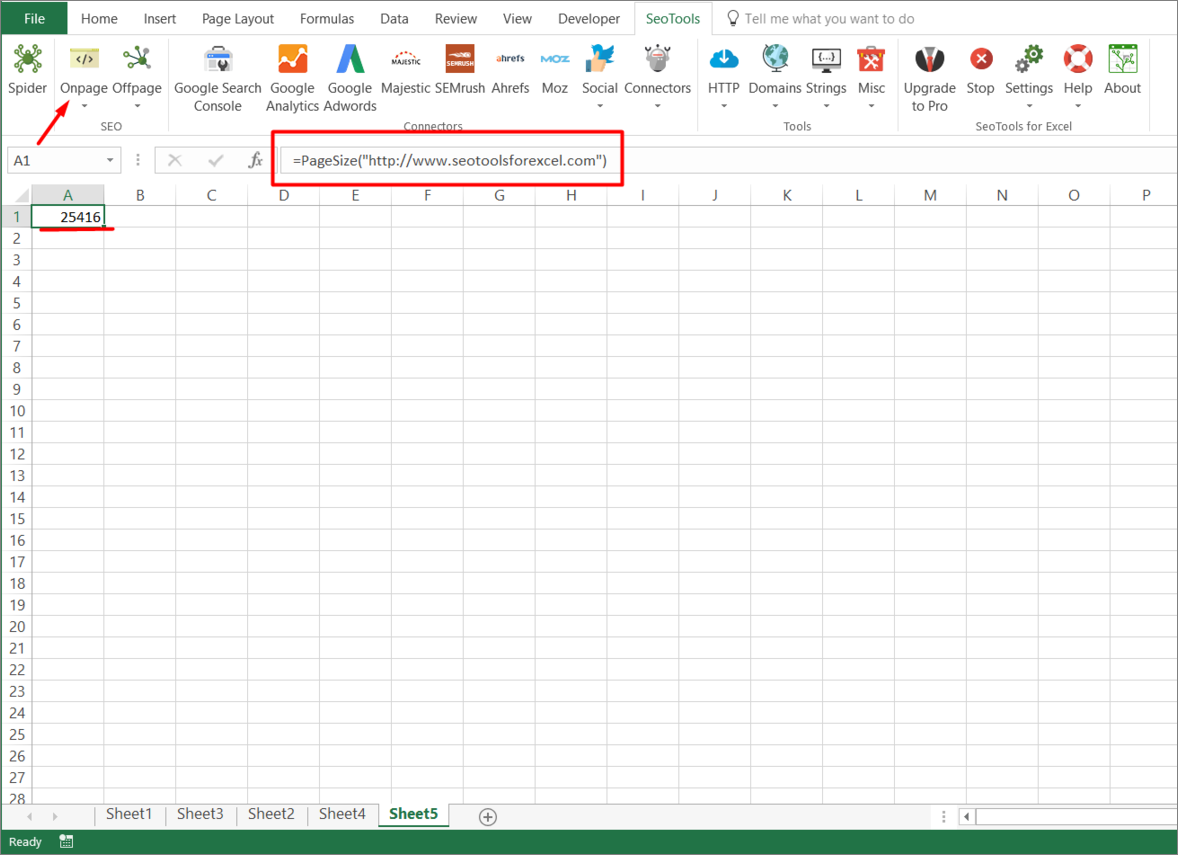
___
## Purpose
Returns Page Size in bytes.
[This function is cached.](/caching/)
___
## See
#### Related Functions
* [PageTextSize](/pagetextsize/)
* [PageSize](/pagesize/)
* [PageCodeToTextRatio](/pagecodetotextratio/)
---
# PageTextSize
URL: https://seotoolsforexcel.com/pagetextsize/
Type: page
Published: 2015-03-29
Updated: 2019-05-19
Summary: Retrieve the text size of web pages as a formula in Excel with SeoTools for Excel.
```
=PageTextSize(string pageUrl) : integer
```
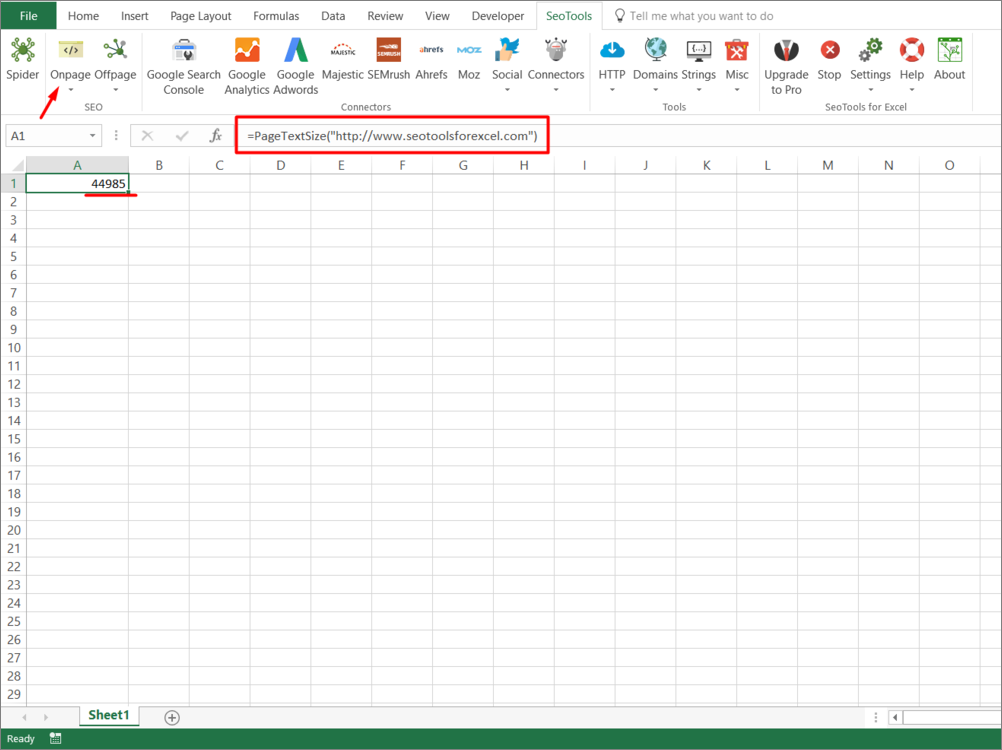
___
## Purpose
Returns page text size in bytes.
[This function is cached.](/caching/)
____
## See
#### Related Functions
* [PageCodeSize](/pagecodesize/)
* [PageSize](/pagesize/)
* [PageCodeToTextRatio](/pagecodetotextratio/)
---
# ParseDate
URL: https://seotoolsforexcel.com/parsedate/
Type: page
Published: 2020-02-29
Updated: 2020-05-12
Summary: Formula to Convert text to date and time based on the date format code.
```
=ParseDate(string text; string format, [optional] string CultureInfo) : date
```
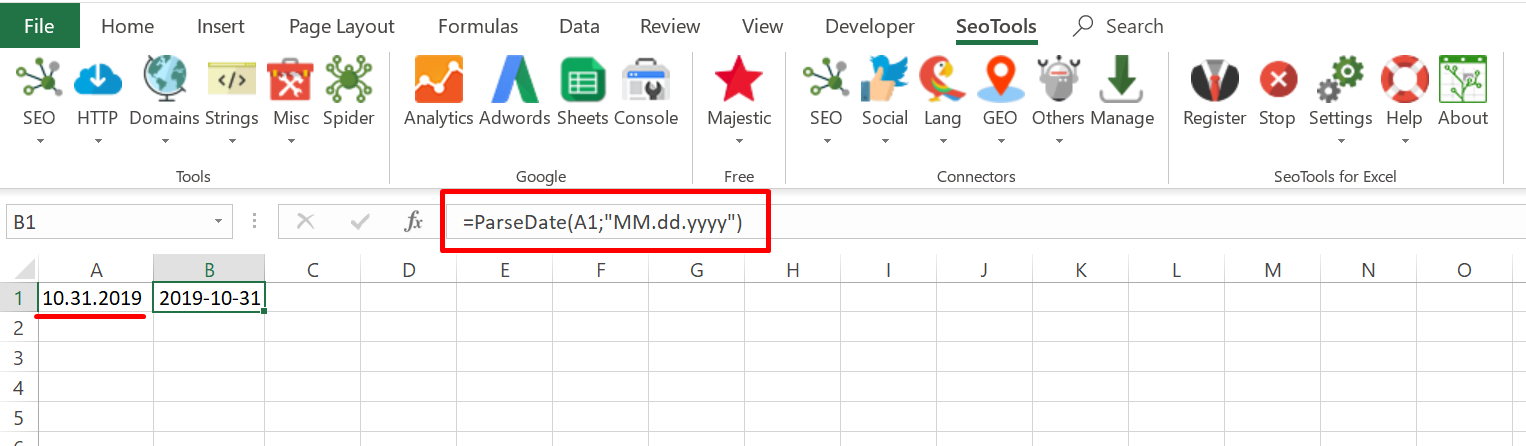
___
## Purpose
Formula to convert text to date and time based on the ISO_8601 format.
The optional *CultureInfo* argument instructs SeoTools to treat the input string as formatted with a specific culture such as '**en-US**'.
## Examples
=ParseDate("10.31.2019";"MM.dd.yyyy")
=> 2019-10-31
=ParseDate("2019 jan 1";"yyyy MMM d")
=> 2019-01-01
____
## See
#### Related Functions
* [ParseNumber](/parsenumber/)
---
# ParseNumber
URL: https://seotoolsforexcel.com/parsenumber/
Type: page
Published: 2018-03-29
Updated: 2020-02-29
Summary: Parses a string and returns a number. Also support Locale as an optional parameter. For example when the numbers are formatted in a foreign format.
```
=ParseNumber(string text, optional string
locale) : integer/double
```
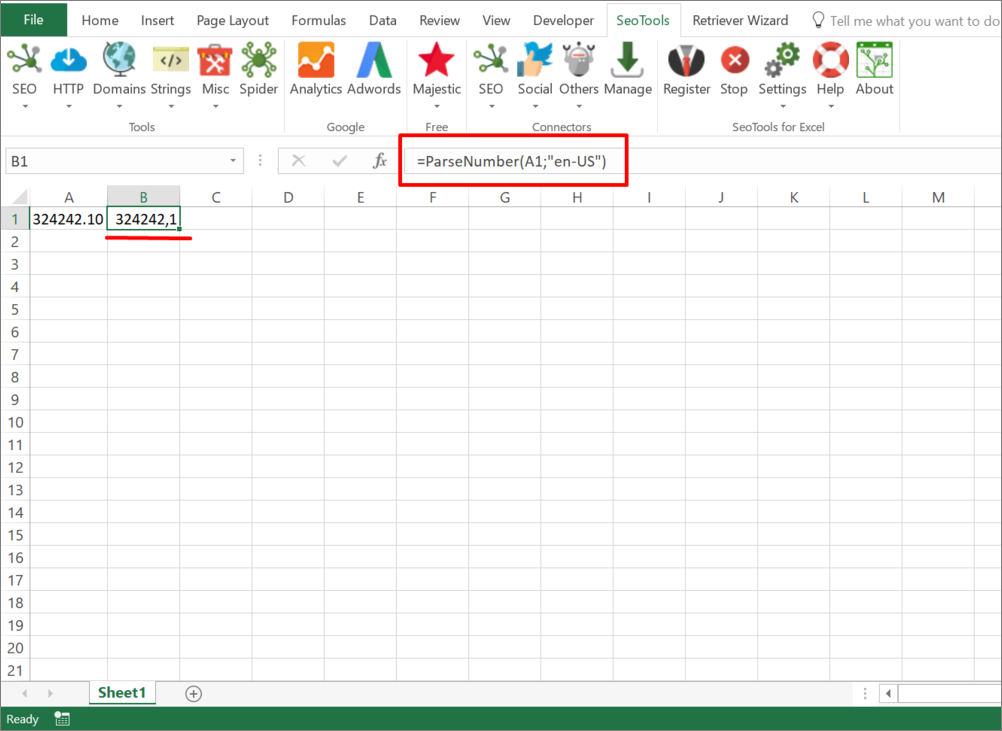
___
## Purpose
Parses a string and returns a number. Also support Locale as an optional parameter. For example when the numbers are formatted in a foreign format.
____
## See
#### Related Functions
* [ParseDate](/parsedate/)
---
# Access PhantomJs Cloud in Excel
URL: https://seotoolsforexcel.com/phantomjs-cloud/
Type: page
Published: 2016-01-24
Updated: 2023-06-28
Summary: SeoTools for Excel offers a user-friendly and effective method for scraping webpages generated with JavaScript using both Regex and Xpath
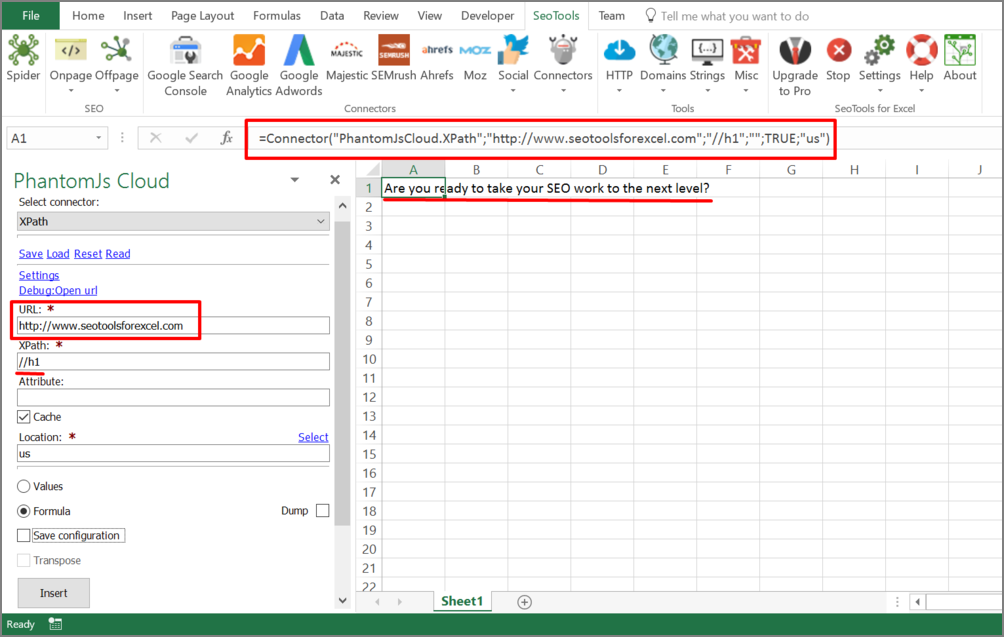
___
## Purpose
PhantomJs Cloud in a headless browser that you can access as cloud service. You can use this for scraping webpages generated with JavaScript.
___
## Features
* Regex
* XPath
___
## API key
To use the PhantomJs Cloud Connector you need an API key.
1. Register for a PhantomJS Cloud [account](https://dashboard.phantomjscloud.com/dash.html#/signup?_k=wwstmw).
2. Activate your account.
3. Retrieve your API key from the dashboard.
___
## Contribute
This connector suite is open-sourced on [GitHub](https://github.com/nielsbosma/SeoTools-for-Excel-Connectors).
___
## See
#### Official Documentation
* [PhantomJS Cloud API](https://phantomjscloud.com/)
#### Related Functions
* [XPathOnUrl](/xpathonurl/)
* [JsonPathOnUrl](/jsonpathonurl/)
* [ScrapingBee](/scrapingbee/)
---
# Access Pipedrive in Excel
URL: https://seotoolsforexcel.com/pipedrive/
Type: page
Published: 2016-11-07
Updated: 2020-05-21
Summary: Integrates Pipedrive in Excel with SeoTools for Excel. Extract, search, and filter all information from your account for easy analysis in Excel.
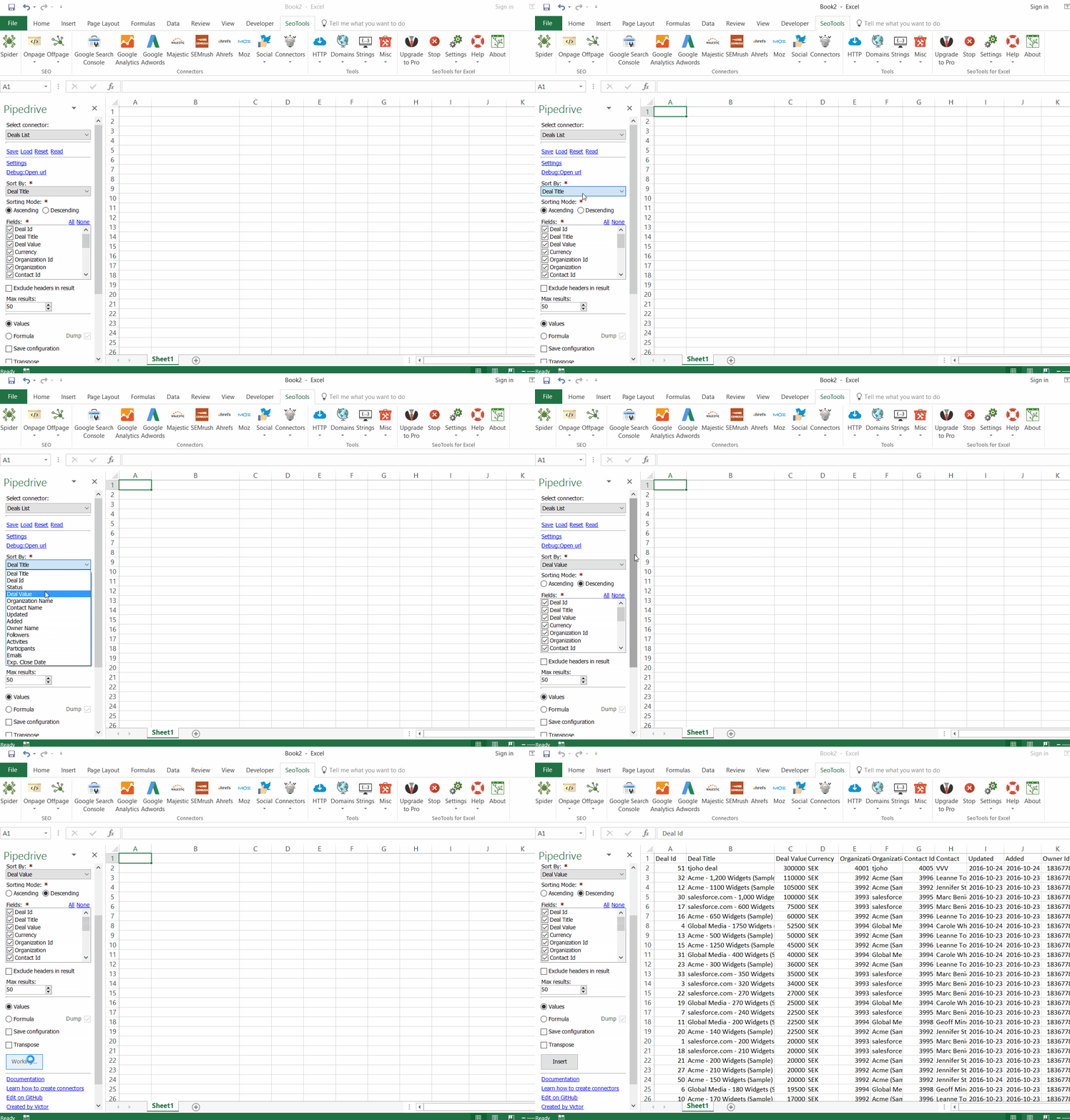
___
## Working with Filters
The data can get messy to analyze when it gets too large and we've added support for the Pipedrive filter system. Define your filters in the portal, then select appropriate filter to narrow your results. The available filters are automatically adjusted depending on the data you want and custom filters are also included.
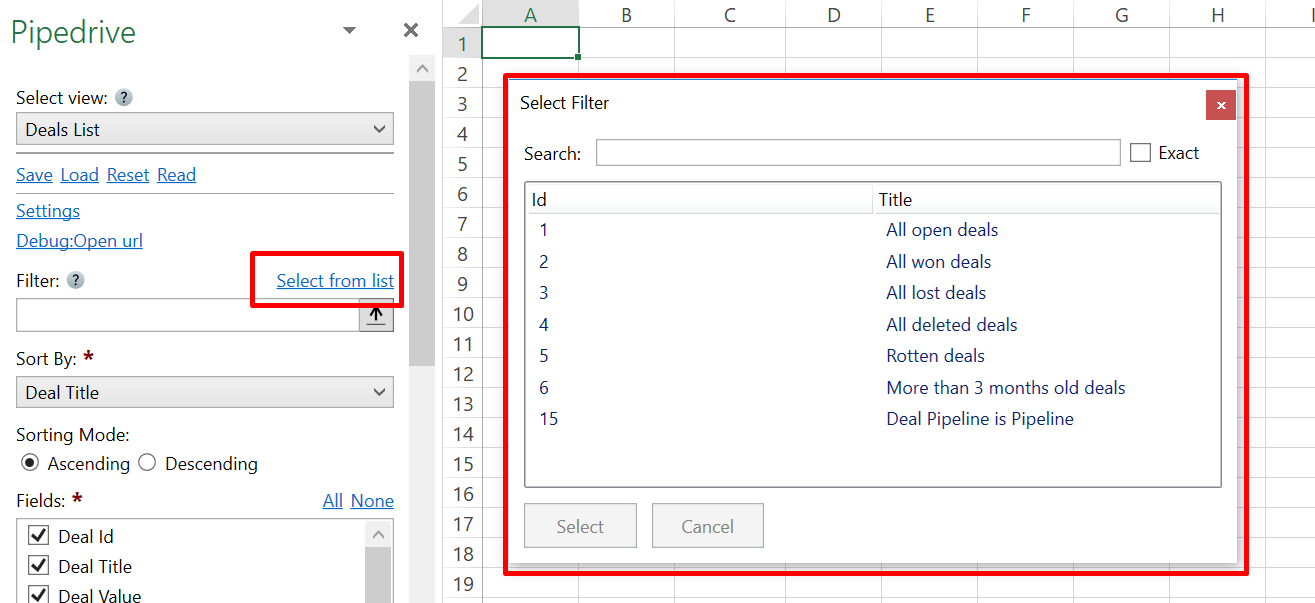
____
## Contacts Features
* **Contacts List** - Returns all contacts. Sort results by:
- First Name & Last Name
- Open Deals & Closed Deals
- Emails Sent
- Activities & Completed Activities
- Won Deals & Lost Deals
- Followers
- Next Activity Day
- Created & Updated
- Contact Id
* **Contact Lookup** - Returns details of a specific contact.
* **Contacts Search** - Searches all Contacts. Search by:
- Name
- Email
### Activities Features
* **Activities List** - Returns all activities assigned to a particular user. Available filters:
- Select a particular user from a list.
- Filter by Meeting Type (Call/Meeting/Task/Deadline/Email/Lunch)
- Select a Date interval
- Filter by Activity Status (All/Done/Not Done)
* **Activity Lookup** - Returns details of a specific activity.
### Deals Features
* **Deals List** - Returns all Deals. Sort results by:
- Title & Id
- Status
- Deal Value
- Organization Name & Contact Name
- Added & Updated
- Owner Name
- Followers & Participants
- Activities
- Email
- Expected Close Date
* **Deals Search** - Searches all Deals. Filter by:
- Organization
- Contact
### Organization Features
* **Organization List** - Returns all organizations. Sort results by:
- Name
- Contacts Count
- Open Deals & Closed Deals
- Emails Sent
- Activities & Completed Activities
- Won Deals & Lost Deals
- Followers
- Next Activity Day
- Created & Updated
- Organization Id
* **Organization Lookup** - Returns details of a specific organization.
* **Organizations Search** - Searches all Organizations.
### Notes Features
* **Notes List** - Returns all Notes. Sort & Filter results by:
- Note Id/Owner Id/Contact Id
- Added & Updated
- Content
- Deal Pin Status (Pinned/Not Pinned)
- Organization Pin Status (Pinned/Not Pinned)
- Contact Pin Status (Pinned/Not Pinned)
### Users Features
* **Users List** - Returns all Users and their contact information & settings.
___
## Access
## Add from Manager
The Pipedrive Connector is available in the **[Connectors Manager](/manage-connectors/)** in the top ribbon:

Head over to the **CRM Category** and install Pipedrive :

## Get API keys
To use the Pipedrive Connector you need an API token.
1. Go to the Settings Page and click on API.
2. Copy the generated API Token and use it with SeoTools for Excel.
___
## Contribute
This connector suite is open-sourced on [GitHub](https://github.com/nielsbosma/SeoTools-for-Excel-Connectors/blob/master/Pipedrive.xml).
___
## See
#### Official Documentation
* [Pipedrive API](https://developers.pipedrive.com/)
#### Related Functions
* [Hubspot](/hubspot/)
#### Resources
* [Manager](/manage-connectors/)
---
# PixelWidth
URL: https://seotoolsforexcel.com/pixelwidth/
Type: page
Published: 2016-11-09
Updated: 2019-05-19
Summary: Allows you to calculate the width of a string, expressed in pixels as a function in SeoTools for Excel
```
=PixelWidth(string text, string fontFamily,
double fontSize, bool bold, bool italics) : int
```
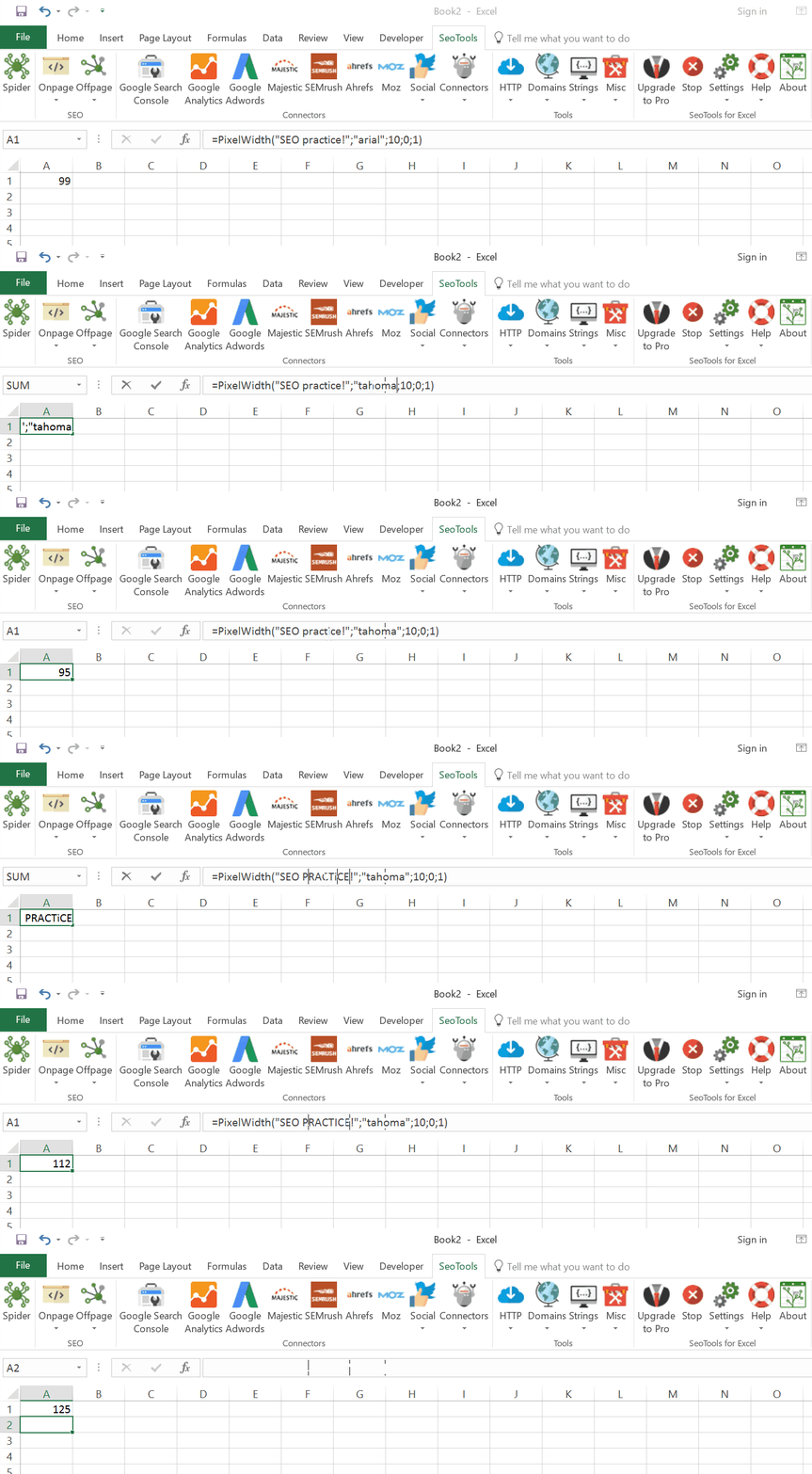
___
## Purpose
Allows you to calculate the **width** of a string, expressed in **pixels**. Useful for on-page optimizations.
PixelWidth considers five parameters when calculating the width:
`text`: The text of the string.
`font`: The font of the string. For example "Arial" or "Calibri".
`fontSize`: The size of the font. For example "10" or "16".
`bold`: Condition to set the string in **bold** text format. (TRUE or FALSE)
`italics`: Condition to set the string in *italics* text format. (TRUE or FALSE)
___
## Examples
Write page title tags limited by pixel length for Google SERP:
=PixelWidth("My title","Arial",18)
=>58
=IF(PixelWidth("My title","Arial",18)>482,"Too long","Ok")
=>"Ok"
---
# Privacy Policy
URL: https://seotoolsforexcel.com/privacy-policy/
Type: page
Published: 2017-01-29
Updated: 2024-07-01
Summary: Privacy policy for SeoTools for Excel organization,
#### General Information
Welcome to SeoTools for Exel, a website and online service of created by Bosma Interactive AB. This page explains how we collect, store, use, and disclose information we receive from or about you through your use of our online and/or mobile services, website, and software provided on or in connection with them (collectively, the “Service”).
We’re committed to protecting the privacy of all visitors, users, and others who access our application (“you,” or “Users”). By accessing or using our Service, or by clicking “I Accept” or otherwise affirmatively manifesting your assent to this Privacy Policy, you signify that you have read, understood and agree to our collection, storage, use and disclosure of your personal information as described in this Privacy Policy.
#### Information We Collect
**No personal or otherwise sensitive information is stored when authenticating via Oauth2 to access data from third-party services such as Google and Facebook.**
**No user data obtained through Workspace APIs to develop, improve, or train generalized AI and/or ML models is retained.**
We collect
a) Basic contact information entered by the user during signup
b ) **Metadata**. SeoTools for Excel may collect metadata associated with behavior of the user when working with the service.
We use this information to operate, maintain, and provide to you the features and functionality of the Service. We may also send you Service-related emails or messages (e.g., account verification, order confirmations, change or updates to features of the Service, technical and security notices).
The user can at any time request data deletion by sending an email to info@seotoolsforexcel.com.
#### Use of cookies and other technology to collect information
We automatically collect certain types of usage information when you visit our website or use our Service. When you visit the Service, we may send one or more cookies — a small text file containing a string of alphanumeric characters — to your computer that uniquely identifies your browser and lets us help you log in faster and enhance your navigation through the site. A cookie may also convey information to us about how you use the Service (e.g., the pages you view, the links you click, how frequently you access the Service, and other actions you take on the Service), and allow us to track your usage of the Service over time. We may collect log file information from your browser or mobile device each time you access the Service. Log file information may include anonymous information such as your web request, Internet Protocol (“IP”) address, browser type, information about your mobile device, referring / exit pages and URLs, number of clicks and how you interact with links on the Service, domain names, landing pages, pages viewed, and other such information. We may employ clear gifs (also known as web beacons) which are used to anonymously track the online usage patterns of our Users. In addition, we may also use clear gifs in HTML-based emails sent to our Users to track which emails are opened and which links are clicked by recipients. The information allows for more accurate reporting and improvement of the Service. We may also collect analytics data, or use third-party analytics tools such as PostHog, to help us measure traffic and usage trends for the Service. These tools collect information sent by your browser or mobile device, including the pages you visit, your use of third-party applications, and other information that assists us in analyzing and improving the Service.
When you access our Service by or through a mobile device, we may receive or collect and store, either directly or through third-party analytics tools, a unique identification numbers associated with your device (“Device ID”), mobile carrier, device type and manufacturer, phone number, and, depending on your mobile device settings, your geographical location data, including GPS coordinates (e.g. latitude and/or longitude) or similar information regarding the location of your mobile device.
#### Usage statistics from the SeoTools for Excel add-in
The SeoTools for Excel add-in sends usage statistics to PostHog, whose servers
for this purpose are in the European Union. This is separate from the website
analytics described above, and this section describes it exactly.
**What is sent.** Which worksheet functions, connectors, tools and windows you
use and how often; which connector suites you install or remove; how many
results a connector-directory search returned and how long the search text was;
which columns a spider run used; the SeoTools, Excel, Windows and .NET versions
you run; and whether your licence is a trial, a purchase, expired, or absent.
**How it is identified.** Events are keyed to an identifier derived from your
computer's hardware — the same value the `SeoToolsFingerPrint()` function
returns. It does not contain your name, your e-mail address or your computer's
name, but it is stable for that machine, so it is personal data rather than
anonymous data. Your IP address is recorded by the analytics service.
**What is never sent.** The URLs, domains or pages you fetch or crawl; the
contents of any cell; workbook, worksheet or file names; the arguments you pass
to any function, including XPath, CSS selectors, regular expressions, JSONPath,
SQL and connector parameters; the text you type into the connector directory
search; the names of connectors you have written yourself or loaded from your
own folders, which are counted using a one-way hash instead; your proxy server
or its credentials; your e-mail address, licence key, customer name or computer
name. Error reports are handled separately and are described above.
**How to turn it off.** Open `SeoTools.config.xml` — the Settings menu in the
add-in opens it for you — and set `SendUsageStatistics` to `"false"` on the
first line:
The add-in then sends nothing and opens no connection to the analytics service.
The change takes effect immediately; you do not need to restart Excel. You can
also make the change from a cell with
`=SeoToolsSetConfig("/SeoTools/@SendUsageStatistics","false")`.
#### Sharing Personal Information with Third-Parties
We may share your personal information in the instances described below.
We may also share your personal information with:
- Third-parties at your request (e.g., to other members of your organization in accordance with your and their privacy settings); The public at your request;
#### Your Choices Regarding Your Information
**Promotional Communications**. If you do not wish to receive promotional emails, you can click the “unsubscribe” button on promotional email communications. Note that you are not permitted to unsubscribe or opt out of non-promotional messages regarding your account, such as account verification, password, or local area number requests, order confirmations, change or updates to features of the Service or technical and security notices.
**Data Retention**: We will retain your information for as long as your account is active or as needed to provide you services. Following termination or deactivation of your account, SeoTools for Excel may retain information (including User Content) for a commercially reasonable time for backup, archival, and/or audit purposes. Please contact us at info@seotoolsforexcel.com if you wish to delete your account. Please be aware that we will not be able to delete any content you have shared with other Users or with third-parties.
#### Security and Storage of Information
SeoTools for Excel cares about the security of your information and uses commercially reasonable physical, administrative, and technological safeguards to preserve the integrity and security of all information we collect and that we share with our service providers. However, no security system is impenetrable and we cannot guarantee the security of our systems 100%. In the event that any information under our control is compromised as a result of a breach of security, we will take reasonable steps to investigate the situation and where appropriate, notify those individuals whose information may have been compromised and take other steps in accordance with any applicable laws and regulations.
Your information collected through the Service may be stored and processed in Sweden or any other country in which SeoTools for Excel maintain facilities. If you are located in a region with laws governing data collection and use that may differ from Swedish law, please note that we may transfer information, including personal information, to a country and jurisdiction that does not have the same data protection laws as your jurisdiction, and you consent to the transfer of information to Sweden or any other country in which SeoTools for Excel maintain facilities and the use and disclosure of information about you as described in this Privacy Policy.
#### Persons Under Age of 13
SeoTools for Excel does not knowingly collect or solicit any information from anyone under the age of 13 or knowingly allow such persons to register for the Service. The Service and its content are not directed at children under the age of 13. In the event that we learn that we have collected personal information from a child under age 13 without parental consent, we will delete that information as quickly as possible. If you believe that we might have any information collected from a child under 13, please contact us at info@seotoolsforexcel.com.
#### Links to Third-Party Websites
The Service may contain links to and from third-party websites of our business partners, advertisers, and social media sites. If you follow a link to any of these websites, please note that these websites have their own privacy policies and that we do not accept any responsibility or liability for their policies. Please check the individual policies before you submit any information to those websites.
#### Google API Services
SeoTools for Excel use and transfer to any other app of information received from Google APIs will adhere to [Google API Services User Data Policy](https://developers.google.com/terms/api-services-user-data-policy#additional_requirements_for_specific_api_scopes), including the Limited Use requirements.
___
## See
#### Related Pages
* [Terms of Service](/terms-of-services/)
---
# Purchase
URL: https://seotoolsforexcel.com/purchase/
Type: page
Published: 2015-10-17
Updated: 2024-04-03
Summary: License are valid for 12 months and gets you more than 100 functions for growth hacking and 150 connectors for Google Analytics, Majestic, Ahrefs and more.
SeoTools licenses are currently sold for 129EUR on a per machine per year basis. See table below for discount rates.
___
## FAQ
### Can I get a trial?
Yes! [Here is how to start your 14-day trial](/start-trial/).
### Can I get a bulk discount?
Absolutely, licenses gets cheaper the more you buy. For example, 20% discount for two licenses, 25% discount for five licenses and so on:
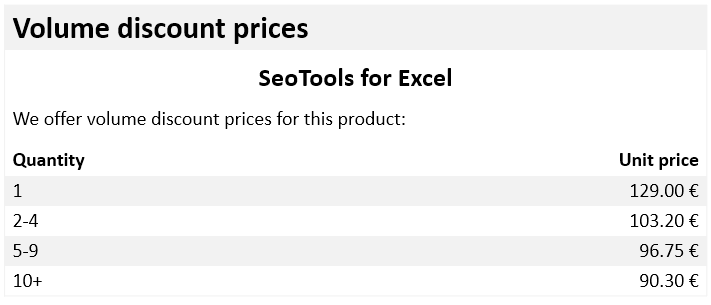
### Do I get access to future releases?
Yes, you can use your Pro license with any release during the year.
### Is this a recurring subscription?
No, you decide next year if you want to renew.
### Does it work on Mac?
SeoTools doesn’t work on Mac or Linux, Google Docs or OpenOffice. Just plain old Excel & Windows.
### After registering, can I move a license to another computer?
Yes this is possible, either by unregistering in the SeoTools "Pro" menu or you can [manage your activations](https://store.seotoolsforexcel.com/activations/) in our portal. Each license can be unregistered and activated on a different computer ten times.
---
# Access Quandl in Excel
URL: https://seotoolsforexcel.com/quandl/
Type: page
Published: 2018-07-24
Updated: 2019-05-27
Summary: SeoTools for Excel offers an effective method to search for and extract financial and economic data from the Quandl database to Excel.
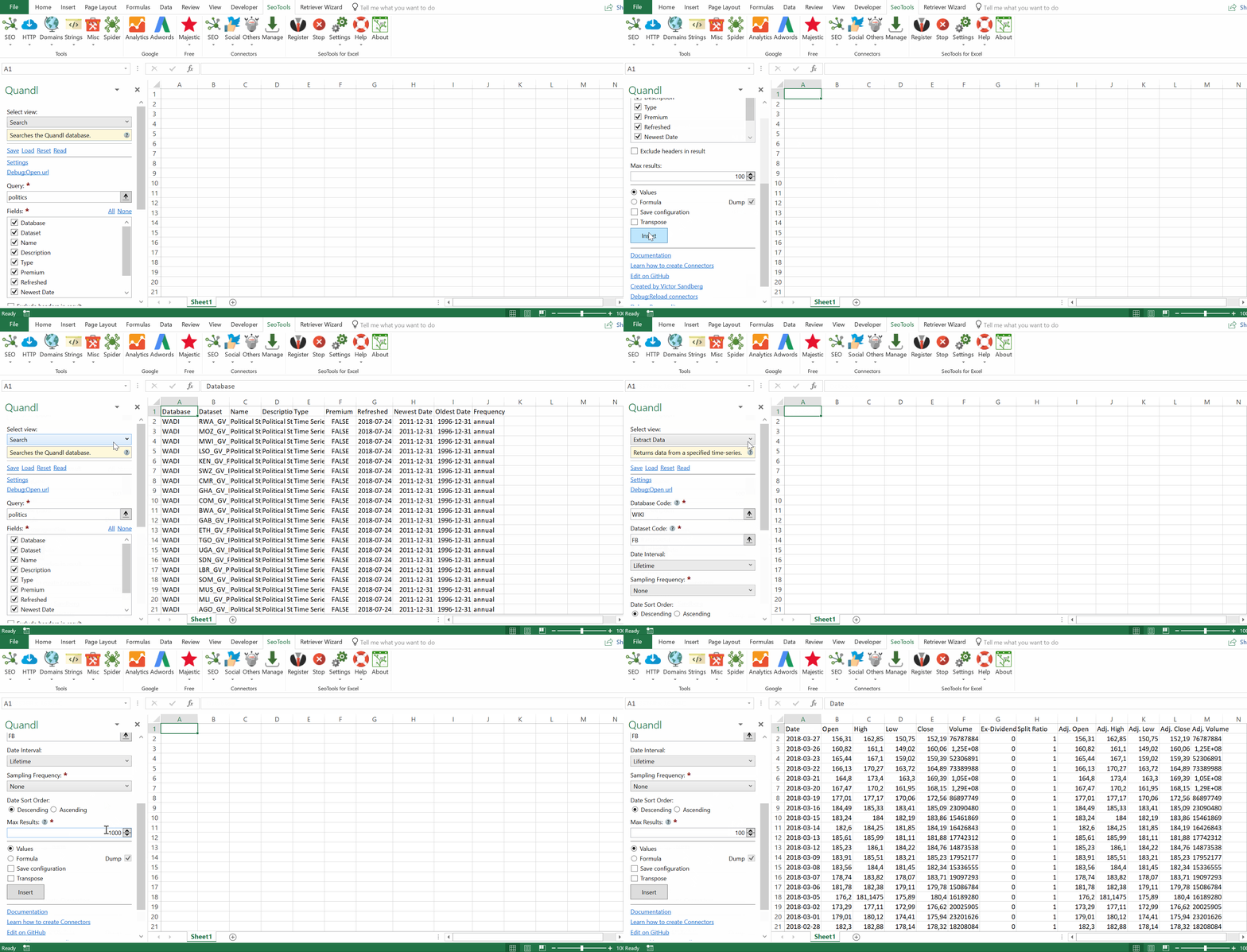
___
## Search
Returns databases and data-sets based on a query.
## Extract Data
Returns data from a specified time-series.
- Available filters:
- Date Interval
- Sampling Frequency
- Sort results by date (Descending or Ascending)
## Database Info
Retrieve metadata from a specified time-series database.
___
## Add from Manager
The Quandl Connector is available in the **[Connectors Manager](/manage-connectors/)** in the top ribbon:

Head over to the **Fiance Category** and install Quandl:

## API Key
To use the Quandl Connector you need an API key which is free.
[Sign up](https://www.quandl.com/) for a free Quandl account.
You can find your API key on your account settings page.
___
## Contribute
This connector suite is open-sourced on [GitHub](https://github.com/nielsbosma/SeoTools-for-Excel-Connectors/blob/master/Quandl.xml).
___
## See
#### Official Documentation
* [Quandl API](https://docs.quandl.com)
#### Resources
* [Manager](/manage-connectors/)
---
# Access Rank Ranger in Excel
URL: https://seotoolsforexcel.com/rank-ranger/
Type: page
Published: 2020-02-28
Updated: 2020-02-28
Summary: Integrate Rank Ranger in Excel and analyze your campaign, keywords, competitors, rankings, volume and visibility rankings over time
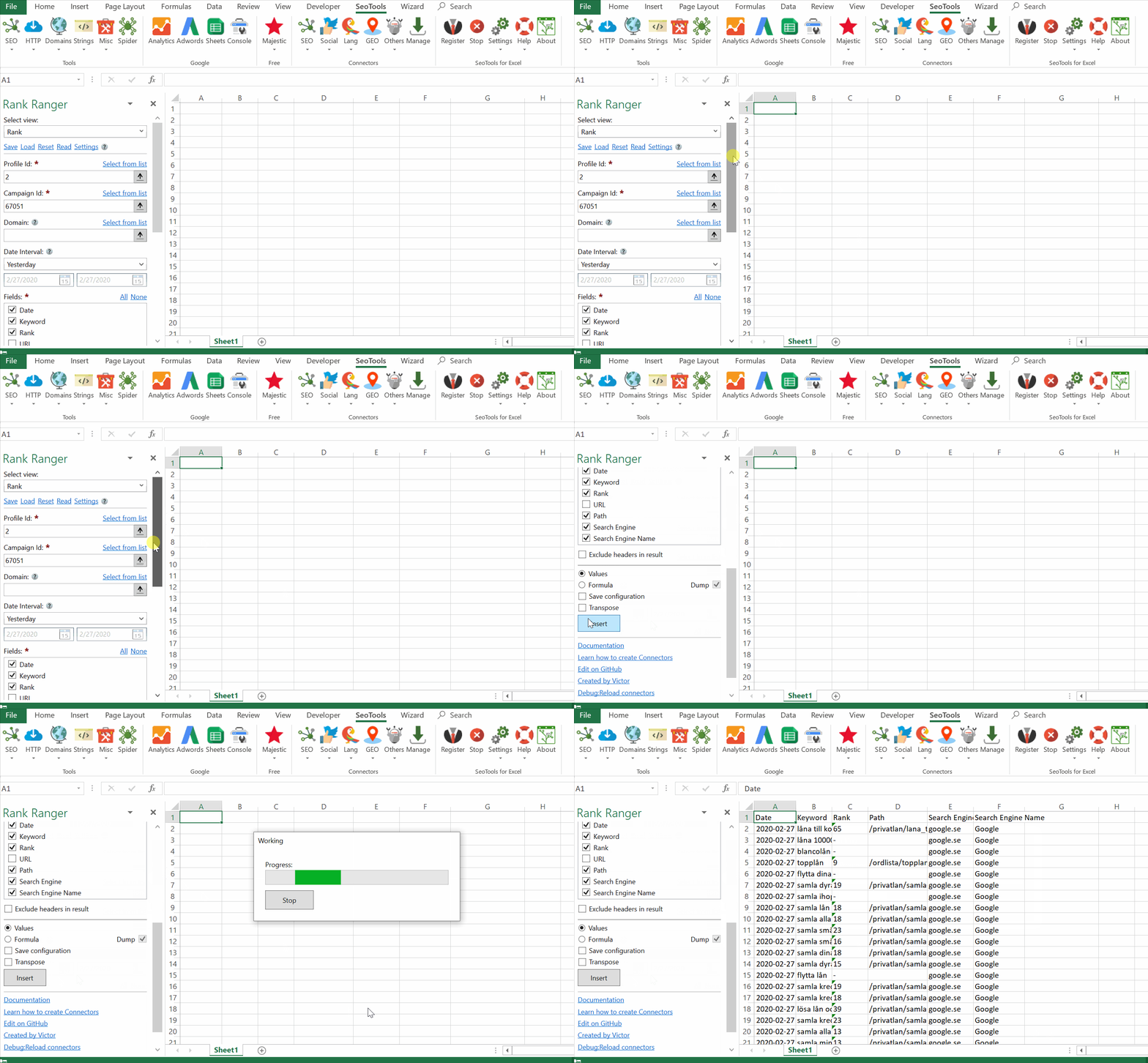
___
## Research
- **Competitors** - Provides a list of up to 100 competitor domains.
- **Keywords** - Provides a list of keyword suggestions.
- **Volume** - Provides statistics for one or many keywords. Optional country filter.
## Rank Data
- **Rank** - Returns ranking data for the selected domain (including landing page) within a selected date range (limited to a 31 day period).
- **Rank Stats** - Returns ranking data for all keywords in a campaign for a specific date.
- **Rank Average** - Returns ranking data for the selected domain within a specific date range with minimum, maximum and average rank.
- **Visibility Trend** - Returns date and visibility score per search engine, per day according to the selected date range for a single domain.
___
## Add from Manager
The Rank Ranger Connector is available in the **[Connectors Manager](/manage-connectors/)** in the top ribbon:

Head over to the **SEO Category** and install Rank Ranger:

## Access Token
To use the Rank Ranger Connector you need an API Key. Instructions for how to obtain a key can be found on [this page](https://www.rankranger.com/documentation/faq-get-api-key)
Copy the and paste the token in the settings window inside the Rank Ranger connector:
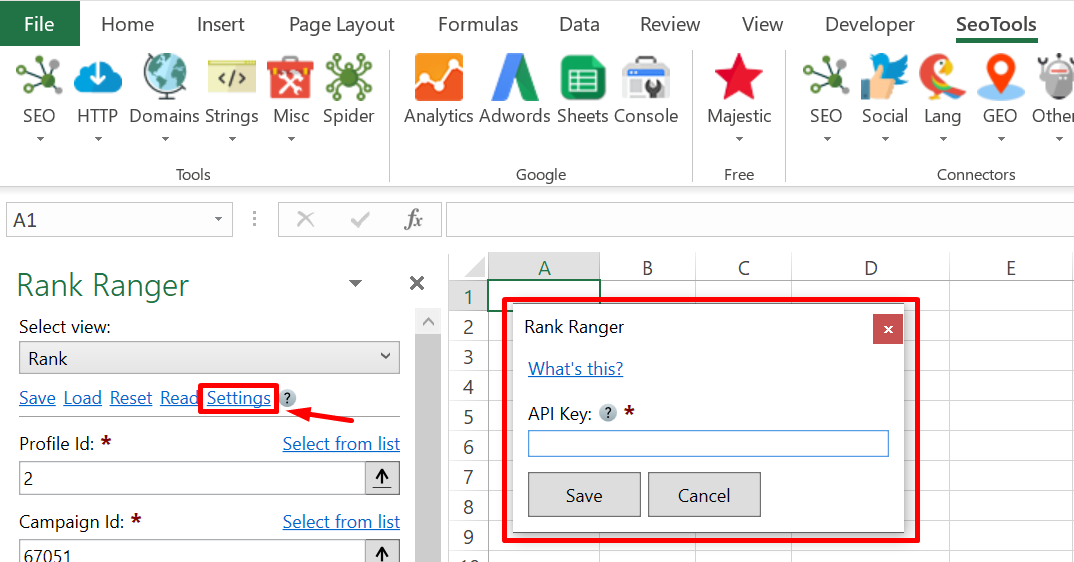
___
## Contribute
This connector suite is open-sourced on [GitHub](https://github.com/nielsbosma/SeoTools-for-Excel-Connectors/blob/master/RankRanger.xml).
___
## See
#### Official Documentation
* [Rank Ranger API](https://www.rankranger.com/documentation)
#### Resources
* [Manager](/manage-connectors/)
---
# Razor
URL: https://seotoolsforexcel.com/razor/
Type: page
Published: 2015-10-11
Updated: 2019-05-27
Summary: With SeoTools for Excel you can use Razor templates from ASP.MVC in Excel. Useful for more advanced string concatenation.
```
=Razor(string template, {object arguments},
...) : string
```
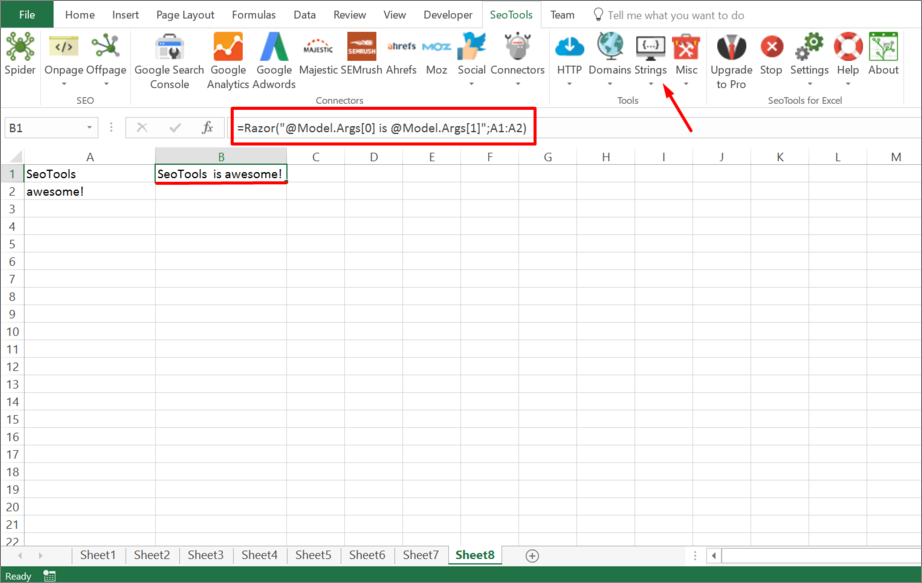
___
## Purpose
Enables [Razor](https://weblogs.asp.net/scottgu/introducing-razor) templating from ASP.MVC in Excel.
This can be very useful for more advanced string concatenation using the full power of C#.
Arguments are are available through `@Model.Args[n]`.
___
## Examples
A1: Niels
B2: Awesome
=Razor("@Model.Args[0] is @Model.Args[1]";A1:B1) => "Niels is Awesome"
Join a range of cells with "," but remove empty cell first:
=Razor("@string.Join("","",((object[])Model.Args).Where(e =>
!string.IsNullOrEmpty((string)e)))";A1:A3)
___
## See
#### Related Functions
* [Format](/format/)
* [Velocity](/velocity/)
---
# Access Reddit in Excel
URL: https://seotoolsforexcel.com/reddit/
Type: page
Published: 2018-02-27
Updated: 2019-05-19
Summary: SeoTools for Excel offers a user-friendly and effective method to search and collect data from Reddit straight to Excel within a matter of seconds.
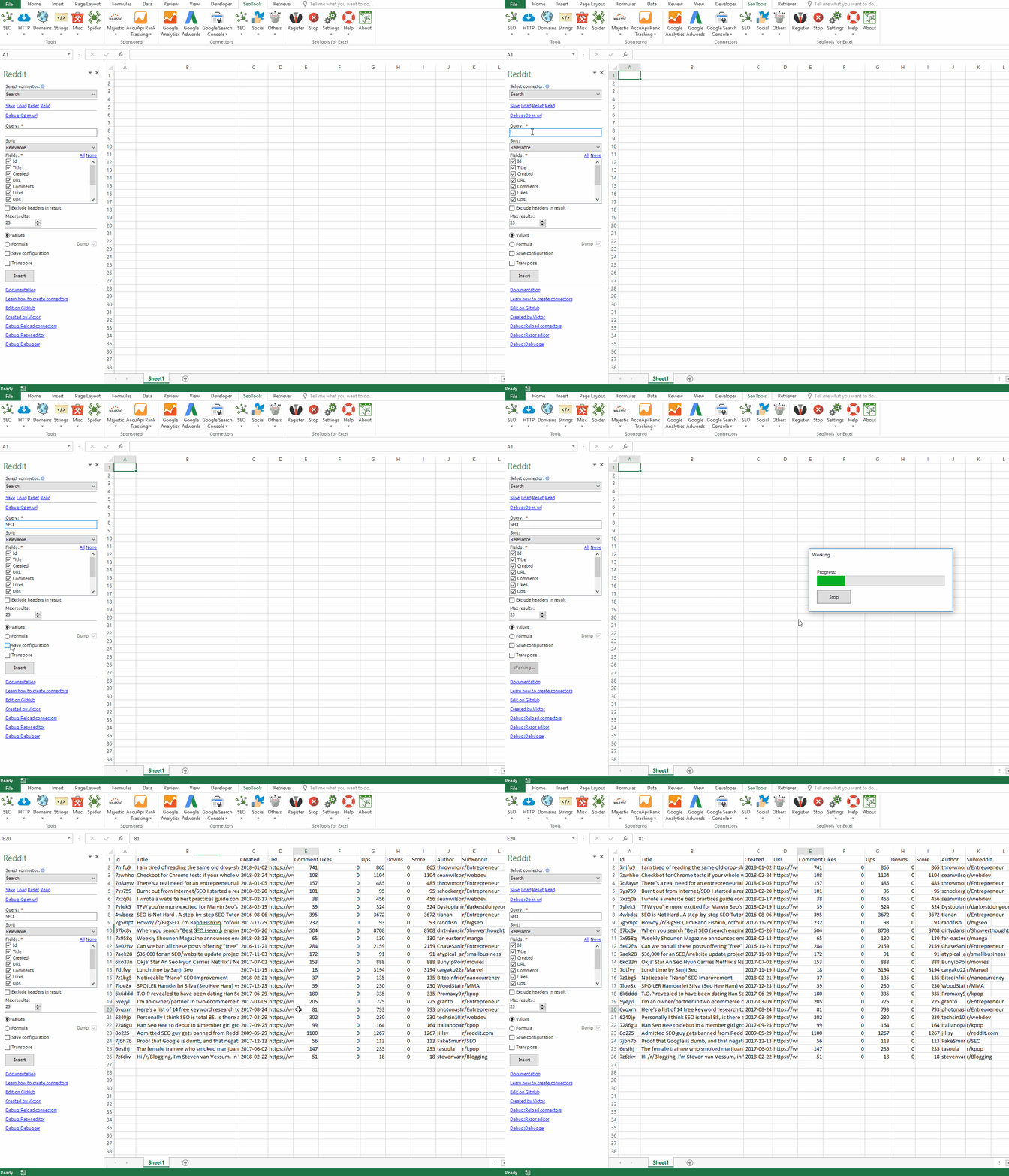
___
## Threads
* **Search** - Search for threads based on a query. Available sorting options:
- Relevance
- Hot
- Top
- New
- Comments
* **Lookup** - Extract statistics about one or more threads.
## Comments
* **From Thread** - Extract all comments from a specific thread. Available sorting options:
- Confidence
- Top
- New
- Controversial
- Old
- Random
- QA
- Live
* **Lookup** - Extract statistics about one or more comments.
* **User Feed** - Extract all comments posted by a specific user. Available sorting options:
- Hot
- Top
- New
- Controversial
___
## Access
## Add from Manager
The Reddit Connector is available in the **[Connectors Manager](/manage-connectors/)** in the top ribbon:

Head over to the **Social Category** and install Reddit:

___
## Contribute
This connector suite is open-sourced on [GitHub](https://github.com/nielsbosma/SeoTools-for-Excel-Connectors/blob/master/Reddit.xml).
## See
#### Official Documentation
* [Reddit API](https://www.reddit.com/dev/api)
#### Resources
* [Manager](/manage-connectors/)
---
# RedirectCount
URL: https://seotoolsforexcel.com/redirectcount/
Type: page
Published: 2020-03-25
Updated: 2020-03-25
Summary: Use this formula to count number of redirects between input URL and final destination.
```
=RedirectCount(string url) : int
```
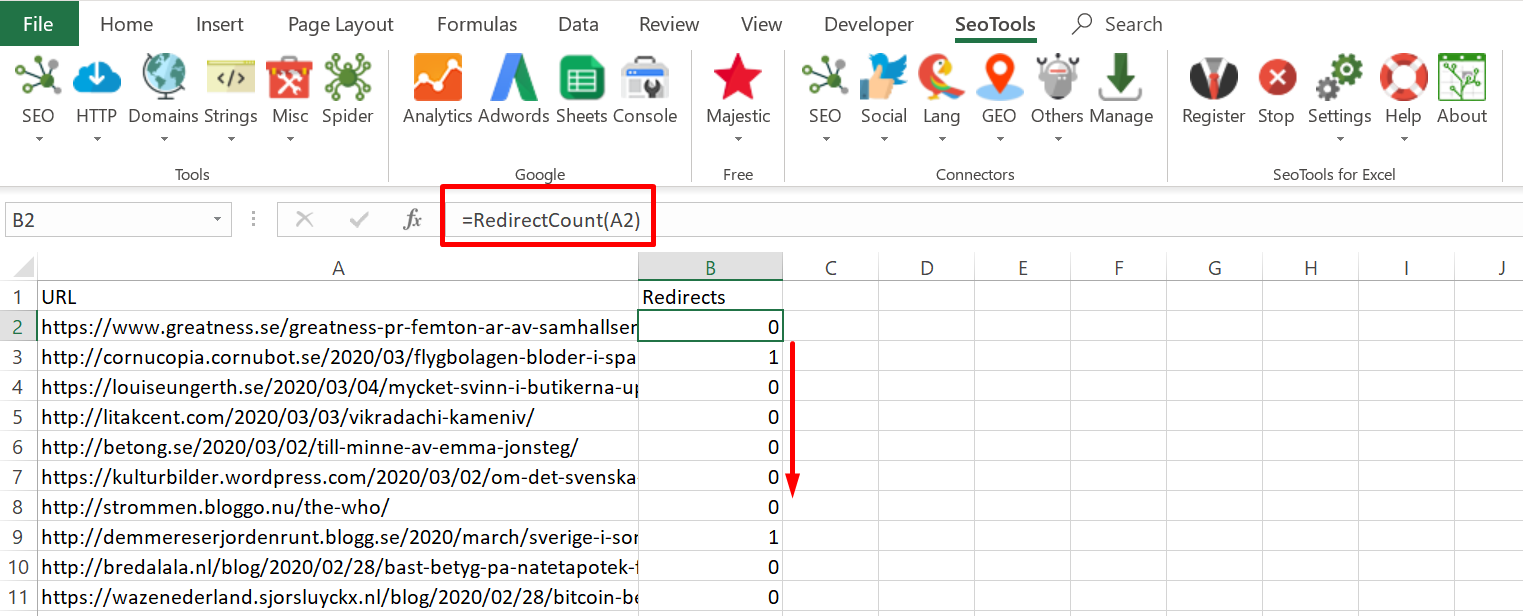
___
## Purpose
Returns number of redirects between input URL and final destination.
___
## See
#### Related Functions
* [RedirectList](/redirectlist/)
* [UnShortUrl](/unshorturl/)
---
# RedirectList
URL: https://seotoolsforexcel.com/redirectlist/
Type: page
Published: 2020-03-25
Updated: 2020-03-25
Summary: Use this formula to return a list of all redirects between input URL and final destination.
```
=RedirectList(string url) : array
```
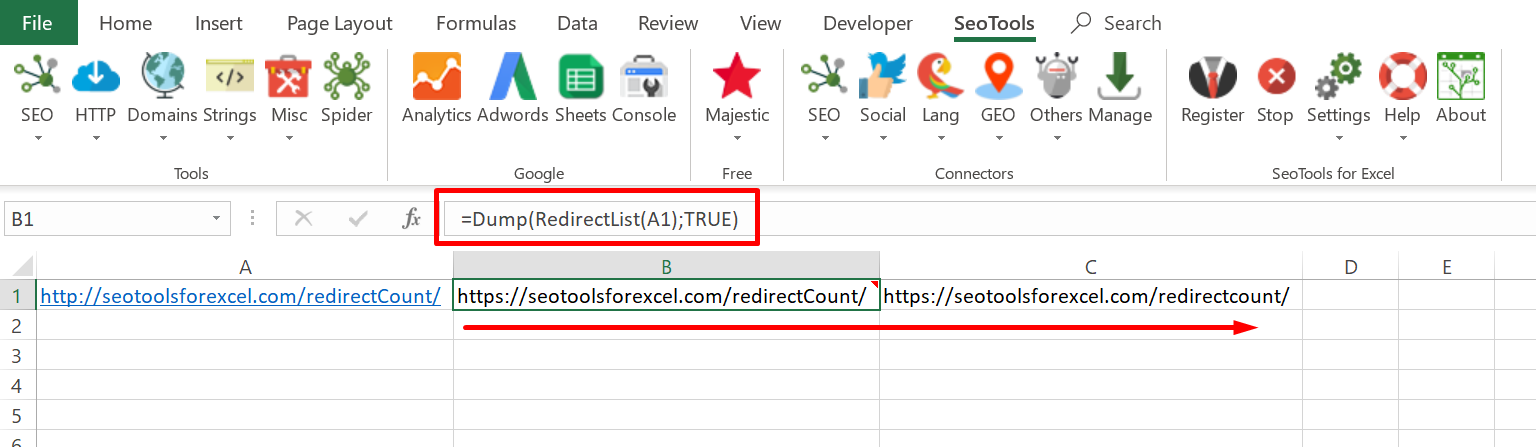
___
## Purpose
Return redirects between input URL and final destination. Use the [Dump](/dump/) function to get all results.
___
## See
#### Related Functions
* [RedirectCount](/redirectcount/)
* [UnShortUrl](/unshorturl/)
* [Dump](/dump/)
---
# RegexpFind
URL: https://seotoolsforexcel.com/regexpfind/
Type: page
Published: 2015-03-29
Updated: 2020-02-29
Summary: Find strings with regular expressions as a function in SeoTools for Excel
```
=RegexpFind(string input, string expr, int group) : string
```
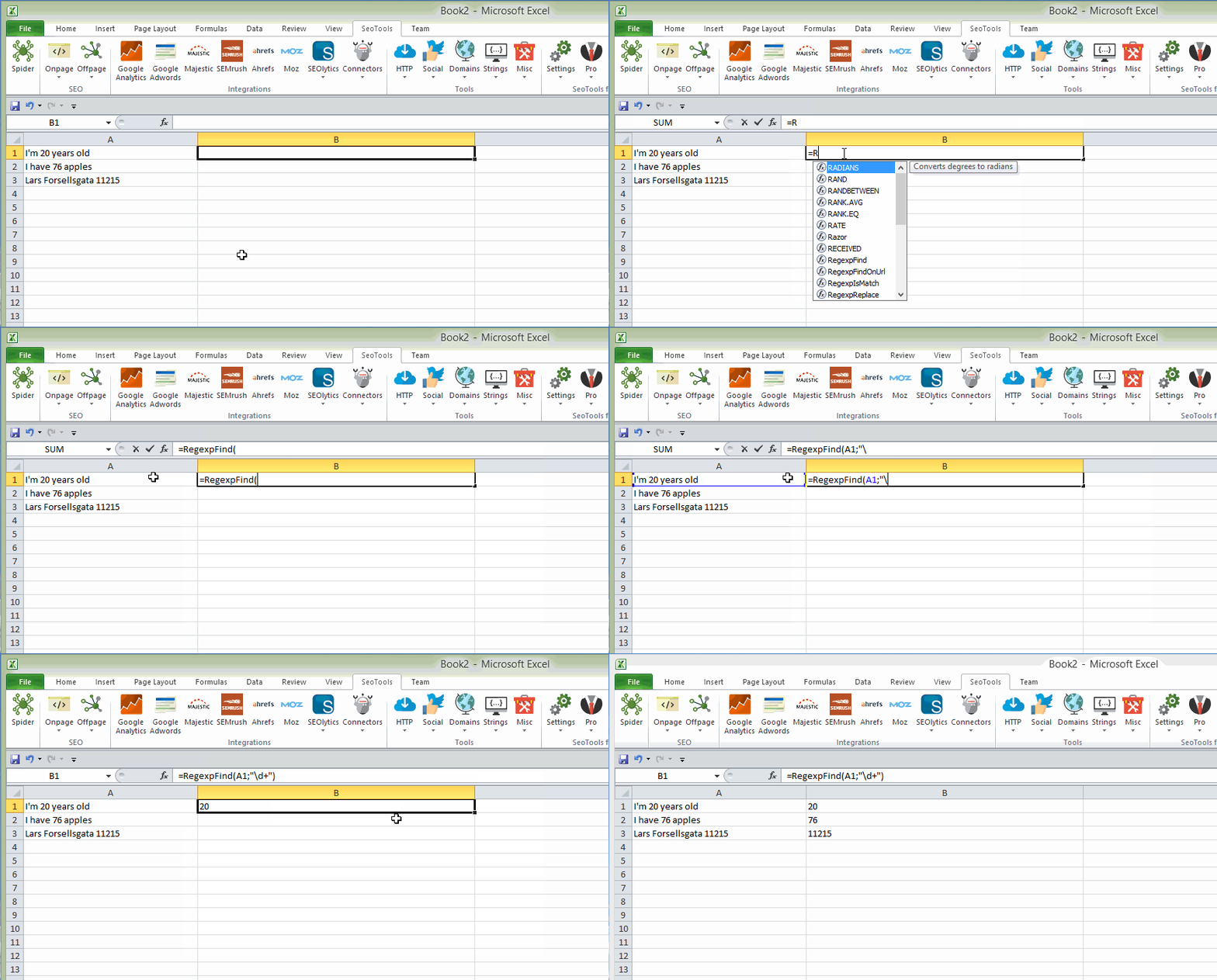
___
## Purpose
Takes an regular expression and returns an array of matched groups from an input string.
RegexpFind can also take an vector as input.
Uses [.Net regular expressions](https://www.regular-expressions.info/reference.html).
___
## Examples
=RegexpFind("HelloWorld","([^>]*)",1)
=> "HelloWorld"
=RegexpFind(A3:C3,"\b[A-Z0-9._%-]+@[A-Z0-9.-]+\.[A-Z]{2,4}\b",0)
=> (* Returns the first email adress found in in columns A3:C3 *)
___
## See
#### Guides
* [Working with regular expressions](/working-with-regular-expressions-in-excel/)
#### Cookbook
* [RegexpFind.xlsx](https://raw.githubusercontent.com/nielsbosma/SeoTools-for-Excel-Cookbooks/master/Functions/RegexpFind.xlsx)
#### Related Functions
* [RegexpFindOnUrl](/regexpfindonurl/)
* [RegexpIsMatchOnUrl](/regexpismatchonurl/)
* [RegexpIsMatch](/regexpismatch/)
* [RegexpReplace](/regexpreplace/)
---
# RegexpFindOnUrl
URL: https://seotoolsforexcel.com/regexpfindonurl/
Type: page
Published: 2015-03-29
Updated: 2020-02-29
Summary: Use Regular Expressions to extract strings or arrays from any web page as a formula in Excel with SeoTools for Excel.
```
=RegexpFindOnUrl(string url; string regexp;
int group; [string xmlHttpSettings]; bool caseSensitive) : array
```
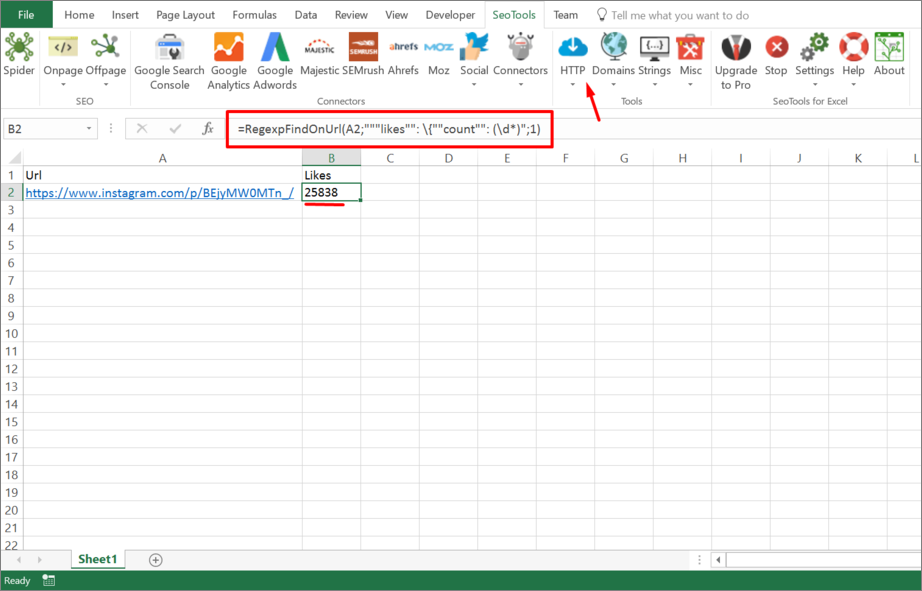
___
## Purpose
Fetches the url and returns the (array) result from regexp expression.
Similar to [XPathOnUrl](/xpathonurl/), RegexpFindOnUrl returns an array if there are several matches on the requested page.
You can control the HTTP request (such as header and form variables) using the xmlHttpSettings (**Optional**). See [HttpSettings](/httpsettings/).
[This function is cached.](/caching/)
___
### Local files
You can also parse local files using RegexpFindOnUrl using either absolute or relative (to spreadsheet) filepaths:
file:///C:\path\to\file.xml
file:///path\relative\workbook.xml
file:///..\..\path\relative\workbook.xml
See: [DirectoryList](/directorylist/)
___
## Example
=RegexpFindOnUrl("https://google.com","([^>]*)",1)
=> "Google"
___
## See
#### Guides
* [Working with regular expressions](/working-with-regular-expressions-in-excel/)
* [Working with arrays in Excel](/working-with-arrays-in-excel/)
* [An SEO’s Guide to RegEx](https://moz.com/blog/an-seos-guide-to-regex)
#### Related Functions
* [RegexpIsMatchOnUrl](/regexpismatchonurl/)
* [GetTextOnUrl](/gettextonurl/)
* [CsQueryOnUrl](/csquery/)
* [XPathOnUrl](/xpathonurl/)
* [JsonPathOnUrl](/jsonpathonurl/)
---
# RegexpIsMatch
URL: https://seotoolsforexcel.com/regexpismatch/
Type: page
Published: 2015-03-29
Updated: 2020-02-29
Summary: Test if a regular expression is true or false for a string as a function in SeoTools for Excel
```
=RegexpIsMatch(Input, Expr) : bool
```
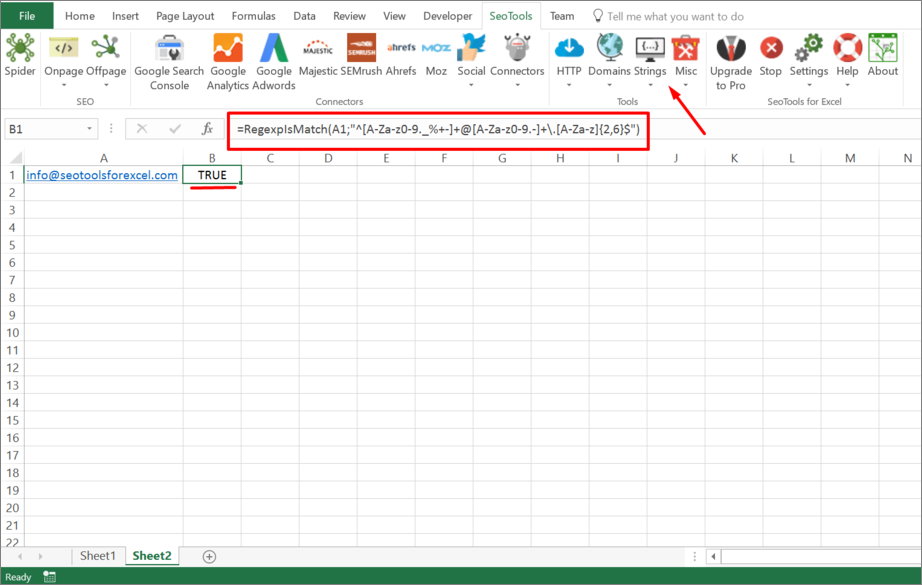
___
## Purpose
Tests if a regular expression is true or false for a string and returns `True/False`
Uses [.Net regular expressions](https://www.regular-expressions.info/reference.html).
___
## See
#### Guides
* [Working with regular expressions](/working-with-regular-expressions-in-excel/)
#### Related Functions
* [RegexpIsMatchOnUrl](/regexpismatchonurl/)
* [RegexpFindOnUrl](/regexpfindonurl/)
* [RegexpFind](/regexpfind/)
* [RegexpReplace](/regexpreplace/)
---
# RegexpIsMatchOnUrl
URL: https://seotoolsforexcel.com/regexpismatchonurl/
Type: page
Published: 2020-02-29
Updated: 2020-02-29
Summary: Use Regular Expressions to verify strings on websites as a formula in Excel with SeoTools for Excel.
```
=RegexpIsMatchOnUrl(string url; string regexp;
bool caseSensitive) : bool
```
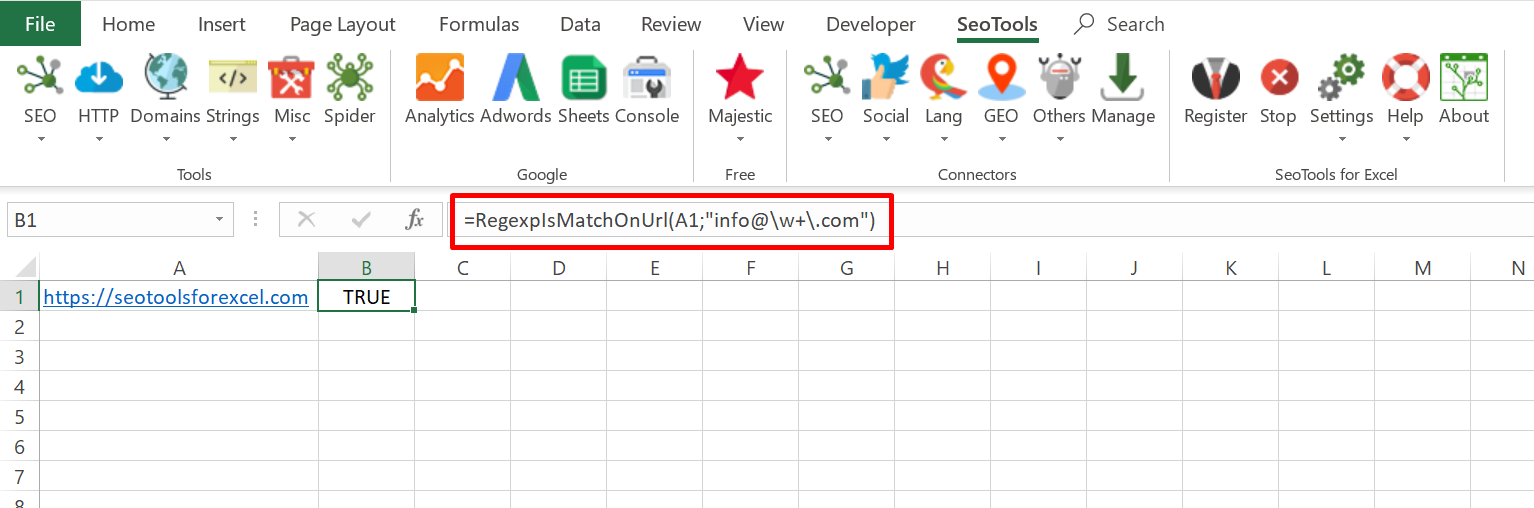
___
## Purpose
Tests if a regular expression is true or false for a website HTML and returns `True/False`
Uses [.Net regular expressions](https://www.regular-expressions.info/reference.html).
___
## Example
=RegexpIsMatchOnUrl("https://seotoolsforexce.com";"info@\w+\.com")
=> TRUE
___
## See
#### Guides
* [Working with regular expressions](/working-with-regular-expressions-in-excel/)
#### Related Functions
* [RegexpFindOnUrl](/regexpfindonurl/)
* [RegexpIsMatch](/regexpismatch/)
* [RegexpFind](/regexpfind/)
* [RegexpReplace](/regexpreplace/)
---
# RegexpReplace
URL: https://seotoolsforexcel.com/regexpreplace/
Type: page
Published: 2015-03-29
Updated: 2020-02-29
Summary: Replace all strings that match a specified regular expression with a replacement string as a function in SeoTools for Excel
```
=RegexpReplace(Input, Expr, Replacement) : string
```
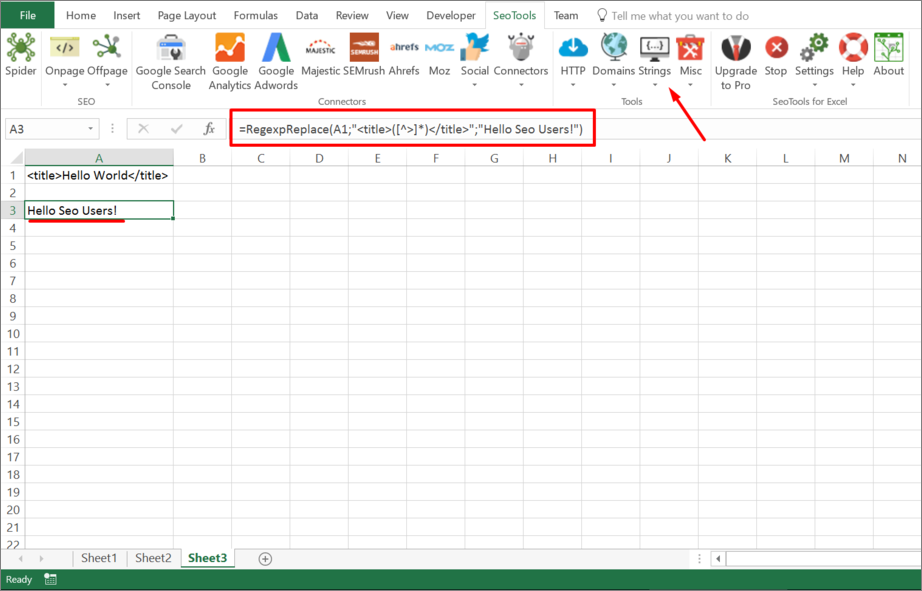
___
## Purpose
Within a specified input string, replaces all strings that match a specified regular expression with a specified replacement string.
[Uses .Net regular expressions](https://www.regular-expressions.info/reference.html).
___
## See
#### Guides
* [Working with regular expressions](/working-with-regular-expressions-in-excel/)
#### Related Functions
* [RegexpIsMatch](/regexpismatch/)
* [RegexpFindOnUrl](/regexpfindonurl/)
* [RegexpIsMatchOnUrl](/regexpismatchonurl/)
* [RegexpFind](/regexpfind/)
---
# ResolveHostname
URL: https://seotoolsforexcel.com/resolvehostname/
Type: page
Published: 2020-02-28
Updated: 2020-02-28
Summary: Resolves the hostname of a an IP address as a formula in Excel with SeoTools for Excel.
```
=ResolveHostname(string ip) : string
```
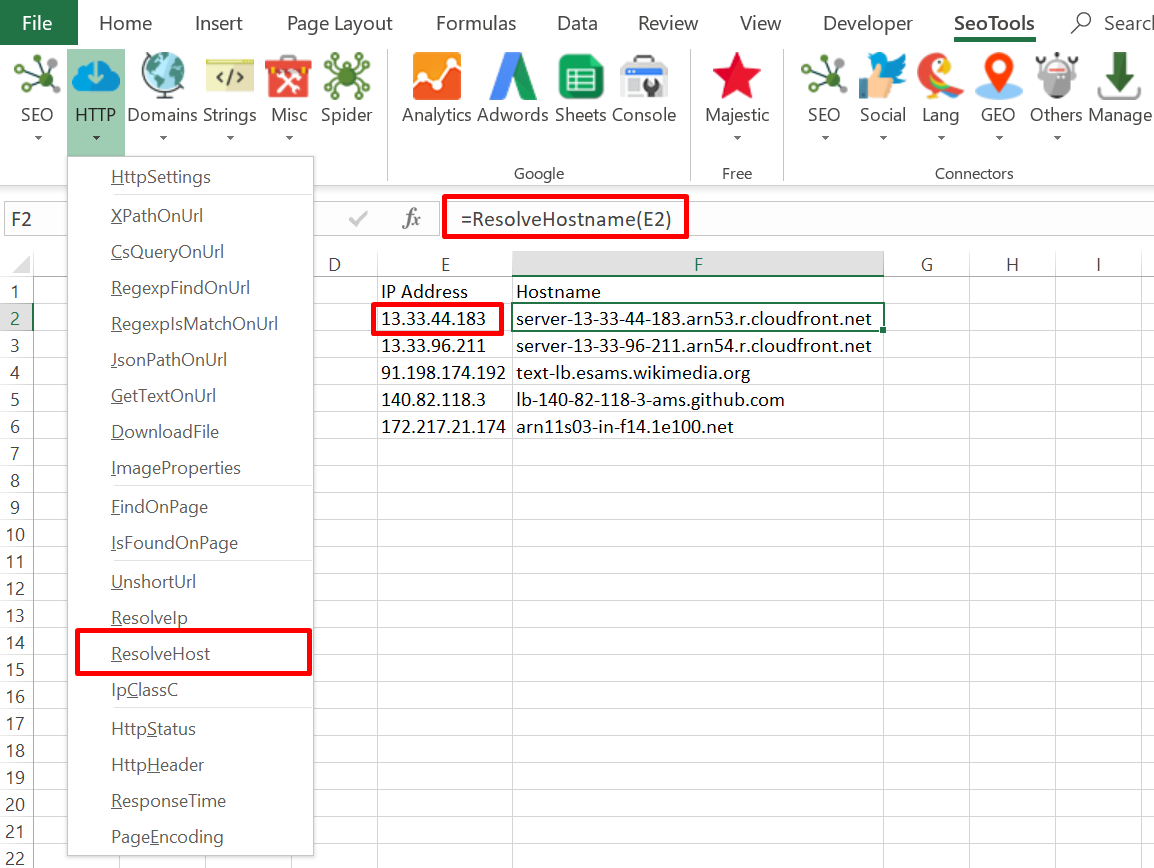
___
## Purpose
Resolves the Host name of an IP Address.
___
## See
#### Related Functions
* [ResolveIp](/resolveip/)
---
# ResolveIp
URL: https://seotoolsforexcel.com/resolveip/
Type: page
Published: 2015-03-29
Updated: 2019-05-19
Summary: Resolves the IP address of the domain in an URL as a formula in Excel with SeoTools for Excel.
```
=ResolveIp(string url) : string
```
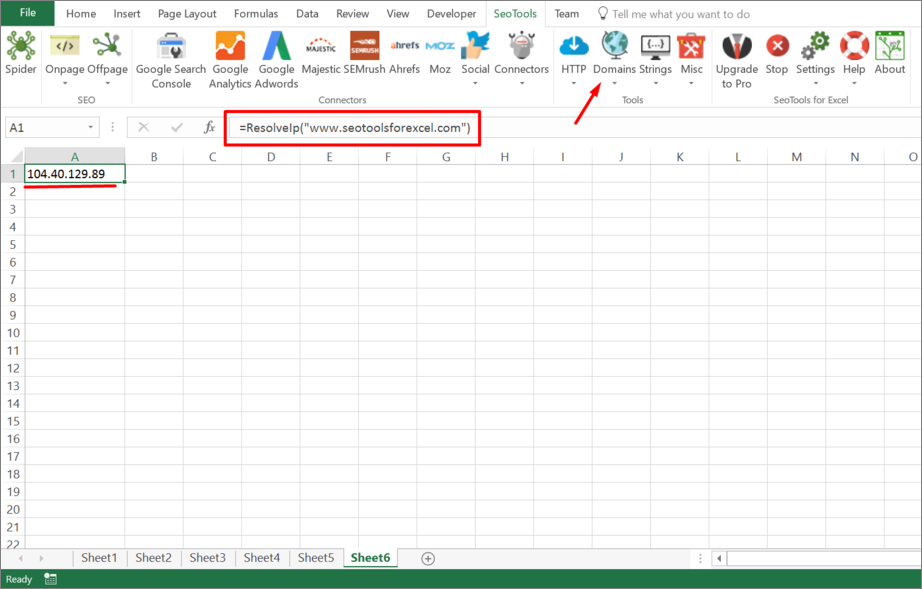
___
## Purpose
Resolves the IP address of the domain in an URL.
___
## See
#### Guides
* [Find the country where a site is hosted](/resolve-country-where-a/)
---
# ResponseTime
URL: https://seotoolsforexcel.com/responsetime/
Type: page
Published: 2015-03-29
Updated: 2019-05-19
Summary: Retrieve the time it takes for an URL to load as a formula in Excel with SeoTools for Excel.
```
=ResponseTime(string url, [int iterations, int
pauseBetweenIterations]) : integer
```
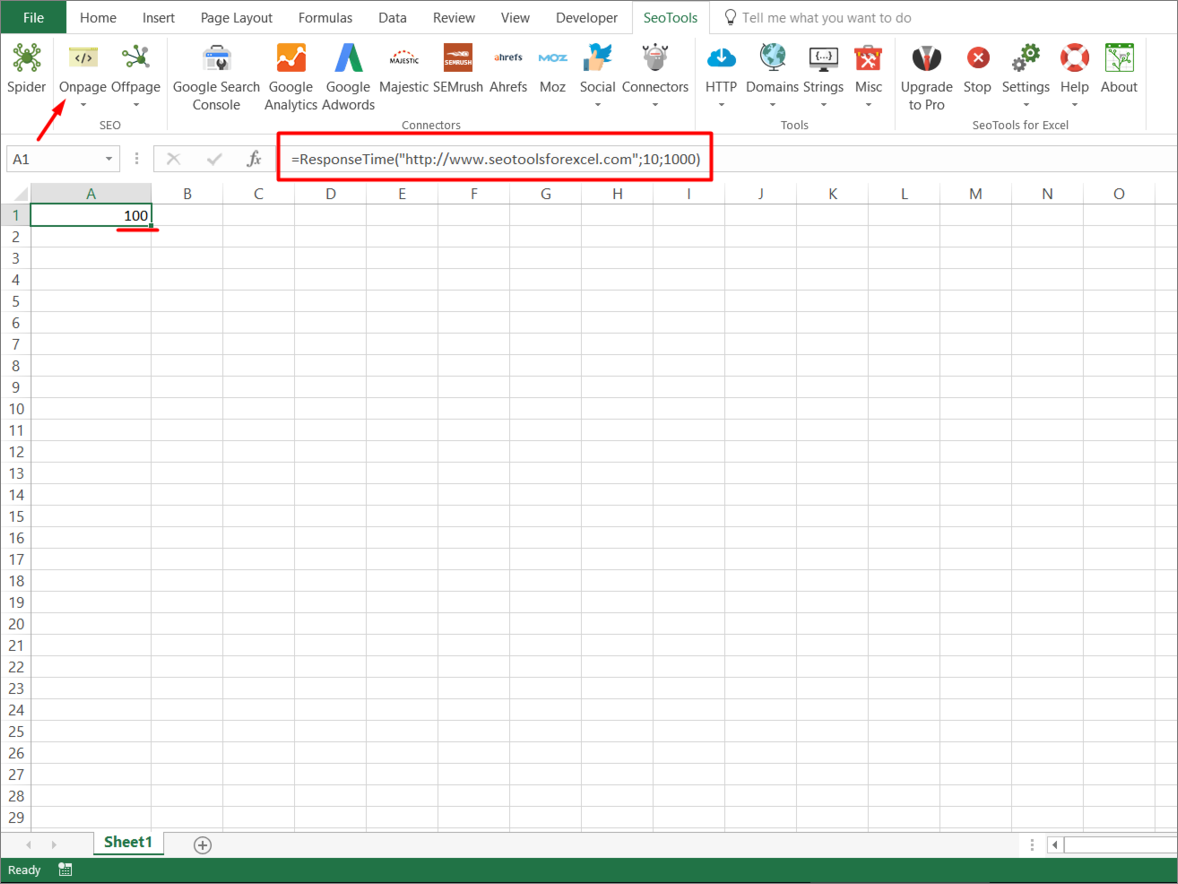
___
## Purpose
Returns the number of milliseconds it takes for an URL to load (cached).
___
### Iterations
Use this attribute to take multiple samples and return the median value collected in each iteration.

(default 1 iteration)
____
### PauseBetweenIterations
Thread sleep beetween each iteration.

(default 1000ms)
___
## Example
=ResponseTime("https://www.seotoolsforexcel.com",10,1000)
Will measure the response time 10 times with 1000ms between each iteration and return the median response time.
---
# Reverse
URL: https://seotoolsforexcel.com/reverse/
Type: page
Published: 2018-05-06
Updated: 2019-05-19
Summary: Formula that takes input from a string or cell and reverses the text.
```
=Reverse(string input) : string
```
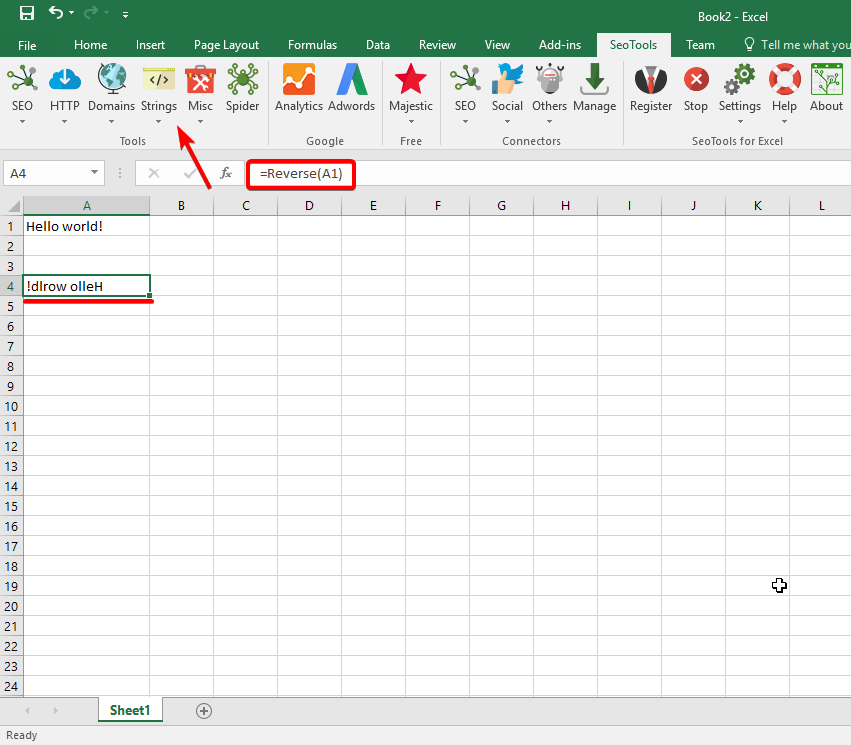
___
## Purpose
Reverses a string.
---
# Access RSS in Excel
URL: https://seotoolsforexcel.com/rssparser/
Type: page
Published: 2017-03-14
Updated: 2023-06-28
Summary: SeoTools for Excel offers a user-friendly and effective method to collect RSS streams straight to Excel within a matter of seconds.
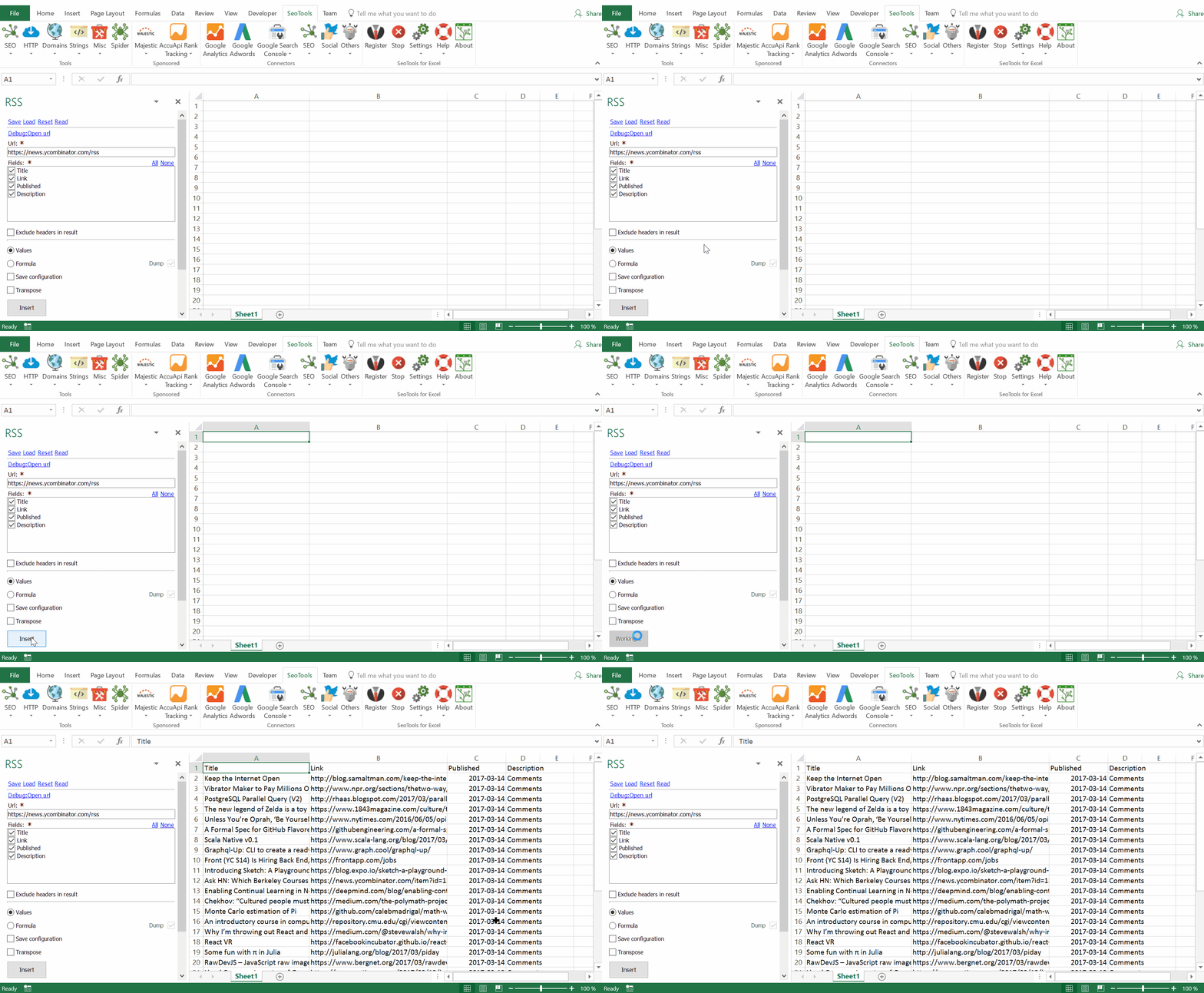
___
## Purpose
The RSS Parser extracts the latest content from any RSS flow straight into Excel. Available fields according to the [RSS 2.0 specification](https://validator.w3.org/feed/docs/rss2.html):
## Default RSS Feed
## Fields
- Link
- Title
- Pubdate
- Description
- Author
- Category
- GUID
## Podcast RSS Feed
## Fields
- Link
- Title
- iTunes Author
- Language
- Copyright
- Published
- Description
- Category
- GUID
___
## Contribute
This connector suite is open-sourced on [GitHub](https://github.com/nielsbosma/SeoTools-for-Excel-Connectors/blob/master/RSS.xml).
___
## See
#### Related Functions
* [Spider](/spider/)
* [Sitemap Parser](/sitemap-parser/)
---
# Access ScrapingBee in Excel
URL: https://seotoolsforexcel.com/scrapingbee/
Type: page
Published: 2023-06-28
Updated: 2023-06-28
Summary: Scrape Google SERP and ads inside Excel with ScrapingBee headless browser and proxies.
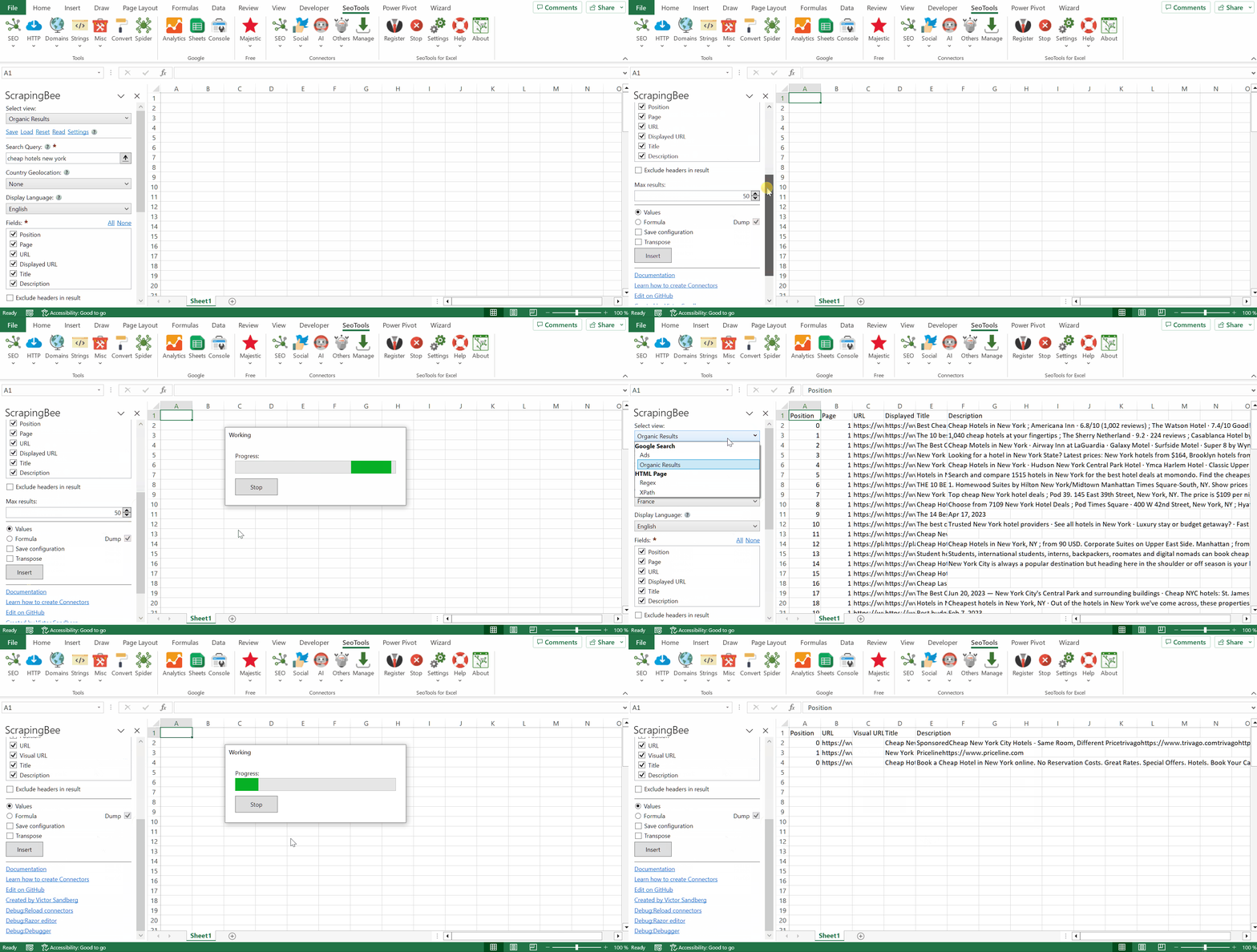
## Purpose
ScrapingBee is a Web Scraping API that handles proxies and Headless browser for you, so you can focus on extracting the data you want, and nothing else.
___
## Google SERP
Allows you to scrape search results pages in real-time.
#### Available types:
- Organic results
- Ads
#### Available settings:
- **Query** - The text you would put in the Google search bar.
- **Country Geolocation** - The country from which you would like the request to come from.
#### Organic Fields:
- Page
- Position
- URL
- Displayed URL
- Title
- Description
#### Ads Fields
- Position
- URL
- Visual URL
- Title
- Description
## HTML Pages
Allows you to extract content from a webpage using regex or XPath.
#### Available settings:
- **Premium Proxy** - These proxies are rarely blocked and we recommend trying premium proxies for difficult to scrape websites. *[Cost per request: 25 API credits with Javascript enabled, 10 without]*
- **JavaScript Rendering** - Fetches the URL to scrape via a headless browser that will execute the JavaScript code on the page. *[Cost per request: 5 credits]*
___
## Access
## Add from Manager
The ScrapingBee Connector is available in the **[Connectors Manager](/manage-connectors/)** in the top ribbon:

Head over to the **Scraping Category** and install AWR:
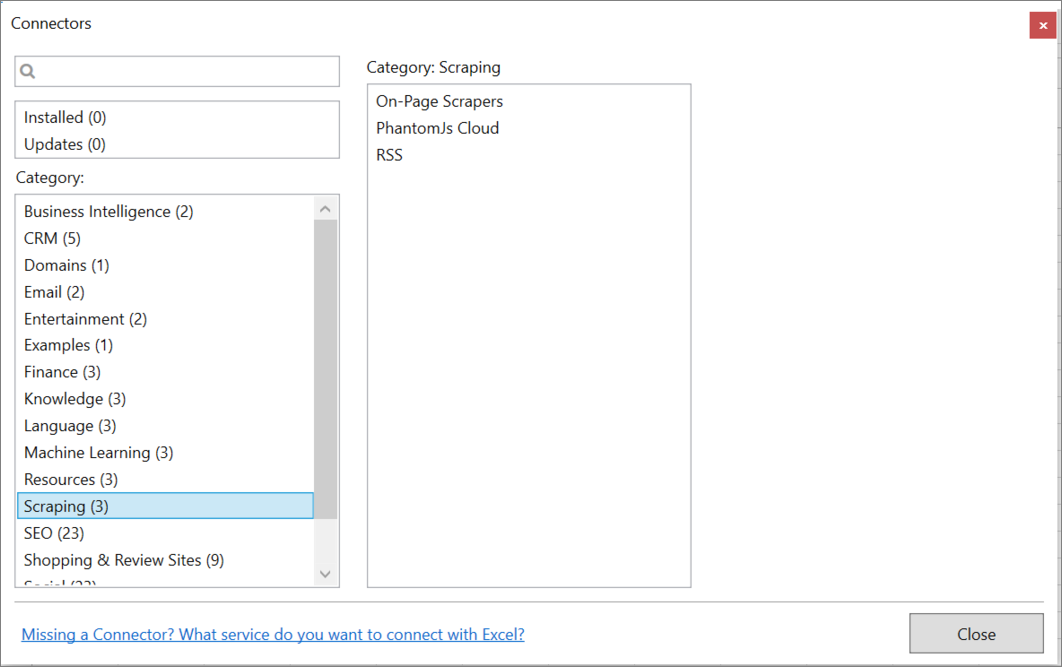
## API Key
To use the Connector you need a [ScrapingBee account](https://app.scrapingbee.com/account/register). Copy your key and paste it in the Settings menu inside the ScrapingBee connector.
___
## Contribute
This connector suite is open-sourced on [GitHub](https://github.com/nielsbosma/SeoTools-for-Excel-Connectors/blob/master/ScrapingBee.xml).
___
## See
#### Resources
* [Manager](/manage-connectors/)
#### Official Documentation
* [ScrapingBee API](https://www.scrapingbee.com/documentation/)
#### Related Functions
* [XPathOnUrl](/xpathonurl/)
* [JsonPathOnUrl](/jsonpathonurl/)
* [PhantomJs Cloud](/phantomjs-cloud/)
---
# Access Scrive in Excel
URL: https://seotoolsforexcel.com/scrive/
Type: page
Published: 2020-02-26
Updated: 2020-02-26
Summary: Analyze your agreements history in Excel with the Scrive connector.
## Documents
Retrieve agreements history and filter the results by period, status and query.
## Statistics
Retrieve usage statistics for the last 6 months per user or total.
___
## Access
## Add from Manager
The Scrive Connector is available in the **[Connectors Manager](/manage-connectors/)** in the top ribbon:

Head over to the **Legal Category** and install the Scrive Connector.
## API Password
Enter your email address and password in the Scrive connector settings inside SeoTools:
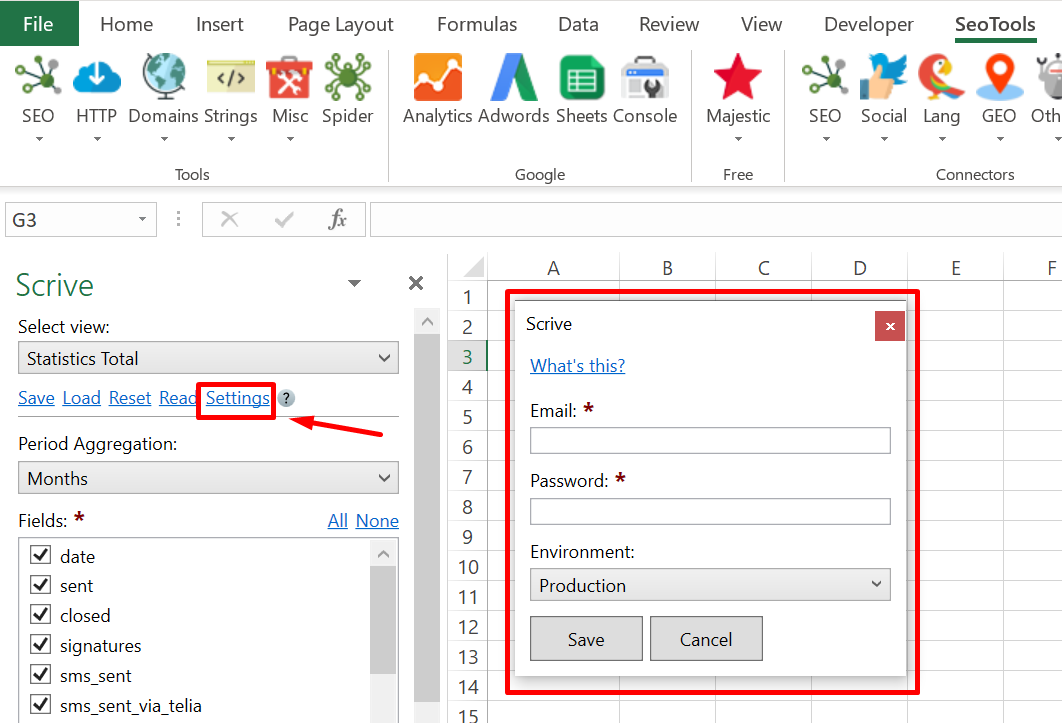
___
___
## Contribute
This connector suite is open-sourced on [GitHub](https://github.com/nielsbosma/SeoTools-for-Excel-Connectors/blob/master/Scrive.xml).
___
## See
#### Official Documentation
* [Scrive API](https://apidocs.scrive.com/#scrive-document-api)
#### Resources
* [Manager](/manage-connectors/)
---
# Access SE Ranking in Excel
URL: https://seotoolsforexcel.com/se-ranking/
Type: page
Published: 2018-08-28
Updated: 2020-05-12
Summary: Seotools connects Excel with your SE Ranking account. Track and analyze website rankings and keywords positions for all major search engines.
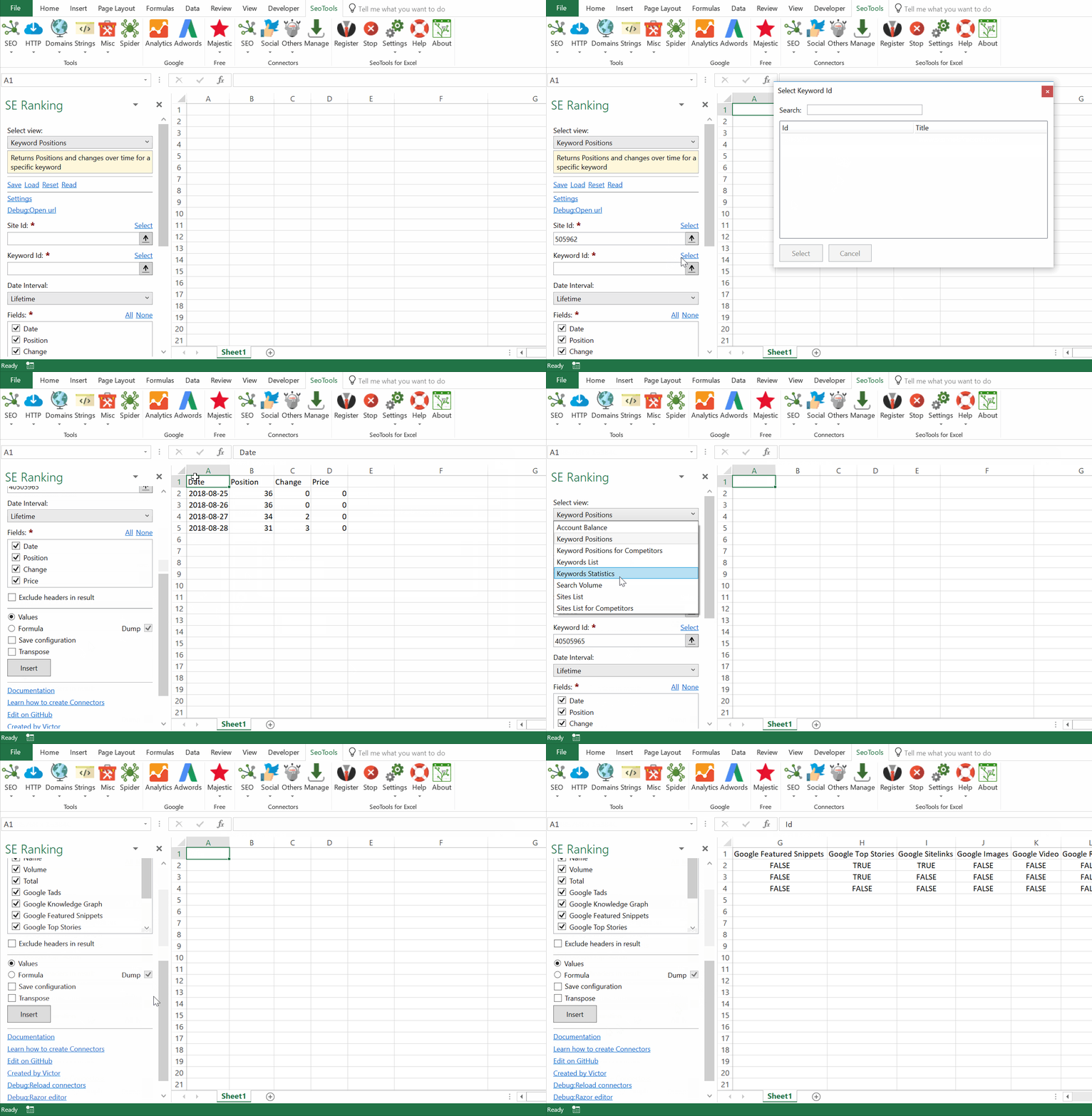
SE Ranking is a cloud-based platform for SEO and online marketing professionals that provides a complete set of tools for comprehensive.
SE Ranking offers a variety of unique value propositions to its users which include accurate ranking results for the majority of search engines with advanced keyword analysis, keyword grouping, the ability to show which page of your website is ranking and track Google Local and map results.
The platform is useful for experienced SEO and marketing gurus as well as newbies.
___
## Projects
- **Summary Statistics** - Obtain a project’s summary statistics. Available metrics:
- Total up - Total number of positions that went up in SERPs
- Total down - Total number of positions that dropped in SERPs
- Today Average - Average position for the last ranking check date
- Yesterday Average - Average position for the previous ranking check date
- Top 5 - Keywords in the TOP 5
- Top 10 - Keywords in the TOP 10
- Top 30 - Keywords in the TOP 30
- Visibility - Traffic forecast
- Visibility percent - Visibility in %
- DA - Moz Domain Authority
- Yandex X - Number of pages in Yandex’s index
- **Keyword Overview** - Obtain general statistics on a project’s keywords. Also includes a wide range of Google specific features which is either true or false based on appearance in search results. For example: *Knowledge Graph, Featured Snippets Top Stories, Images, Videos, Reviews*. Available metrics:
- Name - Query Name
- Volume - Search Volume
- Competition
- Suggested Bid - Cost per Click
- KEI - Keyword Efficiency Index
- Results - Number of results for a given keyword in Google
- **Keyword Trend** - Obtain the statistics on a project’s keyword ranking check for a specified time period. Available metrics:
- Date
- Position - Current position
- Change - Change in position compared to previous date (could be negative)
- Price - Price calculated from financial report settings
- Paid Position - Position in paid Google SERPs
- Is Map - Indicates where the position was found
- Map Position - Position in the maps block with the “*Display organic and maps search results separately*” option enabled
- **Keyword Top 10** - Get a list of the TOP 10 results for the keyword that is tracked in a project. Available metrics:
- Position - Position in the SERP
- URL - Page URL
- Alexa
- DA - Moz Domain Authority
- Backlinks - Total backlinks
- Domains - Number of referring unique domains
- Yandex X - Site quality index by Yandex that shows how useful a competitor’s site is for visitors
- **Keyword Top 100** - Get a list of the TOP 100 results for the keyword that is tracked in a project. Available metrics:
- Position - Position in the SERP
- URL - Page URL
## Project Competitors
- **Keyword Trend** - Get statistics on the positions of competitor keywords that were added to the project. Available metrics:
- Position - Current position
- Change - Change in position compared to previous date (could be negative)
- Price - Price calculated from financial report settings
- Paid Position - Position in paid Google SERPs
- Is Map - Indicates where the position was found
- Map Position - Position in the maps block with the “*Display organic and maps search results separately*” option enabled
- **Top Competitors** - Find data on the sites that were ranked in the TOP 10 for each of the tracked queries. Available metrics:
- Domain - Competitor's domain
- Visibility - Competitor's visibility
- Alexa
- DA - Moz Domain Authority
- Backlinks - Total backlinks
- Domains - Number of referring unique domains
- Yandex X - Site quality index by Yandex that shows how useful a competitor’s site is for visitors
- **Sites List** - Lists all sites in the account.
## Search Volume
- **Keywords** - Get the search volume data for a specified region and keyword list (one keyword per row):
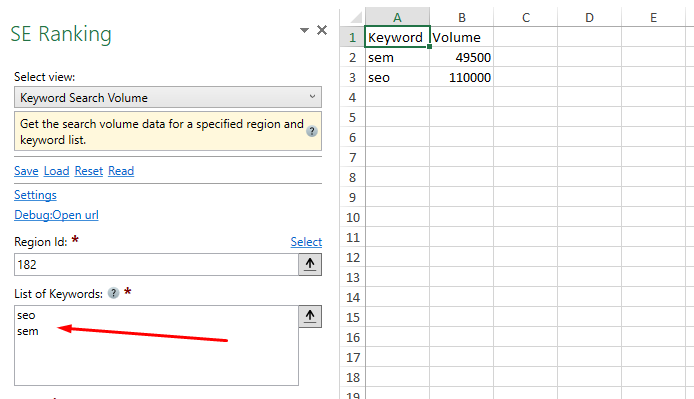
## Analytics
- **SEO Potential** - Enables you to assess the potential traffic volume, cost of traffic, number of new customers. Available metrics:
- Traffic - Traffic forecast
- Traffic Value - Traffic cost
- Leads - Number of clients
- Leads Price - Estimated profit
- **Available filters**:
- Top N - Calculate based on Top N Results
- Price - Estimated income from one client
- Rate - Conversion to Sales
## Projects Backlinks
- **List** - Get a list of a website’s backlinks.
- **Summary Statistics** - Obtain a website’s backlink summary statistics.
## Projects Competitors
- **Keyword Trend** - Get statistics on the positions of competitor keywords that were added to the project.
- **Top Competitors** - Find data on the sites that were ranked in the TOP 10 for each of the tracked queries.
## Projects Audit
- **Report** - Get a report from an audit. Available metrics:
- Score
- Weighted Score
- Pages
- Warnings
- Errors
- Passed
- Backlinks
- Index Google
- Index Bing
- Index Yahoo
- Index Yandex
- Expiry Date
- **Status** - Get the status from an audit. Available metrics:
- Start Time
- End Time
- Pages
- Warnings
- Errors
- Passed
___
## Access
## Add from Manager
The SE Ranking Connector is available in the **[Connectors Manager](/manage-connectors/)** in the top ribbon:

Head over to the **SEO Category** and install SE Ranking:

## API Key
SE Ranking offers a [14-day free trial](https://seranking.com/) (with no credit cards involved) when you can test-drive all major features and the SE Ranking Connector with no strings attached.
1. Log in to the user account.
2. Go to Settings -> API.
3. Click the “Generate API Key” button.
4. In the SE Ranking Connector taskpane, click on Settings and paste the key:
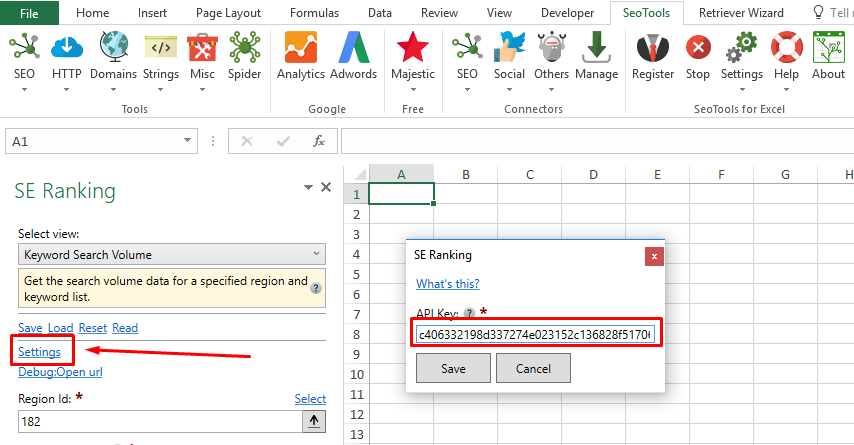
___
## Contribute
This connector suite is open-sourced on [GitHub](https://github.com/nielsbosma/SeoTools-for-Excel-Connectors/blob/master/SERanking.xml).
___
## See
#### Official Documentation
* [SE Ranking API](https://seranking.com/api.html)
#### Resources
* [Manager](/manage-connectors/)
---
# Access Searchmetrics in Excel
URL: https://seotoolsforexcel.com/searchmetrics/
Type: page
Published: 2016-04-25
Updated: 2021-07-12
Summary: SeoTools for Excel offers a user-friendly and effective method to collect organic and paid metrics from Searchmetrics straight to Excel
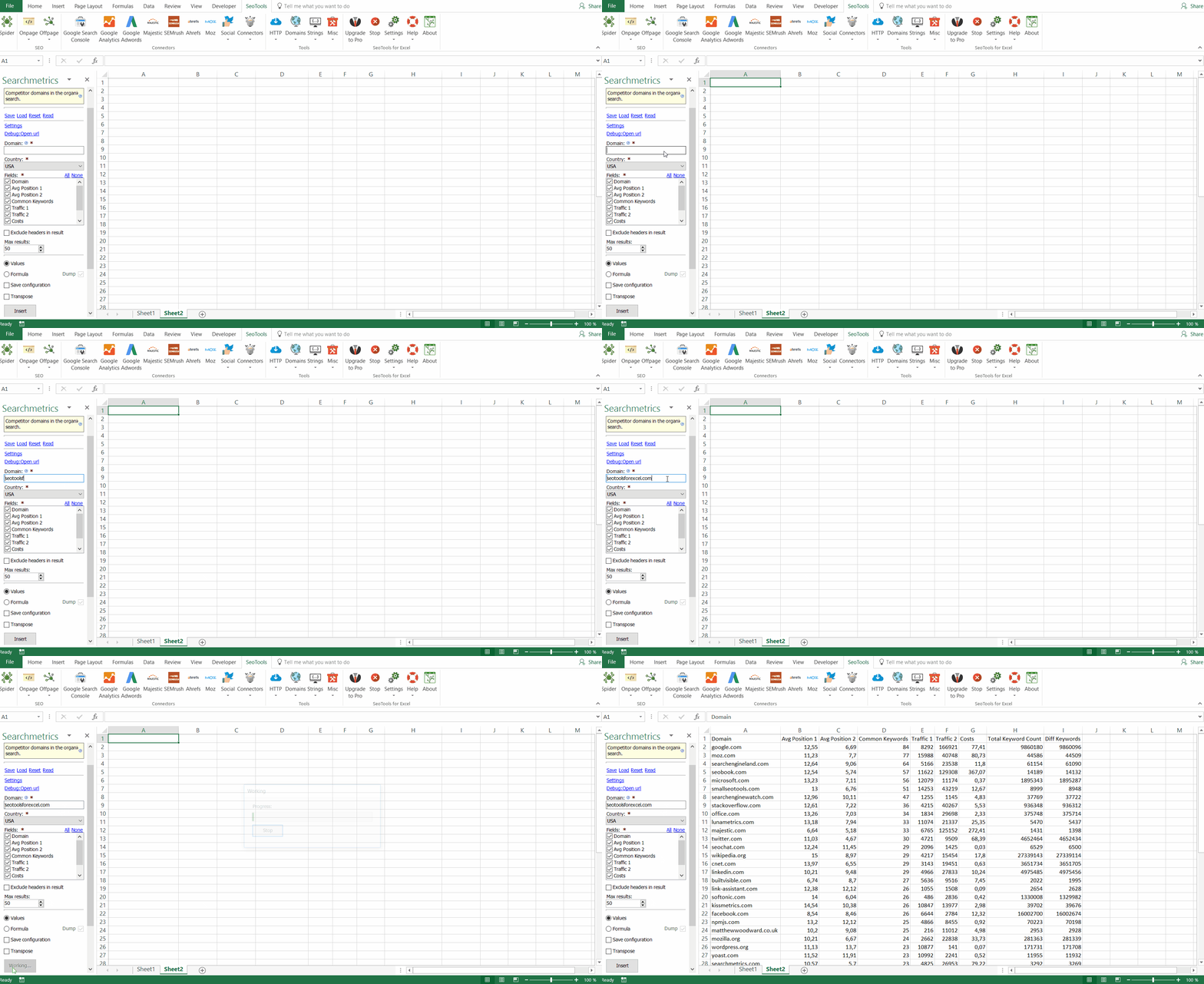
___
## Organic Research
- **Domain Keyword Count** - Number of organic keywords for a given domain.
- **Competitors in Organic Search** - Competitor domains in the organic search.
- **Domain Keyword Industry Spread** - Industry sector classification of a domain
- **Subdomains for Domain** - Subdomains for one given domain
- **Domain Keyword Rankings** - Keyword rankings for a given domain in organic search results.
- **Keyword Rankings** - Rankings for a given keyword in organic search results.
- **SEO Visibility by Country** - Searchmetrics SEO Visibility per country for a given URL.
- **Organic Visibility Top100 Losers** - Top100 Searchmetrics Organic Visibility losers in a given country
- **Organic Visibility Top100 Winners** - Top100 Organic Visibility winners in a given country
- **Organic Visibility** - Searchmetrics SEO Visibility for a given URL in a given country.
- **SEO Rank for Domain** - SEO visibility rank of the domain (SEORank).
- **Global Visibility for Domain** - Searchmetrics SEO Worldwide Visibility for a given URL.
- **Traffic Value Last Month** - Estimated paid value of organic search traffic.
- **Historic SEO Visibility** - Searchmetrics SEO Visibility for a given URL in a given country in a given timeframe.
## Paid Research
- **Ad Variations** - Get a list of different ad variations.
- **Domain Keyword Count** - Number of paid keywords for a domain in a given country.
- **Paid Keywords for Domain** - Paid keywords with advertisements for a given domain.
- **Competitors in Paid Search** - Competitor domains in the paid search.
- **Paid Search KPIs** - Collection of paid search KPIs: paid traffic, ad budget, clicks per day, average CPC, Paid Rank.
- **Paid Visibility Rank for Domain** - Searchmetrics Paid Visibility rank of the domain
- **Paid Visibility for URL** - Searchmetrics Paid Visibility for a given URL and a given country.
## Keyword Research
- **Info about Keyword** - This call returns search-related information for a given keyword for a given country for the current month.
- **Loser-Keywords** - Keywords with the highest absolute losses in organic search traffic for a given domain.
- **Losers-Keywords History** - Keywords with the highest absolute losses in organic search traffic for a given domain for a given date.
- **Winner-Keywords** - Keywords with the highest absolute gains in organic search traffic for a given domain.
- **Winner-Keywords History** - Keywords with the highest absolute gains in organic search traffic for a given domain with access to historic data.
- **Similar Keywords** - List of keywords that contain a selected keyword.
## Link Research
- **Backlinks for Domain** - Number of backlinks for a given domain, subdomain or URL.
- **Page Strength Lookup** - Returns the Searchmetrics Page Strength (SPS) an indicator for the value of a link from the respective page.
- **Deeplink Ratio** - Ratio of homepage links and deeplinks for a given domain.
- **Backlinks Count** - Number of backlinks for a given domain, subdomain or URL.
- **Referring Domains Count** - Number of referring domains for a given URL. Number of referring domains for a given URL (Domain popularity).
- **Referring IPs Count** - Number of referring IPs for a given URL (IP popularity).
- **Linked Pages for URL** - List of pages of a given URL with links from external pages.
- **Most Frequent Anchor Texts** - Most frequently used link anchor texts for a given URL.
## Content Research
- **Loser-URLs for Domain** - Get the list of the loser urls of a given domain.
- **Winner-URLs for Domain** - Get the list of the winner urls of a given domain.
- **SEO Value & Potential** - Get the SEO value and the SEO value potential of a given domain.
- **Traffic Index** - Get the value of traffic index and traffic index potential of a given domain.
## Admin
- **Available Credits** - Returns the amount of available credits for the current period.
- **Lists Projects** - This call returns a complete list of all projects.
___
## Access Token
To use the Searchmetrics Connector you need a [Searchmetrics Account](https://www.searchmetrics.com/) and an Access token:
1. Click on "My API" under the Settings menu in the top right corner.
2. Next, click on "create new API key" and copy the generated Accesss token.
___
## Contribute
This connector suite is open-sourced on [GitHub](https://github.com/nielsbosma/SeoTools-for-Excel-Connectors/blob/master/Searchmetrics.xml).
___
## See
#### Official Documentation
* [Searchmetrics API](https://www.searchmetrics.com/api/)
---
# Access SEMrush in Excel
URL: https://seotoolsforexcel.com/semrush/
Type: page
Published: 2015-06-24
Updated: 2020-05-13
Summary: SeoTools for Excel offers a user-friendly and effective method to collect data from SEMrush straight to Excel within a matter of seconds.
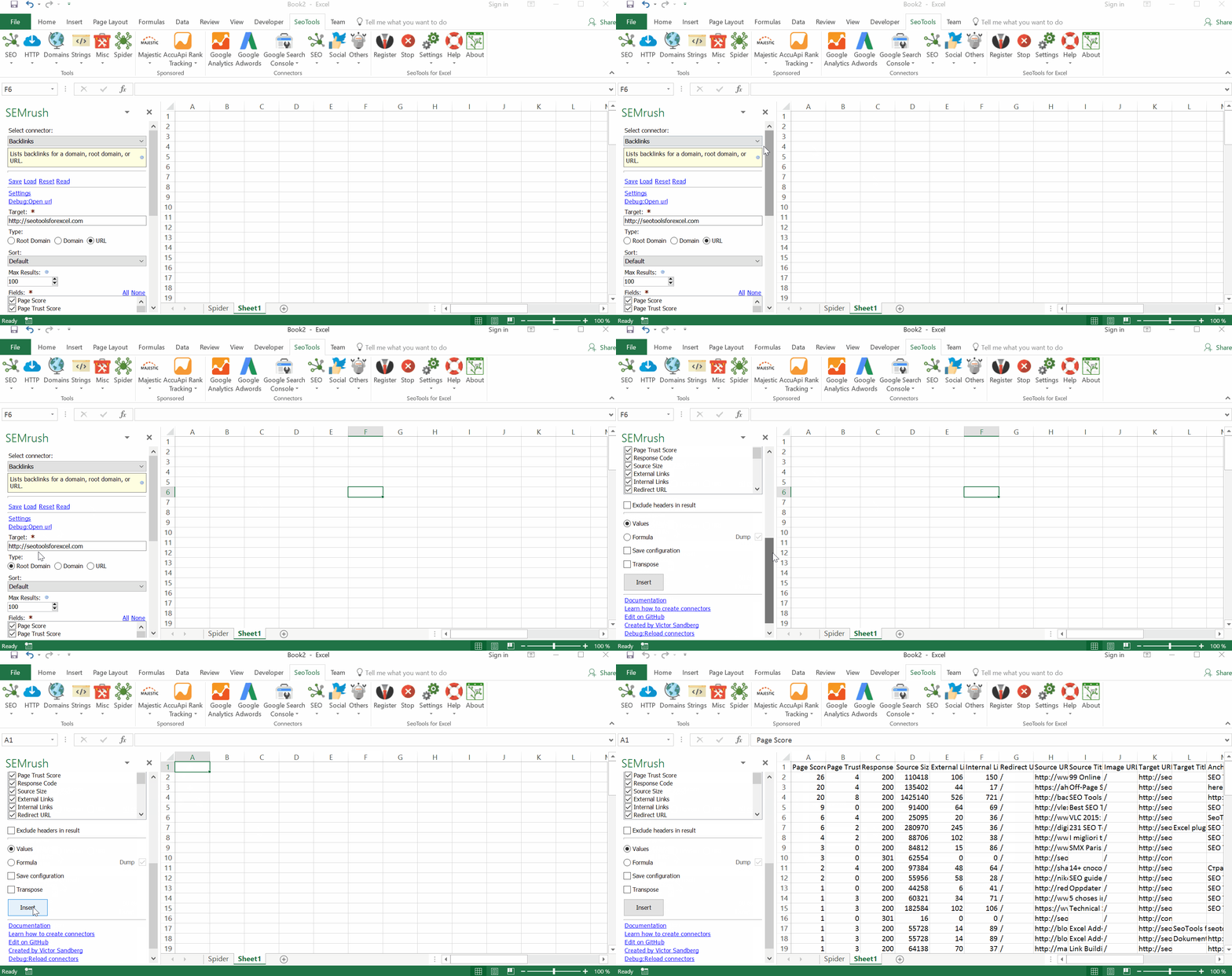
## Purpose
With the SEMrush integration in SeoTools you can perform powerful keyword analysis for paid and organic traffic, learn what and how much your competitors spend on Adwords and review your backlinks directly in Excel.
___
## Backlinks
- Anchors
- Backlinks
- Backlinks Summary
- Indexed Pages
- Referring Domains
- Referring Domains by Country
- Referring IPs
- TLD Distribution
## Domain Reports
* Ads Copies
* Competitors in Organic Search
* Competitors in Paid Search
* Domain Organic Search Keywords
* Domain Overview
* Domain Paid Search Keywords
## Keyword Reports
* Keyword Difficulty
* Keyword Overview
* Organic Results
* Paid Results
* Phrase Match Keywords
* Related Keywords
## URL Reports
* Organic Search Keywords
* Paid Search Keywords
## Display Advertising Reports
* Display Advertisers
## Traffic Analytics Reports
* Traffic Analytics Summary
___
## API Key
To use the SEMrush Connector you need a [SEMrush subscription](https://www.semrush.com/api-analytics/?ref=15171257) and an API-Key.
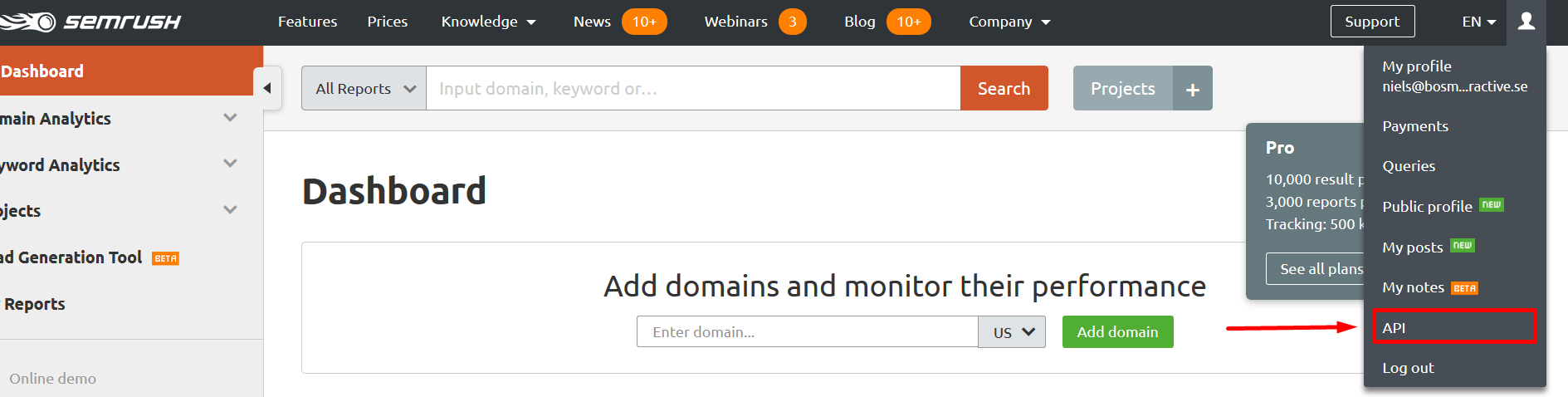
___
## See
#### Official Documentation
* [SEMrush API](https://www.semrush.com/billing-admin/profile/subscription/api-units)
---
# Access SEOkicks in Excel
URL: https://seotoolsforexcel.com/seokicks/
Type: page
Published: 2018-11-07
Updated: 2019-05-19
Summary: Integrate the SEOkicks Backlink Checker with Excel and extract links, backlinks, linking pages and linking domains along with metadata such as rankings.
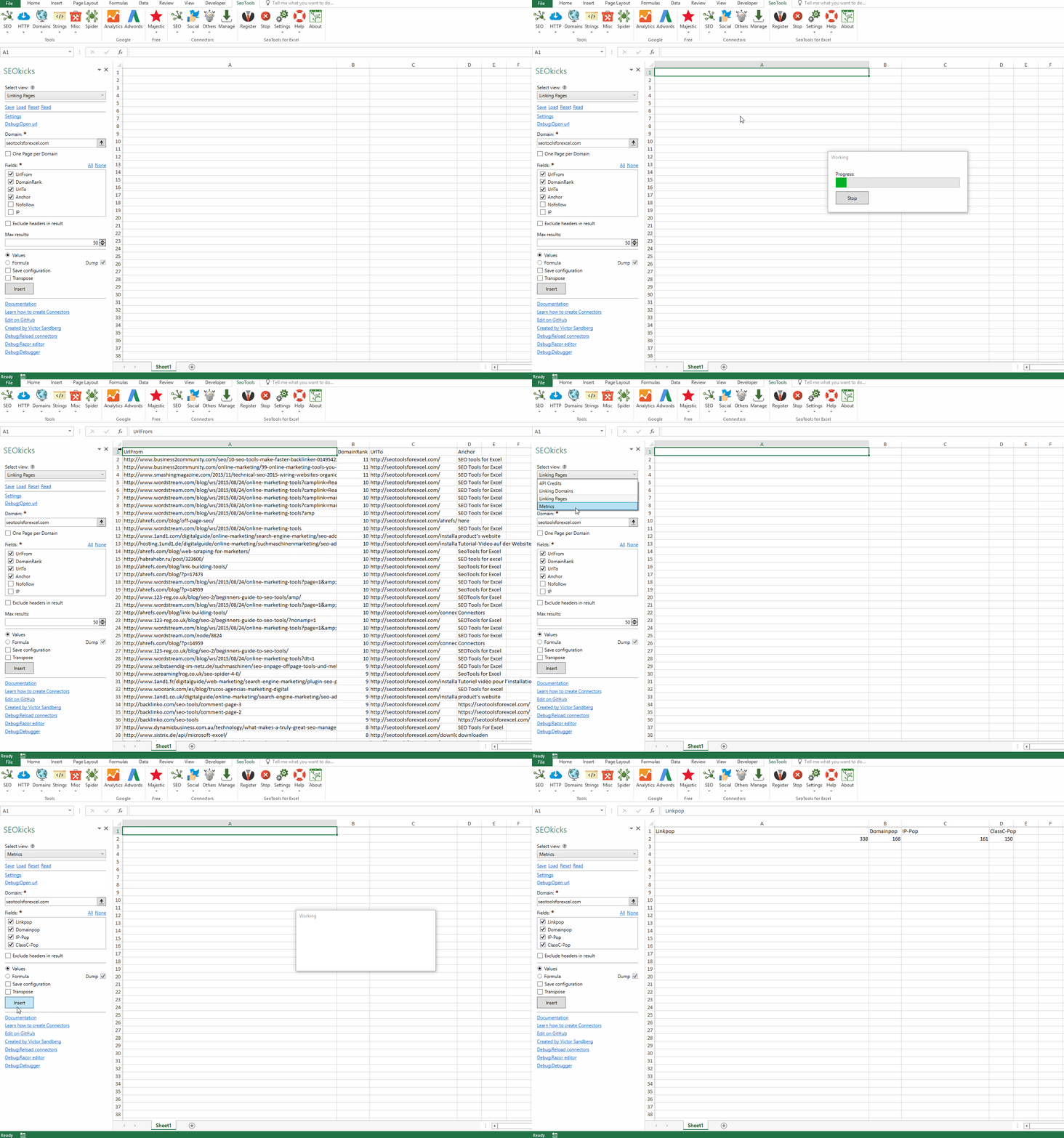
The SEOkicks backlink database currently comprises over 100 billion link datasets that are entirely collected using our own web crawlers. The avarage crawling bandwidth currently totals 2,600 Mbit/s and is being continuously expanded so that we can constantly provide ever greater volumes of increasingly fresh data.
## Metrics
Return Linkpop and Domainpop for any domain. Turn this into a function and evaluate a list of URLs.
## Linking Pages
Returns the exact linking pages including their link attributes. Optional checkbox for limiting the results to one page per domain.
## Linking Domains
Returns the linking domains including the number of links per domain.
___
## Access
## Add from Manager
The SEOkicks Connector is available in the **[Connectors Manager](/manage-connectors/)** in the top ribbon:

Head over to the **SEO Category** and install SEOkicks:

## App Id
1. [Login](https://en.seokicks.de/account/login) and get your App Id.
3. In the SEOkicks Connector taskpane, click on Settings and paste the App Id:
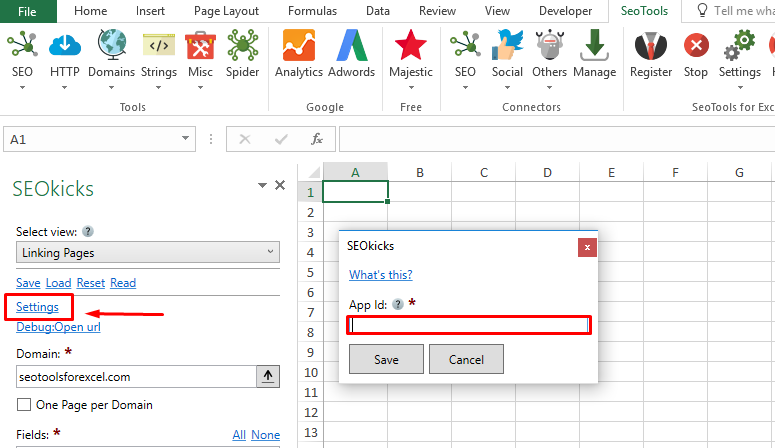
___
## Contribute
This connector suite is open-sourced on [GitHub](https://github.com/nielsbosma/SeoTools-for-Excel-Connectors/blob/master/SEOkicks.xml).
___
## See
#### Official Documentation
* [SEOkicks API](https://en.seokicks.de/backlink-api.html)
#### Resources
* [Manager](/manage-connectors/)
---
# Access SEO Power Suite in Excel
URL: https://seotoolsforexcel.com/seopowersuite/
Type: page
Published: 2021-07-14
Updated: 2021-07-14
Summary: Using your SEO Power Suite account, import backlinks, url metrics, inlink ranks, new/lost refdomains and more integrated into Excel.
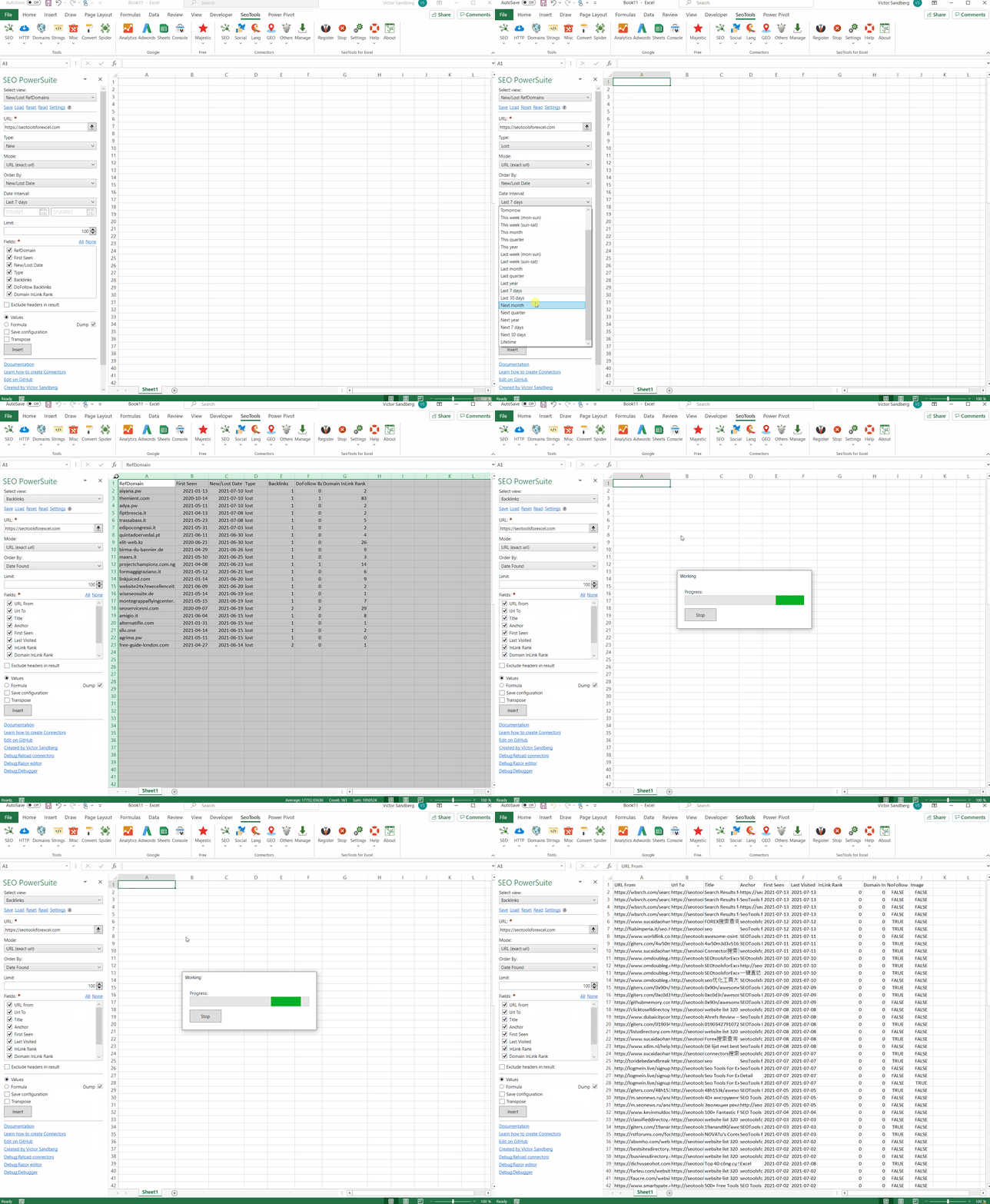
## Backlinks
Returns information about the backlinks pointing to a target.
#### Fields
* **URL From**
* **URL To**
* **Title**
* **Anchor**
* **First Seen**
* **Last Visited**
* **InLink Rank**
* **Domain InLink Rank**
* **NoFollow**
* **Image**
## New/Lost Backlinks
Returns a list of backlinks (newly) found or lost within the specified date range for the specified target.
#### Fields
* **URL From**
* **URL To**
* **Title**
* **Anchor**
* **First Seen**
* **New/Lost Date**
* **Type**
* **Link Type**
* **Reason**
* **InLink Rank**
* **Domain InLink Rank**
* **NoFollow**
* **Image**
## Metrics
Returns key statistics for the target.
#### Fields
* **Target**
* **Backlinks**
* **Refdomains**
* **Subnets**
* **IPs**
* **Nofollow backlinks**
* **Dofollow backlinks**
* **EDU backlinks**
* **GOV backlinks**
## InLink Rank
Returns information about the InLink Rank and Domain InLink Rank for a target URL.
#### Fields
* **URL**
* **InLink Rank**
* **Domain InLink Rank**
## Refdomains
Returns information about the domains/hosts pointing to a target.
#### Fields
* **Refdomain**
* **First Seen**
* **Backlinks**
* **Dofollow backlinks**
* **Domain InLink Rank**
## New/Lost RefDomains
Returns a list of referring domains, at least one backlink from which was (newly) found or lost in the specified date range for the specified target.
#### Fields
* **Refdomain**
* **First Seen**
* **New/Lost Date**
* **Type**
* **Backlinks**
* **Dofollow backlinks**
* **Domain InLink Rank**
___
## Access
## Add from Manager
The SEO Power Suite Connector is available in the **[Connectors Manager](/manage-connectors/)** in the top ribbon:

Head over to the **SEO Category** and install SEO Power Suite:

## API key
To use the Connector you need an SEO Power Suite account.
___
## Contribute
This connector suite is open-sourced on [GitHub](https://github.com/nielsbosma/SeoTools-for-Excel-Connectors/blob/master/SEOPowerSuite.xml).
___
## See
#### Resources
* [Manager](/manage-connectors/)
---
# SeoTools.config.xml
URL: https://seotoolsforexcel.com/seotools-config-xml/
Type: page
Published: 2015-03-29
Updated: 2019-09-19
Summary: The seotools.config.xml file controls a wide range of settings in Seotools for Excel. Edit request intervals, set custom paths, control messages and more.
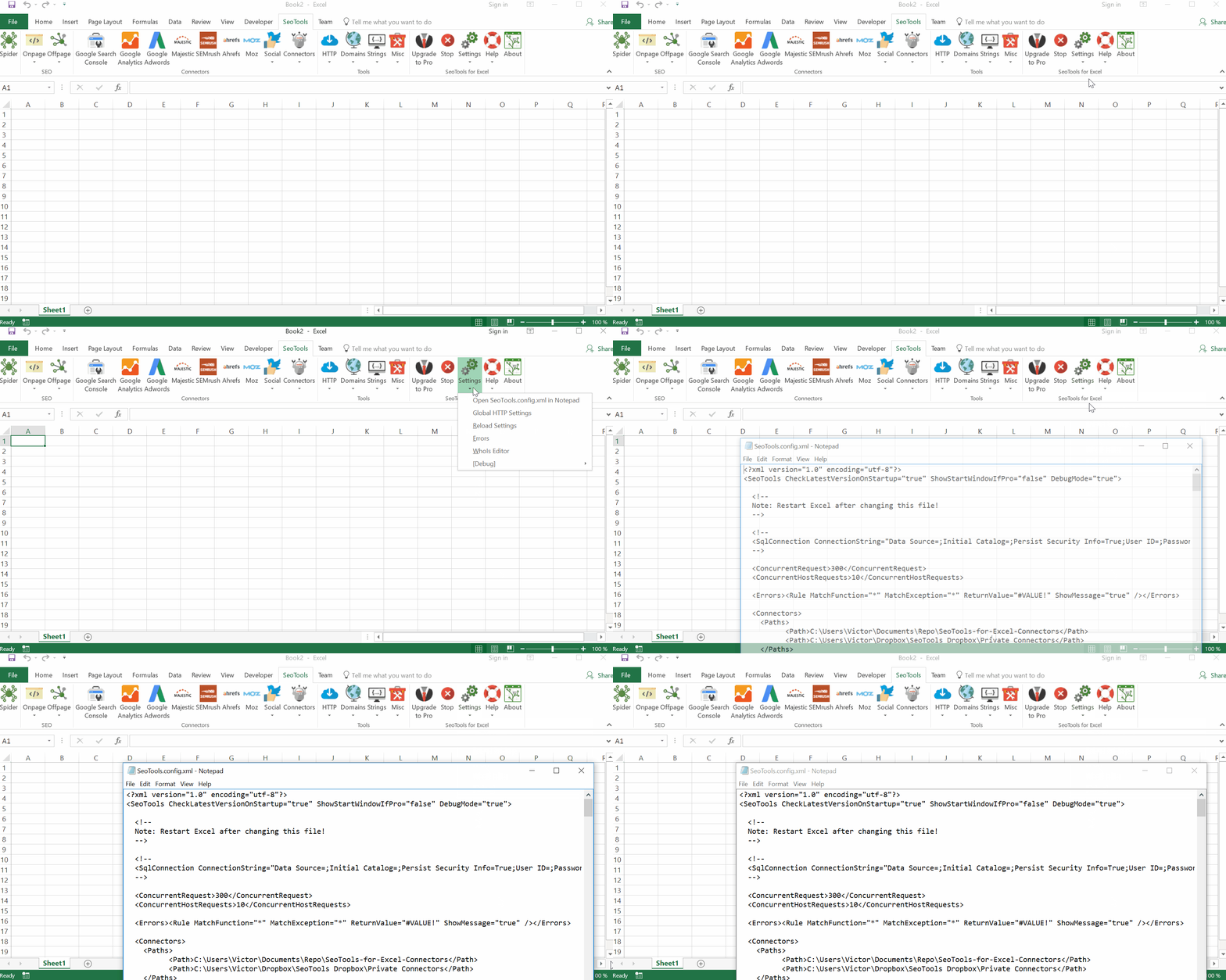
___
## Purpose
SeoTools depends on it's config file SeoTools.config.xml to be in the same directory as SeoTools`32/64`.xll and SeoTools must have write permissions.
___
## Editing
You can access and edit the config file from the Settings menu:
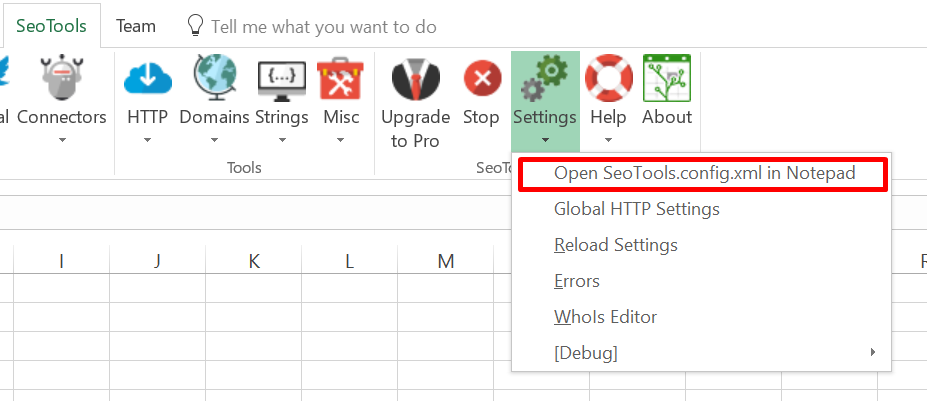
## Resetting
If no SeoTools.config if found, a default one is created. ** You can thus reset SeoTools simply by just deleting SeoTools.config.xml.**
___
## Debug Mode
Debug mode can be useful when building [Connectors](/connectors/) and getting better error messages.
Enable by opening `SeoTools.config.xml` and add `DebugMode="true"` to the first node. Then restart Excel.

___
## Disable Async
1. **Open [SeoTools.Config.Xml](/seotools-config-xml/)**
2. **Add the following line according to the picture below:**
`true`
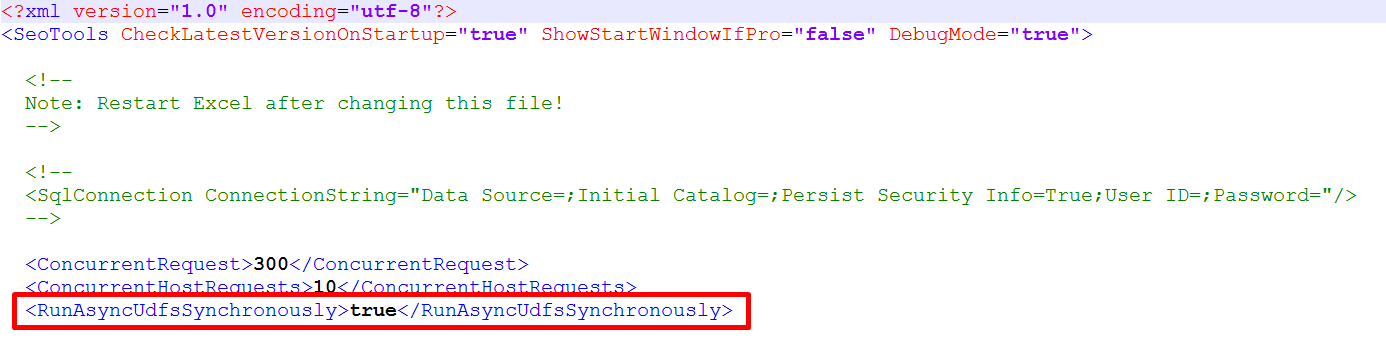
____
## Write Permission
If SeoTools is not allowed to write to the SeoTools directory, the config file is saved in the [AppData folder](https://go.microsoft.com/fwlink/p/?linkid=708707).
___
## Location
Under *About* you can see where your current config file is saved:
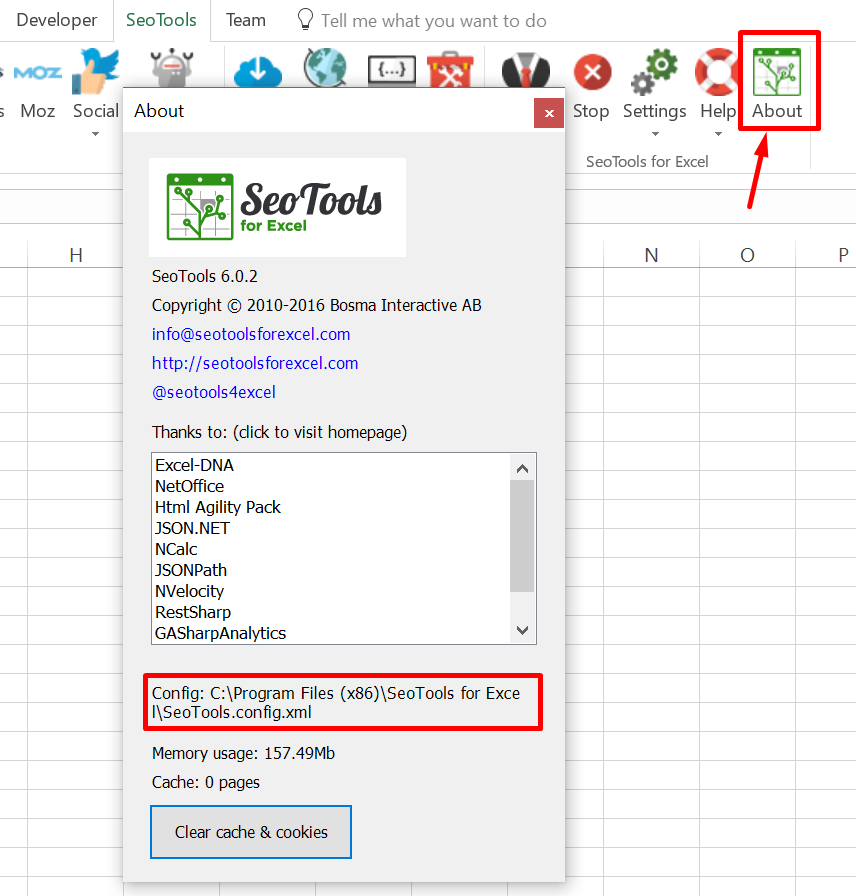
___
## See
#### Guides
* [Setup TLDs](/how-to-setup-tlds-in-seotools-config-xml/)
* [Error management](/error-management/)
* [Enable Debug Mode](/enable-debug-mode/)
* [Enable Diagnostics Logging](/enable-diagnostics-logging/)
* [Handle Mobile Webpages](/mobile-webpages-and-seotools/)
#### Related Functions
* [HttpSettings](/httpsettings/)
---
# SeoToolsClearCache
URL: https://seotoolsforexcel.com/seotoolsclearcache/
Type: page
Published: 2015-03-29
Updated: 2020-05-25
Summary: Clears cache and returns number of cleared items.
```
=SeoToolsClearCache([string url])
```
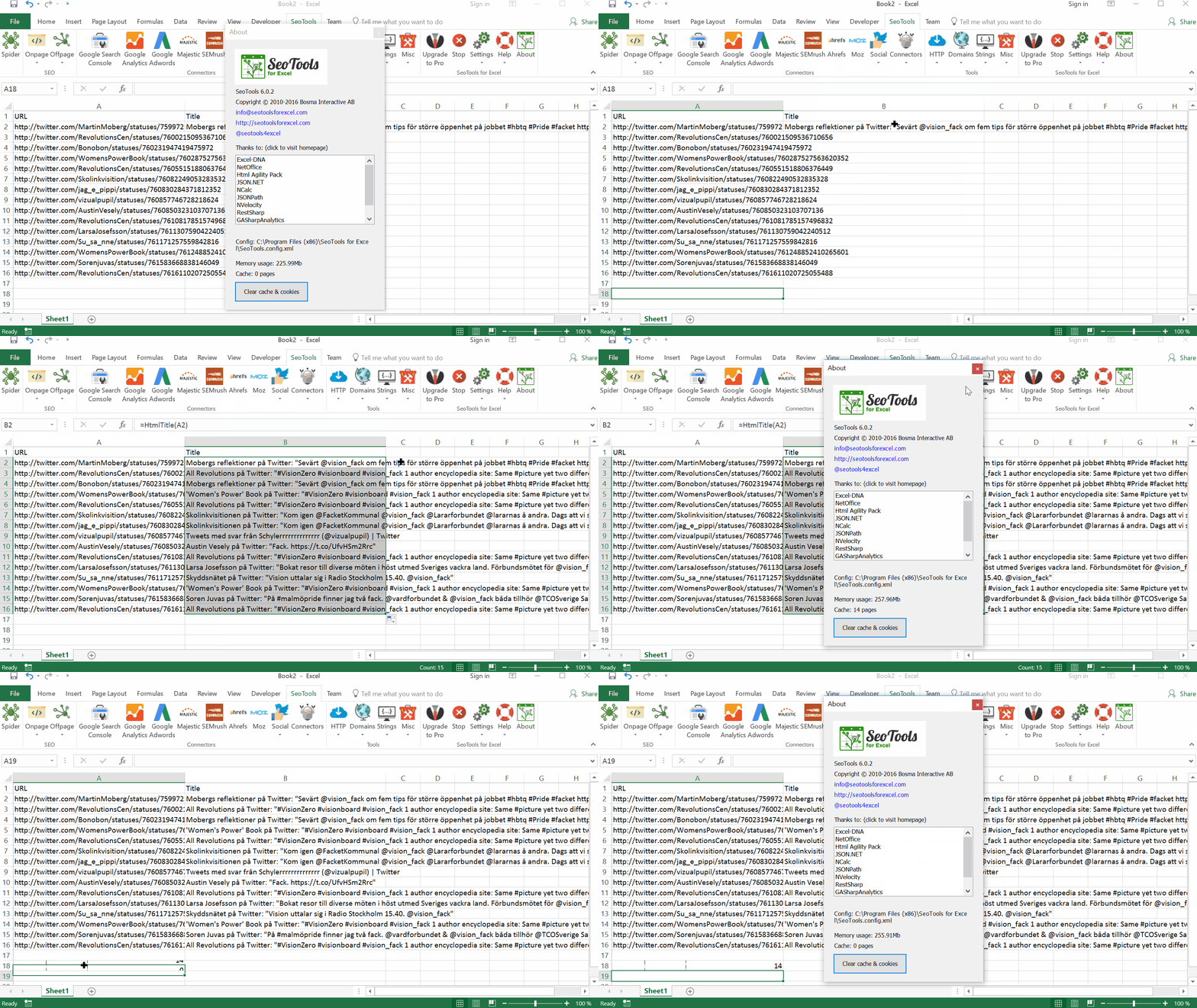
___
## Purpose
Clears cache and returns number of cleared items.
To clear all cache use an empty string:
=SeoToolsClearCache()
Supply a single URL to clear it from cache. Supports wildcards:
=SeoToolsClearCache("https://seotoolsforexcel.com/*")
Use the [=SeoToolsListCache()](/seotoolslistcache/) function to return a list of all URLs currently in the cache.
___
## See
#### Guides
* [Caching](/caching/)
---
# SeoToolsListCache
URL: https://seotoolsforexcel.com/seotoolslistcache/
Type: page
Published: 2020-05-25
Updated: 2020-05-25
Summary: Returns all URLs currently in the SeoTools cache. Use wildcard matching to filter the list.
```
=SeoToolsListCache([string url (optional)])
```
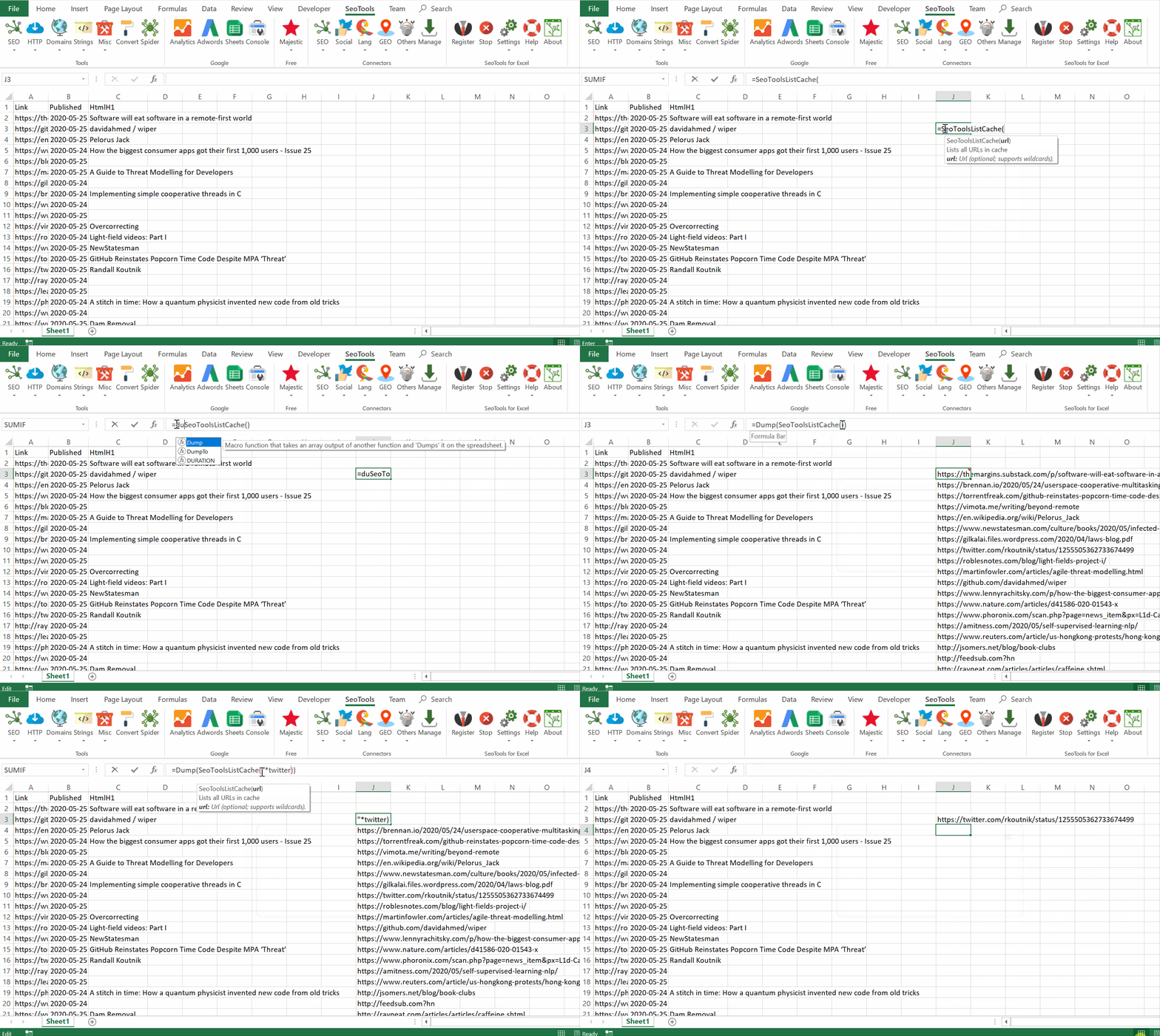
___
## Purpose
Lists all URLs currently in the SeoTools cache. Wrap it in the [=Dump()](/dump/) function to return the entire list.
Use the [=SeoToolsClearCache()](/seotoolsclearcache/) function to clear the cache.
To list everything use an empty string:
=Dump(SeoToolsListCache())
Supply a single URL to check if it exists in cache. Supports wildcards:
=SeoToolsListCache("https://seotoolsforexcel.com/*")
___
## See
#### Guides
* [Caching](/caching/)
---
# SeoToolsVersion
URL: https://seotoolsforexcel.com/seotoolsversion/
Type: page
Published: 2015-03-29
Updated: 2019-05-19
Summary: Returns the current version of SeoTools for Excel. Combine with VBA to make sure you have the proper version.
```
=SeoToolsVersion() : string
```
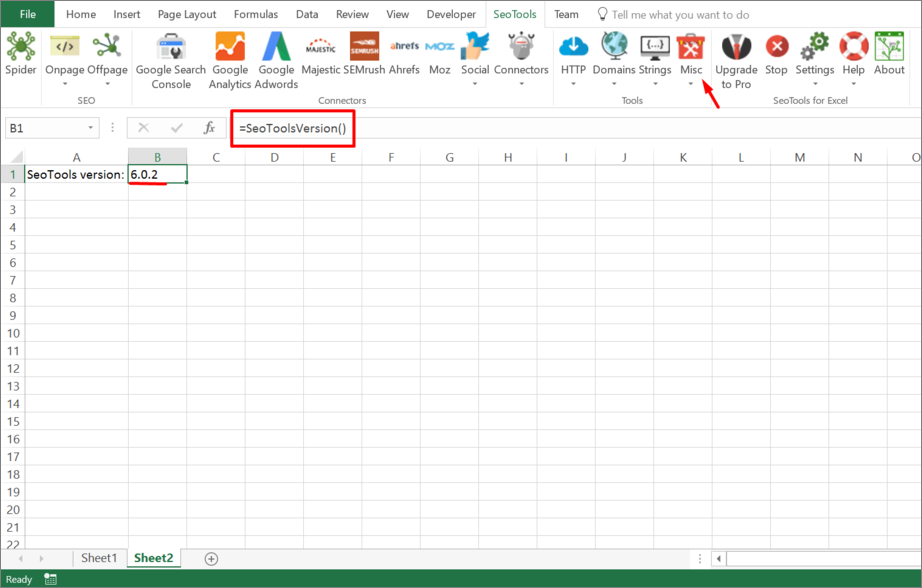
___
## Purpose
Return the current version of SeoTools.
---
# Access Serpstat in Excel
URL: https://seotoolsforexcel.com/serpstat/
Type: page
Published: 2016-11-05
Updated: 2023-07-11
Summary: Extract, filter and analyze domains and url:s with the combined power of Serpstat and Excel.
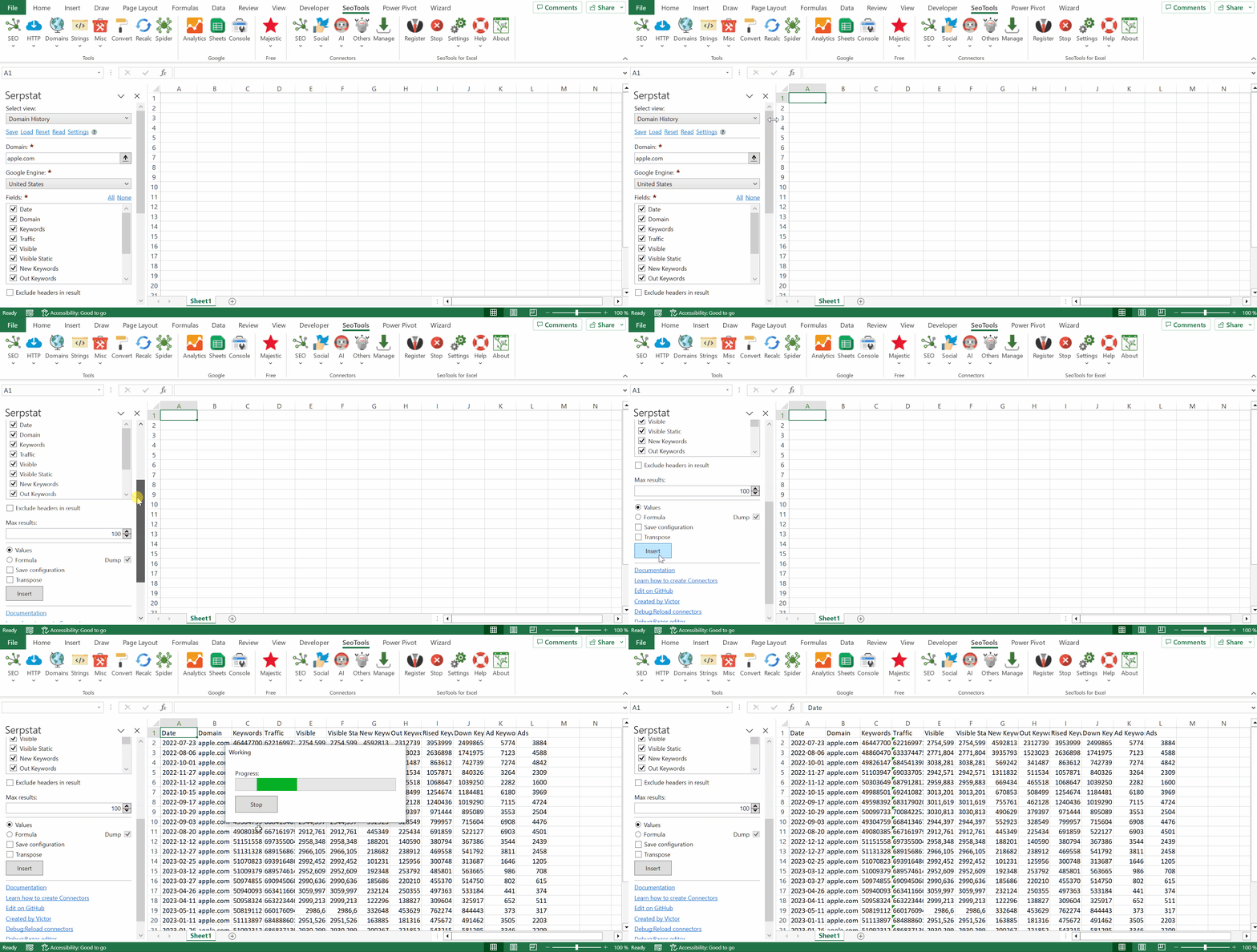
____
## Domain Analysis
* **Domain Summary** - This report provides you with the number of keywords domain uses in SEO and PPC, shows its online visibility and other metrics.
* **Domain History** - This report provides you with the historical data on a domain’s number of keywords and visibility.
* **Domain Keywords** - This report shows keywords a domain ranks for in Google top 100 search results.
* **Competitors in Paid Search by Domain** - Performs list of competitors in PPC for the given keyword
* **Top Pages by Domain** - Returns website pages in hierarchical order. Also, it shows the number of keywords from Google top-100 for each URL, approximate traffic of the page and Facebook shares.
* **Competitors in Organic Search by Domain** - Brings in the list of domain competitors in top 20 Google search results.
* **Domain Ads** - Returns paid keywords and ads copies that pop up for the queried domain in paid search results.
* **Domain URLs** - Returns the list of URLs within the analyzed domain and the number of keywords for each URL.
* **Domain Traffic in Serpstat Databases** - Returns an array with information about the amount of traffic by domain in Serpstat databases.
* **Domain Keywords in Serpstat Databases** - Returns an array with information about the amount of keywords by domain in Serpstat databases.
____
## Keyword Research
* **Keyword Overview** - Provides you with the keyword overview showing its volume, CPC, level of competition, etc.
* **Keyword Selection** - Shows organic keywords associated with the researched keyword that domains are ranking for in Google`s top-100 results and for every found keyword you’ll see its volume, CPC and level of competition.
* **Search Suggestions** - Shows search suggestions for the keyword you requested (they are found by the full-text search).
* **Related Keywords** - Shows all search queries that are semantically related to the searched keyword.
* **Top by Keyword** - Shows you Google's top-100 search results for the analyzed keyword.
* **Competitors in Organic Search by Keyword** - Lists the domains that rank for the given keyword in Google top-20 results.
* **Ads Examples** - Returns paid keywords and ads copies that pop up for the queried keyword in paid search results.
* **Competitors in Paid Search by Keyword** - Brings in the list of domain competitors in PPC.
___
## URL Analysis
* **URL Keywords** - Returns keywords that URL ranks for in Google top-100 search results.
* **URL Competitors** - Returns the list of URL competitors to the queried URL.
* **Missing Keywords** - Returns keywords that competitors are ranking for but the given URL isn’t ranking for them.
___
## Backlink Analysis
* **Summary Report** - Gives you general information about link profile.
* **Backlinks Dynamics** - Returns the history of found and lost backlinks for the analyzed site.
* **Top 10 Anchors** - Returns information about the TOP-10 anchors, the number of backlinks with these anchors, and the number of domains on which the referring pages are located.
* **TLD Distribution** - Returns information about the number of domain backlinks that belong to a specific top-level domain zone.
* **Referring Domains** - Gives you a list of referring domains of a site you analyze.
* **Malicious Domains-Donors** - Returns a list of malicious domains referring to the analyzed domain and information on them.
* **Malicious Domains-Acceptors** - Returns a list of malicious domains referring to the analyzed domain and information on them.
* **Active Backlinks** - Gives you a list of aсtive backlinks of a site you analyze.
* **Lost Backlinks** - Gives you a list of lost backlinks of a site you analyze.
* **External Active Links** - Gives you a list of external links of a site you analyze.
* **External Lost Links** - Gives you a list of lost external links of a site you analyze.
* **External Domains** - Gives you a list of the domains that are linked to the analyzed site.
* **Anchors** - Gives you a list of keywords used as anchors for backlinks of a site you analyze.
* **Top Pages by Site** - Gives you a list of leading pages of the analyzed site by the number of backlinks with referring pages, domains and IPs.
___
## Access Token
To use the Serpstat connector you need an Access token which is available to Serpstat customers on the Team plan or higher. [Sign-up here](https://serpstat.com/signup/). The token can be found on the [Profile Page](https://serpstat.com/users/profile/).
Copy the generated Access Token and use it with SeoTools for Excel.
___
## Contribute
This connector suite is open-sourced on [GitHub](https://github.com/nielsbosma/SeoTools-for-Excel-Connectors/blob/master/Serpstat.xml).
___
## See
#### Official Documentation
* [Serpstat API](https://serpstat.com/api/)
---
# Access SharedCount in Excel
URL: https://seotoolsforexcel.com/sharedcount/
Type: page
Published: 2023-06-28
Updated: 2023-06-28
Summary: Fetch Facebook reactions, shares, and comments for a list of URL:s inside Excel.
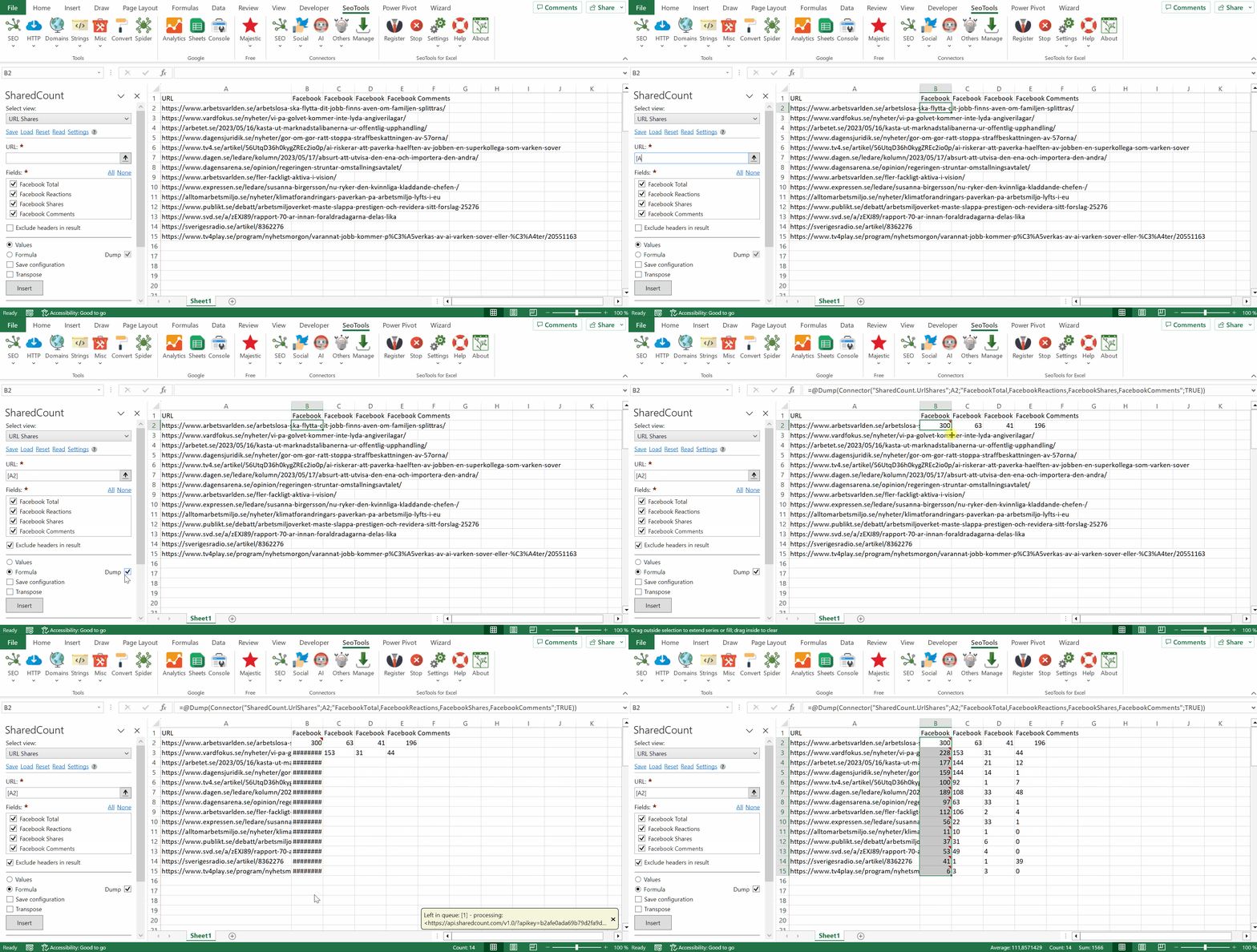
## Fields
- Facebook Total
- Facebook Reactions
- Facebook Shares
- Facebook Comments
___
## Access
## Add from Manager
The SharedCount Connector is available in the **[Connectors Manager](/manage-connectors/)** in the top ribbon:

Head over to the **Social Category** and install SharedCount:

## Get API key
To use the SharedCount Connector you need an API Key. [Sign-up](https://www.sharedcount.com/signup) for a free account and fetch up to 500 URL:s per day.
___
## Contribute
This connector suite is open-sourced on [GitHub](https://github.com/nielsbosma/SeoTools-for-Excel-Connectors/blob/master/SharedCount.xml).
___
## See
#### Official Documentation
* [SharedCount API](https://www.sharedcount.com/api-docs/getting-started)
#### Related Functions
* [Facebook](/facebook/)
#### Resources
* [Manager](/manage-connectors/)
---
# Access Sistrix in Excel
URL: https://seotoolsforexcel.com/sistrix/
Type: page
Published: 2016-01-24
Updated: 2023-06-28
Summary: SeoTools for Excel offers a user-friendly and effective method to collect data from Sistrix straight to Excel within a matter of seconds.
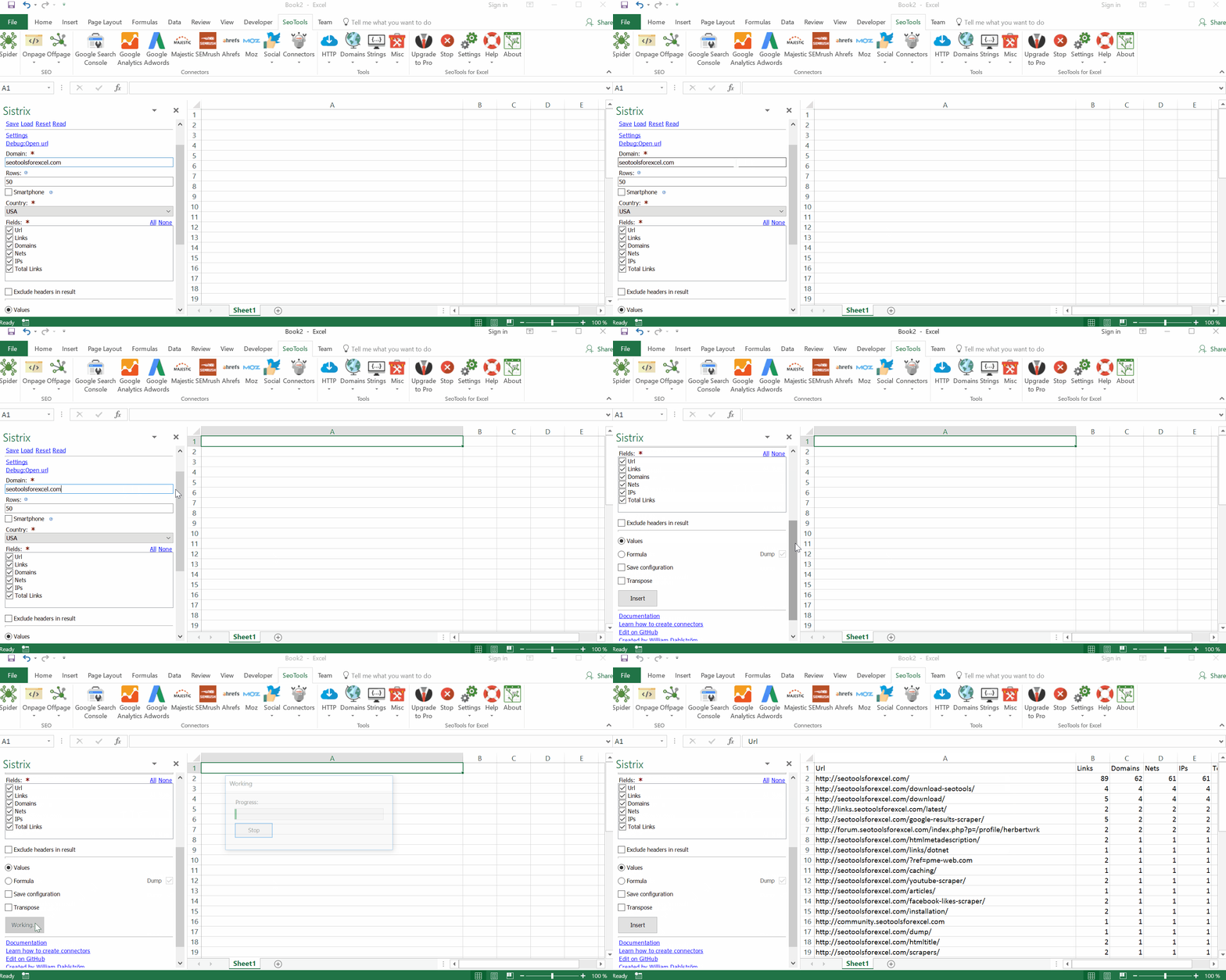
___
## Domains
* **Age**
* **Competitors SEM** - Delivers the domain’s SEM competitors.
* **Competitors SEO** - Delivers the domain’s SEO competitors.
* **Overview** - Delivers an overview on the current KPIs for the domain.
* **Page Rank** - Delivers the Google Page Rank of the domain. If the “history” parameter is set to “true”, you will receive all past results along with the current results.
* **Social overview** - Delivers the number of current votes on the three largest social networks (Facebook, Google+, and Twitter)
* **Social URL** - Delivers the number of votes for a single URL on the domain. The data is divided by social network. If “history” is set to “true”, the complete history of the URL will be shown.
* **Visibility Index** - delivers a domain’s SISTRIX Visibility Index value.
## Keywords
* **Domain SEO** - Delivers the domain’s keywords found within the organic Google ranking are displayed.
* **SEM** - Delivers the AdWords ads for the keyword.
* **SEO** - Delivers information about the SERPs of the respective keyword
* **SEO Traffic** - Returns the search volume of a keyword.
* **Universal Search** - Delivers Universal Search integration within the SERPs.
## Links
* **Target** - Delivers a list of the top link targets for the domain in question.
* **Text** returns a list of the top link texts for the domain in question.
* **List** - Delivers 10,000 of the most well-known backlinks for the domain in question.
* **Overview** - an overview of the located backlinks is delivered.
## Project
* **Keywords rankings** - Delivers the keywords and existing rankings for an Optimizer project.
___
## API key
In order to use the Sistrix Connector you need an a Sistrix [account](https://app.sistrix.com/toolbox/) and an API key.
1. Go to **API** in the top right drop-down menu: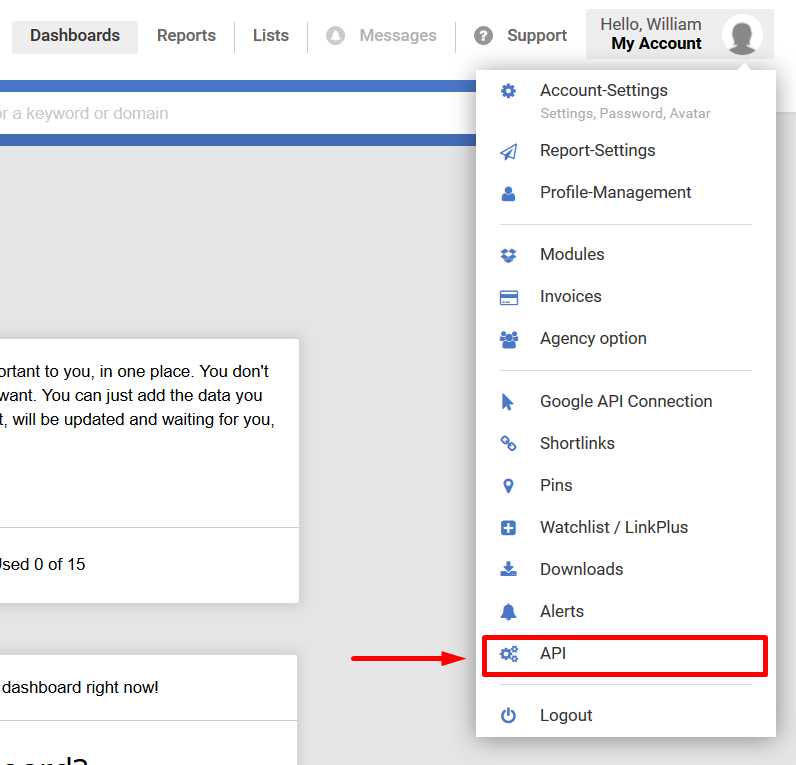
2. Create a new API and use it with SeoTools!
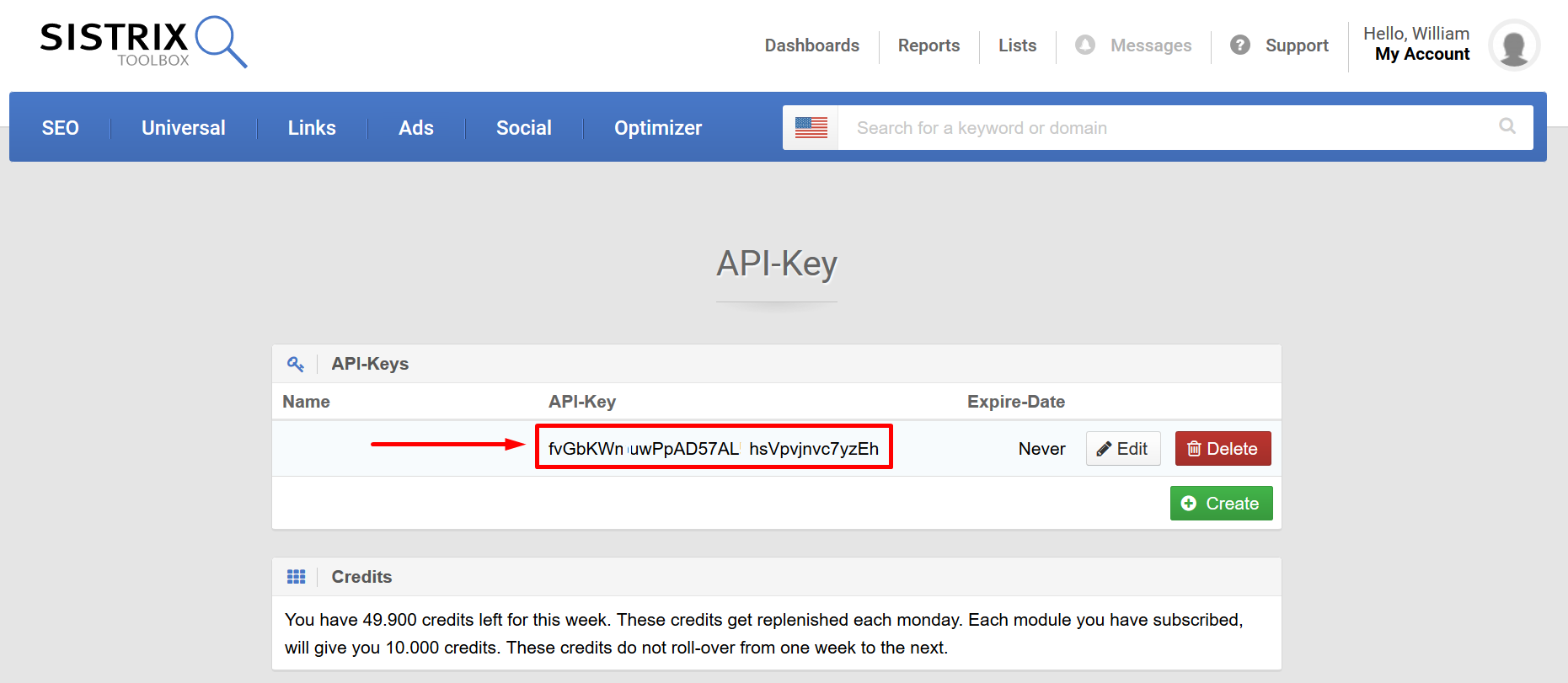
___
## Contribute
This connector suite is open-sourced on [GitHub](https://github.com/nielsbosma/SeoTools-for-Excel-Connectors).
___
## See
#### Official Documentation
* [Sistrix API](https://www.sistrix.com/api/)
---
# Access Siteimprove in Excel
URL: https://seotoolsforexcel.com/siteimprove/
Type: page
Published: 2018-06-20
Updated: 2019-05-19
Summary: SeoTools for Excel offers an effective method to collect SEO and website analytics from Siteimprove straight to Excel within a matter of seconds.
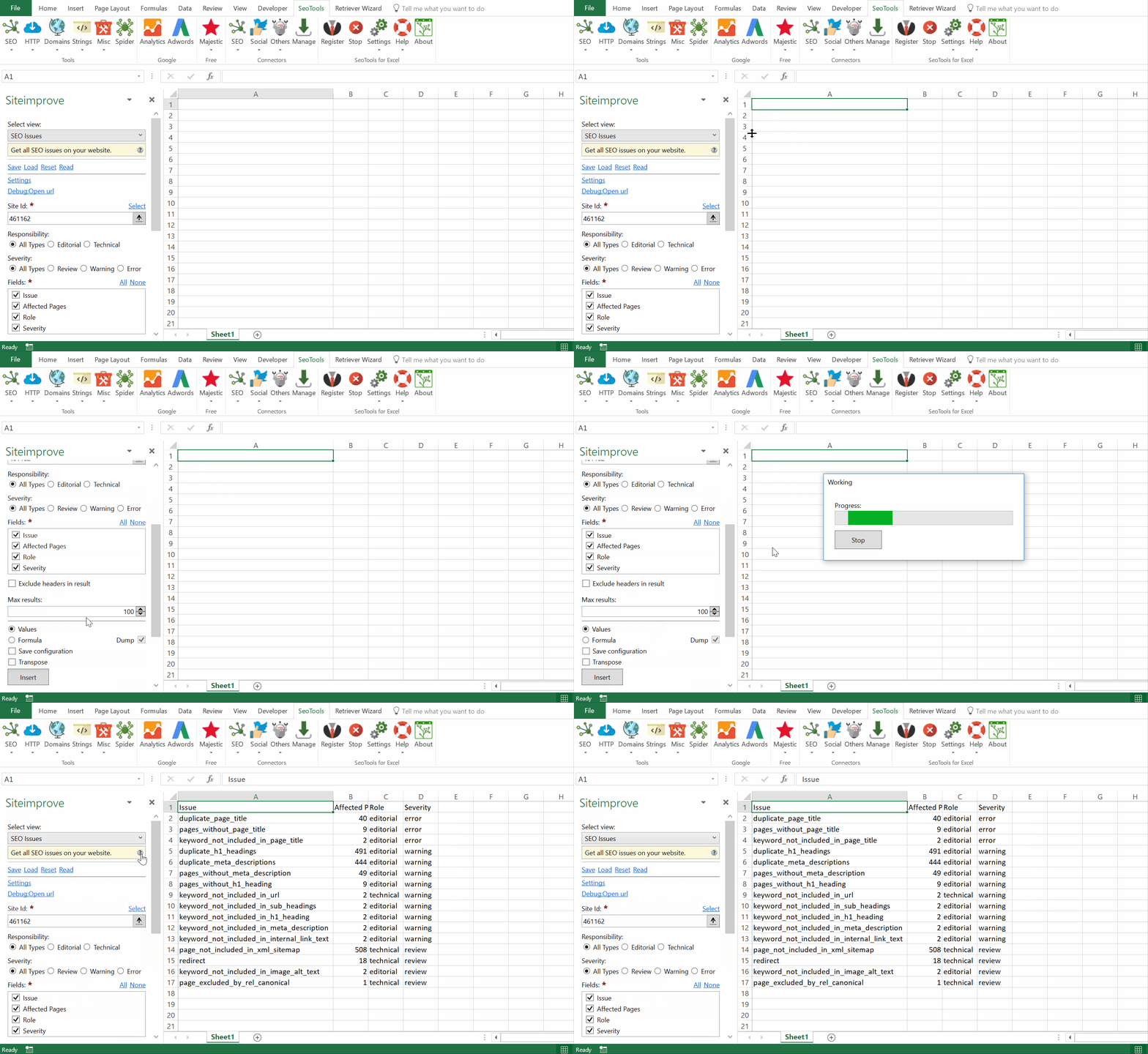
**`One tool for improving your website through SEO, website analytics, accessibility, GDPR, and overall content quality.`**
___
## Page
- **Details** - Get page details for a page.
- **Status** - Check status for a page. Optional Id or URL input.
- **List** - Get list of pages for a site.
## SEO
- **Issues** - Get all SEO issues on your website. Filter Results by:
- Responsibility (Editorial | Technical)
- Severity (Review | Warning | Error)
- **Page Issues** - Get SEO issues for a specific page.
- **Page List** - Get all pages that are being checked for SEO issues.
## Site
- **Crawl Status** - Get info about the crawl status for a site.
- **DCI Scores** - Get all DCI scores associated with this site.
- **List** - Get a list of sites for this account.
- **Lookup** - Get a specific site for this account.
___
## Add from Manager
The Sitelookup Connector is available in the **[Connectors Manager](/manage-connectors/)** in the top ribbon:

Head over to the **SEO Category** and install IMDB:

## Access Token
To use the Leadfeeder Connector you need an API Key. You can create and manage API keys from the Settings Panel in the Siteimprove platform.
Copy the token and open the Connector in SeoTools. Click on Settings and paste the token in the input window.
___
## Contribute
This connector suite is open-sourced on [GitHub](https://github.com/nielsbosma/SeoTools-for-Excel-Connectors/blob/master/Siteimprove.xml).
___
## See
#### Official Documentation
* [Siteimprove API](https://api.siteimprove.com/v2/documentation#/)
#### Resources
* [Manager](/manage-connectors/)
---
# Access Sitemap in Excel
URL: https://seotoolsforexcel.com/sitemap-parser/
Type: page
Published: 2020-03-24
Updated: 2020-11-11
Summary: Extract sitemap contents directly in Excel. Get URL, modified date, frequency, and priority. Also supports the Google News sitemap structure.
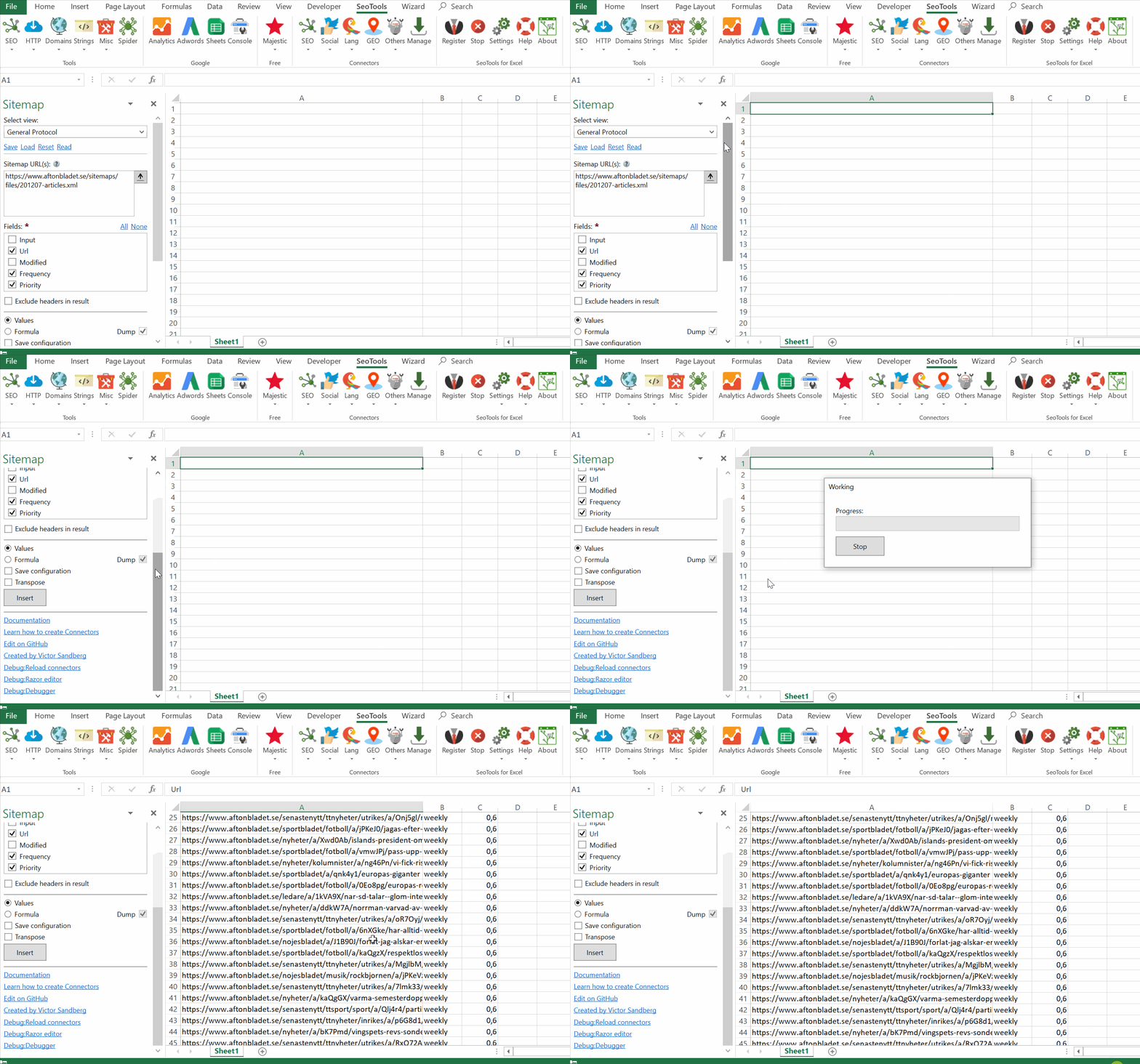
___
## Purpose
The Sitemap Parser extracts the contents from any sitemap XML. Supports the general protocol as well as Google News sitemaps.
___
## Fields
- **URL**
- **Modified**
- **Frequency**
- **Priority**
- **Name** (Google News)
- **Language** (Google News)
- **Title** (Google News)
- **Keywords** (Google News)
- **Publication Date** (Google News)
- **Image Link** (Google Images)
- **Image Title** (Google Images)
## Contribute
This connector suite is open-sourced on [GitHub](https://github.com/nielsbosma/SeoTools-for-Excel-Connectors/blob/master/Sitemap.xml).
___
## See
#### Related Functions
* [RSS Parser](/rssparser/)
---
# Access Slack in Excel
URL: https://seotoolsforexcel.com/slack/
Type: page
Published: 2018-08-01
Updated: 2020-05-20
Summary: SeoTools for Excel offers an effective method to extract your Slack data inside Excel. Analyze all channel and message history.
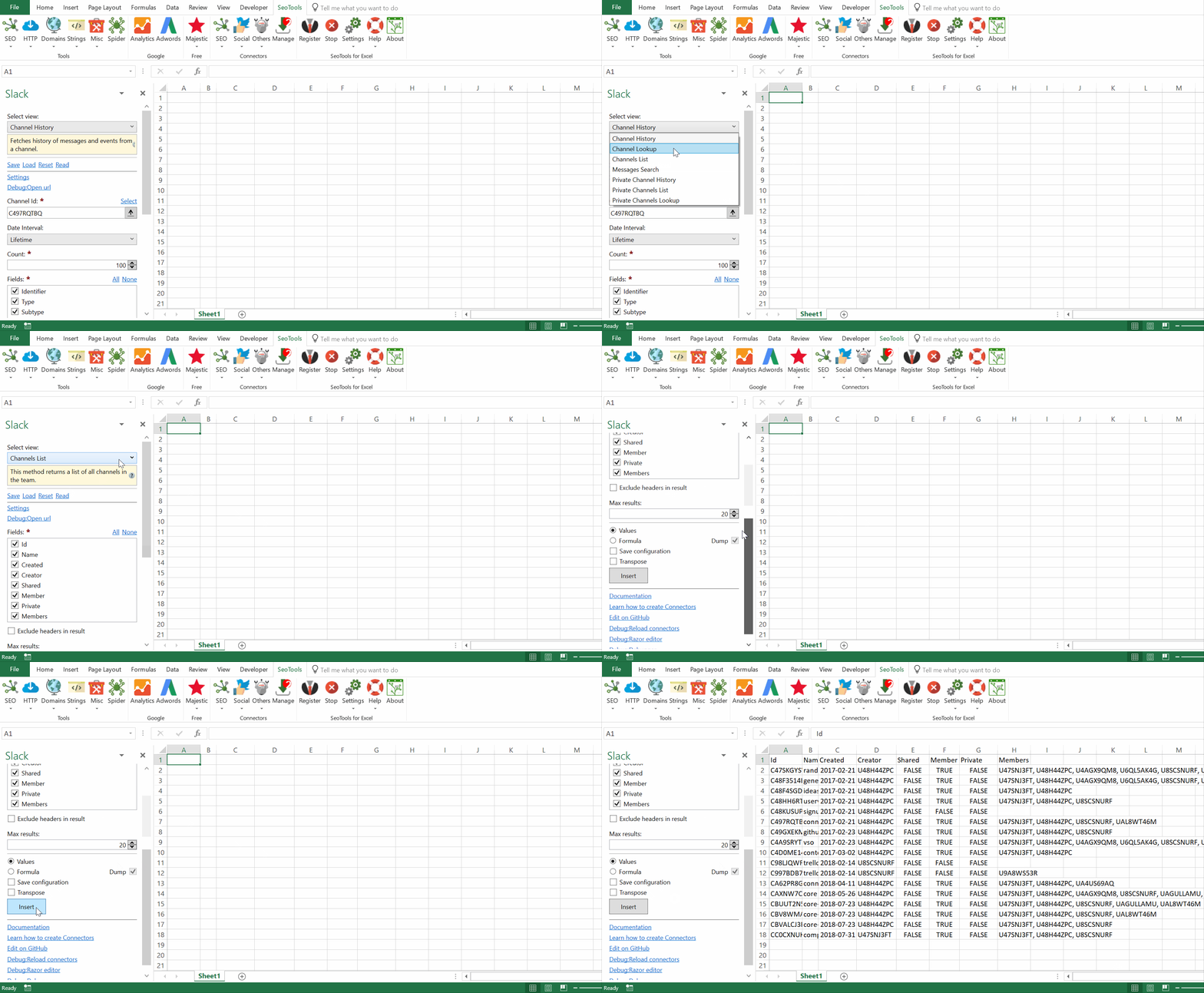
___
## Channels
*Select between public and private Channels.*
- **List** - Returns a list of all channels in the team.
- **Lookup** - Get information about a specific channel.
- **History** - Fetches history of messages and events from a channel.
## Messages
- **Search** - Searches for messages matching a query.
___
## Add from Manager
The Slack Connector is available in the **[Connectors Manager](/manage-connectors/)** in the top ribbon:

Head over to the **Productivity Category** and install Slack:

___
## Contribute
This connector suite is open-sourced on [GitHub](https://github.com/nielsbosma/SeoTools-for-Excel-Connectors/blob/master/Slack.xml).
___
## See
#### Official Documentation
* [Slack API](https://api.slack.com/#read_the_docs)
#### Resources
* [Manager](/manage-connectors/)
---
# Slice
URL: https://seotoolsforexcel.com/slice/
Type: page
Published: 2016-11-06
Updated: 2019-05-19
Summary: Takes an Array and slices it according to your preferences. Can be combined with other functions which makes it a powerful utility when working with arrays.
```
=Slice(Array, Expr) : array
```
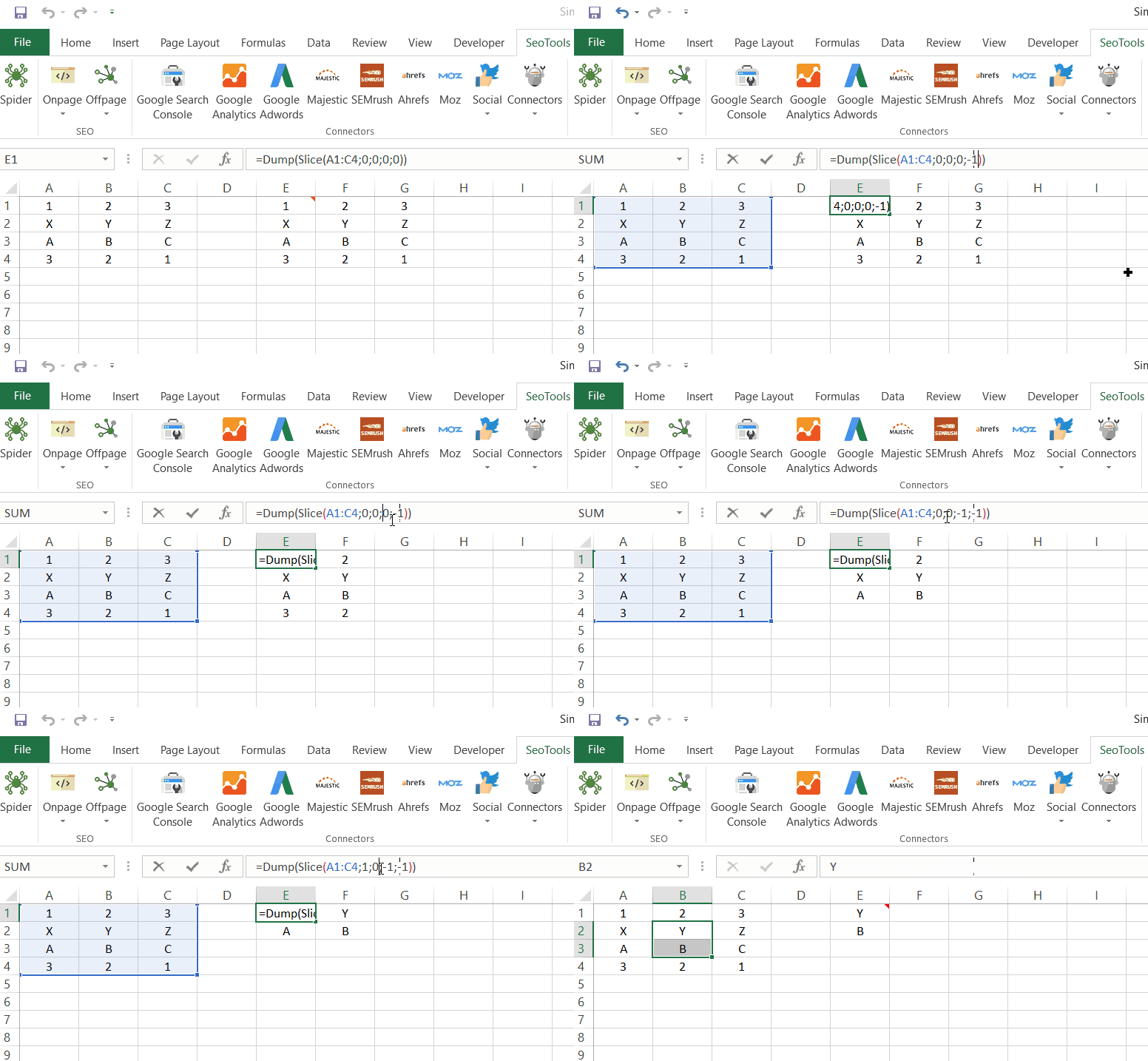
___
## Purpose
Slices an array according to the preferences supplied in the function.
___
### Array
The two-dimensional field you wish to slice. The array can be expressed with:
1. A Range: `=Slice(A1:B10`
2. Raw inputs: `=Slice({11,12,13;21,22,23;31;32;33`
___
### Expr
The array can be sliced in four ways:
=Slice(Array,`[1]`;`[2]`;`[3]`;`[4]`)
`[1]` Slices the array n steps (rows) from the top:
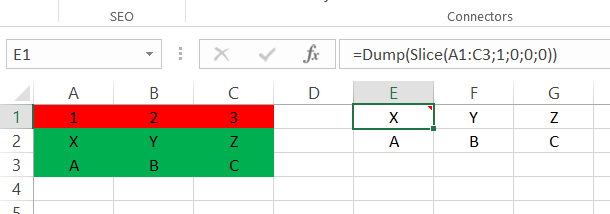
`[2]` Slices the array n steps (columns) from the left:
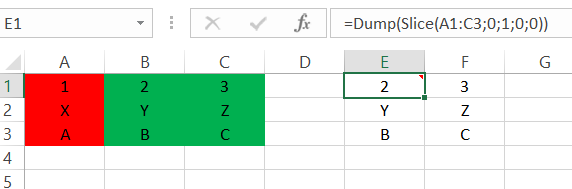
`[3]` Slices the array n steps (rows) from the bottom. The input must be a negative value:
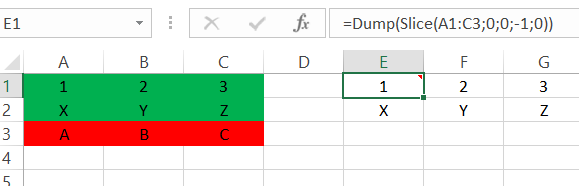
`[2]` Slices the array n steps (columns) from the right. The input must be a negative value:
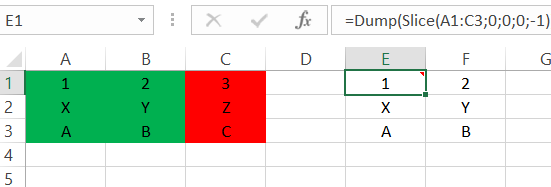
___
## See
#### Related Functions
* [Dump](/dump/)
---
# Social Meta Tags
URL: https://seotoolsforexcel.com/socialmetatags/
Type: page
Published: 2019-05-18
Updated: 2019-05-18
Summary: Extract common social meta tags from any website in Excel. Use formulas to process a list.
```
=Connector("SocialUrlScrapers.SocialMetaTags",
"url","og:title,og:type,og:url")
```
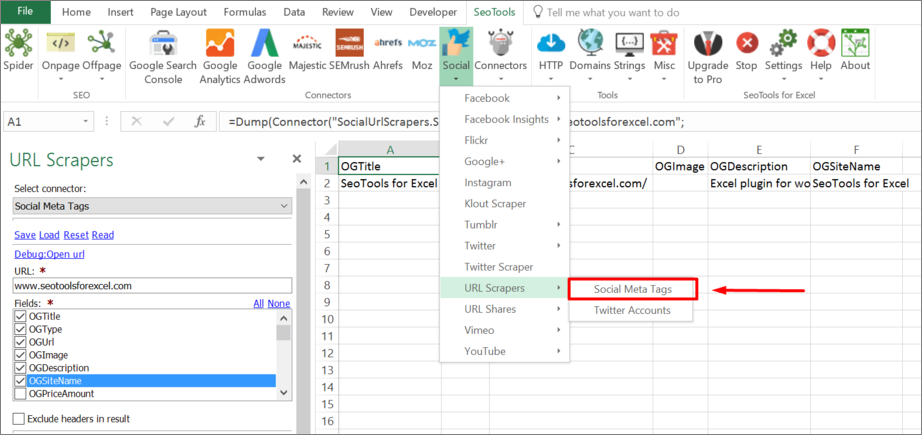
## Purpose
Fetches the [OpenGraph](https://ogp.me/) tags of a website.
## Available Tags
- OGTitle
- OGType
- OGUrl
- OGImage
- OGDescription
- OGSiteName
- OGPriceAmount
- OGPriceCurrency
- ArticlePublishedTime
- ArticleModifiedTime
- ArticleSection
- ArticleTag
- FBAdmins
- FBPageId
- TwitterCard
- TwitterSite
- TwitterSiteId
- TwitterTitle
- TwitterDescription
- TwitterCreator
- TwitterCreatorId
- TwitterImage
- TwitterImageWidth
- TwitterImageHeight
- Schema.orgName
- Schema.orgDescription
- SchemaOrgImage
___
## Contribute
This connector suite is open-sourced on [GitHub](https://github.com/nielsbosma/SeoTools-for-Excel-Connectors/blob/master/OnPageScrapers.xml).
___
## See
#### Related Functions
* [On-Page Connectors](/connectors-onpage/)
* [Google AdSense Id](/googleadsenseid/)
* [Google Analytics Id](/googleanalyticsid/)
* [Twitter Accounts](/twitter-accounts/)
* [Instagram Accounts](/instagram-accounts/)
* [LinkedIn Accounts](/linkedin-accounts/)
---
# Spider
URL: https://seotoolsforexcel.com/spider/
Type: page
Published: 2015-01-05
Updated: 2019-05-19
Summary: With the Spider you can combine functions in SeoTools into a powerful webpage crawler.
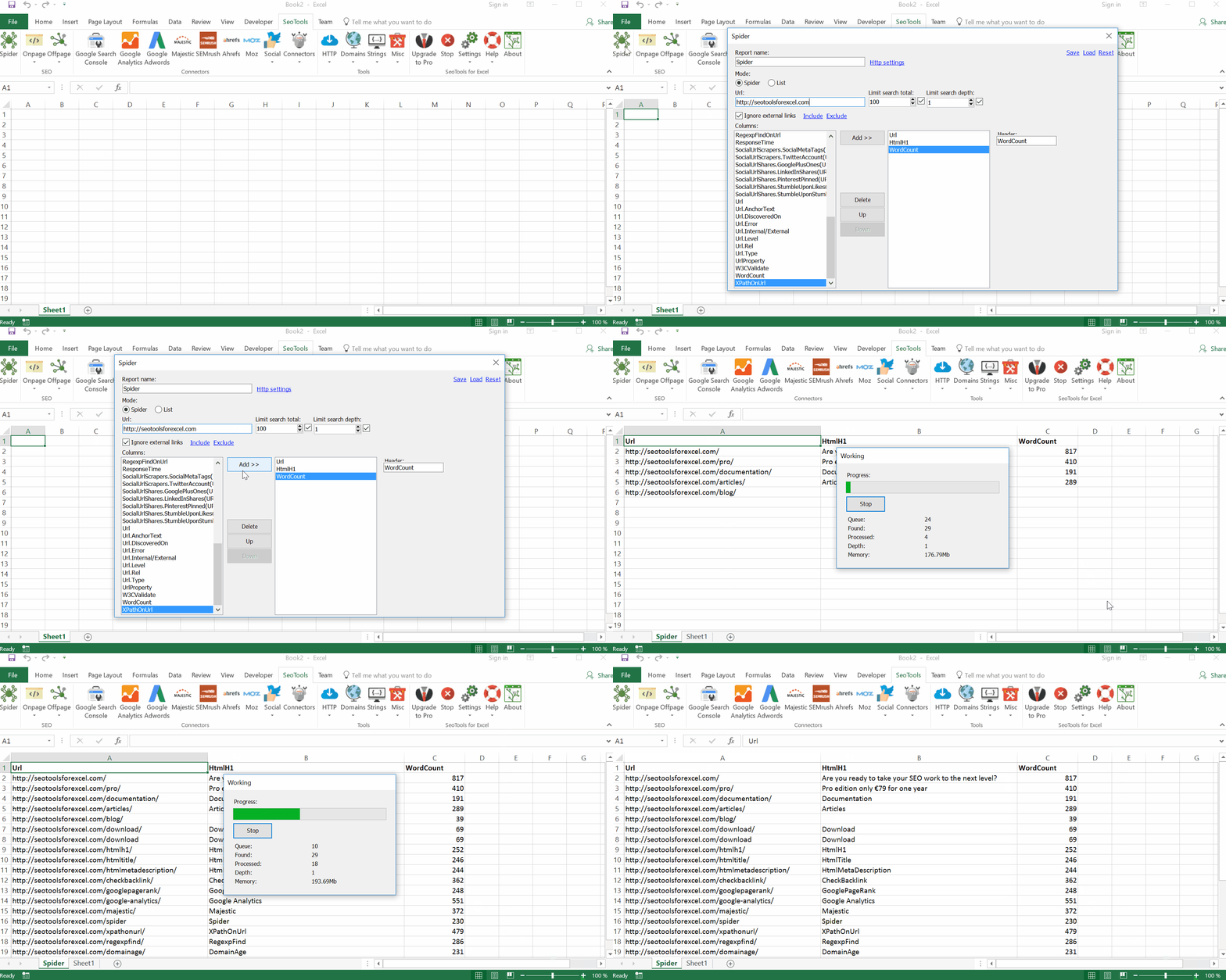
## Purpose
With the *Spider* you can combine functions in SeoTools into a powerful webpage crawler.
### URL Columns
* Url
* Url.AnchorText
* Url.DiscoveredOn
* Url.Error
* Url.Internal/External
* Url.Level
* Url.Rel
* Url.Type
* UrlProperty
### HTTP Columns
* CsQueryOnUrl
* HttpHeader
* HttpStatus
* IsFoundOnPage
* JsonPathOnUrl
* RegexpFindOnUrl
* WordCount
* XPathOnUrl
### SEO Columns
* HtmlCanonical
* HtmlH1
* HtmlH2
* HtmlH3
* HtmlMeta
* HtmlMetaDescription
* HtmlMetaKeywords
* HtmlMetaRefresh
* HtmlTitle
* LinkCount
* PageCodeSize
* PageCodeToTextRatio
* PageEncoding
* PageSize
* PageTextSize
* ResponseTime
### Connector Columns
* GoogleCacheDate
* GooglePageSpeed.Score
* GooglePageSpeed.GoogleMobileReady.Mobile Ready Pass
* Majestic.IndexData.Item
* Moz.Metrics.Canonical URL
* OnPageScrapers.Email
* OnPageScrapers.Google AdSense Id
* OnPageScrapers.GoogleAnalyticsId
* OnPageScrapers.InstagramAccount
* OnPageScrapers.LinkedInAccount
* OnPageScrapers.SocialMetaTags.OGTitle
* OnPageScrapers.TwitterAccount
* SocialUrlShares.BufferShares
* SocialUrlShares.FacebookComments
* SocialUrlShares.FacebookLikes
* SocialUrlShares.FacebookShares
* SocialUrlShares.GooglePlusOnes
* SocialUrlShares.LinkedInShares
* SocialUrlShares.PinterestPinned
* SocialUrlShares.StumbleUponStumbles
* SocialUrlShares.VKShares
## Settings
* **Number of Hits** - Decide how many pages you want to crawl. 
* **Search Depth** - Decide how "deep" you want o crawl. "**2**" means two layers of Sub Pages. 
* **External Links** - Decide if you want to include pages from external domains
* **Mode** - Decide if you want to crawl web pages (**Spider**) or local files (**List**)
## See
### Guides
* [Auditing content using SEO Tools for Excel Pro 4.3.4](https://www.3whitehats.com/knowledge/auditing-content-using-seo-tools-for-excel-pro-4-3-4-2/)
### Related Functions
* [HttpSettings](/httpsettings/)
---
# SpinText
URL: https://seotoolsforexcel.com/spintext/
Type: page
Published: 2015-03-29
Updated: 2019-05-27
Summary: Spin Texts and create powerful combinations as a formula in Excel with SeoTools for Excel.
```
SpinText(string spinText, [int alternatives,
bool notRandom]) : array
```
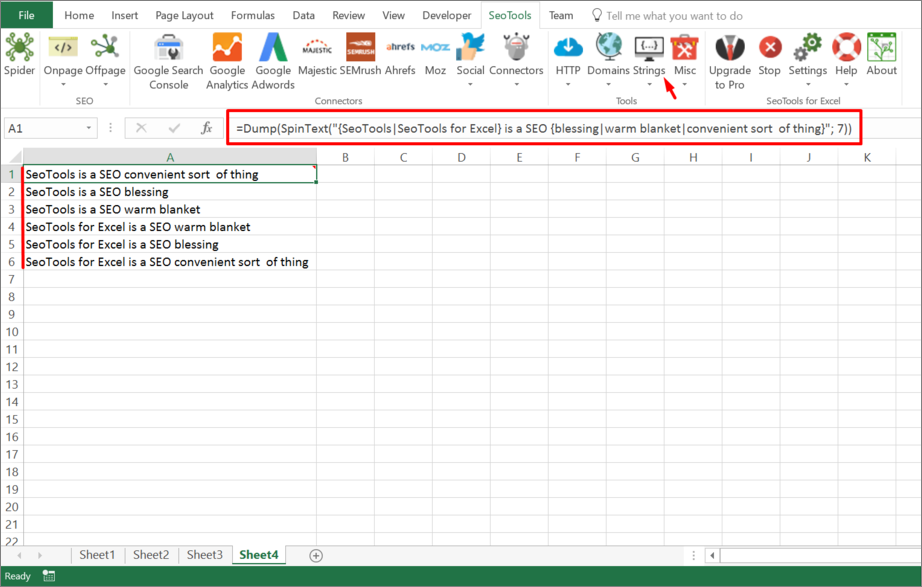
___
## Purpose
Spins texts like `{Niels|Nisse} is a SEO {n00b|expert}`. Returns an array of spun texts.
___
## Example
=Dump(SpinText("{Niels|Nisse|Olaf} is a SEO {n00b|expert|ninja}", 4))
___
## See
#### Cookbook
* [SpinText.xls](https://raw.githubusercontent.com/nielsbosma/SeoTools-for-Excel-Cookbooks/master/Functions/SpinText.xlsx)
#### Guides
* [Working with arrays in Excel](/working-with-arrays-in-excel/)
#### Related Functions
* [Razor](/razor/)
* [Format](/format/)
---
# Access Spotify in Excel
URL: https://seotoolsforexcel.com/spotify/
Type: page
Published: 2017-03-19
Updated: 2021-07-12
Summary: SeoTools for Excel offers a user-friendly and effective method to search and collect data from Spotify straight to Excel within a matter of seconds.
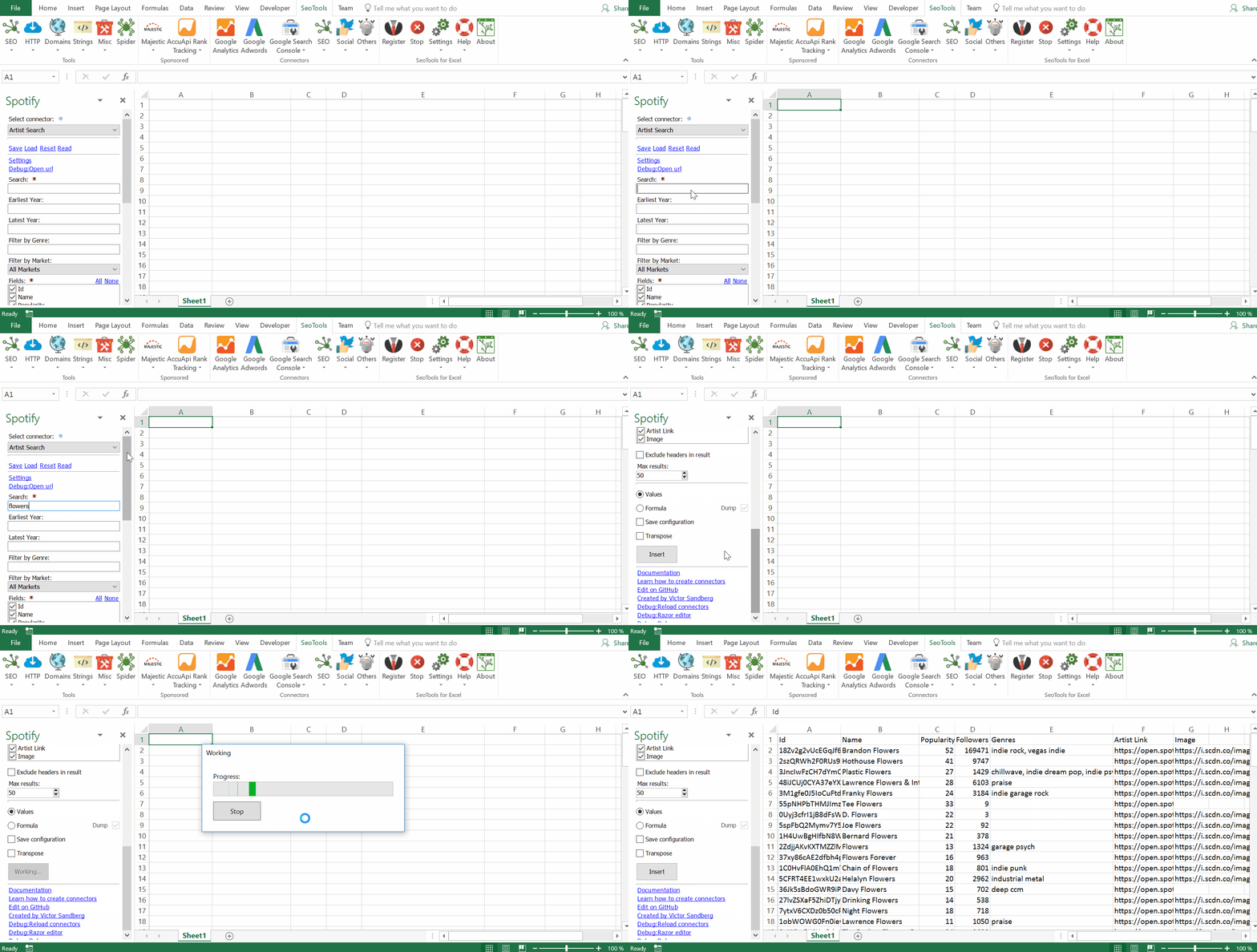
___
## Albums
* **Lookup** - Extract detailed statistics about one or more albums.
* **Search** - Find Albums matching a specific query. Filter results by:
- Artist Name
- Earliest Release Year
- Latest Release Year
- Released Within Last Two Weeks
- Lowest 10% Popularity
- Genre
- Market
* **Tracks** - Extract all tracks belonging to a specific album.
___
## Artists
* **Lookup** - Extract detailed statistics about one or more artists.
* **Search** - Find Artists matching a specific query. Filter results by:
- Earliest Release Year
- Latest Release Year
- Genre
- Market
* **Albums** - Extract all albums produced by a specific artist.
* **Related Artists** - Extract all artists which Spotify considers related to a specific artist.
* **My Top Artists** - Get the current user’s top artists based on calculated affinity.
___
## Playlists
* **Search** - Find Playlists matching a specific query. Filter results by:
- Market
* **Tracks** - Extract all tracks in a specific playlist.
* **Featured** - Extract all featured playlists.
* **From User** - Extract all playlists which a user owns or follows.
___
## Tracks
* **Lookup** - Extract detailed statistics about one or more tracks.
* **Search** - Find Tracks matching a specific query. Filter results by:
- Artist Name
- Album Name
- Earliest Release Year
- Latest Release Year
- Genre
- Market
* **Audio Features** - Extract detailed features of one or more tracks.
* **Audio Analysis** - Extract detailed audio analysis of a specific track.
* **My Top Tracks** - Get the current user’s top tracks based on calculated affinity.
___
## Profiles
* **Lookup** - Extract information about a specific profile.
* **Check if Users Follows Playlist** - Check is one or more users follows a specific playlist.
___
## Access
## Add from Manager
The Spotify Connector is available in the **[Connectors Manager](/manage-connectors/)** in the top ribbon:

Head over to the **Music Category** and install Spotify:

___
## Contribute
This connector suite is open-sourced on [GitHub](https://github.com/nielsbosma/SeoTools-for-Excel-Connectors/blob/master/Spotify.xml).
___
## See
#### Official Documentation
* [Spotify API](https://developer.spotify.com/web-api/)
#### Related Functions
* [Spotify Insights](/spotify-insights/)
* [Spot on Track](/spot-on-track/)
#### Resources
* [Manager](/manage-connectors/)
---
# Access Spotify Insights in Excel
URL: https://seotoolsforexcel.com/spotify-insights/
Type: page
Published: 2019-01-10
Updated: 2019-05-19
Summary: Labels and licencors can use Spotify Insights in Excel and analyze tracks and artist streams based on age, gender, country, product and period.
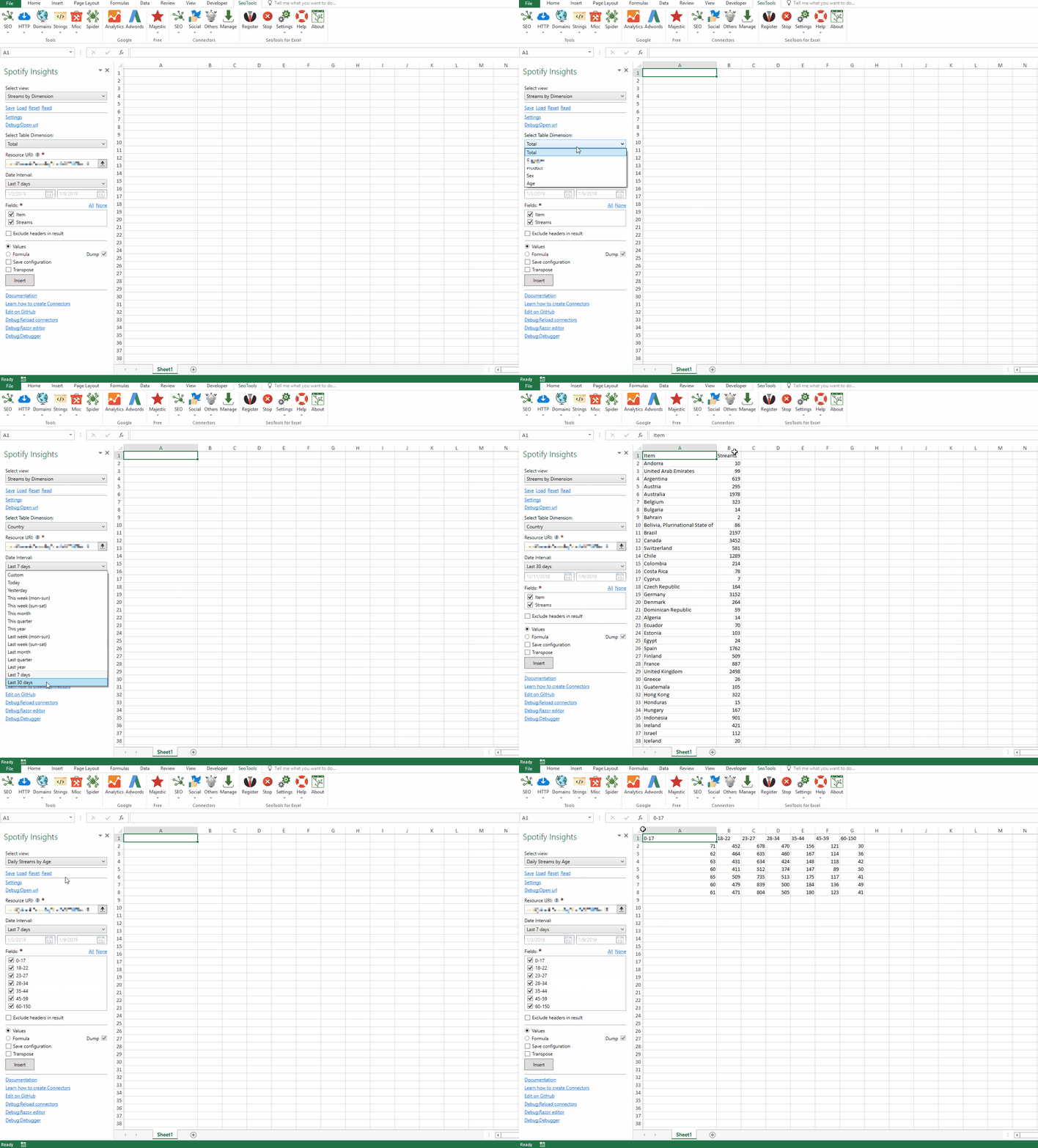
This API is for any **label** or **licensor** whose music is on Spotify. This API contains the same data as [analytics.spotify.com](https://analytics.spotify.com/). See below on how to get API access.
___
## Streams by Dimension
Returns the number of streams during a period broken down by one of the following dimensions:
- **Product** - The user's product (either free or premium)
- **Sex** - The user's gender (neutral, male, female, or unknown)
- **Age** - An age span. unknown for streams with an unknown age.
- **Country** - The country
- **Total** - No aggregation
## Daily Streams
Returns the daily number of streams during a period, optionally broken down by *age*, *gender* or *product*.
## Resource URI Input
Use the URI string which is identical to the Spotify Insights web portal links. Resources include track, artist, and episode.
spotify:artist:########################
___
## Access
## Add from Manager
The Spotify Insights Connector is available in the **[Connectors Manager](/manage-connectors/)** in the top ribbon:

Head over to the **Music Category** and install Spotify Insights:

## API Access
This API is for music licensors with a direct distribution relationship with Spotify.
1. Go to [Spotify Analytics](https://analytics.spotify.com/) and click on ["Request Provider API Access"](https://analytics.spotify.com/c/api) in the footer. After Spotify has reviewed your application they will send an email to the provided email address.
2. Follow the instructions and copy the API Token and Secret. Paste in the Spotify Insights Connector Settings menu: 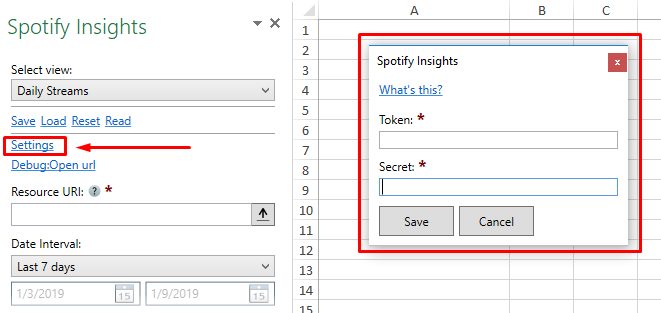
___
## Contribute
This connector suite is open-sourced on [GitHub](https://github.com/nielsbosma/SeoTools-for-Excel-Connectors/blob/master/SpotifyInsights.xml).
___
## See
#### Official Documentation
* [Spotify Insights API](https://developers.activecampaign.com/reference#overview)
#### Related Functions
* [Spotify](/spotify/)
#### Resources
* [Manager](/manage-connectors/)
---
# SqlFirst
URL: https://seotoolsforexcel.com/sqlfirst/
Type: page
Published: 2015-03-29
Updated: 2019-05-18
Summary: Returns the first column of the first row in the result of an SQL query. Works great with the Format function.
```
SqlFirst(string query) : string
```
___
## Purpose
Returns the first column of the first row in the result of an SQL query.
Requires that you setup a ConnectionString in SeoTools.config.xml.
Works great together with [Format](/format/).
=SqlFirst(Format("SELECT Id FROM Clients WHERE Email=’{0}’
AND Password=’{1}’";A1:A2))
____
## See
#### Related Functions
* [Sqltable](/sqltable/)
---
# SqlTable
URL: https://seotoolsforexcel.com/sqltable/
Type: page
Published: 2015-03-29
Updated: 2017-03-26
Summary: Returns the array result of an SQL Query as a formula in Excel with SeoTools for Excel.
```
=SqlTable(string query, [excludeHeaders=FALSE]) : array
```
___
## Purpose
Returns the array result of an SQL query.
Requires that you setup a ConnectionString in SeoTools.config.xml.
____
## See
#### Guides
* [Working with arrays in Excel](/working-with-arrays-in-excel/)
#### Related Functions
* [SqlFirst](/sqlfirst/)
---
# Access SSL Labs in Excel
URL: https://seotoolsforexcel.com/ssl-labs/
Type: page
Published: 2021-07-13
Updated: 2021-07-13
Summary: Seotools allows you to analyze a hosts and get grades inside Excel using formulas.
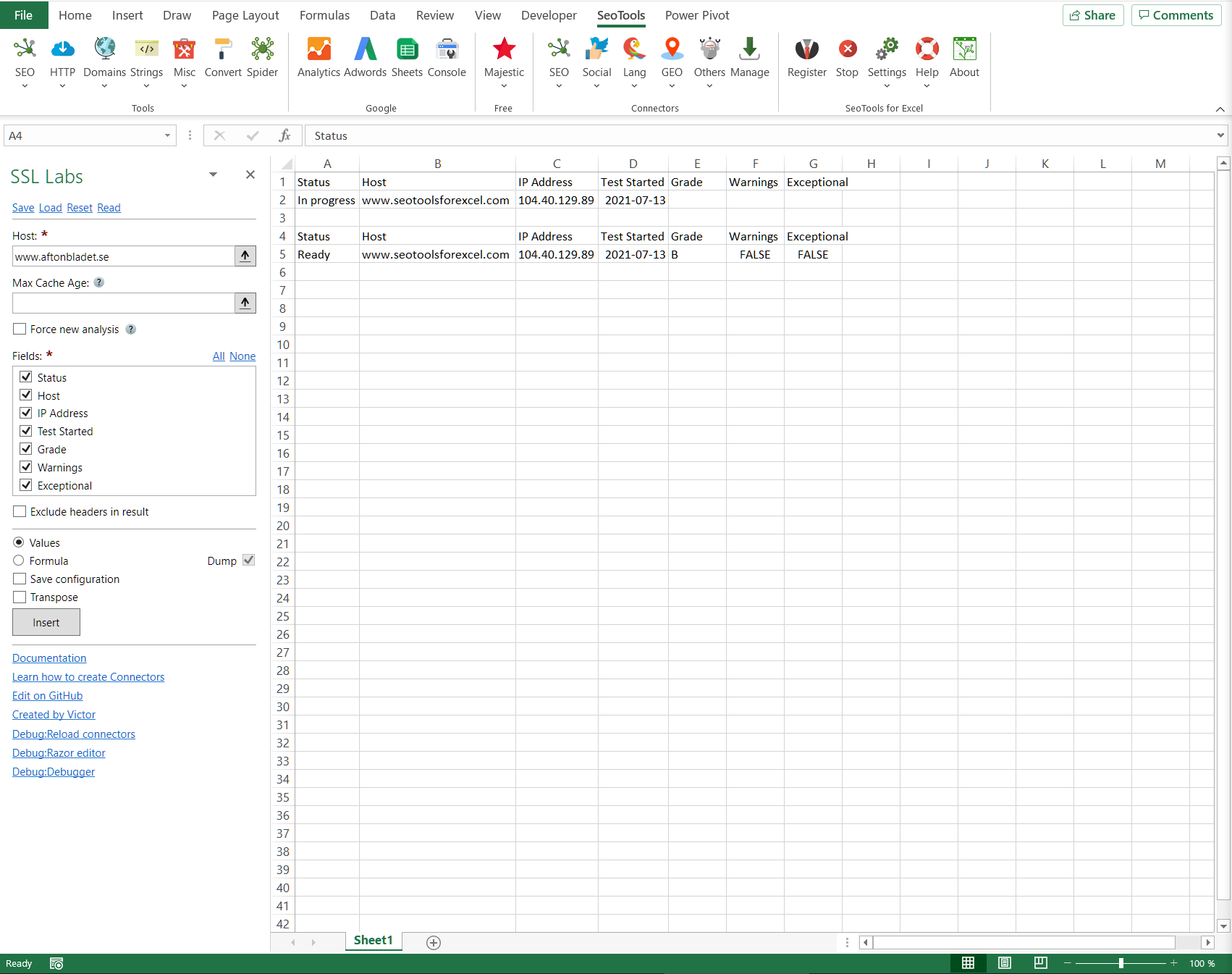
___
## Host Analysis
Runs a test on a server and returns grade and warnings. The test initiates and will take some time to complete. Use the **status** field to see the if the evaluation is complete. Then run the test again to get the final results.
### Max Cache Age
Maximum report age, in hours. If older, a new analysis begins.
### Force new analysis
Always start a new analysis and ignore previous cached results.
___
## Add from Manager
The SSL Labs Connector is available in the **[Connectors Manager](/manage-connectors/)** in the top ribbon:

Head over to the **Security Category** and install SSL Labs:

___
## Contribute
This connector suite is open-sourced on [GitHub](https://github.com/nielsbosma/SeoTools-for-Excel-Connectors/blob/master/SLLLabs.xml).
___
## See
#### Official Documentation
* [SSL Labs API](https://github.com/ssllabs/ssllabs-scan/blob/master/ssllabs-api-docs-v3.md)
#### Resources
* [Manager](/manage-connectors/)
---
# Access Stack Exchange in Excel
URL: https://seotoolsforexcel.com/stackexchange/
Type: page
Published: 2018-02-24
Updated: 2019-05-19
Summary: Integrate Stack Exchange in Excel and analyze activity on all sites in the network including Stack Overflow. Search, list and filter questions and answers.
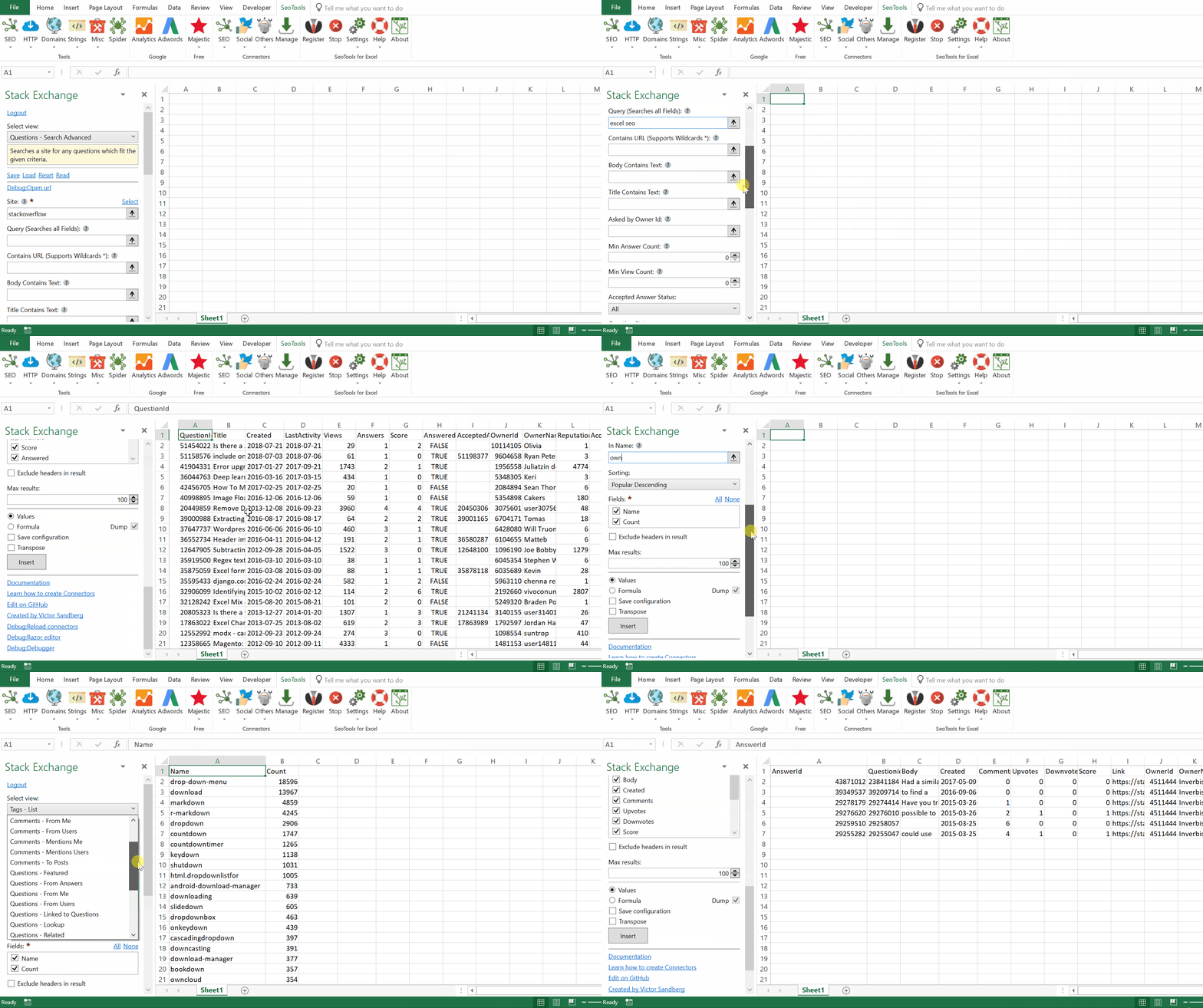
___
## Select Site
The features in the connector works for all sites in the Stack Exchange network. By default, **Stack Overflow** is chosen. To change site, either change the text manually, via formula, or click **Select** and chose from a list of all available sites:
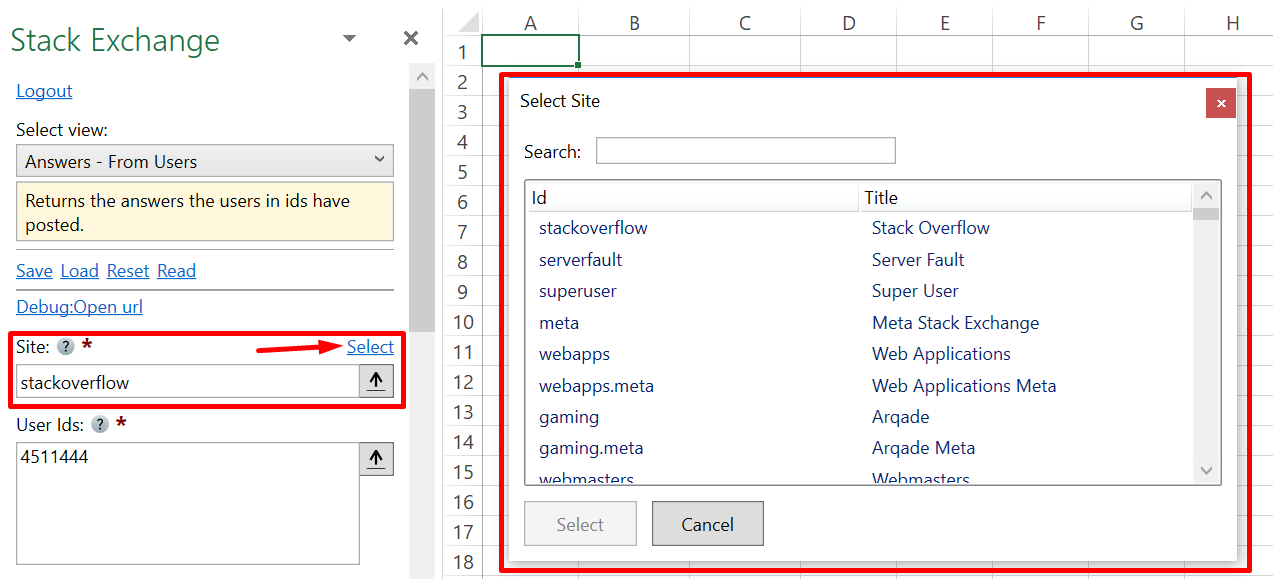
## Questions
* **Search Advanced** - Searches a site for any questions which fit the given criteria:
- Contains (fields: body OR title)
- Contains URL
- Asked by specific User
- Status filter (accepted answer OR question status)
- Limits (min answers OR min views)
- Date intervals
* **From Answers** - Returns the questions that answers identified by ids are on.
* **Lookup** - Returns the questions identified in ids.
* **Search Similar** - Returns questions which are similar to a hypothetical one based on title.
* **Linked to Questions** - Gets questions which link to those questions identified in ids.
* **Related** - Returns questions that the site considers related to those identified in ids.
* **Featured** - Returns all the questions with active bounties in the system.
* **From Users** - Gets the questions asked by the users in ids.
* **From Me** - Returns the questions owned by the current user.
## Answers
* **Lookup** - Gets the set of answers identified by ids.
* **To Questions** - Gets the answers to a set of questions identified in id.
* **From Users** - Returns the answers the users in ids have posted.
* **From Me** - Returns the answers owned by the current user.
## Tags
* **List** - Returns the tags found on a site.
* **Users Activity** - Returns the tags the users identified in ids have been active in.
* **My Activity** - Returns the tags the current user have been active in.
## Users
* **Lookup** - Gets the users identified in ids.
## Comments
* **To Posts** - Gets the comments on the posts identified in ids, regardless of the type of the posts.
* **From Users** - Get the comments posted by users in ids.
* **From Me** - Get the comments posted by the current user.
* **Mentions Users** - Gets all the comments that the users in ids were mentioned in.
* **Mentions Me** - Gets all the comments that mentions the current user.
## Reputation
* **Users Changes** - Gets a subset of the reputation changes for users in ids.
* **My Changes** - Returns the reputation changed for the current user.
___
## Access
## Add from Manager
The Stack Exchange Connector is available in the **[Connectors Manager](/manage-connectors/)** in the top ribbon:

Head over to the **Knowledge Category** and install Stack Exchange:

___
## Contribute
This connector suite is open-sourced on [GitHub](https://github.com/nielsbosma/SeoTools-for-Excel-Connectors/blob/master/StackExchange.xml).
___
## See
#### Official Documentation
* [Stack Exchange API](https://api.stackexchange.com/docs)
#### Resources
* [Manager](/manage-connectors/)
---
# How to start your 14-day trial
URL: https://seotoolsforexcel.com/start-trial/
Type: page
Published: 2026-09-11
Updated: 2026-09-11
Summary: Install SeoTools for Excel, then request your free 14-day trial key from the Register menu. The key arrives by email.
SeoTools for Excel is free to try for 14 days, with every connector and function
available. You request the trial key from inside the add-in, so install it first.
## 1. Install SeoTools for Excel
[Download the installer](/download/) and run it. Close Excel before you start —
the installer adds the **SeoTools** tab to the ribbon, and Excel only picks it up
on the next launch.
## 2. Open the Register window
Start Excel and go to the **SeoTools** tab on the ribbon. Click **Register**.
If there is no SeoTools tab, the add-in is installed but switched off in Excel.
[Here is how to enable it](/enable-seotools/) — it takes a few clicks.
## 3. Request the trial
In the Register window, click **Request a Trial** and enter your email address.
Your key is emailed to you straight away. Paste it into the same window, click
**Register**, and the trial starts.
If the email has not arrived after a minute or two, check your spam folder —
it comes from **info@seotoolsforexcel.com**.
## What you get
The trial is a full licence for **14 days on one machine**. Nothing is disabled
and there is no watermark: if it works during the trial, it works after you buy.
When the trial ends, SeoTools keeps working in the spreadsheets you already
built — the functions stop returning new data until you
[buy a licence](/purchase/).
## Need longer, or a second machine?
One trial per person, per machine. If that genuinely does not fit how you need to
evaluate — you are testing on a desktop and a laptop, or you need longer than a
fortnight to get sign-off — just ask. Email **info@seotoolsforexcel.com** and
tell us briefly what you are evaluating, and we will sort it out.
---
# Stock News
URL: https://seotoolsforexcel.com/stock-news/
Type: page
Published: 2023-06-28
Updated: 2023-06-28
Summary: Fetch metadata about stock symbols inside Excel as a formula.
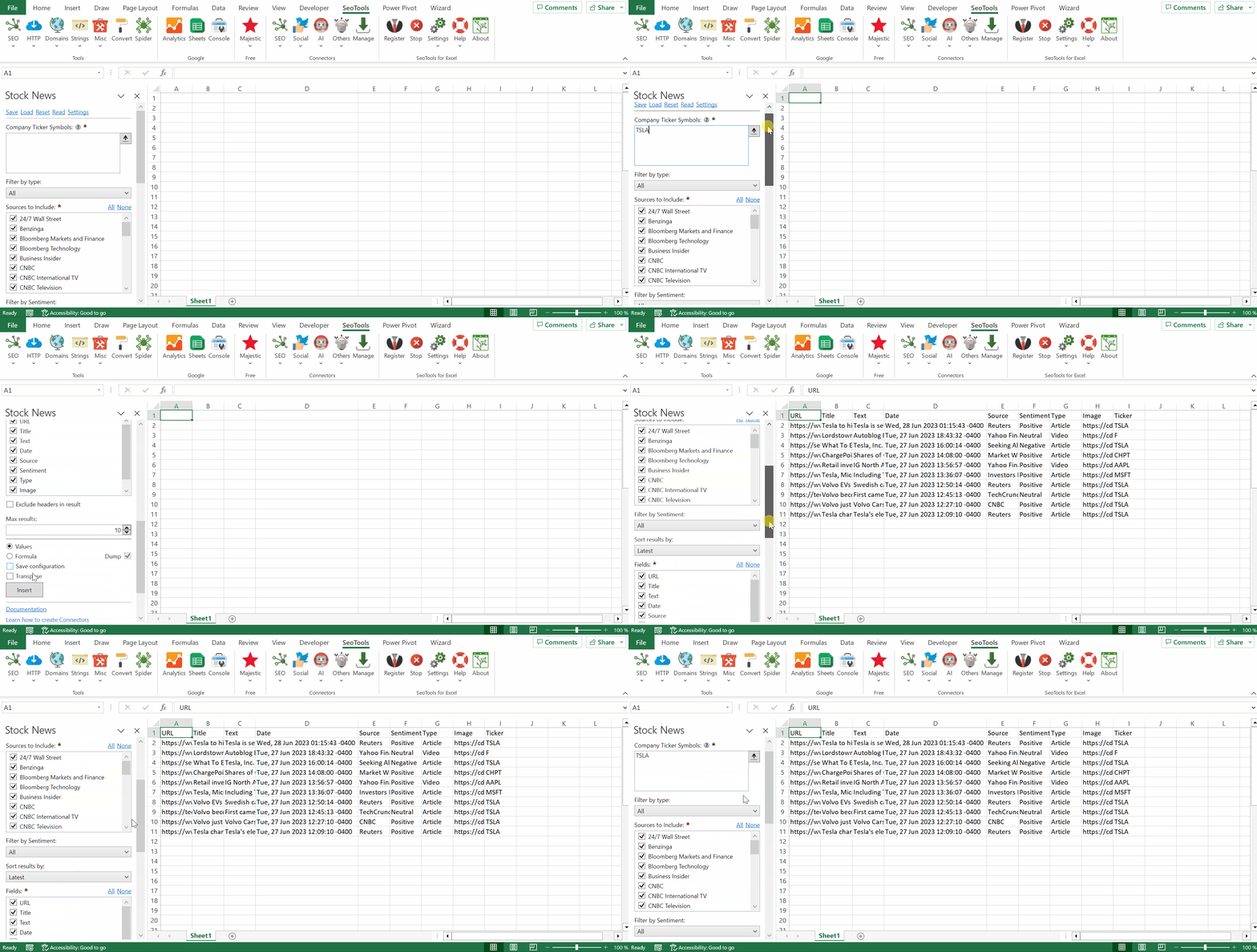
Get the latest stock news from the best news sources and access clean and relevant stock market news data. Stock News API indexes article and video content from reputable news sources such as: CNBC, Zacks, Bloomberg, The Motley Fool, Fox Business, The Street, and more.
___
## Settings
- Company Ticker Symbols - Enter one or more symbols to fetch metadata for.
- Type (article, video, all)
- Sources
- Sentiment (negative, neutral, positive, all)
- Sort results (latest, trending)
## Fields
- URL
- Title
- Text
- Date
- Source
- Sentiment
- Type
- Image
- Ticker
___
## Access
## Add from Manager
The Stock News Connector is available in the **[Connectors Manager](/manage-connectors/)** in the top ribbon:

Head over to the **Finance Category** and install Stock News:

___
## Contribute
This connector suite is open-sourced on [GitHub](https://github.com/nielsbosma/SeoTools-for-Excel-Connectors/blob/master/StockNews.xml).
___
## See
#### Official Documentation
* [Stock News API](https://stocknewsapi.com/documentation)
#### Related Functions
* [StockTwits](/stocktwits/)
#### Resources
* [Manager](/manage-connectors/)
---
# Access StockTwits in Excel
URL: https://seotoolsforexcel.com/stocktwits/
Type: page
Published: 2018-09-24
Updated: 2023-06-28
Summary: Seotools connects Excel with StockTwits and allows you to extract the latest activities based on trends, symbols, friends, search queries and more.
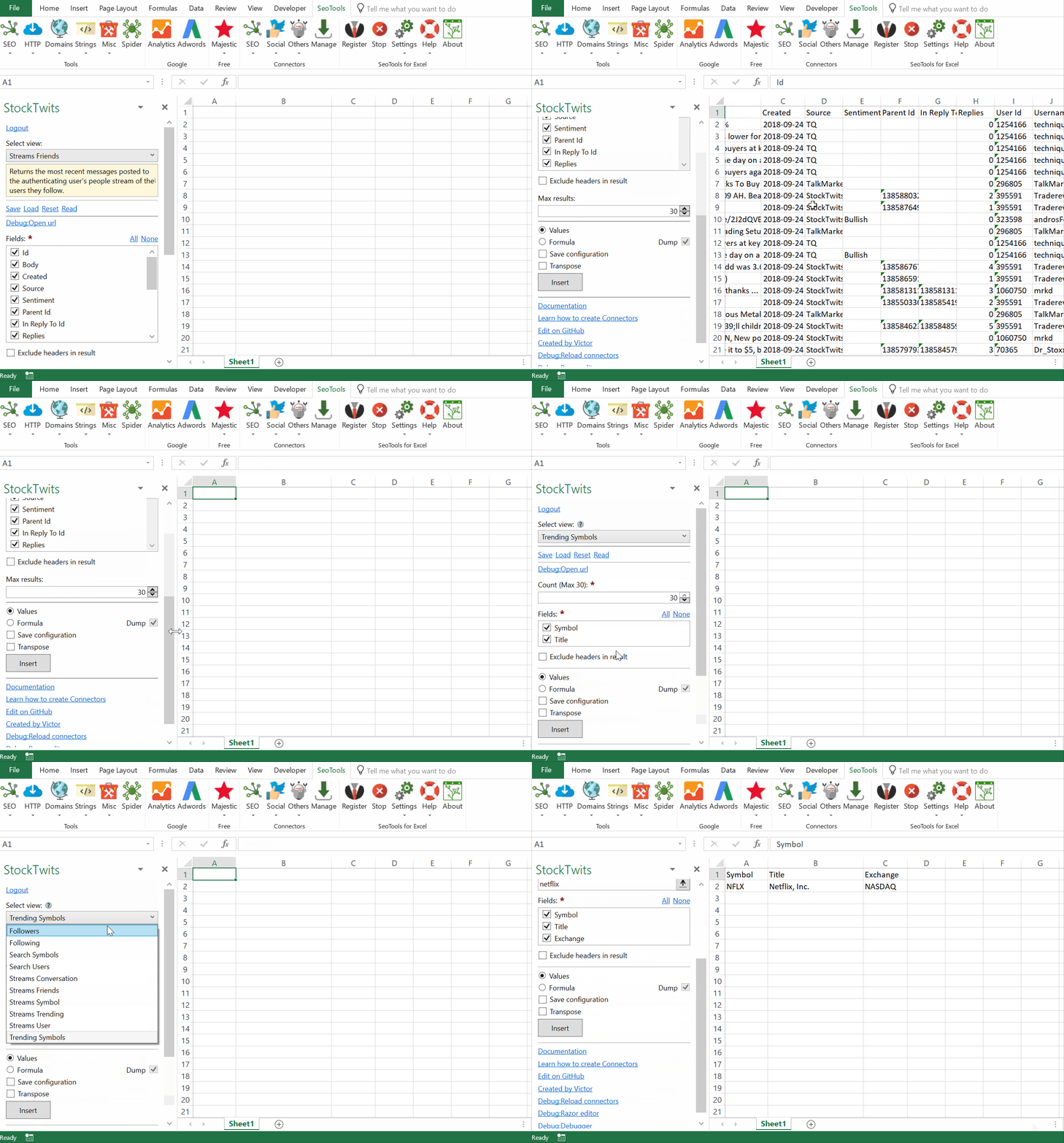
The StockTwits API Allows you to leverage the user base, social graph and content network that drive the StockTwits community.
___
## Streams
- **User** - Returns the most recent messages for the specified user.
- **Friends** - Returns the most recent messages posted to the authenticating user's people stream of the users they follow.
- **Symbol** - Returns the most recent messages for the specified symbol.
- **Messages about Symbol from User** - Returns the most recent messages for the specified symbol from user.
- **Trending** - Returns the most recent messages with trending symbols in the last 5 minutes.
- **Conversation** - Returns the most recent messages for the specified conversation.
## Search
- **Symbols** - Search for symbols by query.
- **Users** - Search for users by query.
## Followers/Following
- **List** - Returns the list of users the authenticated user is followed by or is following.
## Trending
- **List** - Returns a list of all the trending symbols at the moment requested.
___
## Access
## Add from Manager
The StockTwits Connector is available in the **[Connectors Manager](/manage-connectors/)** in the top ribbon:

Head over to the **Finance Category** and install StockTwits:

___
## Contribute
This connector suite is open-sourced on [GitHub](https://github.com/nielsbosma/SeoTools-for-Excel-Connectors/blob/master/StockTwits.xml).
___
## See
#### Official Documentation
* [StockTwits API](https://api.stocktwits.com/developers/docs)
#### Related Functions
* [Stock News](/stock-news/)
#### Resources
* [Manager](/manage-connectors/)
---
# StringJoin
URL: https://seotoolsforexcel.com/stringjoin/
Type: page
Published: 2015-03-29
Updated: 2019-05-19
Summary: Returns concatenated string of a vector with specified separator as a function in Excel
```
=StringJoin(vector data; string separator; bool RemoveEmptyEntries) : string
```
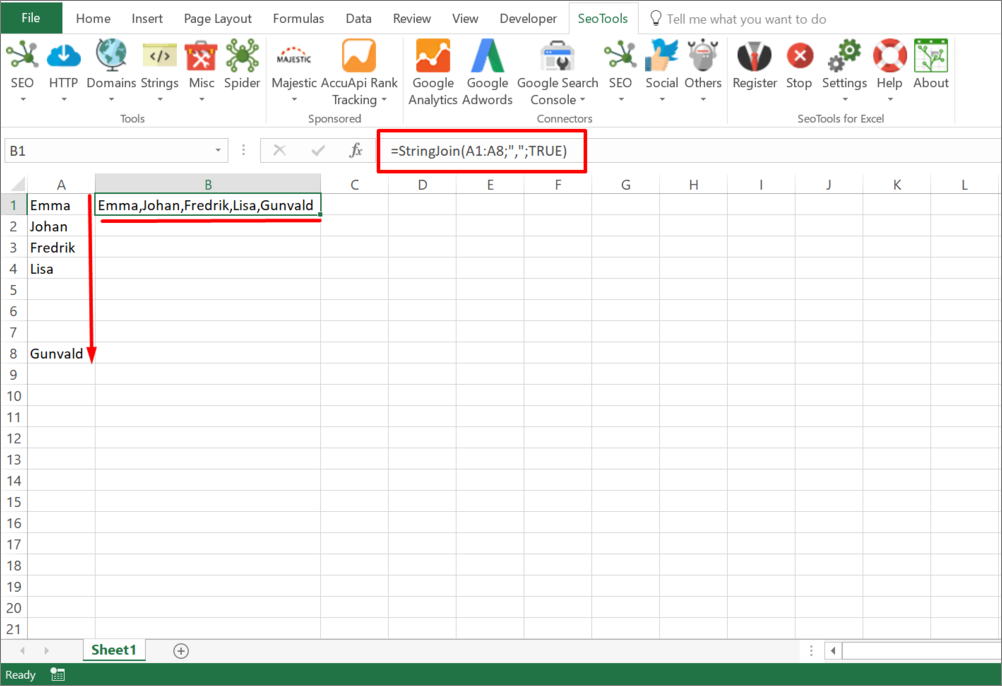
___
## Purpose
Returns concatenated string of a vector with an optional separator. Empty cells in a range can be ignored with the RemoveEmptyEntries set to True.
___
## see
#### Related Functions
* [StringSplit](/stringsplit/)
---
# StringSplit
URL: https://seotoolsforexcel.com/stringsplit/
Type: page
Published: 2016-11-12
Updated: 2019-05-19
Summary: Return vectors with all strings separated by a specified separator as a function in SeoTools for Excel
```
StringSplit(string input, string separator,
bool removeEmptyEntries) : vector
```
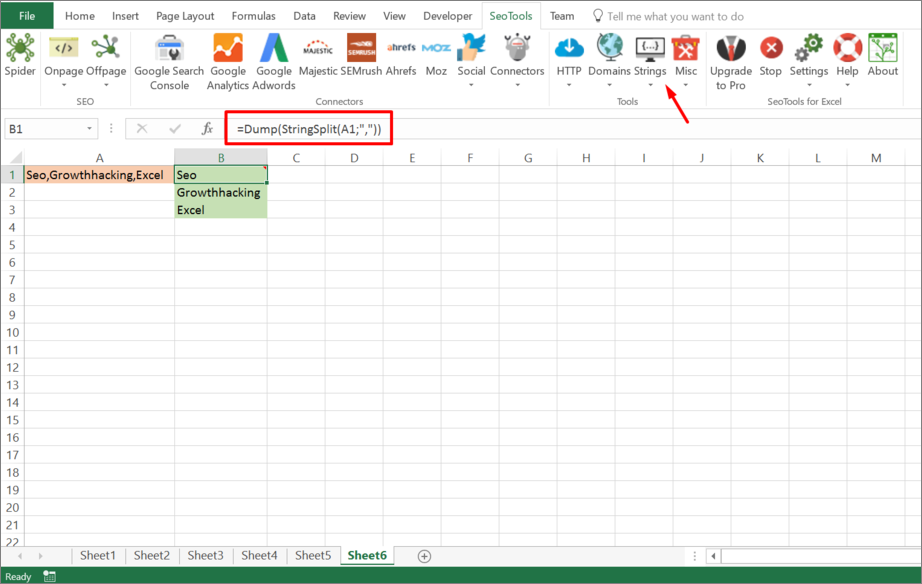
___
## Purpose
Returns a vector with all strings separated by the specified separator.
#### RemoveEmptyEntries
`removeEmptyEntries:` True or False condition to determine if the StringSplit function should include empty entries.
There are two **empty** entries (highlighted in yellow) in the following string: "Niels| | |"
When setting the `removeEmptyEntries` condition to **TRUE**, these entries are ignored:
___
## See
#### Related Functions
* [StringJoin](/stringjoin/)
---
# StripLineBreaks
URL: https://seotoolsforexcel.com/striplinebreaks/
Type: page
Published: 2020-02-29
Updated: 2020-03-04
Summary: The StripLineBreaks formula removes all line breaks from a cell in Excel.
```
=StripLineBreaks(string text) : string
```
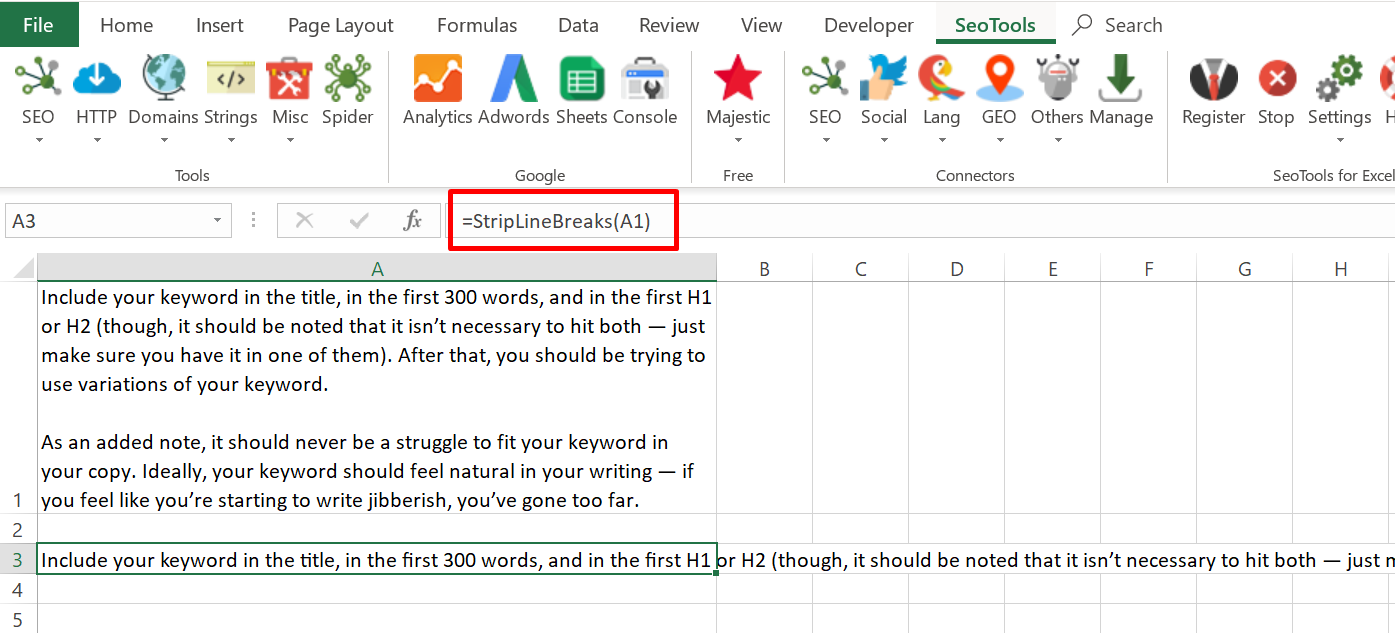
___
## Purpose
Removes all line breaks from a text.
____
## See
#### Related Functions
* [StripWhiteSpace](/stripwhitespace/)
* [NormalizeWhiteSpace](/normalizewhitespace/)
---
# StripTags
URL: https://seotoolsforexcel.com/striptags/
Type: page
Published: 2020-02-29
Updated: 2020-02-29
Summary: The StripTags functon removes all HTML tags from a text in Excel.
```
=StripLineBreaks(string text) : string
```
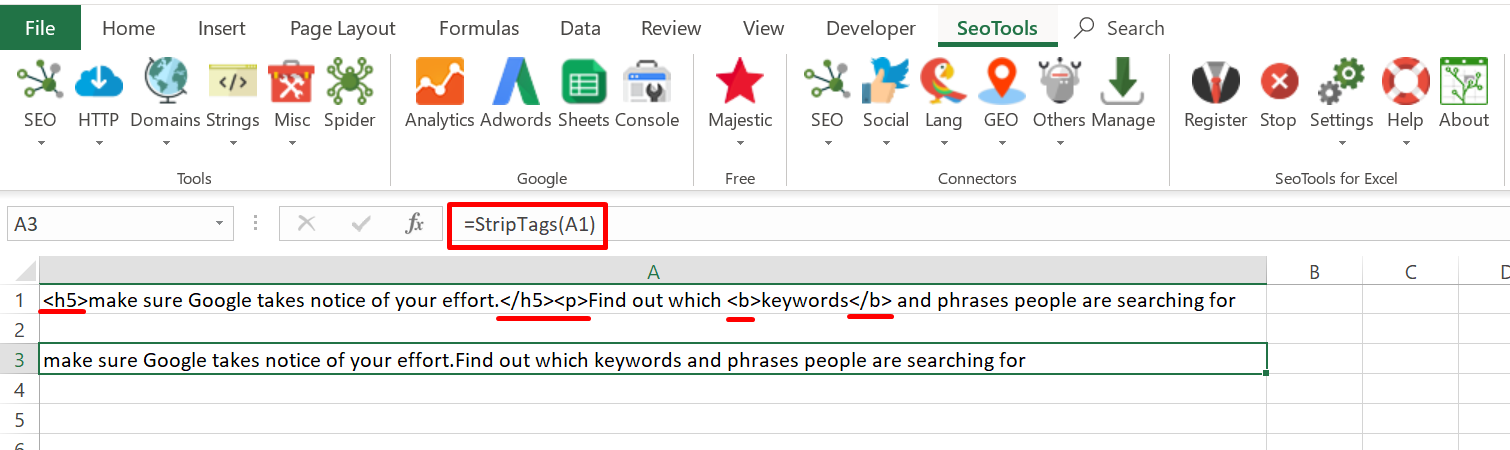
___
## Purpose
Removes all HTML tags from a text. Very useful cleaning text extracted from websites.
____
## See
#### Related Functions
* [StripLineBreaks](/striplinebreaks/)
* [StripWhiteSpace](/stripwhitespace/)
* [NormalizeWhiteSpace](/normalizewhitespace/)
---
# StripWhitespace
URL: https://seotoolsforexcel.com/stripwhitespace/
Type: page
Published: 2015-03-29
Updated: 2020-02-29
Summary: Remove all white space characters as a formula in Excel with SeoTools for Excel.
```
=StripWhitespace(string text) : string
```
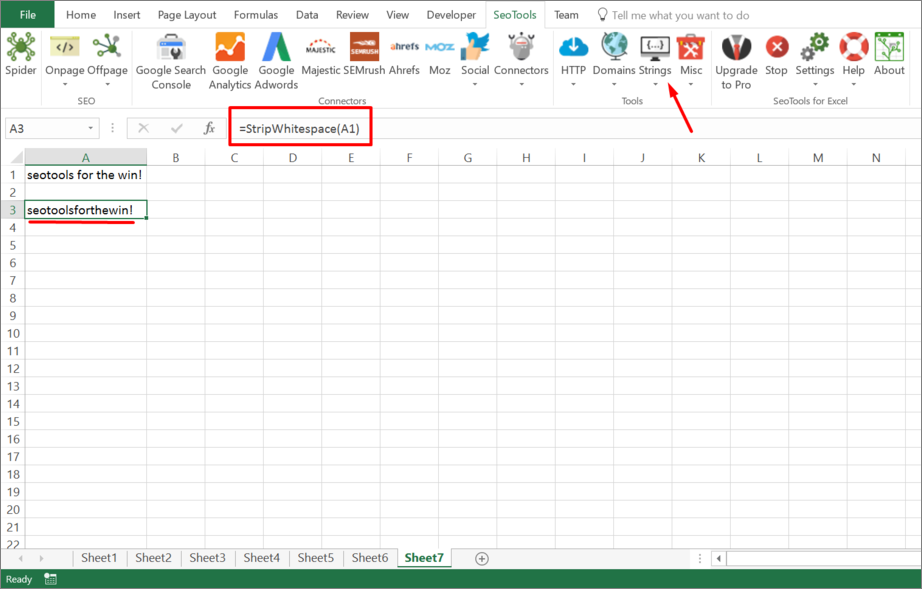
___
## Purpose
Removes all whitespace characters in a text.
____
## See
#### Related Functions
* [NormalizeWhiteSpace](/normalizewhitespace/)
* [StripLineBreaks](/striplinebreaks/)
* [StripTags](/striptags/)
---
# Terms of Services
URL: https://seotoolsforexcel.com/terms-of-services/
Type: page
Published: 2018-10-07
Updated: 2019-05-19
Summary: Terms of Service for SeoTools for Excel organization,
## TERMS OF SERVICE
#### OVERVIEW
This website is operated by Bosma Interactive AB. Throughout the site, the terms “we”, “us” and “our” refer to Bosma Interactive AB. Bosma Interactive AB offers this website, including all information, tools and services available from this site to you, the user, conditioned upon your acceptance of all terms, conditions, policies and notices stated here.
By visiting our site and/ or purchasing something from us, you engage in our “Service” and agree to be bound by the following terms and conditions (“Terms of Service”, “Terms”), including those additional terms and conditions and policies referenced herein and/or available by hyperlink. These Terms of Service apply to all users of the site, including without limitation users who are browsers, vendors, customers, merchants, and/ or contributors of content.
Please read these Terms of Service carefully before accessing or using our website. By accessing or using any part of the site, you agree to be bound by these Terms of Service. If you do not agree to all the terms and conditions of this agreement, then you may not access the website or use any services. If these Terms of Service are considered an offer, acceptance is expressly limited to these Terms of Service.
Any new features or tools which are added to the current store shall also be subject to the Terms of Service. You can review the most current version of the Terms of Service at any time on this page. We reserve the right to update, change or replace any part of these Terms of Service by posting updates and/or changes to our website. It is your responsibility to check this page periodically for changes. Your continued use of or access to the website following the posting of any changes constitutes acceptance of those changes.
Our store is hosted on Shopify Inc. They provide us with the online e-commerce platform that allows us to sell our products and services to you.
#### SECTION 1 - ONLINE STORE TERMS
By agreeing to these Terms of Service, you represent that you are at least the age of majority in your state or province of residence, or that you are the age of majority in your state or province of residence and you have given us your consent to allow any of your minor dependents to use this site.
You may not use our products for any illegal or unauthorized purpose nor may you, in the use of the Service, violate any laws in your jurisdiction (including but not limited to copyright laws).
You must not transmit any worms or viruses or any code of a destructive nature.
A breach or violation of any of the Terms will result in an immediate termination of your Services.
#### SECTION 2 - GENERAL CONDITIONS
We reserve the right to refuse service to anyone for any reason at any time.
You understand that your content (not including credit card information), may be transferred unencrypted and involve (a) transmissions over various networks; and (b) changes to conform and adapt to technical requirements of connecting networks or devices. Credit card information is always encrypted during transfer over networks.
You agree not to reproduce, duplicate, copy, sell, resell or exploit any portion of the Service, use of the Service, or access to the Service or any contact on the website through which the service is provided, without express written permission by us.
The headings used in this agreement are included for convenience only and will not limit or otherwise affect these Terms.
#### SECTION 3 - ACCURACY, COMPLETENESS AND TIMELINESS OF INFORMATION
We are not responsible if information made available on this site is not accurate, complete or current. The material on this site is provided for general information only and should not be relied upon or used as the sole basis for making decisions without consulting primary, more accurate, more complete or more timely sources of information. Any reliance on the material on this site is at your own risk.
This site may contain certain historical information. Historical information, necessarily, is not current and is provided for your reference only. We reserve the right to modify the contents of this site at any time, but we have no obligation to update any information on our site. You agree that it is your responsibility to monitor changes to our site.
#### SECTION 4 - MODIFICATIONS TO THE SERVICE AND PRICES
Prices for our products are subject to change without notice.
We reserve the right at any time to modify or discontinue the Service (or any part or content thereof) without notice at any time.
We shall not be liable to you or to any third-party for any modification, price change, suspension or discontinuance of the Service.
#### SECTION 5 - PRODUCTS OR SERVICES (if applicable)
Certain products or services may be available exclusively online through the website. These products or services may have limited quantities and are subject to return or exchange only according to our Return Policy.
We have made every effort to display as accurately as possible the colors and images of our products that appear at the store. We cannot guarantee that your computer monitor's display of any color will be accurate.
We reserve the right, but are not obligated, to limit the sales of our products or Services to any person, geographic region or jurisdiction. We may exercise this right on a case-by-case basis. We reserve the right to limit the quantities of any products or services that we offer. All descriptions of products or product pricing are subject to change at anytime without notice, at the sole discretion of us. We reserve the right to discontinue any product at any time. Any offer for any product or service made on this site is void where prohibited.
We do not warrant that the quality of any products, services, information, or other material purchased or obtained by you will meet your expectations, or that any errors in the Service will be corrected.
#### SECTION 6 - ACCURACY OF BILLING AND ACCOUNT INFORMATION
We reserve the right to refuse any order you place with us. We may, in our sole discretion, limit or cancel quantities purchased per person, per household or per order. These restrictions may include orders placed by or under the same customer account, the same credit card, and/or orders that use the same billing and/or shipping address. In the event that we make a change to or cancel an order, we may attempt to notify you by contacting the e-mail and/or billing address/phone number provided at the time the order was made. We reserve the right to limit or prohibit orders that, in our sole judgment, appear to be placed by dealers, resellers or distributors.
You agree to provide current, complete and accurate purchase and account information for all purchases made at our store. You agree to promptly update your account and other information, including your email address and credit card numbers and expiration dates, so that we can complete your transactions and contact you as needed.
For more detail, please review our Returns Policy.
#### SECTION 7 - OPTIONAL TOOLS
We may provide you with access to third-party tools over which we neither monitor nor have any control nor input.
You acknowledge and agree that we provide access to such tools ”as is” and “as available” without any warranties, representations or conditions of any kind and without any endorsement. We shall have no liability whatsoever arising from or relating to your use of optional third-party tools.
Any use by you of optional tools offered through the site is entirely at your own risk and discretion and you should ensure that you are familiar with and approve of the terms on which tools are provided by the relevant third-party provider(s).
We may also, in the future, offer new services and/or features through the website (including, the release of new tools and resources). Such new features and/or services shall also be subject to these Terms of Service.
#### SECTION 8 - THIRD-PARTY LINKS
Certain content, products and services available via our Service may include materials from third-parties.
Third-party links on this site may direct you to third-party websites that are not affiliated with us. We are not responsible for examining or evaluating the content or accuracy and we do not warrant and will not have any liability or responsibility for any third-party materials or websites, or for any other materials, products, or services of third-parties.
We are not liable for any harm or damages related to the purchase or use of goods, services, resources, content, or any other transactions made in connection with any third-party websites. Please review carefully the third-party's policies and practices and make sure you understand them before you engage in any transaction. Complaints, claims, concerns, or questions regarding third-party products should be directed to the third-party.
#### SECTION 9 - USER COMMENTS, FEEDBACK AND OTHER SUBMISSIONS
If, at our request, you send certain specific submissions (for example contest entries) or without a request from us you send creative ideas, suggestions, proposals, plans, or other materials, whether online, by email, by postal mail, or otherwise (collectively, 'comments'), you agree that we may, at any time, without restriction, edit, copy, publish, distribute, translate and otherwise use in any medium any comments that you forward to us. We are and shall be under no obligation (1) to maintain any comments in confidence; (2) to pay compensation for any comments; or (3) to respond to any comments.
We may, but have no obligation to, monitor, edit or remove content that we determine in our sole discretion are unlawful, offensive, threatening, libelous, defamatory, pornographic, obscene or otherwise objectionable or violates any party’s intellectual property or these Terms of Service.
You agree that your comments will not violate any right of any third-party, including copyright, trademark, privacy, personality or other personal or proprietary right. You further agree that your comments will not contain libelous or otherwise unlawful, abusive or obscene material, or contain any computer virus or other malware that could in any way affect the operation of the Service or any related website. You may not use a false e-mail address, pretend to be someone other than yourself, or otherwise mislead us or third-parties as to the origin of any comments. You are solely responsible for any comments you make and their accuracy. We take no responsibility and assume no liability for any comments posted by you or any third-party.
#### SECTION 10 - PERSONAL INFORMATION
Your submission of personal information through the store is governed by our Privacy Policy. To view our Privacy Policy.
#### SECTION 11 - ERRORS, INACCURACIES AND OMISSIONS
Occasionally there may be information on our site or in the Service that contains typographical errors, inaccuracies or omissions that may relate to product descriptions, pricing, promotions, offers, product shipping charges, transit times and availability. We reserve the right to correct any errors, inaccuracies or omissions, and to change or update information or cancel orders if any information in the Service or on any related website is inaccurate at any time without prior notice (including after you have submitted your order).
We undertake no obligation to update, amend or clarify information in the Service or on any related website, including without limitation, pricing information, except as required by law. No specified update or refresh date applied in the Service or on any related website, should be taken to indicate that all information in the Service or on any related website has been modified or updated.
#### SECTION 12 - PROHIBITED USES
In addition to other prohibitions as set forth in the Terms of Service, you are prohibited from using the site or its content: (a) for any unlawful purpose; (b) to solicit others to perform or participate in any unlawful acts; (c) to violate any international, federal, provincial or state regulations, rules, laws, or local ordinances; (d) to infringe upon or violate our intellectual property rights or the intellectual property rights of others; (e) to harass, abuse, insult, harm, defame, slander, disparage, intimidate, or discriminate based on gender, sexual orientation, religion, ethnicity, race, age, national origin, or disability; (f) to submit false or misleading information; (g) to upload or transmit viruses or any other type of malicious code that will or may be used in any way that will affect the functionality or operation of the Service or of any related website, other websites, or the Internet; (h) to collect or track the personal information of others; (i) to spam, phish, pharm, pretext, spider, crawl, or scrape; (j) for any obscene or immoral purpose; or (k) to interfere with or circumvent the security features of the Service or any related website, other websites, or the Internet. We reserve the right to terminate your use of the Service or any related website for violating any of the prohibited uses.
#### SECTION 13 - DISCLAIMER OF WARRANTIES; LIMITATION OF LIABILITY
We do not guarantee, represent or warrant that your use of our service will be uninterrupted, timely, secure or error-free.
We do not warrant that the results that may be obtained from the use of the service will be accurate or reliable.
You agree that from time to time we may remove the service for indefinite periods of time or cancel the service at any time, without notice to you.
You expressly agree that your use of, or inability to use, the service is at your sole risk. The service and all products and services delivered to you through the service are (except as expressly stated by us) provided 'as is' and 'as available' for your use, without any representation, warranties or conditions of any kind, either express or implied, including all implied warranties or conditions of merchantability, merchantable quality, fitness for a particular purpose, durability, title, and non-infringement.
In no case shall Bosma Interactive AB, our directors, officers, employees, affiliates, agents, contractors, interns, suppliers, service providers or licensors be liable for any injury, loss, claim, or any direct, indirect, incidental, punitive, special, or consequential damages of any kind, including, without limitation lost profits, lost revenue, lost savings, loss of data, replacement costs, or any similar damages, whether based in contract, tort (including negligence), strict liability or otherwise, arising from your use of any of the service or any products procured using the service, or for any other claim related in any way to your use of the service or any product, including, but not limited to, any errors or omissions in any content, or any loss or damage of any kind incurred as a result of the use of the service or any content (or product) posted, transmitted, or otherwise made available via the service, even if advised of their possibility. Because some states or jurisdictions do not allow the exclusion or the limitation of liability for consequential or incidental damages, in such states or jurisdictions, our liability shall be limited to the maximum extent permitted by law.
#### SECTION 14 - INDEMNIFICATION
You agree to indemnify, defend and hold harmless Bosma Interactive AB and our parent, subsidiaries, affiliates, partners, officers, directors, agents, contractors, licensors, service providers, subcontractors, suppliers, interns and employees, harmless from any claim or demand, including reasonable attorneys’ fees, made by any third-party due to or arising out of your breach of these Terms of Service or the documents they incorporate by reference, or your violation of any law or the rights of a third-party.
#### SECTION 15 - SEVERABILITY
In the event that any provision of these Terms of Service is determined to be unlawful, void or unenforceable, such provision shall nonetheless be enforceable to the fullest extent permitted by applicable law, and the unenforceable portion shall be deemed to be severed from these Terms of Service, such determination shall not affect the validity and enforceability of any other remaining provisions.
#### SECTION 16 - TERMINATION
The obligations and liabilities of the parties incurred prior to the termination date shall survive the termination of this agreement for all purposes.
These Terms of Service are effective unless and until terminated by either you or us. You may terminate these Terms of Service at any time by notifying us that you no longer wish to use our Services, or when you cease using our site.
If in our sole judgment you fail, or we suspect that you have failed, to comply with any term or provision of these Terms of Service, we also may terminate this agreement at any time without notice and you will remain liable for all amounts due up to and including the date of termination; and/or accordingly may deny you access to our Services (or any part thereof).
#### SECTION 17 - ENTIRE AGREEMENT
The failure of us to exercise or enforce any right or provision of these Terms of Service shall not constitute a waiver of such right or provision.
These Terms of Service and any policies or operating rules posted by us on this site or in respect to The Service constitutes the entire agreement and understanding between you and us and govern your use of the Service, superseding any prior or contemporaneous agreements, communications and proposals, whether oral or written, between you and us (including, but not limited to, any prior versions of the Terms of Service).
Any ambiguities in the interpretation of these Terms of Service shall not be construed against the drafting party.
#### SECTION 18 - GOVERNING LAW
These Terms of Service and any separate agreements whereby we provide you Services shall be governed by and construed in accordance with Swedish laws.
#### SECTION 19 - CHANGES TO TERMS OF SERVICE
You can review the most current version of the Terms of Service at any time at this page.
We reserve the right, at our sole discretion, to update, change or replace any part of these Terms of Service by posting updates and changes to our website. It is your responsibility to check our website periodically for changes. Your continued use of or access to our website or the Service following the posting of any changes to these Terms of Service constitutes acceptance of those changes.
#### SECTION 20 - CONTACT INFORMATION
Questions about the Terms of Service should be sent to us at info@seotoolsforexcel.com.
___
## See
#### Related Pages
* [Privacy Policy](/privacy-policy/)
---
# Access TextRazor in Excel
URL: https://seotoolsforexcel.com/textrazor/
Type: page
Published: 2023-06-27
Updated: 2023-06-27
Summary: SeoTools for Excel offers a user-friendly and effective method to extract entities, topics, and words from both websites and texts inside Excel.
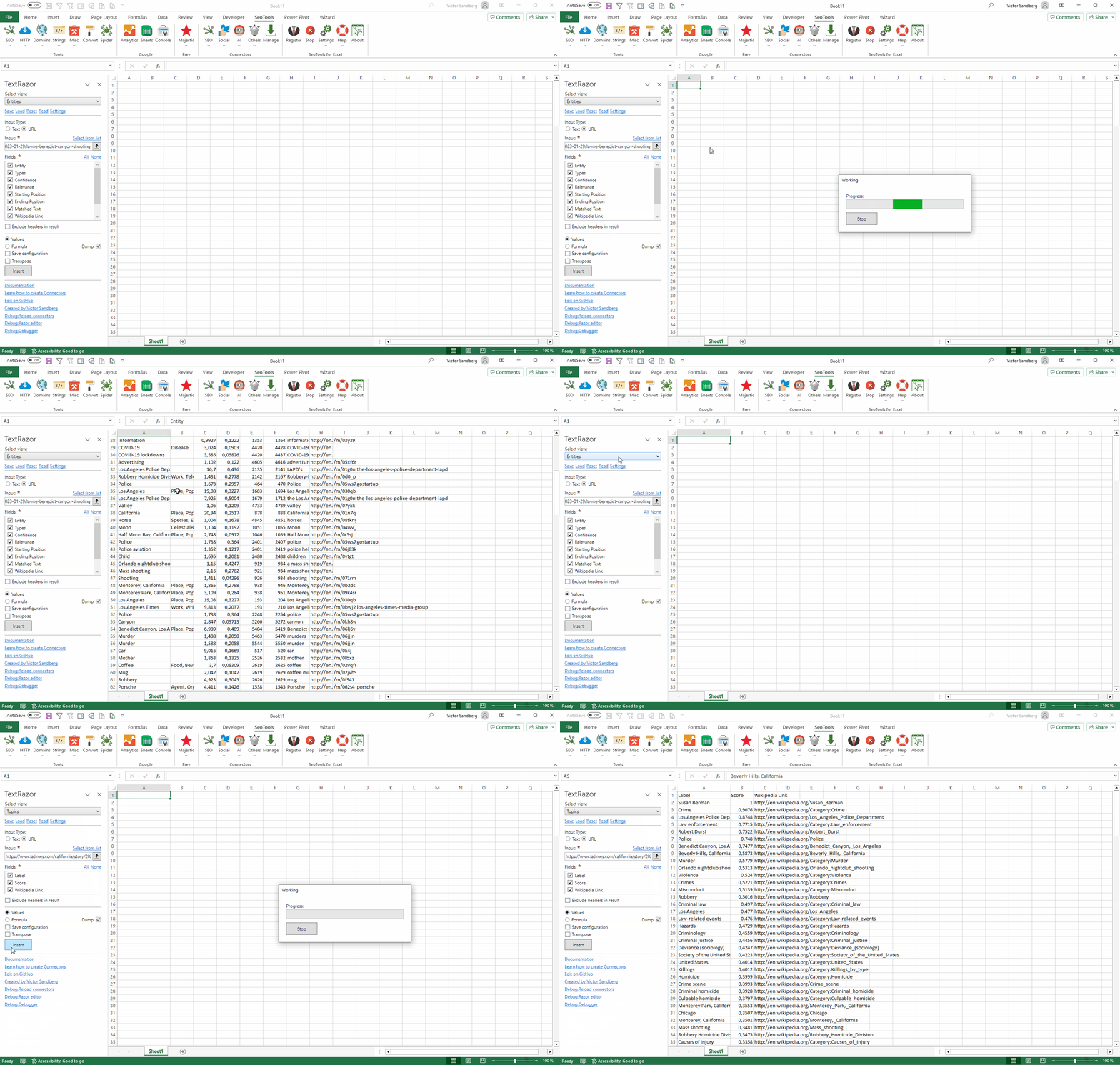
## Purpose
The TextRazor connector provides powerful Natural Language Processing (NLP) tools to help you with text analysis.
## Entities
- Entity
- Types
- Confidence
- Relevance
- Starting Position
- Ending Position
- Matched text
- Wikipedia Link
- Freebase Id
- CrunchBase Id
## Topics
- Label
- Score
- Wikipedia Link
## Words
- Stem
- Lemma
- Token
- Part of Speech
- Position
- Starting Position
- Ending Position
___
## Access
## Add from Manager
The TextRazor Connector is available in the **[Connectors Manager](/manage-connectors/)** in the top ribbon:

Head over to the **AI Category** and install TextRazor:

## API Key
[Sign up](https://www.textrazor.com/login) for an API key and paste the key in the Settings menu box.
___
## Contribute
This connector suite is open-sourced on [GitHub](https://github.com/nielsbosma/SeoTools-for-Excel-Connectors/blob/master/TextRazor.xml).
___
## See
#### Official Documentation
* [TextRazor API](https://www.textrazor.com/docs/rest)
#### Resources
* [Manager](/manage-connectors/)
---
# Thanks for installing SeoTools for Excel
URL: https://seotoolsforexcel.com/thanks-for-installing-seotools-for-excel/
Type: page
Published: 2015-11-14
Updated: 2019-05-19
Summary: Where to go next? Check out our documentation pages, blog and join our community forums.
## Where to go next
* [Documentation](/documentation/)
* [Blog](/blog/)
If you're completely new to Excel, it might be a good idea to get the grasp of the basics first - [this video](https://www.youtube.com/watch?v=0nbkaYsR94c&feature=youtu.be).
## Community
Join the [SeoTools Community](https://community.seotoolsforexcel.com) and get lightning fast help if you run into any issues.
---
# Access TikTok in Excel
URL: https://seotoolsforexcel.com/tiktok/
Type: page
Published: 2023-06-28
Updated: 2023-06-28
Summary: Extract metadata about Tiktok videos and users inside Excel.
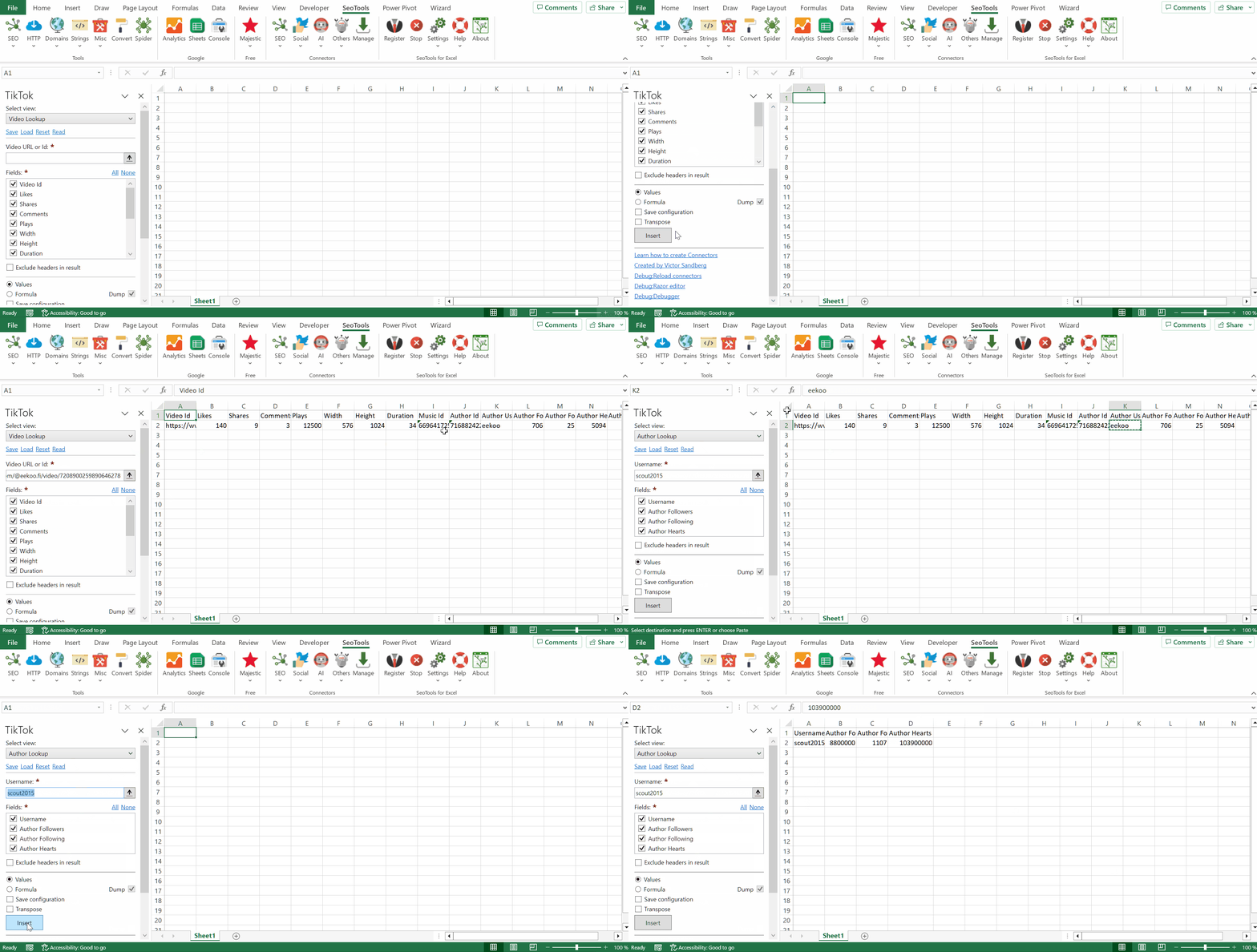
___
## Video Lookup
Returns metadata about a video. Accepts both video id and video URL. Available Metrics:
- Video Id
- Likes
- Shares
- Comments
- Plays
- Width
- Height
- Duration
- Music Id
- Author Id
- Author Username
- Author Followers
- Author Following
- Author Hearts
- Author Videos
- Author Likes
## User Lookup
Returns metadata about a user. Available Metrics:
- Username
- Followers
- Following
- Hearts
___
## Add from Manager
The TikTok Connector is available in the **[Connectors Manager](/manage-connectors/)** in the top ribbon:

Head over to the **Social Category** and install TikTok:

___
## Contribute
This connector suite is open-sourced on [GitHub](https://github.com/nielsbosma/SeoTools-for-Excel-Connectors/blob/master/TikTok.xml).
___
## See
#### Resources
* [Manager](/manage-connectors/)
---
# Access TimeZoneDB in Excel
URL: https://seotoolsforexcel.com/timezonedb/
Type: page
Published: 2017-03-19
Updated: 2020-02-28
Summary: SeoTools for Excel offers a user-friendly and effective method to convert and collect information about time zones in Excel
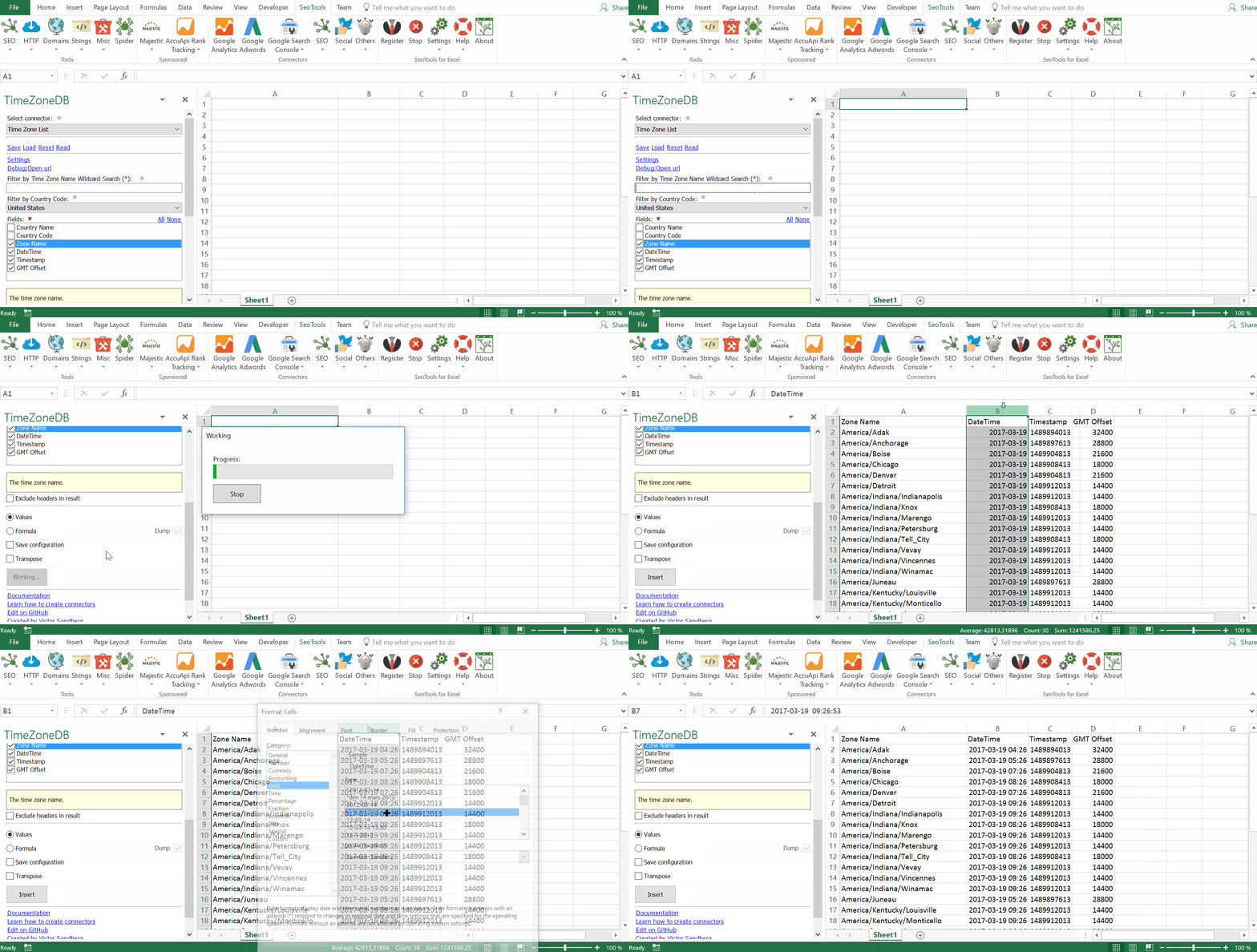
___
## Purpose
Fetches detailed statistics about the relationship between time zones.
## List
Extracts information about time zones. Optional filters:
- Country Code
- Wildcard search
## Convert
Extracts the relationship between two time Zones and the differences in time. Optional parameters:
- Historical date
## Lookup
Collects information about cities based on either Geo coordinates or Time zone. Optional parameters:
- Historical date
___
## Access
## Add from Manager
The TimeZoneDB Connector is available in the **[Connectors Manager](/manage-connectors/)** in the top ribbon:

Head over to the **GEO Category** and install TimeZoneDB:

To use the Connector you need a TimeZoneDB account.
1. Go to TimeZoneDB and [Register](https://timezonedb.com/register) your account.
2. Next, login and copy the API-key located under "Account Overview".
___
## Contribute
This connector suite is open-sourced on [GitHub](https://github.com/nielsbosma/SeoTools-for-Excel-Connectors/blob/master/TimeZoneDB.xml).
___
## See
#### Official Documentation
* [TimeZoneDB API](https://timezonedb.com/api)
#### Resources
* [Manager](/manage-connectors/)
---
# Access TinyURL in Excel
URL: https://seotoolsforexcel.com/tinyurl/
Type: page
Published: 2018-09-03
Updated: 2019-05-19
Summary: Takes a long URL and turn it into a relatively tiny URL. Use a formula to convert many links automatically in Excel.
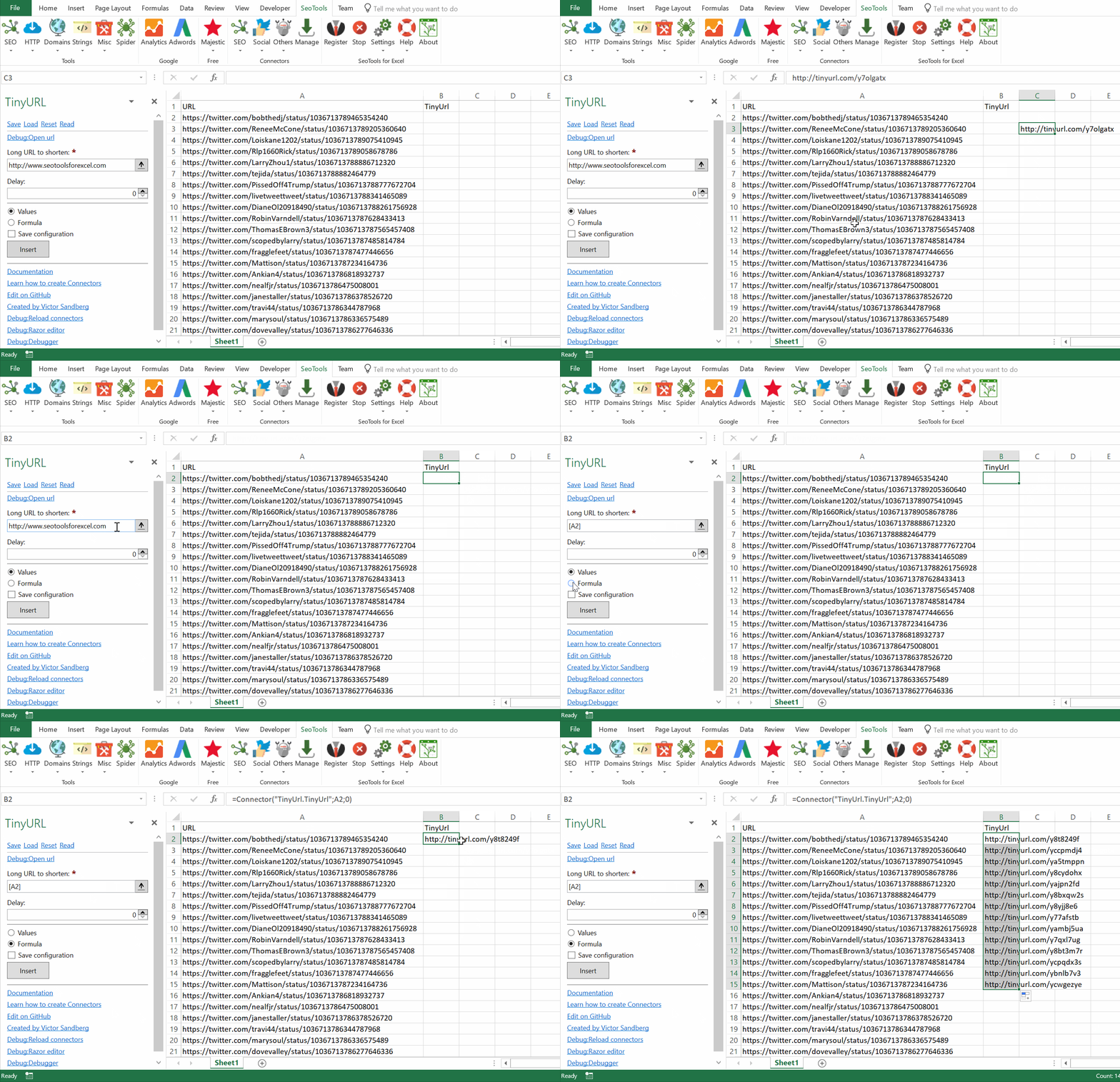
## Shorten URL
Takes a long URL and turn it into a relatively tiny URL.
=Connector("TinyUrl.TinyUrl(string input, int delay) : string
___
## Access
## Add from Manager
The TinyURL Connector is available in the **[Connectors Manager](/manage-connectors/)** in the top ribbon:

Head over to the **URL Shorteners** category and install TinyURL:
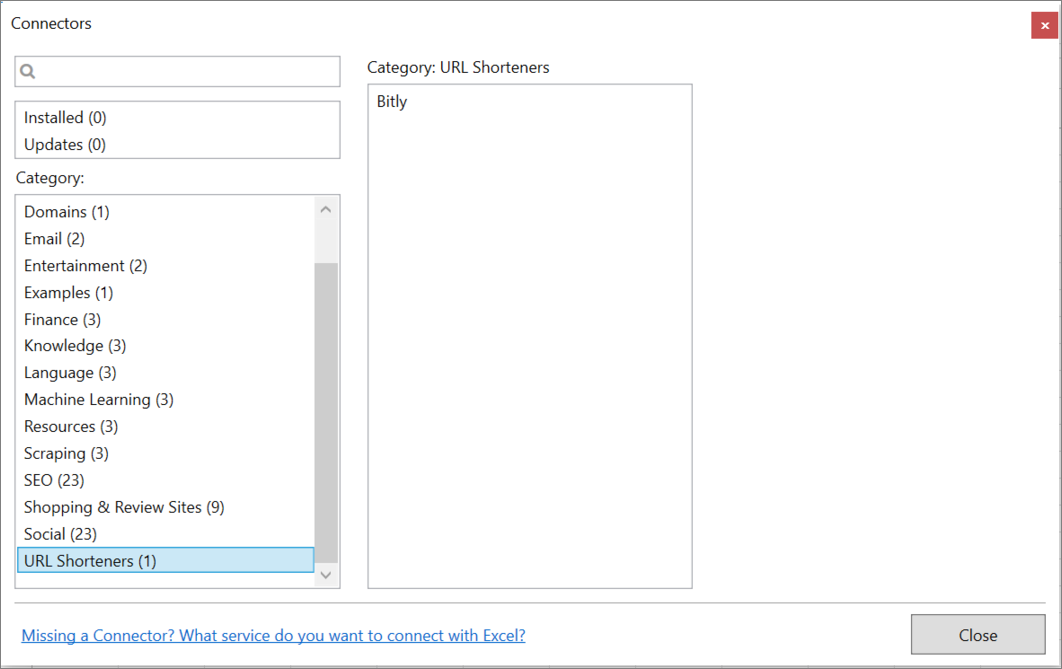
___
## Contribute
This connector suite is open-sourced on [GitHub](https://github.com/nielsbosma/SeoTools-for-Excel-Connectors/blob/master/TinyUrl.xml).
___
## See
#### Related Functions
* [Bitly](/bitly/)
#### Resources
* [Manager](/manage-connectors/)
---
# Access Trello in Excel
URL: https://seotoolsforexcel.com/trello/
Type: page
Published: 2018-03-28
Updated: 2019-05-19
Summary: SeoTools for Excel offers an effective method to analyze all your Trello data in Excel, including actions, boards, cards, lists, and members.
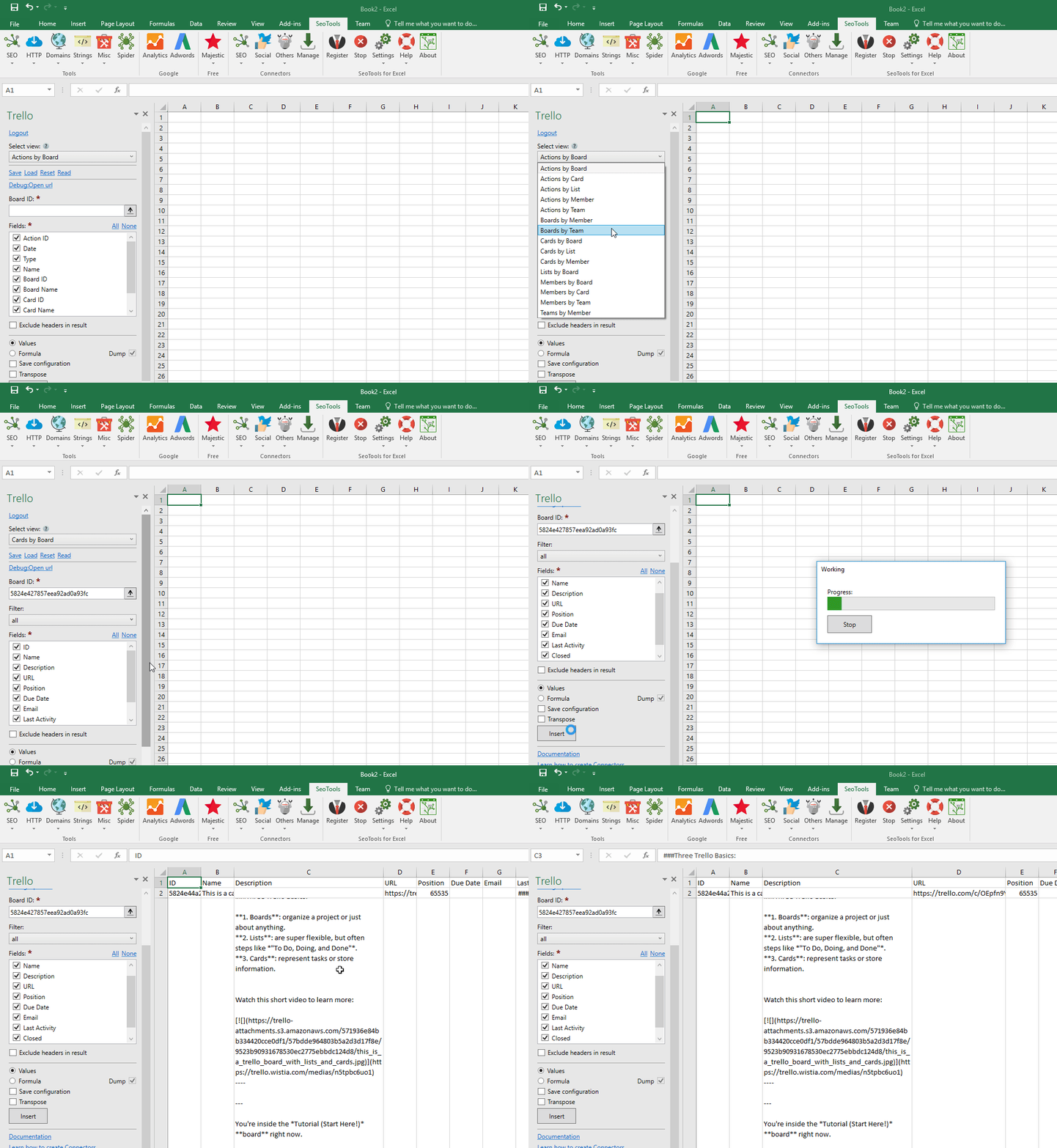
___
## Actions
* By board
* By card
* By list
* By member
## Boards
* By member
## Cards
* By board
* By list
* By member
* By search query
## Lists
* By board
## Members
* By board
* By card
* By search query
___
## Access
## Add from Manager
The Trello Connector is available in the **[Connectors Manager](/manage-connectors/)** in the top ribbon:

Head over to the **Productivity Category** and install Trello:

To use the Connector you need an account connected to Trello.
1. The Connector is located under the *Productivity* Category in SeoTools main ribbon. Click on Login.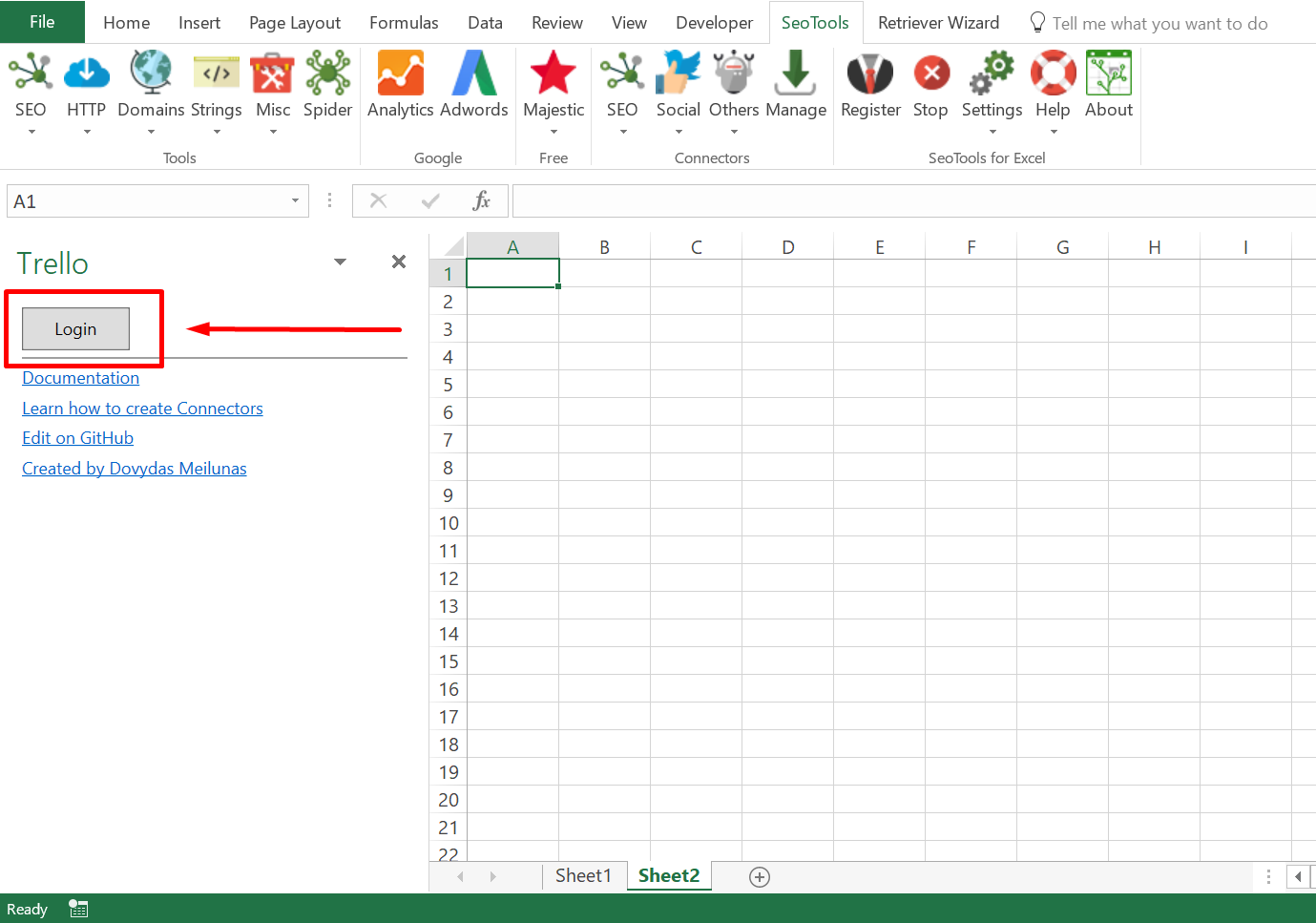
2. Select your preferred account and click on *Allow*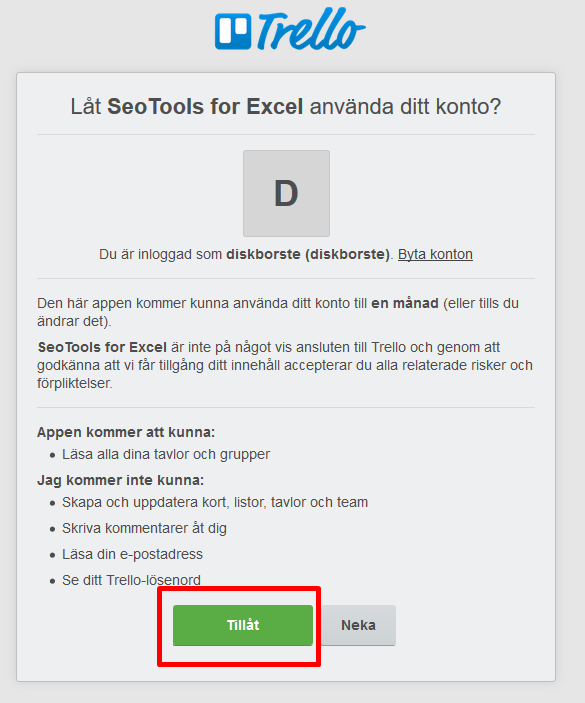
___
## Contribute
This connector suite is open-sourced on [GitHub](https://github.com/nielsbosma/SeoTools-for-Excel-Connectors/blob/master/Trello.xml).
___
## See
#### Official Documentation
* [Trello API](https://developers.trello.com/reference)
#### Resources
* [Manager](/manage-connectors/)
---
# Troubleshooting
URL: https://seotoolsforexcel.com/troubleshooting/
Type: page
Published: 2015-04-03
Updated: 2022-12-29
Summary: A guide for fixing possible issues when installing SeoTools for Excel.
## If SeoTools isn’t working, try these steps:
* Did you read our [Installation Guide](/installation/)?
* Makes sure you have the latest Microsoft .Net Framework installed on your computer. You need the "full" version.
* Restart your computer.
___
## Common Issues
* [No SeoTools tab in Excel — the add-in is installed but not enabled](/enable-seotools/)
* ["SeoTools for Excel ended prematurely"](https://seotoolsforexcel.com/ended-prematurely/)
* ["The file format and extension of 'SeoTools32.xll' don't match"](https://seotoolsforexcel.com/xll-dont-match/)
* ["The Ribbon/COM Add-in helper required by add-in SeoTools could not be
registered"](https://seotoolsforexcel.com/com-add-in-helper-could-not-be-registered/)
* ["Failed to register. Proxy Authentication Required / Protocol Violation"](https://seotoolsforexcel.com/407-proxy-authentication-required/)
* ["ManagementException:Not found"](https://seotoolsforexcel.com/managementexception-not-found/)
## Advanced
* [Enable diagnostics logging](/enable-diagnostics-logging/)
* [Enable debug mode](/enable-debug-mode/)
---
# Access Tumblr in Excel
URL: https://seotoolsforexcel.com/tumblr/
Type: page
Published: 2016-11-07
Updated: 2020-05-19
Summary: Use the Tumblr Connector to search and extract information about Tumblr bloggers and blog posts.
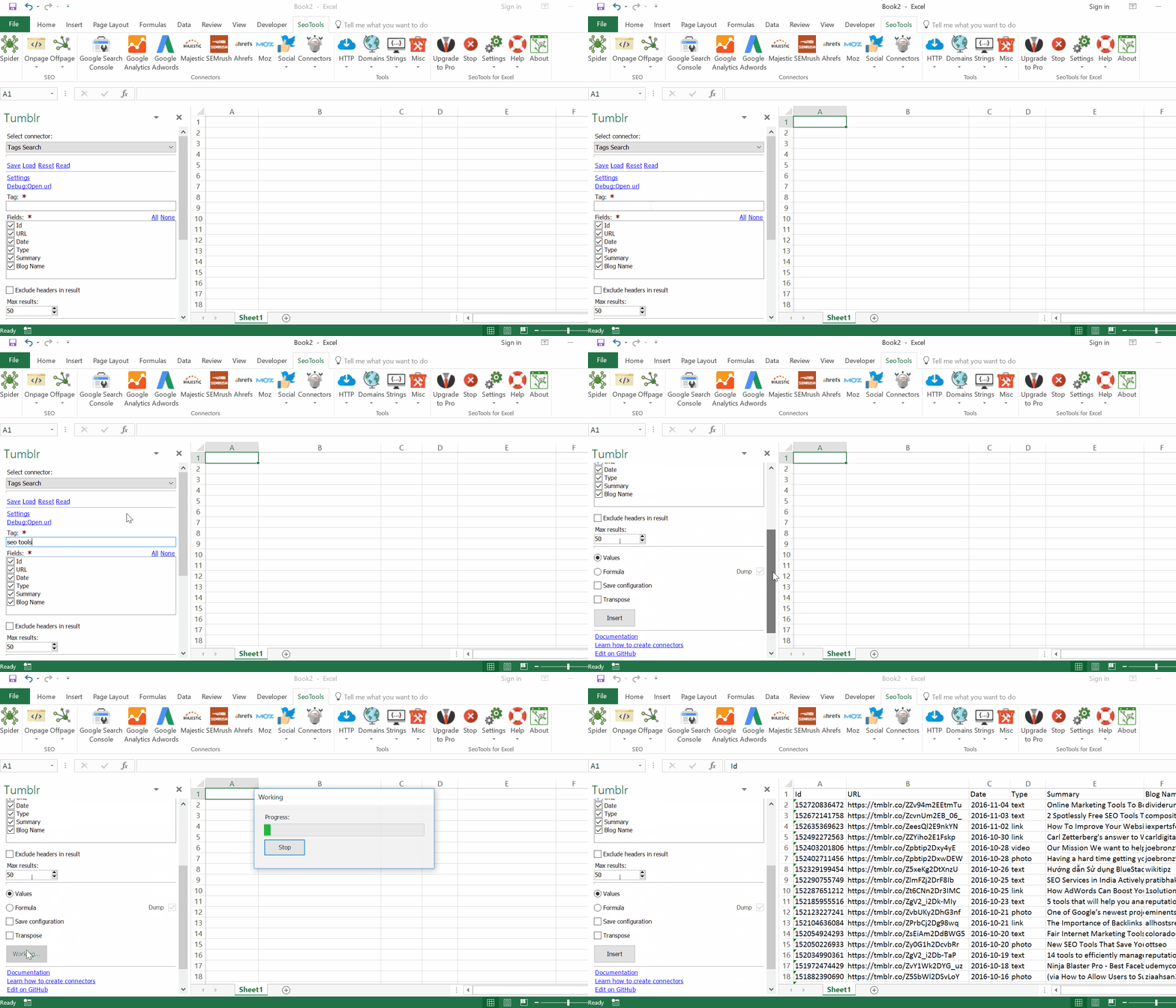
___
## Features
* **Blog Lookup** - Extract statistics about a specific blog under the Tumblr network. Available variables:
- *Url*
- *Title*
- *Description*
- *Total Posts*
- *Likes*
- *Twitter Url*
- *Last Updated*
* **Tags Search** - Extract a list of all Blog Posts matching a specific Tag. Available variables:
- *Post Id*
- *Url*
- *Date*
- *Type*
- *Summary*
- *Blog Name*
* **User Blogposts** - Extract all Posts created by a specific Blog. Filter by Tag option available.
___
## Contribute
This connector suite is open-sourced on [GitHub](https://github.com/nielsbosma/SeoTools-for-Excel-Connectors/blob/master/Tumblr.xml).
___
## See
#### Related Functions
* [Blogger](/blogger/)
---
# Access Twingly in Excel
URL: https://seotoolsforexcel.com/twingly/
Type: page
Published: 2018-07-11
Updated: 2019-05-19
Summary: SeoTools for Excel offers an effective method to search blog posts, count inbound links, authority and other metadata.
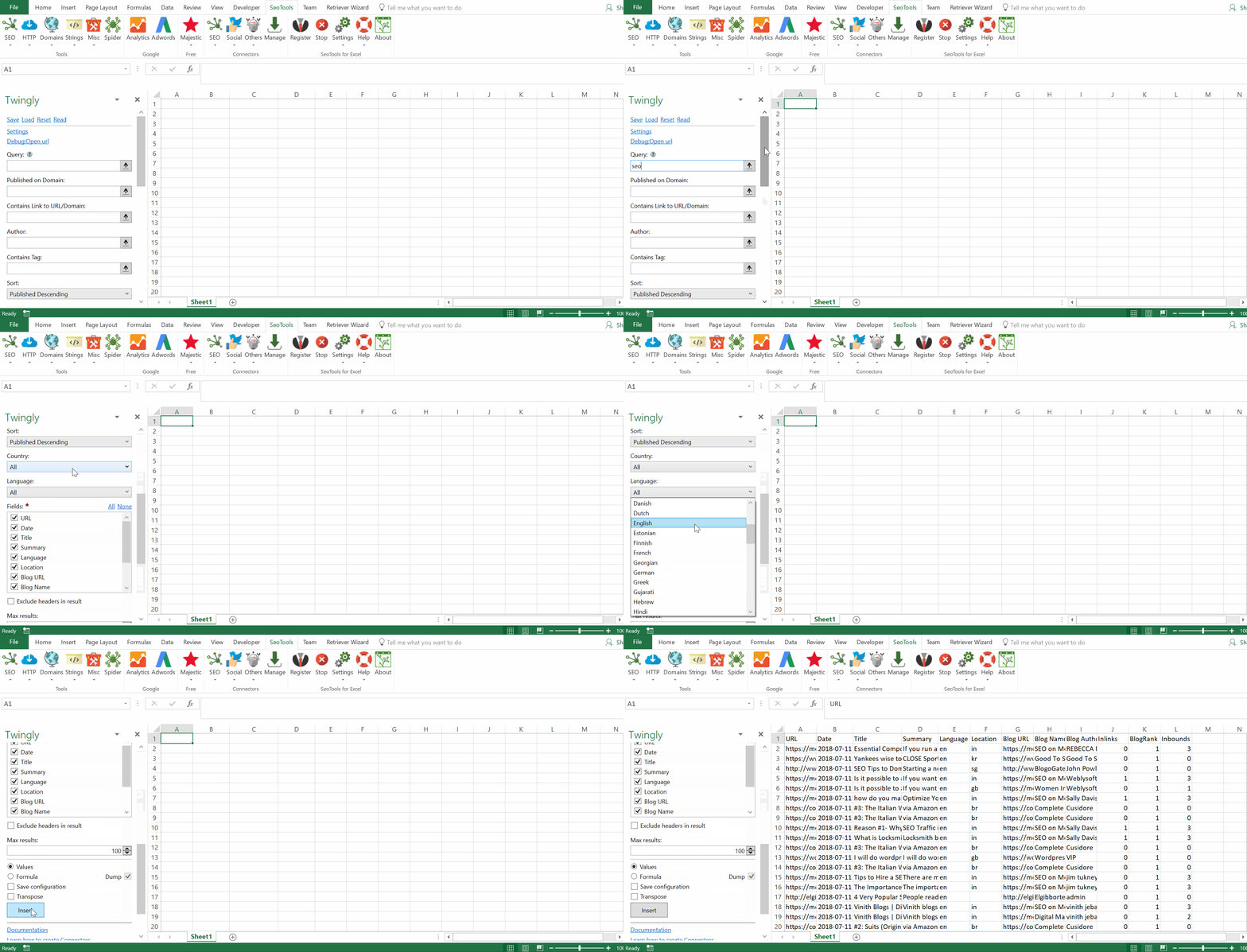
## Blog Archive Search
- **Available metrics**
- URL
- Date
- Title
- Summary
- Language
- Location
- Blog URL
- Blog Name
- Blog Author
- Inlinks Count
- Inbound Links Count
- Authority
- **Available filters**
- Query
- Date Selection (Start & End Date)
- Country
- Language
- Published on domain
- Contains link to URL/Domain
- Author
- Contains tag
- **Available Sort Options (Asc/Desc)**
- Published
- Inbound Links
- Twingly Rank
___
## Access
## Add from Manager
The Twingly Connector is available in the **[Connectors Manager](/manage-connectors/)** in the top ribbon:

Head over to the **Social Category** and install Twingly:

## Get API key
To use the Connector you need an API Key. [Sign-up](https://app.twingly.com/signup) for a free trial and try the connector.
___
## Contribute
This connector suite is open-sourced on [GitHub](https://github.com/nielsbosma/SeoTools-for-Excel-Connectors/blob/master/Twingly.xml).
___
## See
#### Official Documentation
* [Twingly Search API](https://developer.twingly.com/resources/search/)
#### Related Functions
* [Tumblr](/tumblr/)
#### Resources
* [Manager](/manage-connectors/)
---
# Access Twitch in Excel
URL: https://seotoolsforexcel.com/twitch/
Type: page
Published: 2018-02-25
Updated: 2023-06-27
Summary: SeoTools for Excel offers a user-friendly and effective method to search and collect data from Twitch straight to Excel within a matter of seconds.
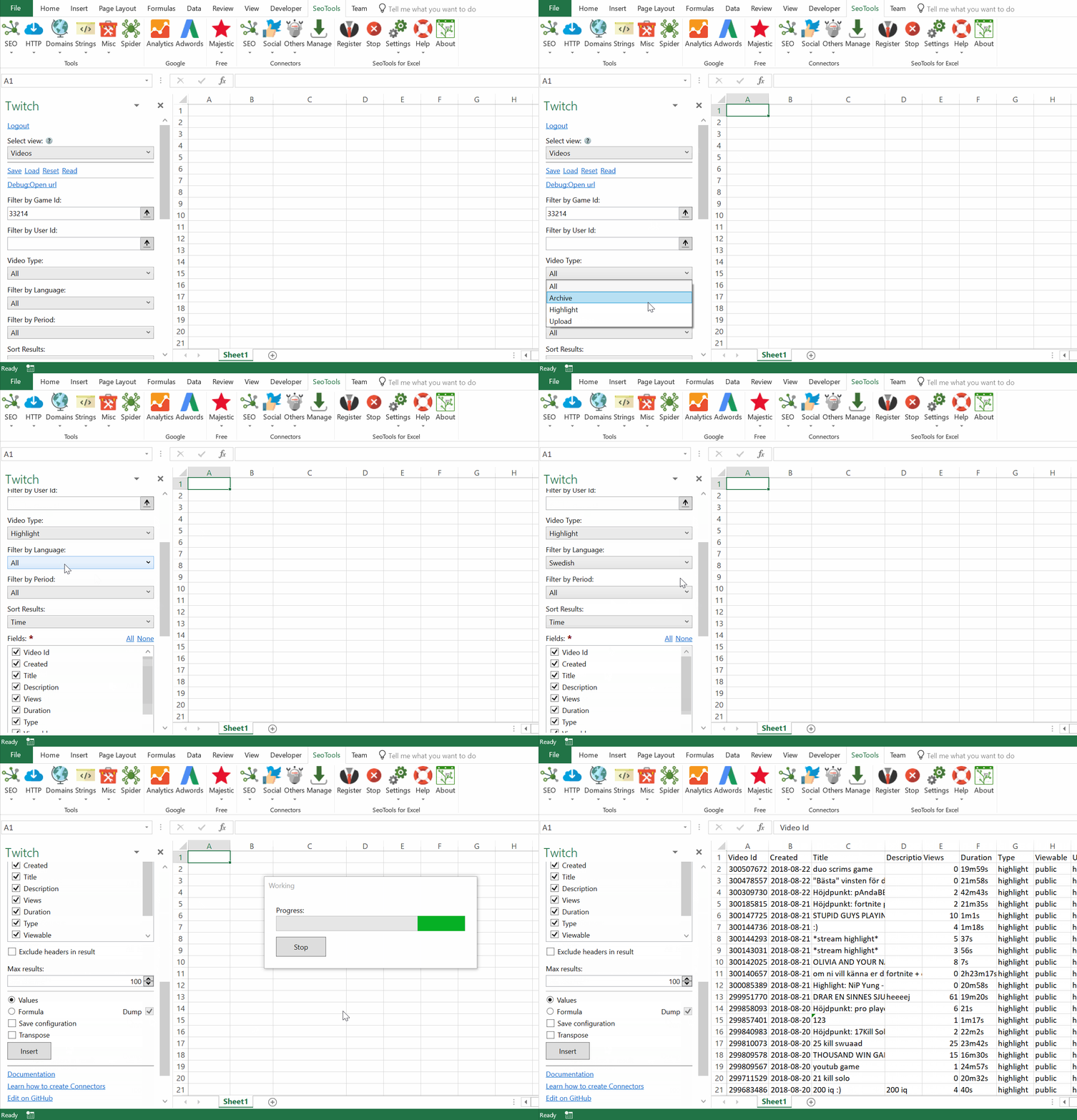
___
## Users
* **Lookup** - Get statistics and information about one or more users.
* **Followers** - List users following a particular user and when the relationship was established.
* **Followers Total Count** - Returns the total number of followers of an account.
* **Following** - List which users a user is following and when the relationship was established.
* **Following Total Count** - Returns the total number of followings of an account.
## Videos
* **Lookup** - Get statistics and information about one or more videos.
* **List** - List videos. Sort results by time, trending or views. Filter the results by:
- Game
- User
- Video type (Archive, Highlight, Upload)
- Language
- Period
## Games
* **Top Games** - Returns statistics about the most popular games.
## Streams
* **List** - List streams. Filter the results by:
- Game
- User
- Language
## Clips
* **Lookup** - Get statistics and information about one or more clips.
* **List** - List clips. Filter the results by:
- Game
- Broadcaster
___
## Access
## Add from Manager
The Twitch Connector is available in the **[Connectors Manager](/manage-connectors/)** in the top ribbon:

Head over to the **Social Category** and install Twitch:

___
## Contribute
This connector suite is open-sourced on [GitHub](https://github.com/nielsbosma/SeoTools-for-Excel-Connectors/blob/master/Twitch.xml).
___
## See
#### Official Documentation
* [Twitch API](https://dev.twitch.tv/docs)
#### Resources
* [Manager](/manage-connectors/)
---
# Access Twitter in Excel
URL: https://seotoolsforexcel.com/twitter/
Type: page
Published: 2015-10-04
Updated: 2021-07-13
Summary: SeoTools for Excel offers a user-friendly and effective method to search the Twitter network, collect metrics about tweets and users, straight to Excel
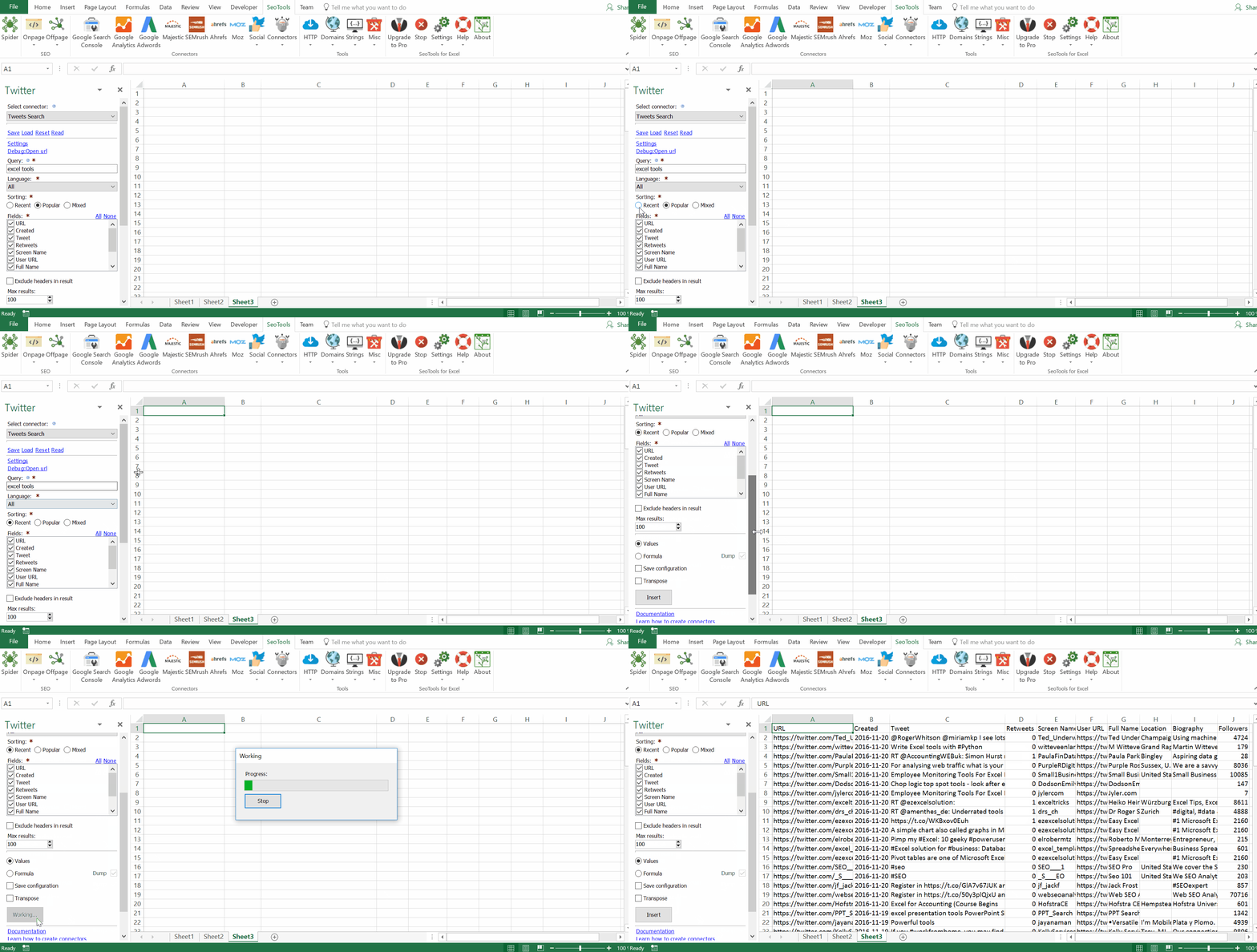
___
## Tweets
* **Lookup** - Extract detailed statistics about one or more tweets.
* **User Tweets** - Extract a list of all *tweets* posted by one or more users.
* **Retweets** - Extract up to 100 latest retweets of a particular tweet.
* **Search** - Search for tweets matching a specific query.
## Users
* **Lookup** - Extract detailed statistics about one or more users.
* **Search** - Search for Twitter accounts matching a specific query.
* **Followers** - Extract a list of all users *following* a specific Twitter account.
* **Following** - Extract a list of all users a specific Twitter account *follows*.
## Other
* **Friendships Lookup** - Extract information about the relationship between two users.
* **My Friendships** - Extract a list of up to 100 relationships between your personal account and other users.
* **Trends in Place** - Extract trends about a specific place based on the [WOE Id](https://en.wikipedia.org/wiki/WOEID).
___
## Contribute
This connector suite is open-sourced on [GitHub](https://github.com/nielsbosma/SeoTools-for-Excel-Connectors/blob/master/Twitter.xml).
___
## See
#### Official Documentation
* [Twitter API](https://developer.twitter.com/en/docs)
#### Related Functions
* [Twitter v2](/twitter2/)
* [Twitter Ads](/twitter-ads/)
* [Twitter Accounts](/twitter-accounts/)
---
# Twitter Accounts
URL: https://seotoolsforexcel.com/twitter-accounts/
Type: page
Published: 2019-05-18
Updated: 2019-05-19
Summary: TwitterAccount is a function of SeoTools for Excel that scrapes a given URL for Twitter accounts. Use Dump formula to extract all accounts on page.
```
=Connector("OnPageScrapers.TwitterAccount","https://seotoolsforexcel.com")
```
___
## Purpose
Scrapes the given URL for Twitter accounts.
___
## Dump
Combine the function with Dump() to extract all items.
___
## See
#### Related Functions
* [On-Page Connectors](/connectors-onpage/)
* [Social Meta Tags](/socialmetatags/)
* [Google AdSense Id](/googleadsenseid/)
* [Google Analytics Id](/googleanalyticsid/)
* [LinkedIn Accounts](/linkedin-accounts/)
* [Instagram Accounts](/instagram-accounts/)
* [Email](/email/)
---
# Access Twitter Ads in Excel
URL: https://seotoolsforexcel.com/twitter-ads/
Type: page
Published: 2017-03-19
Updated: 2021-07-13
Summary: SeoTools for Excel offers a user-friendly and effective method to collect data about your Twitter campaigns and ads straight to Excel
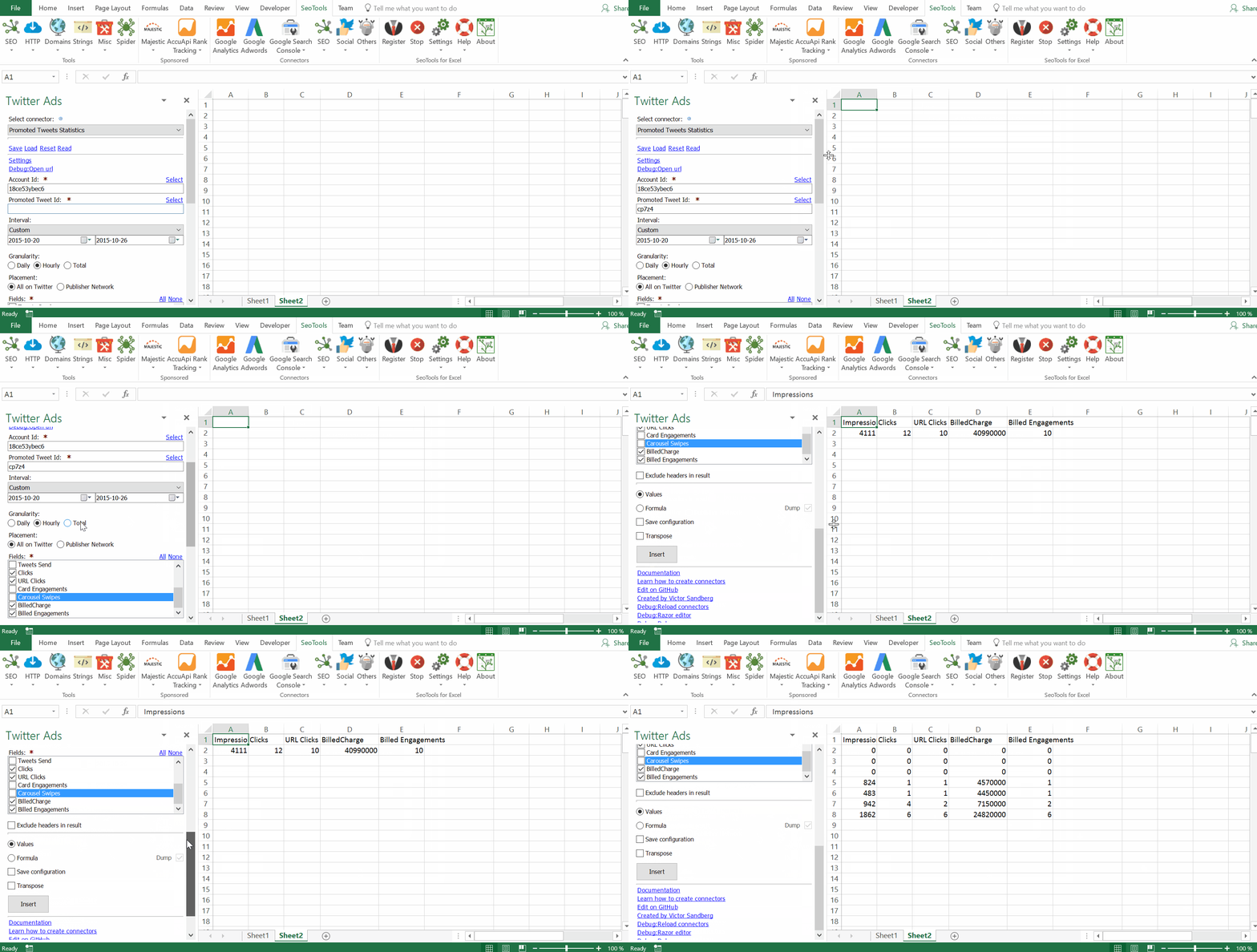
___
## Accounts
* **Statistics** - Extract summary statistics of the total engagement and impressions for all ads associated with your account.
## Campaigns
* **Statistics** - Extract detailed statistics about a specific campaign.
* **Overview** - Extract general information about a specific campaign. Sort results by:
- Created
- Updated
- Name
- Start Time
- End Time
- Bid Amount
___
## Ad groups
* **Statistics** - Extract detailed statistics about a specific ad group.
* **Overview** - Extract general information about a specific ad group. Sort results by:
- Created
- Updated
- Bid Amount
___
## Funding Instruments
* **Statistics** - Extract detailed statistics about a specific funding instrument.
* **Overview** - Extract general information about a specific funding instrument. Sort results by:
- Created
- Updated
- Start Time
- End Time
- Funded Amount
___
## Promoted Tweets
* **Statistics** - Extract detailed statistics about a specific promoted tweets.
* **Overview** - Extract general information about a specific promoted tweets. Sort results by:
- Created
- Updated
* **Promotable Tweets** - Extract a list of all tweets being considered promotable. Filter results by:
- Preferred Objective
- Promoted Tweets Only
___
## Filters
All statistic functions supports the following filters:
- Time Interval (Max 7 day interval)
- Placement
___
## Granularity
All statistic functions supports the granularity:
- Total
- Daily
- Hourly
___
## Contribute
This connector suite is open-sourced on [GitHub](https://github.com/nielsbosma/SeoTools-for-Excel-Connectors/blob/master/TwitterAds.xml).
___
## See
#### Official Documentation
* [Twitter Ads API](https://developer.twitter.com/en/docs/ads/general/overview)
#### Related Functions
* [Twitter](/twitter/)
* [Twitter v2](/twitter2/)
* [Twitter Accounts](/twitter-accounts/)
---
# Access Twitter v2 in Excel
URL: https://seotoolsforexcel.com/twitter2/
Type: page
Published: 2021-07-13
Updated: 2021-07-13
Summary: SeoTools allows you to search the Twitter network, collect metrics about tweets and users, including quotes and replies, straight to Excel
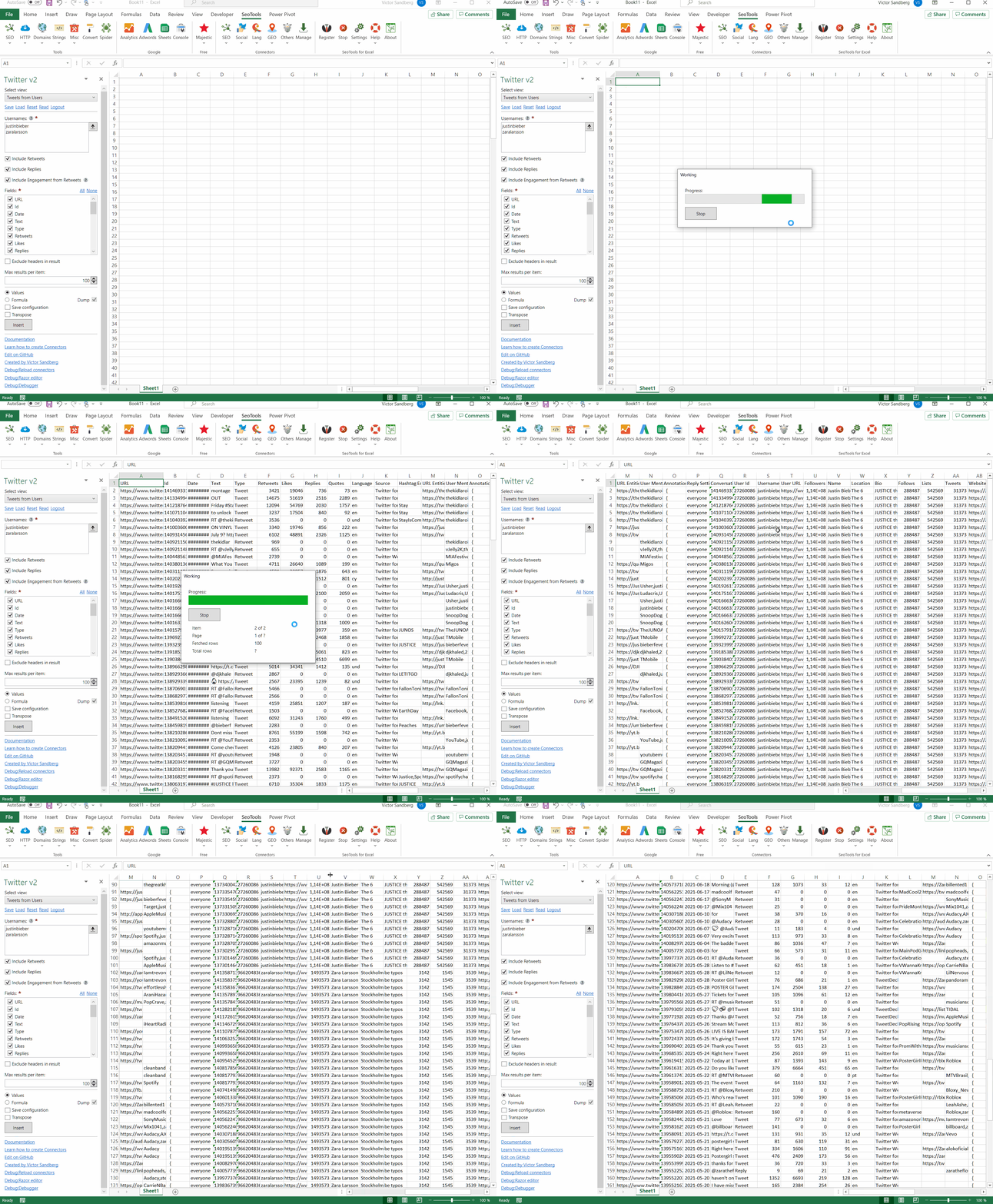
___
## What's new?
The second version of the Twitter API includes additional metadata which reflects the new Twitter functionality added in recent years. For example number of quote tweets, number of replies, and more.
## Tweets
* **Lookup** - Extract detailed statistics about one or more tweets.
* **From Users** - Extract a list of all *tweets* posted by a specific Twitter account.
* **Search** - Search for tweets matching a specific query.
* **Mentioning users** - Extract a list of all *tweets* mentioning a specific user.
## Users
* **Lookup** - Extract detailed statistics about one or more users.
* **Followers** - Extract a list of all users *following* a specific Twitter account.
* **Following** - Extract a list of all users a specific Twitter account *follows*.
## Friendships
* **Lookup** - Extract information about the relationship between two users.
* **My Friendships** - Extract a list of up to 100 relationships between your personal account and other users.
___
## Contribute
This connector suite is open-sourced on [GitHub](https://github.com/nielsbosma/SeoTools-for-Excel-Connectors/blob/master/Twitter2.xml).
___
## See
#### Official Documentation
* [Twitter API v2](https://developer.twitter.com/en/docs/twitter-api)
#### Related Functions
* [Twitter](/twitter/)
* [Twitter Ads](/twitter-ads/)
---
# Access uClassify in Excel
URL: https://seotoolsforexcel.com/uclassify/
Type: page
Published: 2015-10-04
Updated: 2023-06-27
Summary: SeoTools for Excel offers a user-friendly and effective method to analyze texts with uClassify and machine learning classifiers
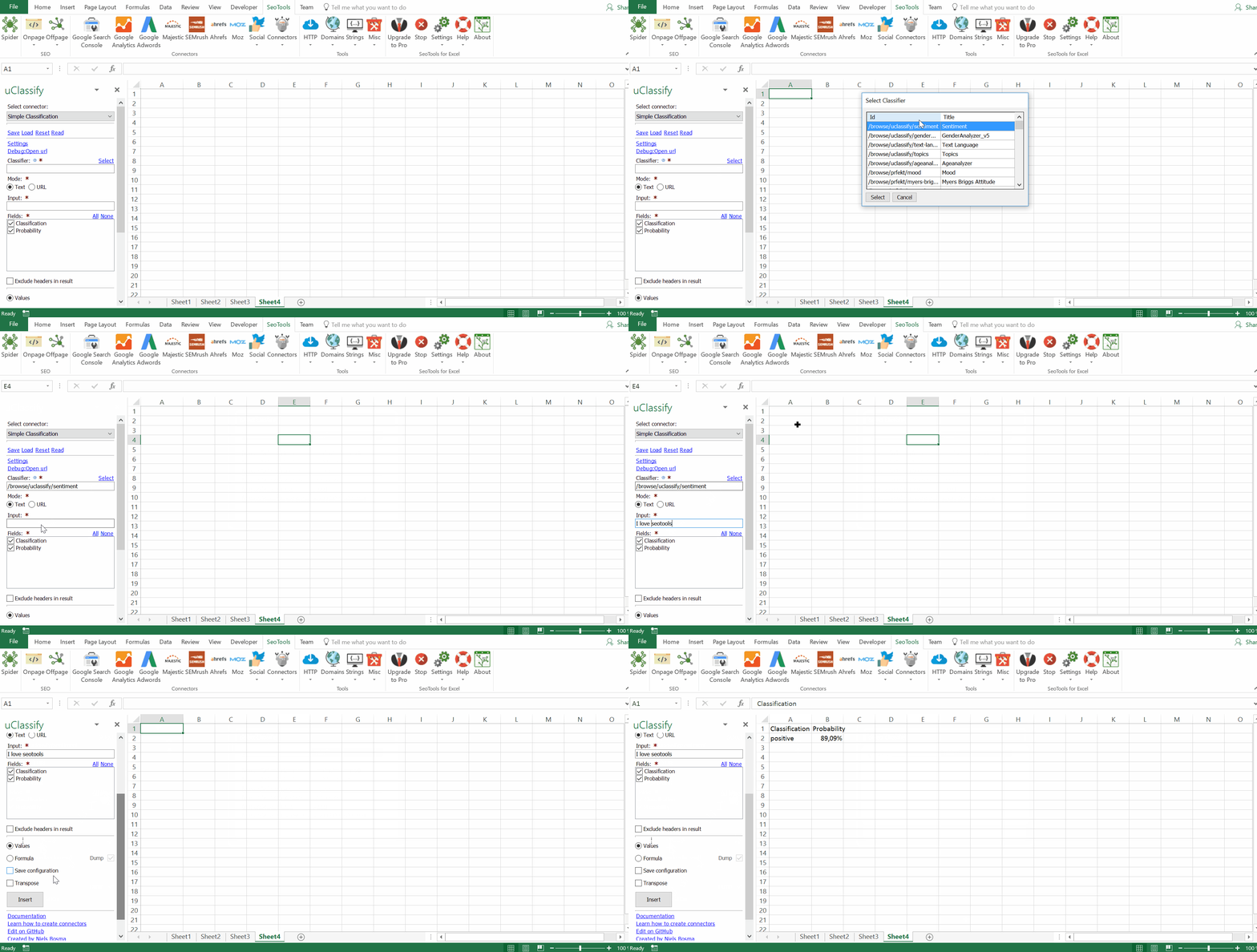
___
## Features
* **Classification**
* Sentiment
* Age Analyzer
* Text Language
* Topics
* Mood
* Tonality
* And many [more](https://www.uclassify.com/browse)...
* **Probability**
___
## Access
## Add from Manager
The uClassify Connector is available in the **[Connectors Manager](/manage-connectors/)** in the top ribbon:

Head over to the **AI Category** and install uClassify:

## Get API keys
To use the uClassify Connector you need API keys.
1. [Register](https://www.uclassify.com/account/register) an account.
2. Go to Api keys in the menu.
3. Copy the **Read** key and use it with SeoTools.
___
## Contribute
This connector suite is open-sourced on [GitHub](https://github.com/nielsbosma/SeoTools-for-Excel-Connectors/blob/master/uClassify.xml).
___
## See
#### Official Documentation
* [uClassify API](https://www.uclassify.com/docs#apidocs)
#### Related Functions
* [Watson Natural Language](/watson-nl/)
* [Google Natural Language](/google-nl/)
* [Microsoft Text Analytics](/microsoft-text-analytics/)
#### Resources
* [Manager](/manage-connectors/)
---
# Uninstalling SeoTools
URL: https://seotoolsforexcel.com/uninstalling-seotools/
Type: page
Published: 2019-05-18
Updated: 2019-05-18
Summary: We're sorry to see you go! If you have thirty seconds to spare, please let us know why SeoTools wasn't working out for you.
We're sorry to see you go! If you have thirty seconds to spare, please let us know why SeoTools wasn't working out for you by filling out [this short form](https://docs.google.com/forms/d/e/1FAIpQLSc4KBngU9WGLM1cibXpf5YiL0UTBEMokp623CnfiBNp2Ye2PA/viewform?c=0&w=1).
#### Removing SeoTools from Excel manually
Under "Options" > "Add-Ins", "Manage" "Excel Add-ins" and "COM Add-ins" where you remove any references to SeoTools. Restart Excel.
---
# UnshortUrl
URL: https://seotoolsforexcel.com/unshorturl/
Type: page
Published: 2015-03-29
Updated: 2020-03-25
Summary: Identifies the URL of the final location of any link as a formula in Excel with SeoTools for Excel.
```
=UnshortUrl(string shortenedUrl) : string
```
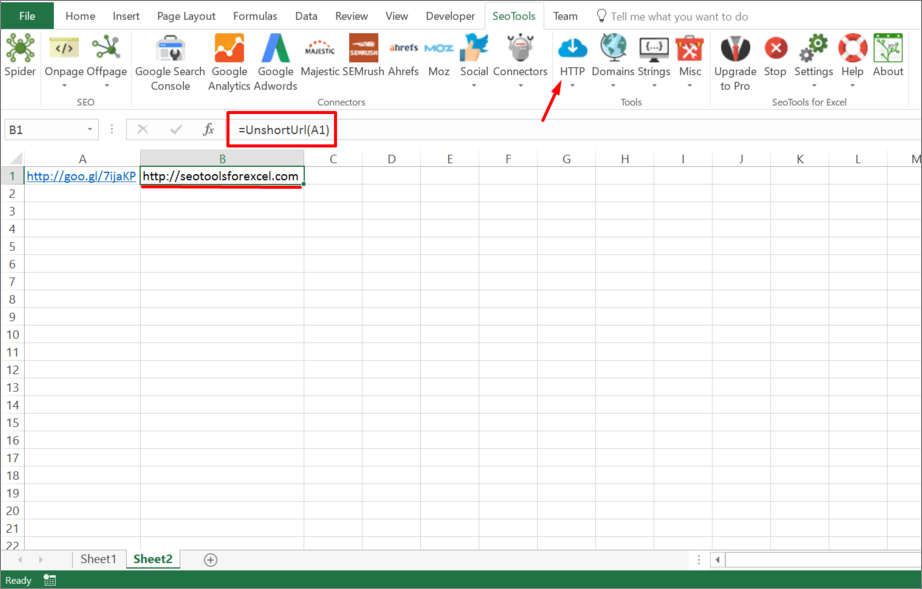
___
## Purpose
Traverses HTTP redirects until final location is found.
___
## See
#### Related Functions
* [RedirectCount](/redirectcount/)
* [RedirectList](/redirectlist/)
* [HtmlCanonical](/htmlcanonical/)
---
# Access Urban Dictionary in Excel
URL: https://seotoolsforexcel.com/urban-dictionary/
Type: page
Published: 2017-03-19
Updated: 2019-05-19
Summary: SeoTools for Excel offers a way to collect information about words, terms, and expressions from the Urban Dictionary database straight to Excel
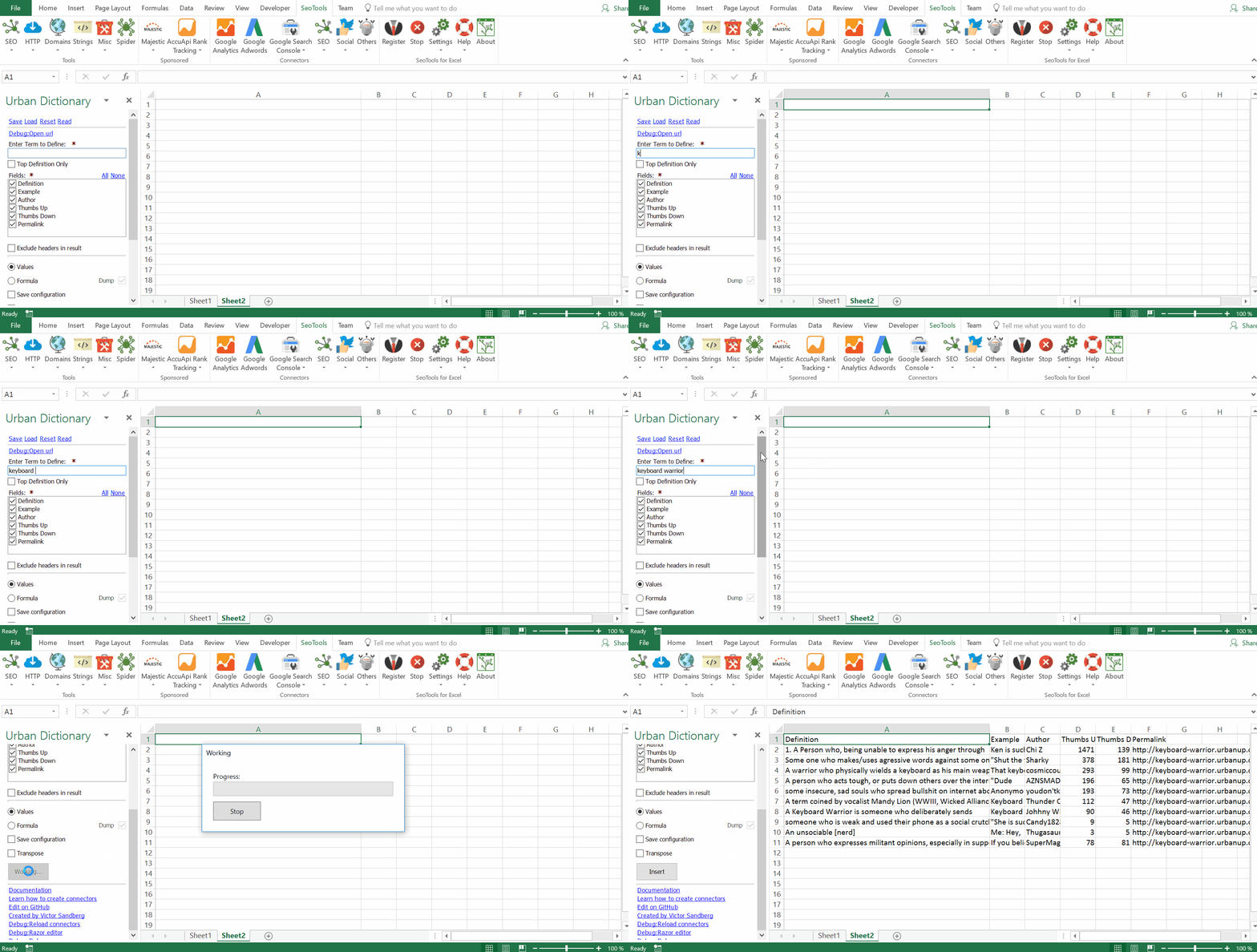
## Purpose
Collects information about words, terms, and expressions from the Urban Dictionary database.
Available metrics:
- Definition
- Example
- Author
- Thumbs Up
- Thumbs Down
- Permalink
Check the `Top Definition Only` box if you only want the definition which has received most thumbs up. Useful when using formula mode and extracting definitions for a list of inputs.
___
## Access
## Add from Manager
The Urban Dictionary Connector is available in the **[Connectors Manager](/manage-connectors/)** in the top ribbon:

Head over to the **Language Category** and install Urban Dictionary:

___
## Contribute
This connector suite is open-sourced on [GitHub](https://github.com/nielsbosma/SeoTools-for-Excel-Connectors/blob/master/UrbanDictionary.xml).
___
## See
#### Related Functions
* [Wikipedia](/wikipedia/)
#### Resources
* [Manager](/manage-connectors/)
---
# UrlDecode
URL: https://seotoolsforexcel.com/urldecode/
Type: page
Published: 2015-03-29
Updated: 2019-05-19
Summary: URL Decoding of strings as a function in SeoTools for Excel. Formula allows you to decode a list of URLs.
```
=UrlDecode(string input) : string
```
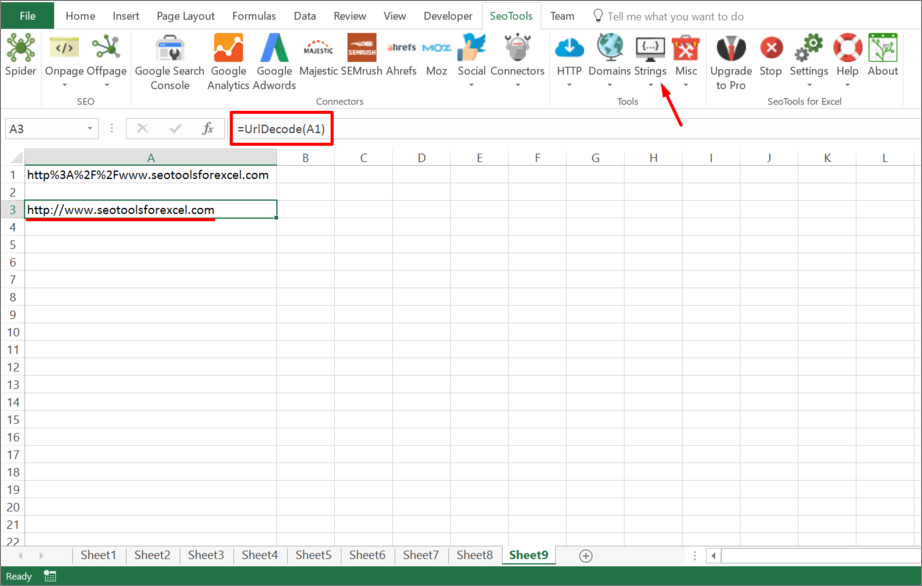
___
## Purpose
Converts a string that has been encoded for transmission in a URL into a decoded string.
____
## See
#### Related Functions
* [UrlEncode](/urlencode/)
---
# UrlEncode
URL: https://seotoolsforexcel.com/urlencode/
Type: page
Published: 2015-03-29
Updated: 2019-05-19
Summary: URL Encoding of strings as a function in SeoTools for Excel. Formula allows you to encode a list of URLs.
```
=UrlEncode(string input) : string
```
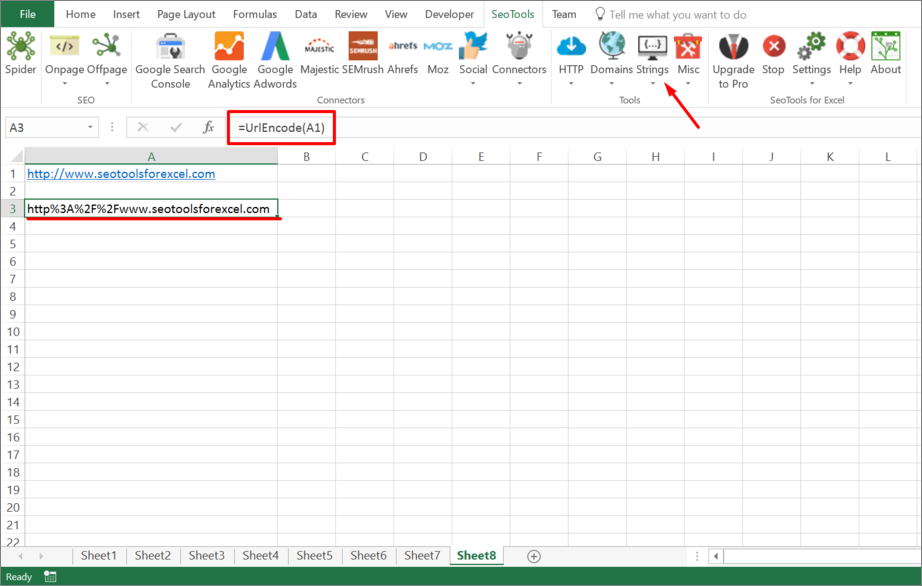
___
## Purpose
Encodes a URL string.
___
## See
#### Related Functions
* [UrlDecode](/urldecode/)
---
# UrlProperty
URL: https://seotoolsforexcel.com/urlproperty/
Type: page
Published: 2015-03-29
Updated: 2020-02-29
Summary: Use UrlProperty to extract properties such as domain, host, tld, registrar, query parameters as a function in Seotools for Excel
```
=UrlProperty(
string url,
string property,
string queryParam (optional),
string queryValue (optional)
) : string
```
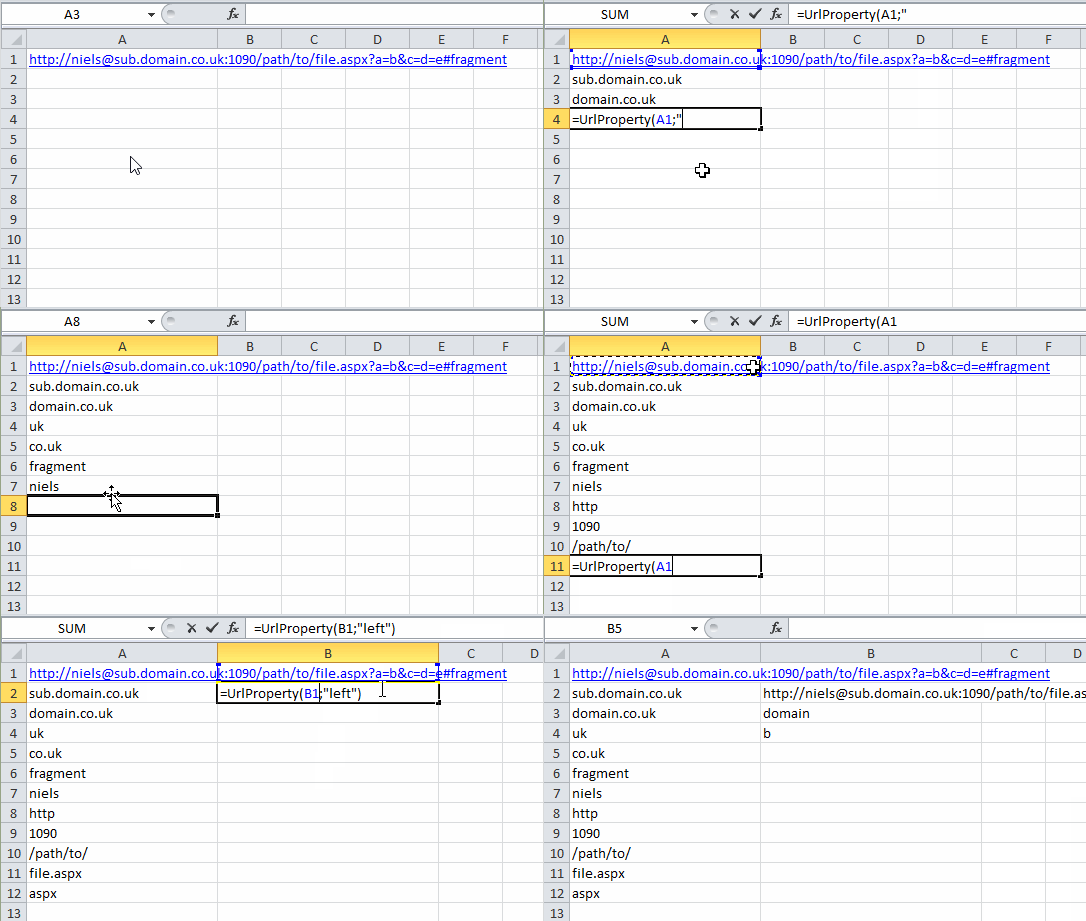
___
## Purpose
Returns property of an URL.
___
## Examples
In the following examples this url is used as reference A1:
`https://niels@sub.domain.co.uk:1090/path/to/file.aspx?a=b&c=d=e#fragment`
#### Absolute
Returns the absolute url. If the url is misspelled, i.e. `htp:/mydomain.com` this is corrected.
=UrlProperty("domain.com","absolute") =>
"http://domain.com"
=UrlProperty("https://mydomain.com","absolute") =>
"https://domain.com"
=UrlProperty(A1,"absolute") =>
"https://niels@sub.domain.co.uk:1090/path/to/
file.aspx?a=b&c=d=e#fragment"
#### Host
Returns the host of the url.
=UrlProperty(A1,"host") => "sub.domain.co.uk"
#### Domain
Returns the domain of the url. UrlProperty is aware that some top level domain have second level domains (such as co.uk).
=UrlProperty(A1,"domain") => "domain.co.uk
=UrlProperty("sub.domain.com","domain") => "domain.com"
#### Origin
Returns the origin of the url (schema + port)
=UrlProperty(A1,"origin") => "https://sub.domain.co.uk"
#### Tld
Returns the top level domain of the url.
=UrlProperty(A1,"tld") => "uk"
#### Registrar
Returns the second level domain if applicable together with top level domain.
=UrlProperty(A1,"registrar") => "co.uk"
=UrlProperty("mydomain.com","registrar") => "com"
#### Fragment
Returns the fragment (location within a resource) of the url.
=UrlProperty(A1,"fragment") => "fragment"
#### User
Returns the user information of the url.
=UrlProperty(A1,"user") => "niels"
#### Scheme
Returns the scheme of the url.
=UrlProperty(A1,"scheme") => "http"
#### Port
Returns the port of the url.
=UrlProperty(A1,"port") => "1090"
#### Path
Returns the path referenced in the url if applicable.
=UrlProperty(A1,"path") => "/path/to/"
#### File
Returns the file name referenced in the url if applicable.
=UrlProperty(A1,"file") => "file.aspx"
#### Extension
Return the extension of the file referenced in the url if applicable.
=UrlProperty(A1,"extension") => "aspx"
#### Left
Returns the *left part* for the url.
UrlProperty("https://seotoolsforexcel.com/connectors?query=value";"left")
=>https://seotoolsforexcel.com/connectors
#### Name
Returns the name part of the domain.
=UrlProperty("https://seotoolsforexcel.com","name")
=>"seotoolsforexcel"
___
## QueryParam
If no queryParam is specified the entire querystring is returned. Otherwise returns the value of specified query parameter.
=UrlProperty(A1,"query","a") => "b"
=UrlProperty(A1,"query","c") => "d"
=UrlProperty(A1,"query","x") => ""
Adding a fourth parameter queryValue with property ´query´ allows you to set the queryValue of a queryParam in an url.
=UrlProperty("http://domain.com/Default.aspx?a=b&foo=x"
,"query","foo","bar")
=> "https://domain.com/Default.aspx?a=b&foo=bar"
___
## Depth
Returns the "depth" of the path in the url.
=UrlProperty("https://seotoolsforexcel.com/","depth") => 0
=UrlProperty("https://seotoolsforexcel.com/","depth") => 0
=UrlProperty("https://seotoolsforexcel.com/foo","depth") => 1
=UrlProperty("https://seotoolsforexcel.com/foo/","depth") => 1
=UrlProperty("https://seotoolsforexcel.com/foo/bar","depth") => 2
=UrlProperty("https://seotoolsforexcel.com/foo/bar/","depth") => 2
____
## See
#### Cookbook
* [UrlProperty.xlsx](https://raw.githubusercontent.com/nielsbosma/SeoTools-for-Excel-Cookbooks/master/Functions/UrlProperty.xlsx)
---
# Count URL Shares in Excel
URL: https://seotoolsforexcel.com/urlshares/
Type: page
Published: 2016-11-17
Updated: 2019-05-19
Summary: SeoTools for Excel offers a user-friendly way to collect the shares count for thousands of URLs from Facebook, LinkedIn, Google+, Pinterest
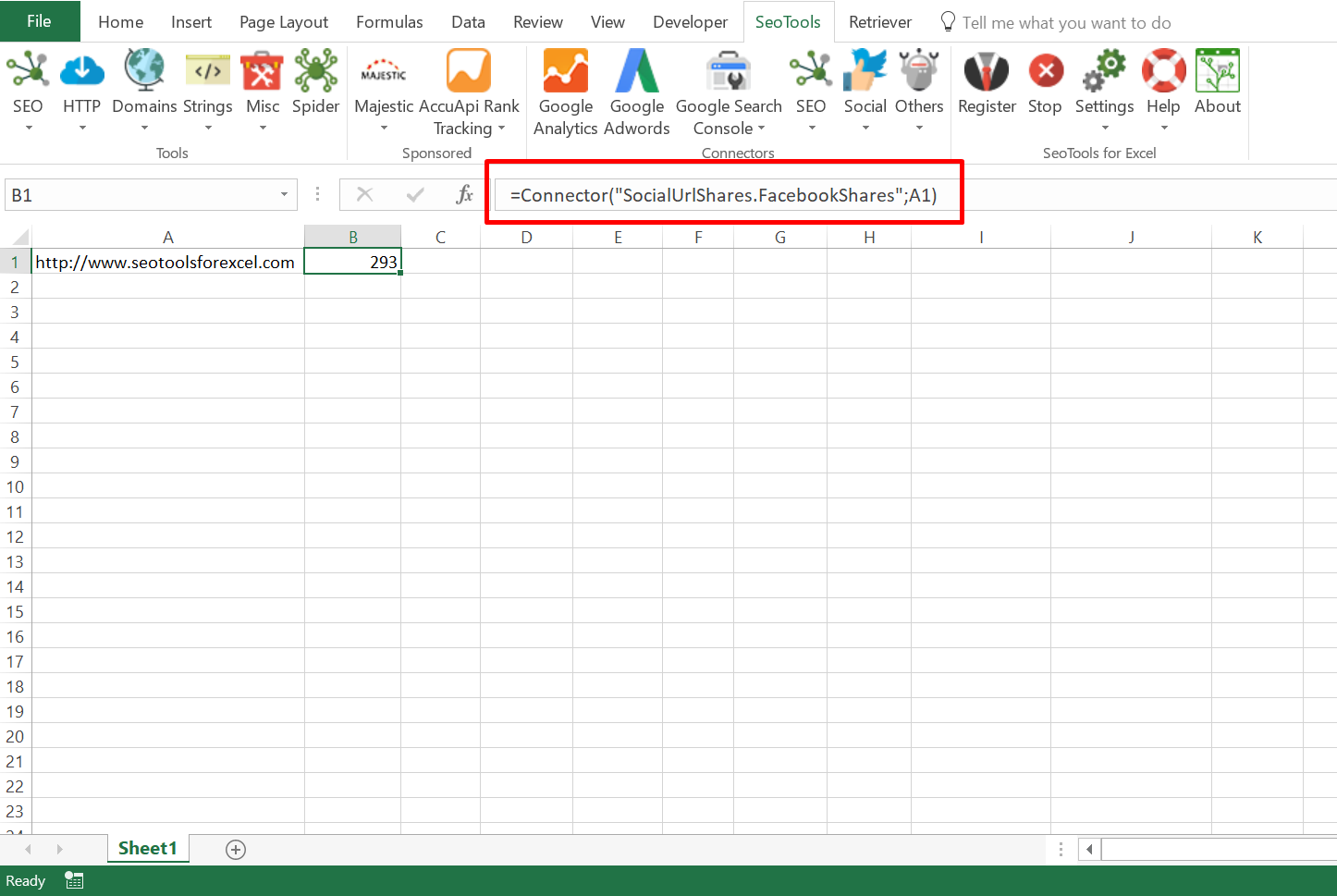
___
## Purpose
Fetches the Share Count from various Social Media Platforms.
____
## Available Types:
**Buffer Shares**
=Connector("SocialUrlShares.BufferShares",URL)
**Facebook Shares**
=Connector("SocialUrlShares.FacebookShares",URL)
**Pinterest Pins**
=Connector("SocialUrlShares.PinterestPinned",URL)
**StumbleUpon Stumbles**
=Connector("SocialUrlShares.StumbleUponStumbles",URL)
**VK Shares**
=Connector("SocialUrlShares.VKShares",URL)
____
## Contribute
This connector suite is open-sourced on [GitHub](https://github.com/nielsbosma/SeoTools-for-Excel-Connectors/blob/master/SocialUrlShares.xml).
___
## See
#### Related Functions
* [SocialMetaTags](/socialmetatags/)
---
# Access Uservoice in Excel
URL: https://seotoolsforexcel.com/uservoice/
Type: page
Published: 2018-11-07
Updated: 2019-05-19
Summary: Integrate your Uservoice account with Excel and keep track of your customer opinions. Search and list suggestions, users, comments, supporters and forums.
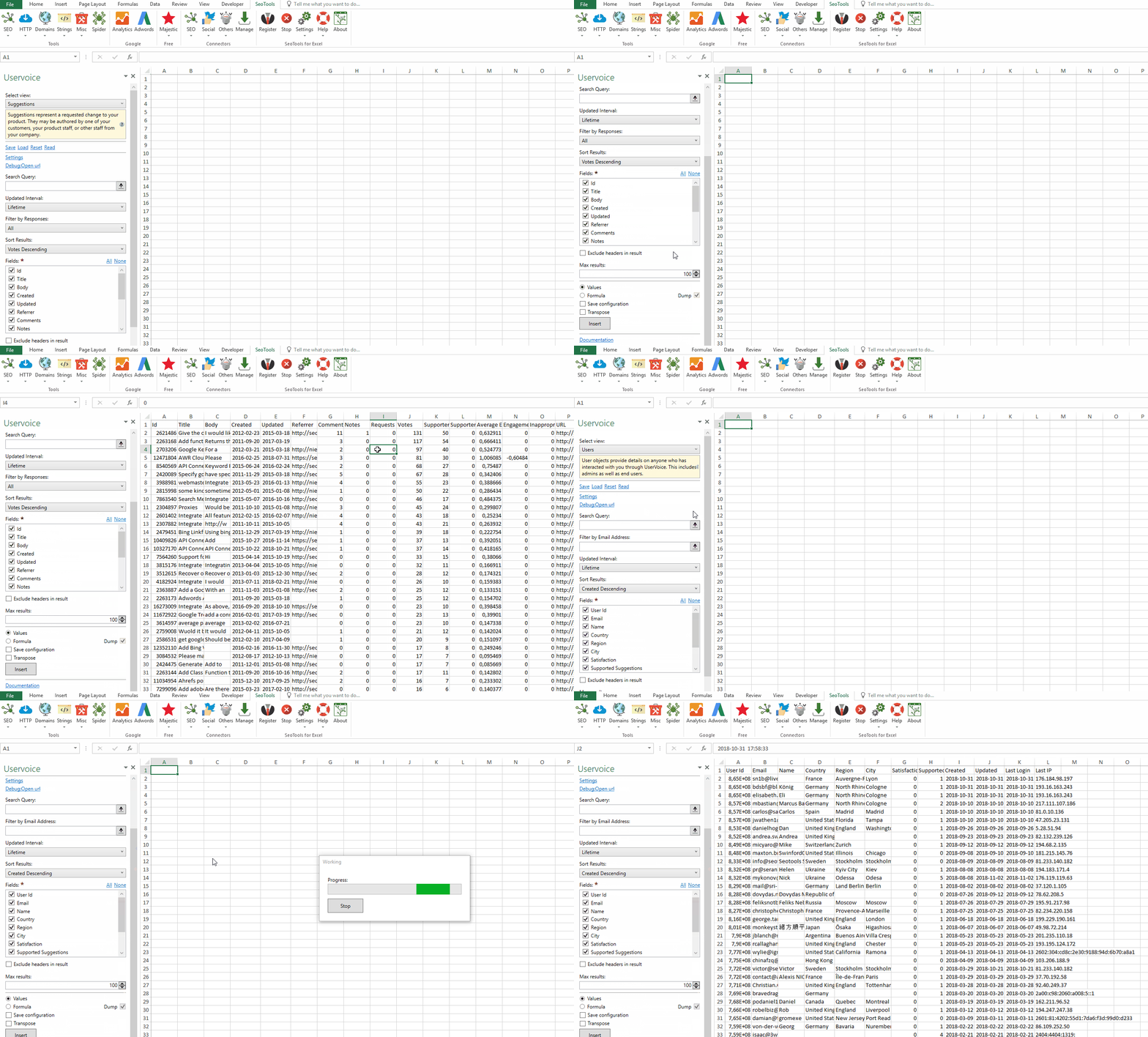
## Suggestions
Suggestions represent a requested change to your product. They may be authored by one of your customers, your product staff, or other staff from your company.
##### Options:
- **Search Query** - Filter results based on a query.
- **Updated Interval** - Filter for records within an period.
- **Responses** - Filter with response or without response.
- **Sort** - Sort results in descending or ascending order based on various types.
##### Available metrics:
- Title
- Body
- Created
- Updated
- Referrer
- Comments
- Notes
- Requests
- Votes
- Supporters
- Supporters Satisfaction Score
- Average Engagement
- Engagement Trend
- Inappropriate Flags
- URL
## Supporters
The existence of the supporter indicates that the user supports the suggestion, and possibly subscribes to it.
## Users
User objects provide details on anyone who has interacted with you through UserVoice. This includes admins as well as end users.
##### Options:
- **Search Query** - Filter results based on a query.
- **Email Address** - Extract a user with a specific email address.
- **Sort** - Sort results in descending or ascending order based on various types.
- **External Users** - It is also possible to extract external users which stores user traits from your external systems.
## Forums
A forum object represents a discussion forum where users can create, support, and comment on suggestions.
## Comments
Comments allow forum users to discuss suggestions with your team.
## Notes
Notes provide a way for admins to communicate internally about suggestions.
___
## Access
## Add from Manager
The Uservoice Connector is available in the **[Connectors Manager](/manage-connectors/)** in the top ribbon:

Head over to the **CRM Category** and install Uservoice:

## API Credentials
Follow [this guide](https://developer.uservoice.com/docs/api/v2/getting-started/) to get an API Key and Secret. In the Uservoice Connector taskpane, click on Settings and paste the key and secret in the respective field: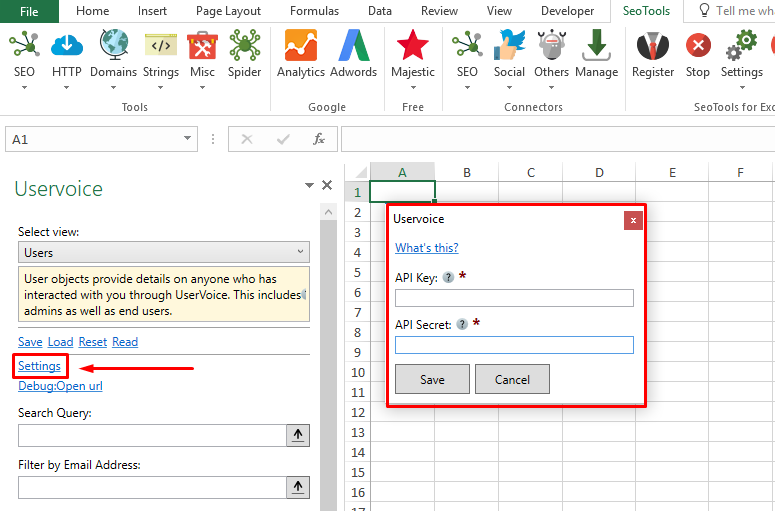
___
## Contribute
This connector suite is open-sourced on [GitHub](https://github.com/nielsbosma/SeoTools-for-Excel-Connectors/blob/master/Uservoice.xml).
___
## See
#### Official Documentation
* [Uservoice API](https://developer.uservoice.com/docs/api/v2/reference/)
#### Resources
* [Manager](/manage-connectors/)
---
# Velocity
URL: https://seotoolsforexcel.com/velocity/
Type: page
Published: 2015-03-29
Updated: 2019-05-27
Summary: Create String templates with Velocity a formula in Excel with SeoTools for Excel.
```
=Velocity(string template, range vector) : string
```
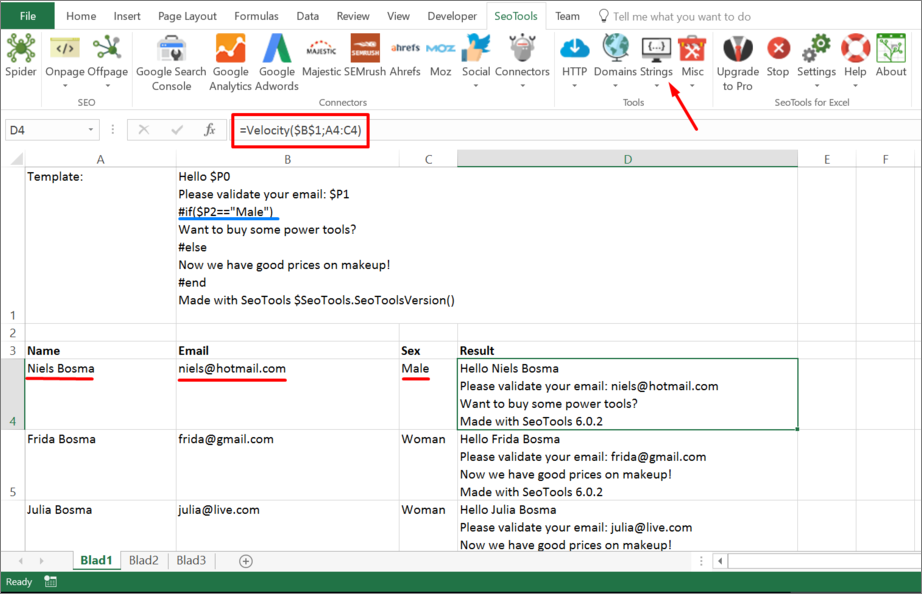
___
## Purpose
Adds powerful velocity string templating functionality to Excel.
[Velocity syntax](https://velocity.apache.org/engine/devel/vtl-reference.html)
___
## See
#### Cookbook
* [Velocity.xlsx](https://raw.githubusercontent.com/nielsbosma/SeoTools-for-Excel-Cookbooks/master/Functions/Velocity.xlsx)
* [VelocityGoogleCharts.xlsx](https://raw.githubusercontent.com/nielsbosma/SeoTools-for-Excel-Cookbooks/master/Functions/VelocityGoogleCharts.xlsx)
#### Related Functions
* [Razor](/razor/)
* [Format](/format/)
* [SpinText](/spintext/)
---
# Access Vimeo in Excel
URL: https://seotoolsforexcel.com/vimeo/
Type: page
Published: 2016-11-13
Updated: 2020-05-11
Summary: Use the Vimeo Connector to search and extract information about videos and users on Vimeo straight into Excel.
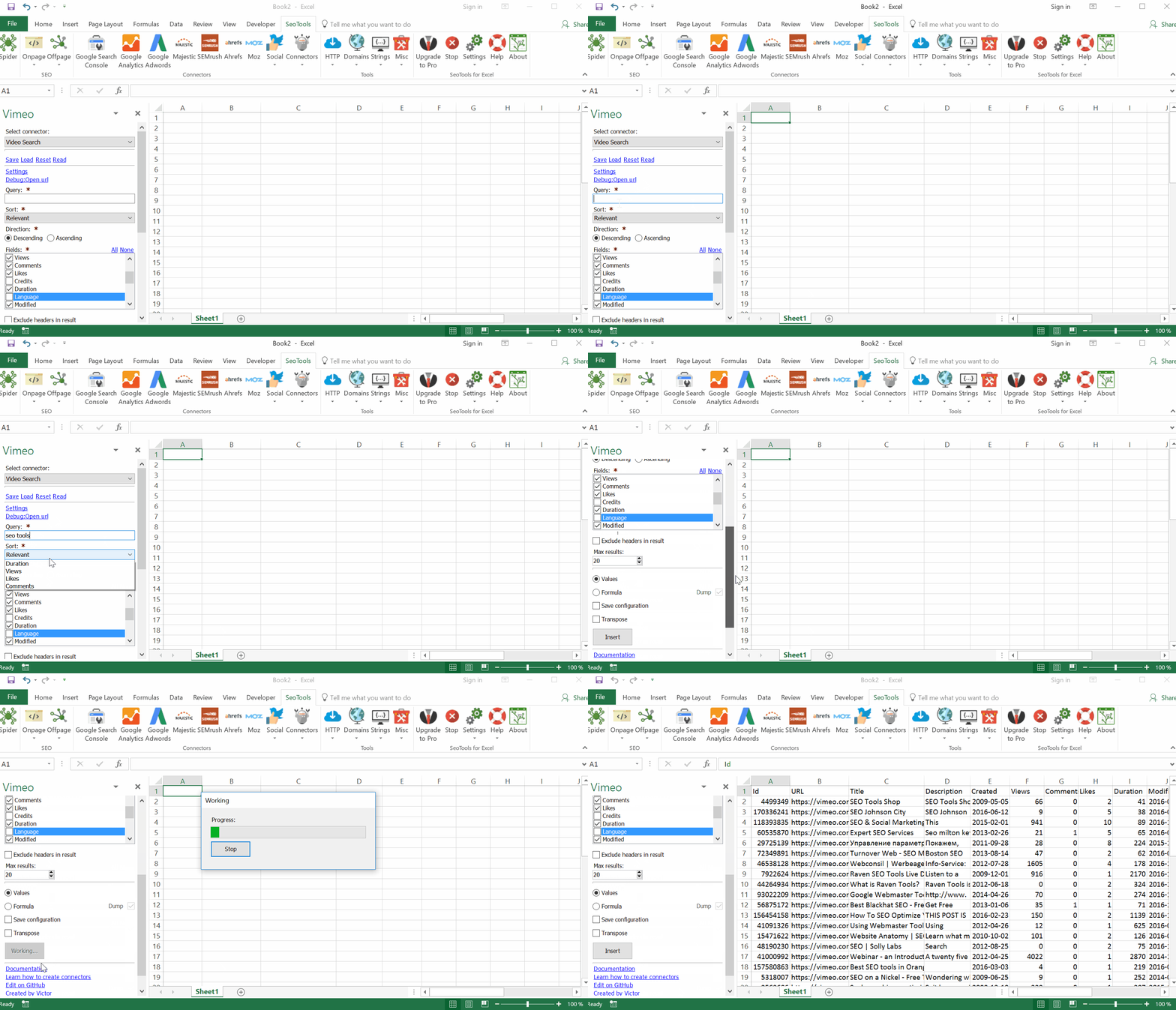
___
## Video Features
* **Video Search** - Extract a list of all Videos matching a specific search query. Sort the results in descending or ascending order by:
- Relevance
- Date
- Alphabetical
- Duration
- Views
- Likes
- Comments
* **Tag Search** - Extract a list of all Videos matching a specific Tag. Sort the results in descending or ascending order by:
- Date
- Name
- Duration
* **Video Lookup** - Statistics about a specific Video.
* **Video Comments** - Extract a list of all Comments posted about a particular Video. Sort the results in descending or ascending order by:
- Date
* **Video Likes** - Extract a list of all Users who have liked a particular Video.
___
## User Features
* **User Search** - Extract a list of all Users matching a specific search query. Sort the results in descending or ascending order by:
- Relevance
- Date
- Alphabetical
* **User Lookup** - Statistics about a specific User.
* **User Videos** - Extract a list of all Videos posted by a particular User. Sort the results in descending or ascending order by:
- Date
- Alphabetical
- Plays
- Likes
- Comments
- Duration
* **User Albums** - Extract a list of all Albums created by a particular User. Sort the results in descending or ascending order by:
- Date
- Alphabetical
- Videos
- Views
* **User Followers** - Extract a list of all Followers by a particular User. Sort the results in descending or ascending order by:
- Date
- Alphabetical
___
## Contribute
This connector suite is open-sourced on [GitHub](https://github.com/nielsbosma/SeoTools-for-Excel-Connectors/blob/master/Vimeo.xml).
___
## See
#### Official Documentation
* [Vimeo API](https://developer.vimeo.com/)
---
# Access W3C Validate in Excel
URL: https://seotoolsforexcel.com/w3cvalidate/
Type: page
Published: 2015-03-29
Updated: 2019-05-19
Summary: SeoTools for Excel offers a user-friendly and effective method to validate thousands of web pages and identify errors and warnings without leaving Excel
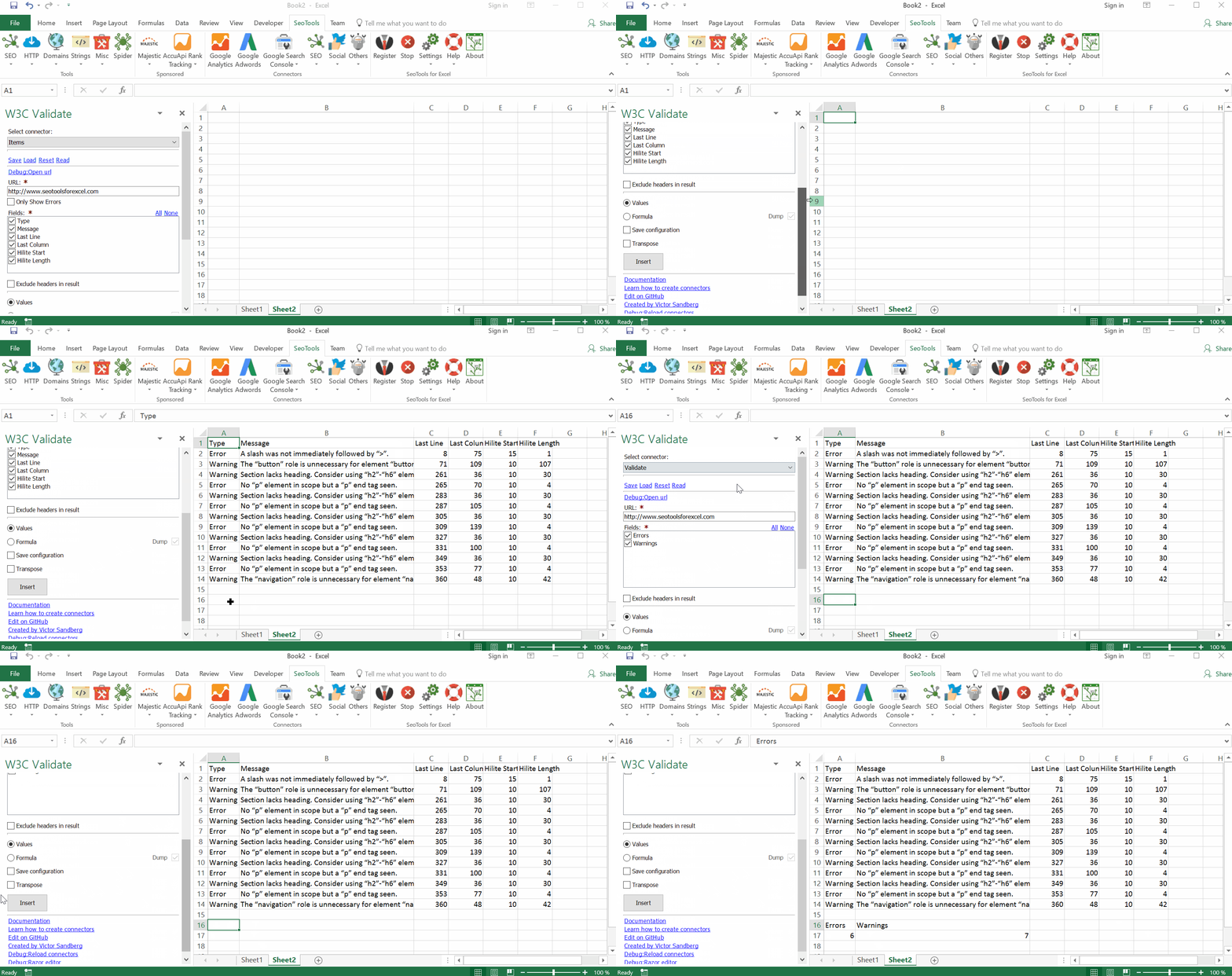
___
## Purpose
Validates the HTML of a page using [W3C validation service](http://validator.w3.org/) and reports number of errors and warnings.
___
## Validate
Extract the number of **Errors** and **Warnings** identified on a page.
## Items
Extract a detailed list of all identified errors and warnings identified on a page. Available filters:
- Only show errors
___
## Contribute
This connector suite is open-sourced on [GitHub](https://github.com/nielsbosma/SeoTools-for-Excel-Connectors/blob/master/W3CValidate.xml).
___
## See
#### Official Documentation
* [W3C Validator API](https://validator.w3.org/docs/api.html)
---
# Access Watson Natural Language in Excel
URL: https://seotoolsforexcel.com/watson-nl/
Type: page
Published: 2018-12-12
Updated: 2023-06-27
Summary: Integrate Watson in Excel and analyze cell content or links. Extract entities, relationships, keywords, concepts, categories, sentiments and emotions.
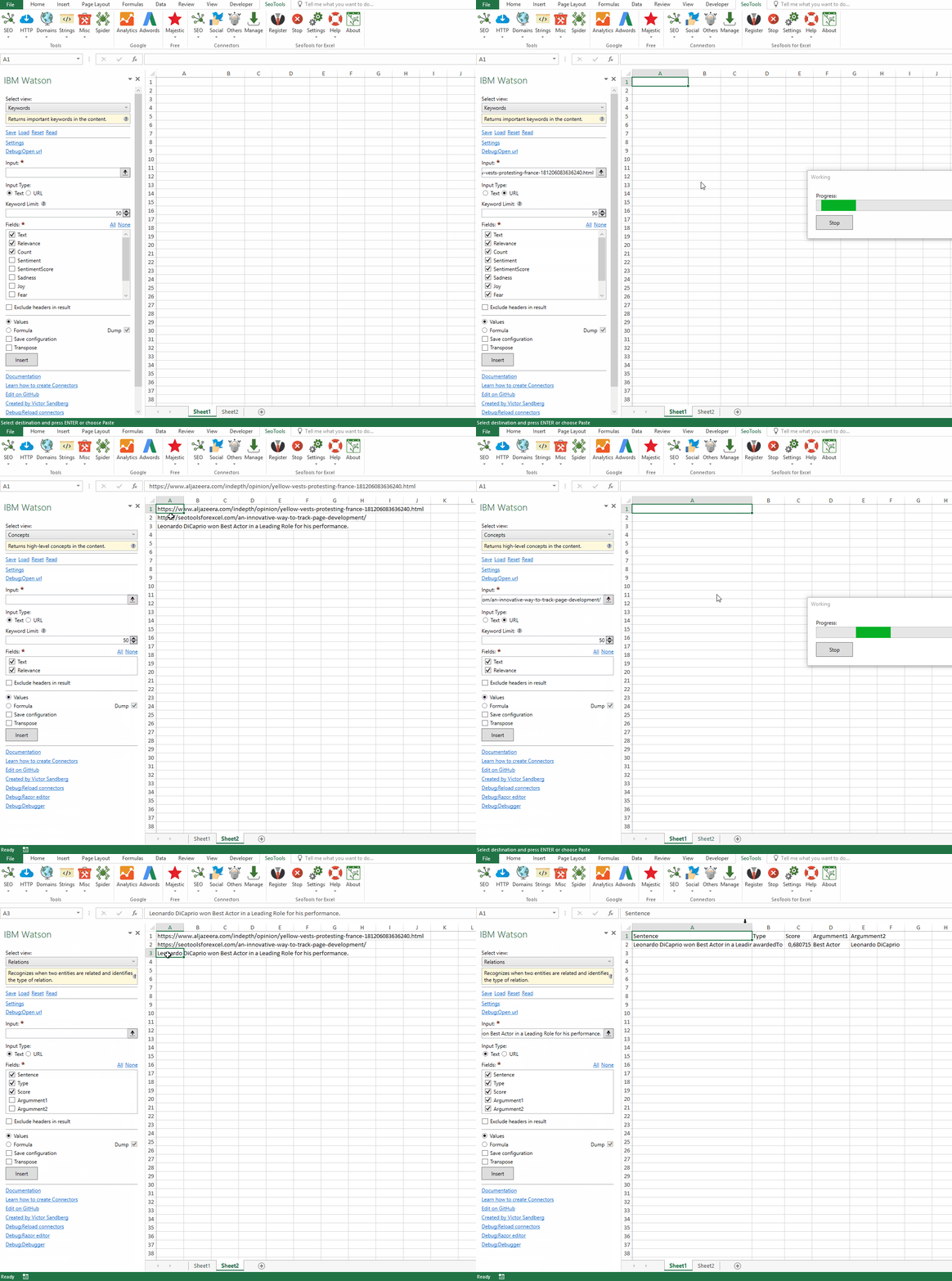
Take your understanding of unstructured data to a whole new level with a full suite of advanced text analytics features to extract entities, relationships, keywords, semantic roles and more.
## Keywords
Returns important keywords in the content. Available metrics:
- Keyword
- Relevance Score
- Count (occurances of keyword)
- Sentiment label (Positive, neutral or negative)
- Sentiment Score
- Emotion Scores (Sadness, Joy, Fear, Disgust and Anger)
## Concepts
Returns high-level concepts in the content.For example, a research paper about deep learning might return the concept, *"Artificial Intelligence"* although the term is not mentioned.
## Emotions
Detects anger, disgust, fear, joy, or sadness that is conveyed in the content or by the context around target phrases specified in the targets parameter. Available options:
- **Targets** - Emotion results are returned for each target string found in the document. Enter one target per newline. Leave empty to return emotions for the entire text. Remember to select the Target Field when including Targets:
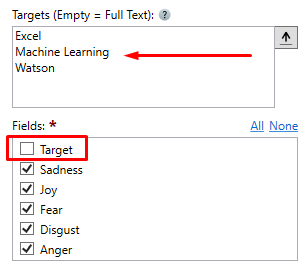
## Sentiment
Analyzes the general sentiment of your content or the sentiment toward specific target phrases. Available options: Targets (see above)
## Entities
Identifies people, cities, organizations, and other other entities in the content. Available metrics:
- Keyword
- Type
- SubTypes (comma-separated list)
- Relevance Score
- Count (occurances of keyword)
- Sentiment label (Positive, neutral or negative)
- Sentiment Score
- Emotion Scores (Sadness, Joy, Fear, Disgust and Anger)
## Categories
Returns a [five-level](https://cloud.ibm.com/docs/services/natural-language-understanding/categories.html) taxonomy of the content. The top three categories are returned.
## Relations
Recognizes when two entities are related and identifies the type of relation. See [this page](https://cloud.ibm.com/docs/services/natural-language-understanding/relations.html#relation-types) for a list of relations. Available metrics:
- Sentence
- Type
- Score (comma-separated list)
- First Argument
- Second Argument
___
## Access
## Add from Manager
The IBM Watson Connector is available in the **[Connectors Manager](/manage-connectors/)** in the top ribbon:

Head over to the **AI Category** and install IBM Watson:

## API Credentials
To use the IBM Watson Connector you need an API Key and specify a valid Base URL.
1. If you don't have an existing IBM Cloud account, [Sign-up here](https://cloud.ibm.com/registration).
2. Go to the [Natural Language Understanding page](https://cloud.ibm.com/catalog/services/natural-language-understanding?bss_account=8408d78f1f374843941cbce6645b71cd), chose a region and click the Create button in the bottom right corner.
3. Next, go to the Resources page, expand the Services row and click on the Service you just created in step 2.
4. Click "Show Credentials" and copy the API key.
5. Paste the key in the Settings form in the IBM Watson task-pane inside Seotools. Also select the Location you've used when creating the Resource:
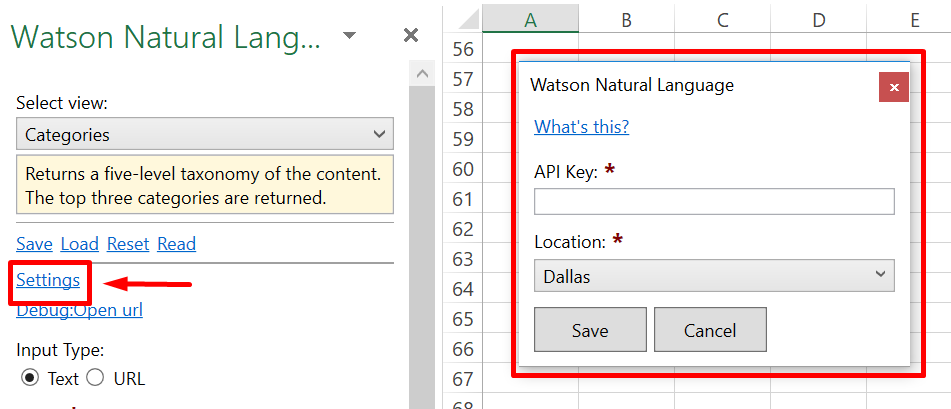
___
## Contribute
This connector suite is open-sourced on [GitHub](https://github.com/nielsbosma/SeoTools-for-Excel-Connectors/blob/master/WatsonNaturalLanguage.xml).
___
## See
#### Official Documentation
* [IBM Watson Natural Language Understanding API](https://cloud.ibm.com/apidocs/natural-language-understanding#text-analytics-features)
#### Related Functions
* [Google Natural Language](/google-nl/)
* [Watson Language Translator](/watson-lt/)
* [Microsoft Text Analytics](/microsoft-text-analytics/)
* [uClassify](/uclassify/)
#### Resources
* [Manager](/manage-connectors/)
---
# Access Wayback Machine in Excel
URL: https://seotoolsforexcel.com/wayback-machine/
Type: page
Published: 2018-10-25
Updated: 2019-05-19
Summary: Integrate the Internet Archive Wayback Machine with Excel. Extract snapshots for an exact url or subpages. Filter by date, regex and check availability.
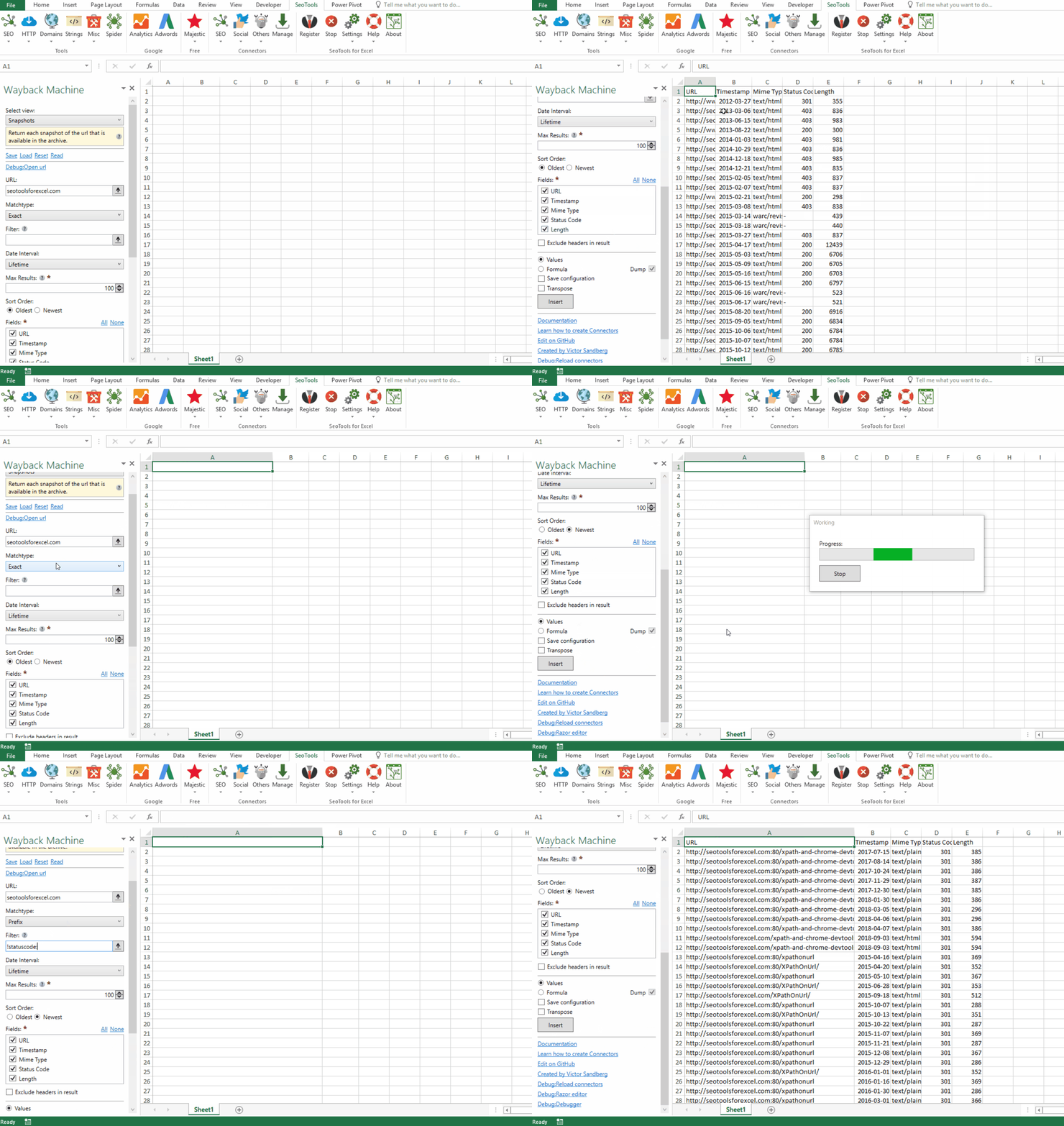
## Snapshots
Return each snapshot of the URL that is available in the archive. Filter and sorting options:
- **URL Matchtype** - The default behavior is to return matches for an exact url. However, the results can also return results matching:
- Prefix
- Host
- Subdomains
- **Collapse** - Collapsing is done on adjacent lines where all captures after the first one that are duplicate are filtered out. To use collapsing, add one or more `field` or `field:N` where N is the first N characters of field to test.
- Example (Show unique Urls): **urlkey** and set Matchtype to **prefix**:
- **Filter** - It is possible to filter on all or specific fields. Filtering by specific field is often simpler. Any number of filter params of the following form may be specified: `[!]field:regex`. The optional exclamation mark before the query inverts the match, that is, will return results that do NOT match the regex.
- **Date Interval** - Returns matches for a specific period.
- **Max Results** - The number of items to return. Specify sort order (oldest or newest).
## Availability
Test to see if a given URL is archived and currently accessible in the Wayback Machine. Returns **TRUE/FALSE** with optional URL and Timestamp metrics.
___
## Access
## Add from Manager
The Wayback Machine Connector is available in the **[Connectors Manager](/manage-connectors/)** in the top ribbon:

Head over to the **SEO Category** and install Wayback Machine:

___
## Contribute
This connector suite is open-sourced on [GitHub](https://github.com/nielsbosma/SeoTools-for-Excel-Connectors/blob/master/WaybackMachine.xml).
___
## See
#### Official Documentation
* [Wayback Machine API](https://archive.org/help/wayback_api.php)
#### Resources
* [Manager](/manage-connectors/)
---
# WhoIs
URL: https://seotoolsforexcel.com/whois/
Type: page
Published: 2015-03-29
Updated: 2019-05-19
Summary: Retrieve the WhoIs information of domains or web pages as a formula in Excel with SeoTools for Excel.
```
=WhoIs(string domain)
```
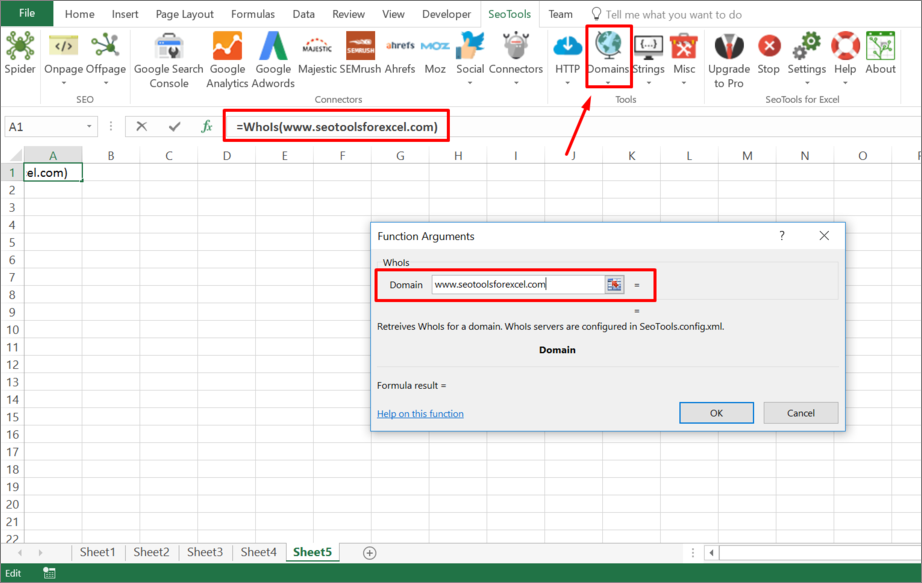
___
## Purpose
Retreives WhoIs for a domain.
WhoIs servers are configured in SeoTools.config.xml.
___
## See
#### Guides
* [Get date to release from WhoIs](https://seotoolsforexcel.com/get-date_to_release-from-whois-in-excel/)
* [Using Excel for finding available domain names](/using-excel-for-finding-available-domain-names/)
* [Learn how to setup Tlds in SeoTools.config.xml](/how-to-setup-tlds-in-seotools-config-xml/)
#### Related Functions
* [WhoIsDomainCreated](/whoisdomaincreated/)
* [WhoIsDomainExpires](/whoisdomainexpires/)
* [WhoIsDomainUpdated](/whoisdomainupdated/)
---
# Access WhoisApi in Excel
URL: https://seotoolsforexcel.com/whoisapi/
Type: page
Published: 2015-10-04
Updated: 2019-05-19
Summary: SeoTools for Excel offers a user-friendly and effective method to collect domain statistics from Whois straight to Excel within a matter of seconds.
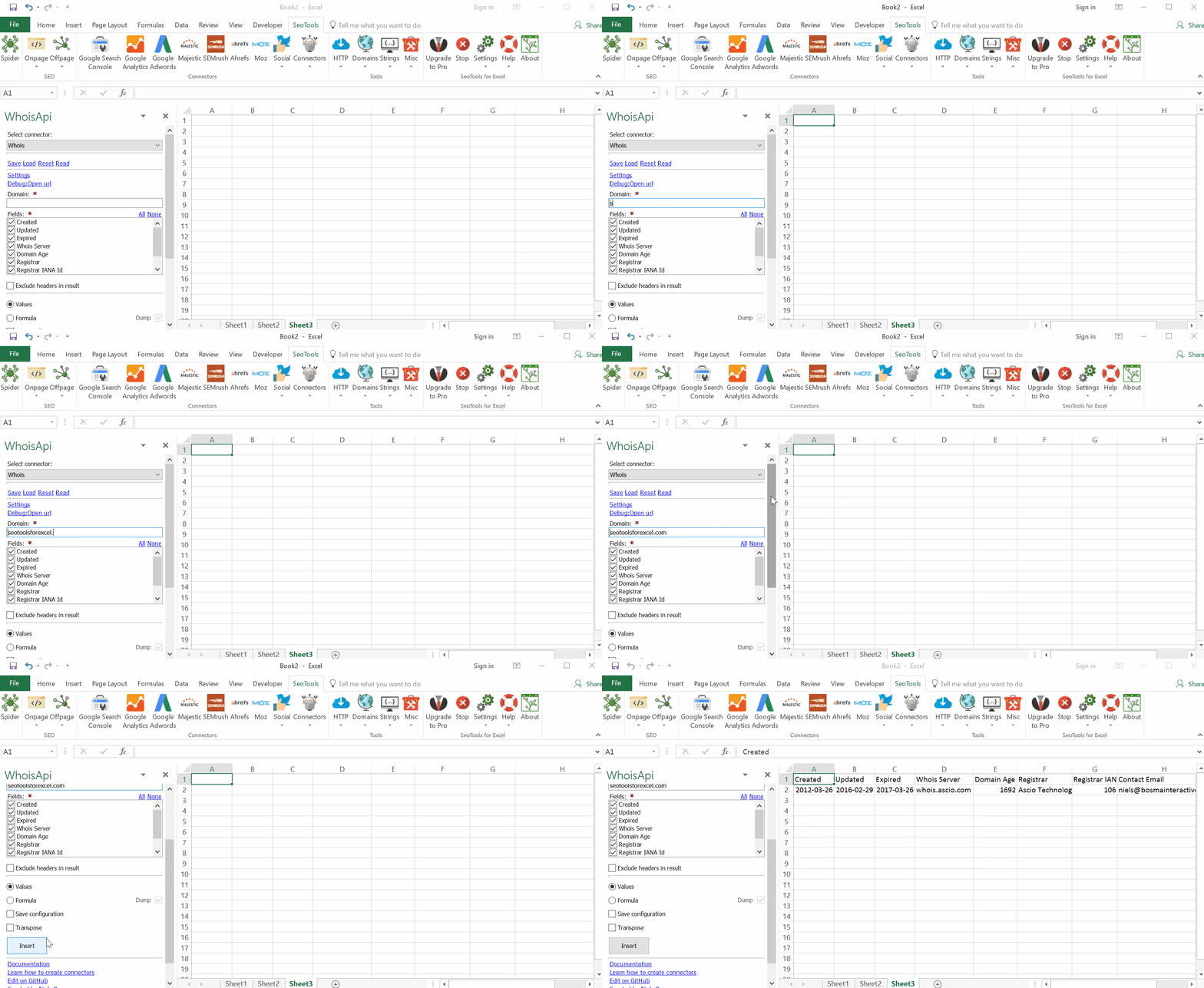
___
## Features
* **Available** - Checks if a domain is available. Returns True or False.
* **WhoIs** - Returns information about a domain. Available statistics:
- Created
- Updated
- Expired
- WhoIs Server
- Domain Age
- Registrar
- Registrar IANA Id
- Registrant Name
- Registrant Organization
- Registrant Country
- Registrant City
- Contact Email
- Status
* **Account Balance** - Checks your current account balance or reserve.
___
## Api keys
To use the Whois Connector you need a WhoIs account.
1. [Sign up](https://www.whoisxmlapi.com/user/create.php) for an account.
2. Your API credentials is your **Username** and **Password**.
**You'll need a paid account to retrieve data without throttling after you've done 500 requests.**
___
## Contribute
This connector suite is open-sourced on [GitHub](https://github.com/nielsbosma/SeoTools-for-Excel-Connectors/blob/master/WhoisApi.xml).
___
## See
#### Official Documentation
* [Whois XML API](https://www.whoisxmlapi.com/whois-api-doc.php)
---
# WhoIsDomainCreated
URL: https://seotoolsforexcel.com/whoisdomaincreated/
Type: page
Published: 2015-03-29
Updated: 2019-05-19
Summary: Retrieve the date when domain was created according to WhoIs a formula in Excel with SeoTools for Excel.
```
=WhoIsDomainCreated(string domain)
```
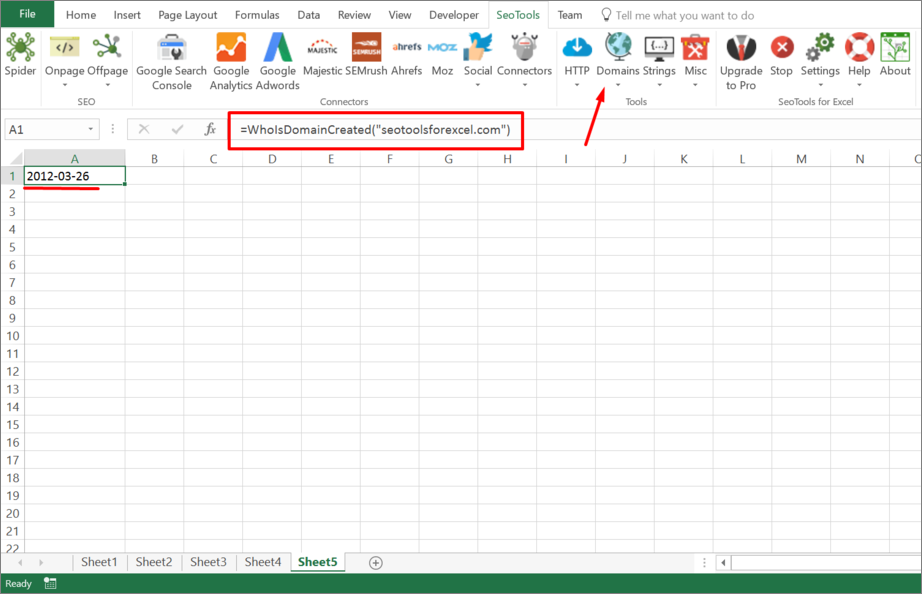
___
## Purpose
Returns the date when the domain was created as specified in WhoIs.
WhoIs servers are configured in SeoTools.config.xml.
___
## See
#### Guides
* [Learn how to setup Tlds in SeoTools.config.xml](/how-to-setup-tlds-in-seotools-config-xml/)
* [Using Excel for finding available domain names](/using-excel-for-finding-available-domain-names/)
#### Related Functions
* [WhoIs](/whois/)
* [WhoIsDomainExpires](/whoisdomainexpires/)
* [WhoIsDomainUpdated](/whoisdomainupdated/)
---
# WhoIsDomainExpires
URL: https://seotoolsforexcel.com/whoisdomainexpires/
Type: page
Published: 2015-03-29
Updated: 2019-05-19
Summary: Retrieve the date when a domain expires according to WhoIs a formula in Excel with SeoTools for Excel.
```
=WhoIsDomainExpires(string domain)
```
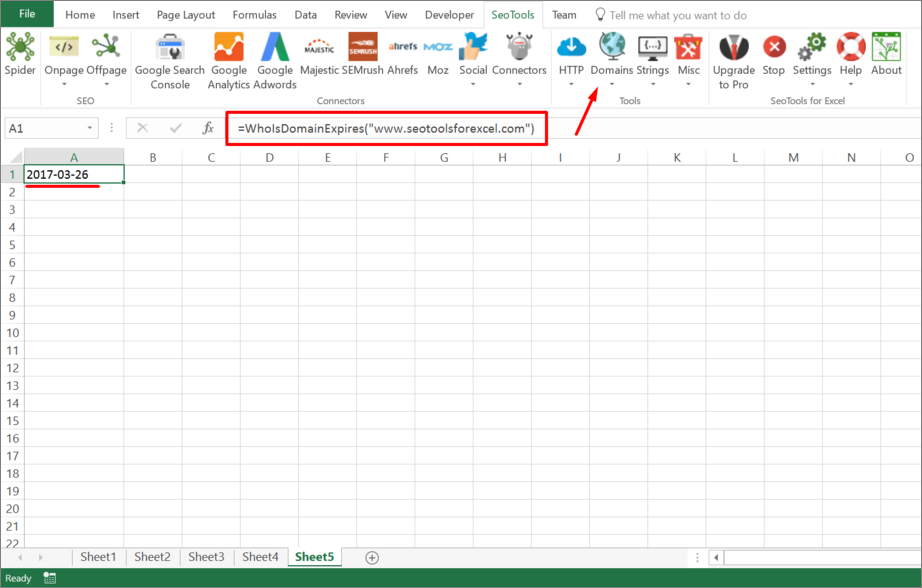
___
## Purpose
Returns the date when the domain expires as specified in WhoIs.
WhoIs servers are configured in SeoTools.config.xml.
___
## See
#### Guides
* [Learn how to setup Tlds in SeoTools.config.xml](/how-to-setup-tlds-in-seotools-config-xml/)
#### Related Functions
* [WhoIs](/whois/)
* [WhoIsDomainCreated](/whoisdomaincreated/)
* [WhoIsDomainUpdated](/whoisdomainupdated/)
---
# WhoIsDomainUpdated
URL: https://seotoolsforexcel.com/whoisdomainupdated/
Type: page
Published: 2015-03-29
Updated: 2019-05-19
Summary: Retrieve the date when a domain was last updated according to WhoIs a formula in Excel with SeoTools for Excel.
```
=WhoIsDomainUpdated(string domain) : string
```
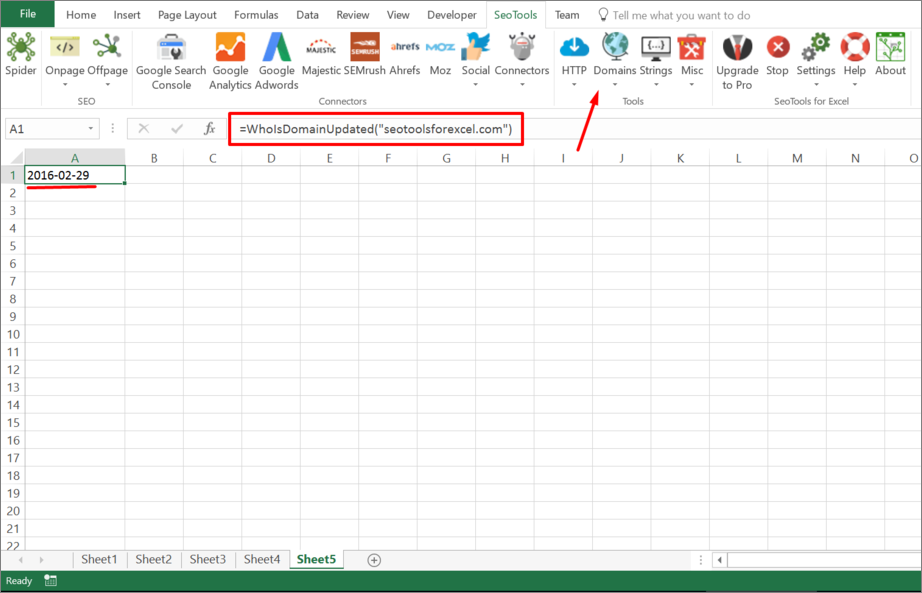
___
## Purpose
Returns the date when the domain was updated as specified in WhoIs.
WhoIs servers are configured in SeoTools.config.xml.
___
## See
#### Guides
* [Learn how to setup Tlds in SeoTools.config.xml](/how-to-setup-tlds-in-seotools-config-xml/)
#### Related Functions
* [WhoIs](/whois/)
* [WhoIsDomainCreated](/whoisdomaincreated/)
* [WhoIsDomainExpires](/whoisdomainexpires/)
---
# Access Wikipedia in Excel
URL: https://seotoolsforexcel.com/wikipedia/
Type: page
Published: 2017-03-19
Updated: 2019-05-19
Summary: SeoTools for Excel offers a user-friendly and effective method to search the Wikipedia database and extract statistics straight to Excel
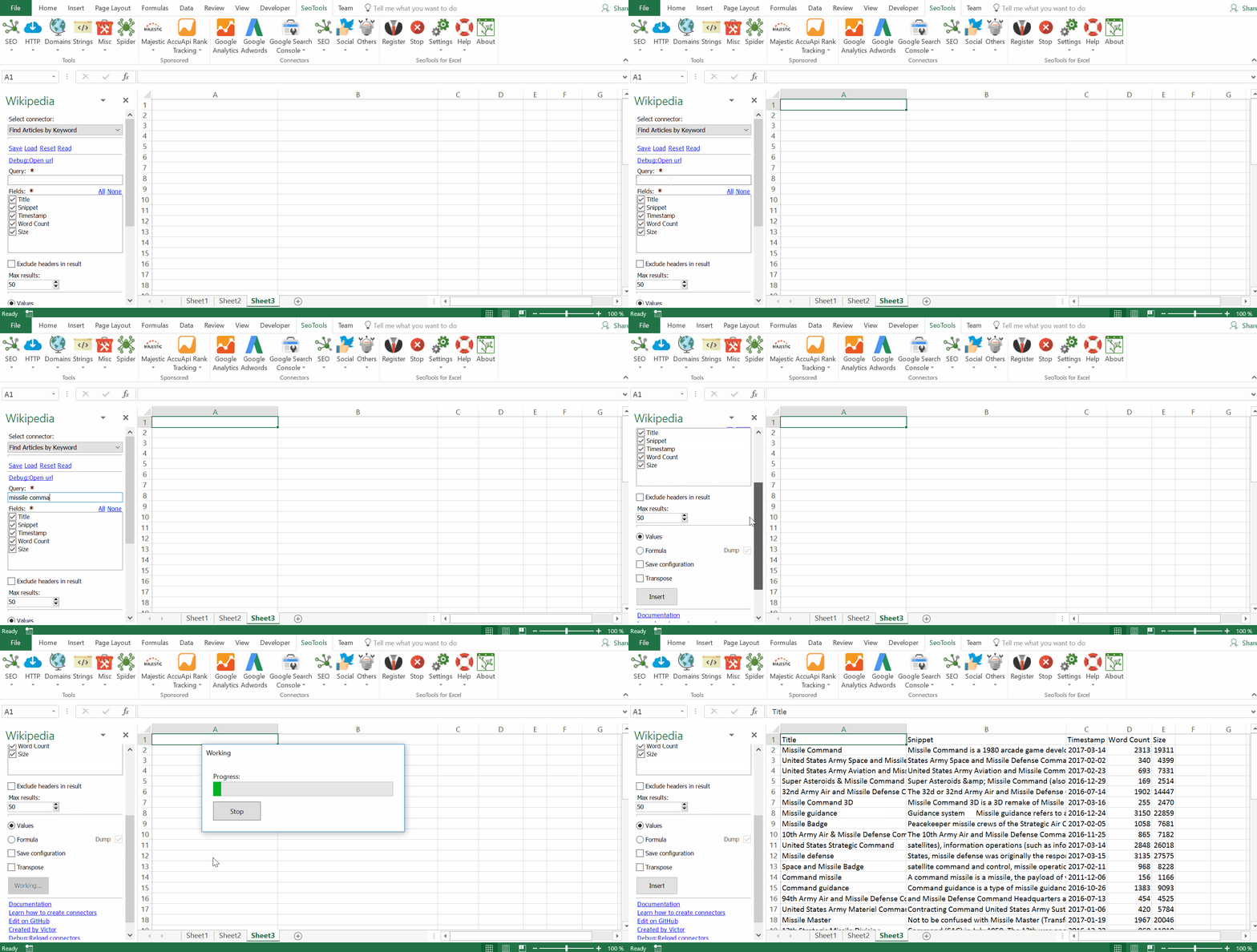
## Search
Search for articles in the Wikipedia database. Available metrics:
- Title
- Snippet
- Timestamp
- Word Count
- Size
## Number of Results
Extract the total count of indexed articles.
___
## Access
## Add from Manager
The Wikipedia Connector is available in the **[Connectors Manager](/manage-connectors/)** in the top ribbon:

Head over to the **Knowledge Category** and install Wikipedia:

___
## Contribute
This connector suite is open-sourced on [GitHub](https://github.com/nielsbosma/SeoTools-for-Excel-Connectors/blob/master/Wikipedia.xml).
___
## See
#### Official Documentation
* [Wikipedia API](https://www.mediawiki.org/wiki/API:Main_page)
#### Resources
* [Manager](/manage-connectors/)
---
# WordCount
URL: https://seotoolsforexcel.com/wordcount/
Type: page
Published: 2017-03-18
Updated: 2019-05-19
Summary: Retrieve the web page word count as a formula in Excel with SeoTools for Excel.
```
=WordCount(string pageUrl) : integer
```
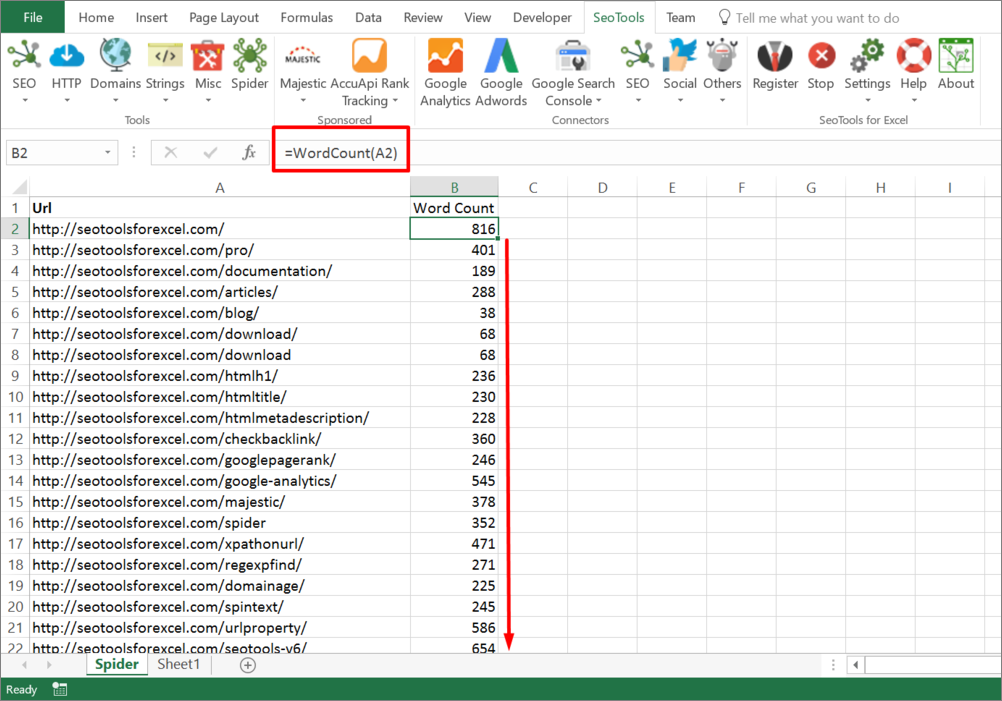
___
## Purpose
Counts the number of word in on a page.
___
## See
#### Related Functions
* [LinkCount](/linkcount/)
* [PageSize](/pagesize/)
* [PageCodeSize](/pagecodesize/)
* [PageCodetoTextRatio](/pagecodetotextratio/)
---
# Working with arrays in Excel
URL: https://seotoolsforexcel.com/working-with-arrays-in-excel/
Type: page
Published: 2015-03-29
Updated: 2020-05-24
Summary: How to work with arrays in SeoTools for Excel and create powerful functions with XPath, regular expressions, Json, and others.
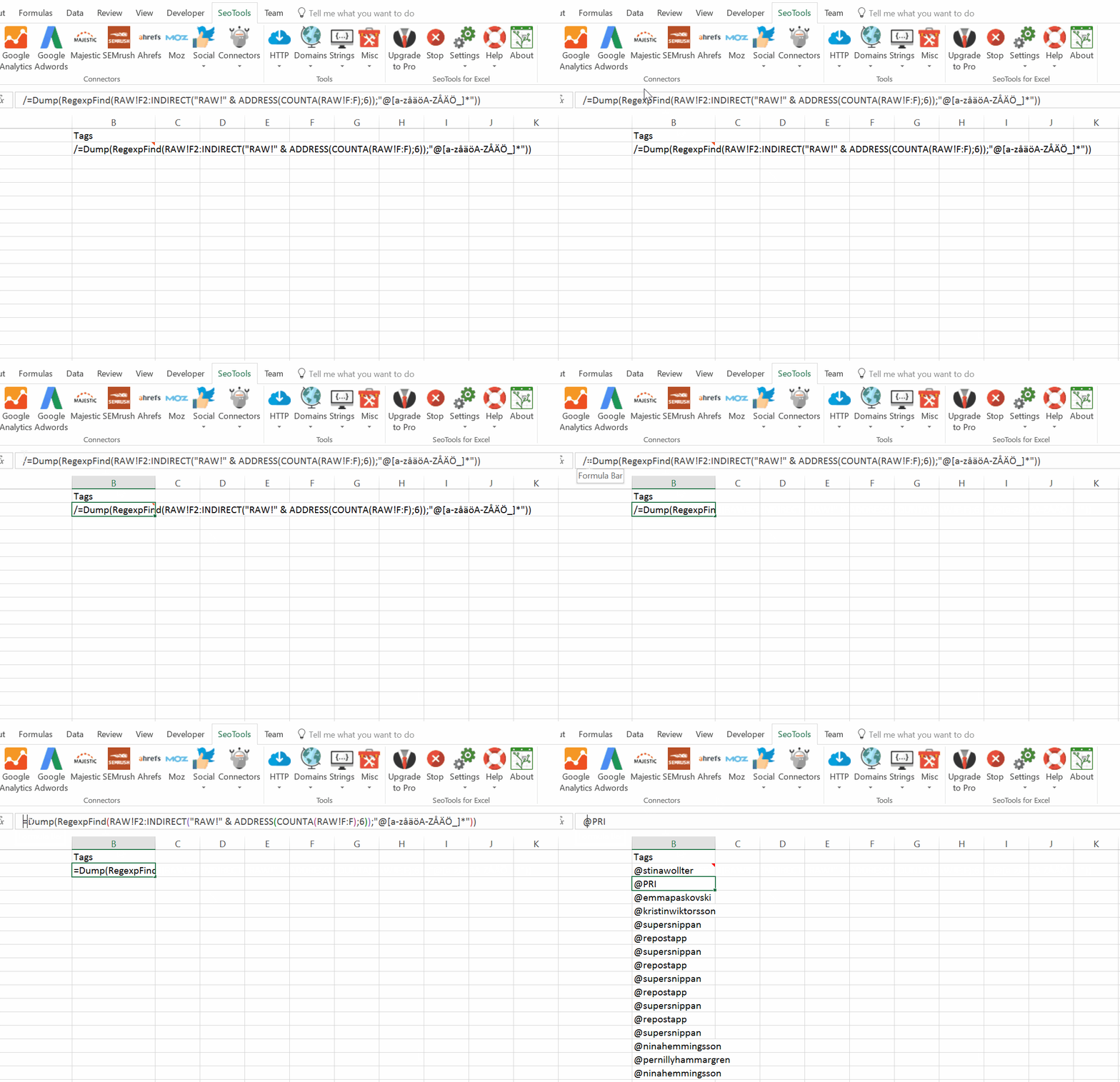
An array is a series of items that are of the same data type. Many functions in SeoTools like [XPathOnUrl](/xpathonurl/), [JsonPathOnUrl](/jsonpathonurl/) and [RegexpFindOnUrl](/regexpfindonurl/) return arrays.
___
## Methods
To work with arrays in Excel your have some options:
### Traditional
1. Select a range of [10Rows] x [1Columns] cells.
2. Press F2 to go into *formula mode*.
3. Type `=XPathOnUrl("http://www.google.com/search?q=dogs&num=10","//h3[@class='r']/a","href")`
4. Press `CTRL+SHIFT+ENTER` to make it a array formula.
### Dump & DumpTo
There are two macro functions in SeoTools to simplify working with arrays in Excel:
* [Dump](/dump/) - Takes an array and *Dumps* it on the spreadsheet.
* [DumpTo](/dumpto/) - Takes an array and *Dumps* it on to another place in the spreadsheet, making it *free* of its original formula dependency.
## Converting to values
We recommend using the [Converter tool](/converter/) to convert dump formulas to values. The Converter also removes the red comments automatically.
___
## See
#### Guides
* [Convert formulas to values](/converter/)
#### Related Functions
* [Dump](/dump/)
* [DumpTo](/dumpto/)
---
# Working with VBA
URL: https://seotoolsforexcel.com/working-with-vba/
Type: page
Published: 2017-01-21
Updated: 2019-05-27
Summary: How to combine VBA code and SeoTools for Excel functions to get the best of both worlds and turn your sheets into an SEO powertool.
Since SeoTools 6.0, most functions run asynchronously. This offers many advantages, such as greatly reduced calculation time and the ability to do other things in Excel while the calculations are running. However, this also means that traditional VBA scripts, which relies on formula based output, will fail. In order to fix this, we recommend two approaches.
## 1. Disable Async
Temporarily make Async functions run synchronously *(easier to write VBA but slower)*
1. **Open [SeoTools.Config.Xml](/seotools-config-xml/)**
2. **Add the following line according to the picture below:**
`true` 
#### Example Scripts Based on Disable Async
**Extracting Twitter User Bio:**
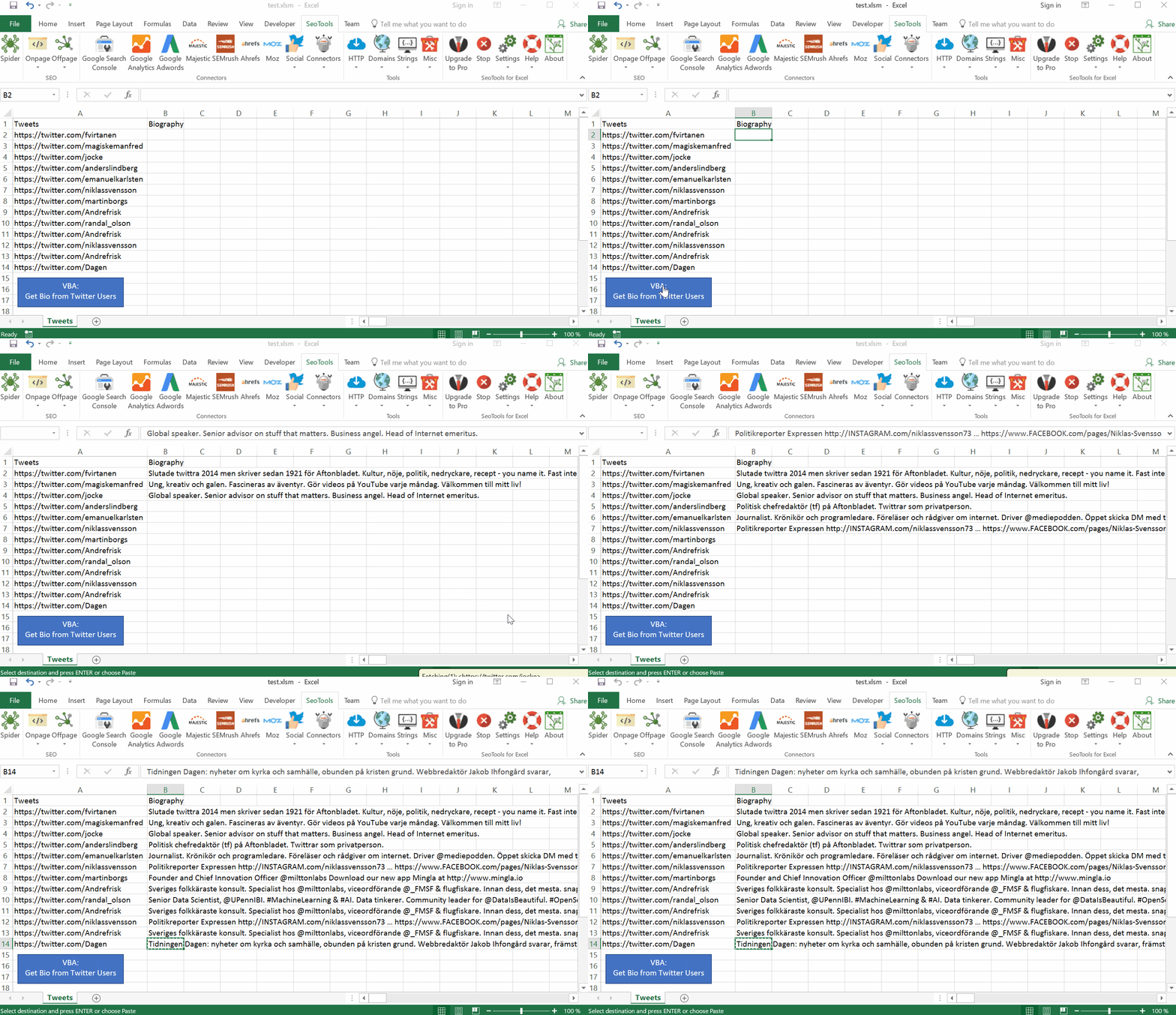
[VBA_Twitter.xlsm](https://raw.githubusercontent.com/nielsbosma/SeoTools-for-Excel-Cookbooks/master/Scraping/VBA_Twitter.xlsm)
Sub GetBio()
Dim row As Integer
Dim col As Integer
row = 2
col = 2
While ActiveSheet.Cells(row, 1) <> ""
ActiveSheet.Cells(row, col) "=XPathOnUrl(A" & row & ", ""//p[@class='ProfileHeaderCard-bio u-dir']"")"
ActiveSheet.Cells(row, col).Copy
ActiveSheet.Cells(row, col).PasteSpecial Paste:=xlPasteValues, Operation:=xlNone, SkipBlanks _
:=False, Transpose:=False
row = row + 1
Wend
End Sub
**Extracting an array of all links with CsQueryOnUrl:**
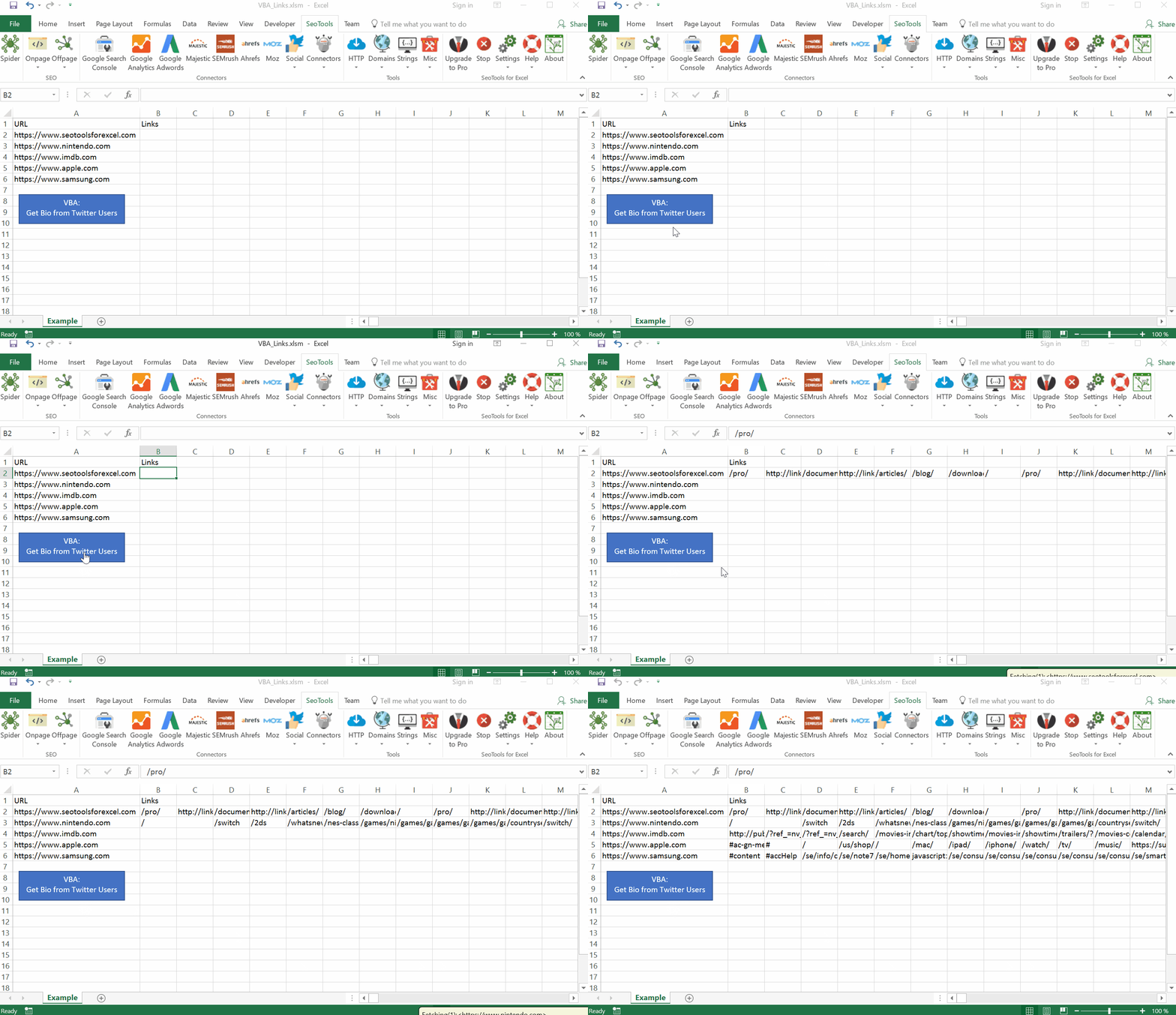
[VBA_Links.xlsm](https://raw.githubusercontent.com/nielsbosma/SeoTools-for-Excel-Cookbooks/master/Scraping/VBA_Links.xlsm)
Sub GetLinks()
Dim row As Integer
Dim col As Integer
row = 2
col = 2
Dim range As Variant
Dim addr1, addr2 As String
While Sheets("Example").Cells(row, 1) <> ""
Dim xArray() As Variant
xArray = Evaluate("=TRANSPOSE(CsQueryOnUrl(A" & row & ", ""a"", ""href""))")
addr1 = Sheets("Example").Cells(row, col).Address
addr2 = Sheets("Example").Cells(row, col).Offset(0, UBound(xArray) - 1).Address
Sheets("Example").range(addr1 & ":" & addr2).Value = xArray
row = row + 1
Wend
End Sub
___
## 2. Temp Formula
Second option is to output results with formula and then replace results with values when SeoTools fetching is complete. A simple way to know when the fetching is done is to use a Countif formula and count how many cells contain "#GETTING_DATA". When the number reaches zero, it is safe to copy and paste the content as values.
#### Example Scripts Based on Temp Formula
**Extracting Tweets Metadata:**
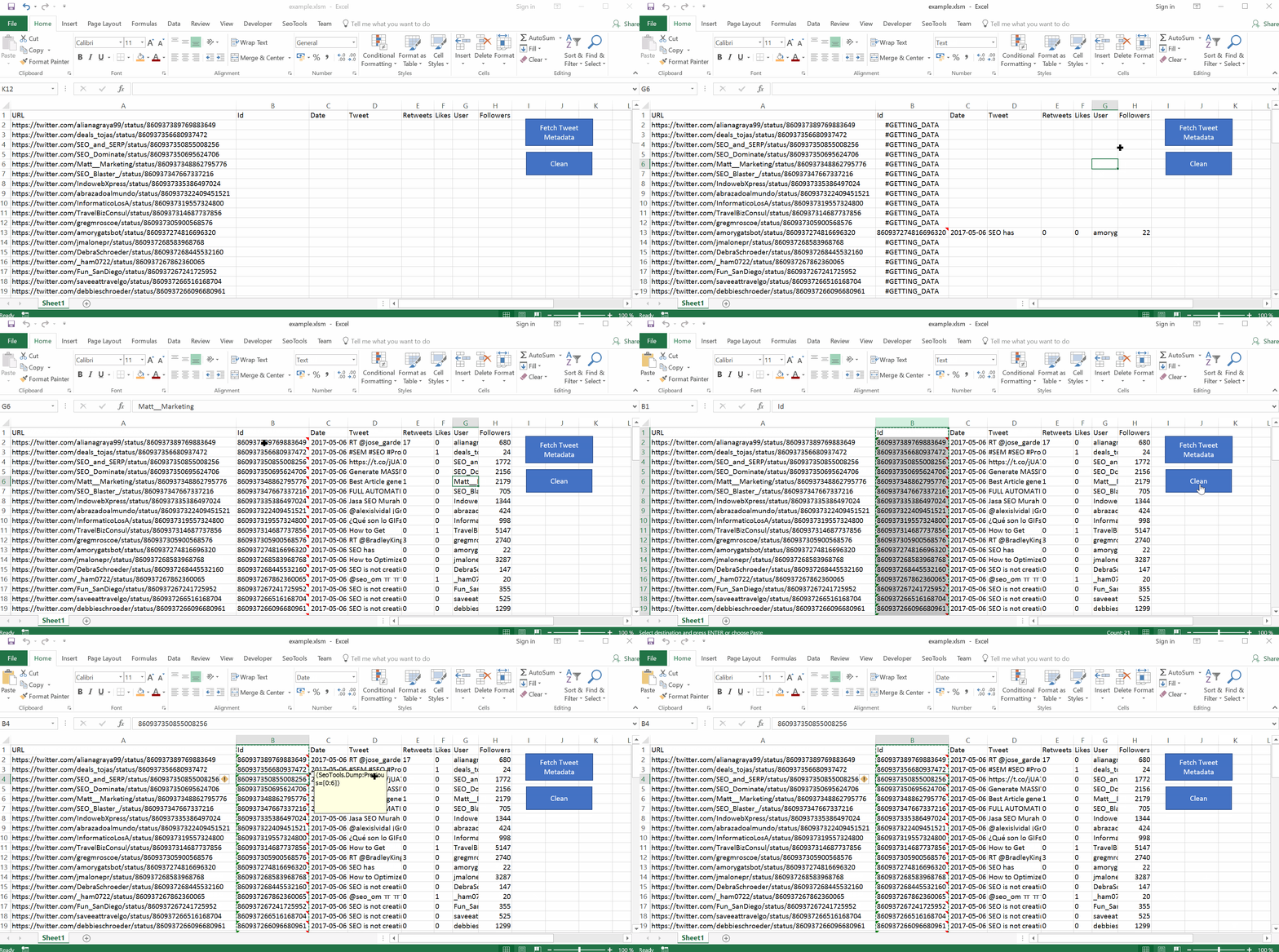
[VBA_Tweets.xlsm](https://raw.githubusercontent.com/nielsbosma/SeoTools-for-Excel-Cookbooks/master/Scraping/VBA_Tweets.xlsm)
Sub FetchTweets()
Dim RowCount As Long
RowCount = Range("A" & Rows.Count).End(xlUp).Row
Range("B2:B" & RowCount).Formula = "=Dump(Connector(""Twitter.TweetLookup"",A2,""Id,Date,Tweet,Retweets,Likes,UserName,Followers"",TRUE))"
End Sub
Sub Clean()
Columns(2).Copy
Columns(2).PasteSpecial xlPasteValues
End Sub
___
## See
#### Cookbook
* [VBA_Twitter.xlsm](https://raw.githubusercontent.com/nielsbosma/SeoTools-for-Excel-Cookbooks/master/Scraping/VBA_Twitter.xlsm)
* [VBA_Links.xlsm](https://raw.githubusercontent.com/nielsbosma/SeoTools-for-Excel-Cookbooks/master/Scraping/VBA_Links.xlsm)
* [VBA_Tweets.xlsm](https://raw.githubusercontent.com/nielsbosma/SeoTools-for-Excel-Cookbooks/master/Scraping/VBA_Tweets.xlsm)
#### Guides
* [SeoTools.config.xml](/seotools-config-xml/)
#### Related Functions
* [CsQueryOnUrl](/csquery/)
* [XPathOnUrl](/xpathonurl/)
---
# The file format and extension of 'SeoTools32.xll' don't match
URL: https://seotoolsforexcel.com/xll-dont-match/
Type: page
Published: 2020-04-14
Updated: 2020-04-14

This is a rare bug which happens when the wrong bitness is identified during the installation process. Follow these steps to install the correct version:
1. Uninstall SeoTools.
2. Run the installer again.
3. On the 'Destination Folder' page, chose either 32 or 64-bit and continue. 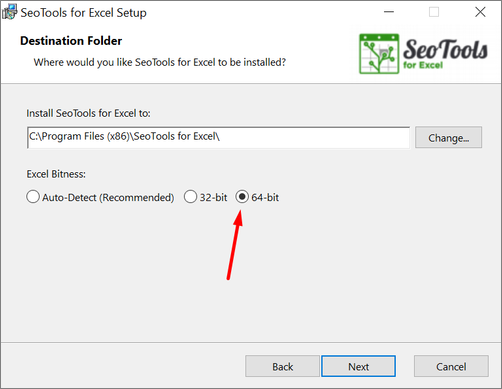
If you see the same error as the image above, then you should chose 64-bit. To verify bitness, [follow this guide](https://www.howtogeek.com/howto/24259/beginner-discover-if-youre-running-the-32-or-64-bit-version-of-office-2010/).
---
# Access Xovi in Excel
URL: https://seotoolsforexcel.com/xovi/
Type: page
Published: 2018-10-24
Updated: 2019-05-19
Summary: Integrate your Xovi account with Excel and extract keywords, rankings, SERP, trends, and OVI based on domains and search engines over time.
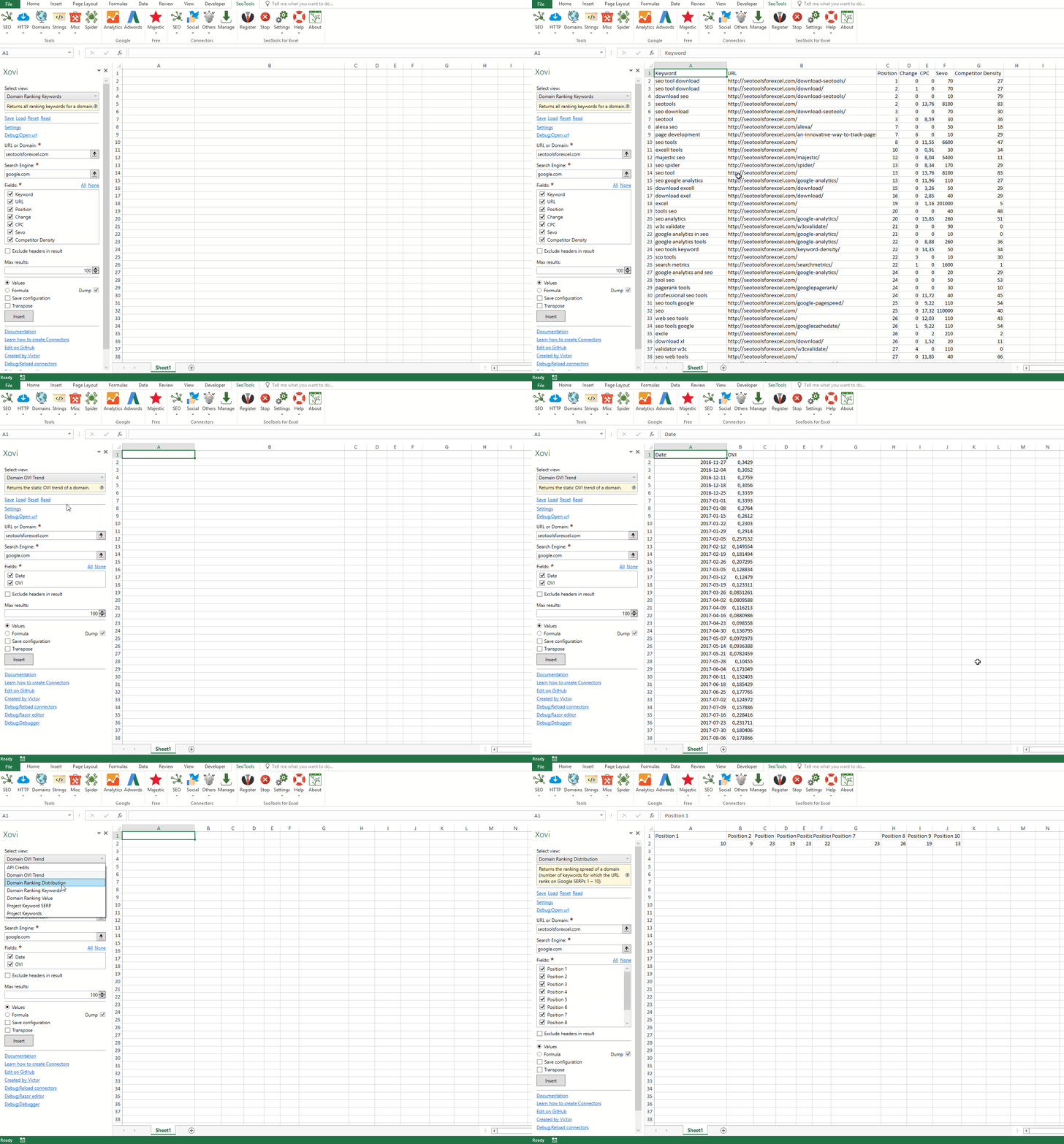
## Keywords
- **Domain Ranking Keywords** - Returns all ranking keywords for a domain and a search engine. Available metrics:
- Keyword
- URL
- Position
- Change
- CPC
- Sevo
- Competitor Density
- **Project Keywords** - Returns the created monitoring keywords from the daily crawling. Available metrics:
- Keyword
- Domain
- Search Engine
- Created
- Results
- URL
- Rank
- Position
- CPC
- Sevo
- **Keyword SERP** - Returns the top 100 search results to installed keywords. Available metrics:
- URL
- Domain
- Page
- Position
- Search Type
- **New Keywords** - Returns the new ranking keywords of a domain within a searchengine.
- **Lost Keywords** - Returns the lost keywords of a domain compared to the week before.
## Domains
- **Ranking Distribution** - Returns the ranking spread of a domain (number of keywords for which the URL ranks on Google SERPs 1 – 10).
- **Ranking Value** - Returns the value of a domain calculated from position, searchvolume, CPC and trafficfactor to a certain time. Available filters:
- Display Date
- **OVI Trend** - Returns the static OVI trend of a domain.
- **Project Keyword Trend** - Returns the daily ranking trend of a keyword for a domain.
- **Engine Top** - Returns the strongest domains within a searchengine ordered by OVI. Available metrics:
- Current SEO Rank
- Past SEO Rank
- Absolute SEO Rank Diff
- Relative SEO Rank Diff
- Past Static OVI
- Current Static OVI
- Absolute Static OVI Diff
- Relative Static OVI Diff
- Past Keywords
- Current Keywords
- Absolute Keywords Diff
- Relative Keywords Diff
- **Ranking Trend** - Returns the keyword- and ranking-trend of a domain. Available metrics:
- Date
- Keywords
- Rankings
- Page One Keywords
## Access
## Add from Manager
The Xovi Connector is available in the **[Connectors Manager](/manage-connectors/)** in the top ribbon:

Head over to the **SEO Category** and install Xovi:

## Get API key
To use the Xovi Connector you need an API key from the API Dashboard in your Xovi account. Scroll down on the page and copy the key and paste it in the Settings form in the Xovi Connector in Seotools for Excel.
___
## Contribute
This connector suite is open-sourced on [GitHub](https://github.com/nielsbosma/SeoTools-for-Excel-Connectors/blob/master/Xovi.xml).
___
## See
#### Official Documentation
* [Xovi API](http://developers.xovi.net/)
#### Resources
* [Manager](/manage-connectors/)
---
# XPathOnUrl
URL: https://seotoolsforexcel.com/xpathonurl/
Type: page
Published: 2015-03-29
Updated: 2020-02-29
Summary: Use XPath to extract strings or arrays from any web page as a formula in Excel with SeoTools for Excel.
```
=XPathOnUrl(
string url,
string xpath,
string attribute,
string xmlHttpSettings,
string mode
) : vector
```
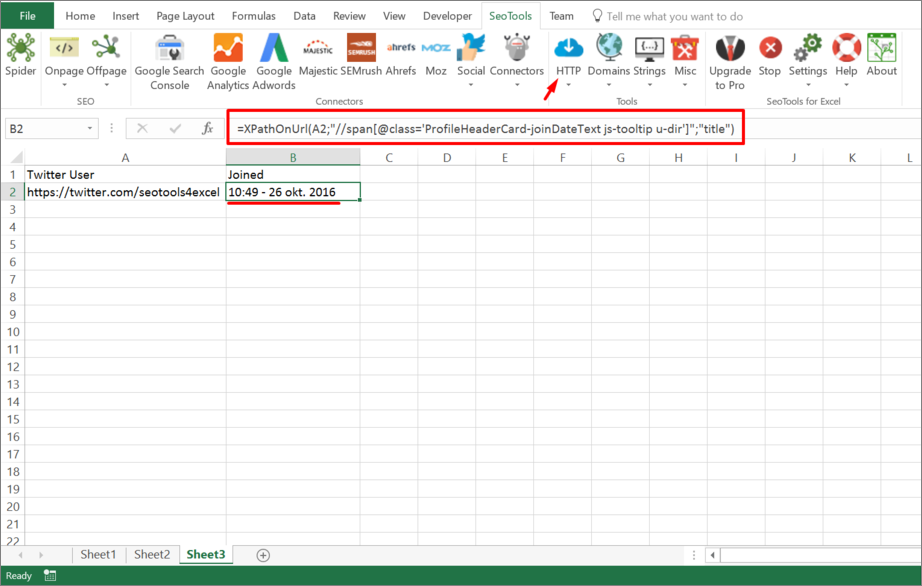
___
## Purpose
Fetches url and returns the (array) result from XPath expression.
You can use XPathOnUrl on any *XML* resource.
___
### Xpath
XPath queries has to be in lower case. So `/HTML/BODY/A` won't work.
___
### Attribute (optional)
The optional `attribute` allows you to retreive the value of an attribute of the specified node. Xpath `/foo/@bar` returns the inner text of node foo. To get attribute bar you specify:
=XPathOnUrl(url,"/foo","bar")
____
### XmlHttpSettings (optional)
You can control the HTTP request (such as header and form variables) using the `xmlHttpSettings`. See [HttpSettings](/httpsettings/).
___
### Mode (optional)
The output can be extracted in raw HTML format or "formatted":
=XPathOnUrl(url,"//div[1]",,,"html")
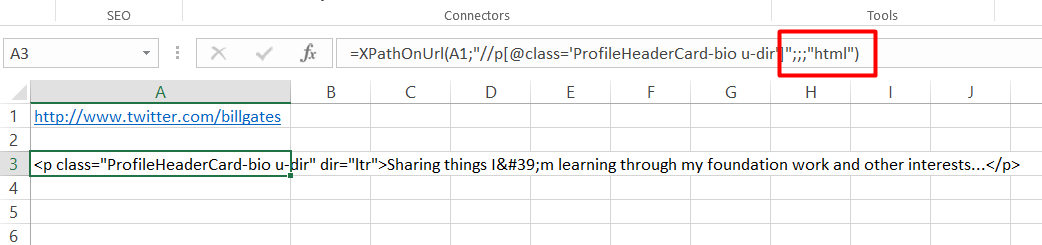
=XPathOnUrl(url,"//div[1]",,,"formatted")
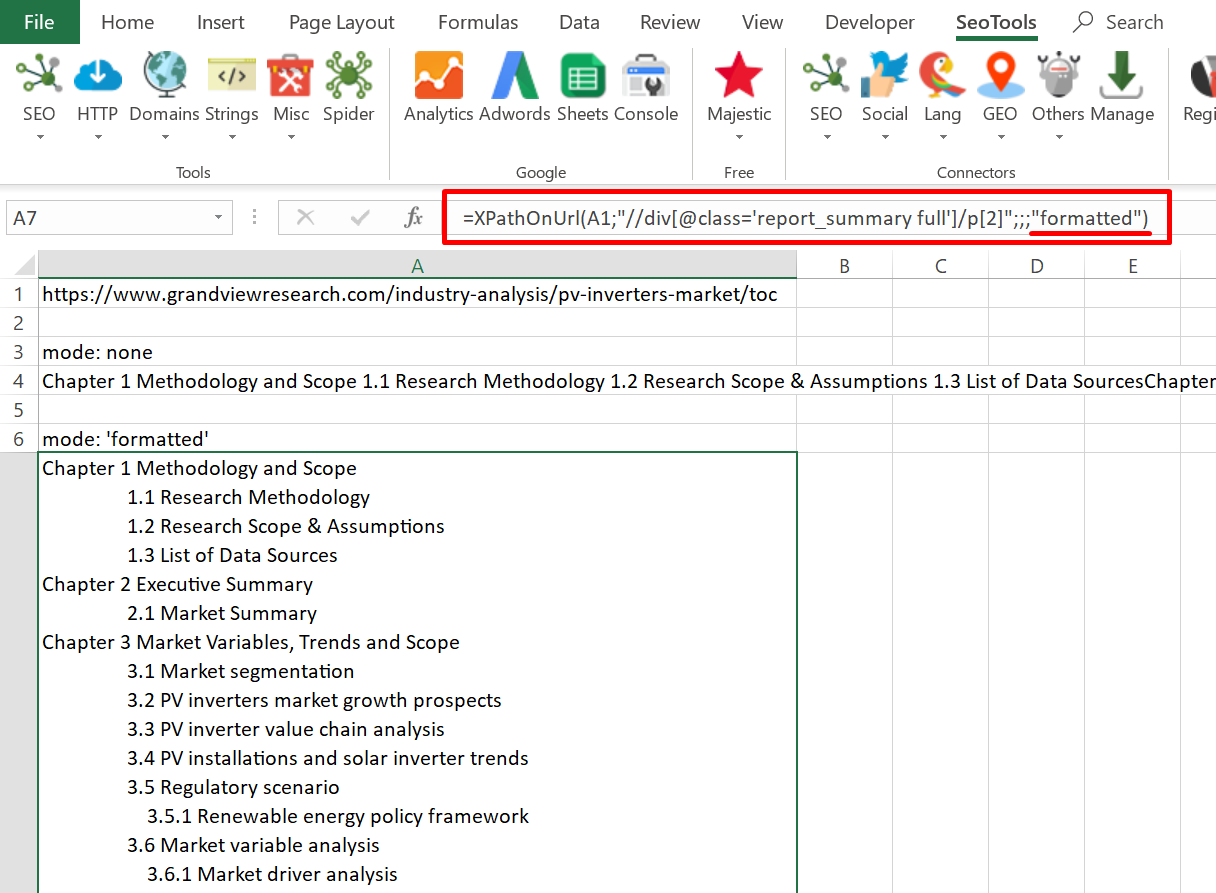
___
### Dump
Fetches the url and returns the (vector) result from xpath expression.
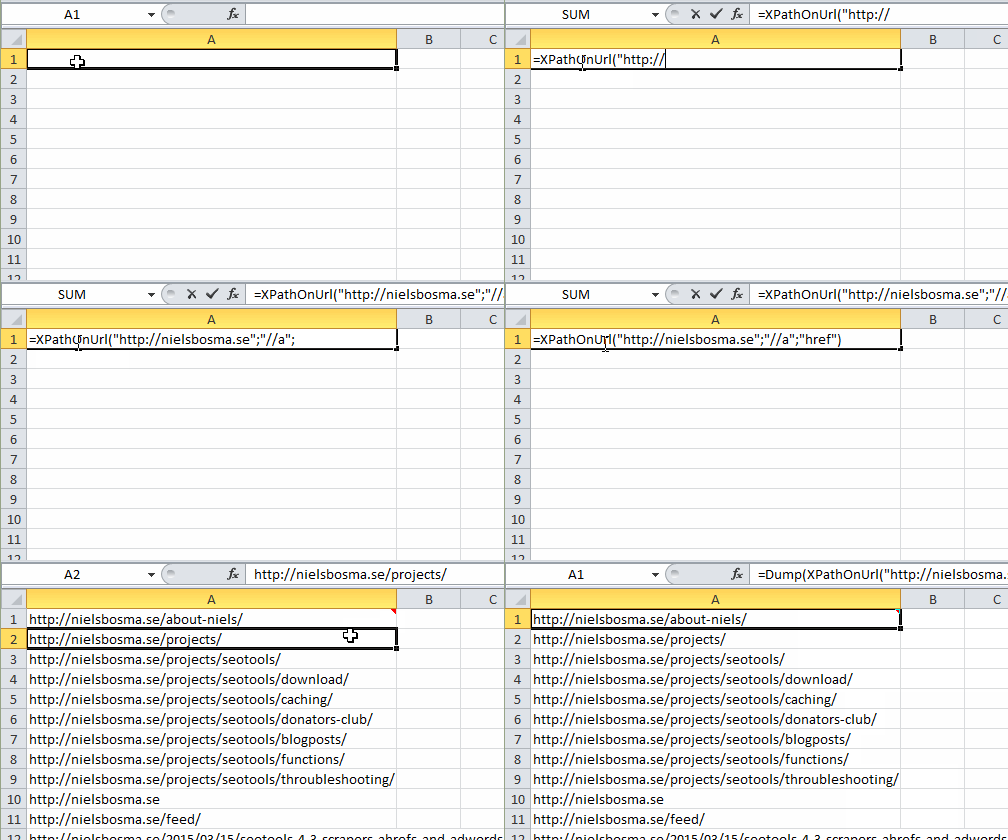
___
### Local files
You can also parse local files using XPathOnUrl using either absolute or relative (to spreadsheet) filepaths:
file:///C:\path\to\file.xml
file:///path\relative\workbook.xml
file:///..\..\path\relative\workbook.xml
See: [DirectoryList](/directorylist/)
___
## Examples
#### Return number of nodes
Retreive the number of links on a page:
=XPathOnUrl("https://seotoolsforexcel.com/","count(//a)")
#### Alternative to Dump
=XPathOnUrl("https://www.google.com/search?
q=dogs","(//h3[@class='r']/a)[1]","href")
This will reference the first node. To get all results in a column, you first create a column (in say column A) with values 1..10 and use the following formula:
=XPathOnUrl("https://www.google.com/search?q=dogs"
,"(//h3[@class='r']/a)["&A1&"]","href")
___
## See
#### Cookbook
* [XPathOnUrl.xlsx](https://raw.githubusercontent.com/nielsbosma/SeoTools-for-Excel-Cookbooks/master/Functions/XPathOnUrl.xlsx)
#### Guides
* [Learn more about xpath.](https://www.w3schools.com/xml/xpath_intro.asp)
* [Working with arrays in Excel](/working-with-arrays-in-excel/)
#### Related Functions
* [GetTextOnUrl](/gettextonurl/)
* [JsonPathOnUrl](/jsonpathonurl/)
* [CsqueryOnUrl](/csquery/)
* [RegexpFindOnUrl](/regexpfindonurl/)
---
# Access Yahoo Search in Excel
URL: https://seotoolsforexcel.com/yahoo-search/
Type: page
Published: 2017-03-16
Updated: 2019-05-19
Summary: SeoTools for Excel offers a user-friendly and effective method to collect search results from Yahoo straight to Excel within a matter of seconds.
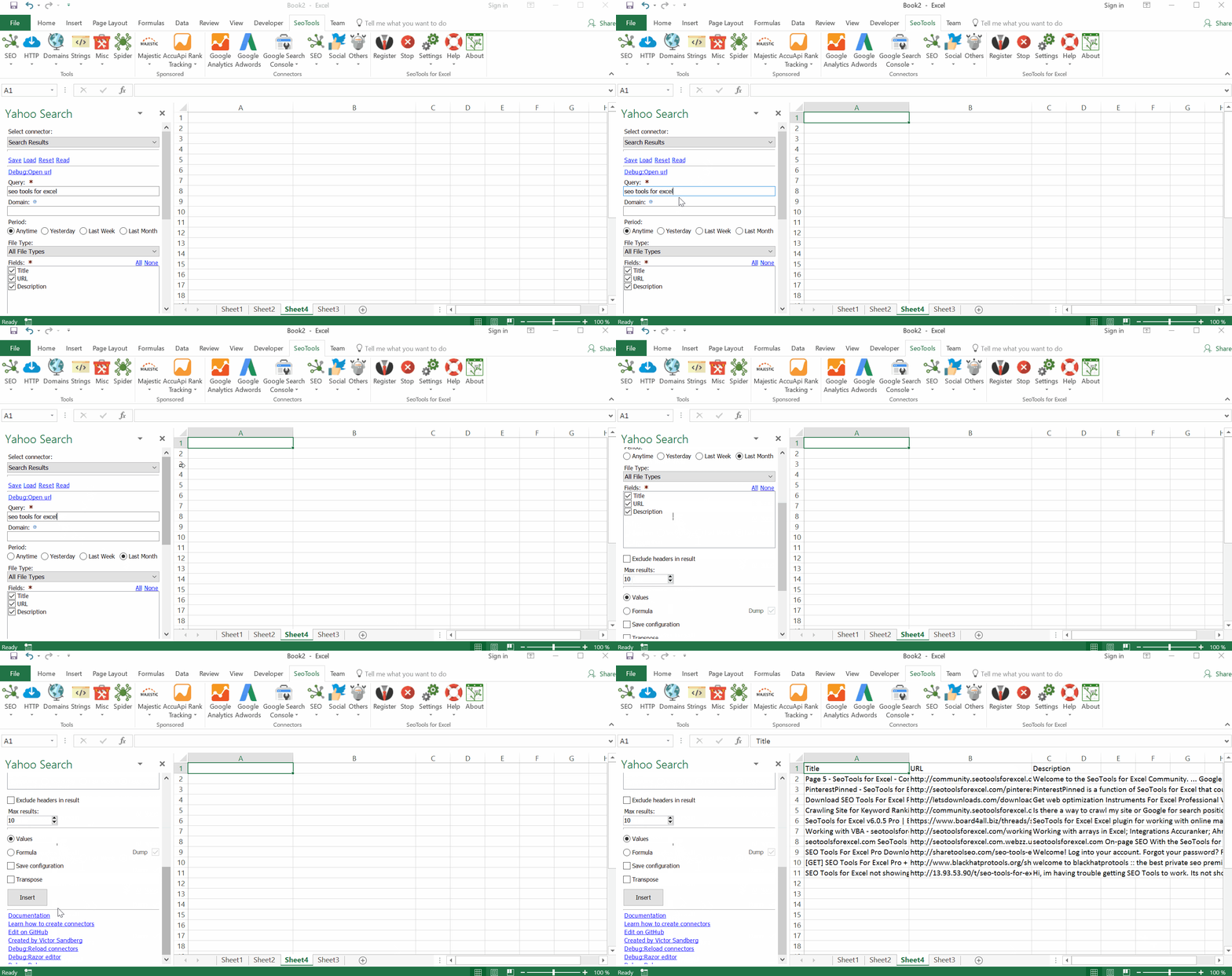
___
## Search
Extract unlimited search results from Yahoo. Available metrics:
- URL
- Title
- Description
___
## Number of Results
Extract the total count of indexed pages.
___
## Domain Indexed Paged
Extract the total count of indexed pages for a particular domain.
___
## Related Searches
Extract the top related search queries suggested by Yahoo.
___
## Filters
The search results can be filtered by the following parameters:
- Period
- File Type
___
## Contribute
This connector suite is open-sourced on [GitHub](https://github.com/nielsbosma/SeoTools-for-Excel-Connectors/blob/master/YahooSearch.xml).
___
## See
#### Related Functions
* [Google Search](/google-search/)
* [Bing Search](/bing-scraper/)
---
# Access Yelp in Excel
URL: https://seotoolsforexcel.com/yelp/
Type: page
Published: 2018-02-26
Updated: 2019-09-20
Summary: SeoTools for Excel offers a user-friendly and effective method to search and collect data from Yelp straight to Excel within a matter of seconds.
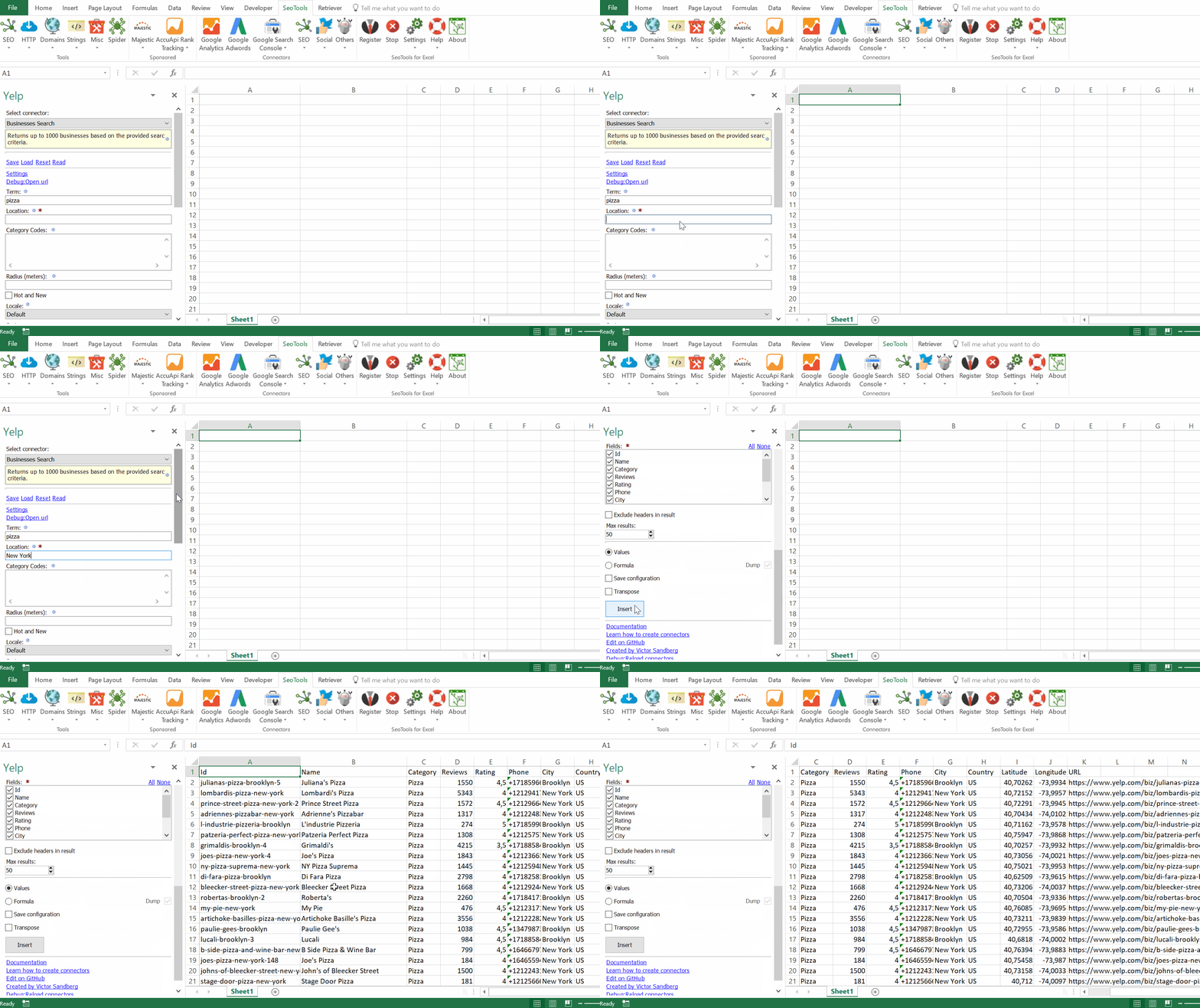
___
## Purpose
Unlock a wealth of content and data from over 50 million businesses. Search for businesses by name, phone number or find reviews in the Yelp database.
- **Business Search** - Returns detailed statistics of up to 1000 businesses. Available parameters:
- Search Query
- Location
- Radius
- Category
- Sorting (Best|Rating|Reviews|Distance)
- **Phone Lookup** - Returns a list of businesses based on the provided phone number.
- **Reviews** - Returns the up to three reviews of a business.
- **Autocomplete Categories** - Returns autocomplete suggestions for search keywords, businesses and categories.
- **Autocomplete Terms** - Returns autocomplete suggestions for search keywords, businesses and categories.
- **Categories List** - Returns all available categories used for filtering search results.
___
## Access
## Add from Manager
The Yelp Connector is available in the **[Connectors Manager](/manage-connectors/)** in the top ribbon:

Head over to the **Products & Review Sites Category** and install Yelp:
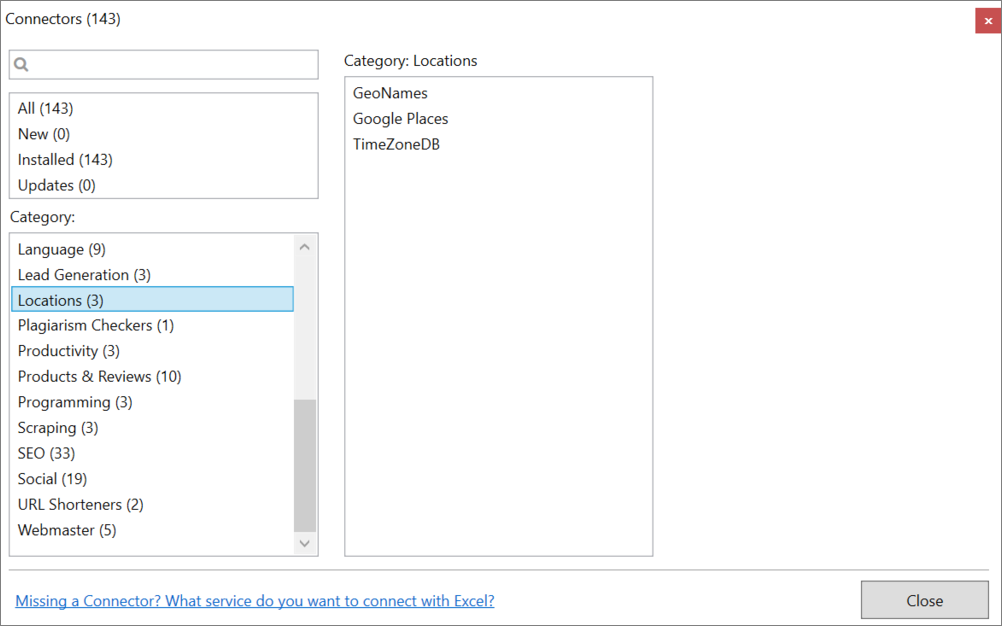
## Get API keys
To use the Connector you need a Yelp Account and a Developers App.
1. If you don't have an account, sign up [here](https://www.yelp.com/signup).
2. Next, go to the [Developers Site](https://www.yelp.com/fusion) and click on "Manage App".
3. Fill out the required fields, enter captcha, and click on "Register New App".
4. On the next page, copy the API Key and paste it in the Settings menu inside the Yelp Connector in SeoTools.
___
## Contribute
This connector suite is open-sourced on [GitHub](https://github.com/nielsbosma/SeoTools-for-Excel-Connectors/blob/master/Yelp.xml).
___
## See
#### Official Documentation
* [Yelp API](https://www.yelp.com/developers/documentation/v3)
#### Related Functions
* [TripAdvisor](/tripadvisor/)
#### Resources
* [Manager](/manage-connectors/)
---
# Access YouTube in Excel
URL: https://seotoolsforexcel.com/youtube/
Type: page
Published: 2017-03-25
Updated: 2019-05-19
Summary: SeoTools for Excel offers a user-friendly and effective method to search and collect data from Youtube straight to Excel within a matter of seconds.
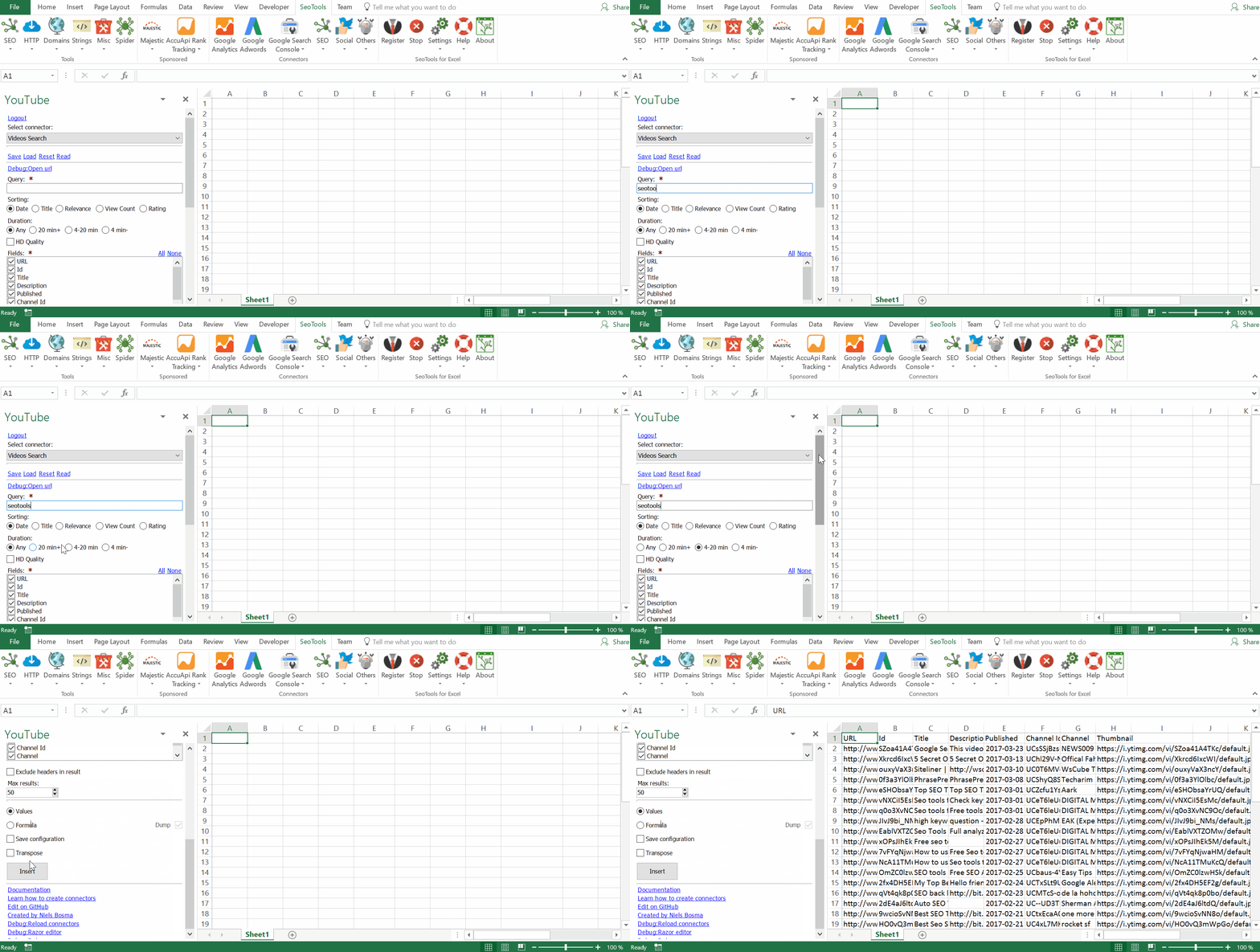
___
## Videos
* **Statistics** - Get statistics and information about a particular video.
* **Search** - Find videos matching a specific query. Available search options:
- Sorting (*Date, Title, Relevance, Views, Rating*)
- Duration (*Any,20min+, 4-20min, 4min-*)
- HD Quality
* **Comments** - Extract a list of all comments posted about a particular video. Available options:
- Sorting (*Time, Relevance*)
## Channels
* **Statistics** - Get statistics and information about a particular channel.
* **Search** - Find channels matching a specific query. Available search options:
- Sorting (*Date, Title, Relevance, Views, Rating*)
- Channel Type (*Any/Show*)
* **Comments** - Extract a list of all comments posted on a particular channel. Available options:
- Sorting (*Time, Relevance*)
* **Videos** - Extract a list of all videos posted on a particular channel.
## Playlists
* **Search** - Find playlists matching a specific query. Available search options:
- Sorting (*Date, Title, Relevance, Views, Rating*)
* **Videos** - Extract a list of all videos belonging to a particular playlist.
## Converting
* **Channel URL to Id** - Extract the Id of a channel from the URL.
* **Video URL to Id** - Extract the Id of a video from the URL.
## Subscriptions
* **List** - Extract a list of all channels a specific user is subscribing to.
## Subscribers
* **Personal** - Retrieve a feed of the subscribers of the authenticated user in no particular order.
___
## Access
To use the Connector you need an account connected to Google.
1. The Connector is located under the *Social* Category in SeoTools main ribbon. Click on Login.
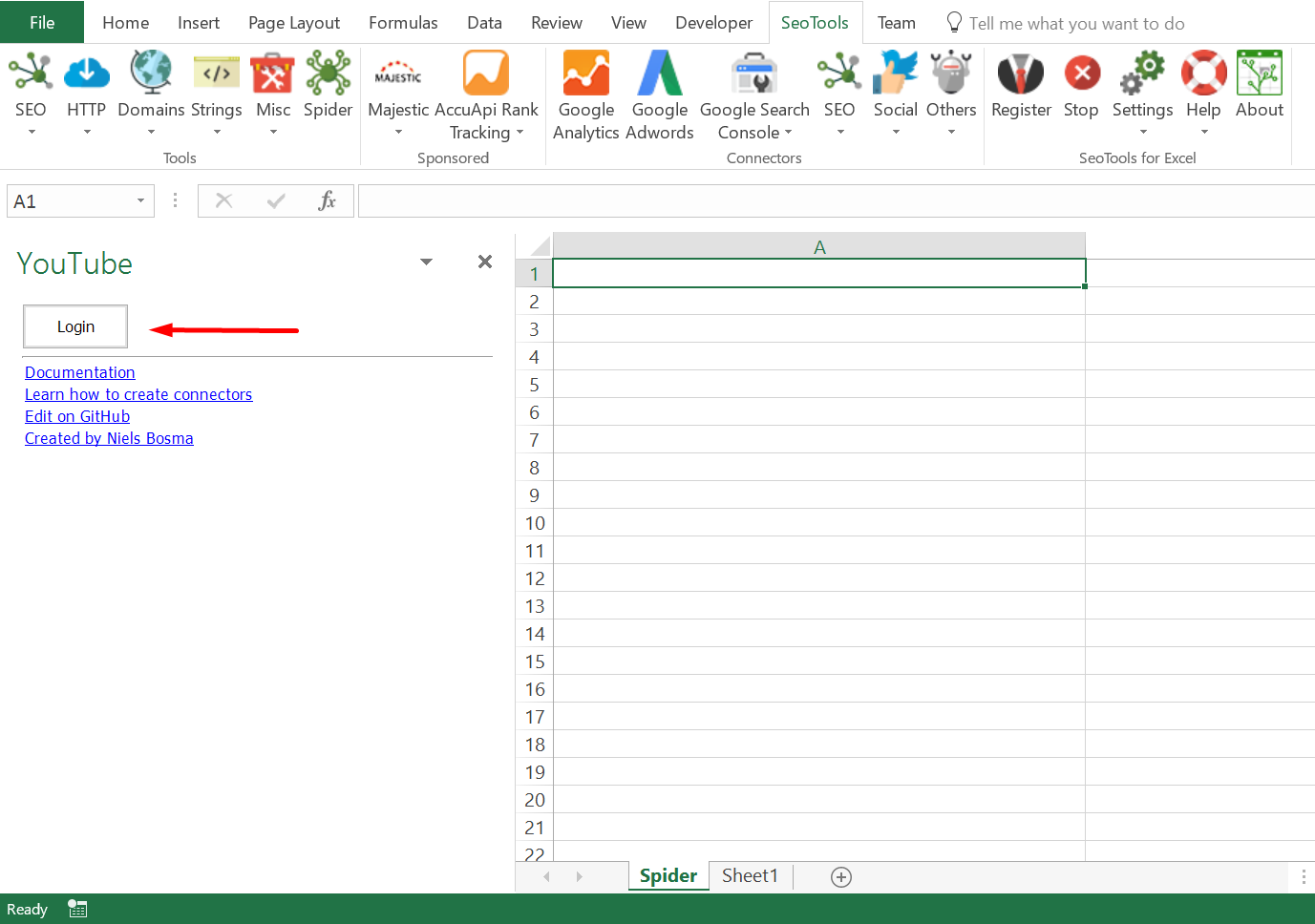
2. Select your preferred account and click on *Allow*
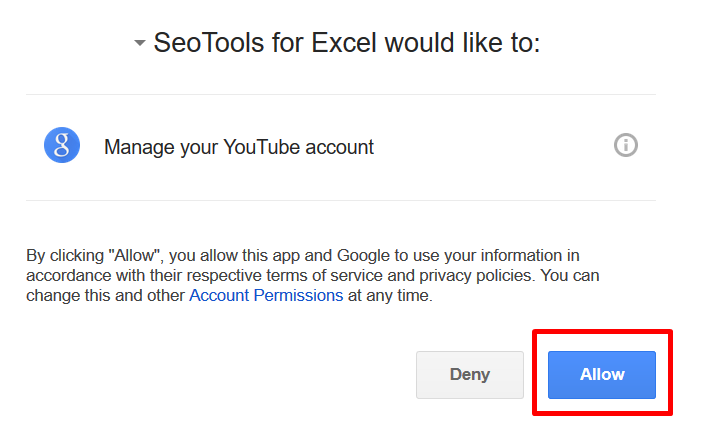
___
## Contribute
This connector suite is open-sourced on [GitHub](https://github.com/nielsbosma/SeoTools-for-Excel-Connectors/blob/master/YouTube.xml).
___
## See
#### Official Documentation
* [YouTube API](https://developers.google.com/youtube/v3/docs/)
#### Related Functions
* [YouTube Analytics](/youtube-analytics/)
---
# Access YouTube Analytics in Excel
URL: https://seotoolsforexcel.com/youtube-analytics/
Type: page
Published: 2018-02-26
Updated: 2021-07-12
Summary: SeoTools for Excel offers a user-friendly and effective method to collect Insights data from Youtube straight to Excel within a matter of seconds.
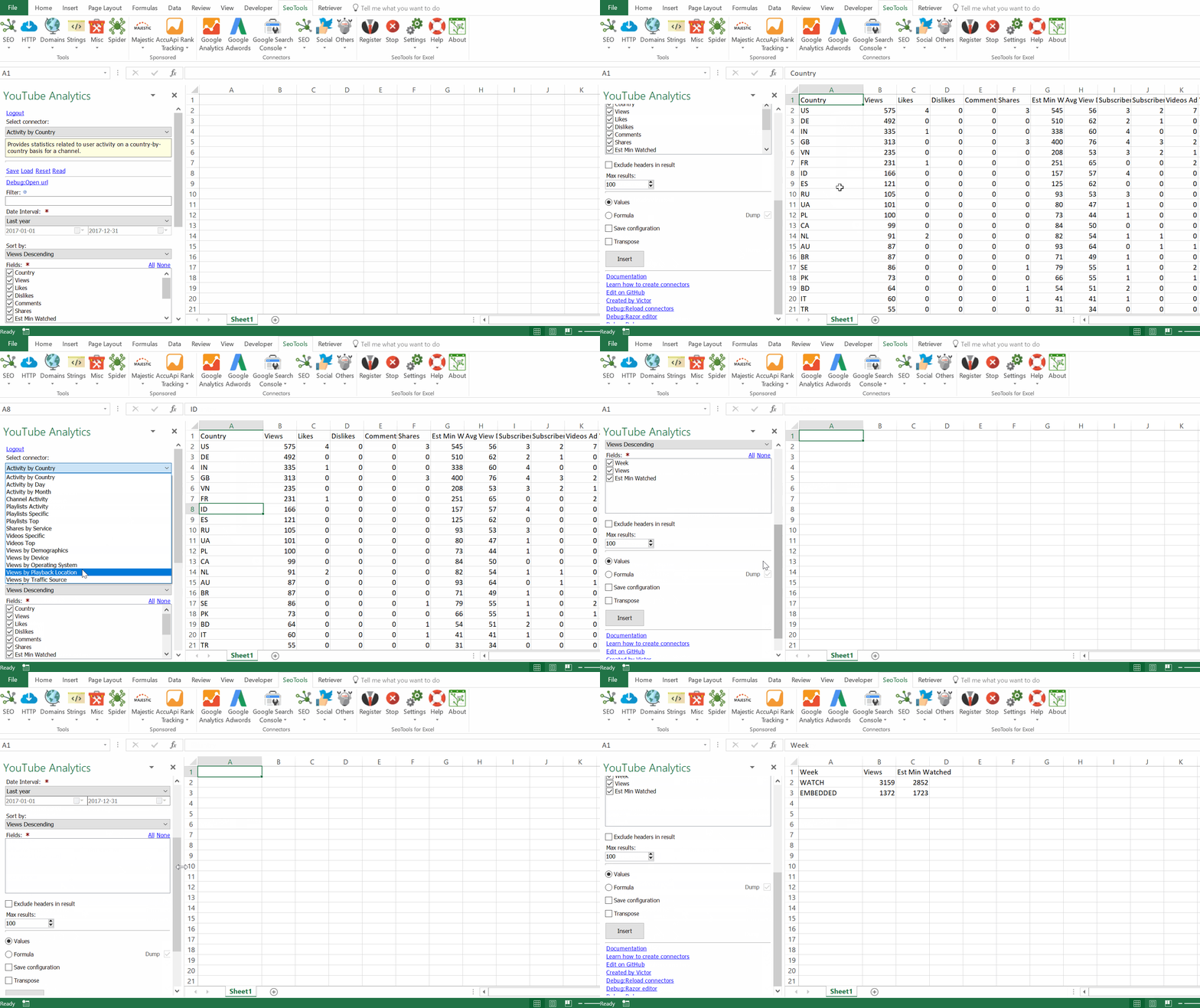
___
## Videos
* **Video Analytics** - Statistics related all videos during a period or specific videos.
* **Retention Rate** - A measurement that shows how well a video retains viewers during playbacks in comparison to all YouTube videos of similar length.
## Channels
* **Activity** - Users' actions on a channel.
* **Country** - User activity on a country-by-country basis for a channel.
* **Day** - User actions on a daily basis.
* **Shares by Service** - How frequently the channel's videos were shared on different social platforms.
* **Demographics** - Viewing statistics based on viewers' age group and gender.
* **Views by Segment** - Viewing statistics based on one of the following segments:
* **Traffic Sources** - Traffic sources which viewers reached your playlist content with.
* **Devices** - Devices used which viewers reached your playlist content with.
* **Operating System** - OS which viewers reached your playlist content with.
* **Playback Locations** - type of page or application where playlist playbacks occurred.
___
## Access
To use the Connector you need a Google account with access to a YouTube account containing Analytics Data. You do not need to be the owner of the account. The login procedure allows you to select accounts which you have been invited to.
1. The Connector is located under the *Social* Category in SeoTools main ribbon. Click on Login.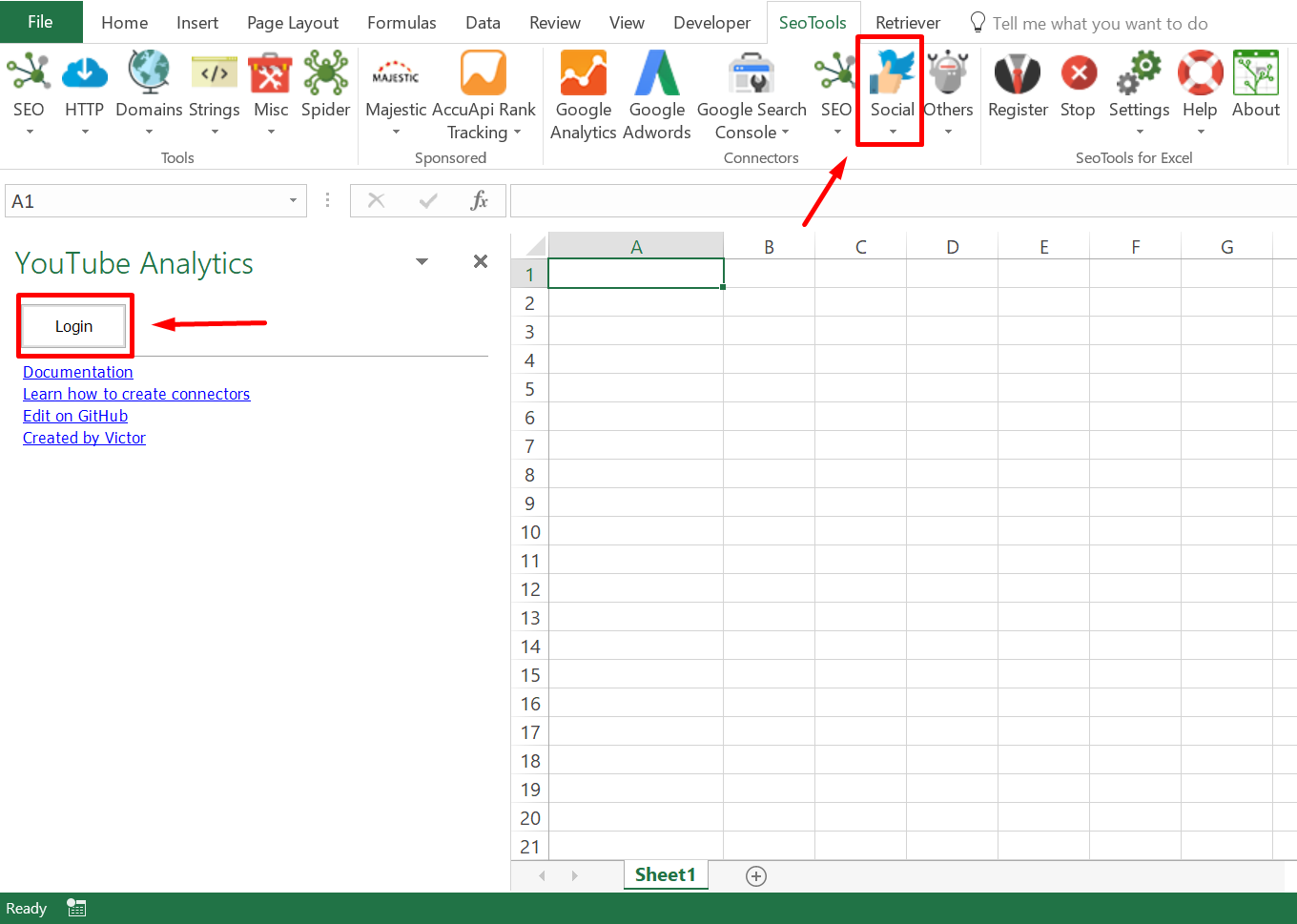
2. Select your preferred account and click on *Allow* 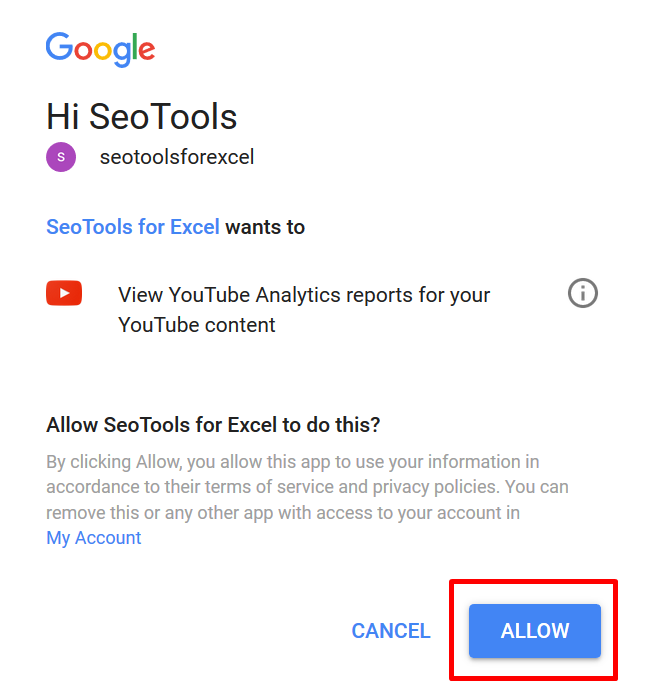
___
## Contribute
This connector suite is open-sourced on [GitHub](https://github.com/nielsbosma/SeoTools-for-Excel-Connectors/blob/master/YouTubeAnalytics.xml).
___
## See
#### Official Documentation
* [YouTube Analytics API](https://developers.google.com/youtube/analytics/data_model)
#### Related Functions
* [YouTube](/youtube/)
---
# Access ZeroBounce in Excel
URL: https://seotoolsforexcel.com/zerobounce/
Type: page
Published: 2021-07-13
Updated: 2021-07-13
Summary: Verify emails inside Excel using the ZeroBounce connector as a formula.
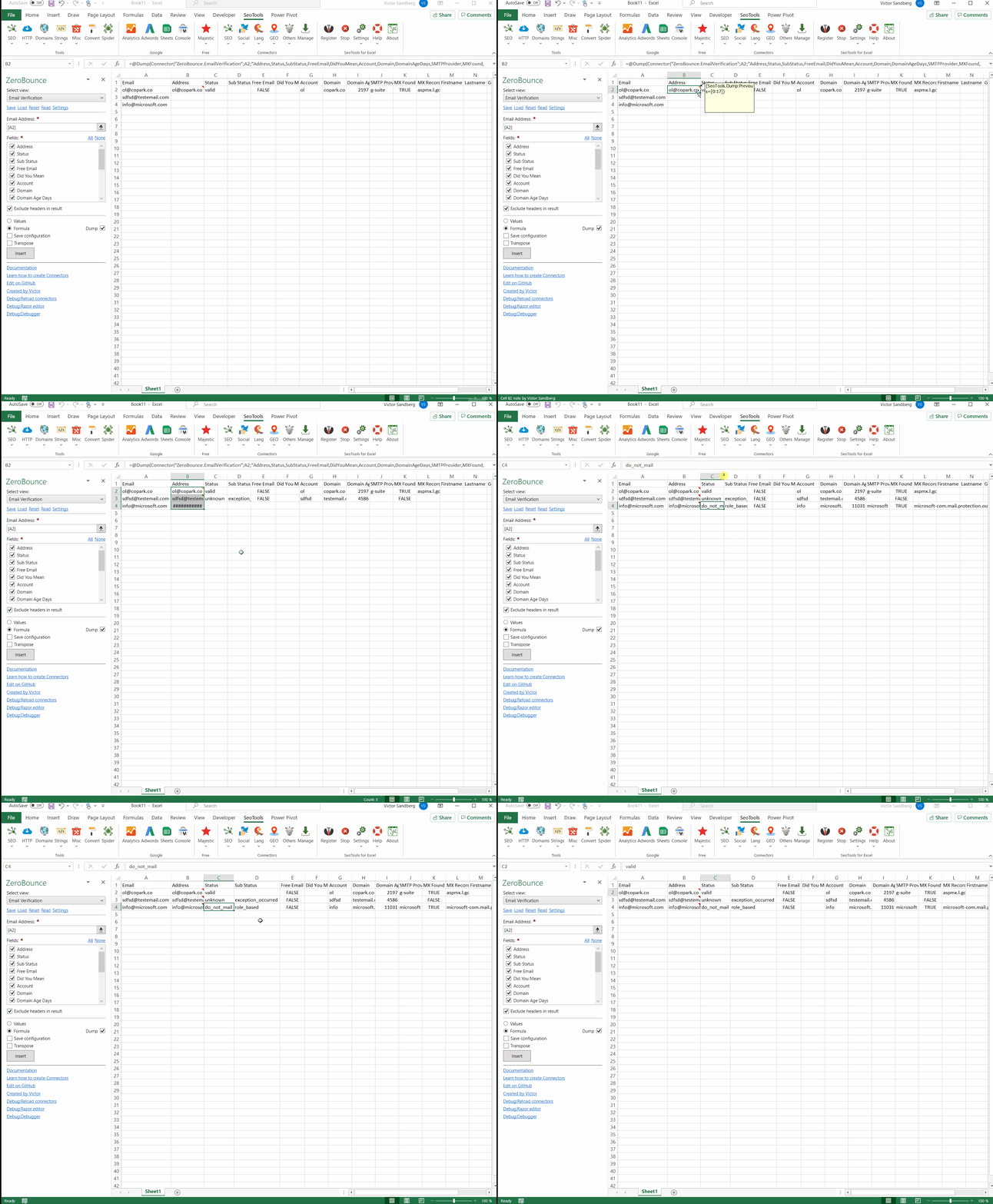
___
## Fields
- Address
- Status
- Sub status
- Free Email
- Did you mean
- Account
- Domain
- Domain Age
- SMTP Provider
- MX Found
- MX Record
- First name
- Last name
- Gender
- Country
- Region
- City
- Zipcode
___
## Access
## Add from Manager
The ZeroBounce Connector is available in the **[Connectors Manager](/manage-connectors/)** in the top ribbon:

Head over to the **Email Category** and install ZeroBounce:

## API Key
To use the Connector you need a ZeroBounce account. [Read more here](https://www.zerobounce.net/docs/api-dashboard/key-management) about finding your API key.
___
## Contribute
This connector suite is open-sourced on [GitHub](https://github.com/nielsbosma/SeoTools-for-Excel-Connectors/blob/master/ZeroBounce.xml).
___
## See
#### Resources
* [Manager](/manage-connectors/)
#### Related Functions
* [Hunter](/hunter/)
---
# SeoTools 10.0 - Google Analytics 4, ChatGPT and more!
URL: https://seotoolsforexcel.com/seotools-10-0/
Type: post
Published: 2023-06-29
Updated: 2023-06-29
Long time since last update. Thank you for being patient with the rebuilding of our most popular connector, Google Analytics. We have a good mix of new features, connectors, and functions in this release.
Dowload the latest version!
## Recalculate
This menu will make it a lot easier to work with connector formulas when recalculations are both time-consuming and costly. In the above example, I've extracted json strings and some cells returned error because I didn't add enough delay between requests. I don't want to recalculate everything because each request costs money and it is not practical to manually update each cell. The recalculate method solves this with a single click.
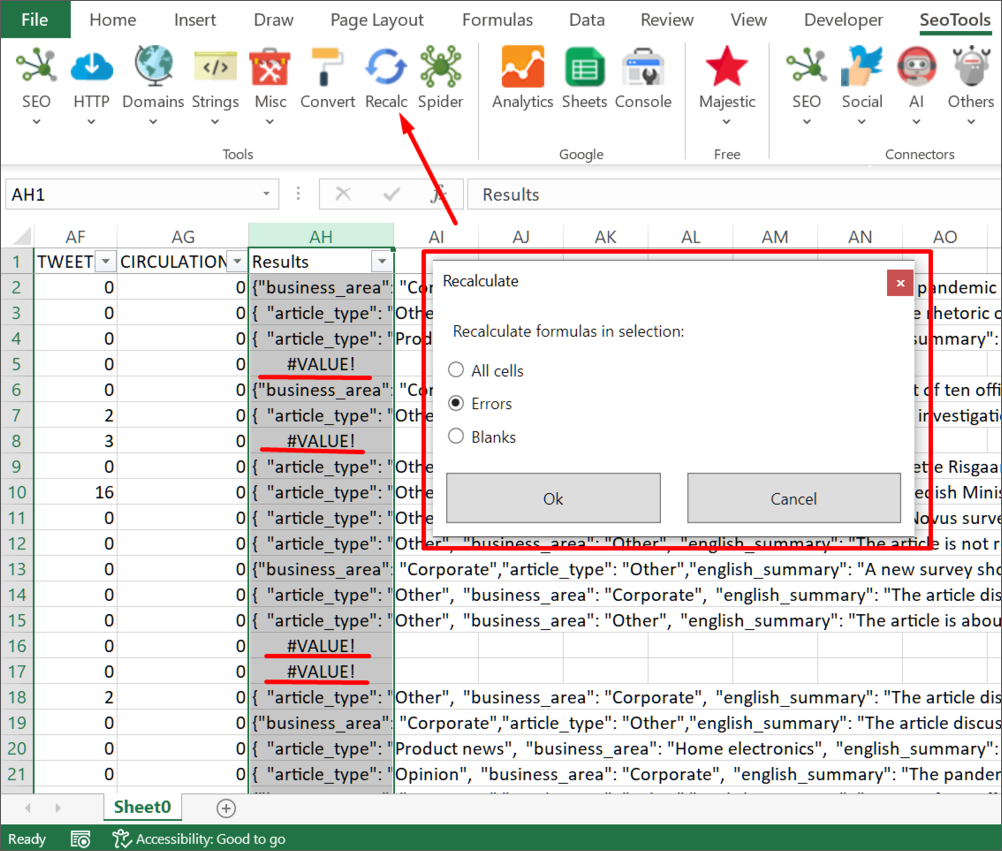
## New Connectors
- [OpenAI](/openai/) - You can find this connector under the new connector category 'AI', located in the SeoTools ribbon. Expect a separate post about the power of ChatGPT/GPT4 with Excel formulas 🔥
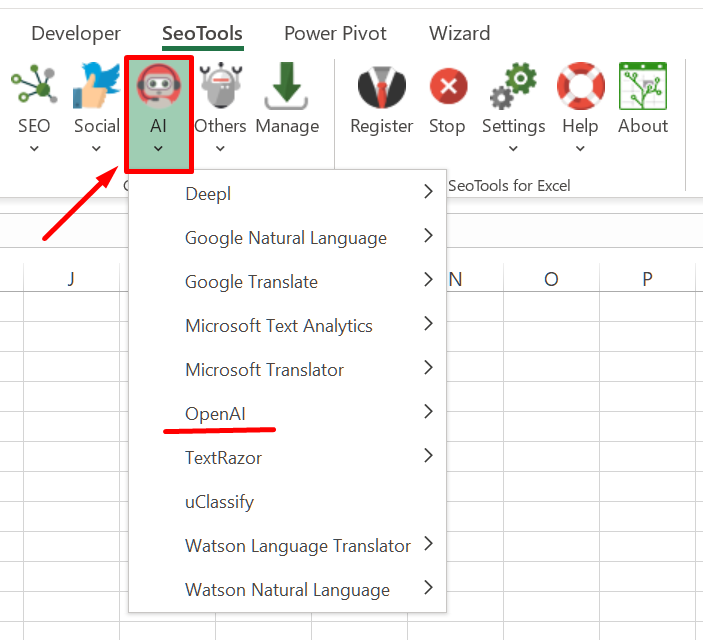
- [Facebook Ads Library](/facebook-ads-library/)
- [TextRazor](/textrazor/)
- [TikTok](/tiktok/)
- [Abstract](/abstract/)
- [ScrapingBee](/scrapingbee/)
- [SharedCount](/sharedcount/)
- [Stock News](/stock-news/)
## Updated Connectors
- [Google Analytics](/google-analytics/) - Rebuilt to Google Analytics 4.
- [Mailchimp](/mailchimp/) - New view: Member activity.
- [Yahoo Finance](/yahoo-finance/) - New views: Major Holders Breakdown, Key Executives.
- [Spotify](/spotify/) - New fields about album and track releases.
- [DataForSEO](/dataforseo/) - New view: Backlinks. Google SERP uses **LIVE** view instead of cached results.
- [RSS Parser](/rssparser/) - Added support for podcast feeds.
- [Search Console](/google-search-console/) - New view: Inspect: View the indexed, or indexable, status of the provided URL.
- [Instagram Insights](/instagram-insights/) - New views: Insights Total, Insights Product Type.
- [Sistrix](/sistrix/) - New view: Keyword SEO Traffic
- [Gmail](/gmail/) - Option to extract email message bodies.
## New Controls
The advanced Google Analytics controls have been made available for all connectors which means these will be added to existing connectors in the near future. Expect better multi-selection, sorting and filtering with search support.
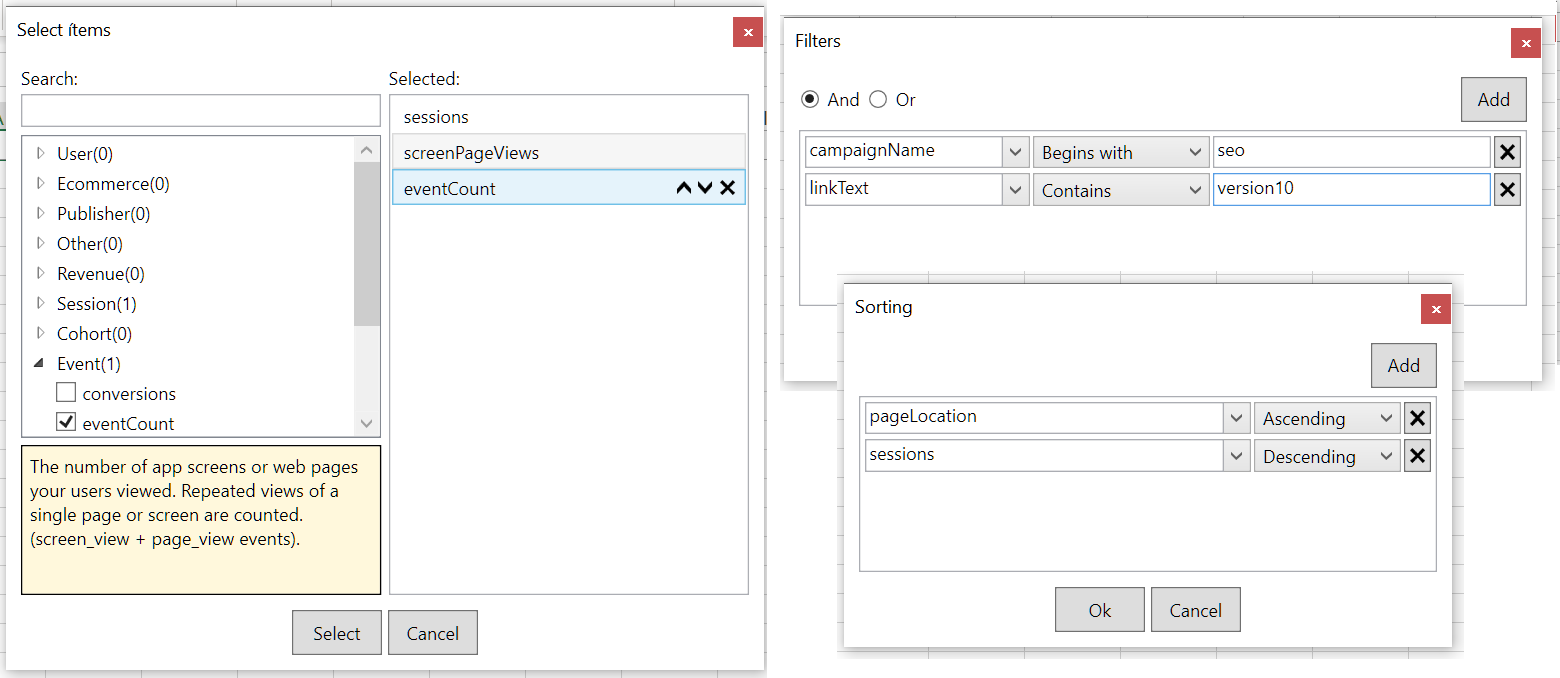
## New Functions
- [IsValidJson](/isvalidjson/) (useful when working with json responses from OpenAI connectors)
- [IsValidXml](/isvalidxml/)
Dowload the latest version!
Please provide feedback and ideas for future releases. Have a great summer!
/Victor & Niels
---
# SeoTools 9.7 - Auto-Updater, new Twitter API, Yahoo Finance, and more!
URL: https://seotoolsforexcel.com/seotools-9-7/
Type: post
Published: 2021-07-15
Updated: 2023-07-10
Long time since last official update! We've got a good one packed with new and updated connectors, added functionality, and bug fixes.
Dowload the latest version!
## Auto-Updater
SeoTools will let you know when a new version is available and upgrade automatically. This is especially useful for organisations and users without admin rights. No need to fetch the IT-guy to enter the admin password for the old installer.
## New Connectors
- [SEO Power Suite](/seopowersuite/)
- [Google Mobile Friendly](/google-mobile-friendly/)
- [Twitter v2](/twitter2/)
- [Yahoo Finance](/yahoo-finance/)
- [ZeroBounce](/zerobounce/)
- [SSL Labs](/ssl-labs/)
- [Article Forge](/article-forge/)
## Updated Connectors
- [Google Analytics](/google-analytics/) - **Custom dimensions** and **custom metrics** are directly visible in the selection list. 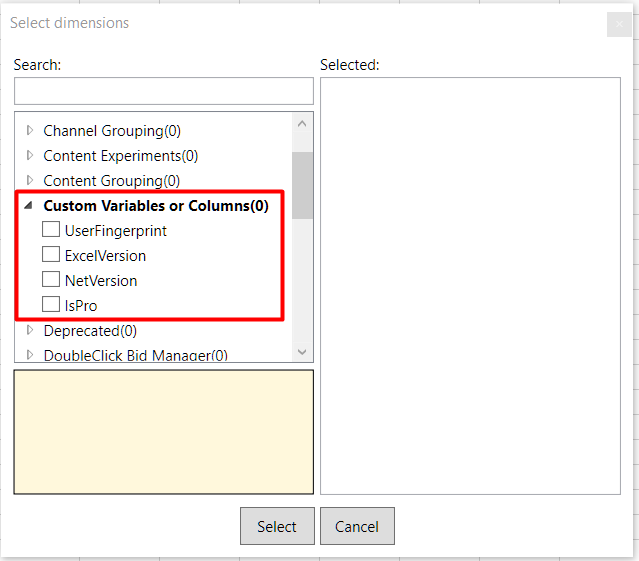
- [Google PageSpeed](/google-pagespeed/) - Added **LCP** (*Largest Contentful Paint*) and **CLS** (*Cumulative Layout Shift*) metrics.
- [Google Search Console](/google-search-console/) - Added **News** and **Fresh Data** filters.
- [Google Sheets](/google-sheets/) - Extract a list of all available workbooks with detailed metadata.
- [Ahrefs](/ahrefs/) - New view for extended ref domains statistics.
- [Searchmetrics](/searchmetrics/) - Added '**Page Strength**' lookup.
- [DataForSEO](/dataforseo/) - Remade to latest version with additional views, metrics, filter and more.
- [Mailchimp](/mailchimp/) - New views for **automations** and **member** statistics.
- [Facebook](/facebook/) - Additional fields for images, videos, and albums such as *video duration*, *width/height*, *average watch time* etc.
- [Youtube Analytics](/youtube-analytics/) - Added support for **field selection** instead of fixed report structures.
- [Spotify](/spotify/) - Extract personal statistics such as top tracks/albums.
- [Pipedrive](/pipedrive/) - Updated to latest version with additional filters. Also added support to extract **custom fields**.
- [Twitch](/twitch/) - Get total follower/following count instead of lists.
- [Watson Language Translator](/watson-lt/) - Automatic language detection with confidence level.
- [Microsoft Computer Vision](/ms-computer-vision/) - Detect **brands** in images.
## Updated Functions
- All functions have IntelliSense support!

Dowload the latest version!
We hope you enjoy this release!
/Victor & Niels
---
# SeoTools 9.3 - Formula Converter, reorder fields, predefined headers and more
URL: https://seotoolsforexcel.com/seotools-9-3/
Type: post
Published: 2020-05-25
Updated: 2021-07-15
Summary: Latest update contains stability improvements, a new function to convert formulas to values, ability to reorder fields, and improved formula status-bar.
We hope everyone is safe and healthy in these crazy times. If you are forced to stay inside and spends hours in Excel, perhaps this update can make your day-to-day stuff a bit easier.
Dowload the latest version!
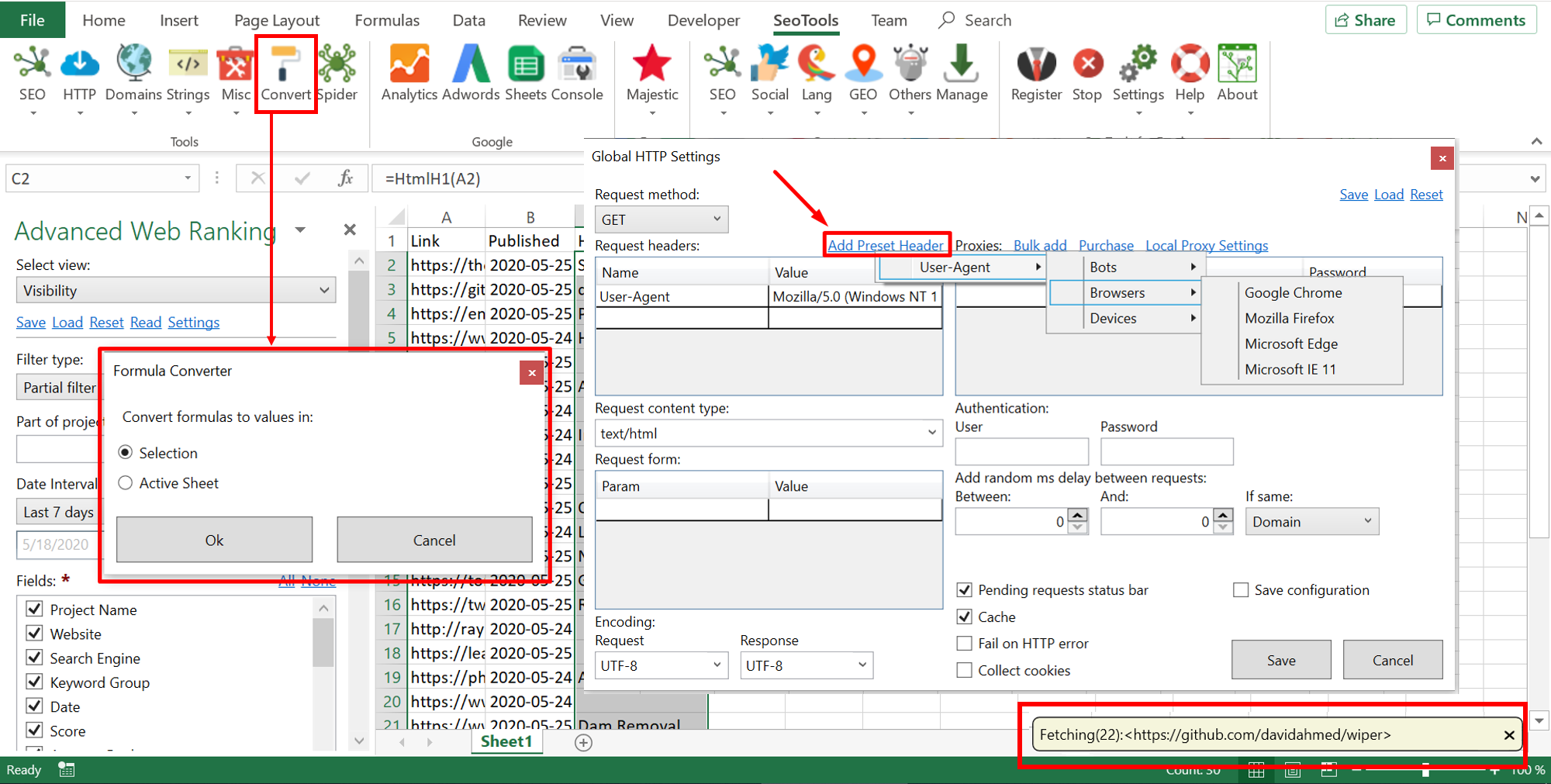
## New Connectors
## Oauth refresh tokens
The authentication flow has been improved so you will only need to login once and SeoTools will keep you logged in to the service next time you request data. Updated connectors: [Facebook](/facebook/), [Facebook Insights](/facebook-insights/), [Facebook Ads](/facebook-ads/), [Instagram Insights](/instagram-graph/), [Mailchimp](/mailchimp/), [Spotify](/spotify/), [Twitch](/twitch/), [Ebay](/ebay/).
We also added login support for many connectors which previously required API keys and developer accounts: [Slack](/slack/), [GitHub](/github/), [Bitly](/bitly/), [Dropbox](/dropbox/), [Hubspot](/hubspot/), [Tumblr](/tumblr/), [Vimeo](/vimeo/).
## Updated Connectors
- [SEMRush](/semrush/) - Added **Backlinks Overview** to get summary statistics such as total number of backlinks.
- [Facebook Ads](/facebook-ads/) - Added all **Action** stats.
- [Google Suggest](/google-suggest/) - Option to get **YouTube** auto-suggestions.
- [SE Ranking](/se-ranking/) - Many new endpoints and fields, including backlinks and audit results.
- [Bitly](/bitly/) - Returns clicks over time and clicks per country.
- Instagram Scraper - Added many new views, search options and metrics.
## New functions
- [SeoToolsListCache](/seotoolslistcache/) - Lists all URLs currently in cache.
## Updated Functions
- [GetTextOnUrl](/gettextonurl/) - Optional **InnerText** argument to strip HTML tags and scripts.
- [FindOnPage](/findonpage/) - *LinkedinAccount* now identifies both accounts from users and company pages.
## New features & Improvements
- [Converter](/converter/) - > Converts formulas to values in either worksheet or range. Also removes the "red comment triangles" from Dump() formulas.
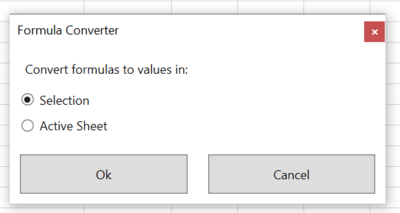
- **Drag-and-drop fields** in connector task-pane and Spider. Also possible to re-order the fields in connector formulas directly.
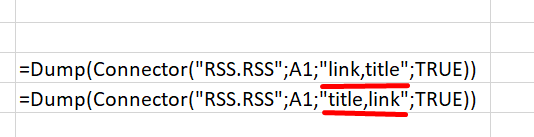
- **Improved Status-bar** for all formulas to show requests in queue. Show/hide the status-bar from the HttpSettings menu.

- **Preset headers** menu in [HttpSettings](/httpsettings/). Select from a list of popular user-agents.
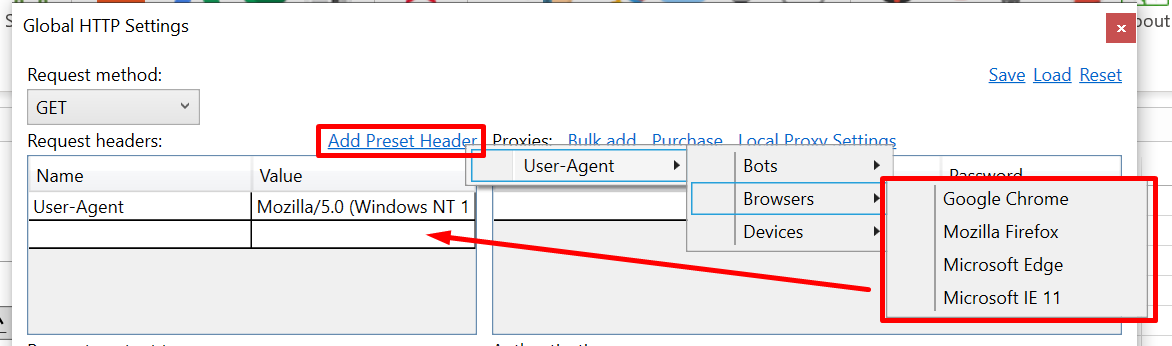
- **Connector syntax check** for text inputs with helptext. Avoids invalid requests which saves API requests and avoids rate limits. For example, Facebook post id must be `nnnn_nnnn` and SeoTools checks this syntax using regular expressions `^\d+_\d+$`.
Dowload the latest version!
We hope you enjoy this release!
/Victor & Niels
---
# SeoTools 9.0 - Lots of improvements, new functions and connectors
URL: https://seotoolsforexcel.com/seotools-9-0/
Type: post
Published: 2020-03-26
Updated: 2020-05-25
Summary: New huge update including Google Sheets connector, Ahrefs Traffic metrics, redirect functions, connector update notifications and much more!
It's been a while since we made an official release. New features and awesome feedback from the [Community](https://community.seotoolsforexcel.com/) has kept us busy but we are finally ready for release. This update will be huge, perhaps the biggest in the history of SeoTools for Excel!
Dowload the latest version!
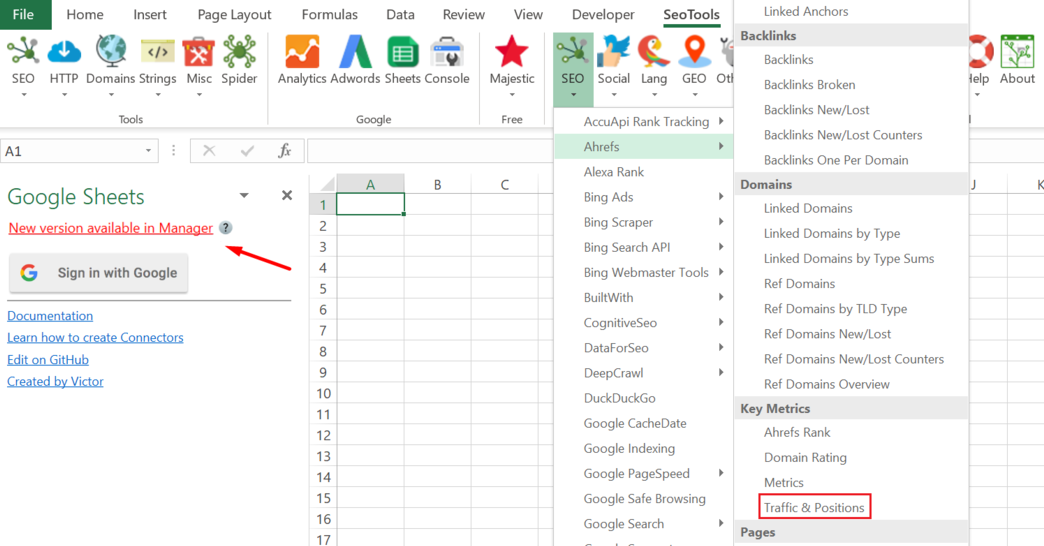
## New Connectors
## Oauth2 login support

Previously, many of our most popular connectors required you to create and apply for an app in order to get a API access. This was tedious so now all you need to do is login with your account. Connectors with updated login:
## Updated Connectors
More or less all connectors have updates. A key feature is the ability to insert a list or range of items when each item returns multiple results. For example requesting all backlinks for many URLs at once. Here is a sample of some important updates:
Google Analytics - New profile selector which allows you to search for profiles and accounts. Option to extract all custom Dimensions and custom Metrics.
SEMrush - Traffic Analytics data and other metrics
Ahrefs - Traffic Positions and other metrics. (highly requested!)
ImageProperties – increased stability and support for more image types
Connector Select Value-window. Improved search with exact and case-sensitive matching
Range selection – one-click to fetch the active selection (instead of two step range picker)
Dowload the latest version!
We hope everyone is safe!
/Victor & Niels
---
# Introducing FileStar
URL: https://seotoolsforexcel.com/new-tool-from-bosma-interactive-filestar/
Type: post
Published: 2019-02-12
Updated: 2019-05-21
Summary: At Bosma Interactive (the company behind SeoTools) we're productivity nerds, always thinking about how we can work more efficiently with our daily tasks.
At Bosma Interactive (the company behind SeoTools) we're productivity nerds, always thinking about how we can work more efficiently with our daily tasks. Simply how to get more shit done.
A year ago we started to think about how little innovation there has been in the way we work with files since modern desktop computing was introduced.
For each “thing” you want to do with a file you need a separate application and you need to know how to use it. (* And no, web/mobile apps don’t make things much better. And yes, people still have files.)
Let's say you want to convert 5 .PDF files to .DOC files how do you do this?
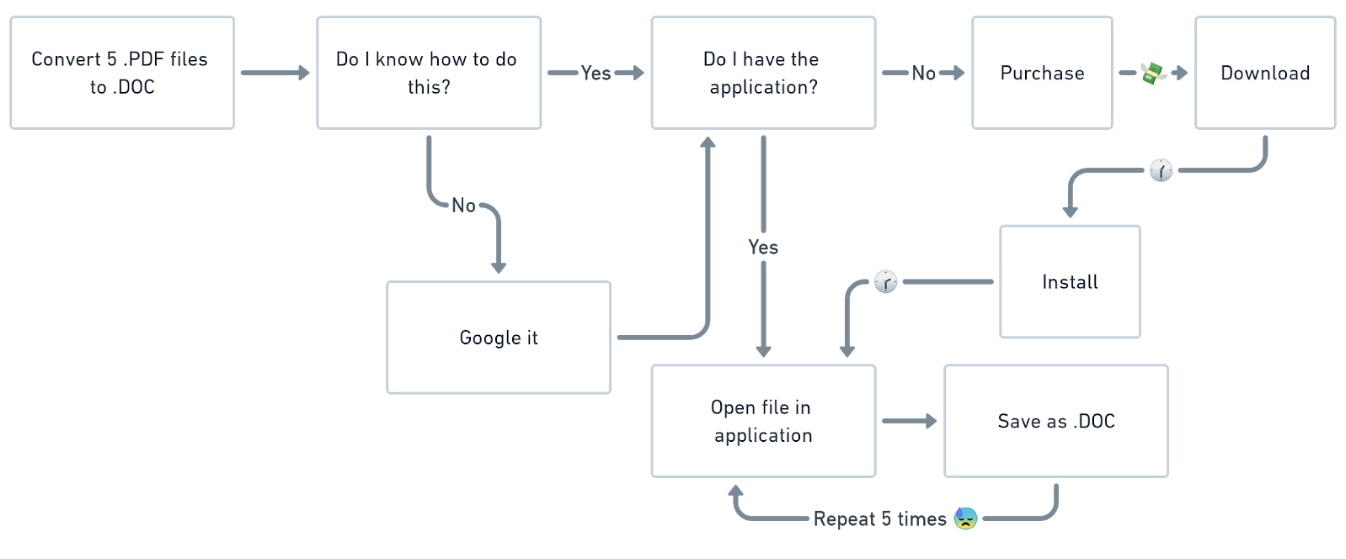
Today, with modern search engines, we are used to just search for the things we want. Why can't we just select a file on our desktop and just type what we want to?
So... one year later, we give you FileStar! We intend to fulfil the following promise: **"Do anything with any file on any platform"**. We’re in the business of saving our users time and money.
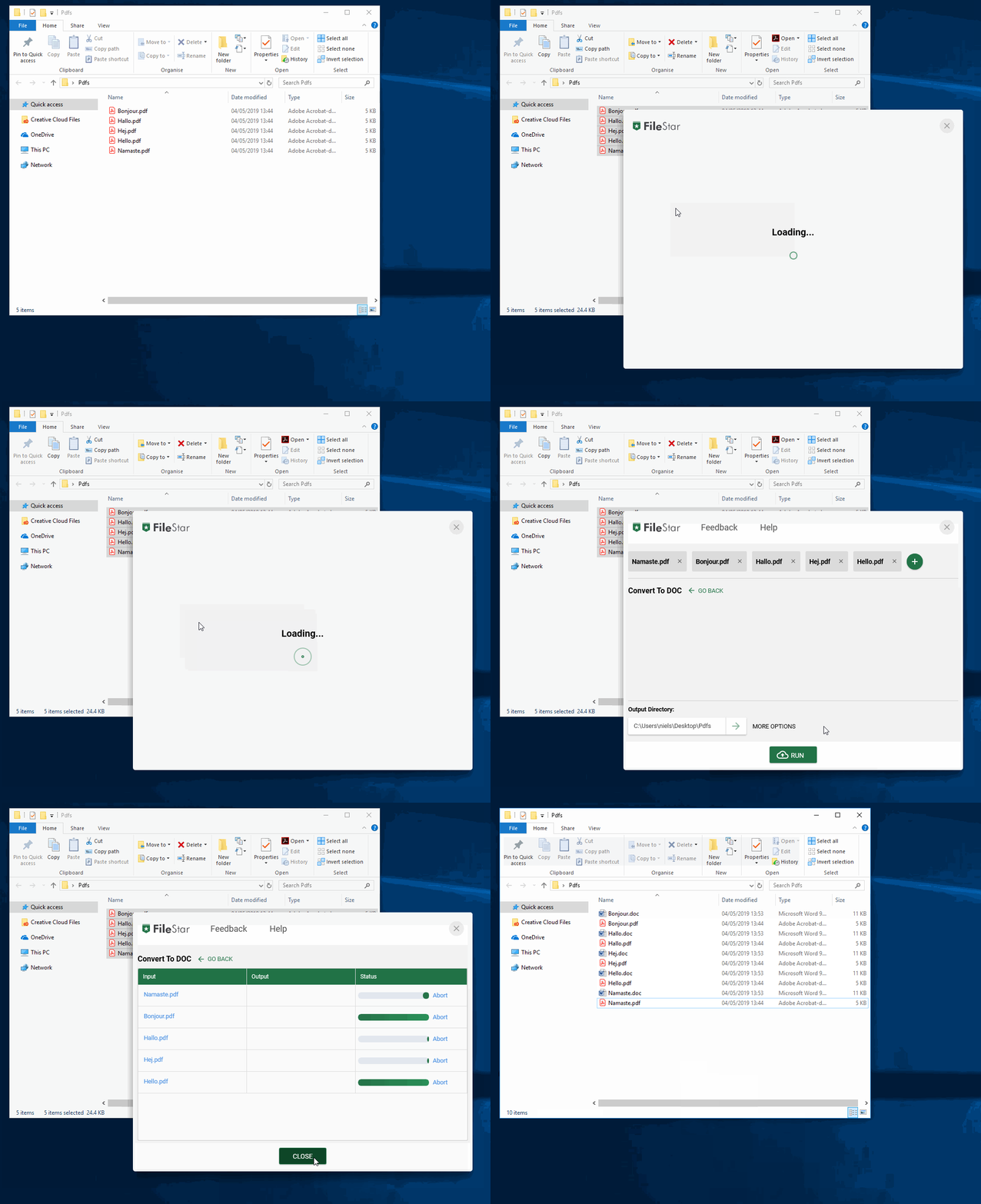
Central to FileStar is "Skills". A skill can transform a file one form into another. Examples are file conversions, image transformations, etc. We have now in our first release over 21.000 skills and we're releasing more every week.
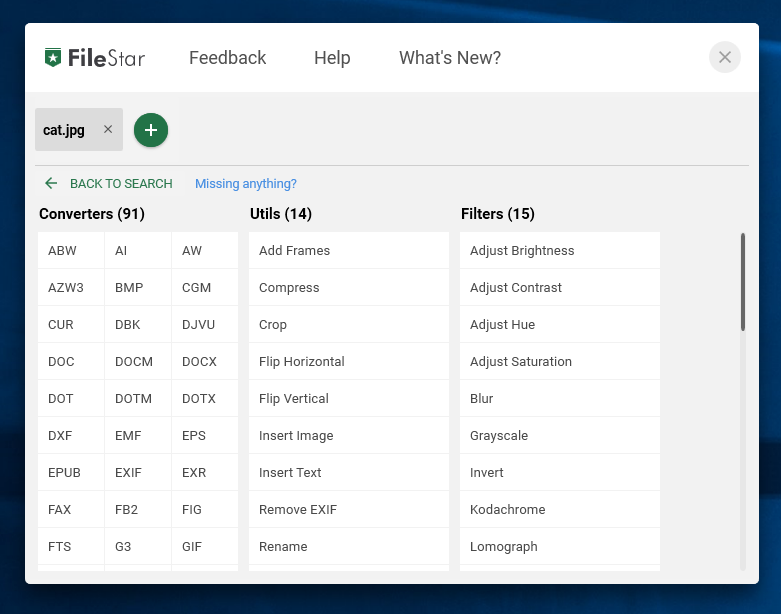
As a start, we have created a Windows client but will continue with other platforms as we go.
As SeoTools for Excel users, we hope to have earned your trust enough to give FileStar a try. FileStar can be used for free for personal usage.
Give FileStar a try and we promise you will save time by automating common tasks in your daily life.
Try FileStar!
---
# SeoTools 8.0 - With Connector Manager and Spider improvements.
URL: https://seotoolsforexcel.com/seotools-8-0/
Type: post
Published: 2018-03-27
Updated: 2020-03-25
Summary: In this release we have a bunch of new Connectors that you have requested. We also improved the spider and introduce the new Connector Manager.
## TL;DR
In this release we have a bunch of new Connectors that you guys have requested. We also introduce the new **Connector Manager** where Connectors can be downloaded, installed and updated without having to reinstall SeoTools. There have also been some major updates to the Spider.
Dowload the latest version of SeoTools!
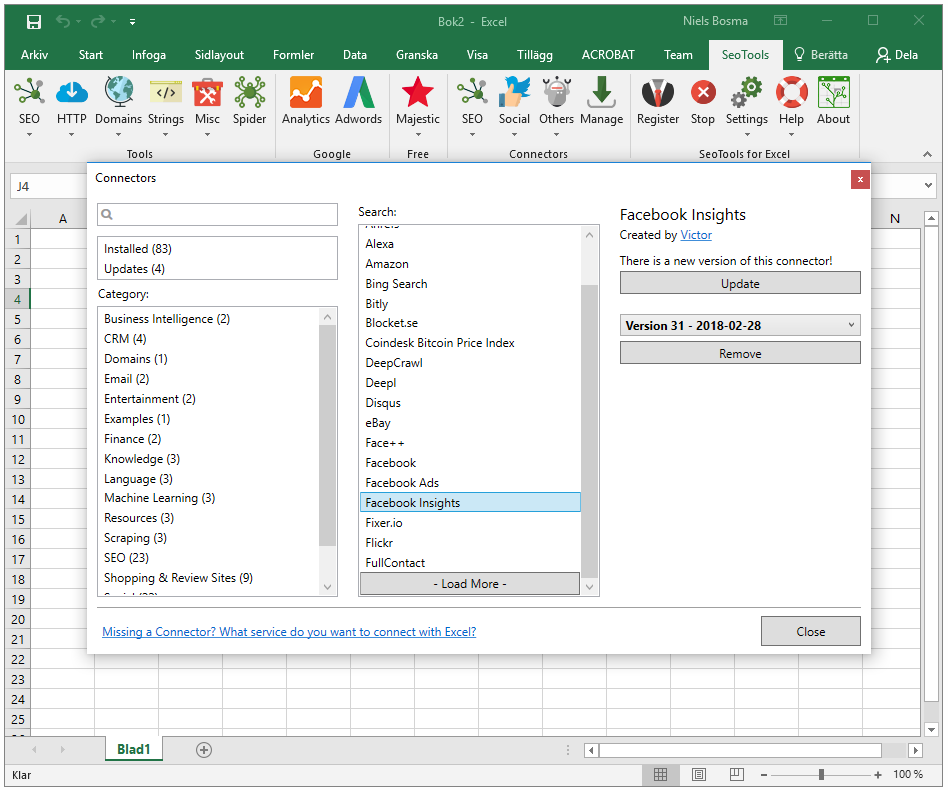
## Loads of new Connectors
Victor and our new colleague Dovydas have been busy with building loads of new Connectors
And as usual we have added loads of new features to the already released connectors.
Most of these new Connectors you need to download through the new Connector Manager. Moving forward we will release new and updated connectors every week through the Connector Manager.
Do yo have a connector that you need to save time for your business?
## New Functions
New "Range" mode where you can select list of urls from your workbook.
Spider now doesn't crash when finding binary files.
Fixed serveral other issues.
Spider columns can now return multi-row output. For example XPathOnUrl can now return all the values that matches an xpath.
KeywordDensity now handles numbers in the same way as letters.
Fixed issue with bulk adding proxies in HttpSettings.
Added case sensititive option to RegexFind functions.
Fixed problem with UnshortUrl not generating a timeout exception.
Optional parameter to control case sensitivity in RegexpFind.
All UI is now build for retina displays.
In the task pane wizards there's now an utility in the text boxes to select a cell reference.
Fixed issues when using Dump and Connectors that return values that begin with '='.
Dowload the latest version of SeoTools!
Best regards!
/Niels, Victor & Dovydas
---
# An Innovative Way to Track Page Development
URL: https://seotoolsforexcel.com/an-innovative-way-to-track-page-development/
Type: post
Published: 2017-03-30
Updated: 2019-05-20
Summary: Tracking the progress of web pages and its content won't raise any eyebrows. But what about going backwards? SeoTools offers a unique way.
Tracking the progress of web pages and its content won't raise any eyebrows. There are countless tools available and you can't escape the fact that it takes *time* for the data to accumulate into a decent sample size. When you finally realize the correct course of action, the opportunity might have passed.
But what about going **backwards**? We've come up with a clever and simple solution to collect web page content and compare over time.
Take the official [NASA website](https://exoplanets.nasa.gov/) which tracks the number of identified exoplanets:

Lets combine SeoTools [XPath](/xpathonurl/) and the new [Internet Archive Connector](/wayback-machine/) and put them to the test:
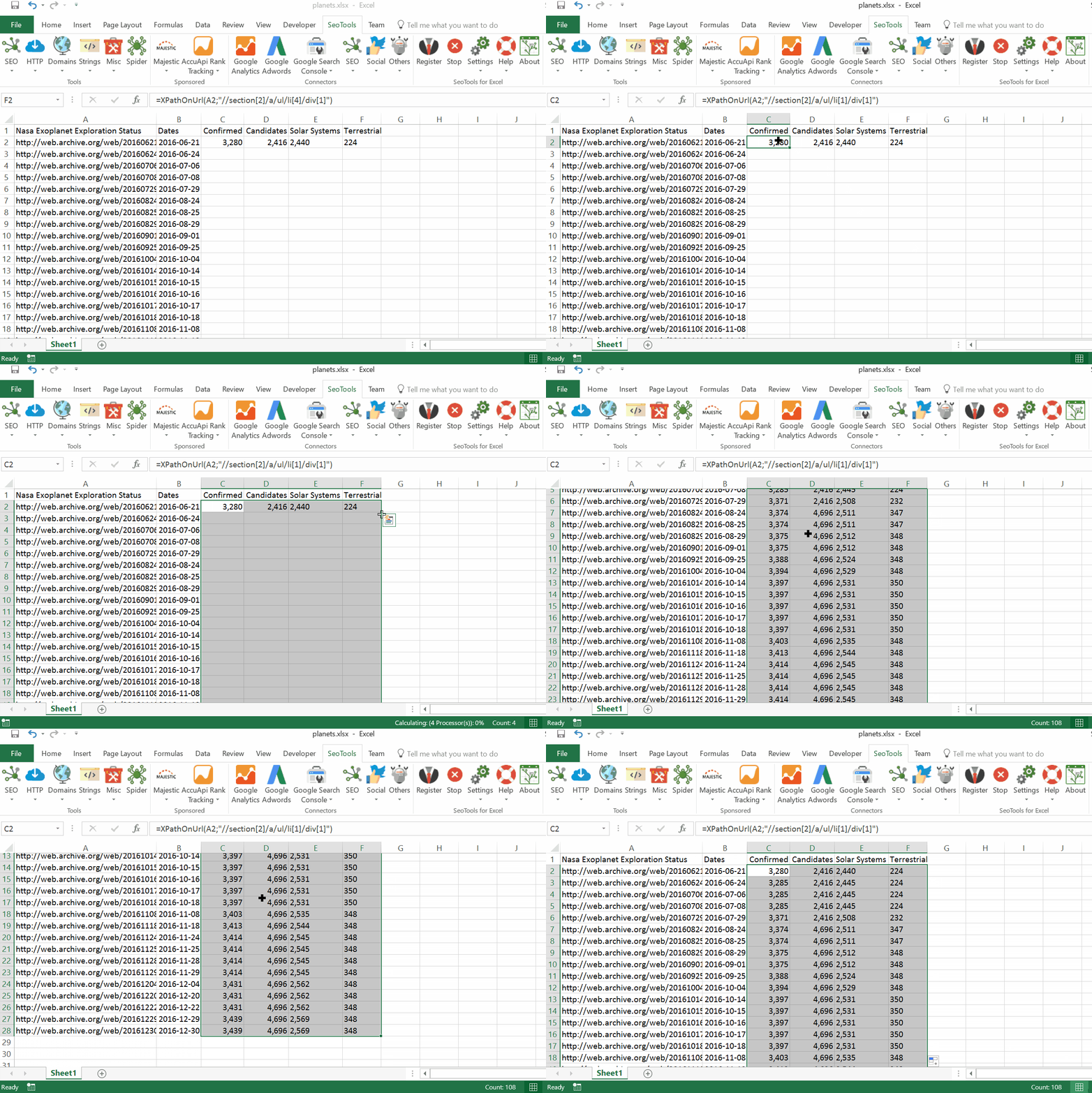
## Purpose
This exoplanet example shows the effectiveness of the method. It is applicable on all websites registered in the Internet Archive database, which means all kinds of **practical** marketing opportunities as well. For example,
- *How has your competitor product portfolio developed over time?*
- *What titles have been used over time?*
- *What images have been used over time?*
- *How many interactions, such as shares or comments, have been registered over time?*
## How To
The Internet Archive Connector is located under **SEO** in the SeoTools menu ribbon:
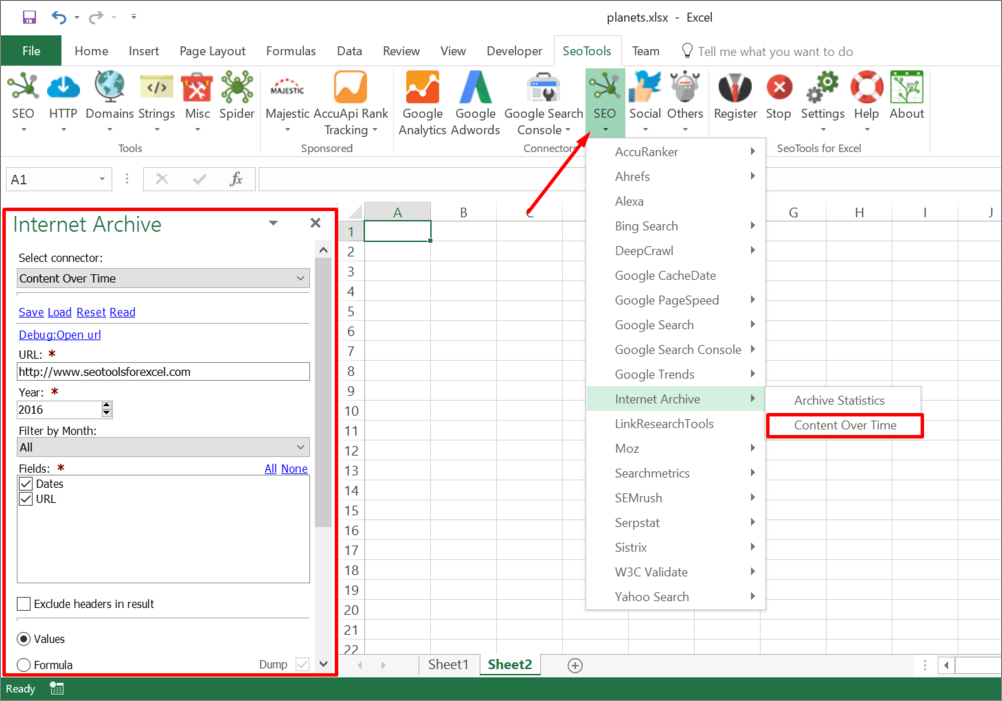
1. Enter your desired website and the year to collect historical "snapshot" images from. If a shorter period is desired, we've also included a filter by month.
2. Next, click on **Insert** and SeoTools will list all URLs available for the desired time span.
3. Inspect one of the collected URLs for a proper scraping syntax which extracts the content you are interested in. SeoTools supports many different options, for example [XPath](/xpathonurl/), [Json](/jsonpathonurl/), [Regex](/regexpfindonurl/), and [CsQuery](/csquery/). The good old HTML functions works as well, for example [HTMLTitle](/htmltitle/) and [LinkCount](/linkcount/).
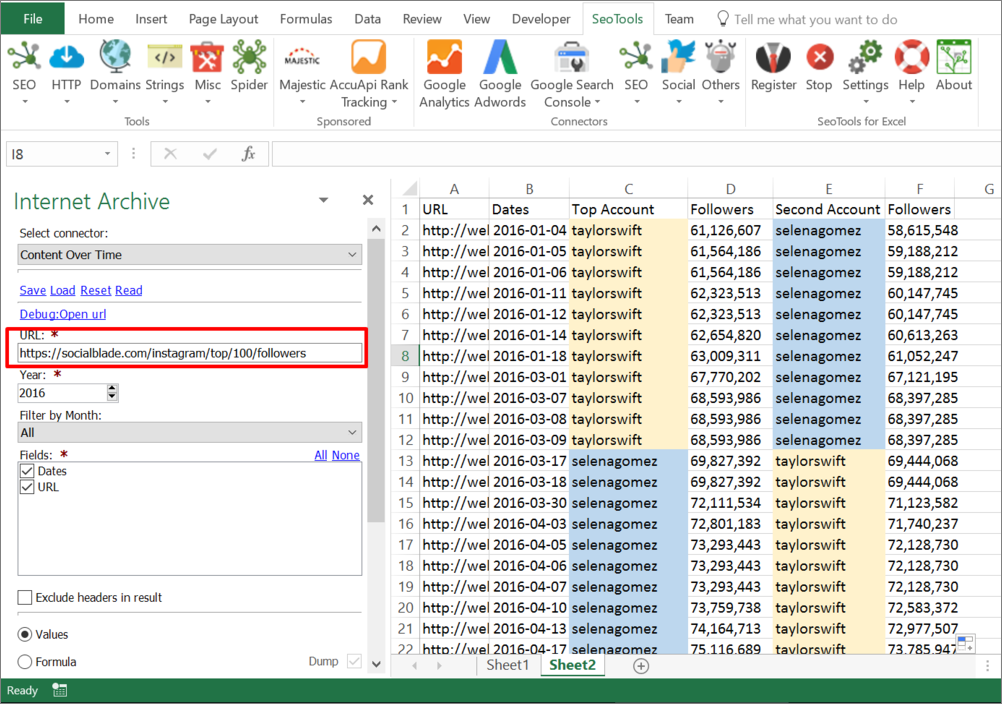
## Feedback
We would love to get some feedback and hear about some cool ways the SeoTools community tracks historical data. The Internet Archive Connector is available in SeoTools for Excel 7. Grab the latest version below and sign up for a two week trial after installation.
Dowload the latest version of SeoTools!
---
# SeoTool 7.0 - Loads of new Connectors
URL: https://seotoolsforexcel.com/seotool-7-0/
Type: post
Published: 2017-03-21
Updated: 2019-05-19
Summary: It's time for a new release with new Connectors, functions and other improvements. All features are now asynchronous and support for retina displays.
## TL;DR
It's time for a new release with loads of new Connectors, functions and other improvements. All features are now asynchronous and better support retina displays. We've also made some substantial improvements to the loading time and overall performance.
Dowload the latest version of SeoTools!
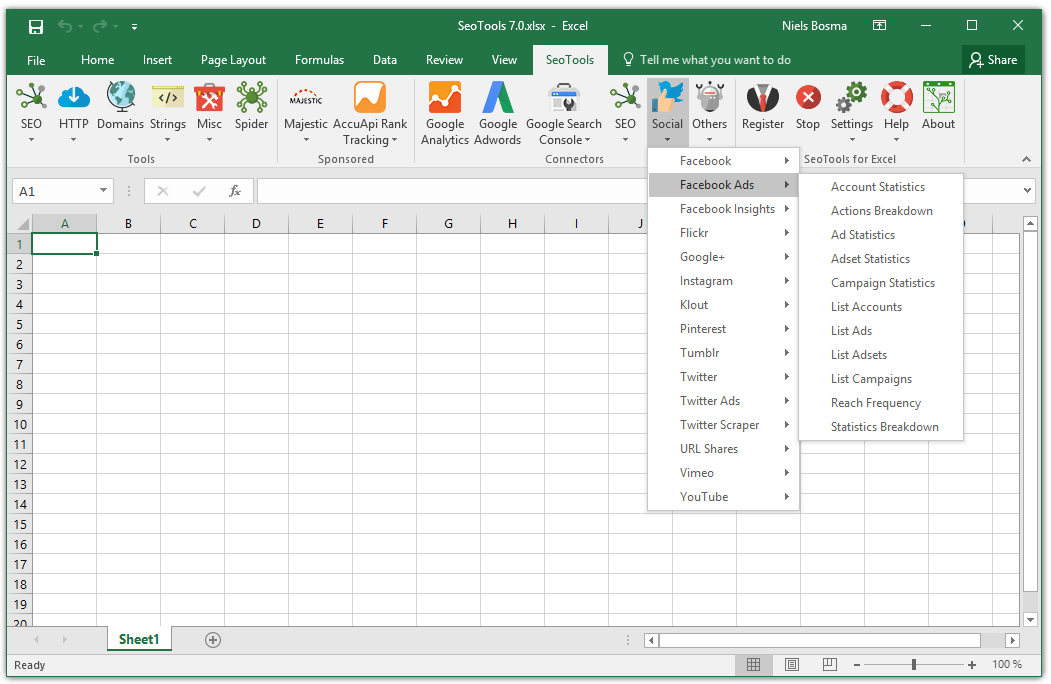
## About Pro
We have decided to discontinue the freemium model of SeoTools from this version and forward. It's simply not working out with all the development, maintenance, and support that we're putting into this product. So from now on all users will need to get what we previously called a "Pro" license key. We hope that you understand.
14-day [trial keys](/start-trial/) can be requested directly in the Register menu.
The only free features in SeoTools are now [Majestic](/majestic/) and [AccuApi](/accuapi/) (read more about this below). These companies have sponsored us to integrate their APIs in SeoTools and can be used without a license key.
## AccuApi
We've partnered with AccuRanker to integrate their ad-hoc rank tracking API - AccuApi. Using this Connector you can quickly explore the ranks of a set of keywords within seconds.
Check out AccuApi!
## Loads of new Connectors
Victor has been busy with building loads of new Connectors. He has also made updates to most of the old ones.
* [DeepCrawl](/deepcrawl/)
* [Facebook](/facebook/)
* [Facebook Insights](/facebook-insights/)
* [Facebook Ads](/facebook-ads/)
* [Twitter Ads](/twitter-ads/)
* [Google Search](/google-search/)
* [Google BigQuery](/google-bigquery/)
* [Hubspot](/hubspot/)
* [Bing Search](/bing-scraper/)
* [eBay](/ebay/)
* [Yahoo Search](/yahoo-search/)
* [LinkResearchTools](/linkresearchtools/)
* [Gmail](/gmail/)
* [Face++](/faceplusplus/)
* [Fixer.io](/fixer-io/)
* [Pinterest](/pinterest/)
* [Wikipedia](/wikipedia/)
* [Itunes](/itunes/)
* [Urban Dictionary](/urban-dictionary/)
* [TimeZoneDB](/timezonedb/)
* [RSS](/rssparser/)
* [GeoNames](/geonames/)
* [Spotify](/spotify/)
[Majestic](/majestic/), [Ahrefs](/ahrefs/), [SEMrush](/semrush/), has been converted into Connectors.
## New Functions
* [Distinct](/distinct/)
* [DownloadFile](/downloadfile/)
* [ImageProperties](/imageproperties/)
* [DumpTo](/dumpto/)
## Other Fixes
* All windows now support retina displays.
* Substantial improvements to the loading time.
* Fixed bug with [UnshortUrl](/unshorturl/)for certain urls.
* Fixed major performance bug in Connector engine.
* Added setting in SeoTools.config.xml for making asynchronous functions [run synchronously](/working-with-vba/) (for VBA scripts).
* Ability to specify a proxy when registering for SeoTools.
* Added support for HTML base tags in the Spider.
* Fixed issue with Spider not naming sheets correctly.
* Google Analytics and Google Adwords are now asynchronous.
* Had to retire the Resize function. Can't make it work with the asynchronous functions properly.
* Updated Google Analytics dimensions and metrics.
* [CsQueryOnUrl](/csquery/) and [JsonPathOnUrl](/jsonpathonurl/) in Spider.
Dowload the latest version of SeoTools!
Best regards!
/Niels & Victor
---
# SeoTools v6: Faster, more stable and no ads!
URL: https://seotoolsforexcel.com/seotools-v6/
Type: post
Published: 2016-11-13
Updated: 2019-05-19
Summary: We've been working on SeoTools 6.0 for quite a while and there's a lot of new updates. This is probably the largest update we've ever released!
## TL;DR
We've been working on SeoTools 6.0 for quite a while and there's a lot of new updates. This is probably the largest update we've ever released!
Dowload the latest version of SeoTools!
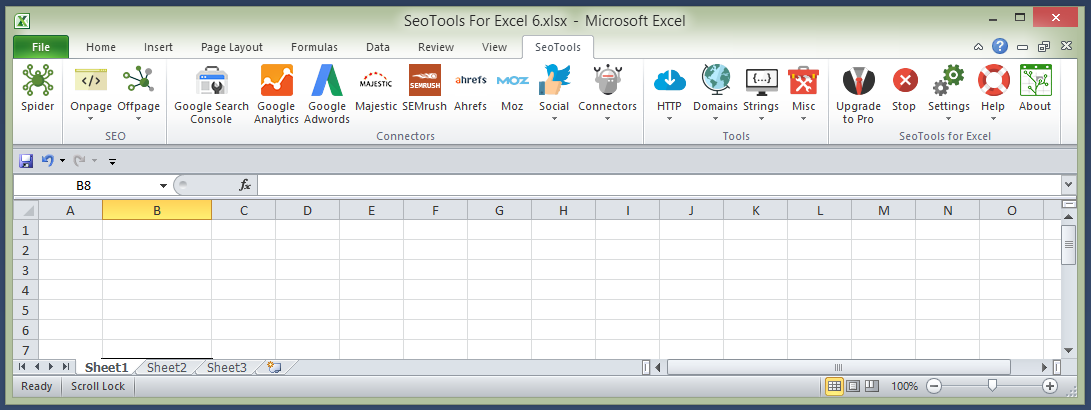
## Async and Caching
**MAJOR UPDATE:** Most functions incl. Connectors are now asynchronous meaning that they can be stopped and can run in parallell (if the external data source permits it) and won't make it seem like Excel freezes. This translates into a HUGE boost in user experience because of multi-tasking capabilities and significantly faster calculations!
For this we also built a new cache. So hopefully no more OutOfMemoryExceptions when working with loads of data. The cache offloads onto disc and is deleted when you close Excel.
## Loads of new Connectors
I have a new partner named Victor Sandberg ([@diskborste](https://community.seotoolsforexcel.com/users/diskborste/activity) in the Community) that's going to be focusing on building Connectors, and he's already been busy working with this release:
**New Connectors:**
## WhoIs Settings
We have created loads of TLD WhoIs settings.
We now parse the following TLDs: ac, ae, ag, am, as, at, au, be, bg, biz, br, by, ca, cc, ch, cl, cn, co, com, coop, cr, cx, cz, de, dk, ee, fi, fm, fr, gov, hk, hr, hu, id, ie, il, in, info, ir, is, it, jp, kr, kz, li, lt, lu, lv, ma, mk, mn, mo, ms, mx, na, name, net, nl, no, nu, nz, org, pe, pl, pt, pw, ro, ru, sa, se, sg, si, sk, st, tc, th, tk, tn,to, tr, tv, tw, ua, uk, us, uy, uz, ve, ws.
## Cookbook
We've gotten some feedback that we should provide more templates and examples on how to use SeoTools. To start this, we've moved the cookbook folder to Github. Please submit your templates! The best ones will be featured in a special gallery section on the SeoTools webpage.
## Pro
WhoIs and HTTP functions now require a Pro subscription. In return **I've removed the much disliked startup window**. Please support us by purchasing a subscription.
Get a [14-day trial](/start-trial/) or [Go pro](/purchase/) today! :)
## Other Fixes
New String generator tool. Located under Strings. Very useful if you're a Razor ninja.
Fixed issues with wizard configs.
Updated the Adwords API.
Dowload the latest version of SeoTools!
---
# 15 Excel tips every SEO professional must know
URL: https://seotoolsforexcel.com/15-excel-tips-every-seo-professional-must-know/
Type: post
Published: 2016-10-15
Updated: 2019-05-20
Summary: In this article, I’ll teach you the tips you need to know to improve your Excel skills in a matter of minutes.
Whether its basketball, pubic speaking, or SEO, mastering the fundamentals is key. Sure, you may be able to alter a data set manually or copy a strange looking formula, but if you want to be prepared for the challenges of tomorrow, this article will get you a long way.
**Mikkel Sciegienny** at [Spreadsheeto](https://spreadsheeto.com/) has been involved with SEO for five years and in this blog post he will share 15 important tips for mastering Excel.
## 15 Excel tips every SEO professional must know
>Excel is one of the most widely used software programs in the world, and is used in niches you can’t even think of. But in many niches and industries, there are work processes that scream for Excel.
One of the common factors for these work processes is that they include a lot of data that sometimes needs to be cleaned up before it makes sense. Other common factors are keeping track of stuff like emails, replies and links. Lots of links.
Luckily there’s a tool that’s so powerful and flexible that it covers all this – can you guess what software program I am talking about?
As an SEO professional, Excel skills can ease up your work and increase your productivity – which will make you an even better SEO.
In this article, I’ll teach you the tips you need to know to improve your Excel skills in a matter of minutes. This article and the examples are written for Excel 2016 on a machine running Windows, but almost all of the tips are universal for Excel 2007/10/13/16 for Windows, although the layout may look a bit different on your version.
We start off with the easy tips and progress to the more advanced ones.
## Tip 1 - Freeze panes:
> Don’t lose track of your headers
When working with tons of rows and columns, freezing the column headers will make it a lot easier to keep track of the data you’re looking for.
Scroll to the top of your spreadsheet. Go to the ‘View’ tab on the ribbon (that’s the fancy word for the menu with all the buttons by the way). Then click the ‘Freeze Panes’ button.
Now click the ‘Freeze Top Row’ option.
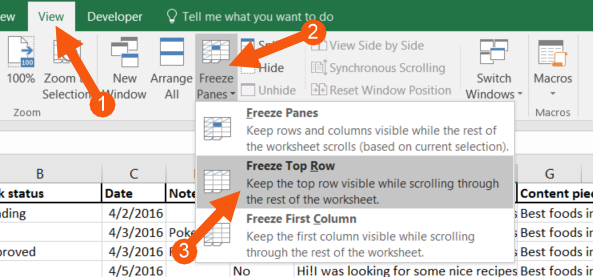
When you’ve done this, try to scroll down your sheet. You now see that the headers in row 1 follow along as you scroll down the spreadsheet.
This means that from now on, you never have to scroll to the top of your sheet to see what columns you’ve selected when you’re in in a row below the fold. And when working with SEO, you will encounter this issue sooner or later.
### Tip 2 - Wrap Text:
> Inserting long texts nicely
The content of a cell can be too big to fit in it properly. This is particularly true when dealing with longer strings of texts, e.g. email text for outreaching.
When copied directly into Excel the cell is by default automatically fitted to the text. That means it can ruin the design of your spreadsheet because it gets absurdly large.
When this happens, left-click the name of the column (A, B, C, D…) right above row 1 that holds the cells with a lot of text.
Then click the ‘Wrap Text’ button on the ‘Home’ tab of the ribbon so it’s deselected.
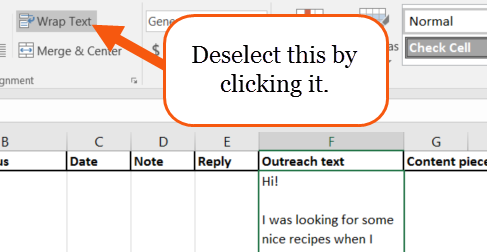
Now your text looks like it’s “hidden” behind the other cells. This is a good thing since it now doesn’t break the layout of the sheet by oversizing the rows.
### Tip 3 – Paste as values:
> When you just need the formula results
Copying and pasting are some of the most used features of a computer – and of course also in Excel. Pasting values only, when copying cells that include formulas, makes it possible for you to easily relocate values in your spreadsheet.
After you’ve copied one or more cells then, when pasting the cells, right click the desired destination of cells and look to the ‘Paste Options:’.
The second option here is called ‘Values (V)’ (which you’ll see when you hover your mouse over it). Click it, and the copied cells are now inserted as values instead of whatever they were before.
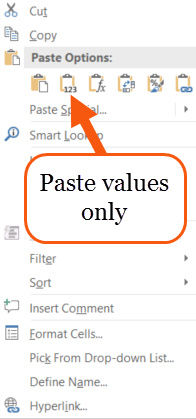
This is especially useful when you’ve done some calculations on rankings, CTR or conversion rates and need to relocate the results of your formulas.
### Tip 4 – Filters:
> Cut out the data you don’t need
Filters are one of the most loved features of Excel, both for its ease of use and its ability to get what you want from your massive datasheet in no time. As an SEO expert filtering in Excel is a must-know.
First, select any cell within your data.
Then click the ‘Data’ tab on the ribbon and click the ‘Filter’ button.
Now you’ll see a drop-down button next to each of your column headers.

When you click these buttons, you have options to filter out which rows you want and don’t want to see. When unselecting one, or more, of the options and clicking ‘OK’, the rows that contain that specific data in that specific column will not be shown.
This is also applicable the other way around. E.g., if you only want to see the rows with links that have been approved, then uncheck all the other checkboxes and click ‘OK’. Then you’ll only see the rows where the ‘Link status’ is “Approved.” The other rows will be hidden.
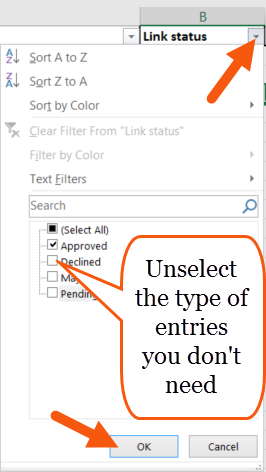
### Tip 5 – Remove Hyperlinks:
> Convert multiple hyperlinks to regular text in seconds
As a default, Excel recognizes text that starts with *http://* as a hyperlink. That means that Excel automatically gets the blue font color and the underlining and when you click it, it opens in your default browser.
When keeping track of data with a lot of links all these hyperlinks are not very beneficial to you. It’s much easier if they were just regular text.
You can convert all your hyperlinks to text at once by pressing the shortcut ‘Ctrl + A’ twice to select all the cells in your sheet.
Then right-click any cell and click ‘Remove hyperlinks’.
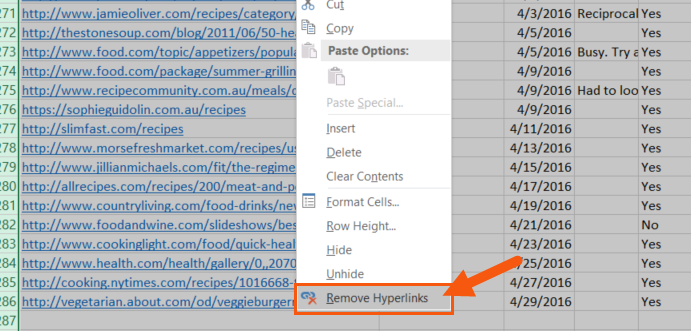
### Tip 6 – Find and Replace:
> The quickest way to clean up data
The ‘Find and Replace’ feature is one of Excel’s most underused features. Most Excel users don’t imagine using it to clean up parts of a lot of text strings at once.
A great example of this is a situation where you want to remove the “www.” part of all your URLs.
Select the column that holds your URLs by left-clicking the column name right above row 1. Then use the shortcut ‘Ctrl + H’ to bring up the ‘Find and Replace’ dialog box.
In the ‘Find what:’ field type in “www.” and do nothing else. Then click ‘Replace All’.
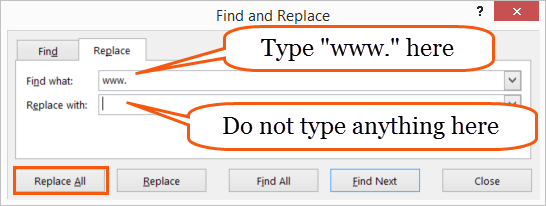
Now you’ve removed all instances of “www.” From all URLs in that column. Rinse and repeat as needed.
This is by far the fastest way of cleaning up URLs in Excel.
### Tip 7 - Import a .CSV file:
> Using your Excel skills on your exports.
Many SEO-tools like AHREFS, Google Analytics, SEMrush, etc., makes it possible for you to export your findings to a .CSV file. When you open that file in Excel, you can do all the manipulation with it you want. However, opening a .CSV-file is not as straightforward as it sounds. There’s a few things you need to be aware of.
Open a blank Excel sheet, then click the ‘Data’ tab on the ribbon and click the button that says ‘From Text’.
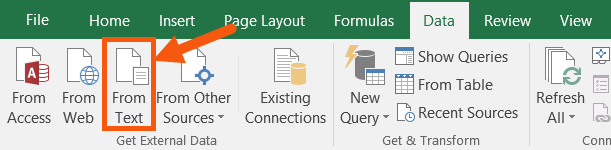
Find your .CSV-file in the browser window and hit ‘Open’.
Now a series of dialog boxes called ‘Text Import Wizard’ appears. This wizard will take you through 3 steps where 2 of them are unnecessary.
If you’ve exported as a .CSV from the above-mentioned programs, then your .CSV- file is very standard and you can just click the ‘Next >’ button in step 1 of 3.
In step 2 of 3, you simply choose the delimiter. It’s not always comma separated. Sometimes the data is separated by a semi-colon or just a tab. If you’re unsure about which delimiter to use, then look at the ‘Example’ window and try to click through them all to see which one that fits the data.
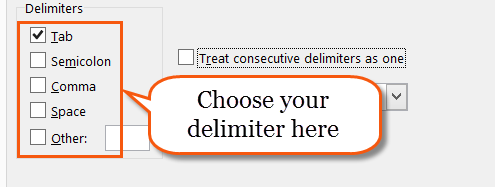
You can skip the entire step 3 of the ‘Text Import Wizard’ and just go ahead and click the ‘Finish’-button.
You may or may not get a new dialog box that asks you where you want to put this freshly imported data. I usually just click ‘OK’ as it’s defaulted to choose cell A1.
And there you have it, as CSV-file imported, correctly, in the matter of seconds.
### Tip 8 – Conditional formatting:
> Identifying duplicates
Conditional formatting is used for coloring your sheet if certain conditions are met. When you type in a new entry in your outreach sheet, you instantly need to know if you’ve already sent an email regarding this specific URL before.
Select the entire column with your URLs by clicking on the name of the column (A, B, C, D…) just above row 1.
Then click the ‘Conditional Formatting’ button on the ‘Home’ tab of the ribbon. Hover your mouse over ‘Highlight Cells Rules’ and chose ‘Duplicate Values…’
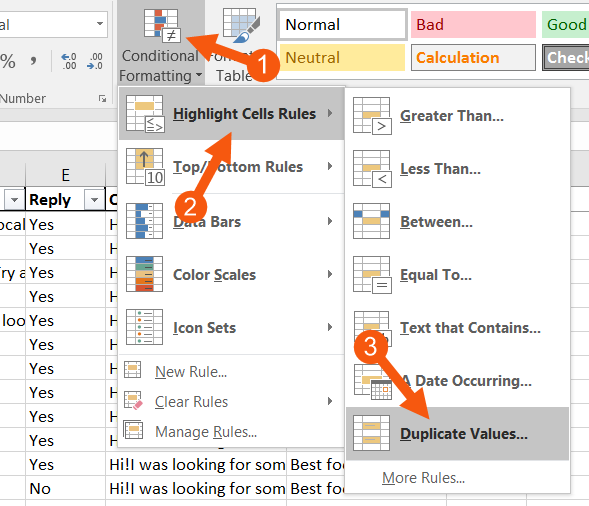
Click ‘OK’ to the next dialog box (or chose custom formatting by clicking the dropdown and selecting ‘Custom Format…’) and then watch out for those colored duplicate values in your column.
### Tip 9 – Remove Duplicates:
> Continuing where we left off.
If you don’t need to look through your duplicates by eye, then Excel can do the job of removing them for you.
Select any cell in your data, then go to the ‘Data’ tab of the ribbon and click ‘Remove Duplicates’.
In the dialog box that appears, you can choose how strict you want Excel to be when removing the duplicates. If you leave all the checkboxes checked then Excel will only remove the entries that match another entry in all cells in the row (within the columns of the data).
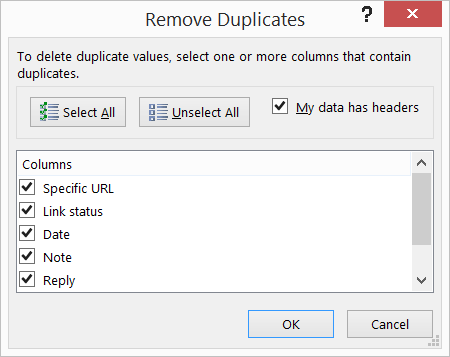
If you click ‘Unselect all’ and in this example check the ‘Specific URL’ checkbox, then Excel will only remove entries where the column with URLs match another entry’s URL.
Note: If Excel finds a duplicate it will remove the entire row, no matter how many checkboxes you’ve checked.
### Tip 10 – Data validation:
> Use a dropdown to control what’s in the cells
Analysis of your work gets a lot easier if you control the variety of cell input. Summing up on ‘Link status’ is time-consuming if you’ve built an outreach sheet of more than a thousand entries and haven’t had a systematic approach to what you enter in the cells.
To avoid dealing with permutations of words like “Approved”, “Declined” and “Pending”, use a drop-down menu to control the input.
Create a new sheet by using the shortcut ‘Shift + F11’. In the new sheet write all the things that you want to be able to choose from in the drop-down menu.
Go back to your original sheet and select all the cells you want to have in the drop-down menu. Then go to the ‘Data’ tab in the ribbon and click the ‘Data Validation’ button.
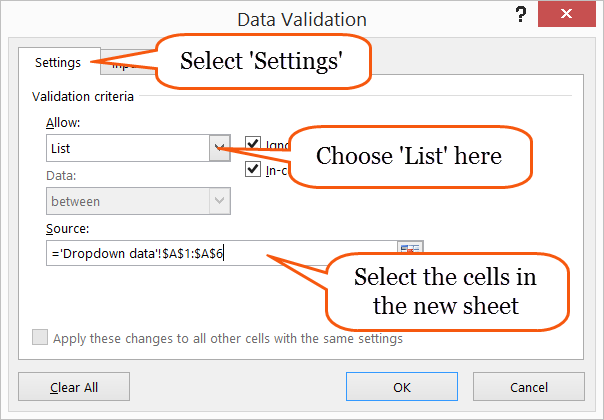
In the dialog box be sure to be in the ‘Settings’ tab. Then under ‘Allow:’ choose ‘List’ and then choose the source for your drop-down menu. The source data is the cells that holds the drop-down menu options in the new sheet you just created earlier.
Click ‘OK’ and then you’re good to go with a drop-down menu that keeps your data simple and ready for analysis.
### Tip 11 – VLOOKUP:
> Find a cell somewhere else and bring back
corresponding data
You might’ve heard about the famous ‘VLOOKUP-function’ before. As far as usability goes, ‘VLOOKUP’ has definitely earned the hype.
Imagine having two sheets of data. One to keep track of outreach and one where you’ve imported a massive export from your keyword miner that, among much else, holds the Domain Authority (DA) for 10,000 interesting URLs.
Now you want to get that DA from that sheet to your outreach sheet on all entries.
‘VLOOKUP’ basically consists of four things:
1) The value you’re looking for.
2) The area where you are looking.
3) The data you want to bring from the area you are looking.
4) A choice of how precise in your search you want to be.
These four things are a simple explanation of what is normally called the ‘syntax’ of an Excel function. And this is how you use the function:
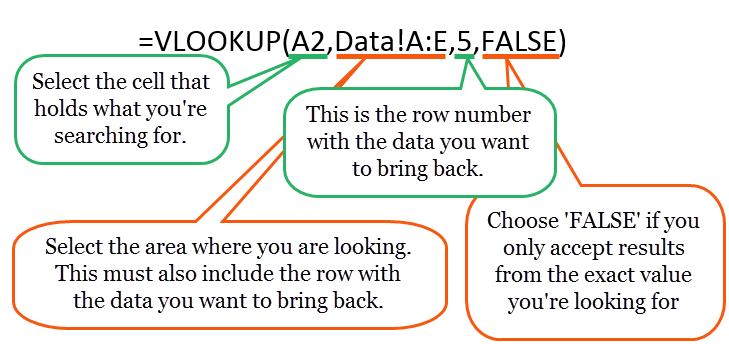
This is the quick way of learning and using ‘VLOOKUP’. There’s so much more to VLOOKUP, and I highly suggest you get yourself familiar with this function.
### Tip 12 – COUNTIF:
> Count cells if they meet certain criteria
Summarizing data is necessary for you to evaluate your work. In SEO, that usually comes to show in form of counting stuff. E.g. counting how many of your outreach emails that resulted in a link.
The ‘COUNIF-function’ is very simple to use. It consists of:
1) Where you want to count.
2) What you want to count.
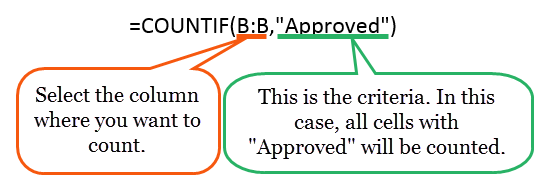
You can exchange the column where you want to count and the criteria to match your data. Remember to put text criteria in double quotes. If you’re counting specific values and not text, just type in the number.
‘COUNTIF’ is a deeper subject than what I’ve just showed you here. Check out this video by ExcelIsFun that explains 21 different examples of ‘COUNTIF’-usage.
### Tip 13 – IFERROR:
> Cleanup formulas that don’t give you answers
When a formula can’t give you a result it spits out an error (usually looks like #N/A). There can be multiple causes for a formula to return an error but usually, it’s because a ‘VLOOKUP’ can’t find the value you’re looking for or a ‘COUNTIF’ can’t find any cells with the criteria you’ve given.
Sometimes you will look at these errors and fix them – but sometimes they require no fix. If you keep the formulas with errors, you have to look at those ugly cells with #N/A. And they don’t look pretty.
You can remove the errors from sight by using the ‘IFERROR-function’. It’s very easy to use and consists of 2 things:
1) The formula you are using.
2) What you want instead of a potential error.
Here’s how you use ‘IFERROR’:
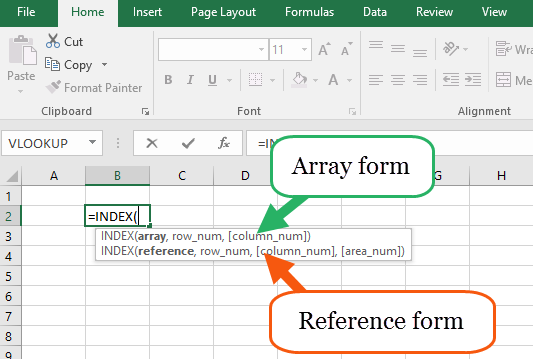
Remember that the ‘IFERROR-function’ can be used before any other function or combination of functions. You can even put another function instead of the above “Can’t find” if you need a calculation or lookup to be made if the first function doesn’t give a result.
### Tip 14 – Charts:
> Visualizing your SEO work
Visual overviews are always easier to read and tells you what you want to know faster than just numbers. You can feed the results from your ‘COUNTIF-functions’ into a chart to get a nice looking overview of what’s going on in your spreadsheet.
If you’ve counted your outreach progress using the ‘COUNTIF-function’ let’s throw that data into a pie chart.
Select your headers, categories and counts like the example below. Then click the ‘Insert’ tab of the ribbon and click the button that looks like a pie chart. Choose your desired design.
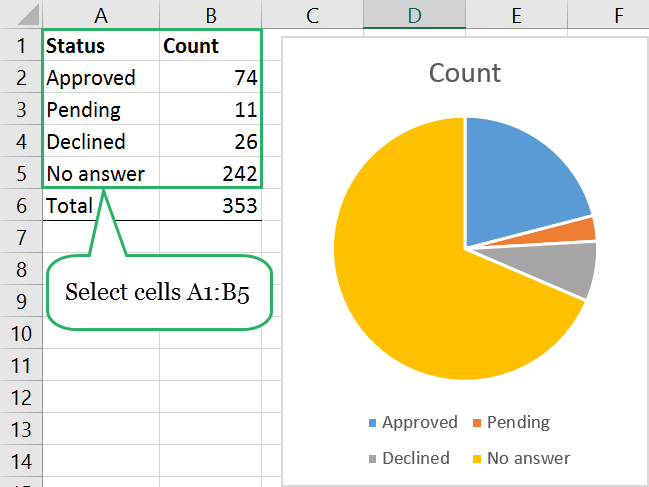
You can modify the chart to your needs by using the two new tabs that appear when you select the chart. From the ‘Design’ tab, you can easily add some data labels if you think the chart’s not precise enough.
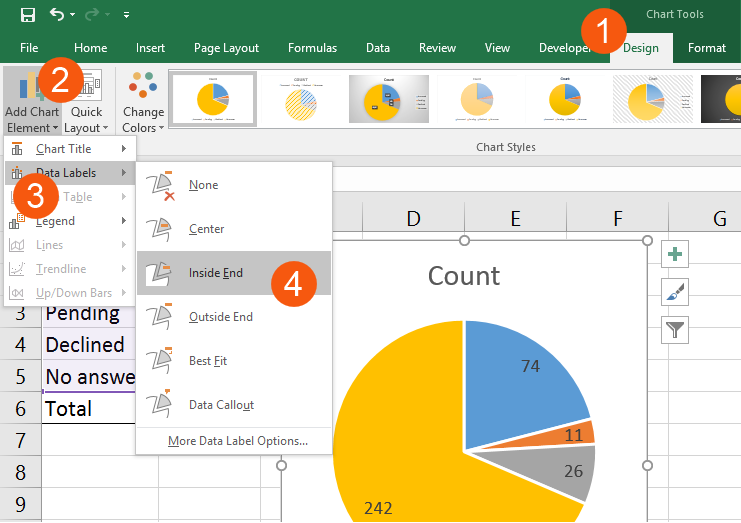
### Tip 15 – VBA:
> Macro to make URLs active.
When you have lots of inactive URLs in your spreadsheet (maybe they’re inactive because you removed the hyperlinks with help from Tip 5) there’s only one way to make them all active at once: VBA.
The programming language Visual Basic for Applications offers a solution to any Excel challenge, but it requires some skill to use. In this case, you don’t have to worry - I’ve done all the work for you.
1) Use the shortcut Alt + F11 to open up the VBA-editor.
2) Click ‘Insert’ and then click ‘Module’.
3) Copy the code from below and insert it here.
4) Close the VBA-editor (click the cross in the upper right corner of the window).
**Here’s the code:**
Sub Activatelinks()
Dim cell As Range
For Each cell In Selection
cell.Hyperlinks.Add Anchor:=cell, Address:=cell.Text
Next cell
End Sub
Now select the cells with the URLs you want to activate and go to the ‘View’ tab of the ribbon. From here you click the ‘Macros’ button.
Select the ‘Activatelinks’ macro and hit ‘Run’.
Try to click the hyperlinks that are now underlined and colored blue as a hyperlink usually is.
Check out more content of **Mikkel Sciegienny** at [Spreadsheeto](https://spreadsheeto.com/) or contact him at
*mikkel@spreadsheeto.com*
---
# SeoTools 5.1
URL: https://seotoolsforexcel.com/seotoolsseotools-5-1/
Type: post
Published: 2016-01-27
Updated: 2019-05-19
Summary: Time for a new release! SeoTools now ships with an installer making installation and upgrades a lot easier!
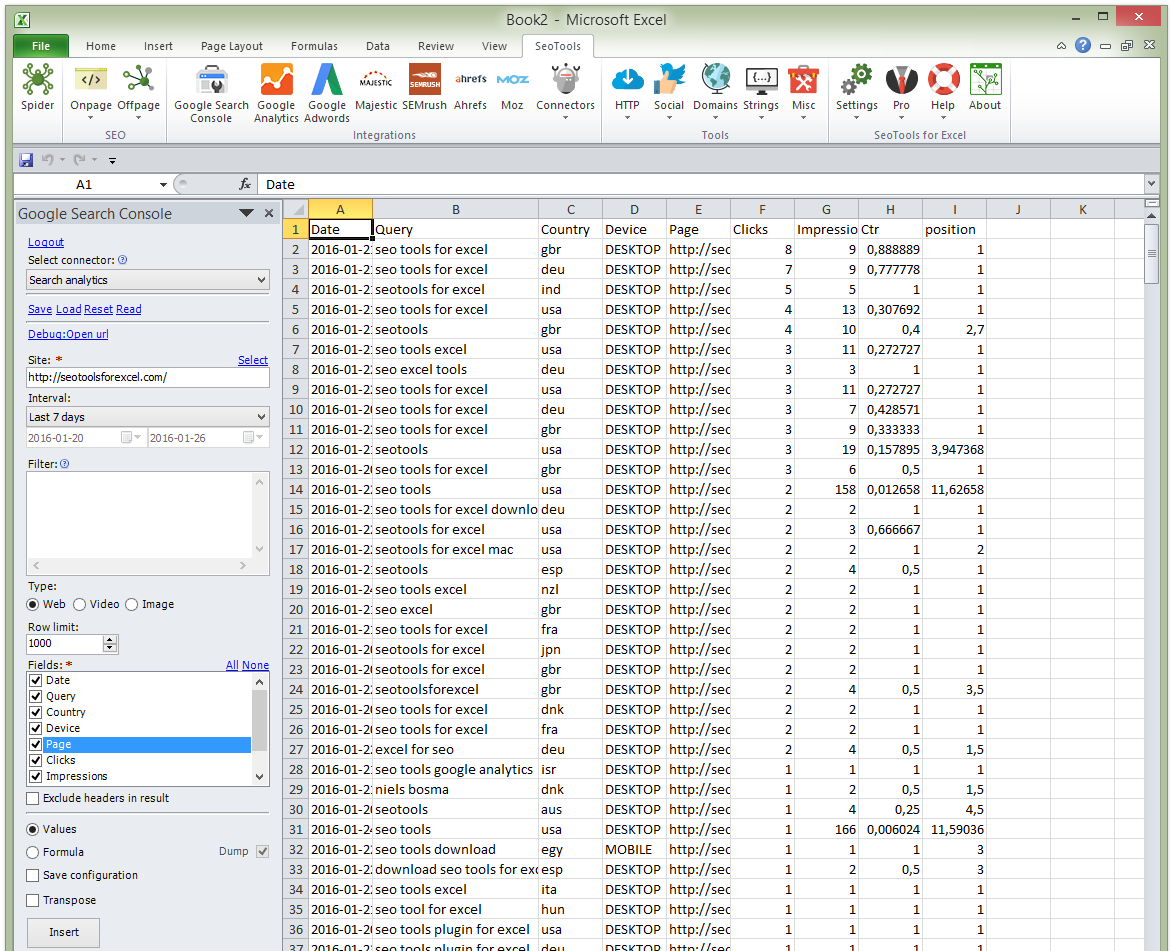
Time for a new release!
**SeoTools now ships with an installer making installation and upgrades a lot easier!**
Download SeoTools 5.1
## Google Search Console
Google actually released a really good API for retrieving search data! Now you can access this directly in Excel with SeoTools.
[Read more](/google-search-console/)
[Use Google’s Search Console API & Pivot Tables To Supercharge Your Long-Tail SEO](https://searchengineland.com/use-googles-search-console-api-pivot-tables-supercharge-long-tail-seo-236133)
## Sistrix
**First connector created by William!** Implemented most of the [Sistrix API](https://www.sistrix.com/api/). If you're a Sistrix customer, this is the connector for you.
[Read more](/sistrix/)
## PhantomJs Cloud
Using this headless browser SaaS you can scrape JavaScript-generated webpages in Excel!
[Read more](/phantomjs-cloud/)
Stay tuned for blogposts on how to use this new connector.
## Other fixes
* Simple Amazon search connector.
* Little bit better support for retina displays (more work to come).
* Fixed issues with Majestic authentication not being stored correctly between sessions.
* Fixed broken WikipediaLinks connector.
* Fixed some issues with Ahrefs authentication.
* Created the Northwind connector as an example SqlConnector. Read more
* Removed TwitterTweets connector as backing API is no longer available. Read more
* Updated Google Analytics metrics and dimension metadata.
* Majestic: EnabledResourceUnitFailover=1 for Index data. Read more
* Ahrefs: Implemented "Backlinks new&lost" endpoint.
* Majestic: New "Referring domains" command.
* Fixed issue with external webpages (like Ahrefs login) not opening in default browser.
Download SeoTools 5.1
---
# Pull social metrics for multiple accounts
URL: https://seotoolsforexcel.com/pull-social-metrics-for-multiple-accounts/
Type: post
Published: 2016-01-10
Updated: 2019-05-19
Summary: Learn the basics of Seotools together with Excel to work with large data sets and pull social metrics for multiple accounts.
We often get this question:
> How can I pull social metrics for multiple twitter/facebook/linkedin accounts at a time? Instead of having to input the url manually for each pull.
This is actually quite easy:
In the wizard of a connector or integration generate the query as a **formula** and then replace the literal url with a reference to the first cell in the column of urls. Then use Excel's [autofill feature](https://support.office.com/en-us/article/Fill-data-automatically-in-worksheet-cells-74e31bdd-d993-45da-aa82-35a236c5b5db) to populate the rest of the cells.
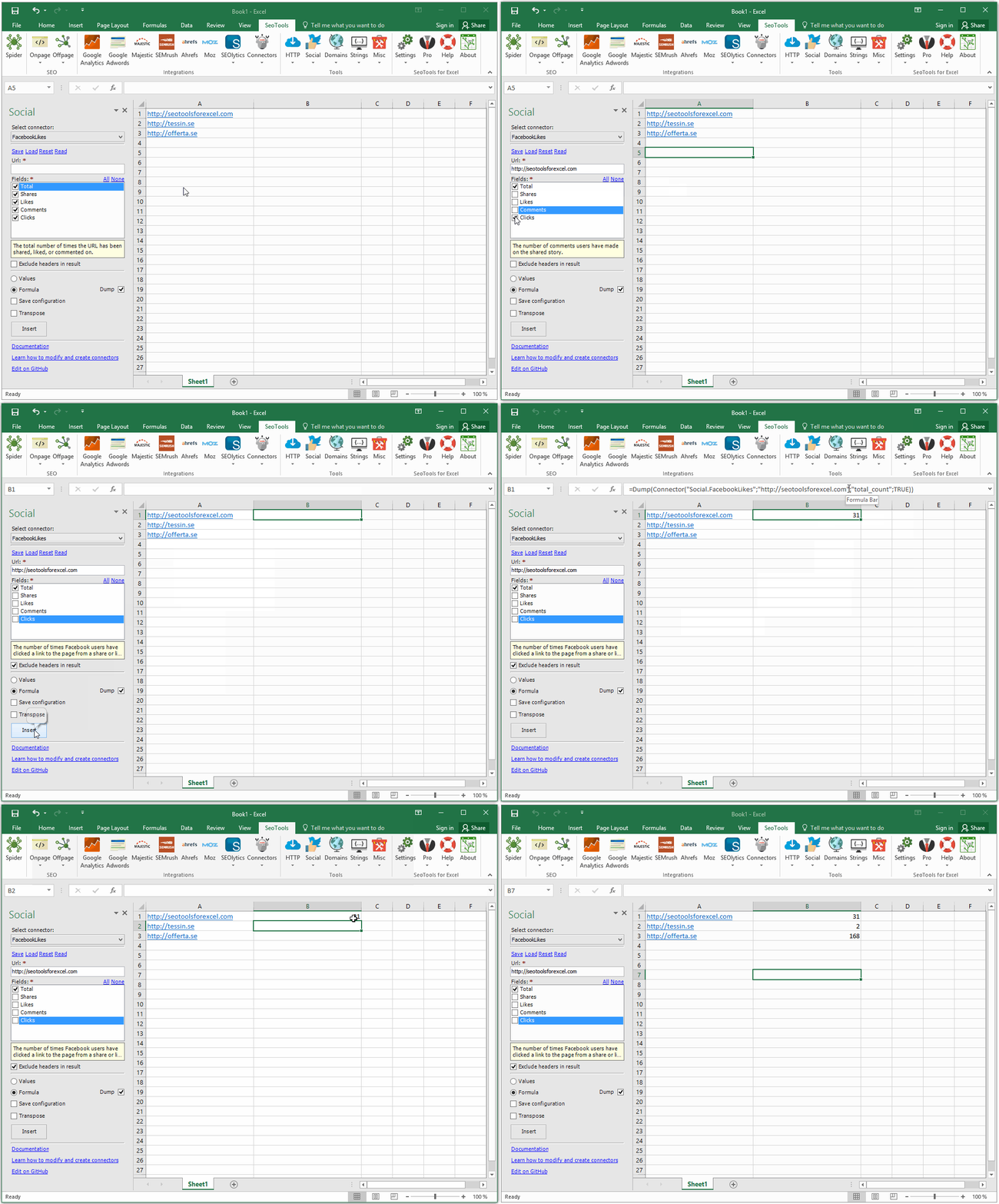
---
# Securely compare customer lists from two parties
URL: https://seotoolsforexcel.com/securely-compare-customer-lists-from-two-parties/
Type: post
Published: 2015-11-01
Updated: 2019-05-19
Summary: Use the MdFive function in SeoTools for Excel to process lists and compare items.
Say you're negotiating a deal with an external party and to be able to move forward you need to know *how many customers do we have in common*? Neither party is at this stage interested in sending their list of customers.
My solution to this problem is by using the new [MdFive](/mdfive/) function in [SeoTools 5.0](/new-seotools-5-0-with-connectors/).
>MD5 which stands for Message Digest algorithm 5 is a widely used cryptographic hash function that was invented by Ronald Rivest in 1991. The idea behind this algorithm is to take up a random data (text or binary) as an input and generate a fixed size “hash value” as the output. The input data can be of any size or length, but the output “hash value” size is always fixed.
(from https://www.gohacking.com/what-is-md5-hash/)
This is how to do it:
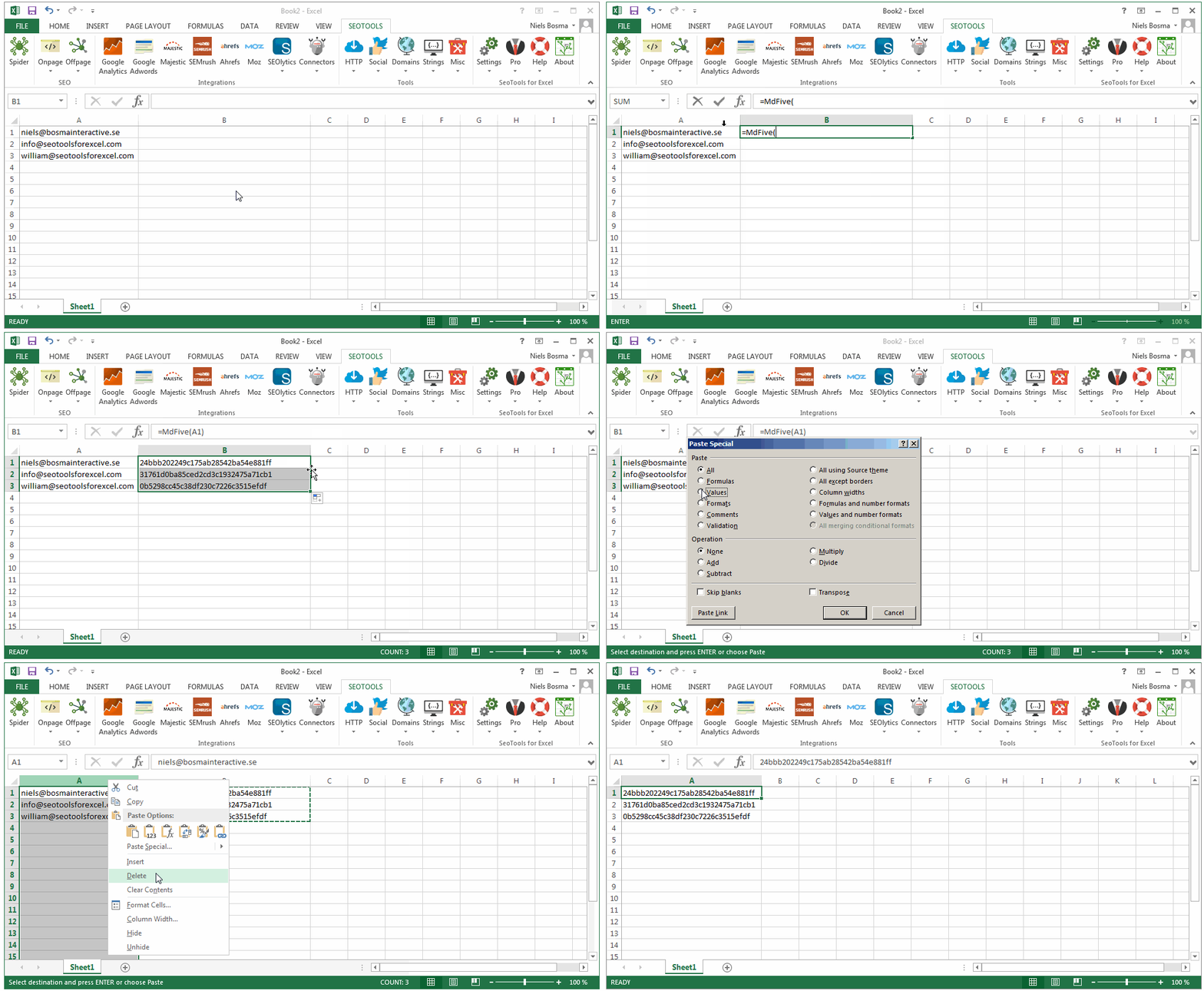
1. Take all your user's emails (or what every sensitive data you want to compare) and put them in one column in Excel.
2. Apply `=MdFive()` on each row (enter the formula in the first row and then double-click on the black square in the lower right corner of the cell to populate all the remaining rows).
3. Select all the generated Md5 values and copy. Press `CTRL+ALT+V` and *Paste as Values*.
4. Delete the column with the emails.
5. The other party also does step 1-4 and you can now exchange files.
6. Now we need to compare what Md5 values exists on both lists. There are several ways to do this, here's a suggestion:
---
# SqlConnectors - Connect to your data in Excel
URL: https://seotoolsforexcel.com/sqlconnectors/
Type: post
Published: 2015-10-26
Updated: 2019-05-19
Summary: SeoTools lets you access data from your SQL database in a structured, easy to read way right in Excel. Find out how in this article.
Let me tell you about the best secret I sneaked into SeoTools 5.0! This is a life-saving feature that I use almost every day at my day job as a growth hacker.
Wouldn't it be nice to be able to access data from your database in a structured and user-friendly way directly in Excel?
Say for example that you have a list of user ids (maybe from a custom dimension in GA?) and you need to quickly figure out the name of each user? What if you could create a [SeoTools Connector](/connectors/) based on a SQL-query that produces an user-friendly UI where you can input the id and get the name as a result through either a formula or a wizard.
Enter SqlConnectors.
SqlConnectors is something you can create yourself if you know how to query your database using SQL.
To demonstrate this I've created a SqlConnector using the classic [Northwind](https://archive.codeplex.com/?p=northwinddatabase) database example.
[View the source code for the Northwind example on GitHub.](https://github.com/nielsbosma/SeoTools-for-Excel-Connectors/blob/master/Northwind.xml)
This is what your get when `Northwind.xml` is added to the `/connectors/` directory:
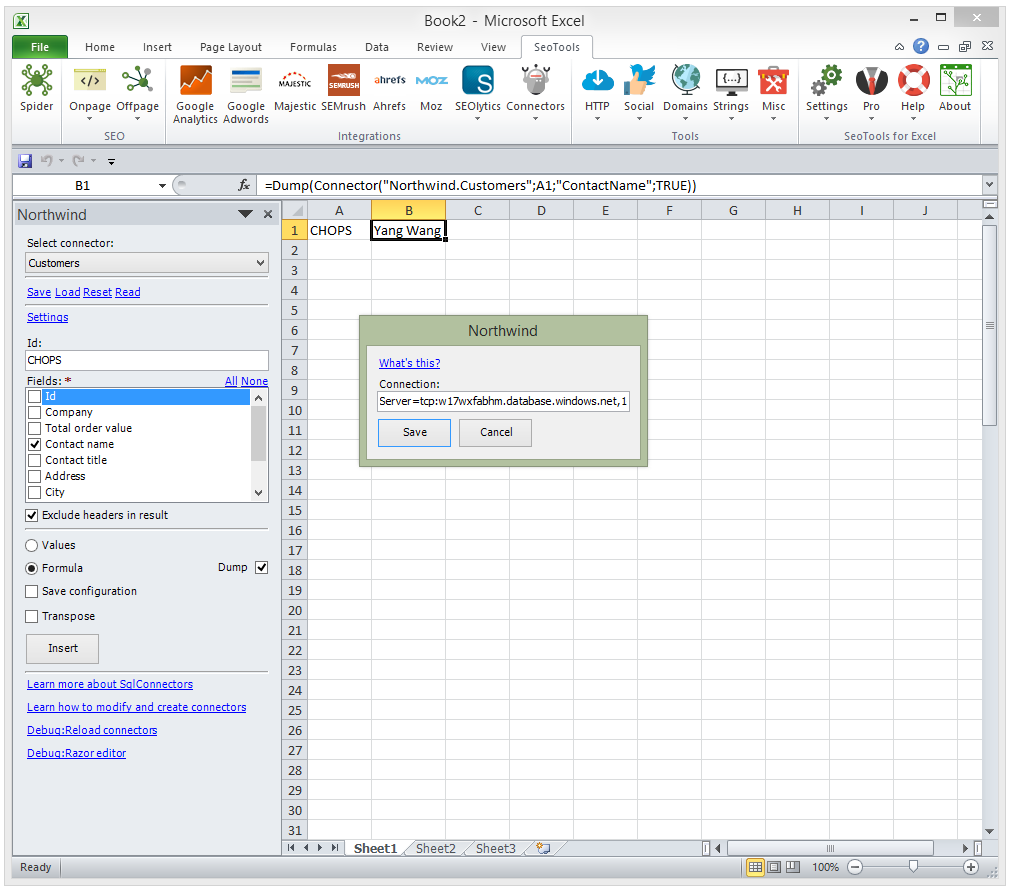
## How to make your own SqlConnectors
Connectors are written using XML. One or more connectors are collected in a connectors suite. A Suite must have an `Id` and a `Title`. Suites with SqlConnectors also has to have a setting with the `Id="ConnectionString"`.
...
SqlConnectors have 3 parts: Parameters, Sql-template and Columns:
A Connector also must have an `Id` and a `Title`.
The Sql-template is written in the powerful [Razor template language ](https://docs.microsoft.com/en-us/aspnet/web-pages/overview/getting-started/introducing-razor-syntax-c). When compiling the Sql-query, the `@Model` is populated with the values of the connector-parameters and suite-settings set by the user.
See other open-sourced [Connectors](https://github.com/nielsbosma/SeoTools-for-Excel-Connectors) for more examples on how to specify parameters and work with Razor templating.
**I hope you also think this is as exciting as I do. By building SqlConnectors I can automate and simplify my data-juggling extensively. Let me know what you think in the comments below!**
## Limitations
Only been tested with MS-SQL.
---
# New SeoTools 5.0 with Connectors, Moz, YouTube and uClassify
URL: https://seotoolsforexcel.com/new-seotools-5-0-with-connectors/
Type: post
Published: 2015-10-18
Updated: 2019-05-20
Summary: Introducing SeoTools 5.0 with Connectors, new service integrations and a plethora of usability improvements.
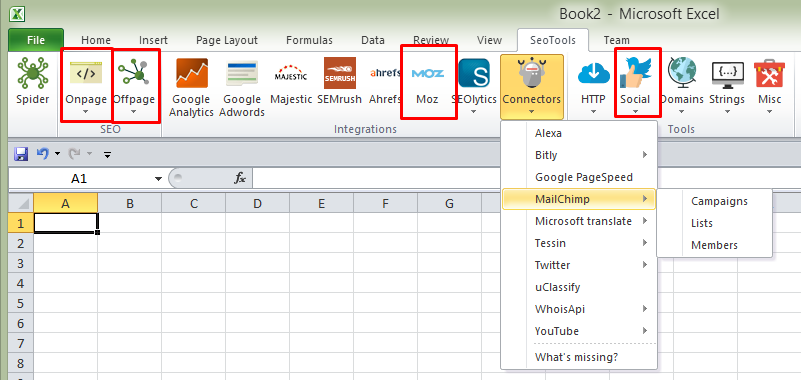
Download SeoTools 5.0
## Connectors
I've rebuilt Scrapers entirely. They are now called [Connectors](/connectors/) and can return table values and do all sorts of cool things.
Connectors are written using my XML format and makes it super easy to integrate most HTTP APIs with Excel.
The ones that I've written has been open-sourced on [GitHub](https://github.com/nielsbosma/SeoTools-for-Excel-Connectors) and I really hope some of you will be inspired and help integrate more APIs. I'll follow up with a post on how to write connectors and some documentation.
## New integrations
* [Moz](/moz/)
* [Bitly](/bitly/)
* [MailChimp](/mailchimp/)
* [Microsoft translate](/microsoft-translator/)
* [Twitter](/twitter/)
* [uClassify](/uclassify/)
* [WhoisApi](/whoisapi/)
* [YouTube](/youtube/)
(All implemented in the new connectors format)
## Pro changes
I spend quite a lot of time on SeoTools and to make this a sustainable business I've decided that I need to add more value to the Pro version. Therefore I've decided to make the following changes:
* To use the [Google Analytics](/google-analytics/) integration you now need Pro.
* All connectors requires Pro (this includes the previous Onpage, Offpage and Social.
**I'm also in a few days going to raise the price from €49 to €69 so make sure you upgrade in time.**
Go Pro today!
## Fixes
* New [Razor()](/razor/) function for string templating.
* New [MdFive()](/mdfive/) for Md5 one-way encryption.
* Fixed issues with [HtmlTitle()](/htmltitle/).
* [SEMrush](/semrush/):
* Added Display date parameter to "Domain overview", "Keyword overview" and "Organic results".
* If you select a database in the view "Keyword overview" the SEMrush command "phrase_this" would be used instead of "phrase_all" (consumes less API credits).
* [Google Analytics](/google-analytics/):
* Added [sampling level](https://developers.google.com/analytics/devguides/reporting/core/v3/reference#samplingLevel).
* Fixed issue with accounts with a lot of items.
* Updated MCF dimensions and metrics.
* Fixed authentication issues.
* Option to specify encoding in [UrlDecode](/urldecode/) and [UrlEncode](/urlencode/): `=UrlDecode(UrlEncode("åäö";"utf-8");"utf-8") => "åäö"`
* Tool for bulk adding proxies in Http settings.
* [Google Adwords](/google-adwords/):
* Option to retrieve search volumes from Google search only.
* Making sure authentication is remembered between sessions if StayAuthenticated is set to true.
* [Majestic](/majestic/): Fixed problem with "Index data" when sending more than 100 urls in one batch.
Download SeoTools 5.0
---
# SeoTools 4.4 with SEMrush
URL: https://seotoolsforexcel.com/seotools-4-4-with-semrush/
Type: post
Published: 2015-06-24
Updated: 2019-05-19
Summary: With the SEMrush integration in SeoTools you can perform powerful keyword analysis, learn what and how much your competitors spend on Adwords.
## SEMrush integration
The much wished-for [SEMrush integration](/semrush/) support is finally here!
With the SEMrush integration in SeoTools you can perform powerful keyword analysis for paid and organic traffic, learn what and how much your competitors spend on Adwords and review your backlinks directly in Excel.
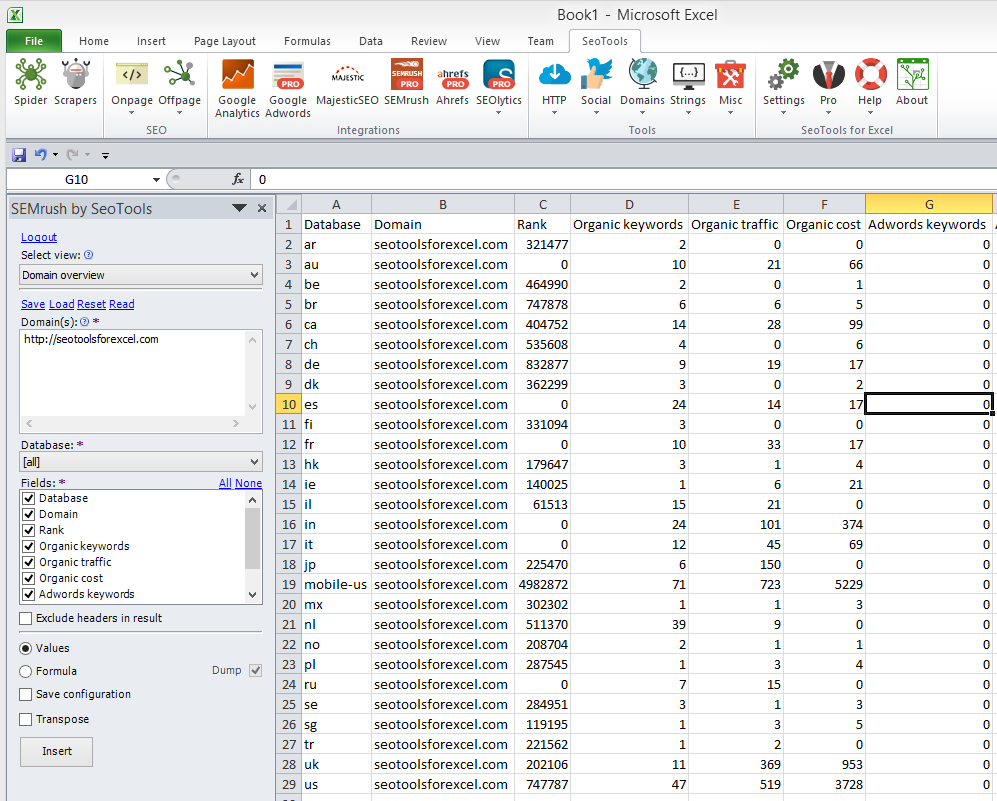
### Integrated features
* Anchors
* Backlinks
* Competitors in organic search
* Competitors in paid search
* Display advertisers
* Domain organic search keywords
* Domain overview
* Domain paid search keywords
* Indexed pages
* Keyword difficulty
* Keyword overview
* Organic results
* Paid results
* Phrase match keywords
* Referring domains
* Referring ips
* Related keywords
* Url organic search keywords
* Url paid search keywords
This integration requires [SeoTools Pro](/purchase/), a [SEMrush subscription](https://www.semrush.com/sem.html?ref=15171257) and a [SEMrush API package](https://www.semrush.com/api-price/?ref=15171257).
## Fixes
* Fixed broken [PageCodeToTextRatio](/pagecodetotextratio/).
* Updated [Google Analytics](/google-analytics/) meta data.
* Fixed problem in [Google Adwords](/google-adwords/) integration with phrases in *Keyword search volumes*.
* New attribute in [DirectoryList](/directorylist/) for recursive file lists.
* Fixed broken [Youtube scraper](/youtube/). You now need an API key. Thanks Doeleman for helping out!
* Modified how depth is defined in [UrlProperty](/urlproperty/).
* Added support for xpath `count()` in [XPathOnUrl](/xpathonurl/). Count number of links on a page: `=XPathOnUrl("https://nielsbosma.se","count(//A)")`
* Fixed broken [Instagram.Followers](/instagram/) scraper.
* Fixed broken [UnshortUrl](/unshorturl/) when querying https://t.co/ urls.
Download latest version of SeoTools
---
# Find the country where a site is hosted in Excel
URL: https://seotoolsforexcel.com/resolve-country-where-a/
Type: post
Published: 2015-05-21
Updated: 2019-05-19
Summary: How to combine several useful functions in SeoTools for Excel and learn how to find the countries where sites are hosted.
Using the [ip-api.com JSON API](https://ip-api.com/docs/api:json) and [ResolveIp](/resolveip/) we can get the country where a site is hosted:
The following API request http://ip-api.com/json/91.189.43.102 returns this JSON response:
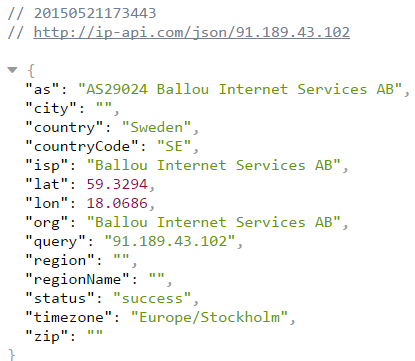
So we use [ResolveIp](/resolveip/) to get the ip of the site and [JsonPathOnUrl](/jsonpathonurl/) on to parse the result:
=JsonPathOnUrl("http://ip-api.com/json/"&ResolveIp("http://nielsbosma.se");"$.country";HttpSettings(TRUE;;;"240|240|Host"))
Note the usage limits from their documentation:
>Our system will automatically ban any IP addresses doing over 250 requests per minute.
You are free to use ip-api.com for non-commercial use. We do not allow commercial use without prior approval.
Note that I added a interval between request of 240ms between requests using [HttpSettings](/httpsettings/) to make sure my IP won't get blocked.
---
# SeoTools 4.3.5 with YouTube metrics!
URL: https://seotoolsforexcel.com/seotools-4-3-5-with-youtube-metrics/
Type: post
Published: 2015-05-02
Updated: 2019-05-19
Summary: A small release this time with some new scrapers and bug fixes.
A small release this time with some new scrapers and bug fixes.
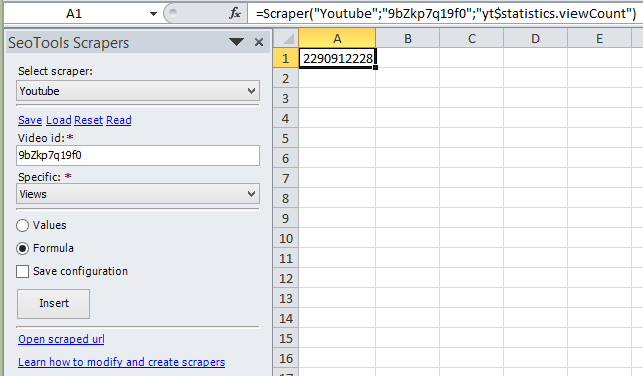
## New scrapers
* [Youtube](/youtube/)
* [Twitter](/twitter/)
* [Google.MobileFriendly](/bulk-check-google-mobile-friendly-in-excel/)
Got an idea for an API that we should integrate into SeoTools as a scraper? [Let me know!](mailto:info@seotoolsforexcel.com)
## Fixes
* Added Include and Exclude url options in [Spider](/spider/).
* Defaults for [AhrefsRank](/ahrefs/) function.
* Updated [Google Analytics](/google-analytics/) metrics and dimensions.
* New "depth" option for [UrlProperty](/urlproperty/)
* Fixed formatting bug in [Google Adwords](/google-adwords/)/Search trends header results.
* Fixed issues with the [Spider](/spider/) when loading stored configurations.
* Fixed a bug when loading saved [Google Adwords](/google-adwords/) settings.
* Fixed issue with device fingerprinting for Pro users on VMs.
* Fixed issue with large numbers in [Google Analytics](/google-analytics/).
Download latest version
[Previous release](/seotools-4-3-scrapers-ahrefs-and-adwords/)
---
# Mobile webpages and SeoTools
URL: https://seotoolsforexcel.com/mobile-webpages-and-seotools/
Type: post
Published: 2015-04-30
Updated: 2019-05-19
Summary: How to adjust the SeoTools for Excel settings to access content from mobile webpages.
There's a a few [different techniques for mobile web content adaption](http://mobiforge.com/design-development/mobile-web-content-adaptation-techniques). Depending on the technique used by the page you're analyzing you way need to set a [user agent](http://en.wikipedia.org/wiki/User_agent) so the right page is fetched.
If the page in question is build using [responsive design](http://sv.wikipedia.org/wiki/Responsiv_webbdesign) you don't need to do anything. But if the pages servers different content based on the user agent you need to change the SeoTools http settings to be able to analyze these pages.
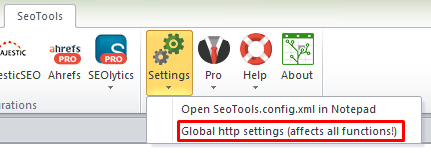
Change the request "User-Agent" header. For example to fake an iPhone 5 you can enter:
Mozilla/5.0 (iPhone; CPU iPhone OS 5_0 like Mac OS X) AppleWebKit/534.46 (KHTML, like Gecko) Version/5.1 Mobile/9A334 Safari/7534.48.3
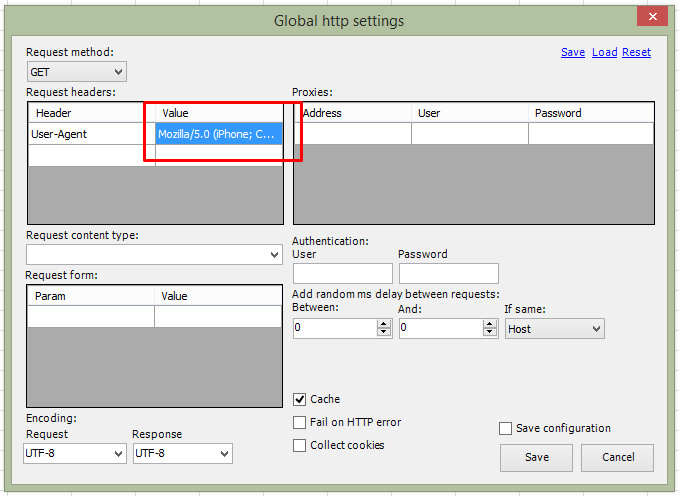
Now when you run funktions like [HtmlTitle](/htmltitle/) and [HtmlMetaDescription](/htmlmetadescription/) SeoTools will fake being an iPhone and get the proper results.
The [Spider](/spider/) will inherit the global http settings but can also be customized for an individual report.
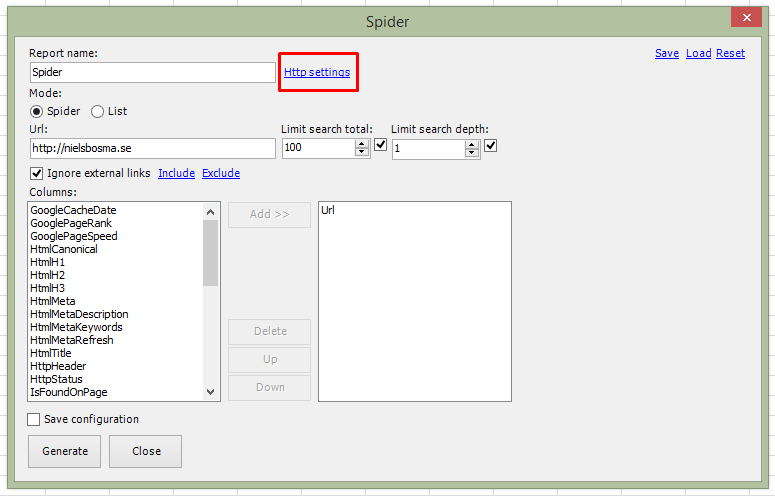
---
# Bulk check Google Mobile Test in Excel
URL: https://seotoolsforexcel.com/bulk-check-google-mobile-friendly-in-excel/
Type: post
Published: 2015-04-24
Updated: 2019-05-19
Summary: In this post I'll show you how we can create a SeoTools Scraper that check this for us in Excel.
So with [mobilegeddon](https://en.wikipedia.org/wiki/Mobilegeddon) raging around us we need a good way to bulk check all of our websites for mobile friendliness. A perfect job for Excel and SeoTools!
Google has released a tool that help test whether a website is considered "mobile friendly" or not. But only for one website at a time. What if we need to bulk check lots of websites to spot the ones we need to fix?
In this post I'll show you how we can create a SeoTools Scraper that check this for us in Excel.
The Google tool internally uses a [JSON](https://json.org/) [REST](https://sv.wikipedia.org/wiki/Representational_State_Transfer) API whose result can look like this:
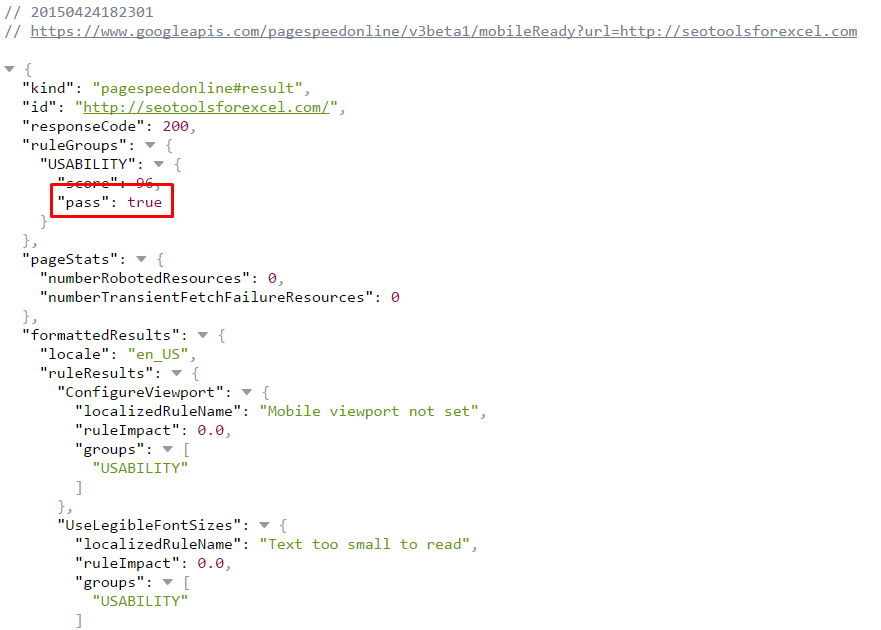
We're after value with the [JSON path](https://goessner.net/articles/JsonPath/) `$.ruleGroups.USABILITY.pass`.
To build a new scraper, create a file `myscrapers.xml` under `/scrapers/` in your SeoTools installation path with the following contents:
false
I've added 1000ms interval between requests to not piss Google off (so they won't block my IP).
If you have Excel open you need to restart Excel. We now have a new scraper:
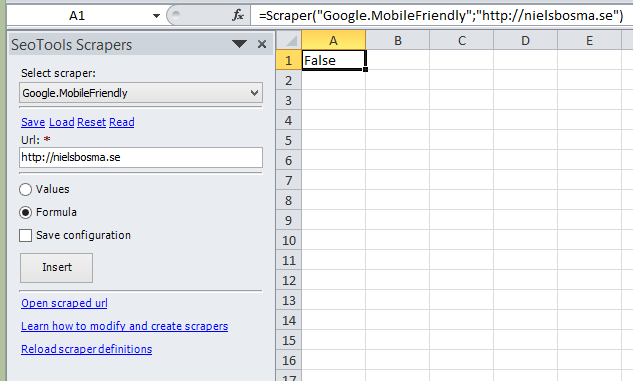
Since the Google API is quite slow you will need need to wait a while for the results. Excel might seem to freeze, but that's just SeoTools working in the background.
*Update: As of SeoTools 4.3.5 the scraper created in this post is included in the release.*
**Do you have other ideas for scrapers? Let me know in the comments!**
---
# Get date_to_release from WhoIs
URL: https://seotoolsforexcel.com/get-date_to_release-from-whois-in-excel/
Type: post
Published: 2015-04-24
Updated: 2019-05-20
Summary: When a domain expires some WhoIs results includes a "date to release". Learn how to get this value for several domains in Excel using SeoTools.
When a domain expires some WhoIs results includes a "date to release".
For swedish domains this can look like:
Using the functions [WhoIs](/whois/) and [RegexpFind](/regexpfind/) we can get this date in Excel using SeoTools:
=RegexpFind(WhoIs("0081.se");"date_to_release:\s*(\d{4}-\d{2}-\d{2})";1)
Using a more generic regexp we can get any field we want:
=RegexpFind(WhoIs("nielsbosma.se");"registrar:\s*([^\n]*)";1)
---
# SeoTools 4.3 – Scrapers, Ahrefs and Adwords
URL: https://seotoolsforexcel.com/seotools-4-3-scrapers-ahrefs-and-adwords/
Type: post
Published: 2015-04-09
Updated: 2019-05-19
Summary: Since it took me two years to release the last version of SeoTools, I wanted to release the next one faster. This one is pumped with new features!
Since it took me two years to release the last version of SeoTools, I wanted to release the next one faster. **This one is pumped with new features!**
## TL;DR
This release is awesome!
[Download latest version of SeoTools without delay!](https://links.seotoolsforexcel.com/latest/)
## Scrapers
In 4.3, I’m introducing a concept that I call *Scrapers*. Scrapers are written using a new XML format that allows you to easily extend SeoTools. A scrapers can given a set of parameters, fetch a web page, locate a particular part of the page and then parse a return value.
[Video overview](https://www.youtube.com/watch?v=-yhMqcw7N98&feature=youtu.be)
Scrapers can be used in formulas and in the SeoTools Spider.
The following scrapers are currently shipped with SeoTools 4.3:
* Alexa.LinkCount
* Alexa.Popularity
* Alexa.Reach
* Bing.Index
* Delicious.Shares
* Dmoz.Entries
* Facebook.Likes
* Google.AnalyticsId
* Google.Index
* Google.Links
* Google.PlusOne
* Google.Results
* Klout
* LinkedIn.Shares
* Email
* Pintered.Pinned
* Stumbleupon.Likes
* Stumbleupon.Stumbles
* Twitter.Tweets
* Wikipedia.Links
* Yahoo.Directory
* Yahoo.Index
Creating your own scraper is quite simple. You can see how the included scrapers are built in the /scrapers/ directory. There will be a follow up post about this so stay tuned.
Let me know what scrapers you need. Just post in the [SeoTools forum](https://community.seotoolsforexcel.com/) and I’ll help you out. **If you create something cool please share with the rest of us!**
**Breaking change:** The following functions have been removed and replaced by scrapers: GoogleIndexCount, TwitterCount, FacebookLikes, AlexaReach, AlexaPopularity, AlexaLinkCount, GoogleLinkCount, GoogleResultCount, DmozEntries, WikipediaLinks.
## Ahrefs integration
I’m really excited for this new Ahrefs integration. To use the Ahrefs integration you need a [SeoTools Pro license](/purchase/) and an Ahrefs account.
[Video overview](https://youtu.be/MLyqH9polYs)
Features:
* Ahrefs rank
* Anchors
* Backlinks
* Domain rating
* Metrics
* Pages
## Google Adwords integration
Finally the long-awaited Google Adwords integration is here! To use the integration you need a [SeoTools Pro license](/purchase/) and a Google Adwords API key.
[Video overview](https://youtu.be/dmA72hjiaXY)
Features:
* Adwords Query Language (AWQL)
* Campaigns
* Keywords
* Keyword search volumes
* Keyword ideas
AWQL is really cool. Using AWQL, you can pretty much query any data from your Adwords account. If you’re a serious Adwords pro, you need to learn AWQL!
## Other notable improvements
* **Inserting values from wizards is now super fast! Also fixed a large performance issue with Dump(). This will make a big difference in SeoTools experience.**
* MajesticSEO Updates:
- Added Skip parameter to Anchor texts, Backlinks and New&Lost Backlinks.
- Added new commands Top pages, Topics and Search by keyword.
- You can now enter “unlimited” urls in Index data.
* New icons!
* Updated how delays between requests are managed. In HttpSetting you can write:
`` This will ensure that requests to the same host will be executed with a delay of random ms between 1000 and 1500. IfSame can be "Host" (default), "Domain" or "Url". This is used in some scrapers as a strategy to not get blocked too quickly.
* Added a default user agent in HttpSettings as some sites returns a http error when none is set. Request are made to look like Chrome 39 on Windows 8.1.
* Fixed some Spider issues with GooglePageSpeed and GooglePageRank columns. Some other stability improvements.
*Updated available metrics and dimensions in Google Analytics Core Reporting. Also treating all dimensions as strings.
* You can now fetch more than 1000 rows (if you have Pro) using Analytics formulas.
* Saving SeoTools.config.xml in AppData directory if failing to save SeoTools dir. If SeoTools.config.xml is not found in SeoTools installation path one is created.
* Added some stats to the Spider progress windows.
* Fixed problem in Spider when creating report and there’s no active workbook.
* HttpStatus and UnshortUrl functions now uses global HttpSettings. HttpStatus column uses HttpSettings from wizard if defined otherwise global HttpSettings. This required when scraping mobile sites where you need to set the User-Agent.
* HttpStatus column in the Spider now has an option to show the “final” http response status code or the “first”.
* Updated HtmlAgilityPack to solve stackoverflow exceptions on certain pages, improving Spider stability.
* Google PageSpeed can now query mobile results.
* Fixed bug with backlinks in SEOlytics not working.
**[Download latest version of SeoTools](https://links.seotoolsforexcel.com/latest/)**
Thanks for being the best community one could have! : ) SeoTools is built on all the great suggestions by growth hackers from all over the world.
/Niels
**PS. If you like my work please consider [purchasing a Pro license](/purchase/).**
---
# How to setup Tlds in SeoTools.config.xml
URL: https://seotoolsforexcel.com/how-to-setup-tlds-in-seotools-config-xml/
Type: post
Published: 2011-12-07
Updated: 2019-05-19
Summary: I got a question in the SeoTools Community Forum on how to setup a .fr TLD in SeoTools.config.xml and decided to make a blog post about it.
I got a question in the [SeoTools Community Forum](https://community.seotoolsforexcel.com/) on how to setup a .fr TLD in SeoTools.config.xml and decided to make a blog post about it.
This post assumes some knowledge in regular expressions. If you don’t know this already, regular expression are extremely powerful and really useful when working with SEO. Start by reading An [SEO’s Guide to RegEx](https://www.seomoz.org/blog/an-seos-guide-to-regex).
In SeoTools.config.xml you can add additional TLDs to support functions that use whois such as [WhoIs](/whois/), [WhoIsDomainExpires](/whoisdomainexpires/), [WhoIsDomainUpdated](/whoisdomainupdated/), [WhoIsDomainCreated](/whoisdomaincreated/), [DomainAge](/domainage/) and [IsDomainRegistered](/isdomainregistered/).
In SeoTools.config.xml, in the section `` add:
```
```
First we figure out a good WhoIsServer for .fr. Googling “Whois server france” gives us “whois.nic.fr”. (Also .whois-servers.net usually works).
Now we do a whois search for a domain we know exist. Either find a whois service for your particular TLD or use a command line tools such as Whois in [Sysinternals](https://docs.microsoft.com/en-us/sysinternals/downloads/whois).
Then we figure out the regular expression for parsing out the part that we need. To do this, I copy the whois text into [RegExr](https://regexr.com/).
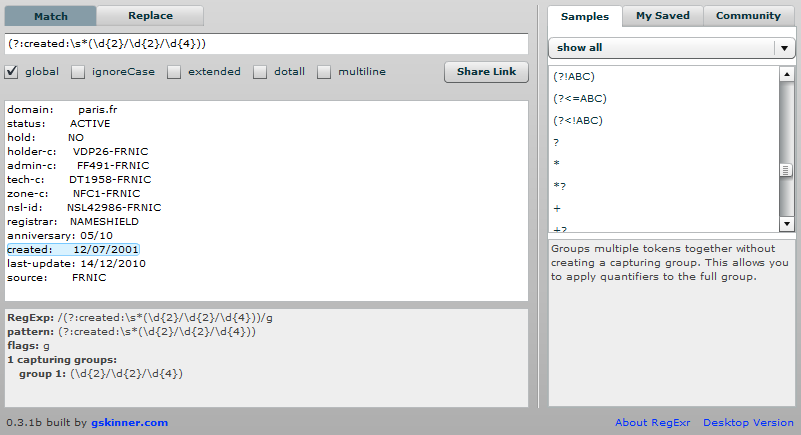
For WhoIsCreatedRegex we create the regular expression `(?:created:\s*(\d{2}/\d{2}/\d{4}))`. Do the same for WhoIsUpdatedRegex and WhoIsExpiresRegex.
We now finally need to figure out what happens when getting whois for a domain that doesn’t exist.
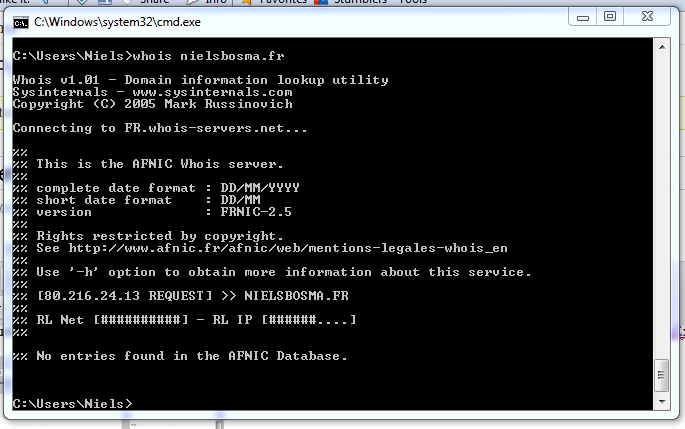
We see that if the domain isn’t registered, the text “no entries found” is present in the whois result.
Our final `` is now:
```
```
While working on this post I noticed that SeoTools wont propertly parse DD/MM/YYYY formatted dates. I will fix this in the next release of SeoTools (3.3). Until then only IsDomainRegistered will work properly with this configuration.
UPDATE:
This was fixed in 3.3. Final for .fr is:
```
```
If you manage to make a TLD setting, please share with the community by posting in the comment section below.
---
# Working with regular expressions in Excel
URL: https://seotoolsforexcel.com/working-with-regular-expressions-in-excel/
Type: post
Published: 2011-03-06
Updated: 2019-05-19
Summary: How to combine Excel with the power of regular expressions. Working with strings and text have never been easier than regex formulas from SeoTools
[Regular expressions](https://regexone.com/) can be very useful for validating and manipulating data. Unfortunately there’s no built in support for regular expressions in Excel. You can use VBA but I think that’s a bit too messy.
In my Excel plugin SeoTools, I’ve added four methods:
`=RegexpIsMatch(string input; string expr)`
Matches an input string with a regular expression and returns true if there’s a match.
`=RegexpFind(string input; string expr; int group)`
Takes a regular expression and retrieves the matched group from an input string.
`=RegexpFindOnUrl(string url; string regexp; int group)`
Same as RegexpFind but the input string is instead the contents of a webpage.
`=RegexpReplace(string input; string expr; string replacement)`
Within a specified input string, replaces all strings that match a specified regular expression with a specified replacement string.
All examples below assume that you have downloaded and added SeoTools to the document you’re working on.
## Example1: Validating email addresses with RegexpIsMatch
Let’s say you have a column with a bunch of email addresses and you want to find all invalid addresses. The following formula will return FALSE for all invalid email addresses:
`=RegexpIsMatch(“niels@bosmainteractive.se”;”^[A-Za-z0-9._%+-]+@[A-Za-z0-9.-]+\.[A-Za-z]{2,6}$”)`
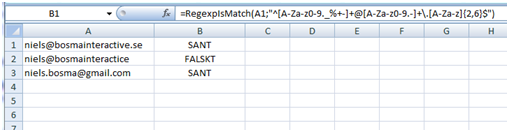
## Example2: Find a particular part in a text
Now let’s say you have a column with text where you’d like to extract a particular part from, i.e. “Sports (id:4)”, where we like to extract the “4″ into a new column.
`=RegexpFind(A1;”\(id:(\d+)\)”;1)`
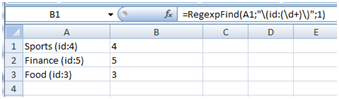
## Example3: Get the number of pages indexed in Google for a set of keywords
For the last example we try some simple [web scraping](https://en.wikipedia.org/wiki/Web_scraping) using the regular expression support in SeoTools. In our example we have a set of keywords and want to have the formula return the number of pages a search returns.

`=RegexpFindOnUrl(“https://www.google.com/search?q=”&UrlEncode(A1);”About ([0-9,]*) results”;1)`
With functions in SeoTools that are marked with “(cached)” (such RegexpFindOnUrl) the URL is only fetched once per “session”. So if you have several pieces you want to extract from a webpage the source of the page is only downloaded once even if you reference the URL several times in different formulas.
## Resources for working with regular expressions
* [.Net regular expressions.](https://www.regular-expressions.info/reference.html)
At [RegexOne.com](https://regexone.com/) your can find a bunch of regular expressions that you can use for validating different types of data.
---
# Using Excel for finding available domain names
URL: https://seotoolsforexcel.com/using-excel-for-finding-available-domain-names/
Type: post
Published: 2011-01-08
Updated: 2019-05-19
Summary: Using a good domain name for a project can be key for a successful web project. SeoTools for Excel offers the best tools to identify available domains
Using a good domain name for a project can be key for a successful web project. I terms of SEO it is for example (at the moment at least) good to have the most important search phrase that you’re targeting in your domain name ([read more on this](https://www.seo.com/blog/domain-names-and-seo/).
Finding available domain names is hard. And not all TLDs are equally good.
In my project [SeoTools (Excel extension that adds functions to your excel workbook)](/download/) I’ve added two functions `IsDomainRegistered(string domain)` and `Whois(string domain)` to aid in finding new domains.
## Example usage
Let’s say I’m building a site for selling boats. And I need to find a good domain name that’s available. This is how you can do this in Exel using SeoTools.
1. Open an new Excel workbook. Download and add SeoTools to your workbook.
2.Create a header row with all TLDs and column with all domain name ideas. Then for each cell use a formula like `=IsDomainRegistered($A$2&B1)`. Add some color coding, and your done.
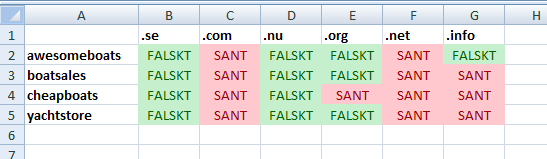
The Whois function retrieves Whois information for a given domain name.
## Configuration
The Whois servers used can be configured in SeoTools.config.xml that is located in the directory where you unzipped SeoTools.
IsDomainsRegistered performs a whois lookup and looks for certain keywords that indicates that a domain is available, such as the string “not found”. If you get false positives for TLDs that I haven’t test you need to modify the WhoIsNotFoundRegex attribute. Please add a comment below if you find false positives.
___
## See
#### Related Functions
* [IsDomainRegistered](/isdomainregistered/)
* [WhoIsDomainCreated](/whoisdomaincreated/)
---
# Excel plugin for finding duplicate content in cells
URL: https://seotoolsforexcel.com/excel-plugin-for-finding-duplicate-content-in-cells/
Type: post
Published: 2010-11-22
Updated: 2019-05-19
Summary: SeoTools is an Excel plugin gives the current spreadsheet a bunch extra functions. Here’s a guide how to find duplicate content using SeoTools for Excel.
When working with onpage SEO you need to write unique content to keep googlebot happy. Especially if you operate a web page that has a lot of verticals and regions and each combination have it’s own landingpage. Writing really unique content in scale is very difficult and with really unique content I mean never using the same sentence twice.
We use Excel for writing content for landingpages. The problem that I wanted to solve is that given two texts (let say containing 40-60 words each) what is the longest consecutive string that they share? This is know as the [Longest common subsequence problem]() in computer science.
For example the two strings “Hello, my name is Niels” and “Hi! my name is John” has a LCS ” my name is”.
I can use this as a metric saying that given texts for two different landingpages, the LCS may not be more than X words long.
To use this in our daily operation I’ve started a working on a small project that I’ve named SeoTools.
SeoTools is a small Excel plugin that when opened, the current spreadsheet gets a bunch extra functions. Here’s a guide how to find duplicate content using SeoTools
1. Download SeoTools.
2. Unzip to a directory of your choice.
3. Now open a Excel spreadsheet that contains the column with the texts you want to find duplicate content in.
4. Then open the SeoTools.xll (Opening XLL plugins in Excel “augments” the current session).
5. You now get a security message. Click the button to the left that says “Activate the plugin only in this session”. (translated from Swedish)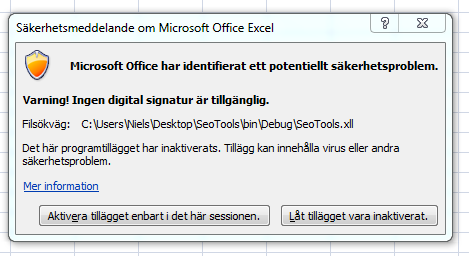
6. Insert a column next to the column with the texts that you want to get LCS for.
7. Use a formula like `=FindDuplicateContent(A1;$A$1:$A$3)` (Tip: Use F4 to make the absolute cell references of the vector.)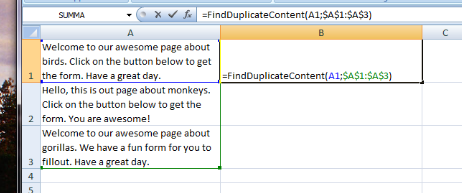
8. Result: 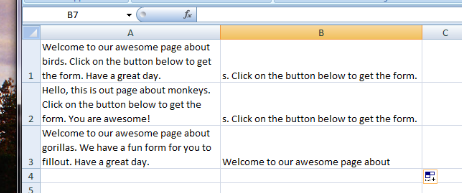
9. Note that LCS is a somewhat computation heavy operation and that for each use of FindDuplicateContent, LCS is calculated for each string in the vector. So don’t expect immediate results for large amount of text. You might want to set your Excel spreadsheet to calculate formulas manually.
## Implementation
The LCS algorithm used is 98% based on a [C# implementation](http://en.wikibooks.org/wiki/Algorithm_implementation/Strings/Longest_common_substring) I found in Wikibooks.