SeoTools not enabled in Excel
SeoTools installs correctly but no SeoTools tab appears on the ribbon. Excel has the add-in — it just is not switched on.
This happens after Excel closes unexpectedly, after an Office update, or when another add-in has caused Excel to disable things on startup. Nothing is broken and nothing needs reinstalling. There are two entries to enable, and you need both: SeoToolsMaster is the Excel add-in, and SeoTools is the COM add-in that draws the ribbon.
1. Open the add-in settings
In Excel, go to File → Options → Add-ins.
At the bottom of the window, set Manage to Excel Add-ins and click Go...
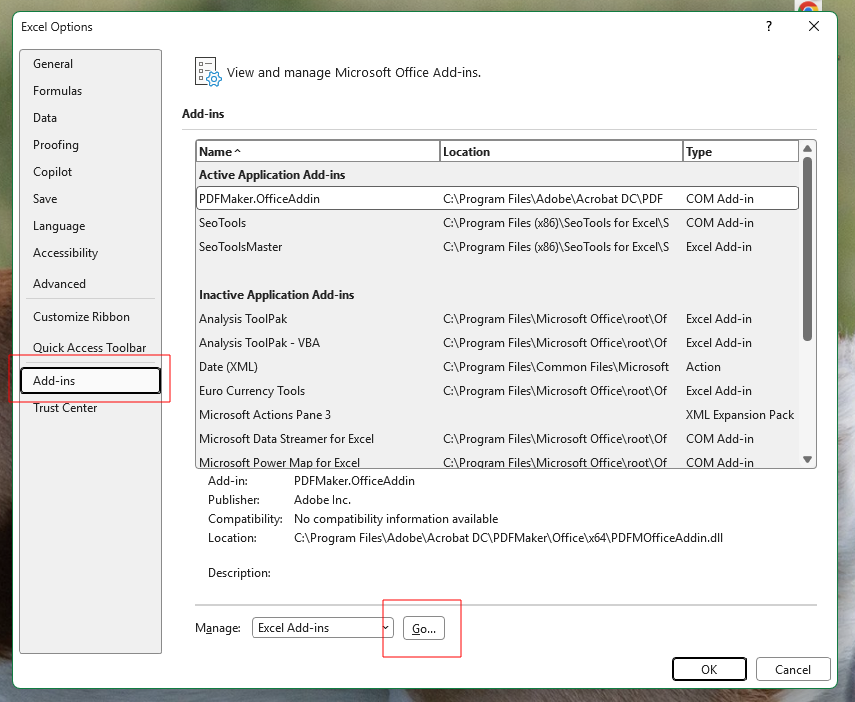
The list in the middle tells you where things stand. If SeoTools appears under Inactive Application Add-ins rather than Active Application Add-ins, that is exactly the problem this page fixes.
2. Enable SeoToolsMaster
Tick SeoToolsMaster and click OK.
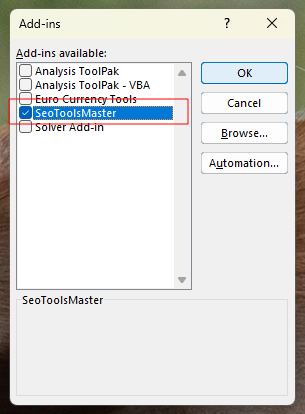
3. Enable SeoTools
Back in File → Options → Add-ins, set Manage to COM Add-ins this time and click Go...
Tick SeoTools and click OK.
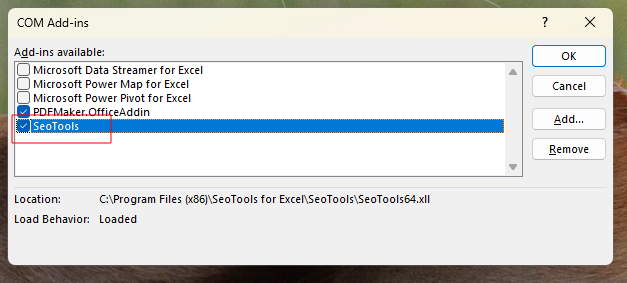
Load Behavior should now read Loaded. The SeoTools tab appears on the ribbon straight away — you do not need to restart Excel.
If SeoTools is not in either list
Then it is not installed for this copy of Excel, rather than disabled. Two things to check:
- Excel bitness. A 64-bit Excel needs the 64-bit add-in. The Location
column in the COM Add-ins dialog shows which one is registered — look for
SeoTools64.xllorSeoTools32.xll. If it is the wrong one, reinstall from the download page. - A second copy of Excel. If you have more than one Office version installed, the add-in registers against one of them.
If it still does not appear, work through the Troubleshooting guide.
Get help with this function in the community →